How to Print Documents & Photos from Android Phones and Tablets

Summary :
This post covers 4 easy ways to directly print documents and photos from Android phones/tablets to physical/virtual printers.
Table of Contents
In many cases you need to print from your Android device – whether you’re sharing a paper copy at work, printing a receipt on the go, or printing a precious picture.
In this guide, we’ll explore different effective ways for this.
[Prerequisite] Connect Android to a Wireless Physical Printer
Before you can print anything, you need to add the printer on your Android device so that compatible apps can seamlessly send files to the device for printing. Here are the steps to connect and configure your device to a wireless printer:
Step 1. Open Settings app on your Android phone > Tap Connected devices.
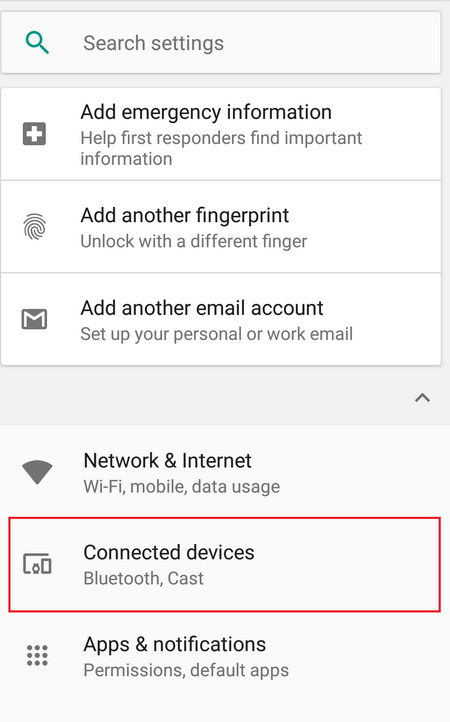
Tap Connected Devices on Settings
Step 2. Navigate to Printing.
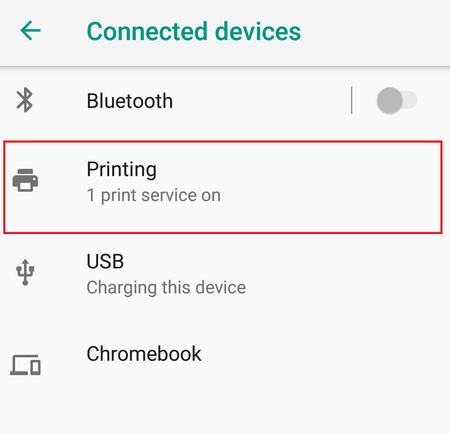
Navigate to Printing on Settings
Step 3. Then you can see Default Print Service enabled default, hit it to choose or connect the wireless physical printer. If your printer requires a specific printer app, tap Add service to install it.
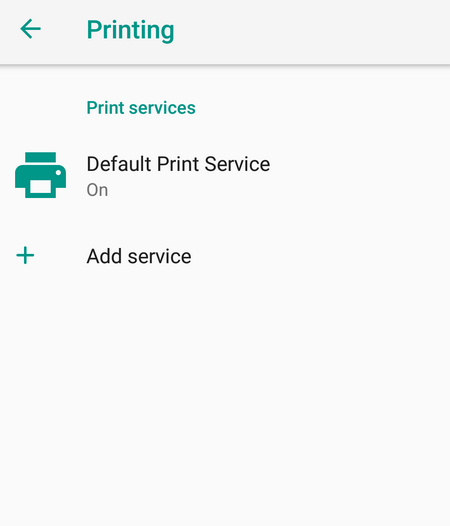
Tap Default Print Service on Settings
Print from Android Using Chrome
Once you’ve connected your printer, you can print from Chrome on your Android device. It allows you to print web pages and local files from your Android phone.
Chrome makes it easy to adjust print settings, select pages, and send the file to your connected printer with just a few taps. You can check the detailed instruction below:
Step 1. On your Android device, open the Google Chrome app.
Step 2. Enter the URL to open the page, document, or photo that you want to print.

Open the File in Google Chrome
Step 3. Click the three dots icon from the top bar > Choose Share… from the menu.
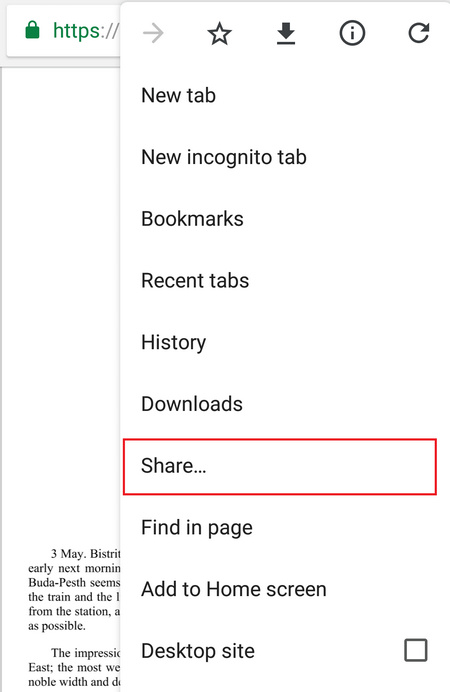
Choose the Share icon from Google Chrome
Step 4. You will see a prompt, and choose the Print button.
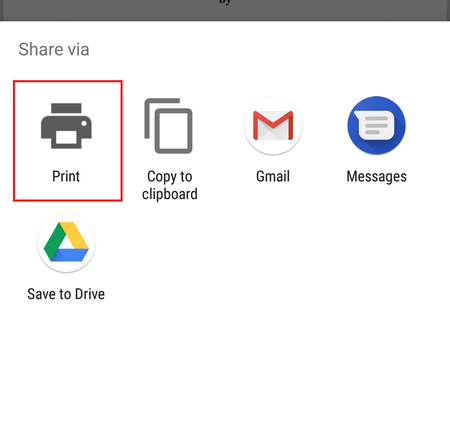
Choose the Print Button in Google Chrome
Step 5. Then tap Select a printer to choose your print service > And you can adjust the print settings as you like by tapping the Down arrow icon.
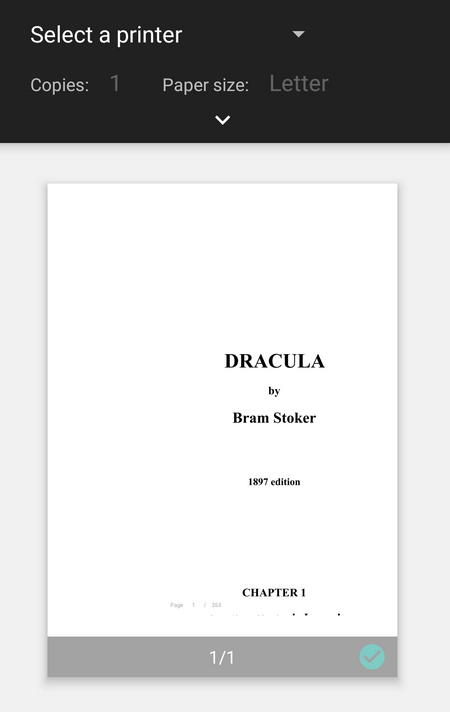
Select a Printer and Adjust Print Setting in Chrome
Step 6. After that, tap the Print button to send the document to your printer.
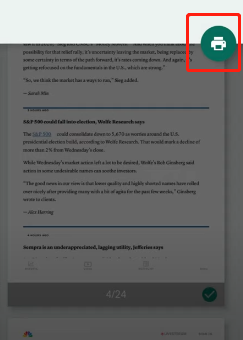
Tap the Print Button to Send File to Printer
Print Images from Android Using Photos App
If you need to print photos, some photo apps make it easy to do so, like Google Photos app or Gallery app. In just a few steps, you can print photos stored in your phone’s gallery directly.
Follow these instructions to quickly select, resize, and print pictures:
Step 1. Open the Photo app on your Android, select the image that you want to print.
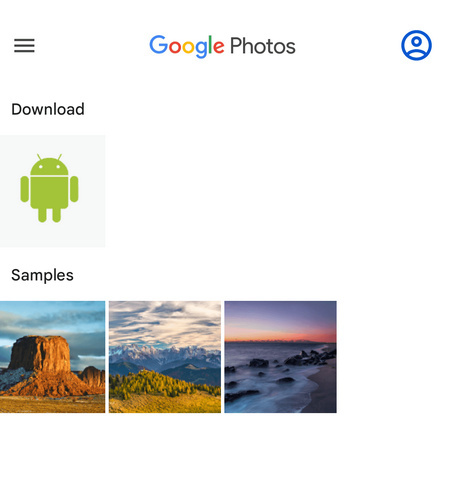
Open the Photo App and Select the Image
Step 2. Click the Share icon from the bottom.
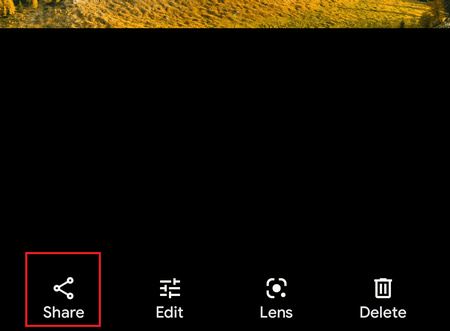
Click the Share Icon from Photos App
Step 3. From the list, choose the Print option.
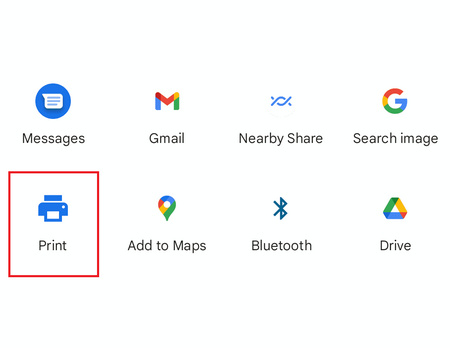
Choose the Print Option from Photos App
Step 4. Select your wireless printer by tapping Select a printer, and adjust the settings if needed (such as size and orientation).
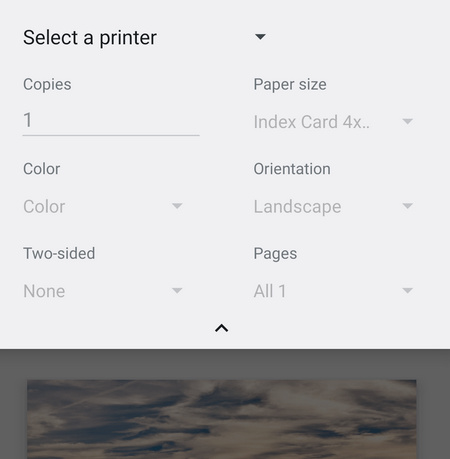
Select the Wireless Printer on Photos App
Step 5. After setting your preferences, hit Print to initiate printing.
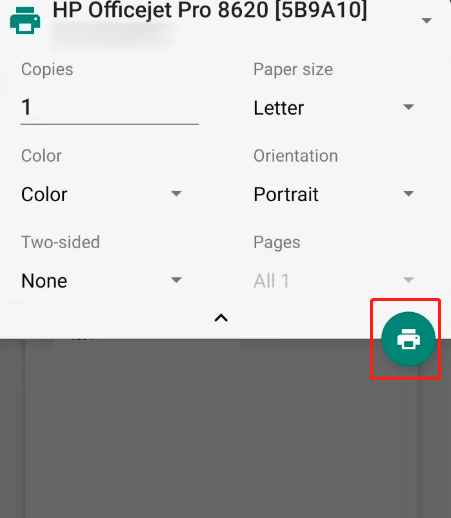
Hit the Print Button to Print Image
Print Documents on Android Using Files App
The Files app on your Android device can also help you quickly print your files, including PDFs, Word documents, and other file types. With the Files app, you can quickly access local documents stored on your phone and send them to a printer.
Please refer to the following instruction:
Step 1. Launch Files App on your Android phone or tablet > Tap the document you want to print.
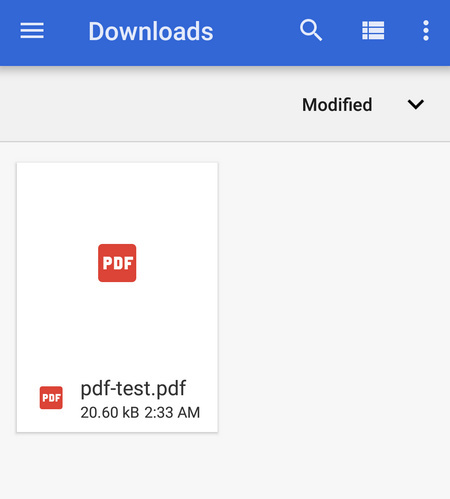
Open the Document from File App
Step 2. Click the three-dot menu at the top right and select Print.
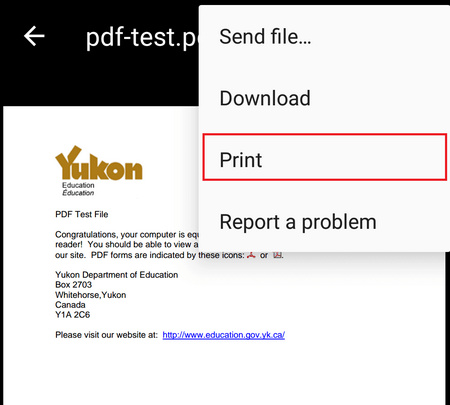
Click the Three Dots Icon and Choose Print
Step 3. Go to Select a printer to choose the printer that you connected.
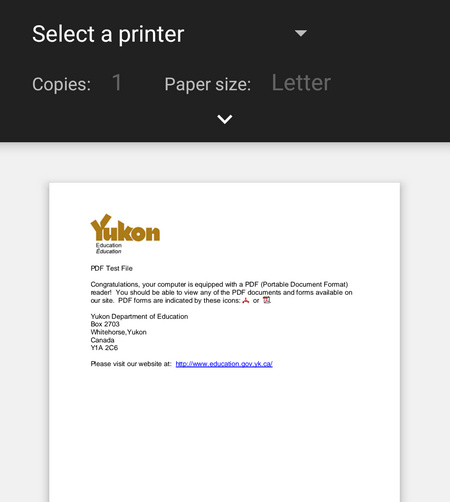
Select a Printer from the Android Phone
Step 4. Tap the Down arrow and adjust the print settings.
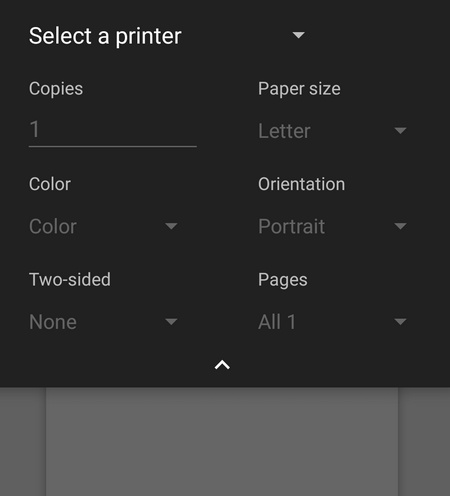
Adjust the Print Settings on Android
Step 5. Finally, tap Print to begin the task.
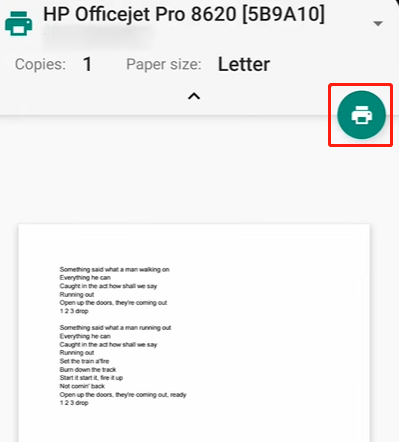
Tap Print to Print the Document
FAQs
What types of printers can I use with my Android device?
You can use various types of printers with your Android device, including:
- Wi-Fi Printers: Connects to the same Wi-Fi network as your phone.
- Bluetooth Printers: Pairs directly with your phone via Bluetooth.
- NFC-enabled Printers: Allows for quick connections by tapping your phone against the printer.
Do I need a special app to print from my Android phone?
While many Android devices come with built-in printing capabilities, some printers may require a specific app for full functionality. For example:
- HP Printers: Use the HP Print Service Plugin.
- Canon Printers: Use the Canon PRINT Inkjet/SELPHY app.
- Epson Printers: Use the Epson iPrint app.
How do I add a printer to my Android device?
To add a printer:
- Open your device’s Settings.
- Navigate to Connected devices > Connection preferences > Printing.
- Tap on Add service, then select your printer’s brand and install any necessary apps.
- Once installed, return to the printing settings and select your printer.
Can I print emails or web pages directly from my Android device?
Yes, you can print emails and web pages directly:
For emails: Open your email app, select the email you want to print, tap on the menu icon, and choose “Print.”
For web pages: In a browser like Chrome, open the page you want to print, tap on the menu icon, select “Share,” then choose “Print” and select your printer.
What if my printer doesn’t appear in the list when I try to print?
If your printer isn’t showing up:
- Ensure both your phone and printer are connected to the same Wi-Fi network.
- Check that your printer is powered on and ready.
- Restart both your phone and printer.
- If using Bluetooth, make sure Bluetooth is enabled and that devices are paired properly.
Is it possible to print documents via email?
Yes, many modern printers have unique email addresses that allow you to send documents directly for printing. To do this:
- Find your printer’s email address (usually available in the printer settings).
- Compose an email and attach the document you wish to print.
- Send it to your printer’s email address.
