How to Remove OCR from PDF for Free

Summary :
Learn about what it means to remove PDF OCR, and the free and easy methods for you to remove OCR layers in PDF on computer and mobile.
Table of Contents
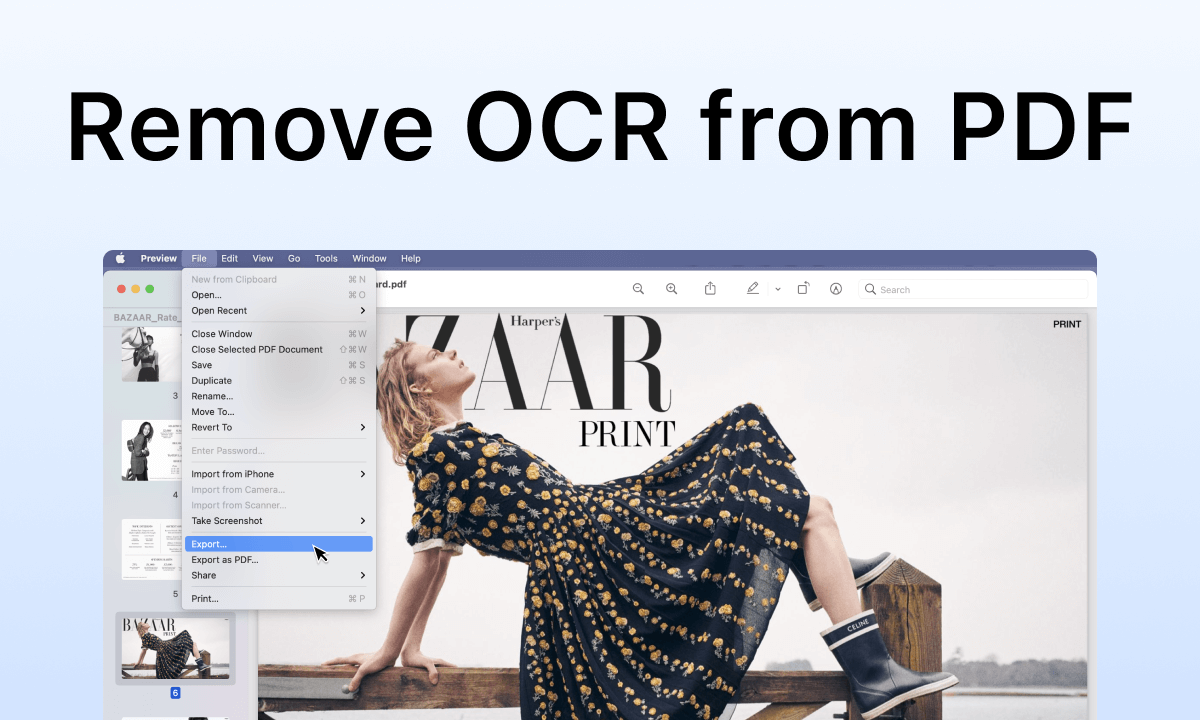
Remove OCR from PDF
Removing OCR (Optical Character Recognition) in a PDF refers to the process of deleting the text layer generated by OCR from the PDF file, a technique that helps turn handwriting into text.
In so doing, you essentially remove this text layer, leaving behind the original scanned image without the ability to search, copy, or edit the text.
👉 Learn about the easy steps to remove OCR using free tools. To get started, get PDFgear, the best PDF OCR remover for computers and mobile.
Remove OCR from PDF FREE & Fast
The best way to remove PDF OCR is by printing the PDF. When you print a PDF, you are essentially converting the digital document into a physical copy.
The process of printing the PDF flattens the file, meaning it combines all the different layers of the document into a single, static image, and the OCR layer will be lost.
The best free PDF OCR remover tool is PDFgear, which allows you to flatten and remove OCR from PDFs with simple clicks, and it even allows you to change page size during the printing process.
PDFgear is a free and versatile PDF OCR remover that helps remove or delete text from OCR layers.
To get started, download and install PDFgear on your device.
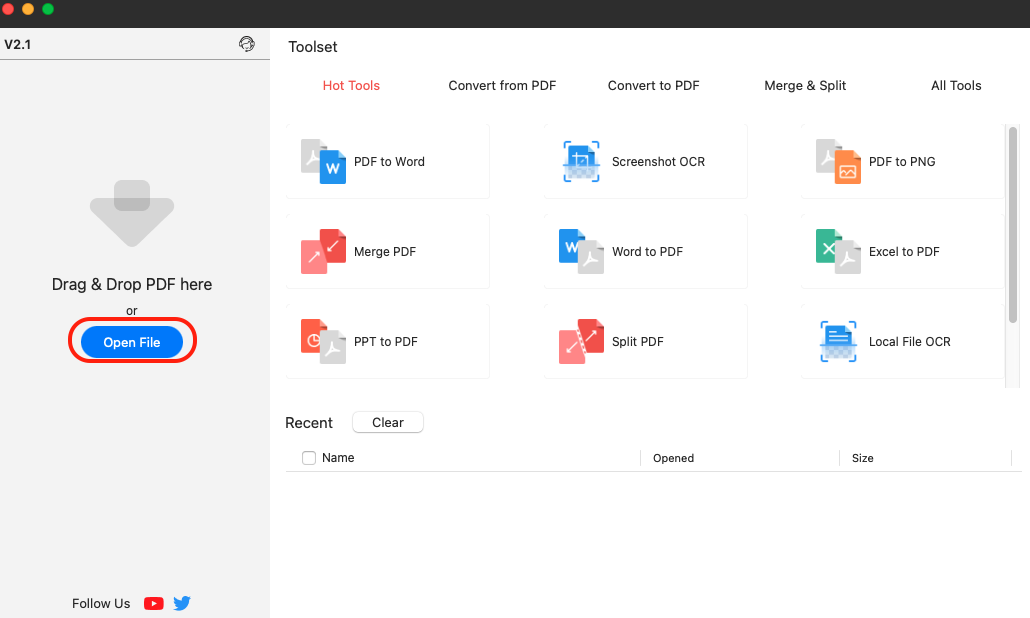
1. Click the Open File button to open the PDF button with OCR.
Open PDF File
2. From the PDF editing workplace, go to the upper-right corner and click on the Printer🖨️ icon.
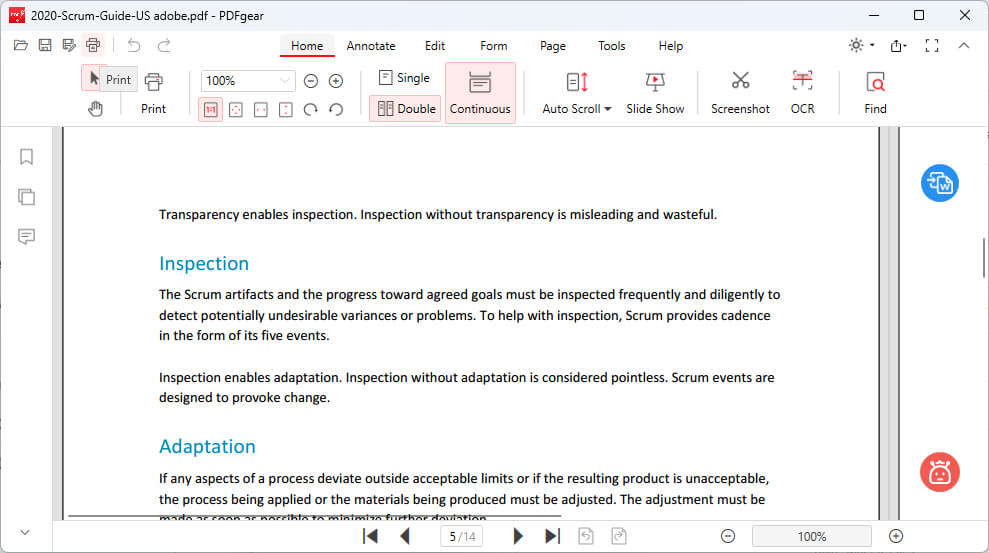
Click Print in PDFgear
3. Select a desired Printer, customize page range, page size, etc., and click the lower-right Print button.

Print PDF in PDFgear
4. That’s it! That will print your PDF to an uneditable copy without the OCR layers, and your PDF will no longer be selectable/searchable/editable.
Remove OCR from PDF Online Free
If the software installation process is overwhelming for you, PDFgear also provides another practical solution for you to remove PDF OCR online for free. Meanwhile, you also get to edit PDF text with the same font online.
PDFgear online PDF editor is packed with a handy PDF printer that allows you to print PDF to Microsoft Print to PDF, Microsoft XPS Document Writer, Save as PDF, etc., enabling you to remove OCR layers in PDF without compromising image quality.
Since PDFgear online tools are free and there are no registrations, you can easily get started.
1. Go to PDFgear online PDF editor, and click the Upload PDF files button to upload the PDF with OCR.
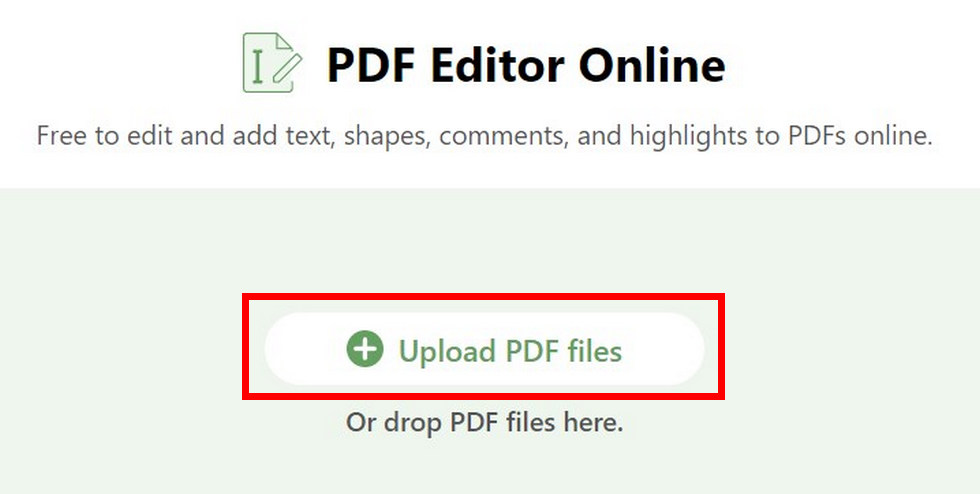
Add a File to Pdfgear Online Editor
2. Once the PDF file is loaded, go to the upper-right side and click on the Printer🖨️ button that says Print file.
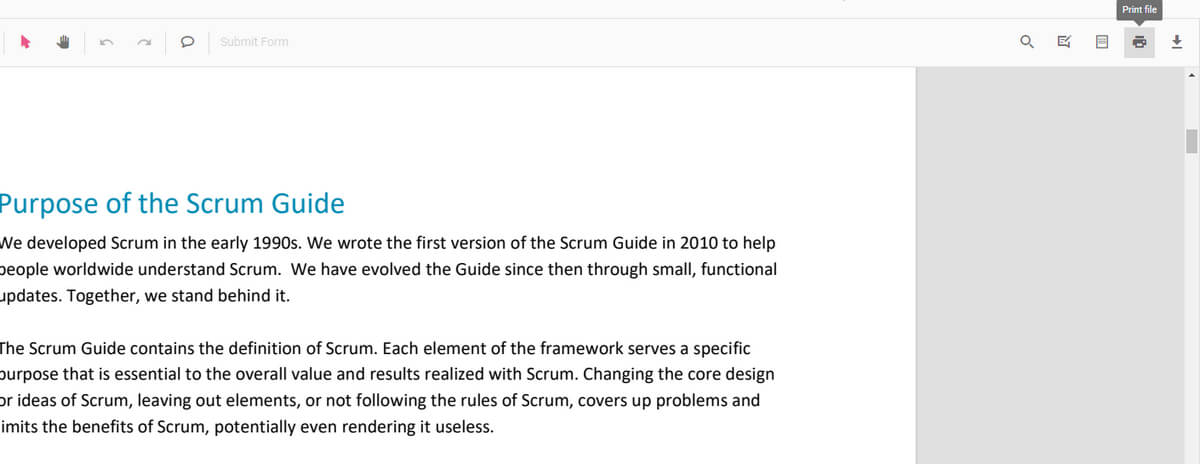
Print PDF Online
3. In the printer options window, select a printer to print to PDF, customize page ranges, color, and more.
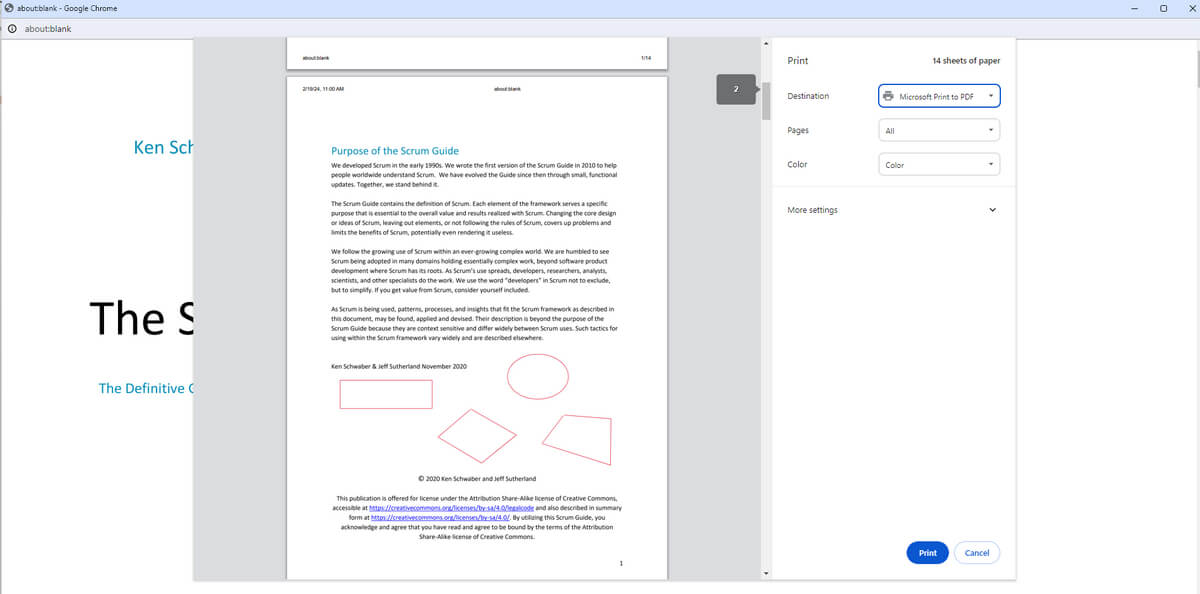
Print to PDF Online
4. When ready, click Print to print and download the PDF on your computer.
Remove PDF OCR with Layers Preserved
Since the printing process of your PDF inevitably brings about the loss of all PDF layers, you will need another approach when you need to keep certain PDF layers such as PDF form fields, shapes & images, signatures, etc.
Luckily, the PDFgear software also helps with that. It provides a PDF text editing feature that allows you to manually edit and delete existing OCR text layers in PDF documents.
PDFgear is a free and versatile PDF OCR remover that helps remove or delete text from OCR layers.
To get started, get PDFgear on your device.
1. Launch PDFgear, and click the Open File button to import the PDF with OCR data. PDFgear will automatically recognize the OCR and other interactable layers.
Open PDF File
2. Go to the Edit section from the upper menubar, and click on the Edit Text tool.
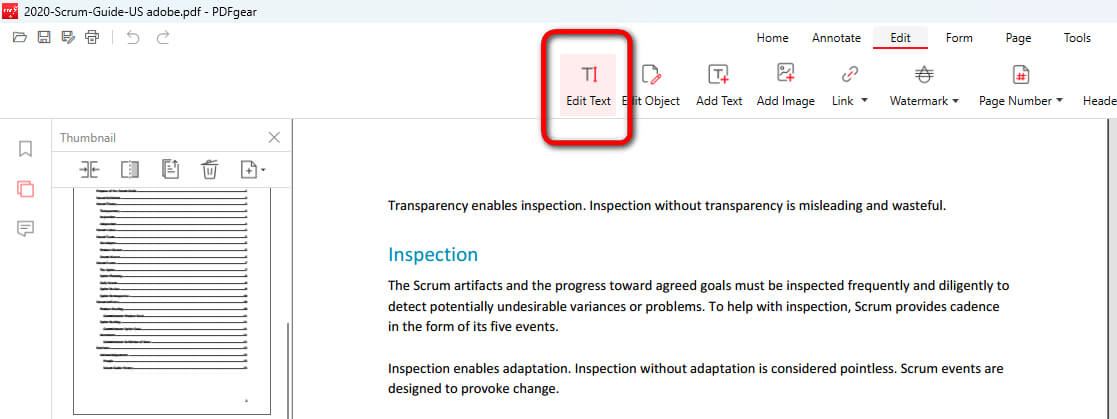
Click Edit Text
3. There you can select and edit the OCR layer of the PDF. Change or delete desired text, or select all text and delete it if needed.
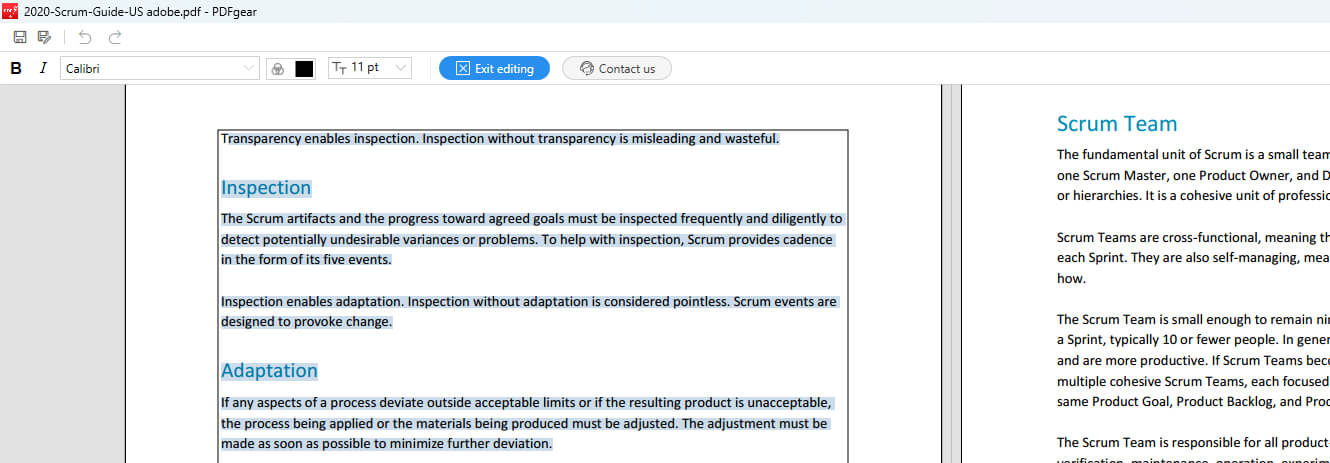
Manually Delete OCR Text
4. When the editing and deleting are done, click Exit editing.
5. Lastly, go to the upper-left side to export and save the PDF.
More Working Ways
PDF to Image Converter
There are online tools like PDFgear that can convert a PDF to an image format (like JPEG or PNG) and then back to a PDF. This process can remove the OCR layer, but it may also result in a loss of quality. Examples of online converters include Smallpdf, iLovePDF, and Adobe’s online PDF tools.
Image Editing Software
You can use image editing software like GIMP or Adobe Photoshop to open the PDF, remove the text layer, and save the document as a new PDF. This method might require more manual work, especially if the PDF has multiple pages.
Dedicated OCR Removal Tool
There are specialized tools designed specifically for removing OCR from PDF files. These tools can detect and remove the OCR text layer while preserving the original scanned image. One example of such a tool is A-PDF OCR Remover, but keep in mind that these tools might not be free.
Before using any of these methods, make sure to create a backup of the original PDF file, as removing the OCR layer is a permanent change that cannot be undone.
What is Removing PDF OCR?
Removing OCR (Optical Character Recognition) in a PDF refers to the process of eliminating the text layer generated by OCR technology from the PDF file.
OCR is a technology that enables the conversion of scanned or raster images of text into machine-readable and editable text. When a scanned document is processed with OCR, an invisible text layer is added on top of the original image, allowing users to search, copy, and edit the text.
When you remove OCR from a PDF, you essentially remove this text layer, leaving behind the original scanned image without the ability to search, copy, or edit the text.
This might be done for various reasons, such as reducing the file size, protecting sensitive information, or reverting the document to its original state. However, it is important to note that removing OCR from a PDF can also limit the document’s accessibility and usability.
FAQs
Can OCR data be removed without altering the original scanned images?
Yes. OCR data can be removed without affecting the original scanned images by converting the PDF pages to images and then reconverting those images back to a PDF. This process removes the text layer added by OCR, leaving the original images intact.
Does removing OCR from a PDF affect its file size?
It can. Removing OCR data often reduces the file size because the text layer added by OCR is removed. However, if the process involves converting pages to images and then back to PDF, the file size may increase due to the nature of image files, which can be larger than text.
Can I selectively remove OCR data from certain pages only?
Yes. With software like PDFgear and Adobe Acrobat Pro, you can choose specific pages to edit or remove text from. This allows for the selective removal of OCR data from certain pages without affecting the entire document.
How do I know if a PDF contains OCR data?
If you can select, search, or edit text within a scanned PDF document, it likely contains OCR data.
Will removing OCR data from a PDF make it unsearchable?
Yes. Removing OCR data removes the text layer that makes the document searchable. The PDF will still be viewable, but you won’t be able to search for text or select/copy text within the document.
