How to Convert Chrome to PDF Online and Offline for Free

Summary :
Learn how to easily transform webpages in your Google Chrome browsers into local .pdf files on your computer, without page limitations and without quality loss.
Table of Contents
How to Convert Chrome to PDF
Converting some awesome web pages you stumble across into PDF documents to save them offline is a great way to preserve valuable information, regardless of the server status of the website hosting.
On this page, you’ll learn the best ways to convert Chrome webpages to .pdf files, and if you encounter the issue you can only save 1 page, you’ll also find the solutions.
👍 You’re highly recommended to use our free converter to instantly transform Chrome into .pdf files online in Chrome, with no sign-up.
Using Free Online Chrome to PDF Converter
If you need to save webpages in Google Chrome as PDF documents on your computer, the most convenient method is using a Chrome to PDF converter.
PDFgear is a reputable brand in the PDF industry, and it offers a variety of free and useful online PDF tools.
PDFgear’s HTML to PDF converter is the best free tool to convert Chrome webpages into .pdf losslessly with as many pages as possible, in the Chrome web browser, and without watermarks/signing-up.
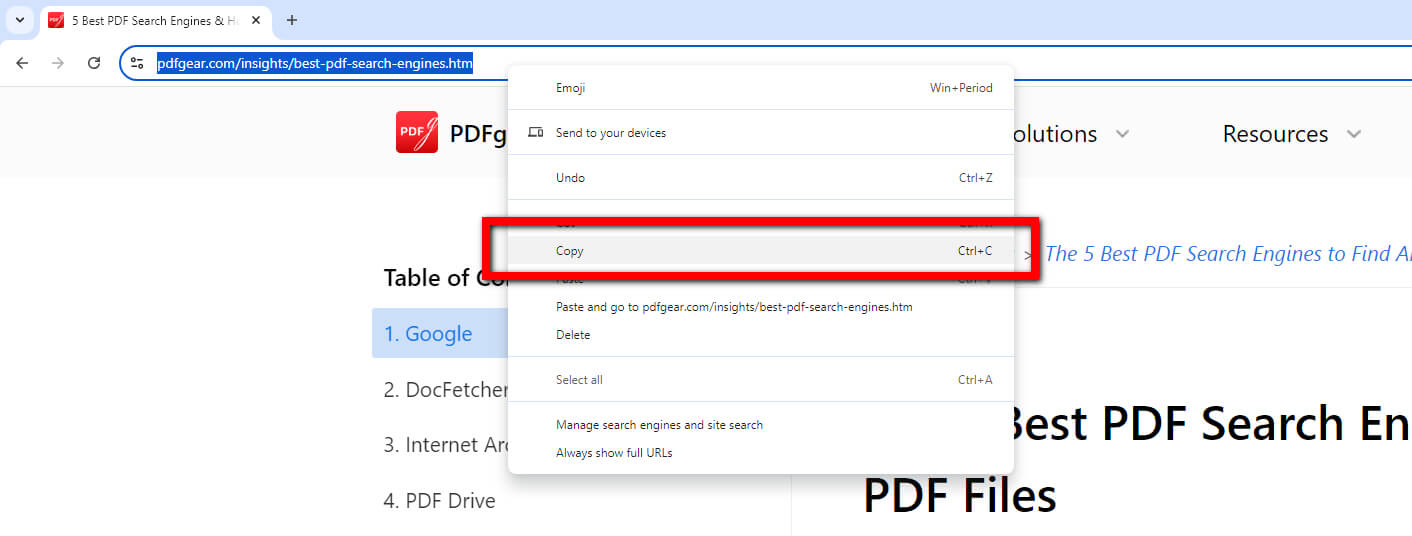
Step 1. Go to the Chrome webpage you need to convert, double-click on its address bar, and right-click to Select All, and then copy the address.
Make sure you’ve copied the entire URL but without the https:// string, so it should look like something like this:
www.pdfgear.com/insights/how-to-search-for-pdfs-on-google.htm
Copy Chrome URL
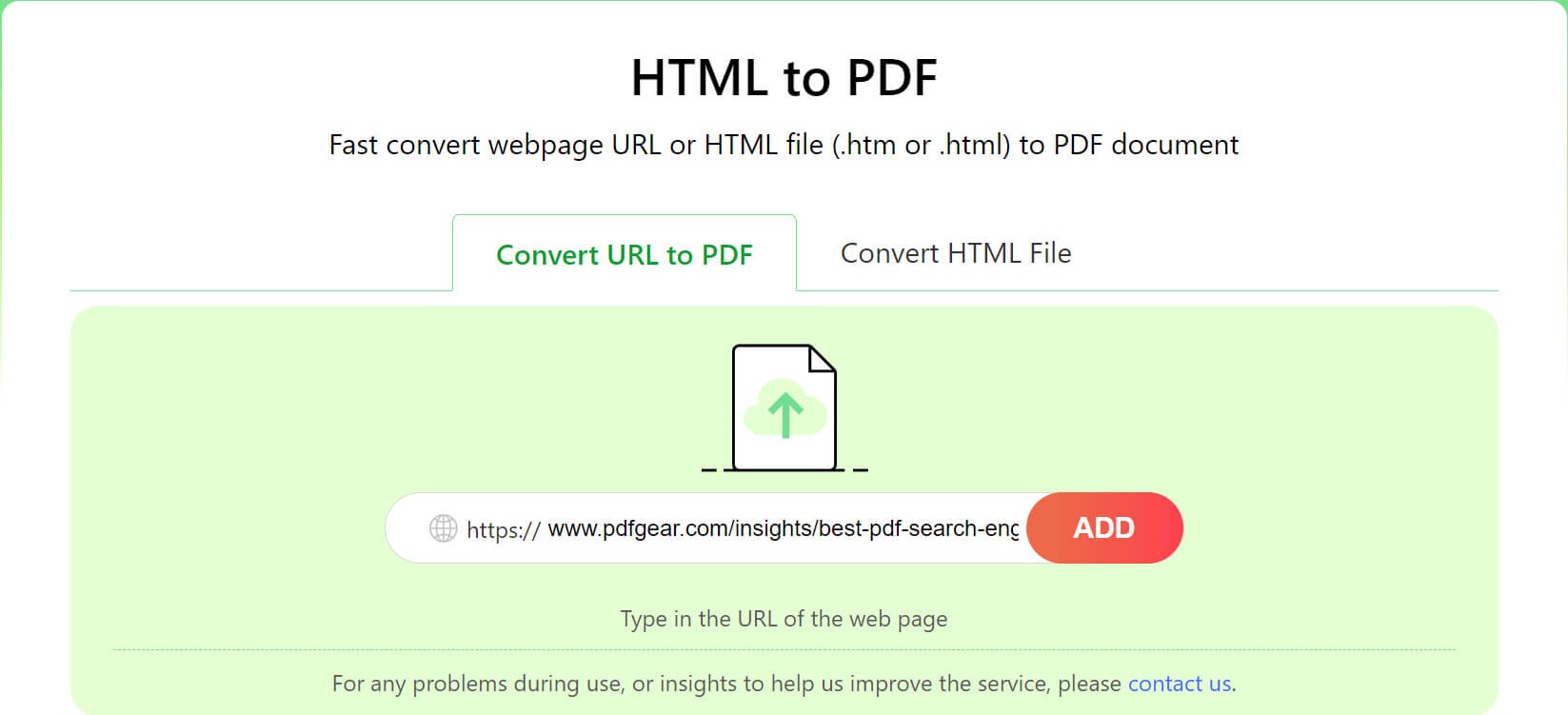
Step 2. Use your Chrome web browser to visit PDFgear HTML to PDF converter. You’ll be in the URL to PDF section by default, keep it this way.
Step 3. Use the keyboard shortcut Ctrl+V (Windows) or Command+V (Mac) to paste the copied URL into the URL box, and click Add.
Add URL
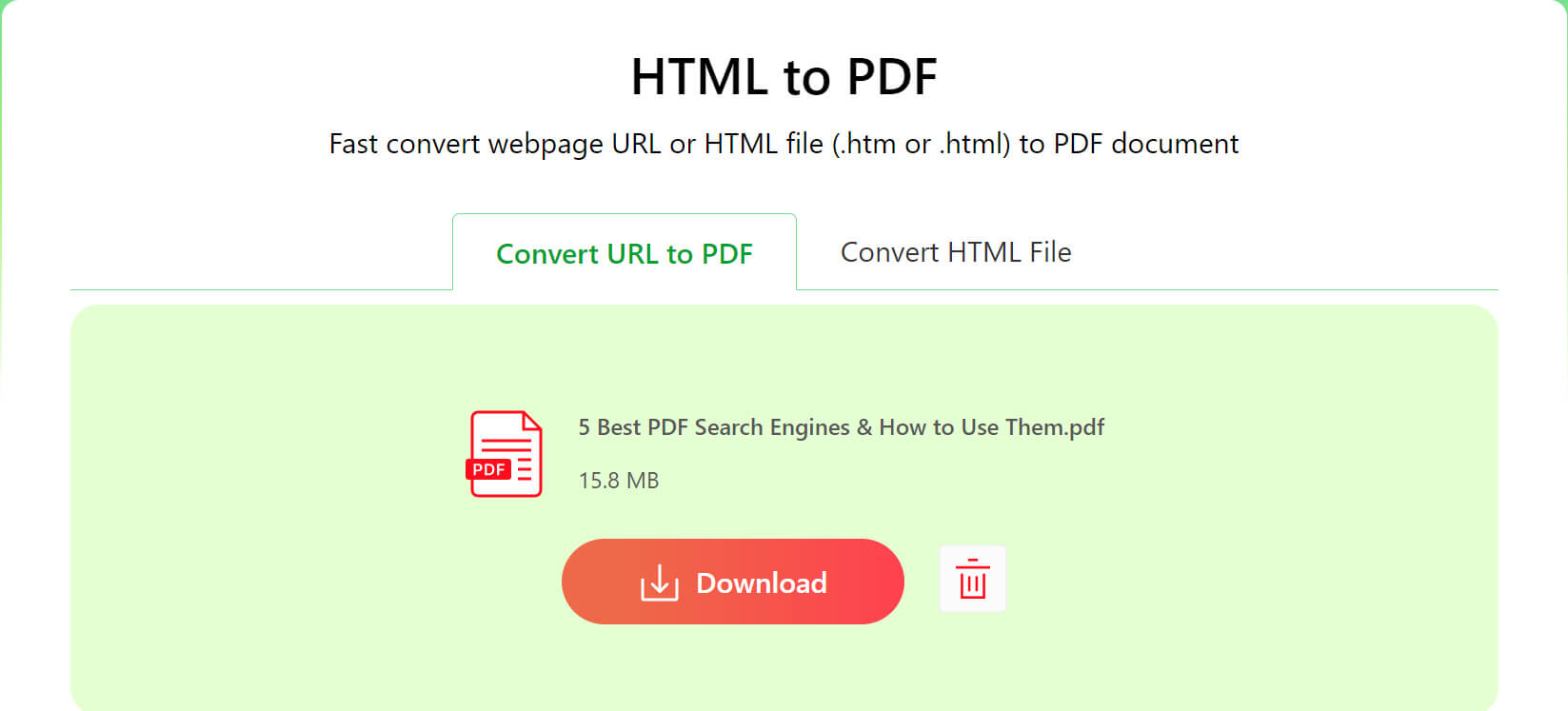
Step 4. PDFgear will then automatically analyze and convert the added Chrome webpages into a multi-page .pdf document. When the Download button appears, click it to save the converted PDF offline on your device.
Download PDF
Save Webpages as PDFs Using Chrome
The Chrome web browser has integrated with a virtual printer for you to save any webpages and even videos into printed PDF copies. The process is straight forward and can be done in simple clicks.
Unfortunately, the virtual printer in Chrome will inevitably flatten the webpage, so the downloaded PDF will be uneditable.
Step 1. Go to the webpage that you intend to save in Chrome.
Step 2. Use keyboard shortcut Ctrl+P (Windows) or Command+P(Mac) to go to the virtual printer.
Step 3. In the Printer Options window, select the Destination as Microsoft Print to PDF, select your desired pages, pages per sheet, margins, etc., and click Save.
Step 4. In the file explorer, choose a desired file location, and click Save the webpage as a printed PDF.
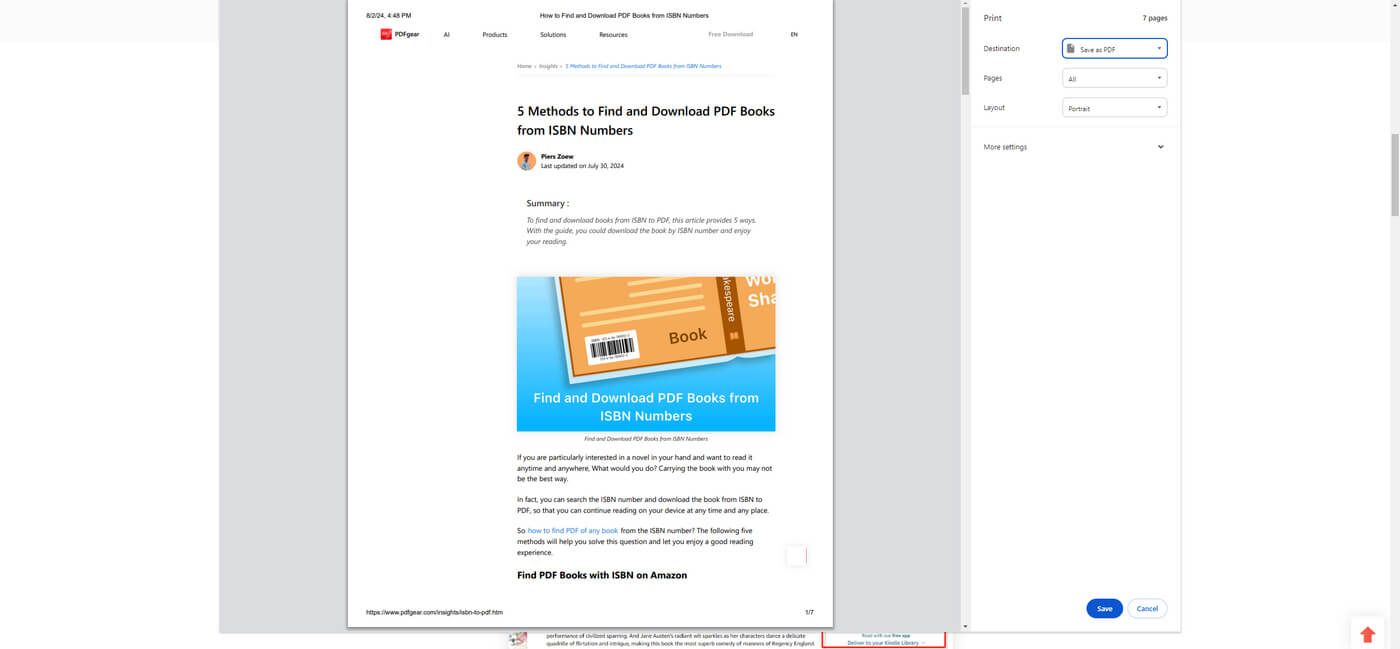
Print to PDF in Chrome
How to Change Local Chrome HTML Documents to PDF
Some users say that they found some HTML files (which may or may not downloaded from Chrome) on their computer with a Chrome icon, and they want to transform them into PDF.
In that case, these HTML files are actually .pdf files, and to completely resolve this issue, you simply need to change the default file viewer on your device to a PDF viewer like PDFgear.
Step 1. Right-click on the Chrome file that you need to change, and click Properties from the dropdown.
Step 2. In the General section, click Change.. from Opens with.
Step 3. Select a PDF viewer program like PDFgear or Adobe Acrobat on your computer, and the Chrome file will be back into PDF!
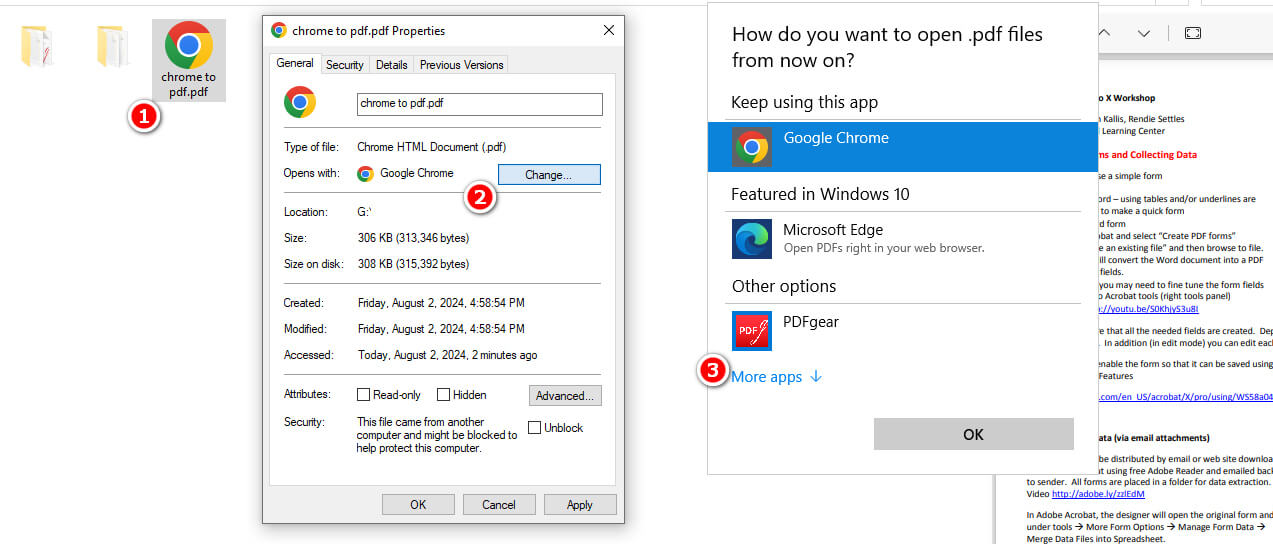
Change Local Chrome File to PDF
Fix “Chrome Only Allow for One Sheet of Paper” While Printing
The issue of Google Chrome only allowing for one sheet of paper when printing webpages to PDF is a well-known problem.
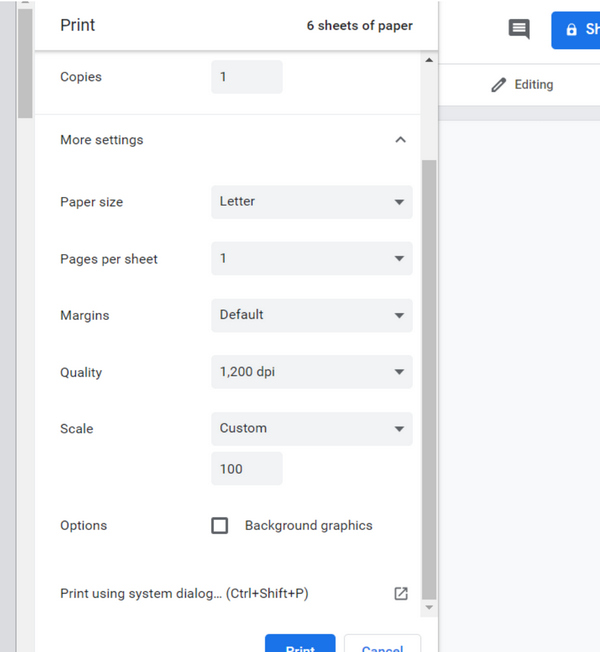
Chrome Only Allow One Page
Here are some possible solutions to try:
Solution 1. Update your Chrome web browser to the latest version: Open Chrome > Click More > Click Help and then About Google Chrome > Click Update Google Chrome > Click Relaunch.
Solution 2. Go to Preferences > Documents > Save Settings and uncheck “Save As optimizes for Fast Web View”.
Solution 3. Ensure that the print settings in Chrome are correctly configured. Check options like “Fit to printable area” and ensure that the correct paper size and layout are selected.
Solution 4. Use Chrome browser extensions designed for better PDF printing. Recommended extensions include “PrintFriendly” and “Just-One-Page-PDF”.
How to Save Chrome Webpages to Editable PDFs?
As mentioned, if you print from Chrome, the PDF will not be editable.
However, such as when we previously discussed how to search for only PDFs on Google, you’ll see search results that come with a [PDF] tag, these PDF files are web-hosted, and you can directly download them in Chrome without sabotaging their edibility.
Step 1. Search for only PDF files on Google.
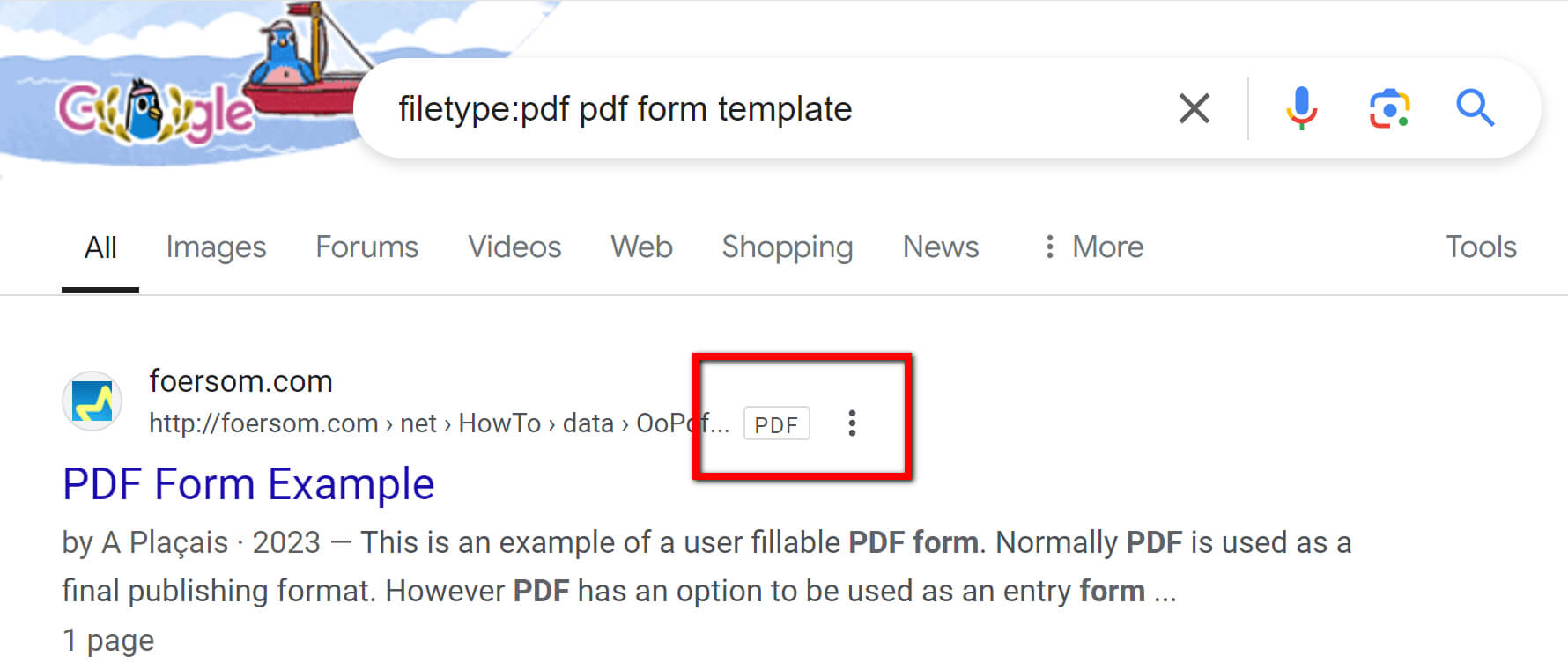
Search for PDF on Google
Step 2. Click on a PDF search result in Google SERP.
Step 3. The PDF file will be opened in the Chrome web browser, click the upper-right Download button to save it as an editable format.
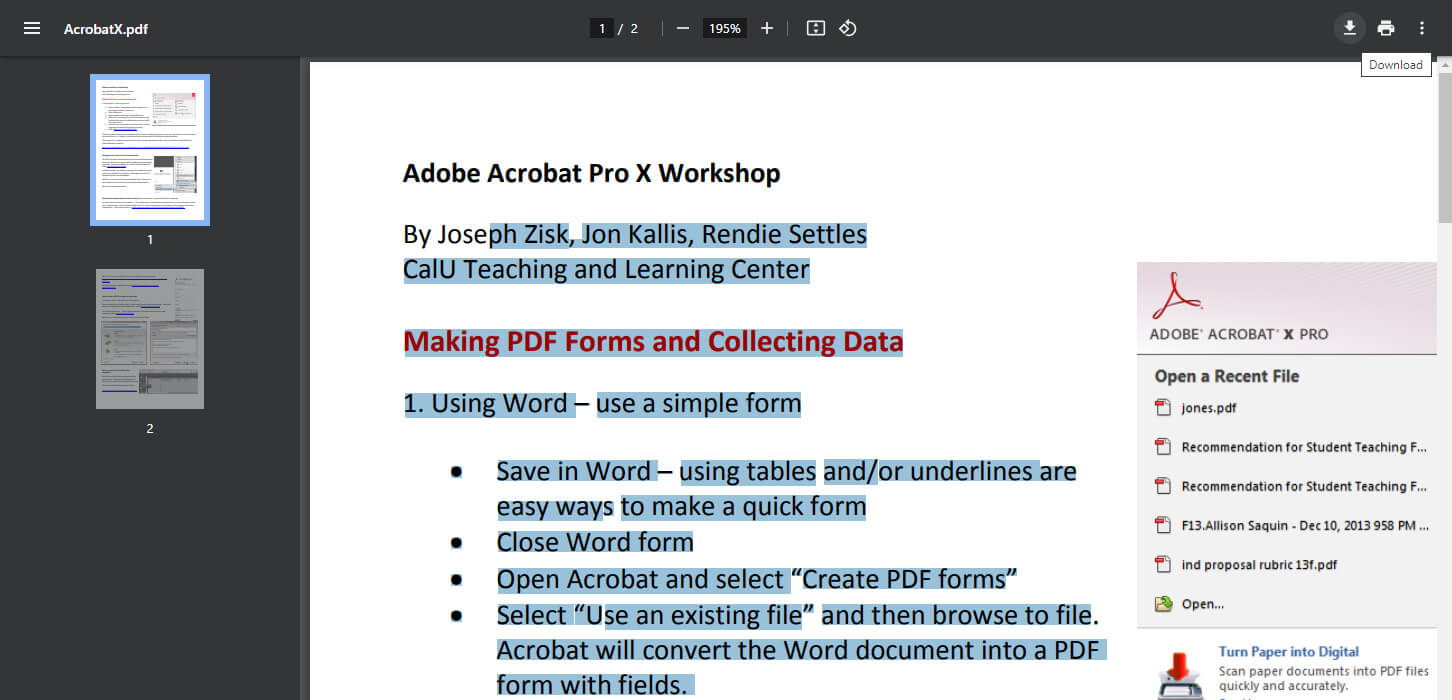
Download Editable PDF from Chrome
How to Save Pictures Included on Webpages?
There are a variety of methods for this:
- Right-click on the image > Select “Save image as…” > Choose the location on your computer and save.
- Use the Snipping Tool or Snip & Sketch on Windows or use “Shift + Command + 4” on Mac for a selection screenshot.
- Use the browser menu to save the entire webpage (images included). > Choose “File” > “Save Page As…” > Select “Webpage, Complete” to save the full page with images.
- Copy the URL of the webpage > Use a download manager program to parse the page and download all images > Save Images from Browser
After these methods, you can use PDFgear’s online JPG to PDF converter to save the images as PDF documents if needed.
