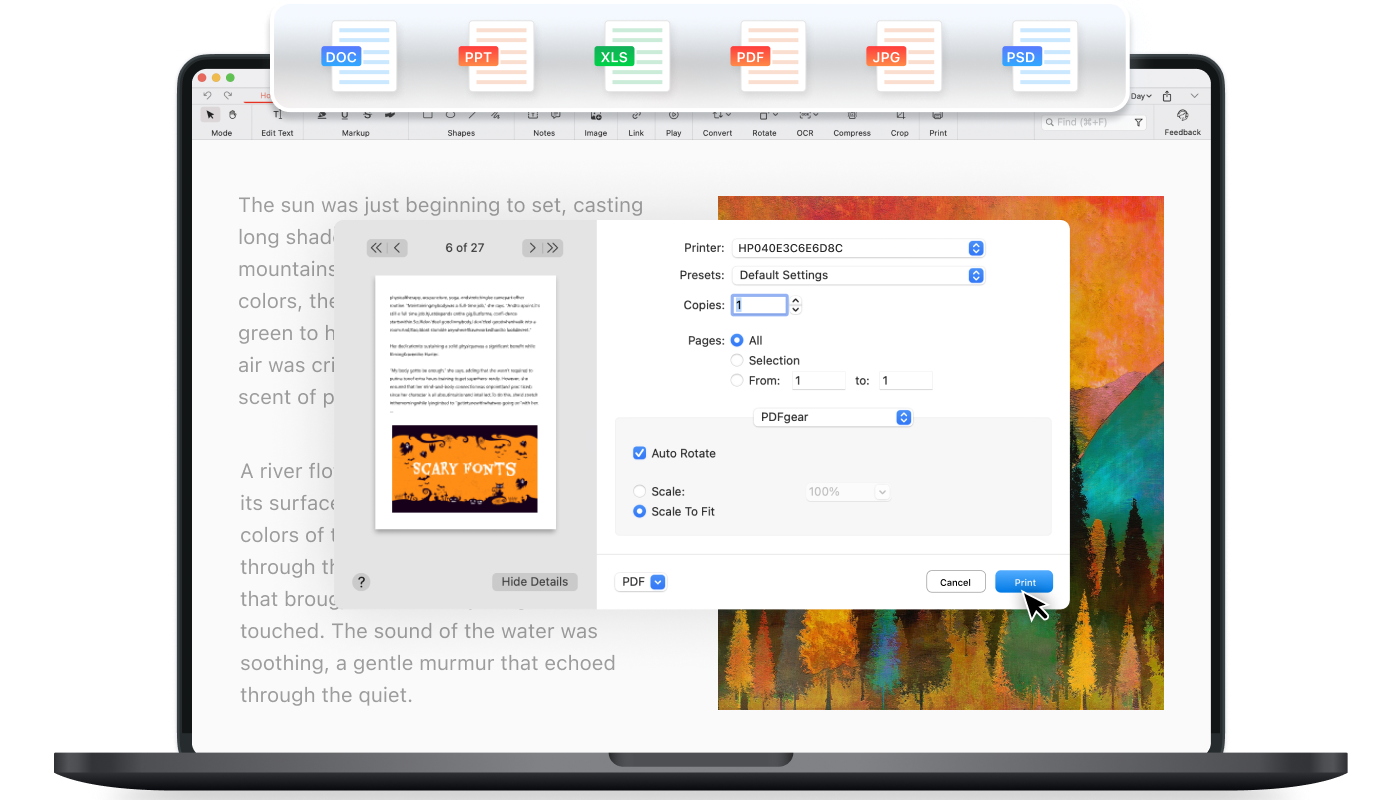
Print to PDF from Anything
As the universal standard for cross-platform documents, the Portable Document Format (PDF) is widely used. With PDFgear Desktop, you can easily convert PDFs and print to PDF from various formats, including PNG, JPEG, TXT, DOC, DOCX, XLSX, and more. Plus, it's completely free to use.
Versatile Format Support
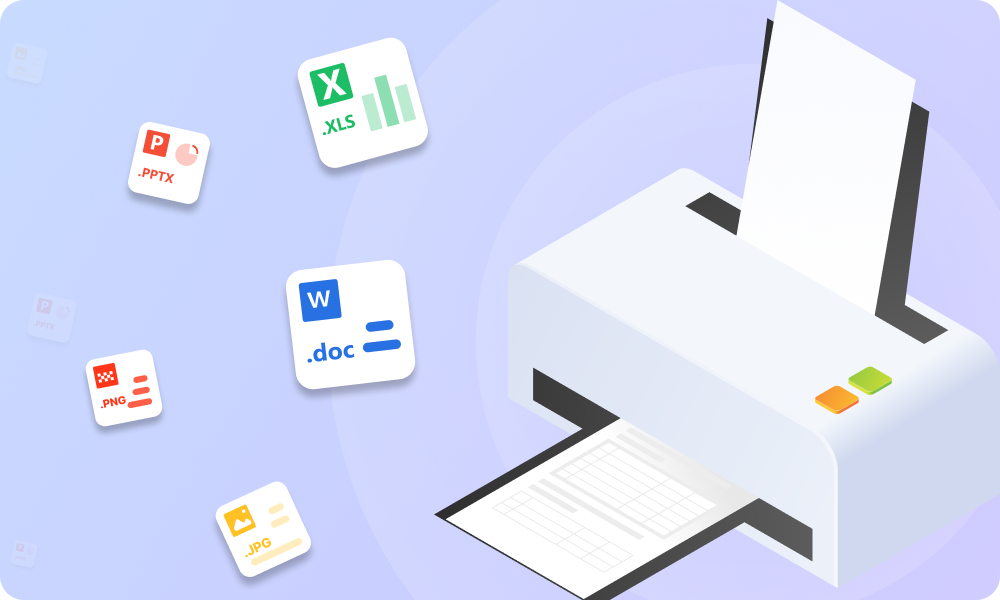
With PDFgear's extensive PDF toolkit, you can easily create and print PDFs from various formats, including JPG, PNG, Word, Excel, PPT, RTF, TXT, PSD, HTML, Heic, and EPUB. All will be swiftly accomplished in just a few seconds.
Rich Printing Settings
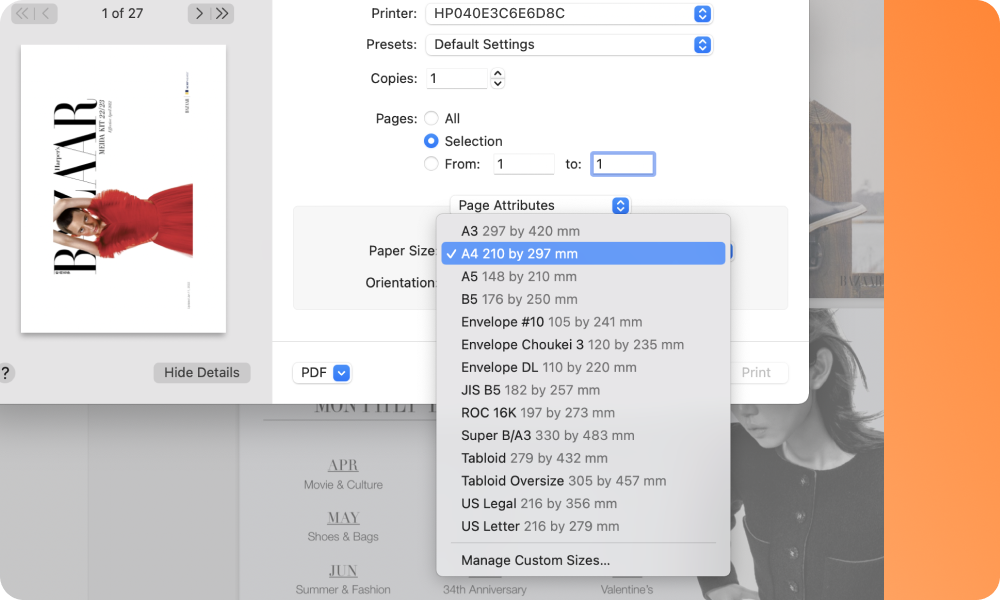
PDFgear supports a wealth of printing options. Whether you're looking to print to PDF, opt for double-sided printing, or print flattened PDFs without editable elements like annotations and form fields, PDFgear makes it all possible.
Lossless-Quality Printing
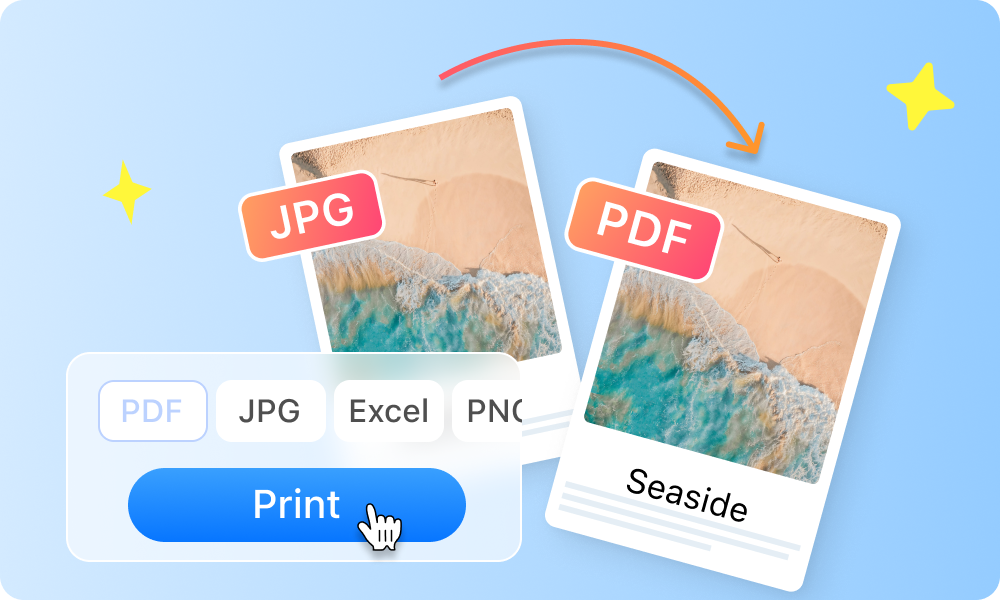
PDFgear allows you to print images and documents to PDF without losing quality and format. All the content you wish to retain will be displayed clearly and completely in your PDF document, making it easy to read and share.
Totally Free to Use
Just enjoy unlimited access to PDFgear's PDF printing and conversion features. PDFgear's online tools and offline applications are free, with no annoying advertisements or sign-up registration requirements, allowing you to start using them immediately.
AI-Powered Printing
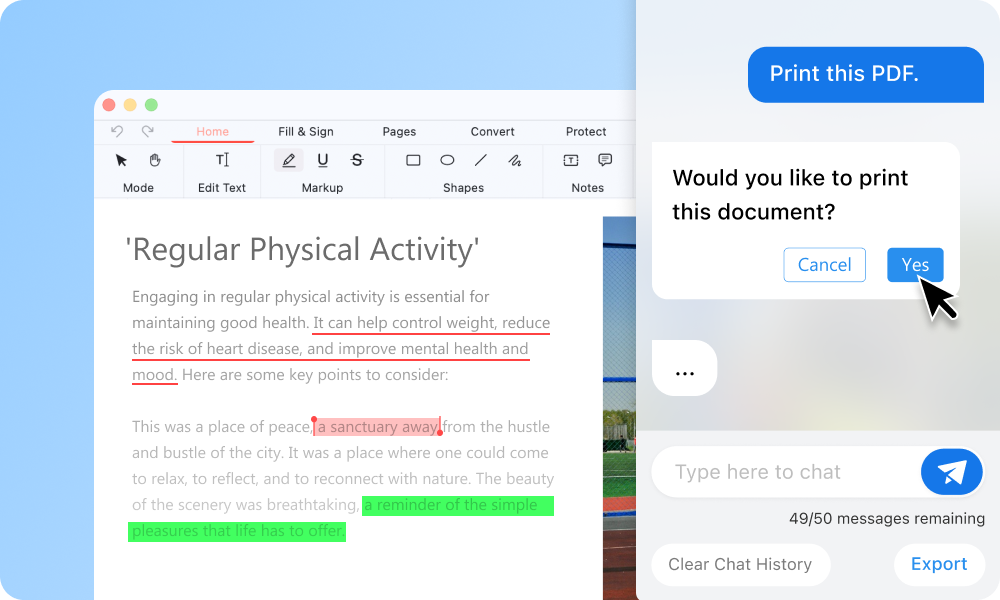
PDFgear uses advanced ChatGPT technology to provide a user-friendly, AI-enhanced experience, allowing you to quickly and easily edit, convert, and print PDFs with straightforward user interaction.

Get full-featured PDFgear for free
 4.7/5 (366 Reviews)
Tips and Tricks about Printing PDFs


Your Questions are
Answered
Your Questions are Answered
What is the difference between “Save as PDF” and “Print to PDF”?
To “Save As” a PDF, you get to keep the document's original version, which includes the look, elements, and actions. On the other hand, the “Print to PDF” process captures and saves the look of a PDF when it’s physically printed.
How do I add Microsoft Print to PDF on Windows 10?
Windows 10 has native support for creating PDFs with a virtual printer, which can be added from Devices and Printers in the Control Panel. Alternatively, you can use the PDF printer tool PDFgear Desktop, where Microsoft Print to PDF is supported as a printing format.
Should I save a PDF or print a PDF?
Regarding exporting PDFs, saving a document as PDF or printing to PDF have different applicable cases. Saving a PDF allows for retaining necessary details more accurately while printing a PDF, making the document look like a printed page.
How to Print to PDF on iPhones and Android phones?
To print to PDF on iPhones, iPads, or Android mobile phones, the easiest method is to use an online Print-to-PDF tool like PDFgear. Go to the PDFgear Online PDF Editor tool, tap the Choose files button to import PDF, and hit the Printer button from the upper-right corner.
Is PDFgear Desktop an actual printer?
PDFgear Desktop is not an actual printer device but a virtual printer that helps our users create digital PDF documents from various types of files, such as Microsoft Word documents on your computer, photos on the local drive, screenshots on your mobile phones, etc.