How to Print PDFs with Comments, Mark-ups, and Annotations? Here are 3 Detailed Methods for You

Summary :
Printing PDFs with comments showing is an excellent way to facilitate collaboration. Discover the 3 device-compatible methods to print your PDF files with annotations on the side. Adobe Acrobat and free tools are all introduced in this post.
Table of Contents
Print PDFs with Comments
While virtual printers offer various printing formats, many options will hide your comments when printing. Nevertheless, certain software still enables print PDFs with comments on the same page.
How can you select an efficient printing tool with that feature? We’ve explored 3 practical ones for you, read on to learn them.
How to Print PDFs with Comments Using Adobe Acrobat
Adobe Acrobat has always been the first option for PDF tasks like page rotating, file annotating, and PDF form filling. It provides very professional and extensive solutions for editing PDF documents.
More than adding comments to your PDF, you can also print a PDF with notes displayed in Adobe Acrobat. This greatly reduces the communication cost between you and your colleagues when sharing files.
Before using Adobe Acrobat, please ensure you’ve installed and subscribed to it. Now, look at the steps to print PDFs with comments in Adobe Acrobat.
Step 1. Personalize Modify Commenting Settings
Open PDF with Adobe Acrobat > Click “Edit” in the upper left corner > Choose “Preferences…” to open a pop-up > Uncheck “Hide comment pop-ups when Comments List is open” and check “Print notes and pop-ups” in the Commenting categories.
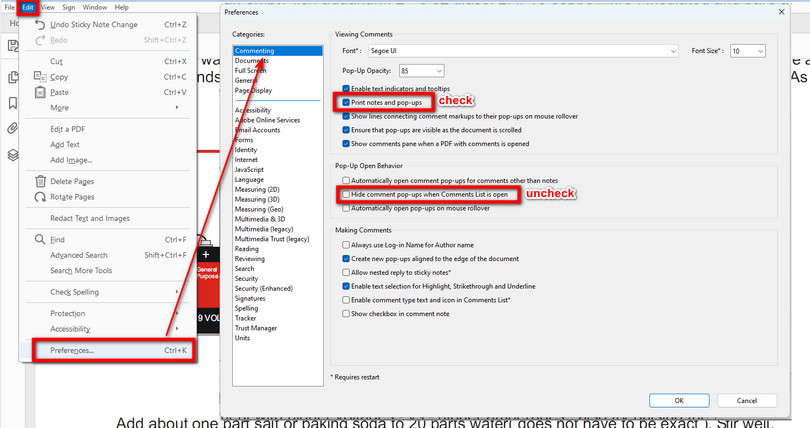
Personalize the Commenting Setting in Adobe Acrobat
Step 2. Print PDF
There are 3 ways to fire up the print process:
- Press Ctrl + P on the keyboard (if you are a Mac user, press Command + P).
- Click the Print file icon in the upper left ribbon.
- Select Print in the File drop-down.
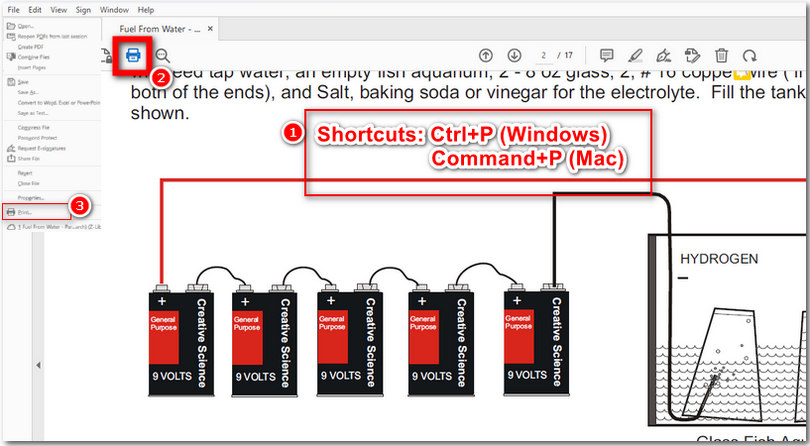
Bring up the Print Window on Adobe Acrobat
Step 3. Print PDF with Comments
Navigate to “Comments & Forms” > Choose “Document and Markups” in the drop-down > Click on “Summarize Comments” > Tap on “Yes” in the pop-up > Click the “Print” button.
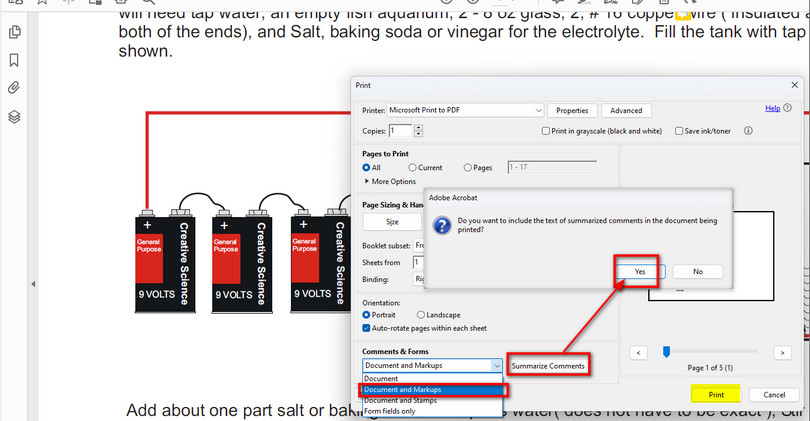
Save a PDF with Comments from Adobe Acrobat
Now you get a PDF copy with comments showing:
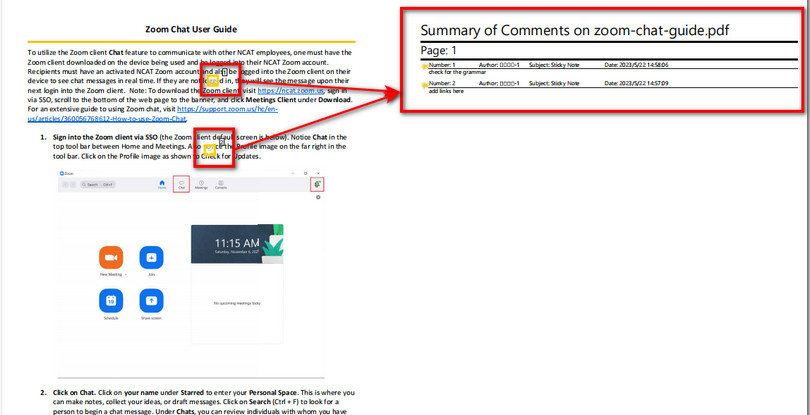
PDF with Comments Summary
If you are a Mac user, fortunately, the Preview handles PDF printing with comments and you don’t have to install additional apps.
How to Print PDFs with Comments on Mac Via Preview
Preview is a very powerful built-in PDF Viewer and editor on Mac. Providing basic PDF editing tools, it allows you to comment, encrypt, and sign PDFs.
The printer in Preview is well-featured, enabling printing PDFs with notes presented, PDF page rotation, and page range selection.
Step 1. Open PDF File
Select the PDF > Click “Open with” > Choose Preview
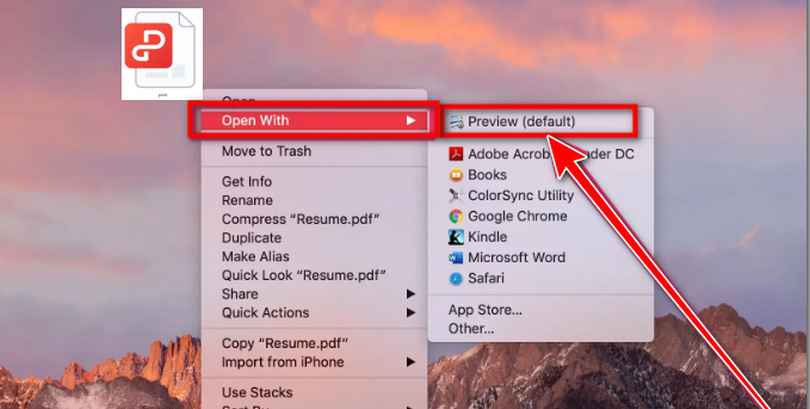
Open PDF with Preview
Step 2. Fire Up Print Windows
Two methods are available on Preview to start print:
1. Press the shortcut “Command” + “P” on the keyboard.
2. Click the File drop-down menu > Select the “Print” button.
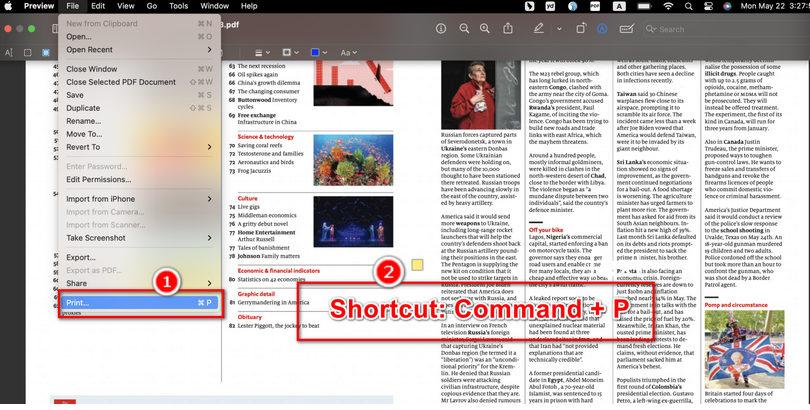
Start Print Process on Preview
Step 3. Customize Print Settings
Check “Show Notes” > Click “Print” in the lower right corner.
You can see the printing effect in the preview window on the left.
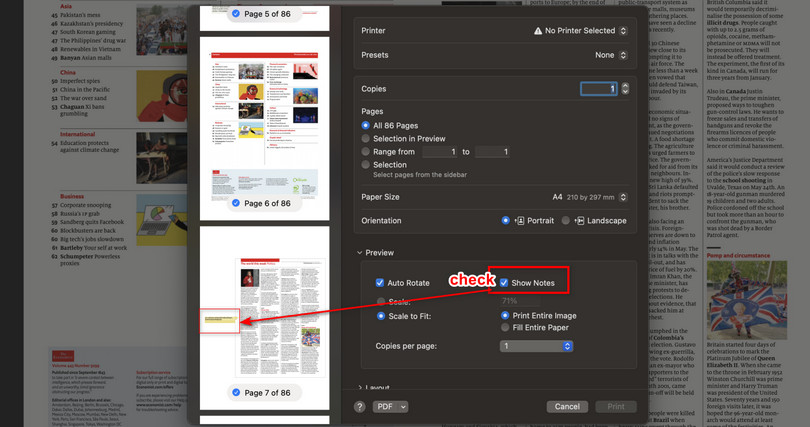
Print and Save a PDF with Notes
With Preview, users can print a PDF with comments on the same page. The only drawback is that this tool is limited to Mac users.
If you are a Windows user and find the subscription fees of Adobe Acrobat too high, then the following Adobe Acrobat alternative is exactly what you need.
Best Free Tool to Print PDFs with Comments
PDFgear offers an exceptional printing function. It allows you to share, fax, convert, and save documents through printing. With easy settings, you can utilize advanced features like batch printing, PDF printing with annotations, and printing a PDF in black and white.
Furthermore, PDFgear provides a one-stop PDF solution, offering PDF creation, editing, sharing, and a range of features such as cropping, scanning, compressing, splitting, and rotating PDFs.
It also allows free chat-based interactions for analyzing, extracting, and summarizing PDF articles.
Step 1. Install PDFgear
Go to PDFgear’s official website and download PDFgear. Or you can click on the button below to install this PDF printer.
PDFgear is the top-notch option to print PDFs with comments on Windows, Mac, iPhone, and iPad. It’s free, safe, full-featured, and easy to use.
Step 2. Import PDF to PDFgear
Open PDFgear > Click “Open File” in the main interface > Choose a PDF from the device.
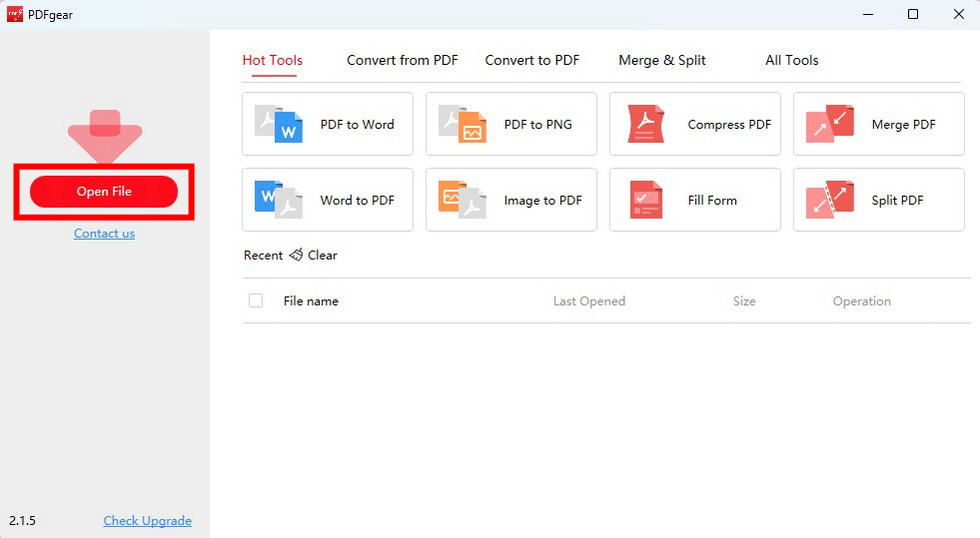
Launch PDFgear to Print a PDF with Comments
Step 3. Print PDF with Comments
Add comments to the PDF by creating text, highlighting the content, or striking through the text.
After commenting, click the “Print” icon on the upper ribbon > Check “Print Comments” > Tap on “Print.”
If you have series PDFs, you can choose the “Batch Print” button and click “Add PDF Files” to import other PDFs. There is no quantity or file size limit, please feel free to use it.
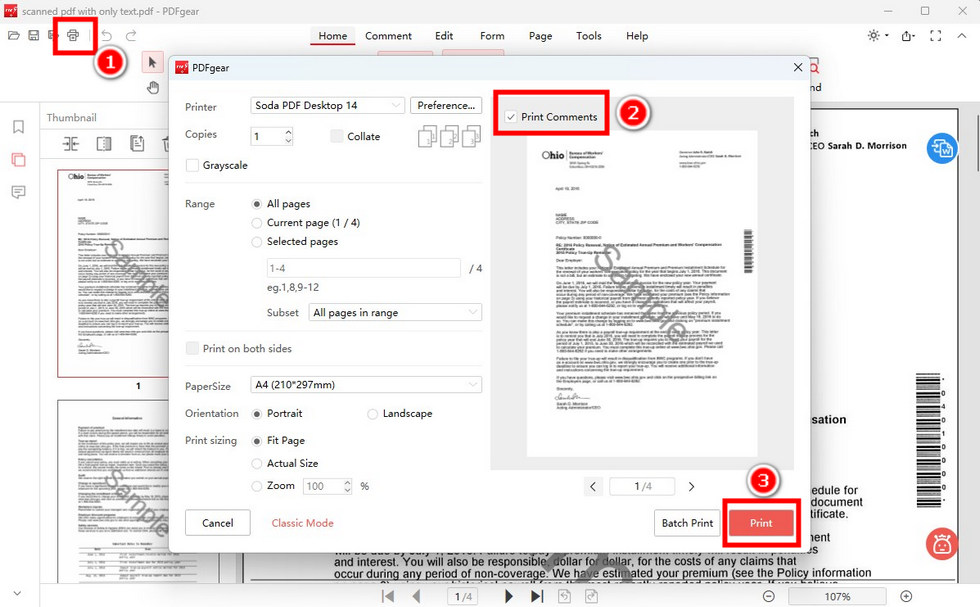
Print a PDF with Comments in PDFgear
FAQs
How Do I Save a PDF with Visible Comments?
Although you can’t edit a PDF in Adobe Acrobat Reader, you can print a PDF with visible comments. Open PDF with Adobe Acrobat Reader > Go to “File” > Choose “Print” Tab > Click “Summarize Comments” > Choose “Document and Markups” > Click on “Print”.
How Do I Print Comments from a PDF in Word?
You can Print comments from a PDF in Word by following these steps: Open PDF with Microsoft Word > Press “Ctrl+P”/”Command+P” > Check “Print Markup” in the “Print All Pages” drop-down > Click “Print”.
Is It Possible To Print a PDF with Comments?
Sure. You can print PDFs with comments with Adobe Acrobat, Preview, Foxit, and PDFgear. But considering the subscription fee and device adaptation, PDFgear will be the best solution. It is free and available for Windows, Mac, Linux, and iOS.
