How to Convert PDF to Word for Free

Summary :
This post will walk you through how to use PDFgear to convert PDF to Word on Windows, Mac, iOS, and Android for free.
Table of Contents
How to Convert PDF to Word Online for Free
Want to turn a PDF into a Word file to edit easily?
PDFgear’s free online PDF to Word converter makes it fast and easy—no downloads, no limits, and 100% privacy protection.
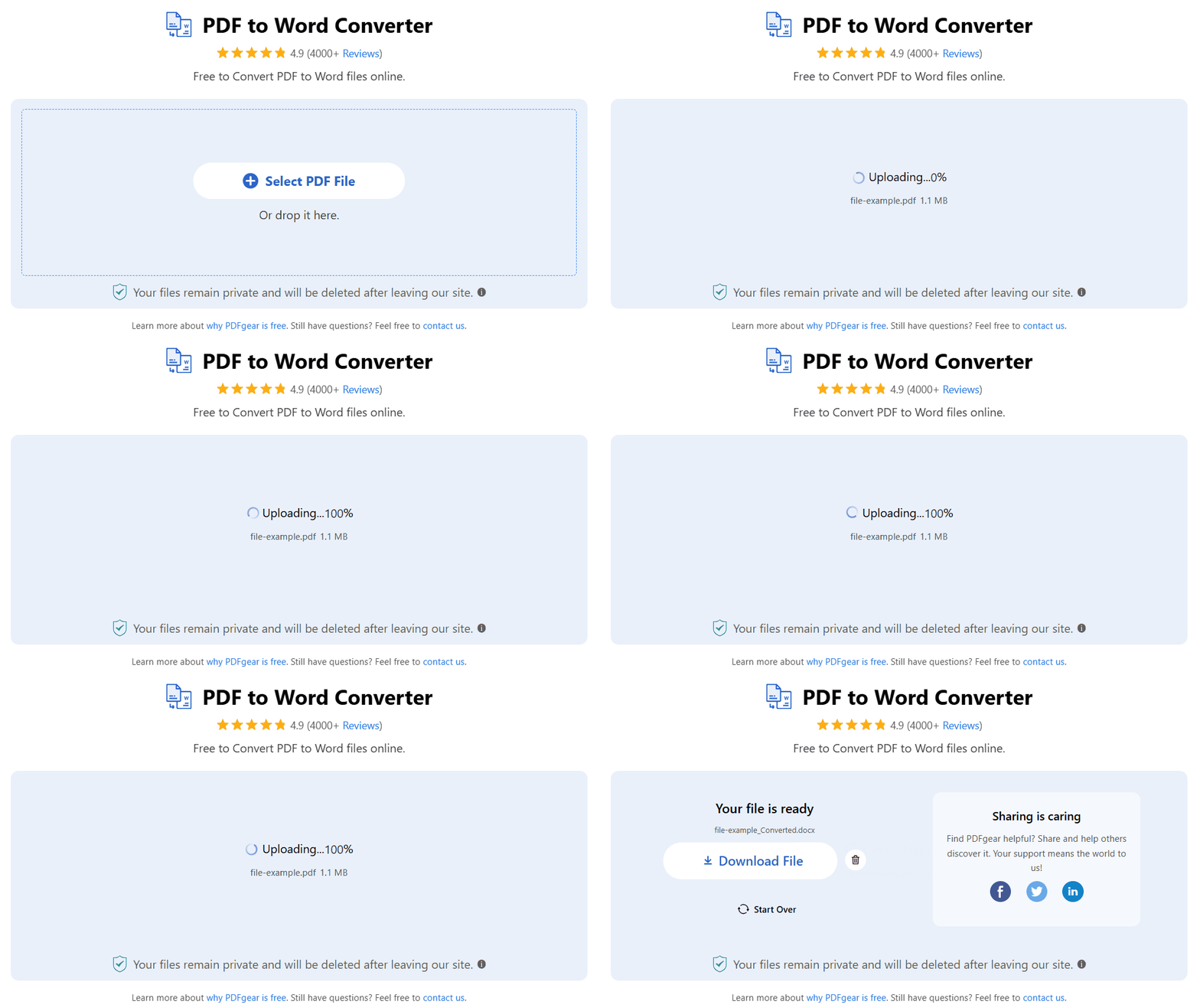
Step 1. Access the PDFgear online PDF to Word converter from any modern browser on your devices.
Step 2. Click the button to select your PDF, or drag and drop it into the converter. Then, wait for PDFgear to work its magic and finish the conversion.
Step 3. Voila! It’s done. Click the download button to save the converted Word file to your device.
How to Convert PDF to Word on Windows
PDFgear makes it simple to convert PDFs to Word on Windows 10 and 11. You can even convert multiple files at once with the batch feature.
It also has OCR to turn scanned PDFs into editable Word documents. Download PDFgear for Windows and try it!
Convert your PDF to Word or other format quickly with PDFgear.
Watch the video below to see how to convert PDFs to Word on your PC.
How to Convert PDF to Word on Windows
Step 1. Open PDFgear on your Windows 10/11 computer.
Step 2. Find and click “PDF to Word” under the “Hot Tools” section, and the converter window will pop up.
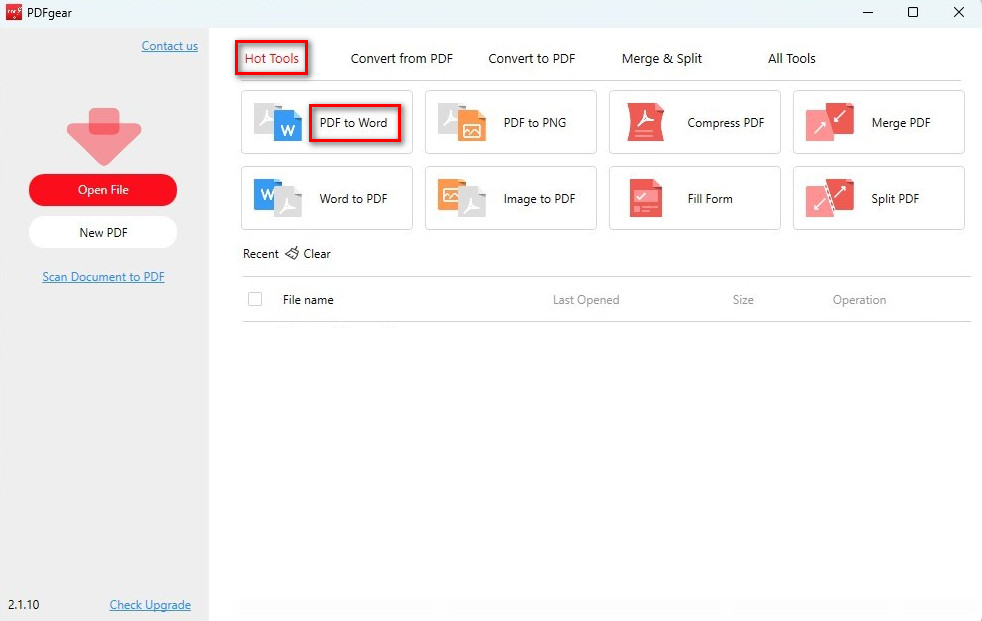
Open PDF to Word Converter
Step 3. Hit the “Add File” button to import your PDF files, or just drag and drop them into the converter.
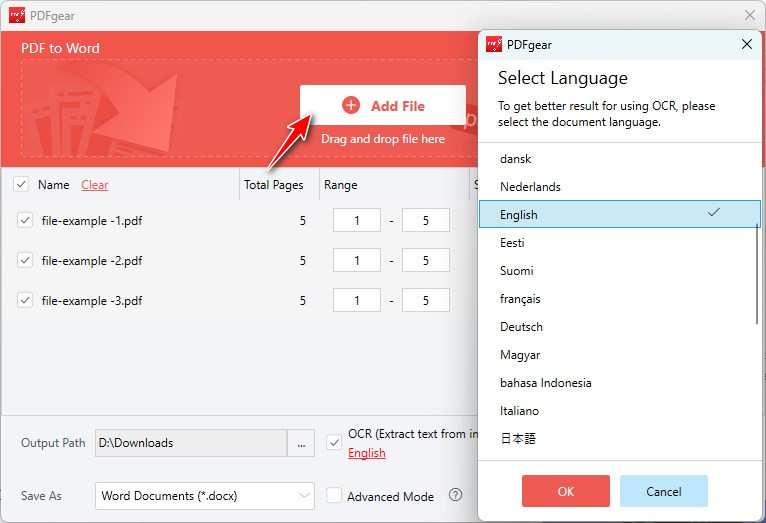
Add PDF Files to Convert to Word
Step 4. Set the output path before converting so it’s easy to find your file later.
Make sure to check the OCR box to let PDFgear extract text from images, and choose the document language for better results.
Step 5. Click the “Convert” button to get started. Then, sit back and let PDFgear take care of the conversion.
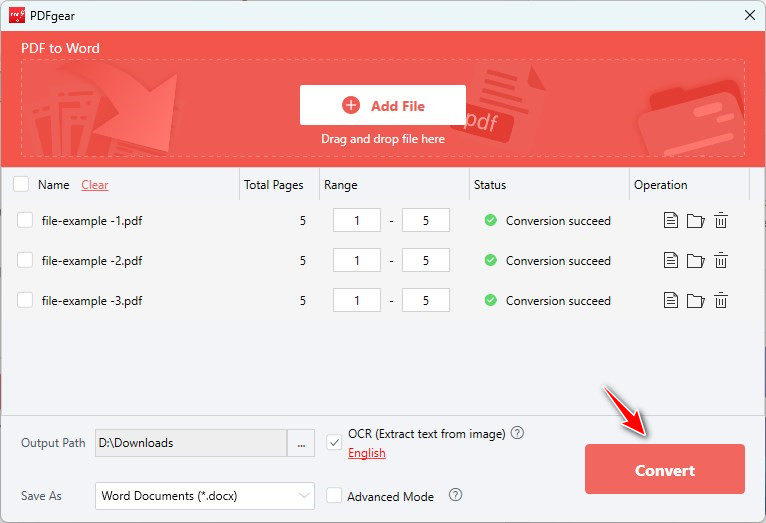
Batch Convert PDF to Word on Windows
PDFgear will finish in a few seconds and automatically open File Explorer to show you the converted Word file.
When you need to edit a PDF, converting it to Word isn’t your only option. PDFgear, a pro PDF editor, lets you edit the PDF directly on Windows, all within the software.
How to Convert PDF to Word on Mac
PDFgear for Mac lets you convert PDF to Word while keeping the text, images, and layout the same. It also supports batch converting multiple PDFs in one go.
It works with macOS 10.14 or later. You can feel free to download it on your Mac. It’s free and safe.

Check out the video below to learn how to easily convert a PDF to Word on a Mac.
How to Convert PDF to Word on Mac
Step 1. Launch the PDFgear on your MacBook, MacBook Pro, or MacBook Air.
Step 2. Select PDF to Word under Hot Tools, next to a new converter window.
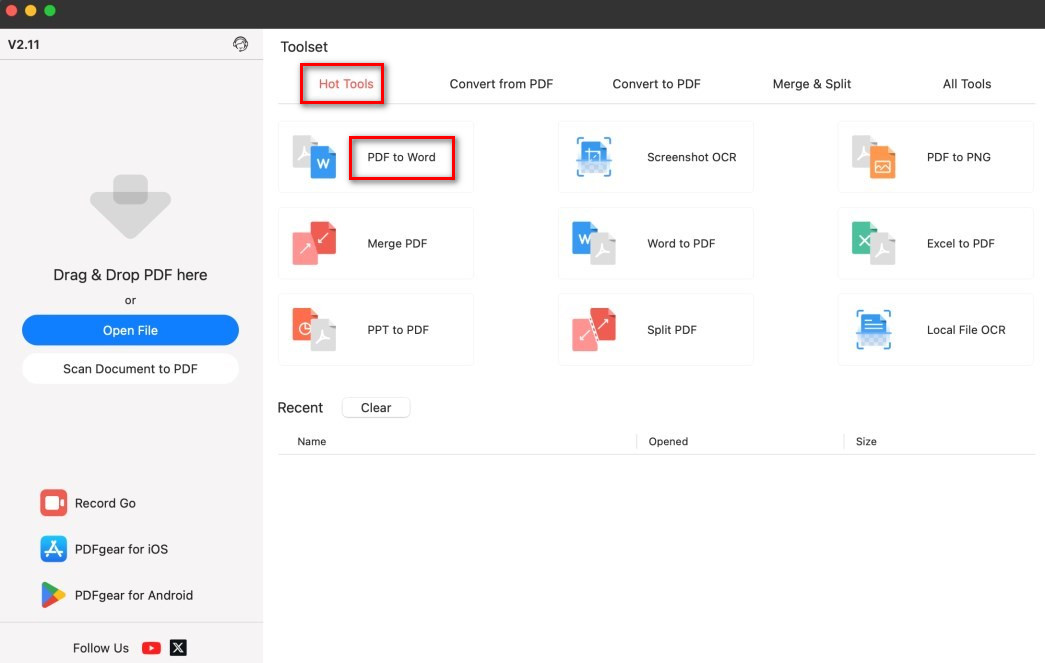
Open PDF to Word Converter on Mac
Step 3. Upload your PDF files by using the Drag & Drop feature or by clicking Add Files > then click Open.
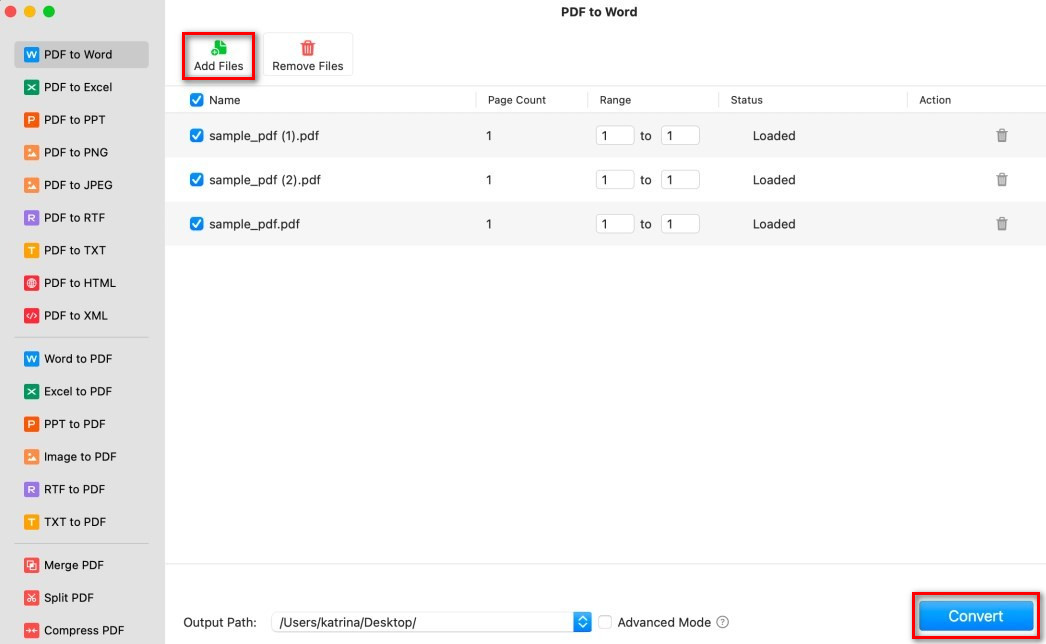
Batch Convert PDF to Word on Mac
Step 4. Set the file output path and click the Convert button to start the PDF to Word conversion process.
Step 5. Once it’s done, open the file in Microsoft Word and start editing.
You can also edit the PDF text directly on your Mac with PDFgear’s built-in PDF editor.
How to Convert PDF to Word on iPhone/iPad
There’s no built-in tool on iOS to convert PDFs to Word, but PDFgear is here to help. With just a few taps, you can turn your PDF into an editable Word file on your iPhone or iPad.
Simply download PDFgear from the App Store and follow these easy steps to get started:

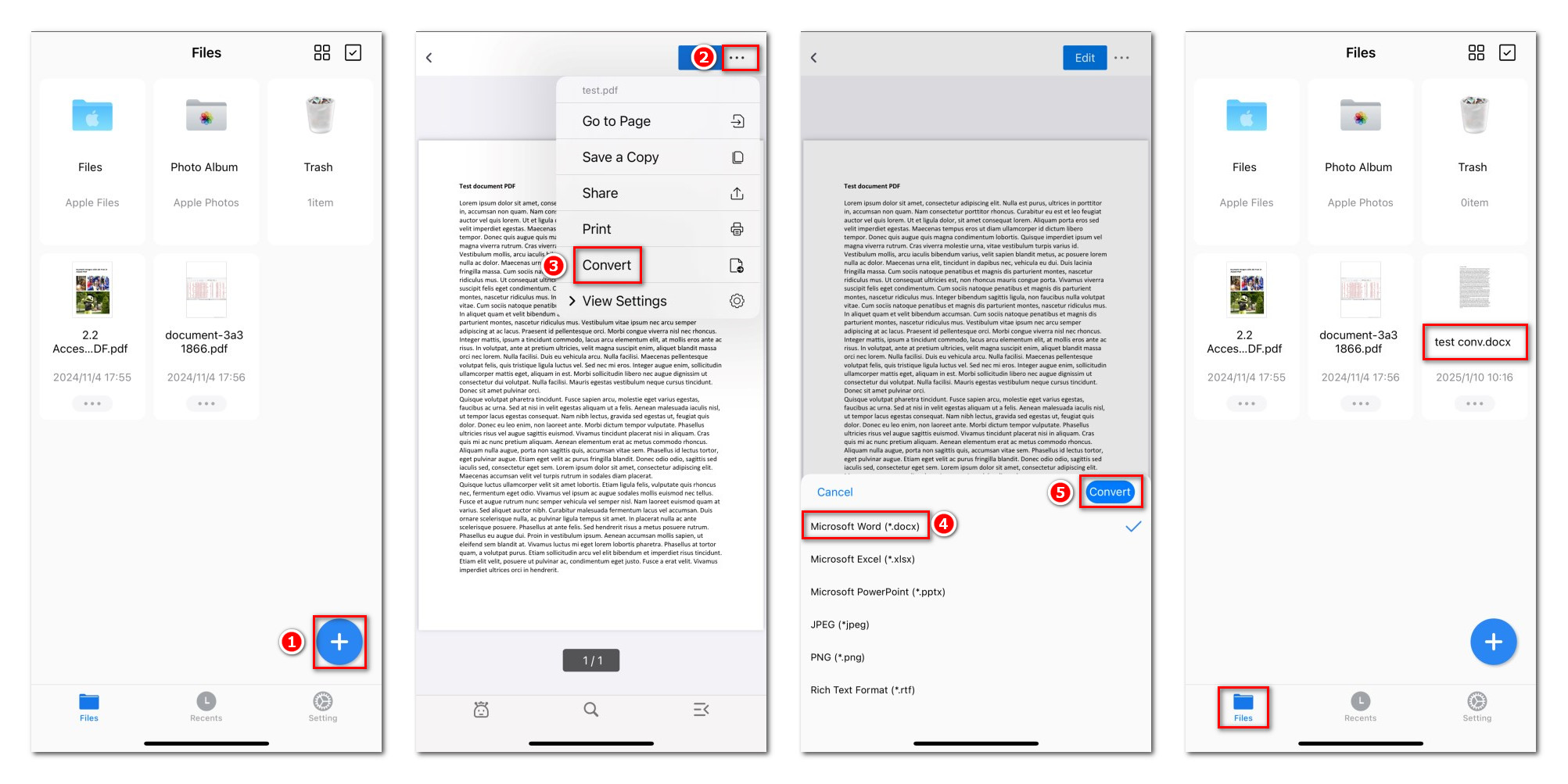
Convert a PDF to Word on iPhone
Step 1. Open the PDFgear app on your iPhone or iPad. Tap the “+” icon to add the PDF file you want to convert.
Step 2. Once the file is open, tap the three-dot menu at the top right. Select “Convert” and choose Microsoft Word as the format.
Step 3. Tap the “Convert” button to start the process.
When it’s done, your Word document will automatically save in the “Files” section on your home screen, so you can easily find and view it.
Need to batch convert PDF to Word? PDFgear also provides a professional converter app for iPhone and iPad users to make it easy.
How to Convert PDF to Word on Android
PDFgear offers a free PDF editor and converter for Android users. You can edit a PDF directly or convert it to an editable Word document with ease.
Download PDFgear from Google Play and enjoy a fast and stable conversion.

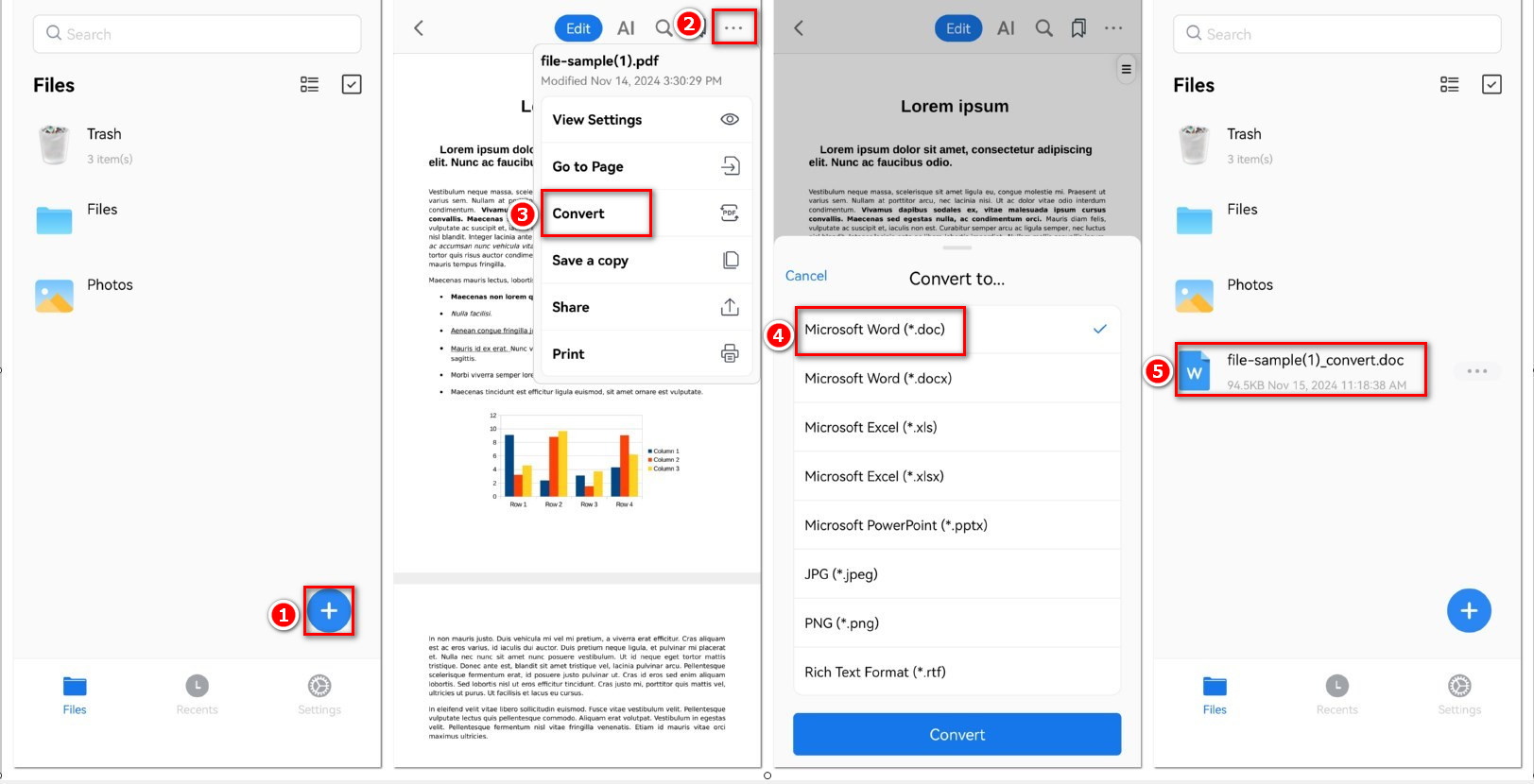
Convert PDF to Word on Android
Step 1. Open the PDFgear application on your Android phone or tablet.
Step 2. Open the app and tap the plus (+) icon to import the PDF you want to convert.
Step 3. Once the file is open, tap the three-dot icon in the top right corner. Select “Convert” and pick Microsoft Word as the format.
Step 4. Tap the “Convert” button to start the conversion.
When it’s done, your Word file will automatically save in the “Files” section on the main screen, ready for you to open and view.
FAQs
Can I directly edit a PDF without converting to PDF?
Yep, you can totally edit a PDF directly without converting it. PDFgear lets you make changes right in the PDF, like add new text, edit text, or update fonts, all without switching to another file format. Super easy!
What is the best PDF to Word converter software?
PDFgear is one of the best free PDF to Word converters. It’s easy to use, works on Windows, Mac, iPhone, and Android, and lets you convert many files at once.
Is it free to use PDFgear?
Yes, it’s free to use the PDFgear online platform. You can also download PDFgear on Windows, Mac, iPhone, and Android for free. Read on to learn more details about why PDFgear is free.
How to convert a PDF to Word without Acrobat?
PDFgear is the best free alternative to Adobe Acrobat. You can use PDFgear online tool to convert PDFs to Word on any device. Plus, it has a PDF app for Windows, Mac, iOS, and Android, all with a built-in PDF to Word converter.
How to convert scanned PDF to Word?
PDFgear for Windows lets you use OCR to convert scanned PDFs to Word. The steps are the same as converting a regular PDF to Word. Just remember to check the OCR box during conversion.
