How to Convert Password Protected PDF to Word for Free

Summary :
This article explains how to use PDFgear to convert one or more password-protected PDF files to Microsoft Word, both online and offline, for free.
Table of Contents
There are two types of secure PDFs: one that uses an open password to prevent opening and viewing, and another that uses a permission password to restrict editing, printing, or conversion.
You cannot convert a PDF protected by an open password without knowing the password. If you can open and view a PDF but are asked to enter a password when trying to convert it, here are some working methods to help you convert it to Word.
How to Convert a Protected PDF to Word Online for Free
PDFgear online platform lets you convert a single protected PDF to Word online without password. No sign-up, no watermarks, no limitations, and it’s 100% free and safe.
The whole conversion process happens on your browser, and it won’t ask you to enter a password. Before we get started, ensure that you have the right to convert the PDF.
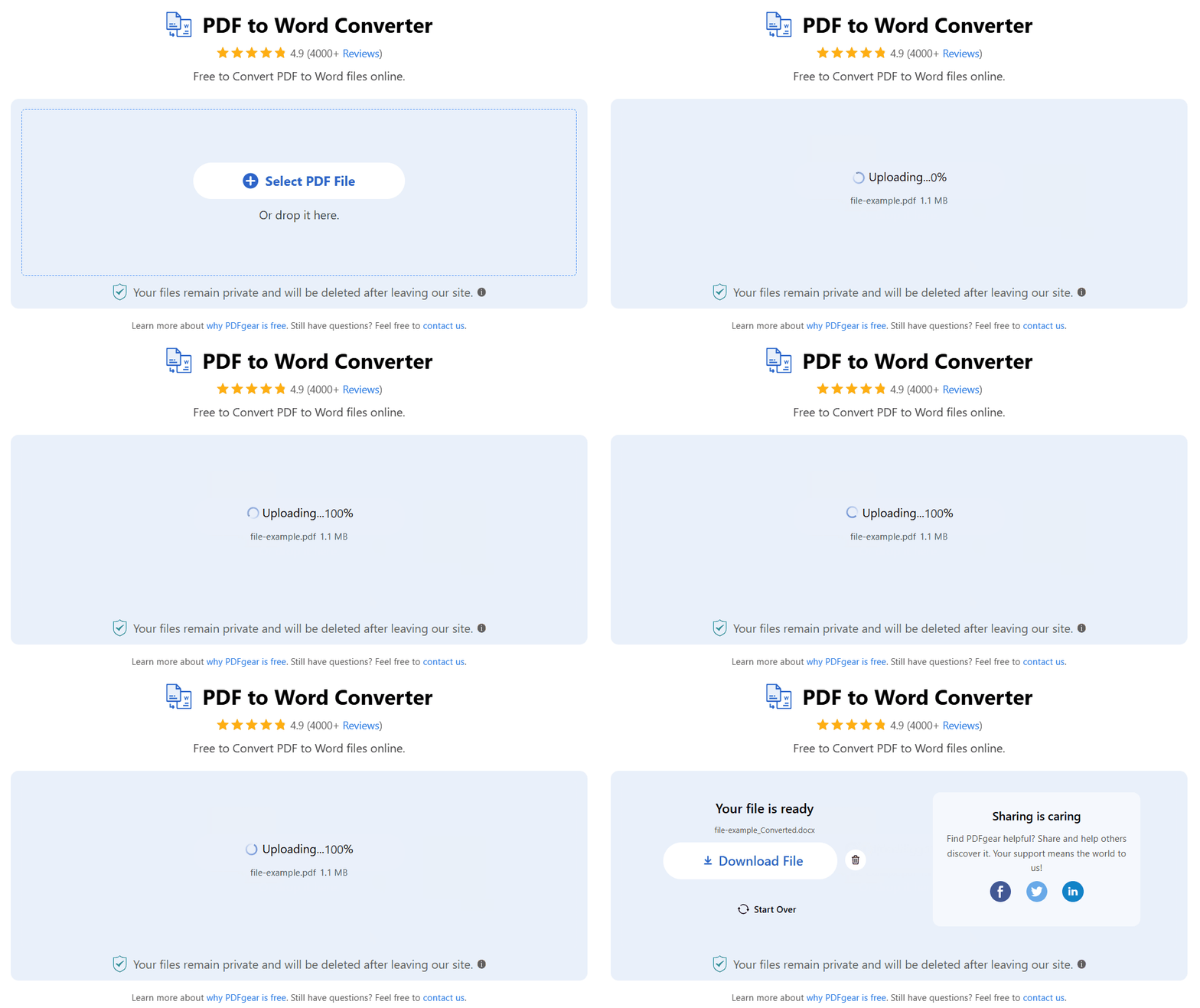
Step 1. Click the Selected PDF file button or drag & drop it to PDFgear online PDF to Word converter.
Step 2. Wait for PDFgear to convert your file from PDF to Word in a few seconds.
Step 3. Click the Download button to save the Word doc on your device.
Legal Disclaimer: PDFgear provides tools to convert protected PDFs to Word for personal use only. Converting password-protected documents without permission may be illegal or violate terms of use.
How to Convert Protected PDF to Word with PDFgear
PDFgear also offers free software to convert protected PDFs to Word offline. The best part is that PDFgear lets you batch-convert multiple secured PDFs at once without asking you to enter the permission password.
Download PDFgear for Mac or Windows and see how easy it is to convert locked PDFs with a permission password to Word.
PDFgear allows you to directly convert secured PDFs to Word in batch without knowing the permission password.
Step 1. Launch PDFgear and open the PDF to Word tool in the interface.
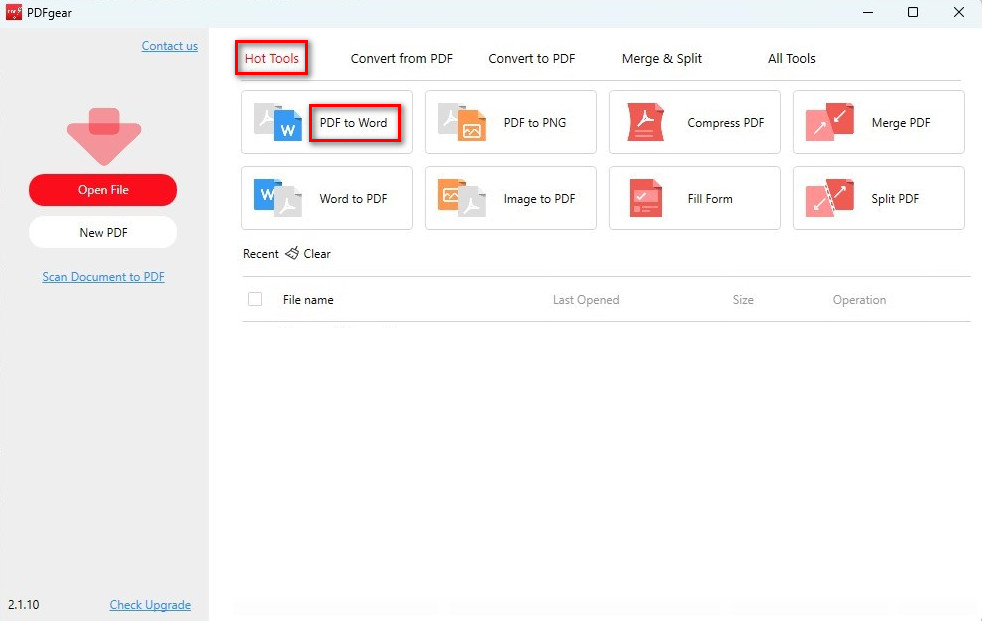
Open PDF to Word Converter
Step 4. Click the “Add File” button to select and import the PDF files you want to convert.
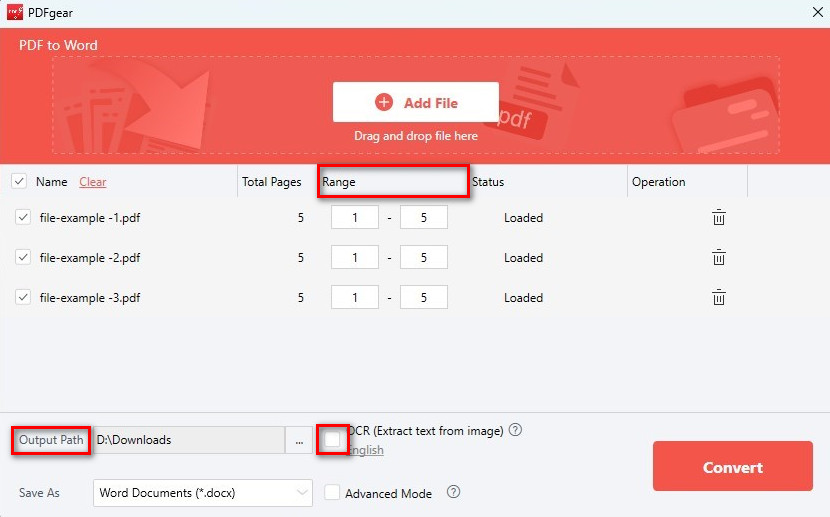
Customize the PDF to Word Conversion Settings
Step 5. Now, set the output path and page range before converting. To convert scanned PDF, check the OCR button and select the document language to get better results.
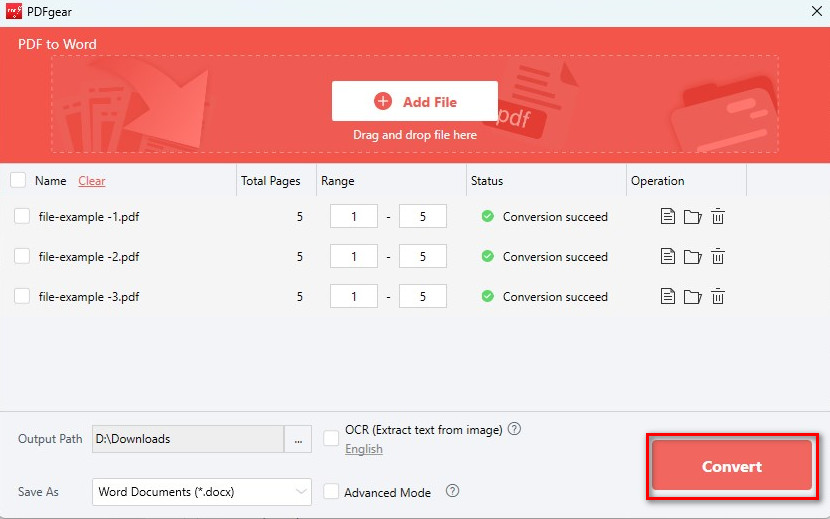
Batch Convert Secured PDF to Word
Step 6. All good to go! Click the “Convert” button to start the conversion.
FAQs
How to convert a PDF with an open password without the password?
You can’t convert a PDF with an open password unless you know the password first. Many tools claim they can help you unlock PDF opening passwords, but most of them don’t actually work. Also, unlocking a PDF without permission could violate copyright laws.
How to copy from a PDF that won’t let you?
You can’t copy text from a PDF because it’s often restricted by a permission password that limits actions like editing, copying, and converting. PDFgear can remove this restriction. Simply download PDFgear to your device, open the PDF with it, and then you can select any text in the document to copy.
How to Convert password-protected PDF to Word with Adobe Acrobat?
Step 1. Launch Adobe Acrobat and open the password-protected PDF file.
Step 2. When prompted, enter the correct password to access the document.
Step 3. Go to “Tools” from the menu bar.
Step 4. Click “Export PDF”. Select “Microsoft Word” as the output format.
Step 5. Choose a location to save your newly converted Word document.
How to remove password protection from a PDF?
PDFgear is a professional PDF editor that helps you remove passwords from PDFs. Download PDFgear on your devices, then open the PDF in PDFgear. Enter the password to unlock the PDF. Go to the Tools tab, select “Remove,” then click “OK” to proceed and save the PDF. Now you can easily access the file and are free to modify the PDF document.
