How to Convert PDF to Word in Mobile Phone for Free

Summary :
Here’s how to use the PDFgear online tool and mobile app to convert a PDF to an editable Word document on mobile devices.
Table of Contents
Want to convert a PDF to Word on your phone or tablet? There are no built-in tools for this.
No worries! This guide shows you how to use PDFgear to convert PDF to Word, with or without software.
Try our online PDF to Word converter now! 👇
Convert PDF to Word Online for Free in Mobile
PDFgear online platform lets you convert PDF to Word on your phone for free. There is no download, no sign-up, and no limit on the number of files you can convert each day.
It’s fast, safe, and works perfectly on any mobile device. Here’s a step-by-step guide:

Convert PDF to Word on Mobile Online
Step 1. Go to PDFgear’s PDF to Word converter in your mobile browser (like Safari or Chrome) on your iPhone or Android device.
Step 2. Tap the “Select PDF file” button to add the PDF you want to convert.
Step 3. Let PDFgear work its magic to convert the PDF to a Word file.
Step 4. Voila, it’s done! Simply tap the Download button to save the converted Word file.
Convert PDF to Word on Android Phone
PDFgear offers Android users a mobile app to convert a PDF file to editable formats like Word, Excel, and PPT. Additionally, you can edit and annotate the PDF directly on your phone or tablet using PDFgear.
PDFgear is completely free. Download it from Google Play and follow the steps to convert a PDF to Word.


Convert PDF to Word on Android
Step 1: Open the PDFgear app on your Android device and tap the plus icon to add the PDF you want to convert.
Step 2: After the file opens, tap the three dots in the top right, select “Convert,” and choose Microsoft Word as the output format.
Step 3: Tap “Convert” button to start. When it’s done, the Word file will be saved in the “Files” section on the main screen, where you can find and open it.
Convert PDF to Word on iPhone
PDFgear for iOS allows you to convert a PDF file to a Word document for free on iPhone and iPad. But it’s not just a converter—it also works as a PDF editor, so you can make edits right on your PDFs.
Now, download the PDFgear app from the App Store before we get started:

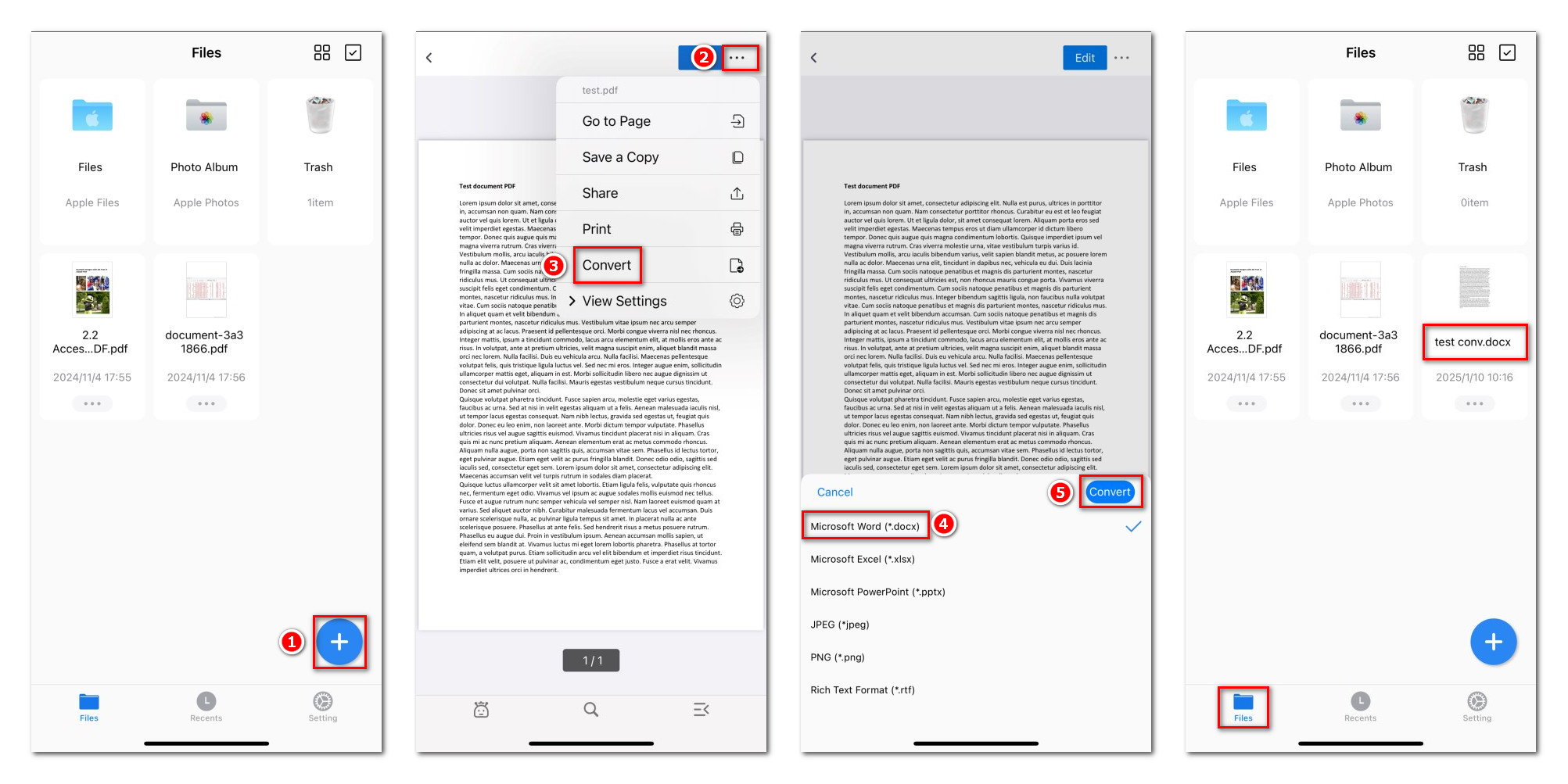
Convert a PDF to Word on iPhone
Step 1: Launch the PDFgear app on your iPhone or iPad. Hit the “+” button to pick the PDF you want to change.
Step 2: After the PDF pops up, tap the three dots in the top corner. Choose “Convert,” then pick Word as the output format.
Step 3: Hit “Convert” to start the PDF to Word conversion process.
Once it’s done, your new Word file will show up in the “Files” section on your home screen, ready to open and edit.
Want to convert multiple PDF files at once to save time and effort? You can download the PDFgear PDF Converter app from the App Store and try the batch conversion feature.
