How to Split a PDF on Mac for Free

Summary :
Learn how to easily split PDF pages into separate files on Mac devices, including iMac, MacBook Pro and MacBook Air.
Table of Contents
Splitting a PDF allows you to extract specific pages, reduce file size, and enhance document organization and sharing efficiency.
No matter your reason for splitting a PDF, this guide will show you the best free methods to do it on macOS.
Before getting started, here’s a video tutorial for you.
How to Split a PDF into Multiple Files on Mac for Free
How to Split PDF Pages on Mac Online for Free
The easiest way to split PDFs on Mac without installing software is by using an online PDF splitter. PDFgear offers a secure and free online tool that lets you split large PDFs into multiple files with full privacy—no sign-up, no watermark.
PDFgear ensures your files remain private by never storing them and automatically deleting uploaded files when you leave the website.
Step 1. Open PDFgear’s online PDF splitter in your web browser.
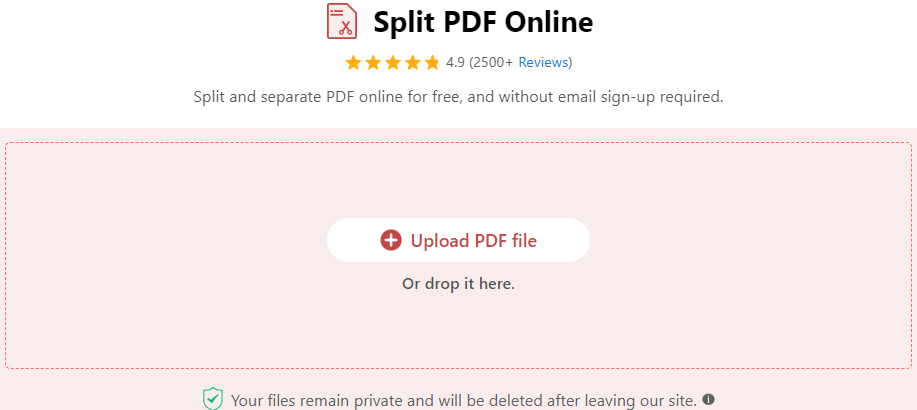
Click Upload PDF File
Step 2. Click the scissor icon between adjacent pages to choose where to split the PDF. For multi-page PDFs, divide at fixed intervals using the Split every [X] pages feature.
Then click Split into PDFs (top-right corner) to process the file.
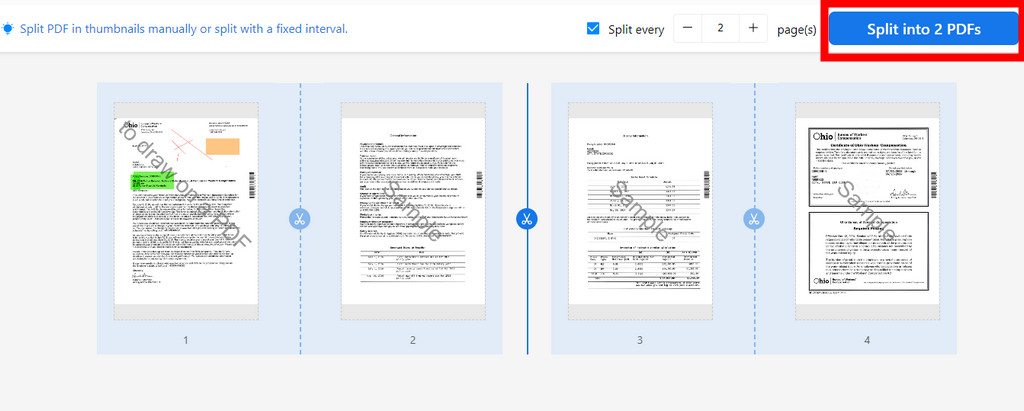
Split PDF into Multiple PDFs with PDFgear Online
Download the split PDF files by clicking the Download File button.
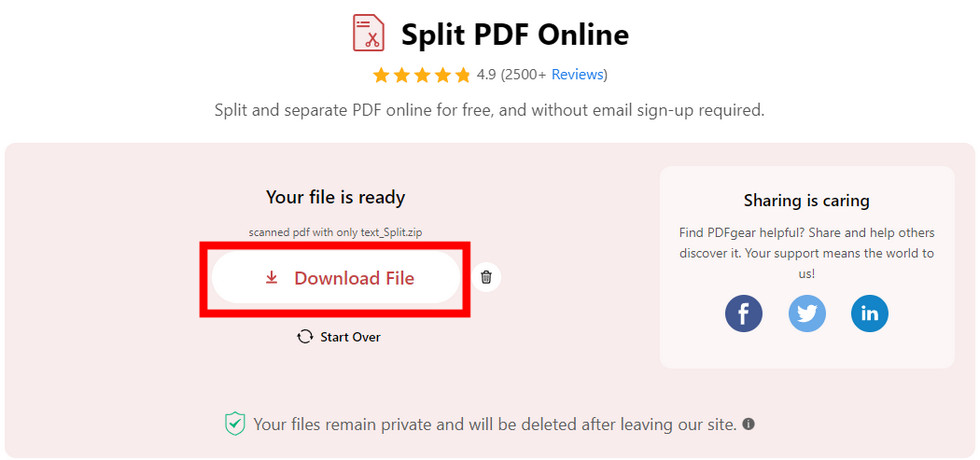
Download the New PDFs in PDFgear Online
How to Divide PDF Pages on Mac with a Free PDF Splitter
PDFgear for macOS is a versatile PDF editor that lets you split, rearrange, and insert pages with ease. It also supports free batch processing for added efficiency.
Best of all, it’s completely free—no watermarks, no sign-ups. Just download and start using all features at no cost.
Step 1. Download PDFgear and launch it on your Mac.
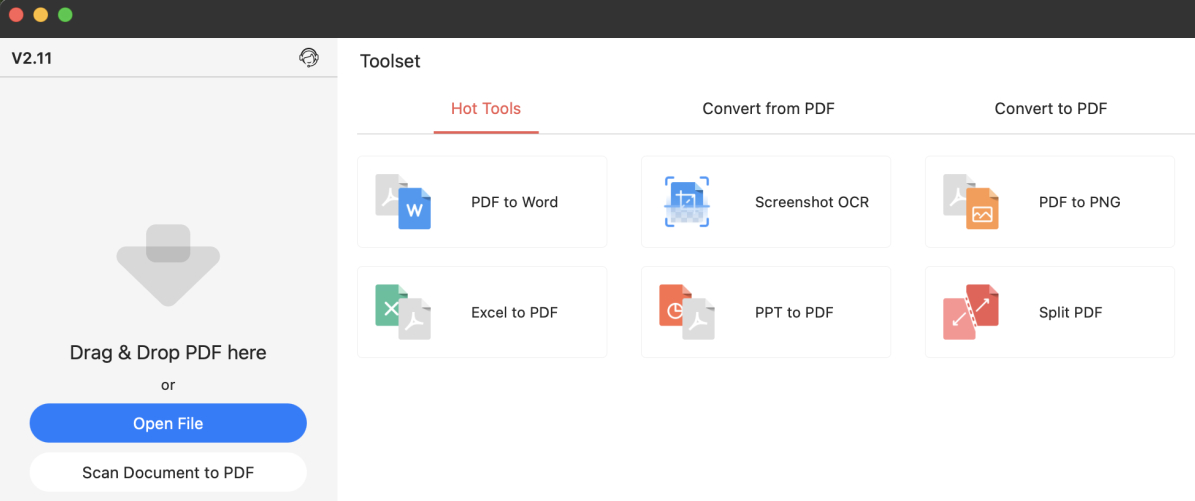
The Main Interface of PDFgear
Step 2. Open a PDF and go to Pages in the toolbar, then select Split.
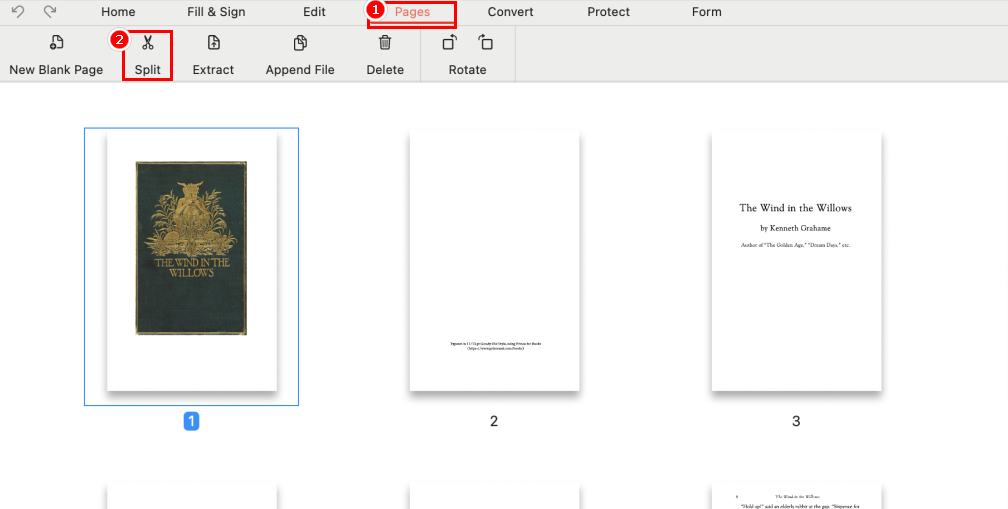
Split Pages in PDFgear
Step 3. Set split options (by pages or page range) and click Split.
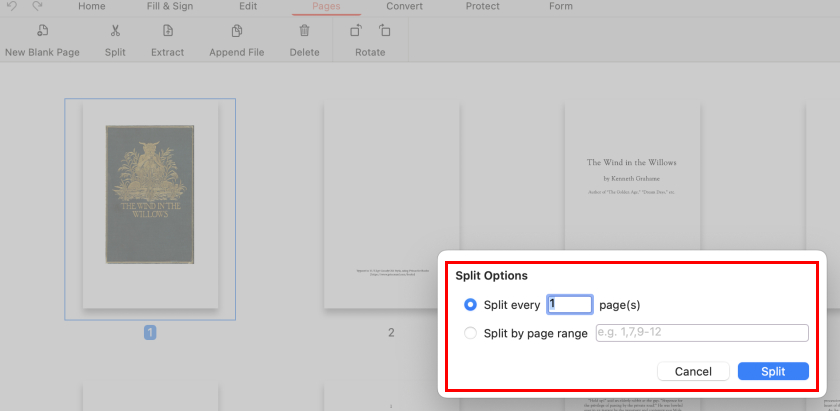
Split Options in PDFgear
Step 4. Choose a save location, and PDFgear will generate a folder with the split files.
For batch splitting, PDFgear provides a fast and efficient solution to process multiple PDFs at once.
1. Simply launch PDFgear, go to the “Merge & Split” toolbar, and select “Split PDF.”
2. Click “Add Files” to upload multiple PDFs—there are no quantity limits. Customize the splitting method for each file, then click “Split” to process them all instantly.
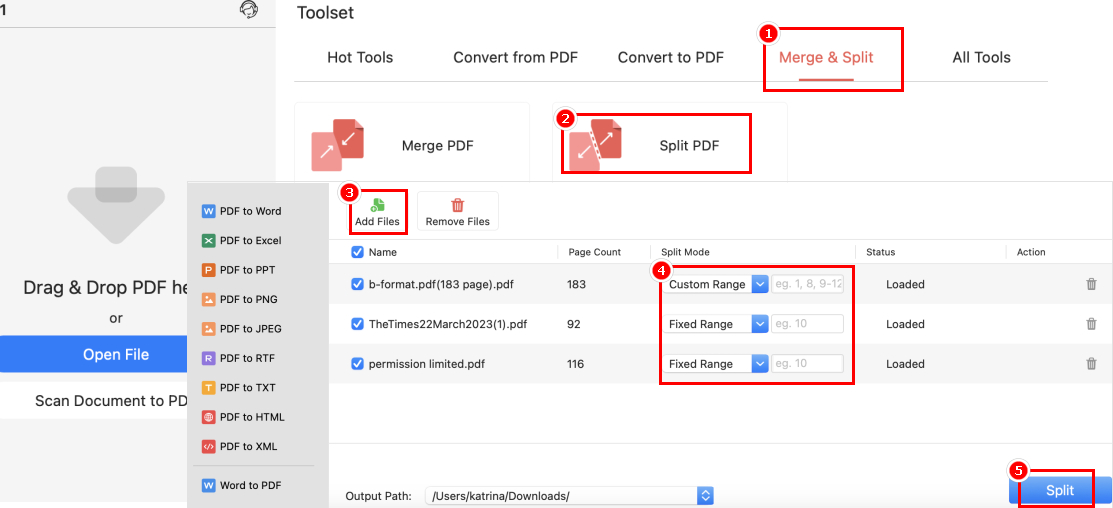
Batch Split PDFs with PDFgear on Mac
How to Separate Pages in PDF on Mac Using Preview
Preview, the built-in PDF reader on macOS, offers basic editing tools, including the ability to split PDFs into individual pages. However, splitting requires manually dragging each page, which can be tedious for large PDFs.
Step 1. Open your PDF in Preview. To make access easier, you can change the default PDF viewer on your Mac to Preview.
Step 2. Go to View in the toolbar and select Thumbnails.
Step 3. Create a new folder and drag pages from Thumbnails into it—each dragged page will be saved as a separate PDF.
Step 4. To save multiple pages as one PDF, hold the Command key, select the pages, and drag them to your desired location.
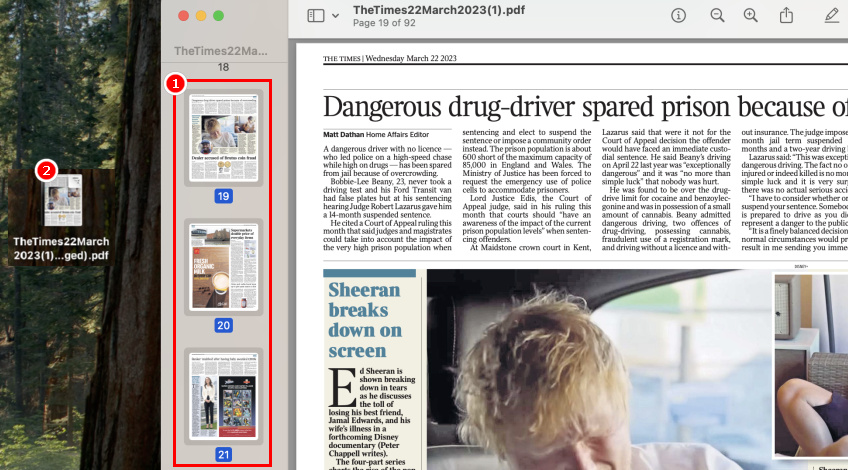
Drag Thumbnails in Preview
How to Divide a PDF into Parts Using Automator
Automator is a built-in macOS tool designed to streamline tasks and boost productivity. It works with various macOS apps, enabling users to automate PDF tasks like splitting, merging, and rearranging pages.
However, its interface can be less intuitive and may require some technical knowledge.
Step 1. Open Automator by pressing Command + Space, then searching for Automator.
Step 2. Select Workflow as the document type and click Choose.
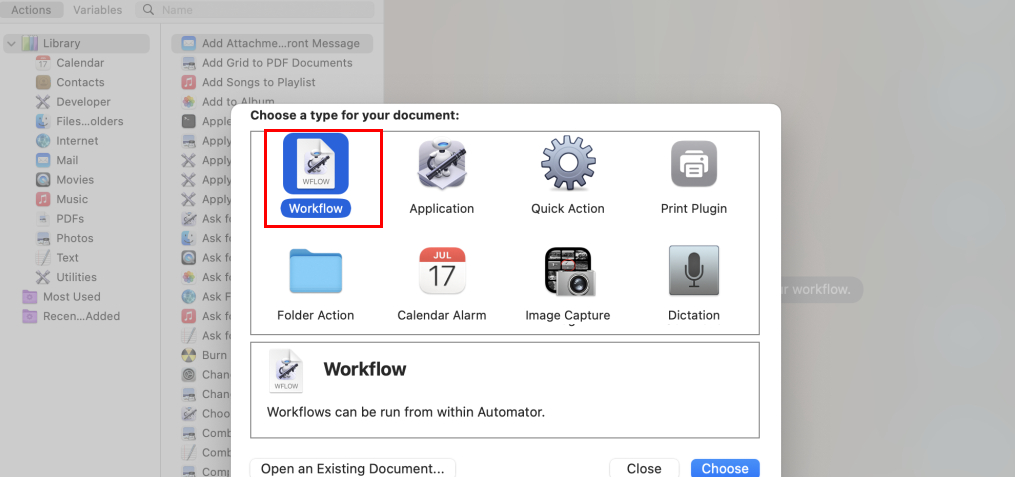
Choose Workflow in Automator
Step 3. From the Library, go to PDFs, select Split PDF, and drag your PDF into the window. Choose an output folder and set file names, then click Run.
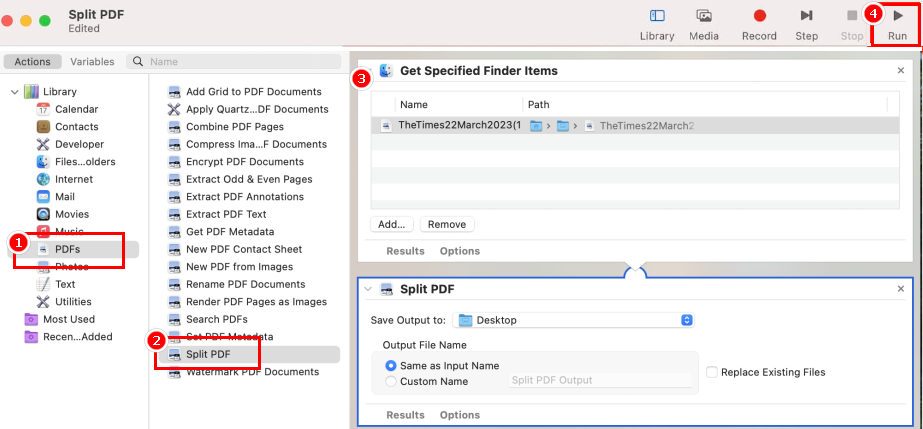
Split PDF in Automator
Step 4. Check your chosen folder—each page of the PDF will be saved as a separate file.
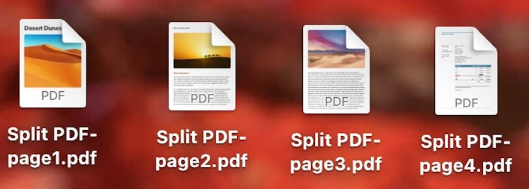
Check Your Files
FAQs
How can I separate PDF pages on Mac without Adobe Acrobat?
PDFgear is the best free alternative to Adobe Acrobat, allowing you to extract or separate PDF pages online with ease. It works on iMac, Mac Pro, Mac Studio, MacBook Air, and most macOS devices.
How do I split a large PDF into multiple files?
PDFgear allows you to split a large PDF into multiple files with no size limitations. Simply download and open PDFgear on your Mac, navigate to “Merge & Split,” select “Split PDF,” upload your file, and start splitting.
It also supports batch splitting, letting you process multiple PDFs at once. For more details, refer to the second method above.
How can I split a PDF file in half?
Splitting a PDF in half can be tricky, but tools like DeftPDF and Online2PDF make it easy. Just upload your file, select your preferred split method (side-by-side or top-and-bottom), and download the split PDFs.
Bottom Line
In this article, we explored the most efficient ways to split a PDF on macOS. While built-in tools like Preview and Automator are free, they have limitations.
Therefore, PDFgear is our top recommendation, offering nearly all Acrobat’s features—completely free.
