Extract Pages from PDF on Mac – 4 Simple Ways You May Try

Summary :
Wondering how to take a page or several pages out of a large PDF file? Read on to explore the easy methods to pull out pages from PDF on macOS devices, with step-by-step instructions.
Table of Contents
How to Extract Pages from PDF on Mac
When you are working on a large PDF file and only need certain pages of it, or if you need to select pages from PDF to create a new PDF document, one efficient method is to separate pages from PDF into different files.
This article outlines 4 effective and easy ways to isolate pages from PDF on macOS devices, like MacBook, MacBook Pro, MacBook Air, iMove, etc, using Preview, Adobe Acrobat Pro, and a free PDF page extractor-PDFgear.
Pull out Pages from PDF on Mac with Free PDF Page Extractor
PDFgear for macOS, also compatible with Windows and iOS, is a free PDF page extractor that offers you a fast way to break a PDF into individual or certain pages.
PDFgear is designed with integrated with ChatGPT, which enables you to summarize large PDF files such as textbooks, legal contracts, research papers, etc. in a more effective way.
You do not need to sign up to access the versatile PDF editor. Apart from getting pages out from a PDF, this app also lets you merge PDF files or delete pages from a PDF in a few clicks.
Download PDFgear on your Mac device to experience its ‘Extract Page’ feature, which enables you to extract pages into a single PDF or separate each page into individual PDFs.
Step 1. Open the PDF File in PDFgear
Launch the PDFgear app on your Mac and add your PDF file to it using the Open File option and browsing for your file.
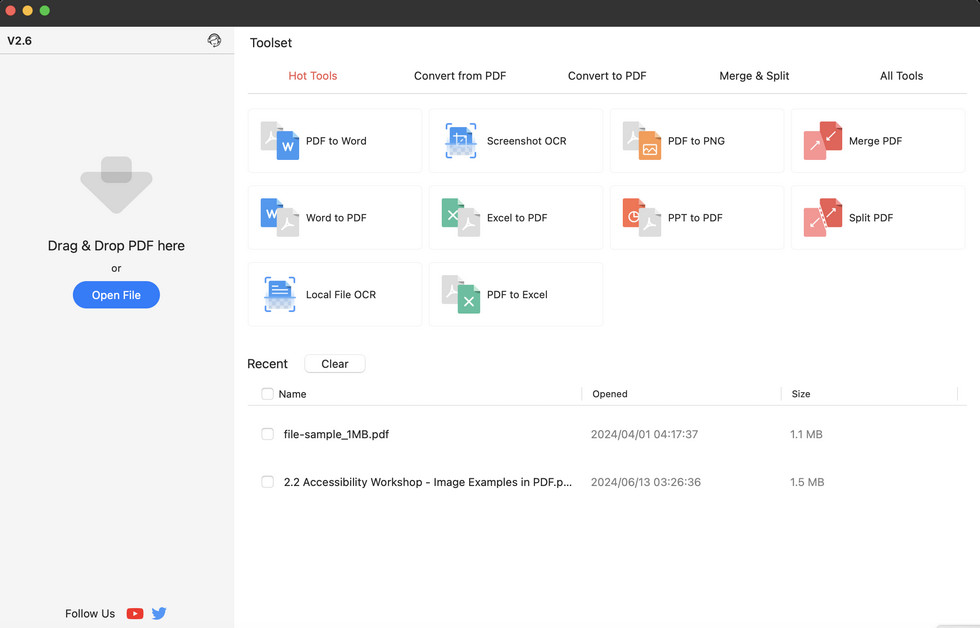
Open a PDF File in PDFgear on Mac
Step 2. Choose the Pages You Want to Extract
Once the file opens in PDFgear, click on the Page tab. This will display all the pages in the selected PDF file. Click one page (press and hold the Command key, then click multiple pages) that you want to extract or save.
You can do this by clicking on each of the thumbnails and double-clicking to cancel the selection.
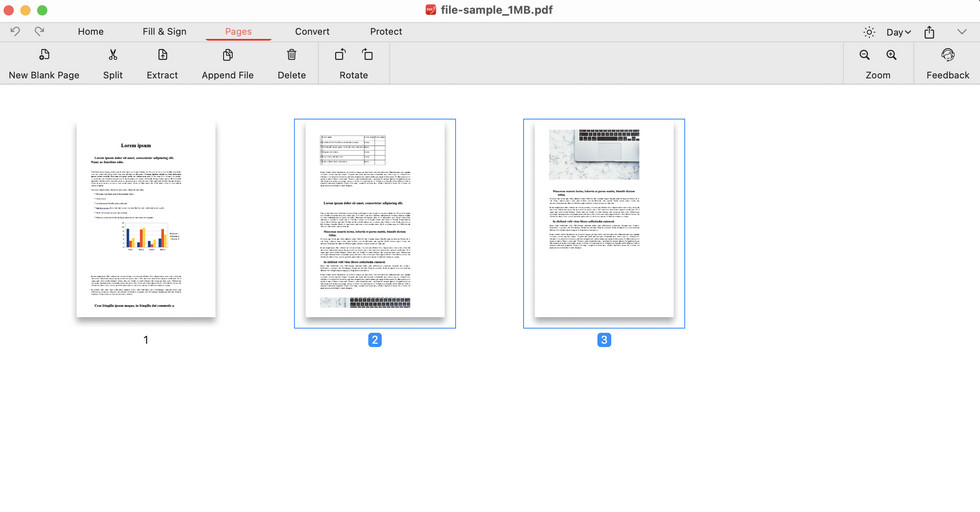
Select Pages to Extract on PDFgear on Mac
Step 3. Extract the Pages
Click on Extract pages. There will be a dialog box to let you customize the extracted pages. Then, click the Save button to save the new file in a destination of your preferences.
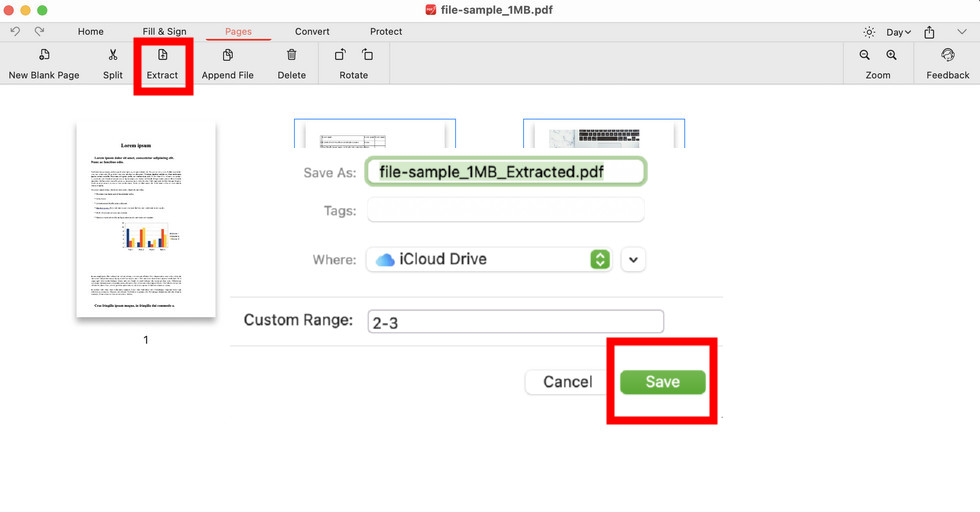
Extract and Save the Pages
Export Pages from PDF on Mac in Preview
The Preview pre-installed on macOS devices provides a straightforward way to save one page of a PDF on your Mac.
It works as an excellent PDF editor tool that enables you to annotate your PDFs and rearrange PDF pages. In addition, it also helps you in exporting the pages from a PDF.
Step 1. Open the PDF file with Preview. To do this, right-click on the PDF file and choose Open With > Preview. This will open the concerned PDF file within the Preview app.
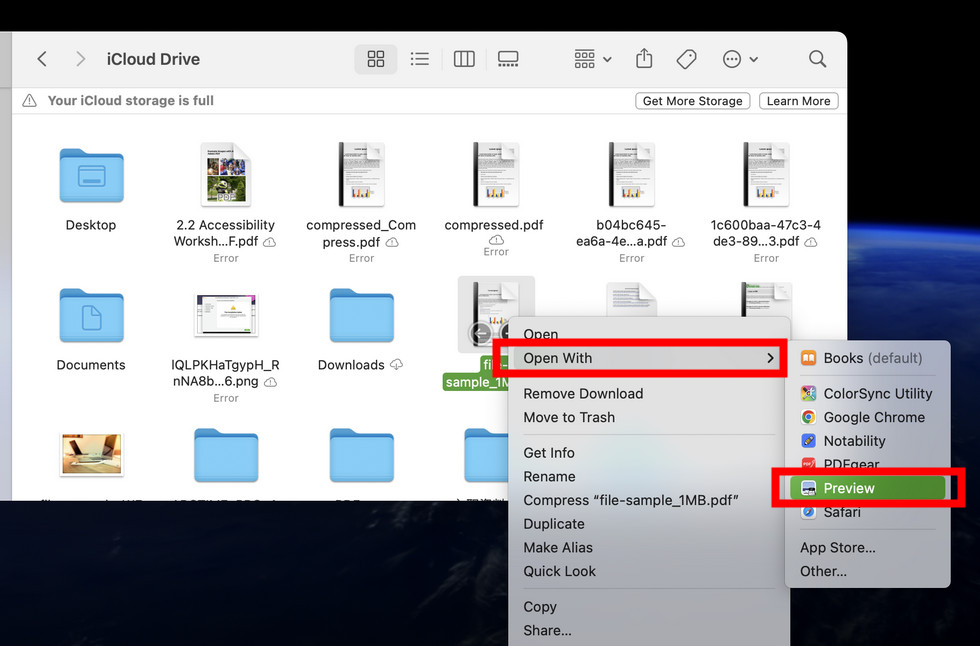
Open a PDF with Preview
Step 2. Access the pages from within the PDF that you want to extract. Click on the upper toolbar and click on View > Thumbnail.
Now, from the thumbnail of all the pages that appear, click the pages that you would wish to extract or save. Press and hold Command then click the pages at once.
Step 3. When the pages are selected, click any one of them and drag it to desktop or an app your’d like the files to be saved. The new PDF file with extracted pages will automatically be exported.
Or, Press command and click the one of the pages > Choose Export in the menu > In the dialog, rename the new file and choose place the save > Click Save.
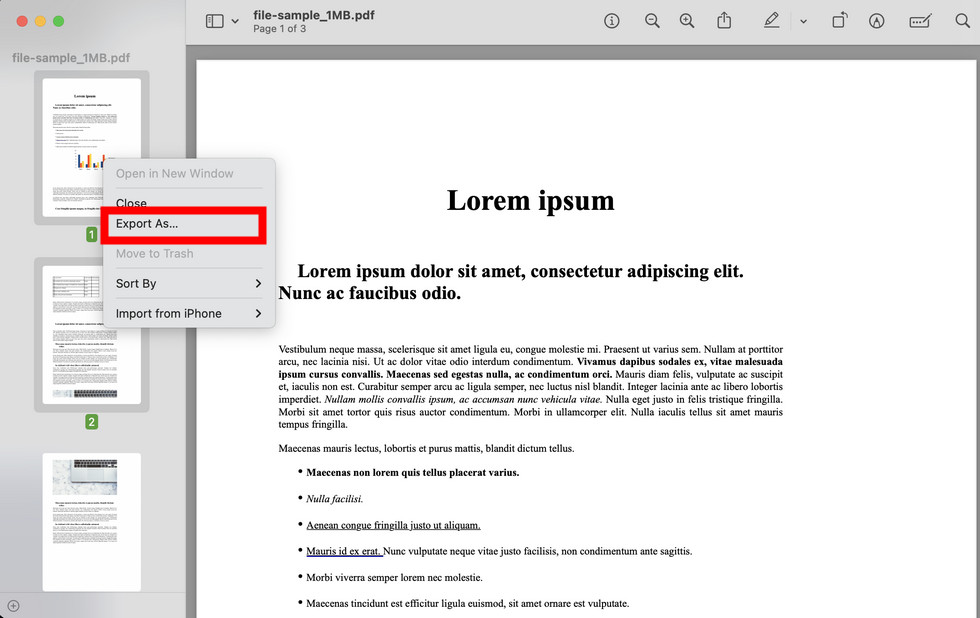
Export the Selected Pages as a New File
Step 4. In the pop-up dialog of export, rename and choose a place to save the new file. Then, click on the Save buttont.
Extract a Single Page or Mutliple Pages from PDF via Adobe Acrobat Pro
Provided you have installed Adobe Acrobat on your Mac and have subscribed for a membership, keep reading for the step-by-step guide to extract pages from a PDF in Adobe Acrobat.
Step 1. Open a multi-pages PDF with Adobe Acrobat Pro, and navigate to the Organize Pages tool on the right side.
Step 2. Click on Extract, select one page, or hold command and select several pages with your mouse, and then hit the Extract button to take the pages out of the PDF.
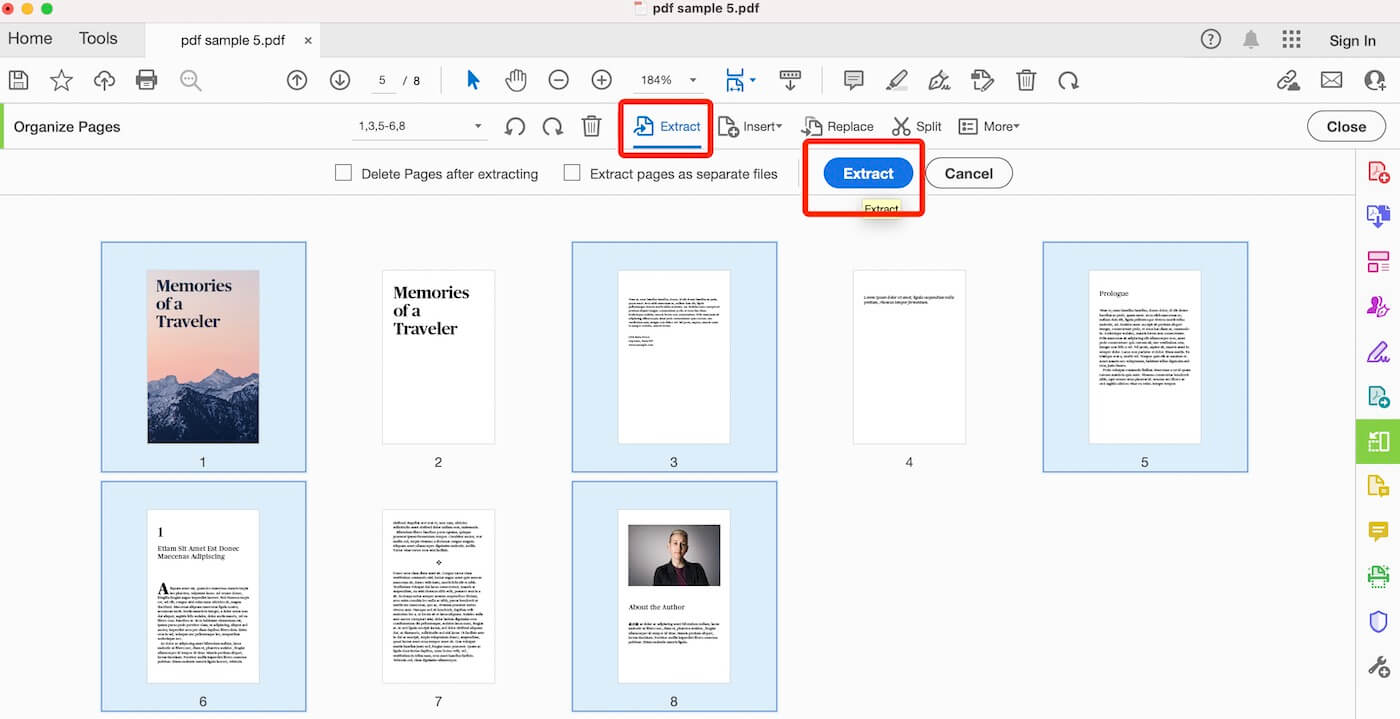
Extract Pages from PDF in Adobe Acrobat Pro
Step 3. The new extracted PDF will automatically open in a new window, head to the File section, and Save the new document on your Mac.
Separate PDF Pages on Mac Online for Free
If you do not want to utilize any third-party software yet prefer a feature-packed PDF page extraction, PDFgear’s online PDF page extractor might be your first choice.
This online feature allows you to split PDF online for free without email sign up. No purchase, no annoying ads, you can download the extracted PDF in a few clicks.
Whether you are using Windows or macOS, this online tool works as an excellent option to help you extract the pages from a PDF file with ease.
Step 1. Add the PDF File to the Online Tool
Visit the PDFgear online PDF page extract tool. Click Select PDF files to browse for and add your PDF files. You may also choose to drag and drop the PDF files into the tool.
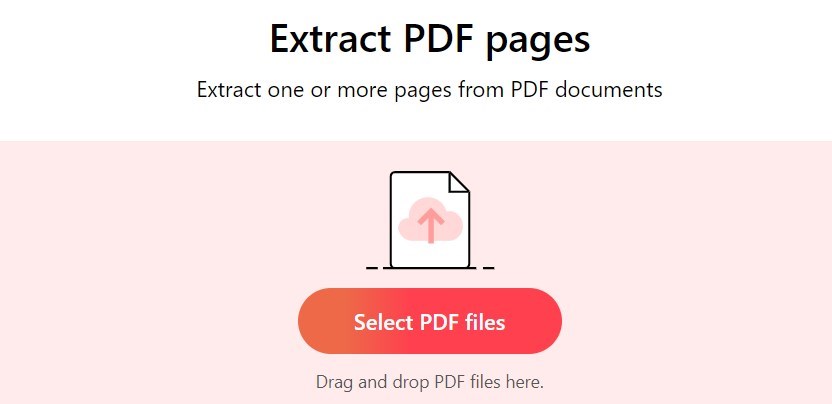
Upload a PDF to the Online Tool
Step 2. Extract the Pages Online
Mark the pages that you want to extract. Click once to select a page. Double-click to uncheck in case of a wrong selection. You can also mark the pages on the right-hand side, and select the pages to extract.
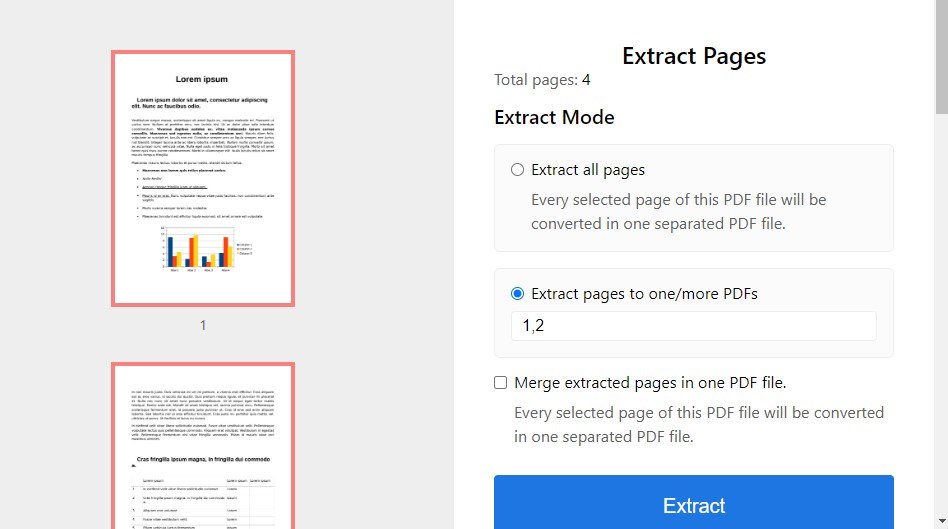
Separate PDF Pages Online Using PDFgear
On the right side of the page, Click on Extract pages. Once clicked, the tool will retain the chosen pages and will remove those pages that you do not want.
Step 3. Download the New PDF File
Click on Download to download the file with the pages that you want to extract. Save it at the destination that you want to.
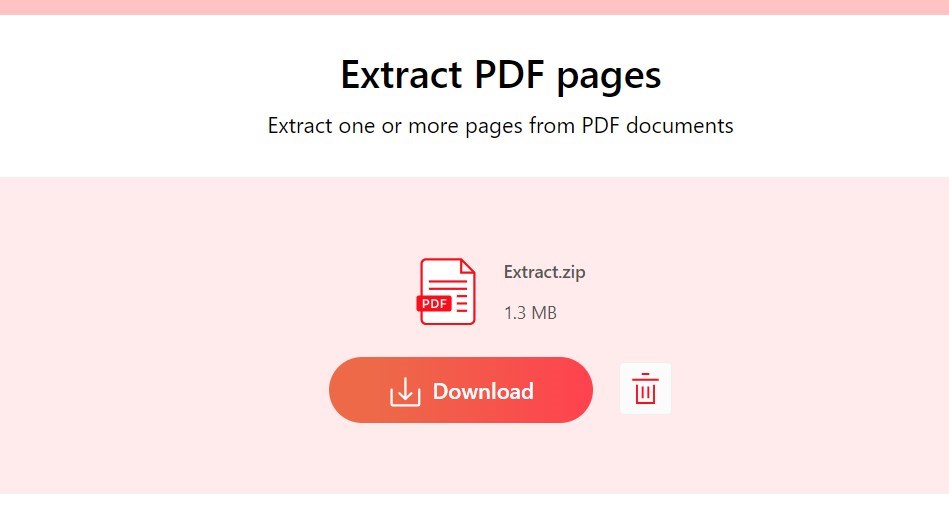
Download the Extracted PDF File
You can also use the PDFgear online tool to help you split your PDF file into multiple parts.
The Parting Thoughts
This guide provides 4 effective manners to extract a single or multiple pages from a PDF file. Each method works well and efficiently. You may try accordingly.
Among the versatile PDF page extractors, PDFgear for macOS, available in both online and offline, proves to be the extremely handy PDF tool for free. Give it a try and enjoy the seamless experience working with PDFs.
