How to Split Signed PDF with Digital Signature Retained

Summary :
When you split a PDF, you invalidate the digital signature. However, there are a few workarounds to split PDFs with digital signatures preserved.
Table of Contents
Split Signed PDF with Digital Signature
Splitting a PDF without losing the digital signature is generally impossible with most PDF signature software. When a PDF is split or altered, the digital signature may become invalid because the document’s content has changed.
However, you can try the following workarounds to split the PDF while preserving the signatures as much as possible. Addionally, we advice against printing signed PDFs as it flattens and invalids the signature.
Split Signed PDF Files into the Individually Uploaded Files in Acrobat
The actually viable method to split signed PDFs without losing digital signatures is using Adobe Acrobat.
In Adobe Sign Business and Enterprise plans, there’s a new feature to split signed PDF files into individually uploaded files in the attachments.
Step 1. Open Adobe Acrobat
Step 2. Click Menu and open the PDF you need to work with.
Step 3. Go to eSign menu, and click to expand the side bar.
Step 4. Click on the Download Individual Files button.
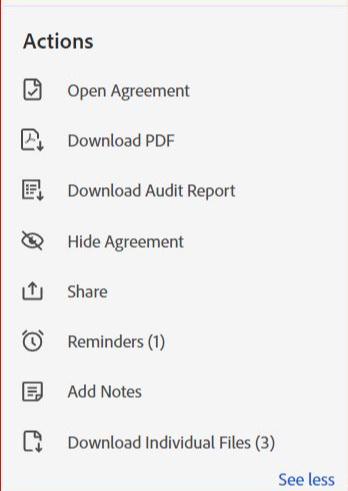
Download Individual Files
Split PDF with Digital Signature Preserved for Free
A free PDF editor that supports digital signatures like PDFgear allows you to split PDFs while maintaining a visual record of the signature on the extracted pages.
PDFgear is a free and powerful PDF editor that offers extensive features such as PDF signing, splitting, page extracting, page duplicating, etc.
PDFgear is the best free PDF splitter software to extract PDF pages with the appearance of digital signatures.
⚠️Note that this method only preserves the appearance of the digital signature and not its actual validity.
The new PDF will not have a true digital signature, and the signature’s authenticity cannot be verified.
Step 1. Download PDFgear, install it on your computer, and launch it when it’s installed.
Step 2. Click the Open File button to import the PDF with a digital signature.
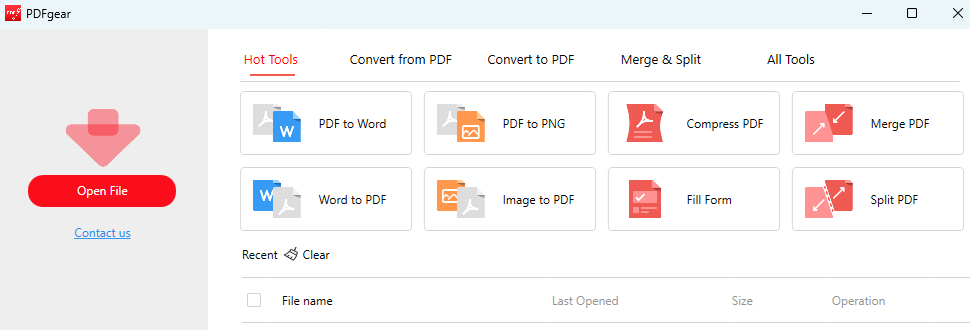
Click Open File
Step 3. From the Home section, click Screenshot to take a screenshot of the PDF page for extraction.
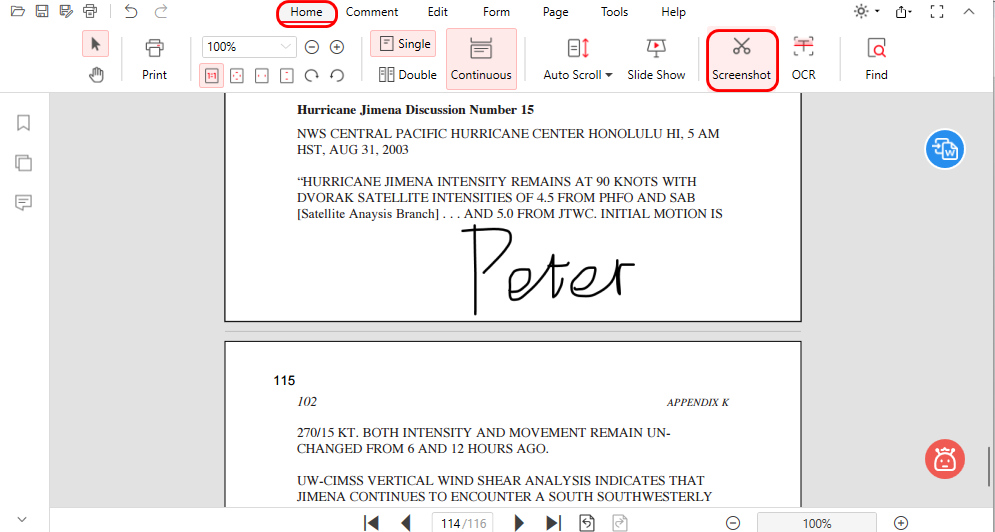
Click Screenshot
Step 4. Adjust the screenshot area, make sure the entire PDF page is covered, and save the screenshot as an image file.
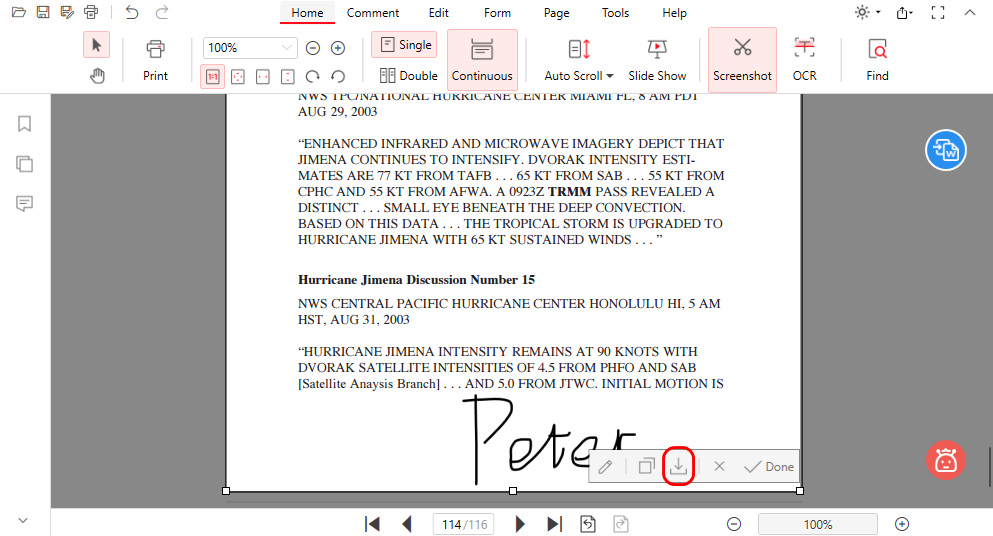
Screenshot Signed PDF
Step 5. Go to the Page section, click Insert Pages, and click From Image from the dropdown.
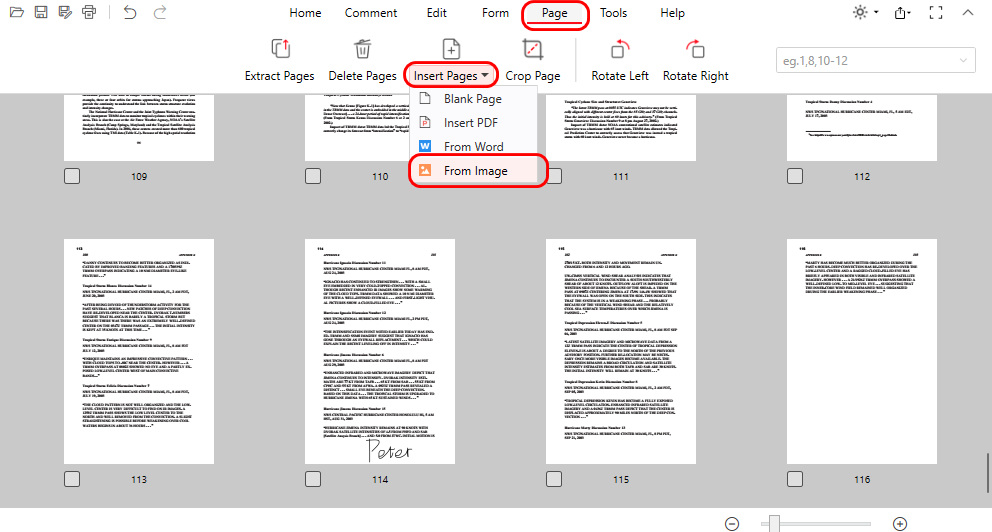
Insert PDF Page
Step 6. Then select the screenshot image to insert as a new PDF page (just like a split). Define the page size and location, and click OK. On the new PDF page, adjust the size of the screenshot if needed.
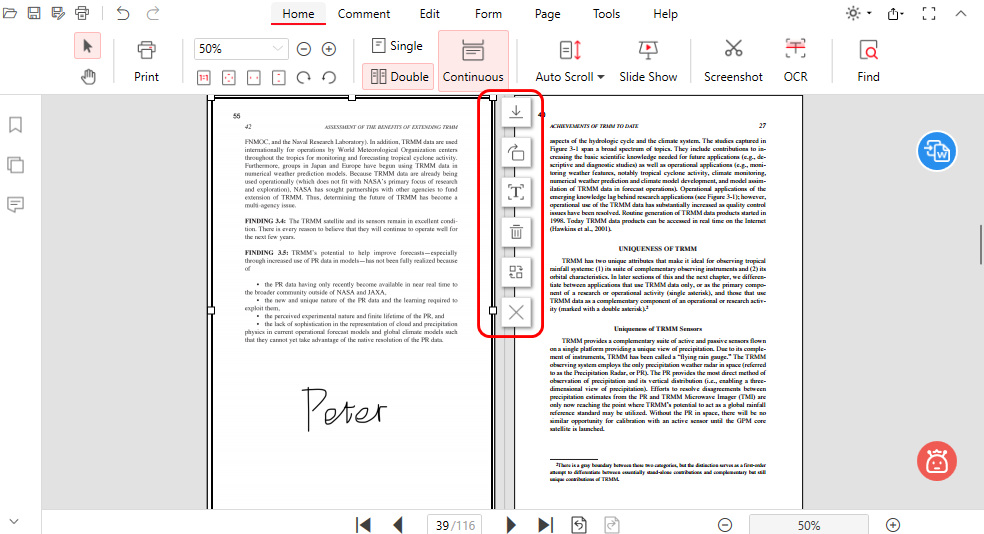
Customize Inserted PDF Image
Step 7. Then you’ll see the PDF page with the digital signature has been extracted. Delete unwanted pages if needed, and go to the upper-left corner to save and export the wanted page with the signature.
Split PDF and Resign Using Adobe
Adobe Acrobat Pro DC allows users to split PDF documents. However, splitting a document will invalidate the existing digital signature. After splitting the document, you can re-sign the new PDFs with a digital signature.
This method ensures that each part of the original document remains authenticated after the split.
It’s important to note that while this method involves re-signing the document, it does not technically maintain the original signature through the splitting process.
Step 1. Download and install Adobe Acrobat from the official website. Launch Adobe Acrobat Pro DC, and open the signed PDF.
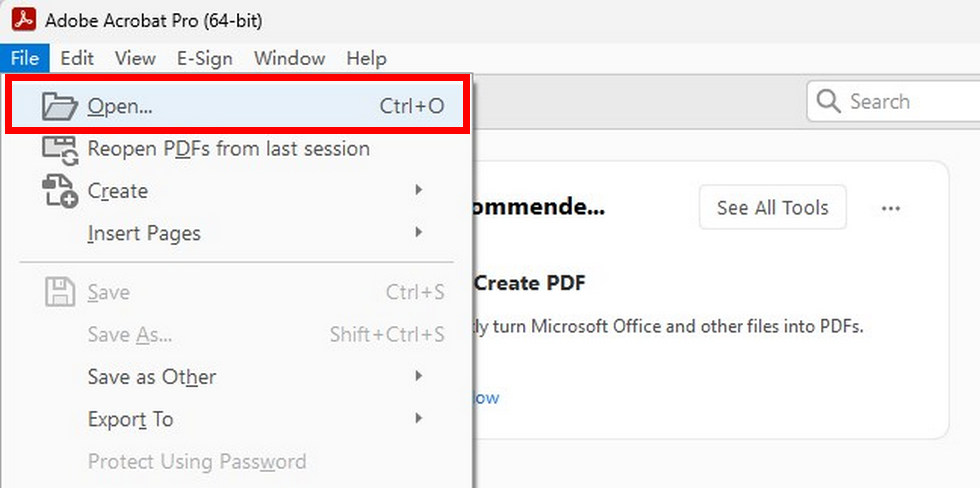
Open a PDF in Adobe Acrobat Pro
Step 2. Click on the “Tools” tab on the top menu, and click on “Organize Pages”. Click on “Split” in the top menu. This option is usually represented by an icon that resembles scissors.
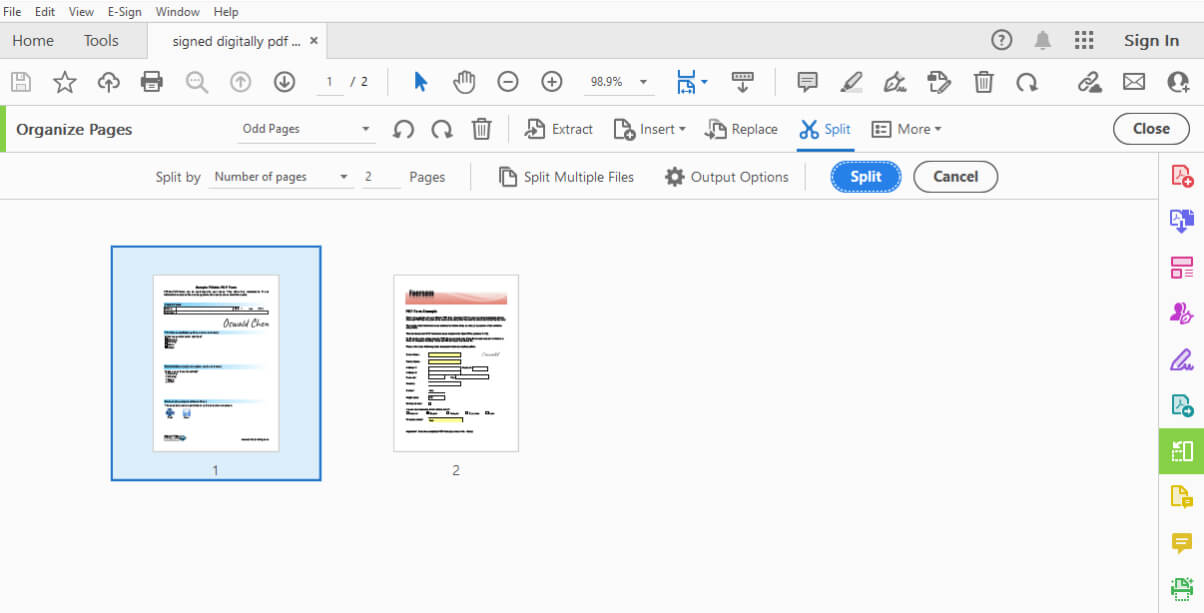
Choose the Split Option
Step 3. A new dialog box will appear, allowing you to specify how you want to split the document. You can split the PDF by the number of pages, file size, or top-level bookmarks.
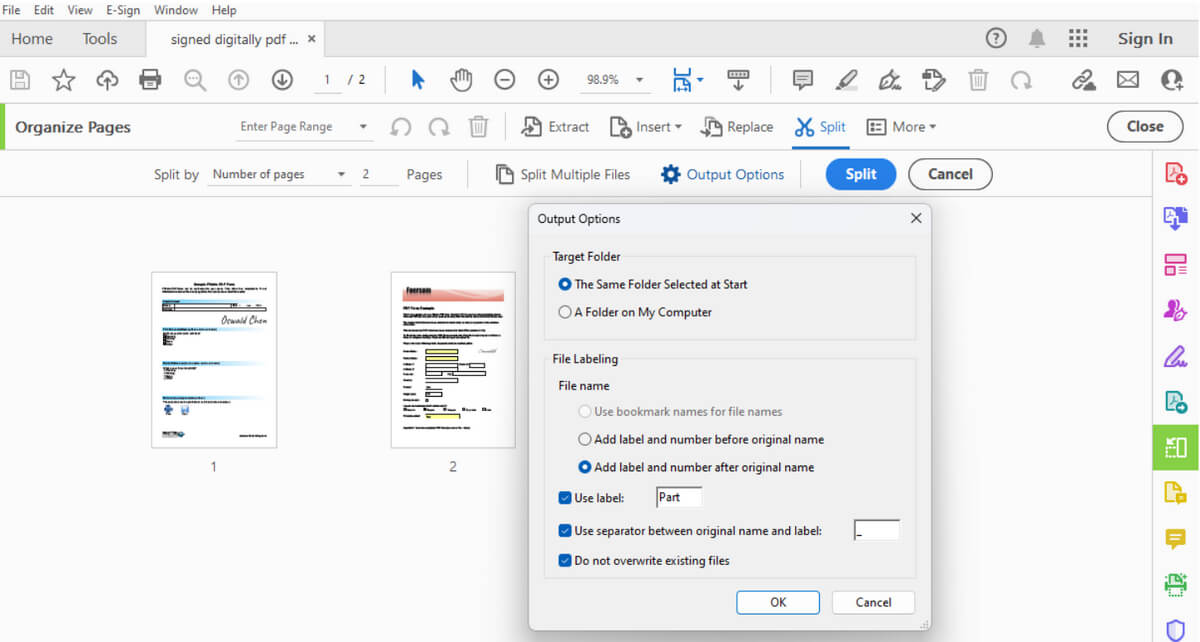
Configure Split Settings
Step 4. Click on “Output Options” to configure where you want to save the split PDF files and how you want them labeled.
Step 5. After configuring your settings, click on the “Split” button at the bottom of the dialog box.
Step 6. Open each new PDF file in Adobe Acrobat Pro DC, navigate to the “Tools” menu, and select the “Certificates” tool to add a new digital signature as required.
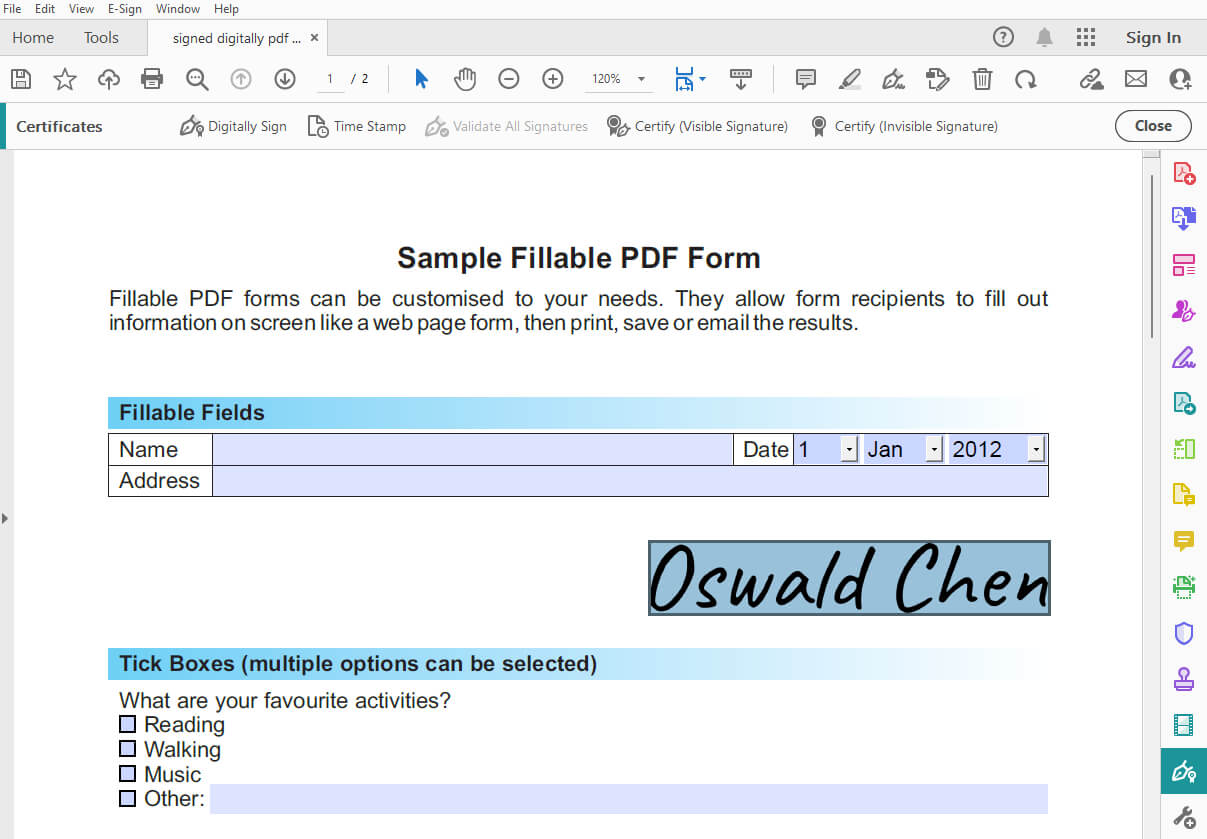
Re-sign the Split Document
Things You Should Know
Be aware that splitting a PDF can potentially invalidate the digital signature, as it is tied to the original file and its contents. This may have legal or compliance implications, depending on the document’s purpose and jurisdiction.
Instead of splitting the PDF, you may extract the necessary pages and create a separate file with those pages. This allows you to retain the original signed PDF, while having a separate file with the desired pages (without the digital signature).
Request a new signature if needed. If you need to split a PDF and maintain the digital signature on the new files, consider requesting the signer to re-sign the new documents after splitting. This ensures the new files have valid digital signatures.
FAQs
Will extracting pages from a signed PDF maintain the digital signature?
Extracting pages from a signed PDF will create a new PDF with the desired pages, but the new PDF won’t carry the digital signature. The original signed PDF will remain intact.
Are there any legal implications of splitting a PDF with a digital signature?
Splitting a PDF with a digital signature might invalidate the signature, which could have legal implications depending on the document’s purpose and the jurisdiction you are in.
How can I verify the validity of a digital signature after splitting a PDF?
You can use a PDF viewer or editor that supports digital signature verification, such as Adobe Acrobat Reader or Adobe Acrobat Pro.
These tools can display signature details and indicate whether the signature is valid or not.
