How to Copy Text from Scanned PDF Easily and Properly

Summary :
This extensive guide provides a variety of methods to easily extract text from scanned PDFs on both computer and mobile devices, ensuring a hassle-free text extraction experience.
Table of Contents
How to Copy Text from Scanned PDF
It is generally not an easy task to copy text from PDF, especially from image-based documents. But with the right methods and tools, you can do it effortlessly.
This thorough guide will walk you through multiple approaches to extracting text from scanned PDFs, whether you’re working on a computer or a mobile device.
👉To save time, you can directly download the free PDF editor software used to copy text from scanned PDFs without formatting issues.
Extract Text from Scanned PDF for Free Using PDFgear
Being a FREE PDF editor, PDFgear offers a precise Optical Character Recognition (OCR) feature for extracting text from a scanned PDF. It has a user-friendly interface and supports multiple languages.
PDFgear also allows users to freely select any area of a scanned PDF and extract text from it. To get started, get PDFgear on your Windows or Mac computer.
Extract text from PDFs with non-selectable text or batch convert scanned PDFs to editable Microsoft Word documents for free.
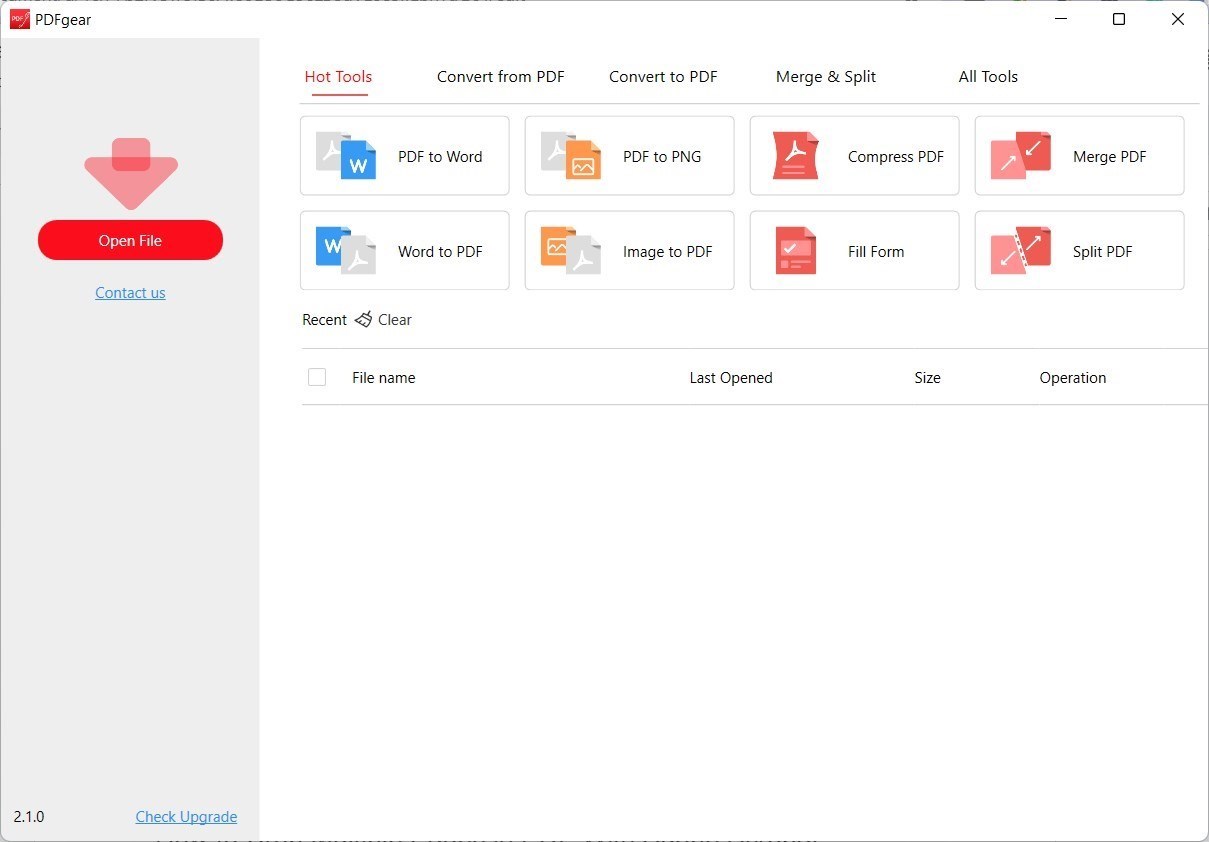
Step.1 Open a Scanned PDF in PDFgear
Launch PDFgear on your computer and click the “Open File” button to open the scanned PDF with PDFgear.
Open a Scanned PDF in PDFgear
Step.2 Extract the Scanned Text with OCR
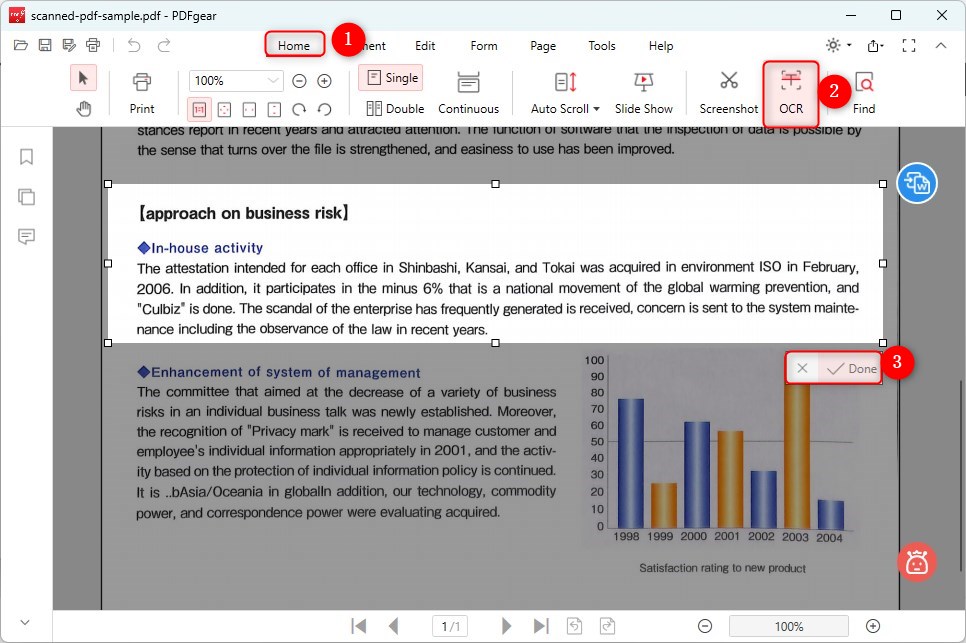
When the PDF file opens in PDFgear, click on “Home” in the top menu, then click “OCR.” Hold down the mouse button and drag to select the area you want to extract text from.
After selecting the area, click “Done.”
Extract Scanned PDF Text with OCR
Step 3. Copy or Save the Text
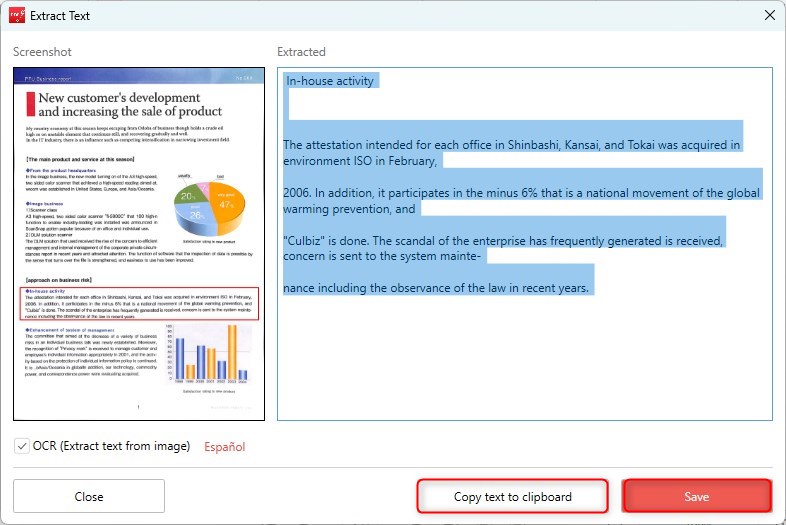
On the next screen, you’ll see the extracted text. You can copy it, paste it wherever you want, or save it as a TXT file.
Copy or Save the Extracted Text
Keep an eye out for any formatting issues, especially with line breaks.
Copy Scanned PDF Text in Adobe Acrobat
Adobe Acrobat supports extracting text from scanned PDFs. This is done using Optical Character Recognition (OCR) technology, which can convert the scanned images into editable and searchable text.
The “Edit PDF” feature allows for instant copying without the need for conversion, but it does come with premium requirements. Download and launch Adobe Acrobat and open the scanned PDF document.
Step1. First, go to the “Edit” menu at the top of your screen and choose “Select All.”
Alternatively, you can press Ctrl + A on a Windows computer or Command + A on a Mac to highlight all text.
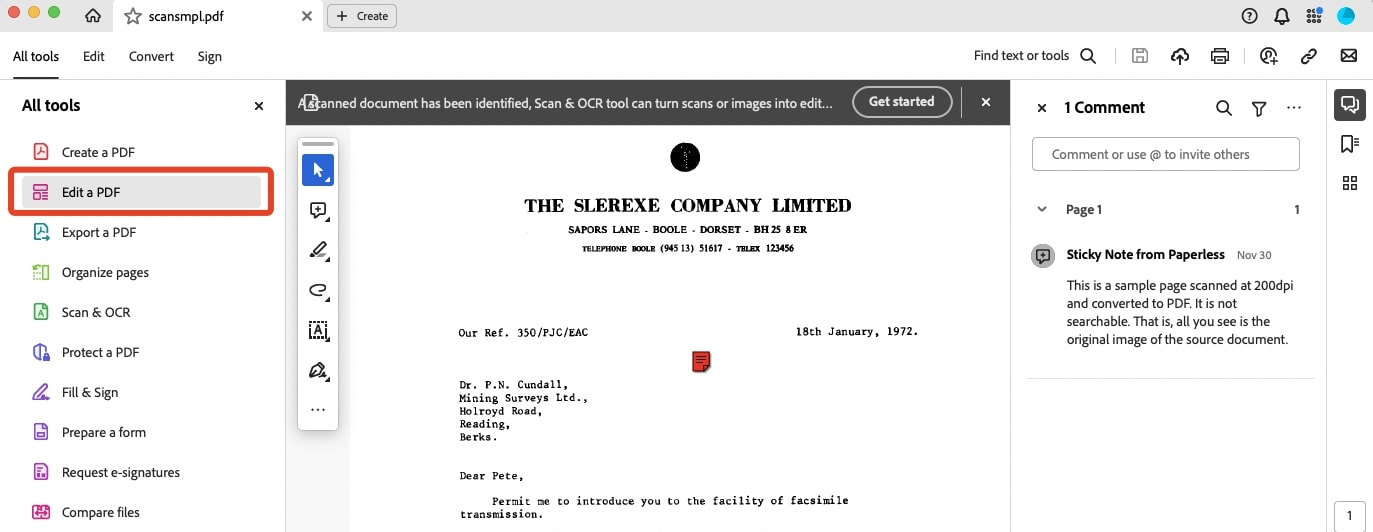
Select Edit PDF in Adobe Acrobat Pro DC
Step 2. With all the text highlighted, right-click and select “Copy.” You can also press Ctrl + C (Windows) or Command + C (Mac) to copy the text.
Step 3. Go to the location where you want to paste the text and paste it there.
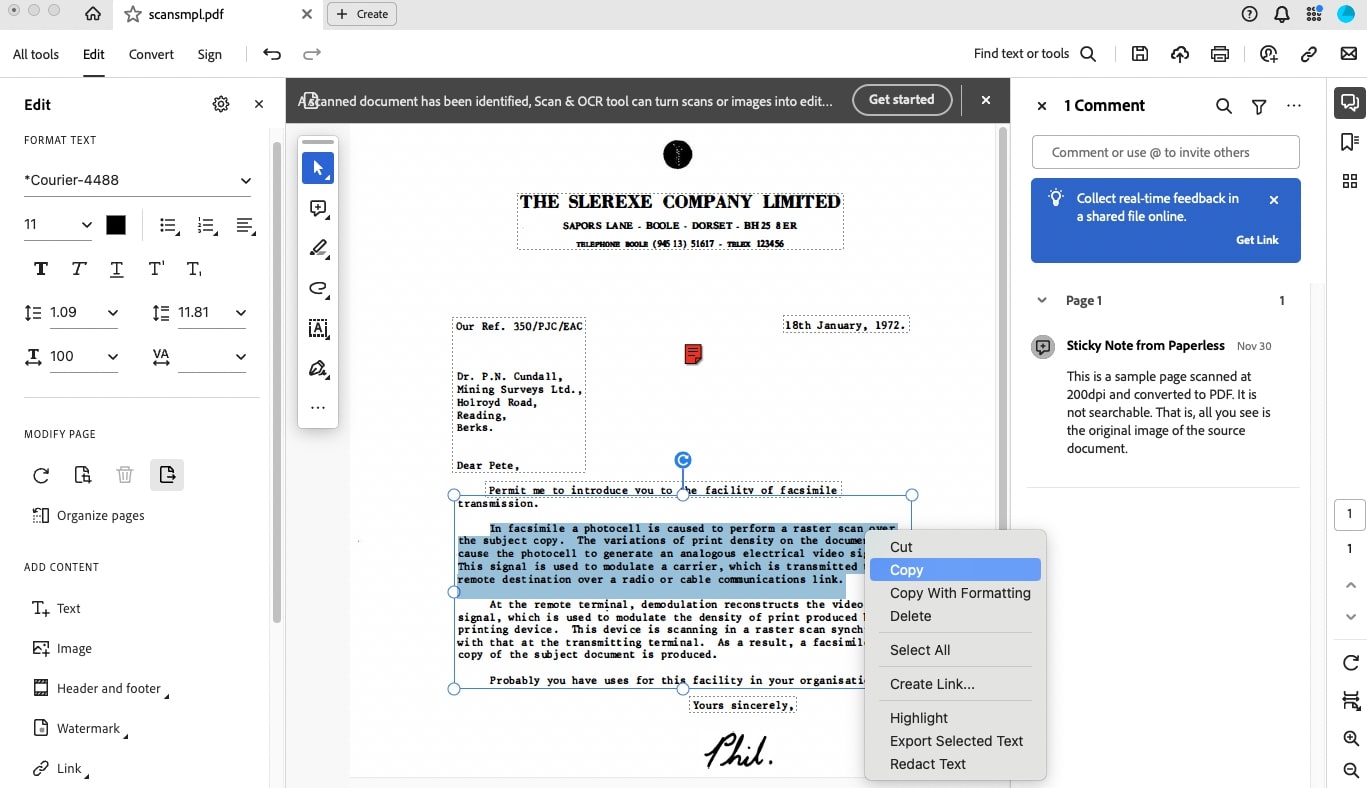
Copy Selected Text from Scanned PDF
If you encounter issues with multi-line or gibberish text after pasting, open Microsoft Word.
Use the “Replace” function by pressing Ctrl + H. > In the “Find what” box, type ^p (which represents a paragraph mark). > In the “Replace with” box, type a space.> Click “Replace All” to fix the issue.
Convert Scanned PDF to Editable Word Online
Converting a scanned PDF to an editable format online is a great way to extract text, especially for mobile users or those avoiding extra software downloads. This method allows quick text extraction without manual copying and pasting.
Using online converters like iLovePDF, you can easily upload and convert files without installing any software. This approach is ideal for quick, single-use conversions but may not directly copy text to the clipboard.
Step 1. Go to the iLovePDF PDF to Word Converter, then click the “Select PDF file” button and choose the scanned PDF from your device or cloud storage.
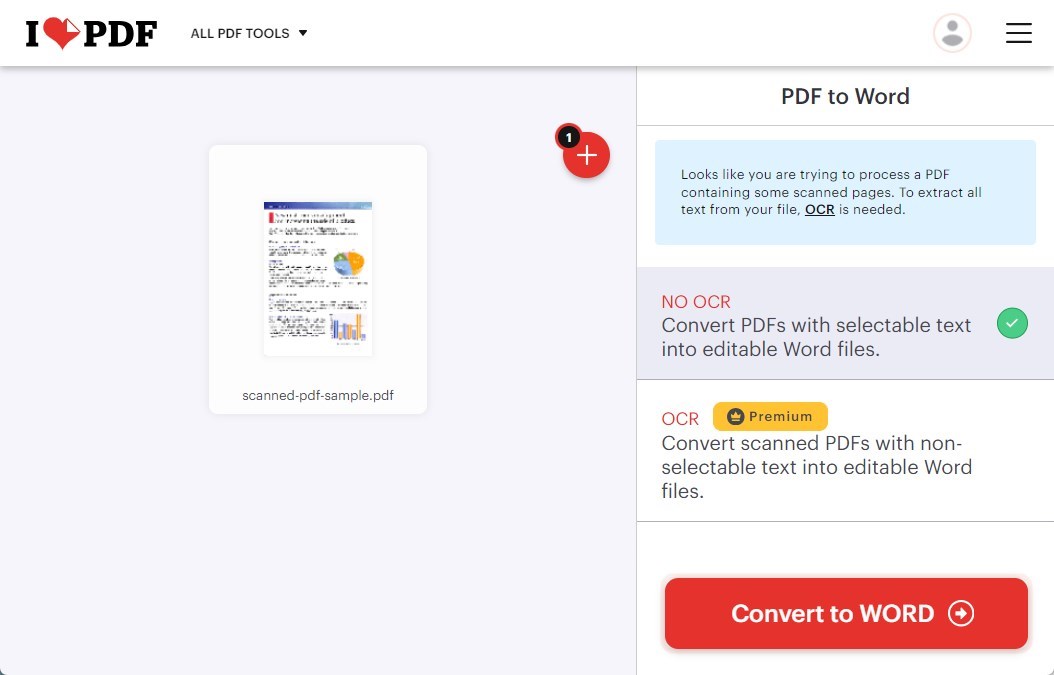
Convert PDF to Word Online with OCR
Step 2. Ensure the “Use OCR” option is checked to convert scanned text into editable text.
Step 3. Choose the language of the text in your PDF. Click the “Convert to Word” button.
Step 4. Once the conversion is complete, download your Word document. Open it and select and copy the text. Paste it into your desired destination.
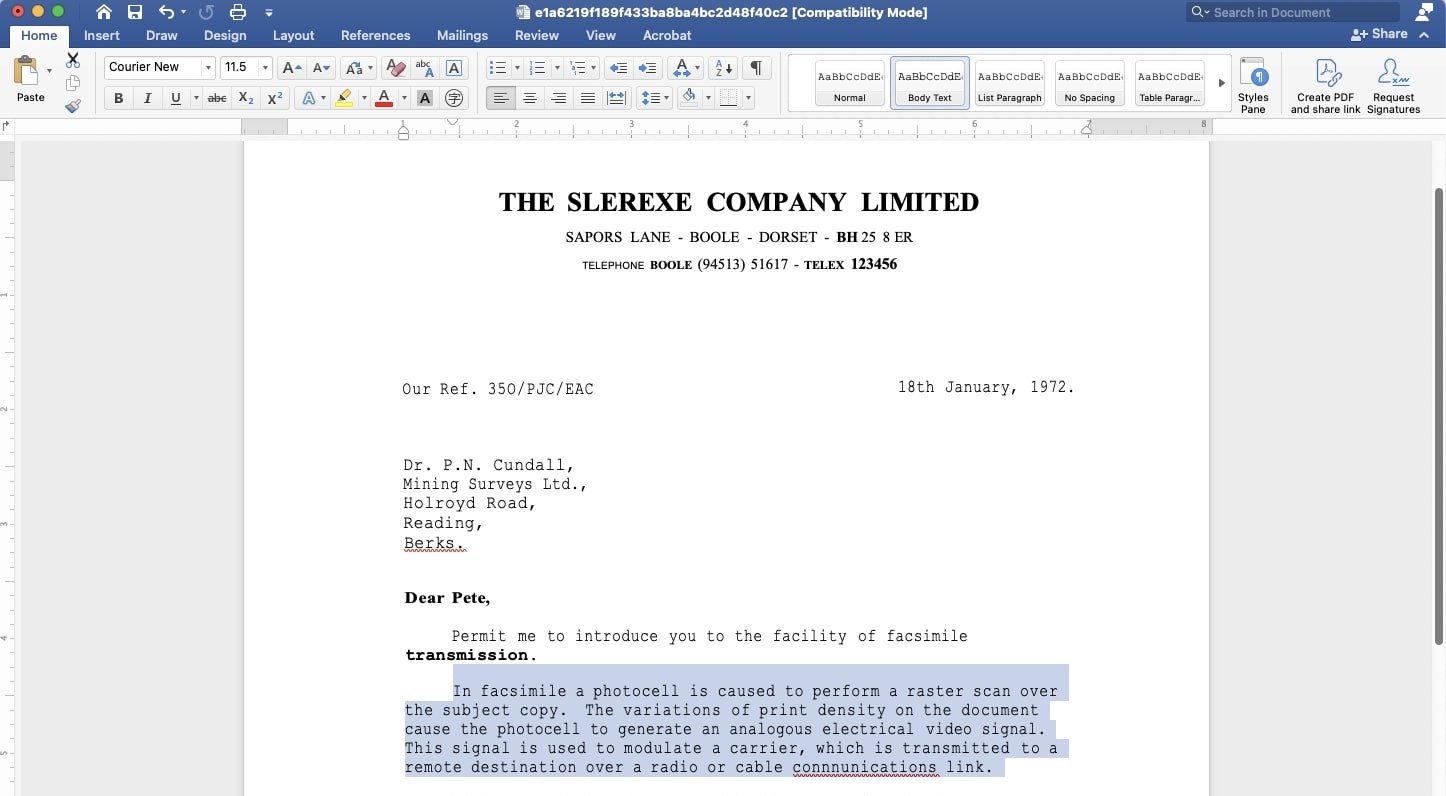
Copy Text from the Converted Word File
However, please note that you need to upgrade to premium to convert scanned PDFs with non-selectable text into editable Word files.
FAQs
Why can’t I copy text from a scanned PDF?
Copying text from scanned PDFs can be challenging because these PDFs are essentially images. To enable text copying, you often need Optical Character Recognition (OCR) technology, which can recognize and convert images of text into editable text.
Will the formatting of the copied text be the same as the original scanned PDF?
The formatting of copied text may vary depending on the method used. Some methods may preserve formatting better than others. It’s important to double-check the final version of your copied text and make any necessary edits to ensure it matches your requirements.
Can I copy images from scanned PDFs?
PDFgear software offers a powerful screenshot feature to copy any image from a scanned PDF. Simply open your scanned PDF with PDFgear, locate the “Screenshot” feature, and capture the desired image.
Conclusion
In conclusion, PDFgear is the best choice for extracting text from scanned PDFs. It’s free, easy to use, and allows precise text selection. While Adobe Acrobat Pro DC offers more features, it’s costly. Online tools like iLovePDF are convenient but may need a premium upgrade for advanced tasks. Choose PDFgear for the best value.
