How to Copy Text from PDF to Word with 4 Easy Methods

Summary :
Learn about 4 free and easy methods to copy text from PDFs to Microsoft Word documents. You can copy from both selectable PDFs and scanned PDFs.
Table of Contents
How to Copy Text from PDF to Word
Learn some effective methods to copy text from PDF to Microsoft Word without formatting issues. To get stared, check the comparison table below to choose the methods that best fit your case.
| Methods | Best For | Price |
| PDFgear online editor | Instantly copy text in PDF online in web browser. | Free |
| PDFgear software | Use OCR to extract image text when copying text is not working. | Free |
| Acrobat Reader | Users with Adobe Acrobat Reader installed. | Free |
| Preview app | macOS users, no software installation needed. | Free |
Copy Text from PDF to Word Online for Free
PDFgear has a free and web-based PDF editor that allows you to select and copy text in PDF.
Step 1. Go to PDFgear online PDF editor. Click Select PDF File to open the PDF.

Select PDF file
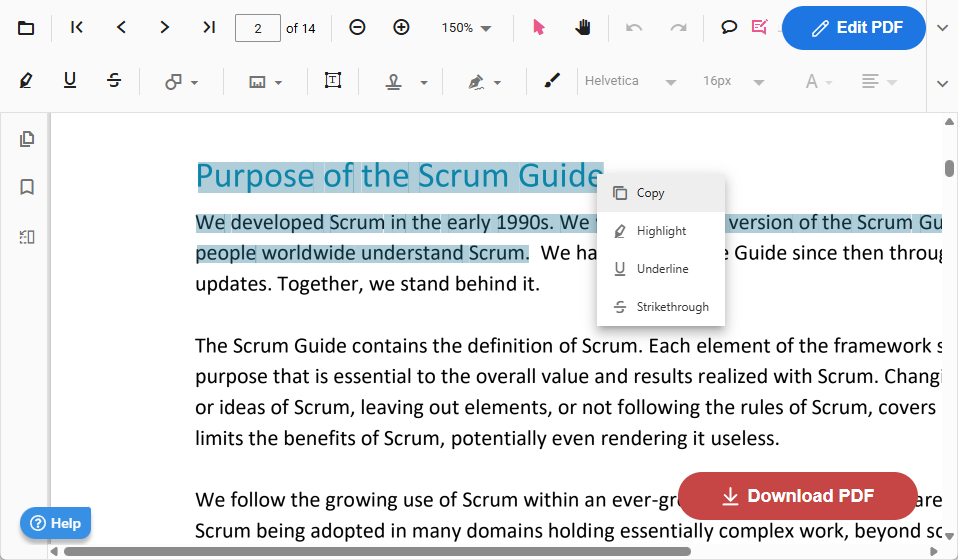
Step 2. Select the PDF text you need, use keyboard shortcut Ctrl + C (Windows) or Command + C (macOS) to copy it to the clipboard.
Alternatively, right-click on selected text and click Copy.
Copy Text Online
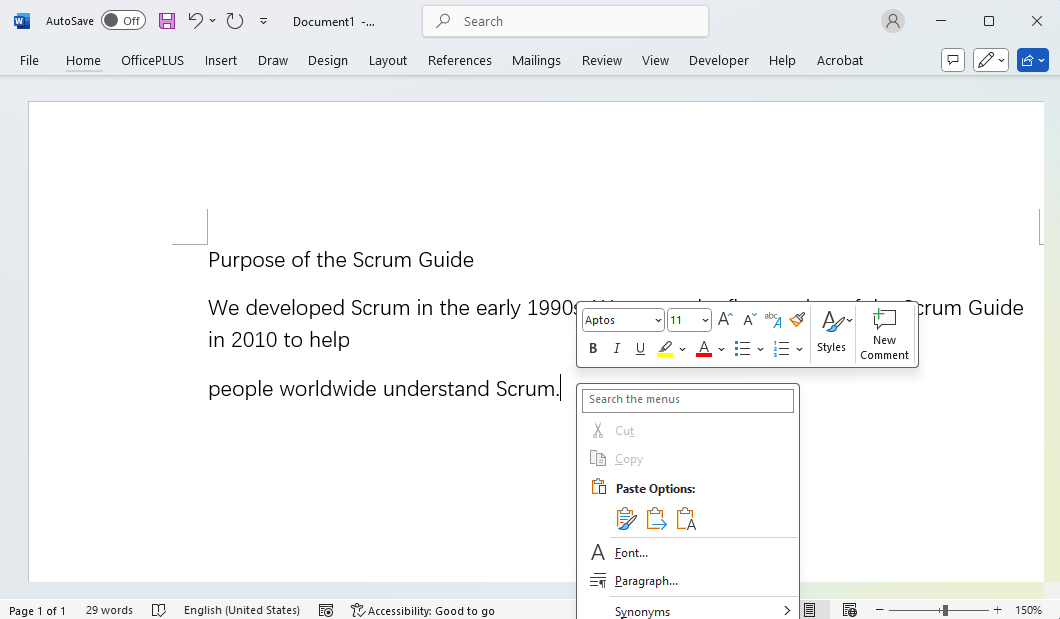
Step 3. Open the Microsoft Word document, use keyboard shortcut Ctrl + V (Windows) or Command + V (macOS) to paste the text.
Alternatively, right-click on Word document and select from Paste Options.
Paste Text in Word
Copy Text from Scanned PDF for Free
For scanned PDF documents, you’ll need an OCR tool to extract text from the image-based content.
PDFgear software provides a robust and precise text extraction tool that allows you to copy PDF text using OCR.
Step 1. Get PDFgear software on Windows or Mac. Open PDFgear, and hit Open File to import your PDF.
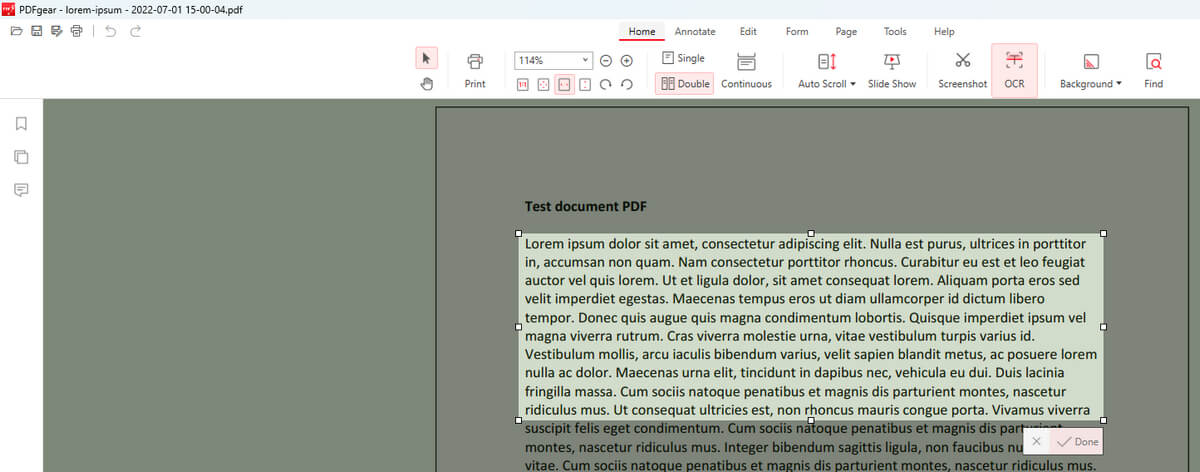
Step 2. Click on the OCR feature from the menubar.
Step 3. Drag and hold to draw the area for text extraction, and hit Done.
OCR PDF in PDFgear
Step 4. In the Extract Text window, hit the Copy text to clipboard button.
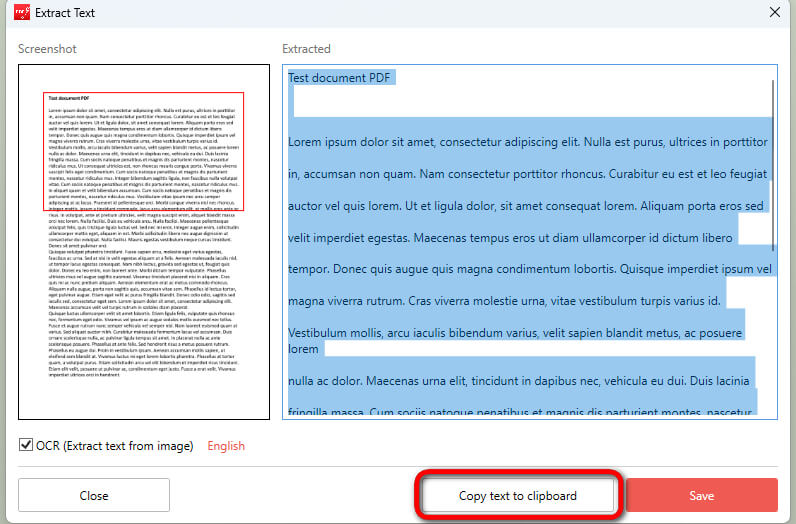
Click Extract Text Button
Step 5. Lastly, go to your Microsoft Word document and paste in the text from the clipboard.
Copy Text from PDF to Word in Adobe Acrobat Reader
Adobe Acrobat Reader is the freemium version of the subscription-based Adobe Acrobat Pro DC. While PDF editing isn’t an option, Acrobat Reader allows you to conduct many basic PDF management tasks for free, and copying PDF text is one of them.
Step 1. Download and install Adobe Acrobat Reader from the official website.
Step 2. Launch Adobe Acrobat Reader, go to Menu, and select Open from the dropdown to open the PDF in Adobe.
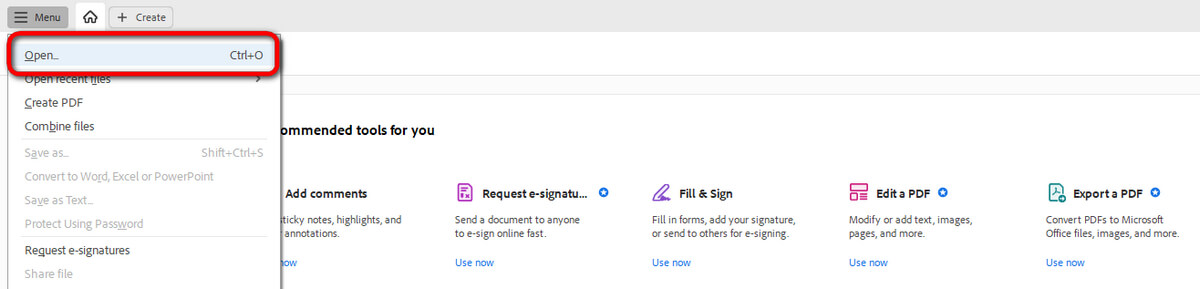
Open PDF in Acrobat
Step 3. From the PDF editor screen, select the desired text, and click the Copy Text button.
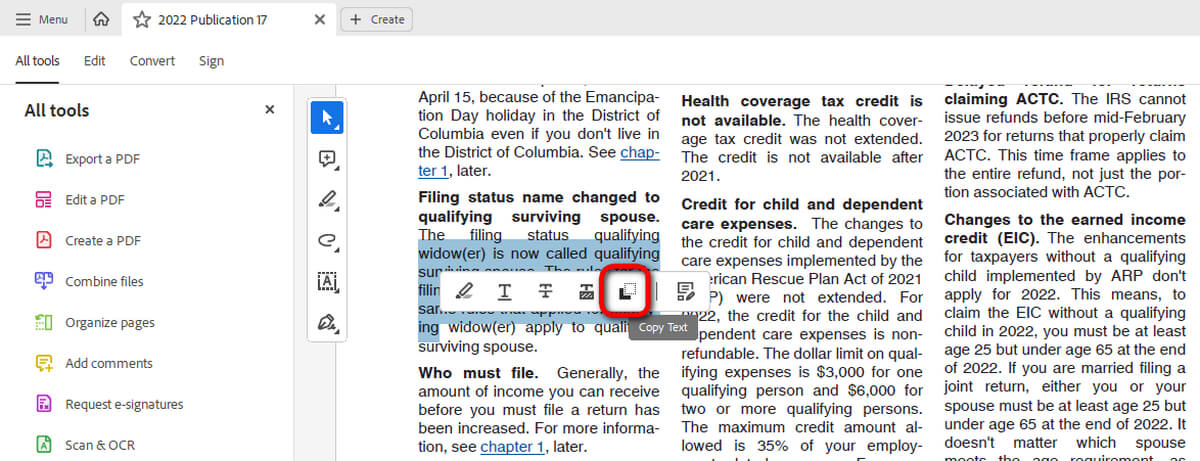
Copy PDF Text in Acrobat
Step 4. Lastly, create the desired Microsoft Word document, and paste the text we just copied!
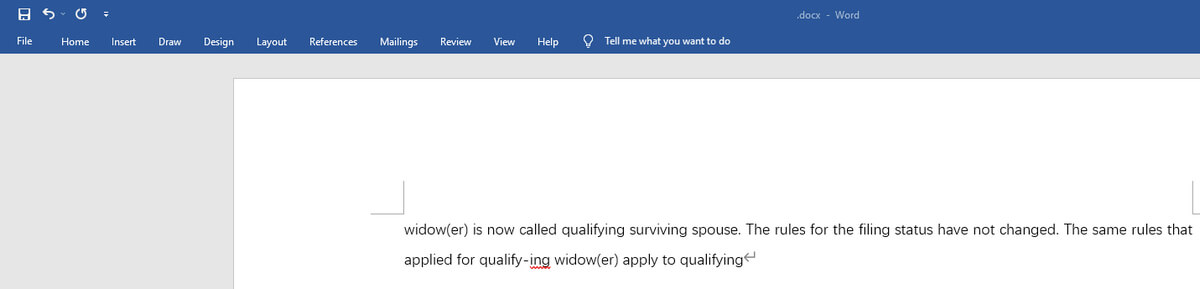
Copy PDF Text to Microsoft Word
Copy PDF Text to Word on Mac with Preview
Mac owners have it easy. You don’t need any additional software installation, the inbuilt PDF reader app Preview has pretty much everything you need.
While Preview doesn’t offer pro-level PDF features such as inserting fillable text boxes, it is adequate for daily office requirements such as copying text from PDF to Word on Mac.
Step 1. Locate the PDF document on your Mac.
Step 2. Right-click on the PDF and open it with the Preview app.
Step 3. Go to the upper Tools tab, and click the Text Selection tool.
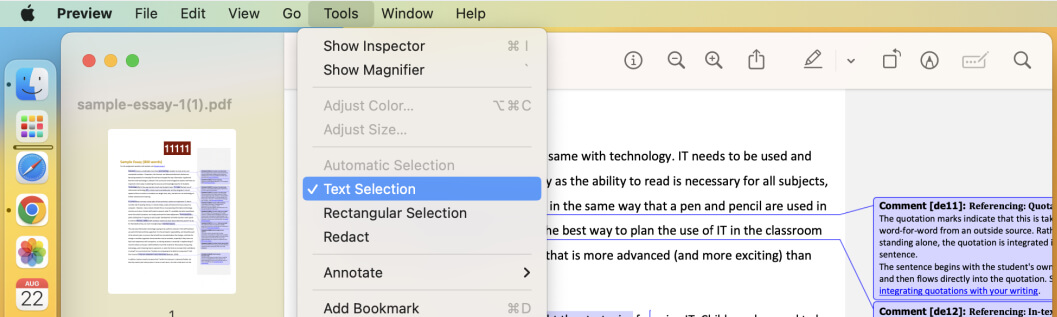
Use Preview Text Section Tool
Step 4. Drag over the text in PDF and use the keyboard shortcut Command + C to copy the text.
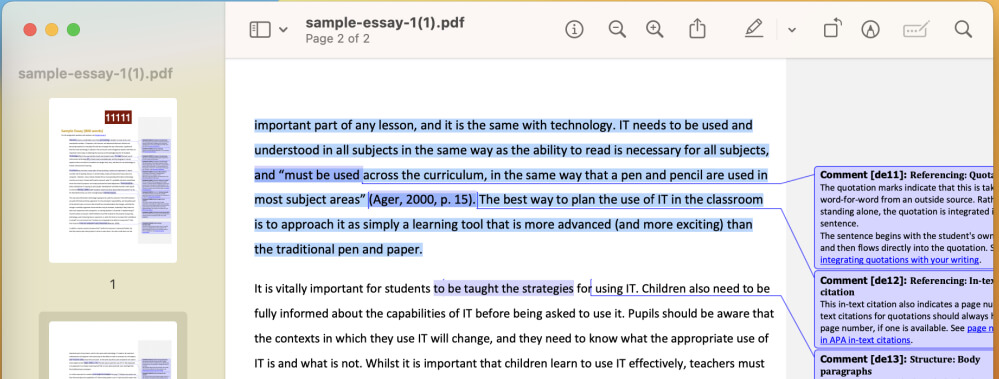
Copy PDF Text in Preview
Step 5. Go to the Microsoft Word application on Mac and paste the text.
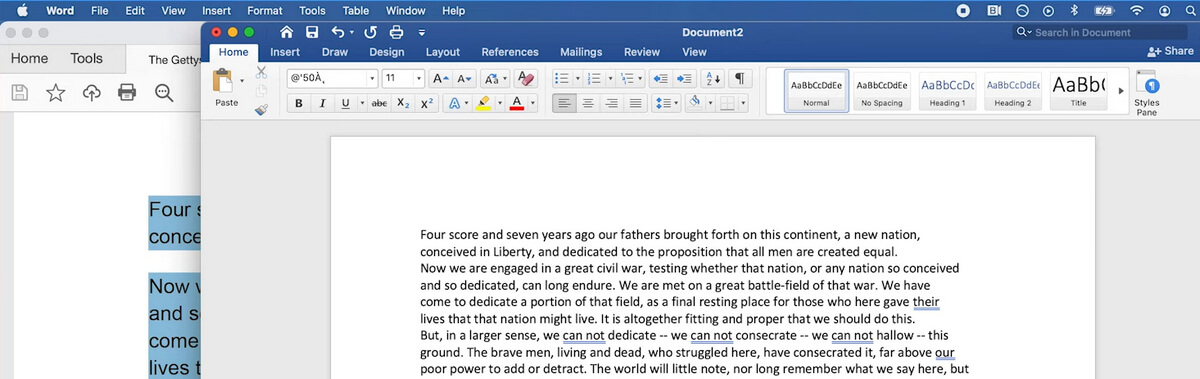
Paste PDF Text to Word on Mac
Extra Tips
🧹1. Clean Up Line Breaks and Paragraphs
-
PDFs often insert unwanted line breaks at the end of each line.
-
In Word, use Find and Replace:
-
Find:
^p(paragraph break) or^l(manual line break) -
Replace with: space or nothing (depending on the context)
-
-
Helps restore proper paragraph formatting.
🧱 2. Use a Text Editor as an Intermediary
-
Paste first into Notepad (Windows) or TextEdit (Mac, in plain text mode) to strip weird formatting.
-
Then copy into Word for a clean slate.
🌐 3. Use Paste Options in Word
-
After pasting into Word, click the small “Paste Options” icon.
-
Choose:
-
Keep Source Formatting
-
Merge Formatting
-
Keep Text Only – best for avoiding formatting mess.
-
-
📐 4. Adjust Page Layout Before Pasting
-
Set Word to “No Spacing” or use a custom style to avoid unexpected line heights or font mismatches.
🔄 5. Reflow the Text
-
If text wraps oddly (e.g., due to columns or narrow margins in the PDF), change page orientation or margins in Word temporarily to make pasted text more readable.
🔍 6. Zoom in on the PDF Before Copying
-
This increases the accuracy of your selection, especially with multi-column or small-font layouts.
🔓 7. Bypass Copy Restrictions (If You’re Authorized)
-
If the PDF won’t let you copy:
-
Use Print to PDF (from Chrome or PDF reader), then open the new version.
-
📝 8. Convert Only Selected Pages
-
If the whole PDF is large, use PDF split tools to extract just the needed pages before converting.
🧾 9. Copy Tables Correctly
-
Use Snipping Tool (Windows) or Screenshot (Mac) for complex tables, then paste as an image if preserving layout is key.
-
Or use Adobe’s “Export to Excel”, then copy into Word if you want editable content.
⌨️ 10. Use Keyboard Shortcuts for Speed
-
Ctrl+Shift+V(Windows) orCmd+Shift+V(Mac) in Word pastes without formatting (on supported versions).
