How to Edit a PDF with Adobe Reader [The Complete Guide]

Summary :
Learn from the step-by-step guides on how to edit a PDF with Adobe Reader, and how to edit a PDF with a free and powerful Adobe Reader alternative PDF editor.
Table of Contents
How to Edit a PDF with Adobe Reader
For users who rather not fork out for their PDF journey, the minimalist version of Adobe Acrobat Reader, which is free of cost, has become their optimal choice. In this post, you’ll learn how to edit a PDF with Adobe Reader. While you can’t do much, for things like editing existing text, there is indeed something.
👉To edit PDF documents in a more professional manner, you’re also recommended to try the free PDF editor PDFgear, which is among the best free PDF editors for Windows.
Fast Check
✅Yes, you can comment, highlight, draw on, insert text boxes, and add signatures to PDF in Adobe Reader – for free without subscription.
❌However, the free version of Adobe Acrobat, is quite restrained regarding PDF editing features. You’re highly recommende to try the full-featured Adobe Acrobat free alternative to edit your PDF documents with zero cost!
How to Edit a PDF with Adobe Reader – Step by Step
Can you edit a PDF with Adobe Reader? Yes, you can. But there aren’t many things you can do. The free version of Adobe Reader is merely a free PDF reader program primarily for reading and viewing PDF documents.
For PDF editing and other professional features, you need the upgraded Adobe Acrobat Pro DC, which requires a paid subscription. Now let’s see what you can do with Adobe Reader from the step-by-step tutorial below.
Step 1. Import PDF to Adobe Reader
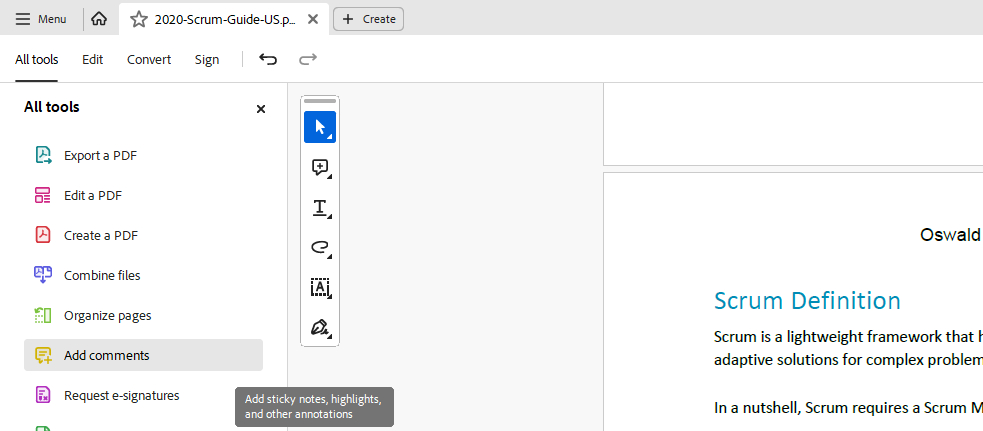
Download and install Adobe Reader if you haven’t already. Launch Acrobat Reader, go to Menu > Open to import the PDF you need to work with. Go to All tools and click “Add comments” to call out the editing panel.
Editing Panel in Adobe Reader
Step 2. Comment PDF
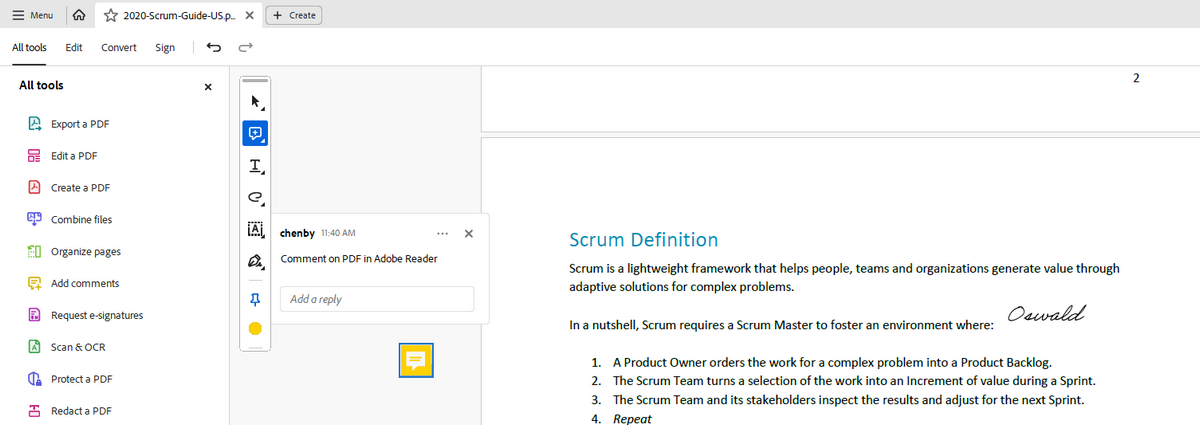
From the editing panel, click on the Comment icon to insert shareable comments into PDF using Adobe Acrobat Reader. You are also allowed to replace selected text, attach files, and more.
Comment on PDF in Adobe
Step 3. Highlight PDF Text
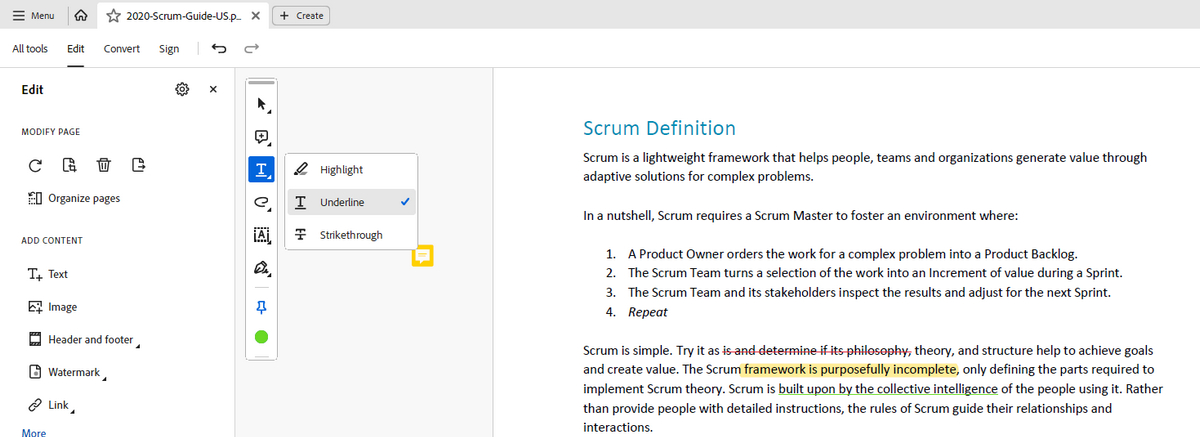
Click on the Underlined Text icon to enable the options to select text and apply highlights, underlines, and strikethroughs.
Highlight PDF Text in Adobe Reader
Step 4. Draw on PDF
Click on the Drawing icon and you’re then allowed to add draw on PDF freely using lines, circles, arrows, etc.
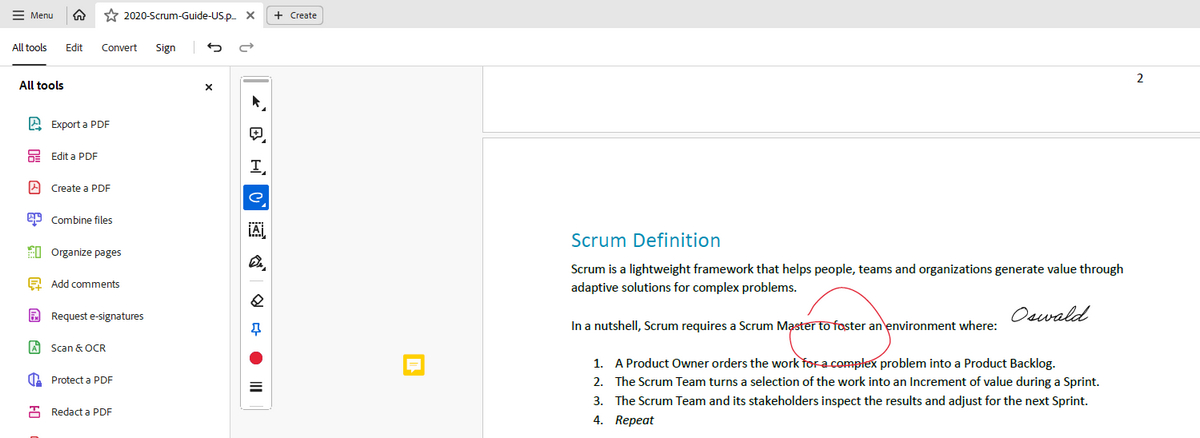
Draw on PDF in Adobe Reader
Step 5. Insert Text Box
Click on the Text box icon to insert customizable text boxes into PDF, which allows you to insert free text into your PDF files.
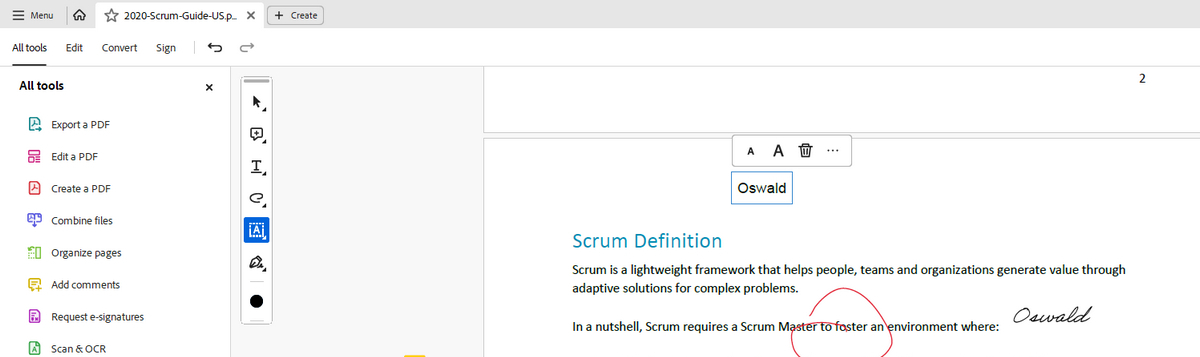
Inset Text Boxes into PDF in Adobe Reader
Step 6. Add Signatures
Lastly, click on the signature icon to insert signatures and initials into PDF using Adobe Acrobat Reader.
That’s it! That’s all you can do regarding editing PDFs with Adobe Reader.
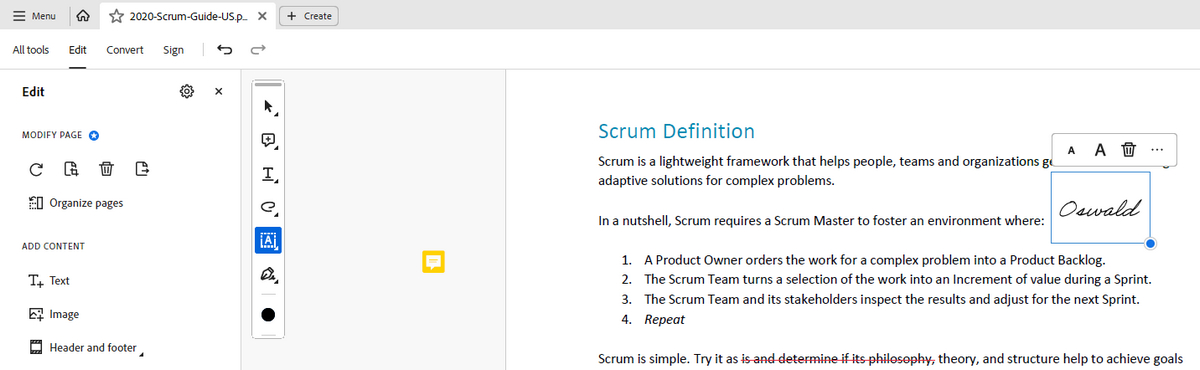
Sign on PDF in Adobe Reader
What Adobe Reader Can’t Do in PDF Editing
Adobe Reader lacks advanced PDF editing functionalities, which include the following. For these pro-level features, you need to upgrade your free Adobe Acrobat Reader to Adobe Acrobat Pro, which costs you $14.99/month.
The features that are marked with a star are paid features and will lead you to the Adobe subscription webpage upon click.
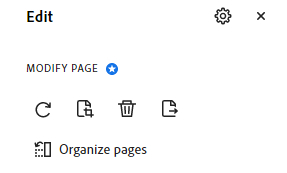
Adobe Acrobat Paid Editing Features
✅Edit text and images in PDF documents
✅Recognize and extract text from PDF with OCR
✅Extract and save one page of a PDF document
✅Add annotations, comments, and highlights to PDF
✅Merge multiple PDF documents into one
✅Split a PDF document into multiple files
In that case, many Adobe users have to opt for an alternative program or go with open-source options.
How to Edit a PDF with Adobe Reader Alternative
So, how to edit a PDF without Adobe Reader, and how to edit a PDF without Adobe Acrobat? I understand the whole point of these is to find a free option for editing PDF documents for your business, and PDFgear is just the right option.
PDFgear is a free and all-in-one PDF reader as well as editor tool that works online, it allows you to edit, merge, split, and annotate PDF documents in an intuitive interface. PDFgear is the best alternative to Adobe Acrobat Reader for its incredible performance. Since PDFgear is cloud-based, users can easily access it using a web browser application on Windows, Mac, iOS, Android, etc.
In terms of PDF editing, PDFgear has ample impressive features including text highlighting, PDF page extractions, PDF page rearranging, text removal, etc.
Step 1. Go to Adobe Reader Alternative
On your computer, laptop, or mobile phone, open a web browser application and go to the PDFgear PDF Editor online tool, then hit the Choose files button to import the PDF to edit it online for free.
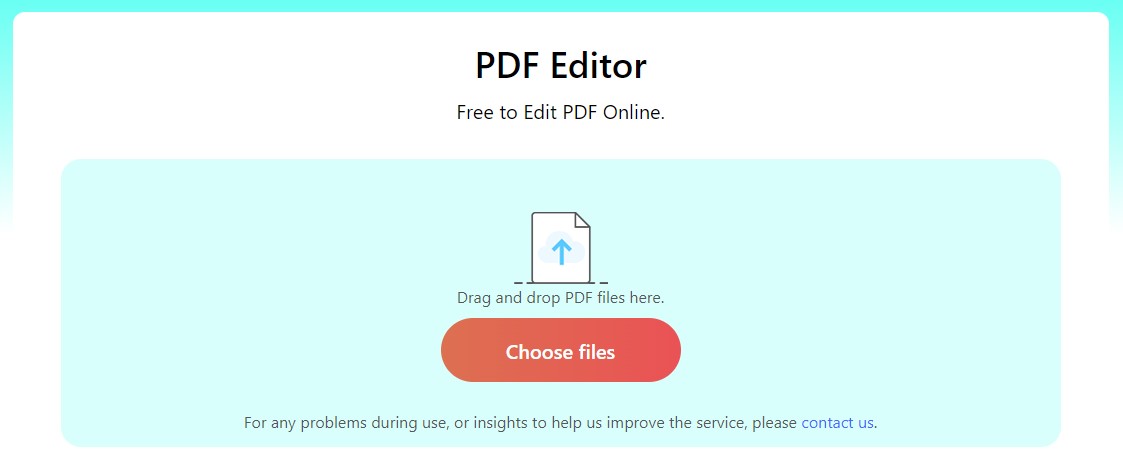
Go to Adobe Reader Alternative PDFgear Website
Step 2. Edit PDF in Adobe Reader Alternative
The uploaded PDF will then be loaded into the PDF editor screen. You can use the corresponding buttons from the upper-right side to edit the PDF:
🌠Highlight, strikethrough, and underline text
🌠Add signatures and form fields to PDF
🌠Add dynamic and standard stamps to PDF
🌠Adjust PDF borders, font, and opacity
🌠Add comments and annotations, and draw on the PDF
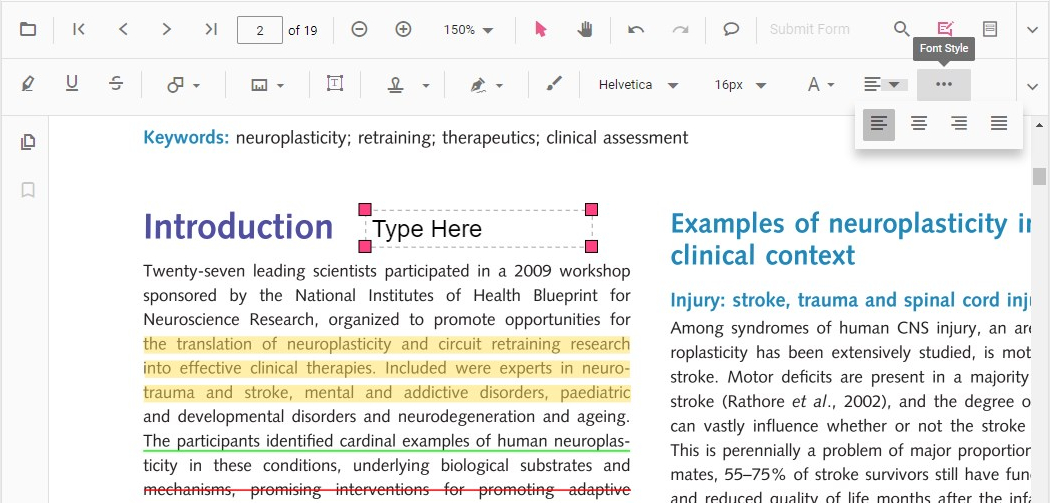
Edit PDF with Adobe Reader Alternative PDFgear
Step 3. Download Edited PDF
When you’ve done editing your PDF, you can go to the upper-right side to download the edited PDF or use Print to PDF to save it as a flattened PDF copy.
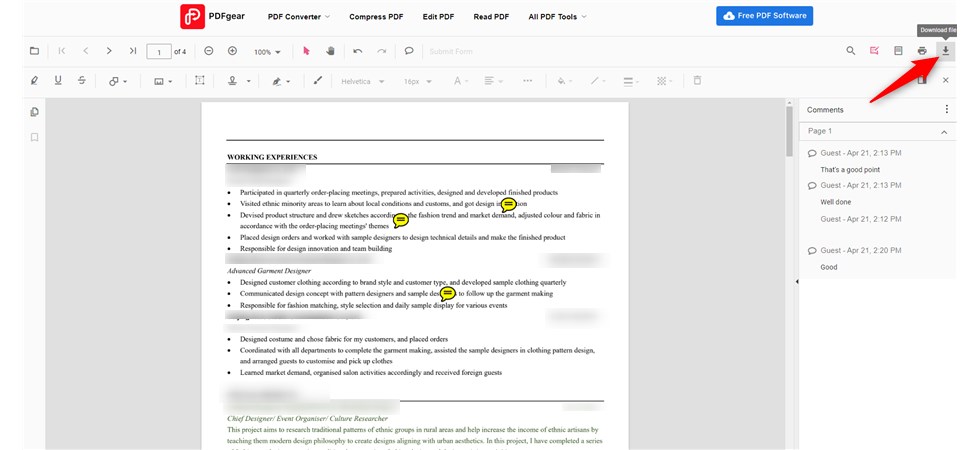
Download the Edited PDF from Adobe Reader Alternative
Bonus: Since PDFgear also works with scanned PDF documents, you can also edit scanned PDF documents using PDFgear. For scans that are generated using high DPIs, the PDFgear online PDF compressor can be extremely helpful in resizing your documents to 300kb and lower.
How to Edit a PDF without Adobe: More Solutions
Of course, there are tons of other workable solutions to editing PDFs without Adobe Reader and without Adobe Acrobat Pro DC. And the choice of method can also depend on your use case. The following are some commonly seen examples for you to get a clue.
👉If you want to quickly annotate or markup PDF, then online PDF editors like PDFgear are recommended
👉If you’re running a Mac computer or MacBook, the inbuilt PDF reader application Preview offers basic PDF editing like free drawing
👉If you’re using an iPhone or Android mobile phone, go with a free PDF editor app such as PDFgear for iPhone
👉To edit text-based information and data, editing PDF in Microsoft Word sounds like a good plan
See, in regard to editing PDF in Adobe Reader, you don’t really need an Adobe Acrobat!
FAQs
Can you edit PDF with Adobe Reader?
Yes, if you’re looking for basic PDF editing like commenting, highlighting, inserting text boxes, etc., you can find these features in the editing panel in Adobe Acrobat, and they are available for free without Acrobat Pro subscription.
Why can’t I edit a PDF in Adobe Reader?
If you find that you can’t edit a PDF in Adobe Reader, the reason is simply that the free Adobe Reader doesn’t offer advanced PDF editing features that you want. You need the paid Adobe Acrobat Pro subscription instead. To edit a PDF file for free, you are recommended to edit a PDF with free Adobe Acrobat alternative PDFgear.
Why can’t I edit my PDF in Adobe Acrobat DC?
In other cases, you’re using Adobe Acrobat Pro DC and you still can’t edit your PDF, that’s because the PDF is restricted from PDF editing or protected with a password. To resolve the issue, you need to unlock the PDF. And our guide on how to unlock PDFs without a password may be of help.
How to edit a PDF without Adobe?
To edit a PDF document without Adobe Acrobat or Adobe Reader, you need a free Adobe Acrobat alternative like PDFgear. PDFgear is a free online PDF editor that allows you to add annotations, markups, form fields, signatures, etc. to PDF documents with ease.
Have a Try
As you can see from the above information, the free Adobe Reader doesn’t offer a PDF document editing feature, but there are numerous alternative ways for you to conduct the job. For me personally, the PDFgear online PDF editor tool prevails with its convenience and ease of use.
But if you find any other introduced methods helpful with your case, feel free to have a try!
