3 Methods on How to Copy Text From Secured PDF

Summary :
This article outlines 3 methods to copy text from secured PDFs using an free tool, PDFgear, while ensuring legal compliance.
Table of Contents
How To Copy Text From Secured PDF
A secured PDF is a file that’s protected by a password or has restrictions preventing actions like editing, printing, or copying its content. This makes it difficult to copy text from the file.
Luckily, you’re in the right place! This article gives 3 solutions to help you copy and paste text from secured PDFs.
Directly Copy Text from Secured PDFs with a Free Tool
PDFgear supports you copying text from secured PDFs bypassing the copy restrictions directly without a password.
PDFgear is an all-in-one, completely free PDF editor that lets you edit existing text, and easily crop, merge, split, and more which works across all platforms: Windows, Mac, Android, and iOS. No registration, login, or subscription is needed — you can copy text from secured PDFs in just 2 simple steps.
However, this method only works for PDFs with copy and print restrictions. If your PDF is password-protected, you’ll need to contact the person who set the password to unlock the PDF for copying.
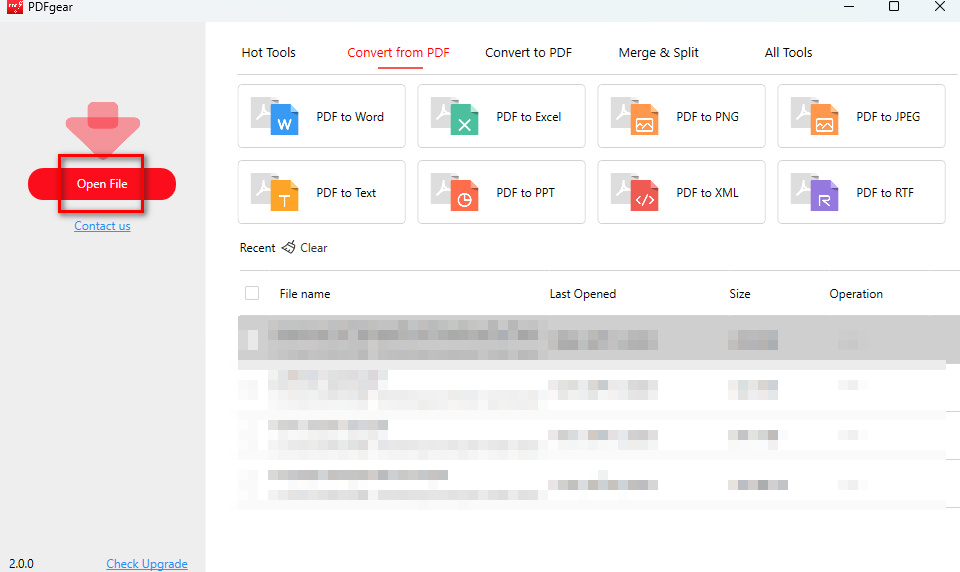
Step 1. Download PDFgear, click Open File on the main page of PDFgear to upload PDF files. After uploading, you will be automatically redirected to the preview and editing page.
Import PDF to PDFgear
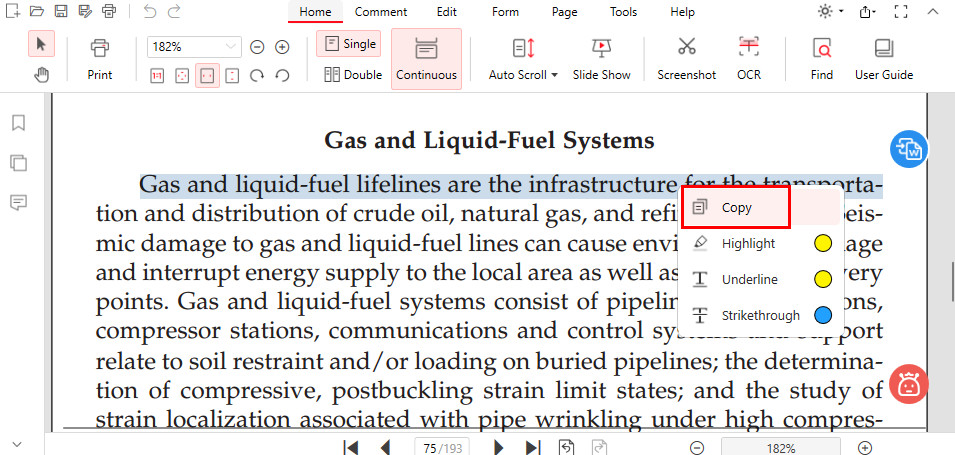
Step 2. Drag and select the text you want to copy, right-click, and select “Copy”.
Copy Text from PDFgear for Free
Copy Text from Secured PDFs Using OCR Technology
If the above method doesn’t work, or if the PDF is image-based or scanned, you can use the OCR tool in PDFgear to extract the text from PDF and copy it. No need to worry — it’s completely free to use too.
Step 1. Launch PDFgear and open the secured PDF.
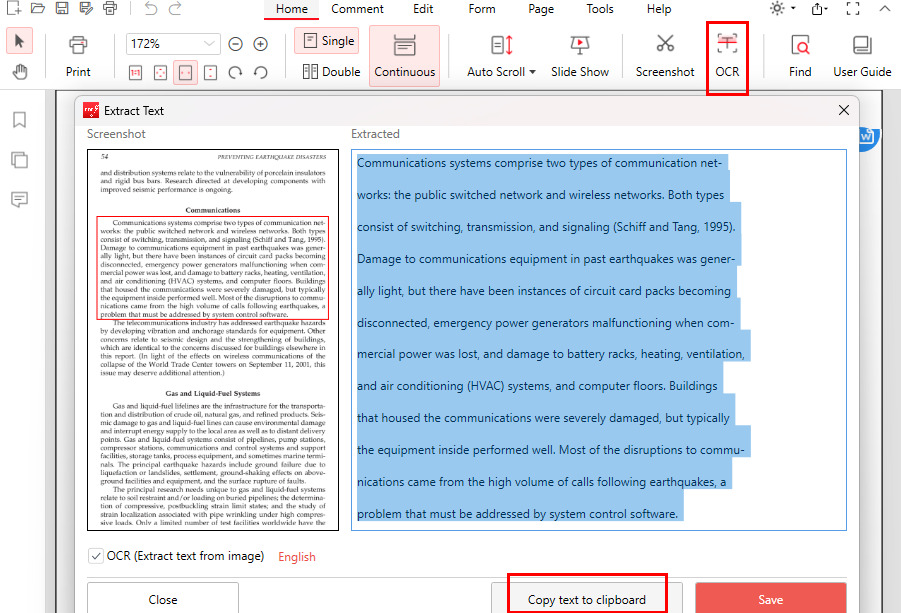
Step 2. Navigate to the OCR button in the upper toolbar > Select the text you need to copy by moving your mouse > Click done in the bottom right corner after you finish the selection > Tap on Copy text to clipboard.
Copy Text from PDF with PDFgear
However, with complex fonts or certain image alignments, the extracted text may not retain its original formatting perfectly.
Copy Text from Secured PDF with Snapshot
PDFgear also provides another simple solution for copying text from secured PDFs. You can capture the necessary part of the text by taking a screenshot.
Step 1. Open the PDF with PDFgear > Click Screenshot > Box out the area you desired > Click Save to download the screenshot.
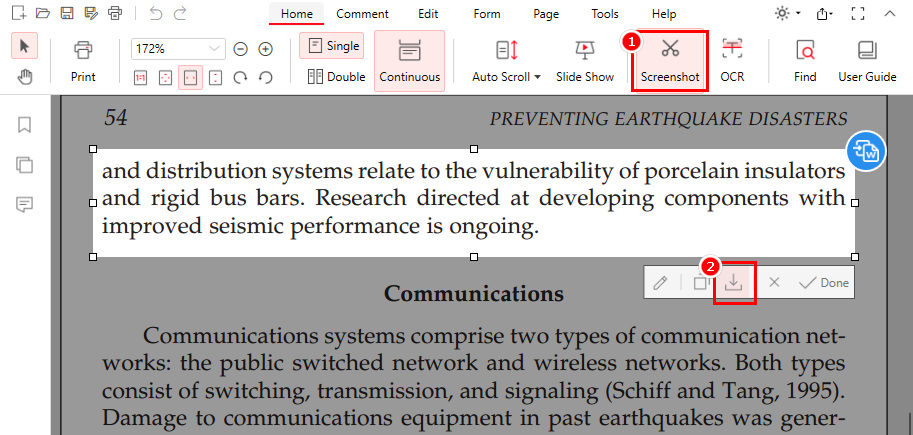
Snapshot PDF with PDFgear
Step 2. You can insert the screenshot into another PDF by adding it as an image; however, keep in mind that the image won’t be editable.
Legal Disclaimer: These methods are for personal use or authorized copying from secured PDFs. PDFgear does not support illegal use, and users are responsible for complying with relevant laws.
FAQs
What Is a Secured PDF?
A secured PDF is a document protected by security measures like password protection, encryption, or permissions that restrict access, editing, printing, or copying.
How to Copy Text from a Password-Protected PDF?
For a password-locked PDF, you’ll need to enter the correct password to access the file.
However, if the PDF only restricts copying, you can use PDFgear to open the file and copy the text without needing the password. For detailed steps, refer to method 1.
How to Copy Text from a Secured PDF in Acrobat?
To copy text from a secured PDF in Acrobat, first, you need to click on “Document Properties”, Security” to see if you have permission to copy the document. If not, you need to type the correct password to open this permission, and then select “Select Tool” to choose and copy the text.
How Can I Copy Text from a Scanned or Image-based PDF?
Typically, scanned or image-based PDFs aren’t editable. However, with PDFgear’s OCR technology, you can easily extract and copy text.
Simply download PDFgear, import your scanned or image-based PDF, click the “OCR” button, select the area you need, and tap “Copy text to clipboard.” For detailed steps, refer to method 2.
How to Print a Secured PDF?
Also, PDFgear can help you print a secured PDF without a password. Open a PDF with PDFgear, click the “Print” button in the upper-left corner, customize the print settings, and click the “Print” button to save a PDF without restrictions.
Conclusion
If the entire PDF document is password-protected, the first step is to contact the person who set the password to obtain it and unlock the PDF for copying.
However, if the PDF only has partial restrictions, such as on copying, printing, or editing, PDFgear can help you bypass these limitations without needing the password.
These 3 methods offer practical solutions to most text-copying issues in PDFs, allowing you to choose the tool or program that best fits your needs.
