PDFsam: PDF Split and Merge Review

Summary :
This article reviews PDFsam, covering its features, ease of use, and performance for splitting and merging PDFs, while comparing it to an alternative.
Table of Contents
Managing PDFs can be tricky without the right tools. PDFsam (PDF Split and Merge) simplifies tasks like splitting and merging PDFs.
In this review, we’ll explore its features, performance, and how it stacks up against other PDF tools, helping you decide if it’s the right choice for your needs.
Comparison of PDFsam and Its Alternatives
| Comparison Criteria | PDFsam | Online Splitter and Merger | PDFgear Offline Version |
| Cost | Free (with paid Pro version) | Free | Free |
| Ease of Use | A learning curve exists | User-friendly, no installation required | Intuitive and easy to use |
| File Size Limit | No explicit limit | Split: Up to 100MB
Merge: No size limit |
No limit |
| Speed | Moderate (depends on file size) | Fast (cloud-based processing) | Fast (local processing) |
| Additional Features | Basic split/merge functions | Includes editing, compressing, converting, filling, signing, organizing | Includes editing, compressing, converting, filling, signing, organizing, OCR |
PDFsam Basic
PDFsam Basic is a free, open-source PDF splitter with multiple separating options, including page numbers, bookmarks, file size, and fixed intervals. It has no file size limits and supports batch processing for free, making it ideal for large PDFs.
However, editing, OCR, and conversion require the paid PDFsam Enhanced version ($49.99–$79.99/year).
PDFsam Basic is a piece of offline software, so you need to download and install it from its official website before you can start splitting and merging PDFs.
How to Split PDF with PDF Split and Merge
Step 1. Open PDFsam and select the “Split” option.
Step 2. Choose a split method and click “Select PDF” to add your files. You can choose to split by pages, bookmarks, or size.
Step 3. Customize the splitting settings, set the output folder, and click “Run” to start the process.
Step 4. Once the process is complete, click “Open” to access the split files in the designated folder.
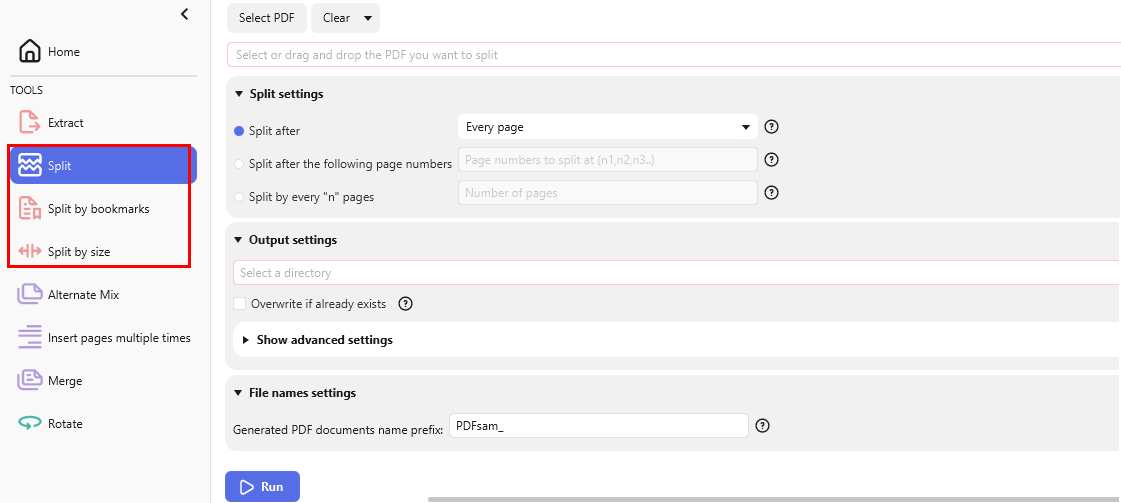
Split PDF with PDFsam Basic
How to Merge PDF with PDF Split and Merge
The merge feature in PDFsam Basic is powerful and customizable, allowing you to add a blank page, footer, or table of contents to merged PDFs.
It also supports compression for optimized storage and performance.
Step 1. Open PDFsam and click the “Merge” button to access the merge function.
Step 2. Click “Add” to select multiple files or drag and drop PDFs into the upload area.
Step 3. Customize the merge settings, choose the destination file, and optionally check “Compress output files”.
Step 4. Click “Run” to start the merging process. Once complete, open the merged file to view the results.
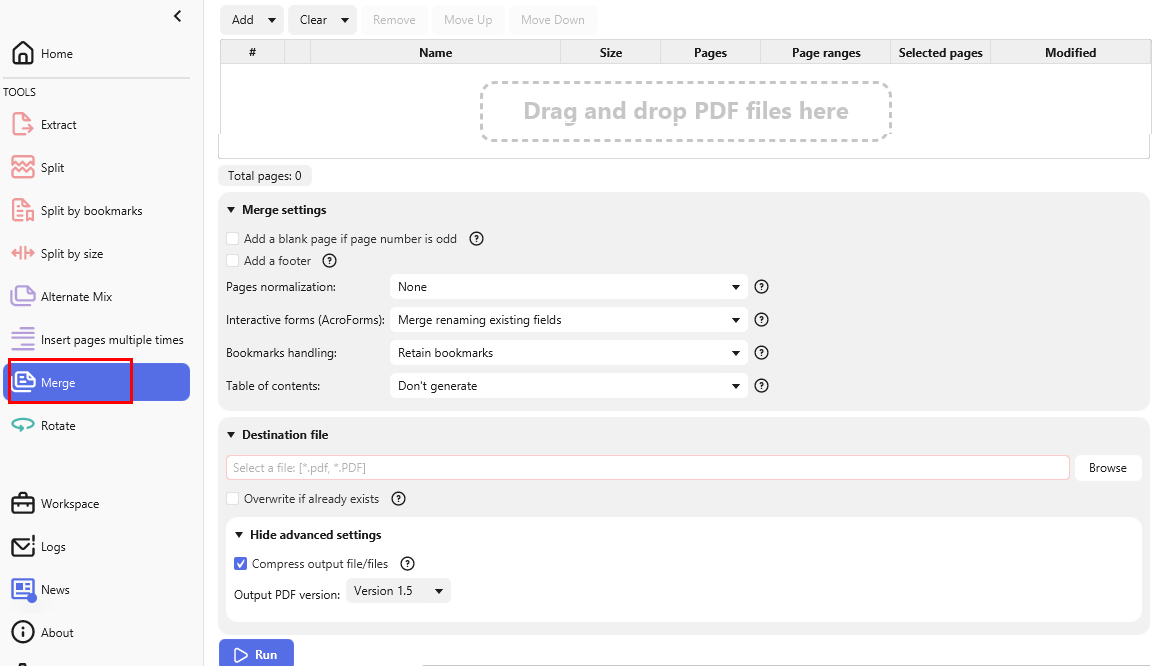
Merge PDFs with PDFsam Basic
Key advantages:
✅ Multiple splitting and merging options to meet diverse needs.
✅ Simple and intuitive workflow for easy processing.
✅ Open-source and completely free—no hidden costs.
✅ Effortless merging with drag-and-drop functionality.
However, PDFsam Basic is only available for Windows, Mac, and Linux, requiring installation and storage space, and it does not support mobile devices.
For a faster and more convenient solution, an online tool allows you to split and merge PDFs for free on both mobile and desktop without installation.
Online PDF Splitter and Merger
PDFgear makes handling PDFs simple and efficient, offering easy-to-use splitting and merging features in a clean interface.
You can split a PDF into multiple files by selecting page ranges or setting fixed intervals. Merging files is just as straightforward, with no watermarks.
Unlike many other tools, PDFgear is completely free—no hidden fees, subscriptions, or account registration is required.
How to Split PDF Online with PDFgear
Step 1. Visit PDFgear’s online splitter and open a PDF by selecting a file or dragging and dropping it into the designated area.
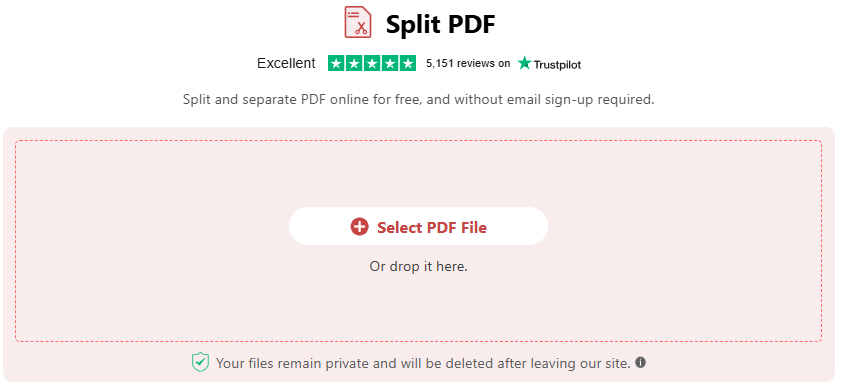
Upload a PDF to PDFgear Online Splitter
Step 2. Click to mark the split points with the cursor or enter a page number for equal splitting.
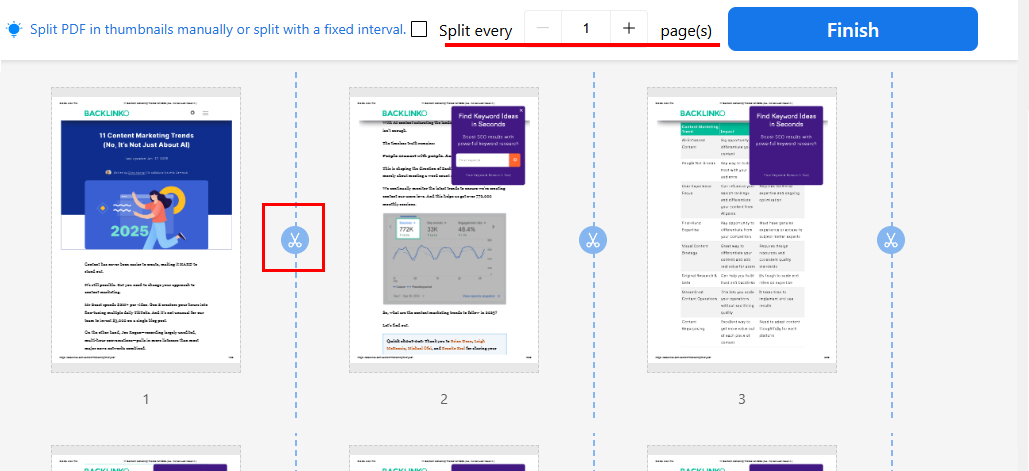
Split PDF Online with PDFgear
Step 3. Click “Finish”, then “Download File” to save the split PDFs. The files will be downloaded as a ZIP folder for easy management.
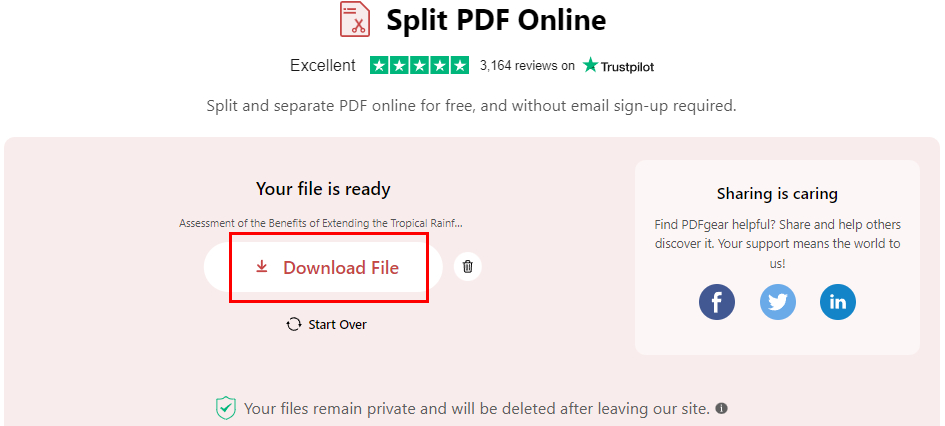
Download the Split PDF Files
How to Merge PDF Online with PDFgear
PDFgear’s online PDF merger lets you combine PDFs for free, even large files, with no limits on file quantity or size.
Step 1. Go to PDFgear’s online merger. Click “Select PDF File(s)” to choose multiple files using “Ctrl”.
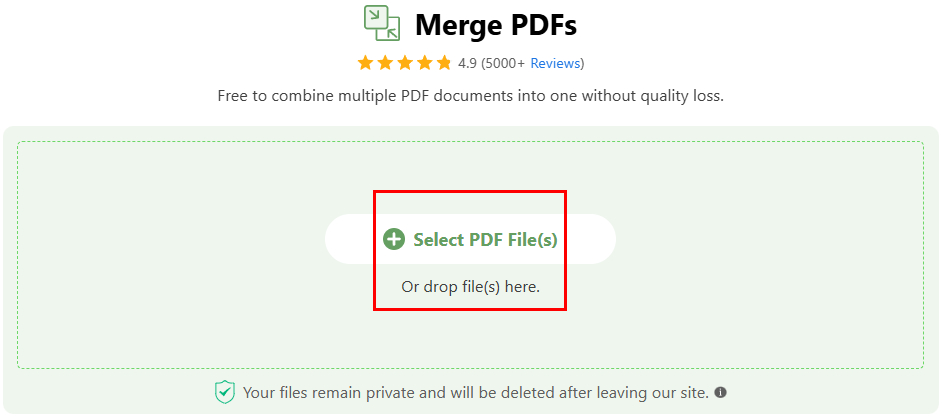
Upload PDFs to PDFgear Online Merger
Step 2. If needed, add more files and reorder them by dragging. Then, click “Merge PDF”.
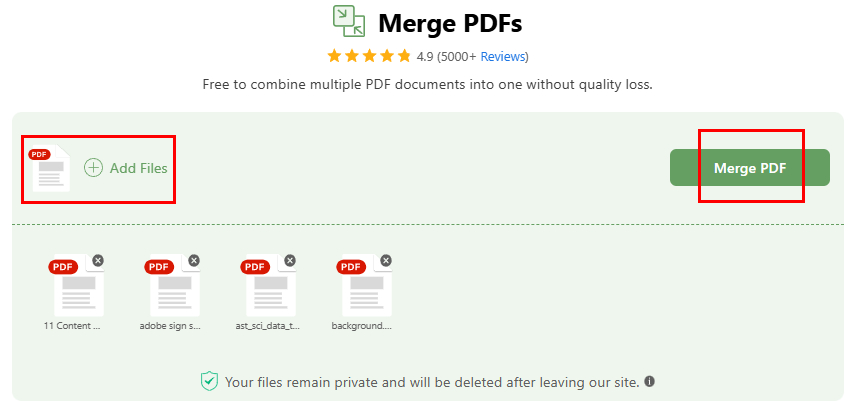
Merge PDFs with PDFgear Online Merger
Step 3. After a few seconds, click “Download File” to save the merged PDF. To make the PDF uneditable, click “Print” to secure it.
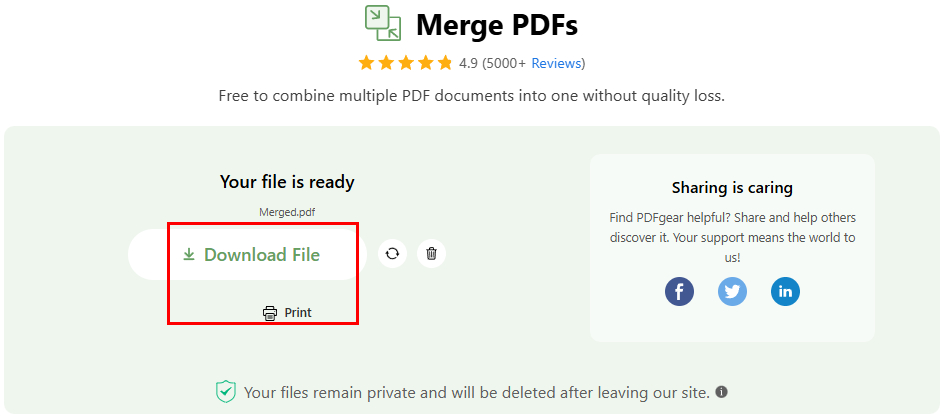
Download or Print the Meged PDF
Key advantages:
✅ Secure – Your files are never stored on PDFgear’s servers.
✅ Unlimited – Process as many documents as you need, with no restrictions.
✅ Easy to use – Intuitive split and merge with drag-and-drop support.
✅ Cross-platform – Works on Windows, Mac, Linux, iOS, and Android.
Free and Lightweight Alternative to PDFsam
By the way, PDFgear also offers batch processing for splitting and merging PDFs. It’s a great alternative to PDFsam due to its lightweight size.
Moreover, PDFgear is more advanced than PDFsam Basic as it combines PDF editing, converting, compressing, and form filling into one convenient toolkit.
Batch Split PDF with PDFgear
Step 1. Download PDFgear for Windows or Mac and launch the software.
Step 2. Go to “Merge & Split” and select “Split PDF”.
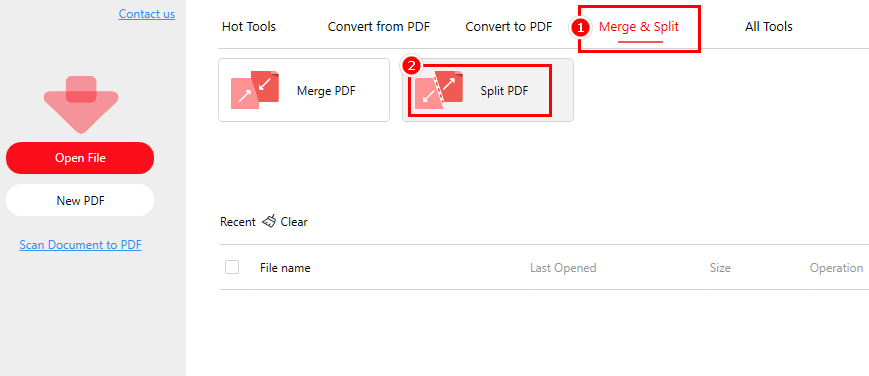
Click the Split PDF Button
Step 3. Add your files. You can choose to split the PDF by custom range or fixed range. Set the output path, then click “Split” to start the process.
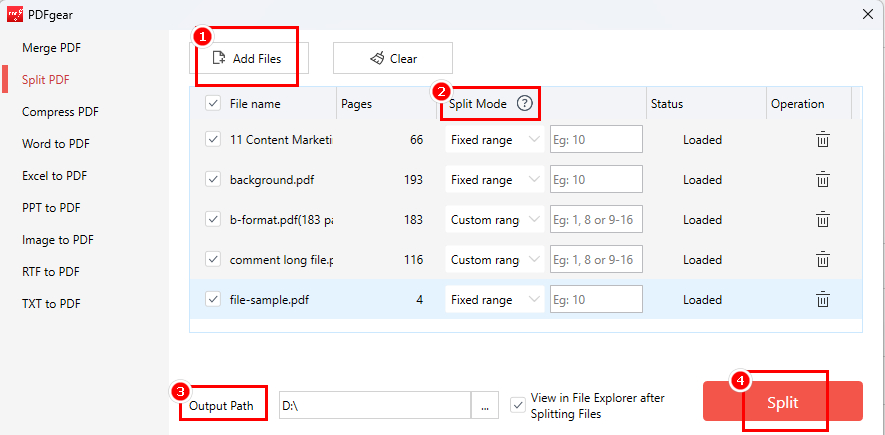
Split Multiple PDFs at Once with PDFgear
Step 4. Once the splitting process is complete, the separated files will be saved in a ZIP folder. You can check them afterward.
Combine Multiple PDFs with PDFgear
For PDF merging, PDFgear lets you batch-upload multiple PDFs at once. You can customize the merged page ranges for each file and rearrange the order as needed.
What’s more, you can use PDFgear to merge PDFs on both desktop and mobile.
Step 1. Download PDFgear and open the app.
Step 2. Go to the “Merge & Split” toolbar and click “Merge PDF”.
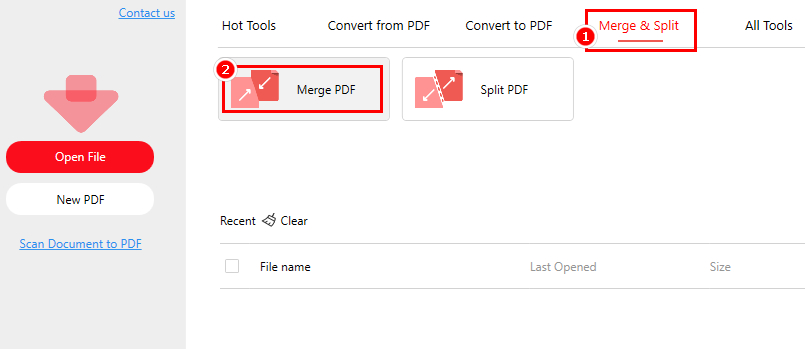
Navigate the Mege PDF in PDFgear
Step 3. Click “Add Files” to batch upload your PDFs. Set the merge range for each file or adjust the order by clicking the arrow symbol.
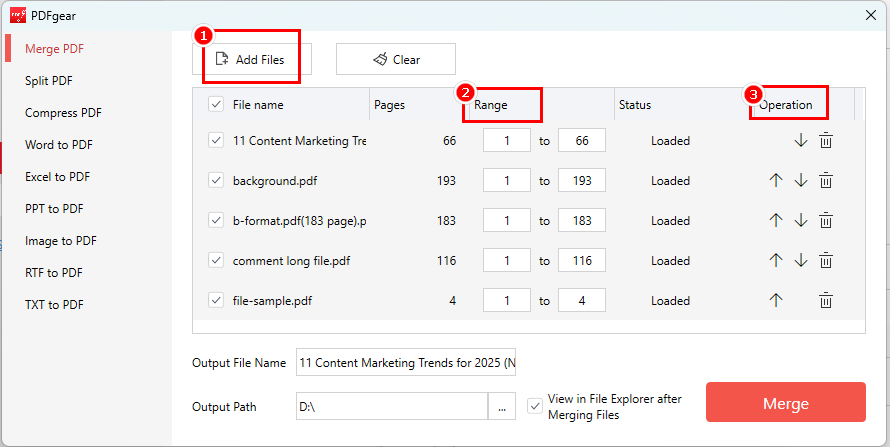
Upload PDF Files to PDFgear
Step 4. Rename the merged PDF, set the output path, then click “Merge”.
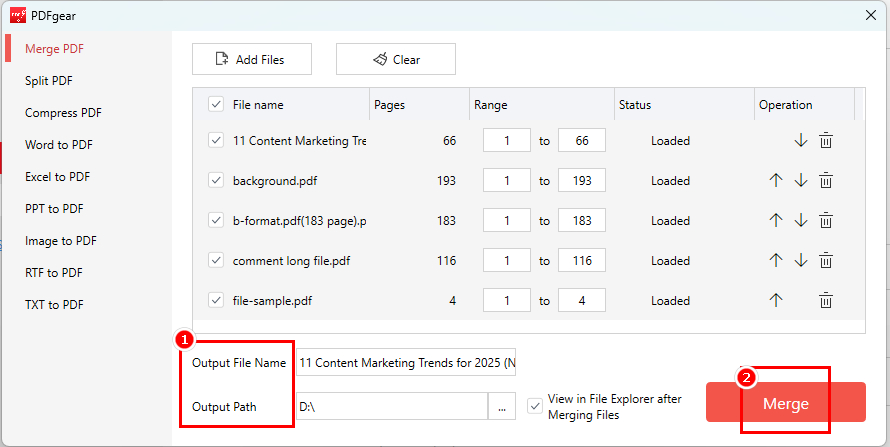
Merge PDF Files with PDFgear
Step 5. If you check the option “View File Explorer after Merging Files”, a pop-up window will appear, showing the merged PDF once the process is complete.
Key advantages:
✅ User-friendly UI – Simple and intuitive design for easy navigation.
✅ Flexible PDF merging – Combine PDFs effortlessly with customizable options.
✅ Batch processing – Merge and split multiple PDFs at once.
✅ Comprehensive tools – Convert, compress, edit, annotate, eSign, split, and more.
Download PDFgear to split and merge PDFs offline, ensuring fast and reliable processing without Internet limitations. Effortlessly split multiple PDFs in bulk with ease.
FAQs
What’s the best alternative to PDFsam?
The best overall alternative to PDFsam is PDFgear, a free online PDF toolkit. PDFgear offers similar features, including PDF splitting, merging, editing, unlocking, highlighting, and more. It’s completely clean and free to use, making it a more accessible option compared to PDFsam.
What’s the best free PDF split and merge software for Windows 10?
As highlighted in this post, PDFgear is the best free PDF splitter and merger. It is completely free, with no subscriptions or hidden costs.
PDFgear provides both online and offline solutions, making it accessible in any situation. Plus, it offers a clean, ad-free experience on both its website and interface.
How do I split and merge PDF files?
To split or merge PDFs, use the free and easy-to-use PDFgear tool: Go to the PDFgear Online PDF Splitter or PDFgear Online PDF Merger > Drag and drop your PDF file > Use the available options to split or merge as needed > Download your processed PDF file.
Are online PDF splitters and mergers safe to use?
Many online tools prioritize security by not storing files on servers and using encrypted processing. Always check a tool’s privacy policy and security measures before uploading sensitive documents.
Is there a PDF splitter and merger with no file size limit?
Most free tools impose file size restrictions (e.g., Online2PDF: 150MB per file). However, PDFgear has no file size or quantity limits, allowing you to split and merge PDFs without restrictions—for free.
Can I batch-split and merge multiple PDFs at once?
Yes! PDFgear supports free batch splitting and merging. Download PDFgear, locate “Merge & Split”, Navigate to “Merge & Split”, select “Split PDF” or “Merge PDF”, use “Ctrl” to select multiple files, customize the split/merge settings, and click “Split” or “Merge” to process files in bulk.
Conlusion
PDFsam Basic offers a solid PDF split and merge experience, but if you’re looking for a lightweight option or even a no-download solution, PDFgear is a better choice.
It excels in PDF splitting and merging while also offering additional features like PDF editing, compression, and conversion—features that are only available in the paid version of PDFsam, and they’re completely free with PDFgear.
