How to Scan Multiple Pages into One PDF File [Windows/Mac/Android/iOS]

Summary :
Learn the most efficient ways to scan multiple pages into one PDF on Windows, macOS, iOS and Andriod devices. This article provides different solutions for groups of users using different devices. Choose the option that suits you best below.
Table of Contents
How To Scan Multiple Pages into One PDF File
Scanning multiple pages into a single PDF document can greatly simplify document management and upkeep. Additionally, it helps avoid issues when sharing, such as large files or too many attachments that might prevent emails from being sent.
This article aims to provide comprehensive answers by outlining solutions and specific steps for various devices, including Windows, Mac, Android, and iOS.
How to Combine Multiple Scans into One PDF Document
Some scanning devices or software can only scan one document at a time. To combine multiple scans in one document, PDFgear has everything you need.
As a free PDF combiner, PDFgear is particularly useful when you already have digital copies of your scanned pages. It allows you to merge two or several PDFs into one on Windows and Mac with a few clicks.
This app offers a robust conversion feature that allows for seamless mutual conversion between PDFs and other documents, like Word, Excel, PPT, HTML, and images. If your scanned documents are in image formats like PNG or JPEG, you can easily convert them into a PDF for free with its batch-conversion functionality.
Step 1. Launch the Free PDF Merger
Download PDFgear on your Windows or macOS device, install and run the application.
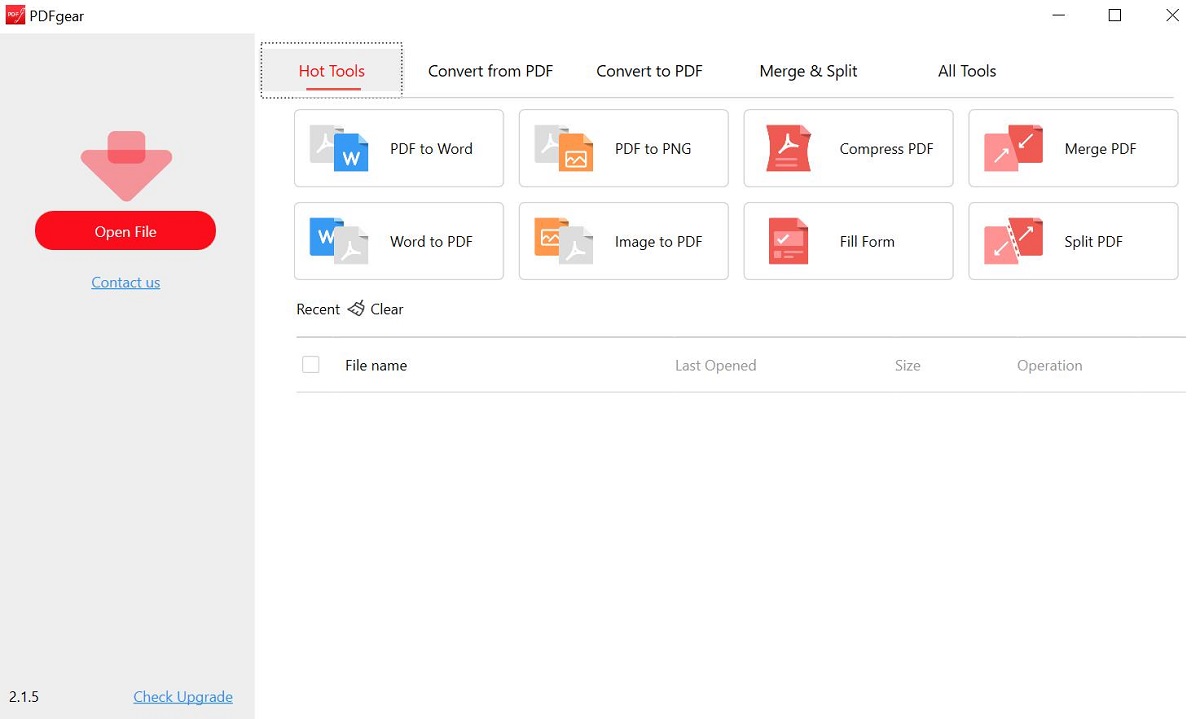
Run PDFgear on Your Device
Step 2. Combine Several PDFs into One
Find the Merge PDF tool from the homepage of the interface, hit Add Files to add lots of PDFs as you want, then you can name the output file, and click the Merge button to complete the combination.
You can check the combined PDF from the output path where you choose when merging the files.
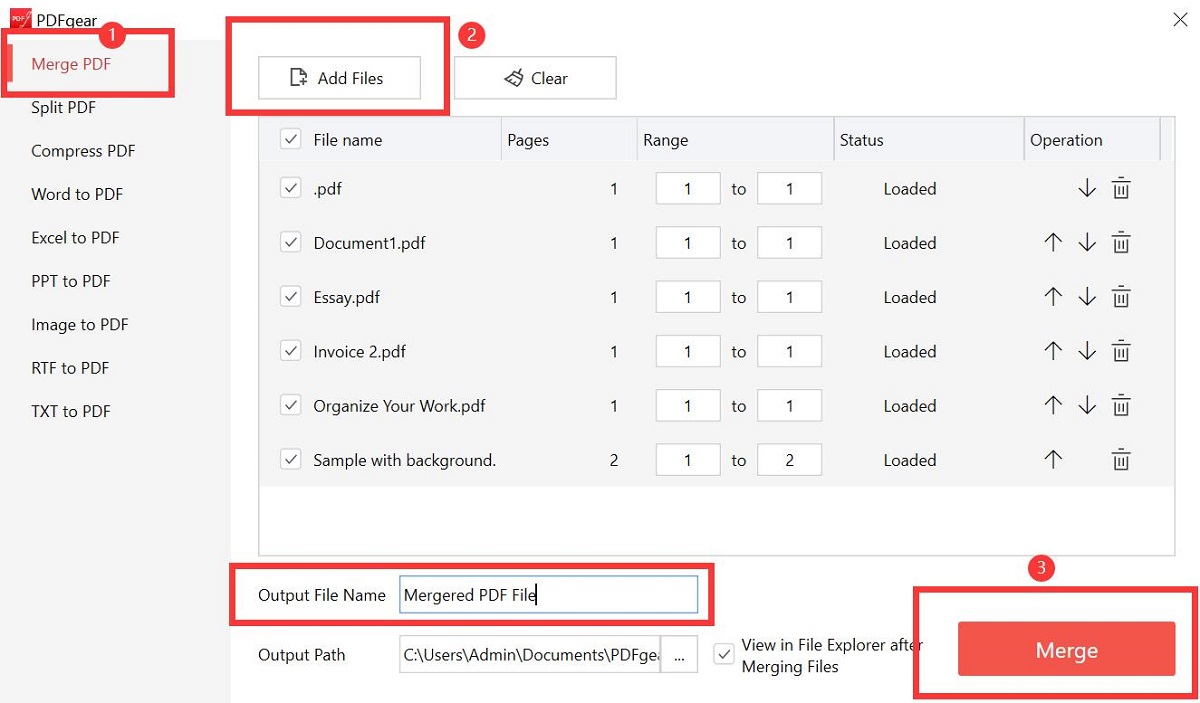
Merge Many PDFs into One in PDFgear
How to Scan Multiple Pages into One PDF on Windows
Adobe Acrobat is a professional blank PDF creator that enables you to create PDFs from various file formats. You can easily create a PDF with Adobe Acrobat Scanner, on condition that you have an available scanner connected with your computer.
This app also provides extensive PDF editing tools for more efficient markup of PDFs. However, you need to register a account and pay to access these features. If you have installed this app, follow the steps below to scan multiple pages into a PDF.
Step 1. Open the Adobe Acrobat Pro DC program first, and then scan the scanner device. On Windows, TWAIN scanner drivers and Windows Image Acquisition (WIA) drivers are supported.
Step 2. Click Tools, selec Create PDF, and choose Scanner.
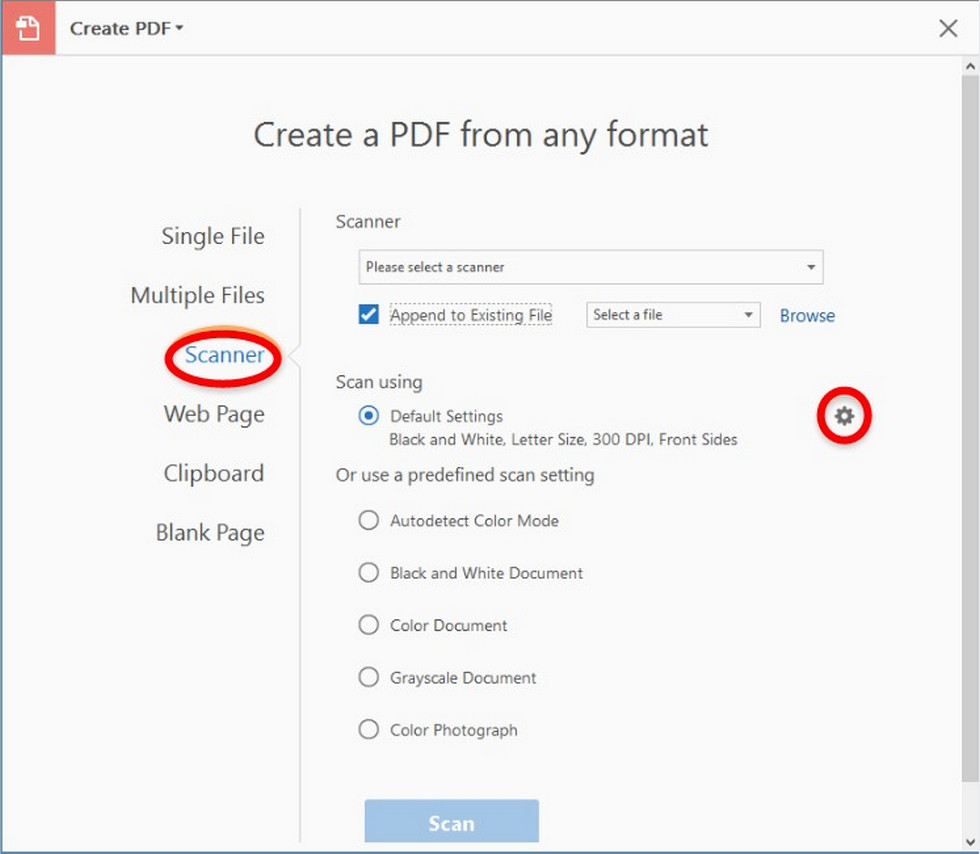
Select Get PDF from Scanner
Step 3. Enter the customization interface by clicking the gear-like tool button in the tab. You can choose the scanned file format: JPG, BMP, PNG, and TIF. Click Scan after setting.
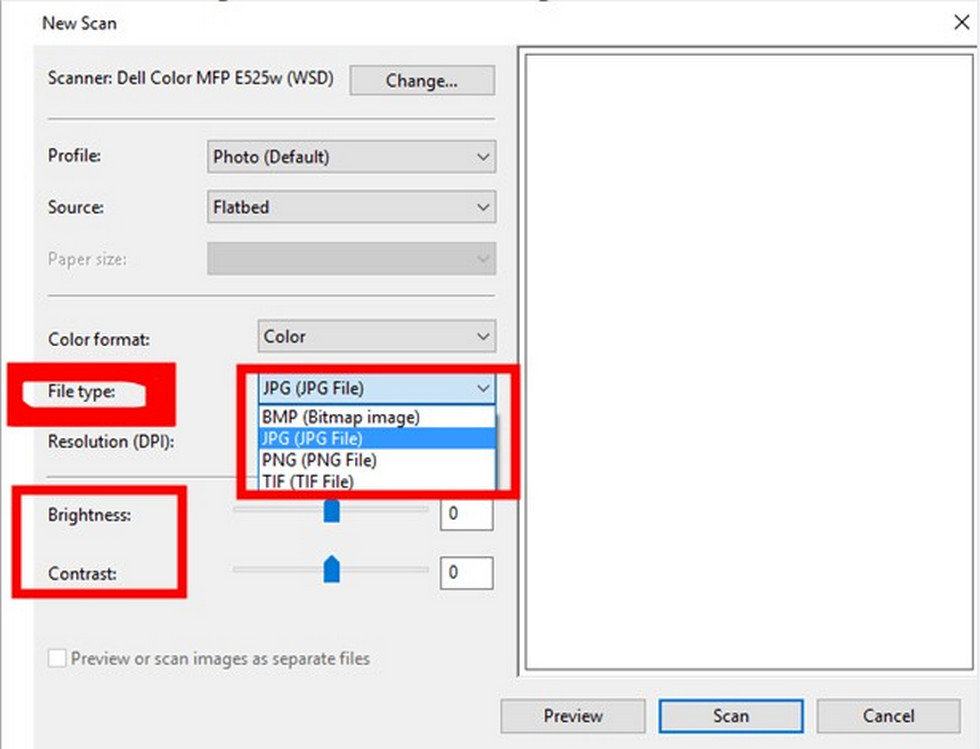
Scan Files through Adobe Acrobat DC
Step 4. After you finish scanning, you can choose to save the file or save and continue scanning. For multiple pages, click Save and continue scanning. After all the files are scanned, click Save as PDF.
How to Scan Multiple Pages in One PDF on Mac
Mac users can scan multiple pages into a single PDF without the need for additional PDF processing software, thanks to the powerful built-in app called Preview.
Preview offers various functionalities, including converting screenshots to PDFs, deleting pages within a PDF. This application also excels at scanning several pages as one document, delivering impressive results.
Though Preview provides some modifications to PDF content, its features are quite limited. You can not edit the existing text in a PDF using Preview, and it lacks robust features such as OCR and AI assistance.
Step 1. First of all, you need to connect your scanner to your Mac device. Open Preview and click File, and click Import from (the name of your scanner).
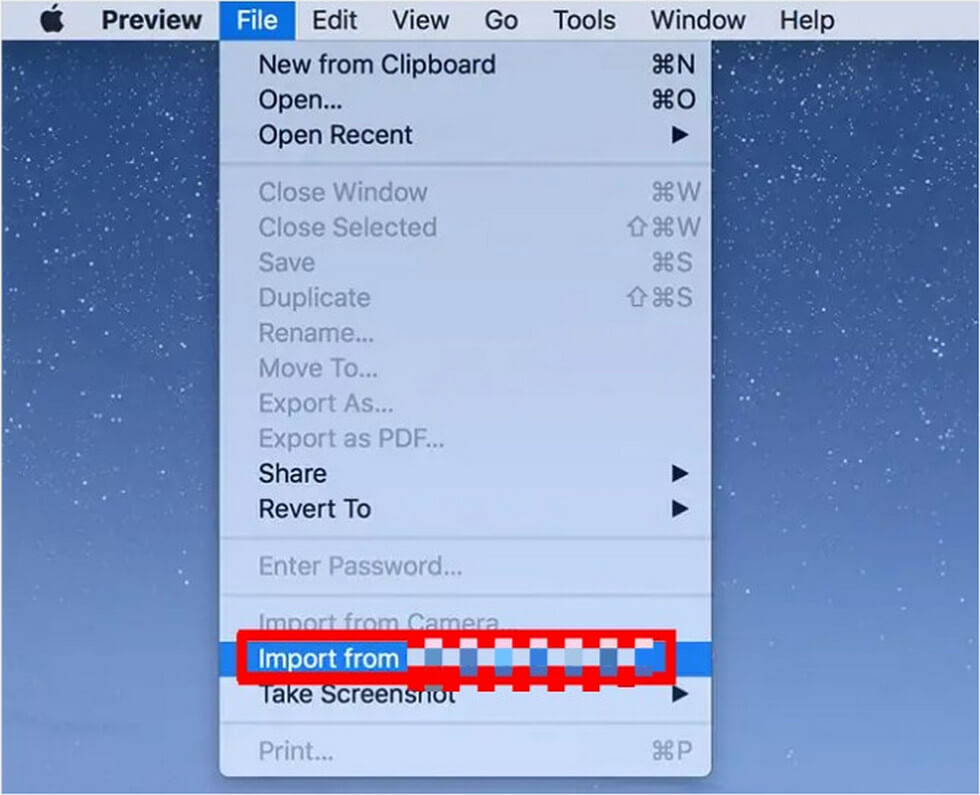
Select Import Files from the Scanner to Preview
Step 2. Set Format to PDF in the right-side options panel > Check Combine into the single document > Select the scanned part in the preview window or directly press and hold “Ctrl+A” on the keyboard to select the whole page > Hit Scan at the bottom right corner to start the scanning process.
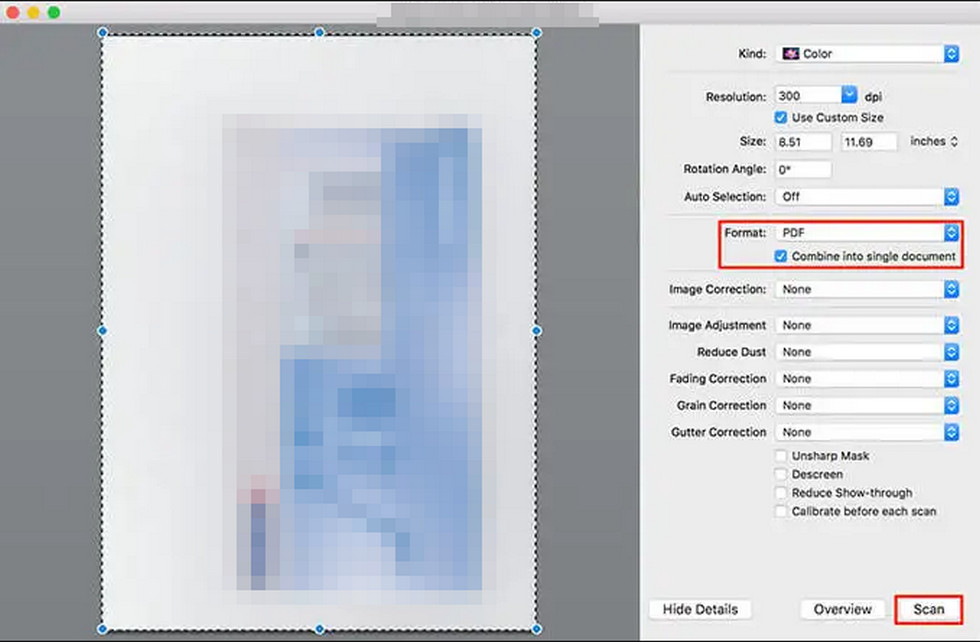
Start Document Scanning in Preview
Step 3. After completing the scanning of all pages, you need to navigate to File > Click Save to download the PDF file.
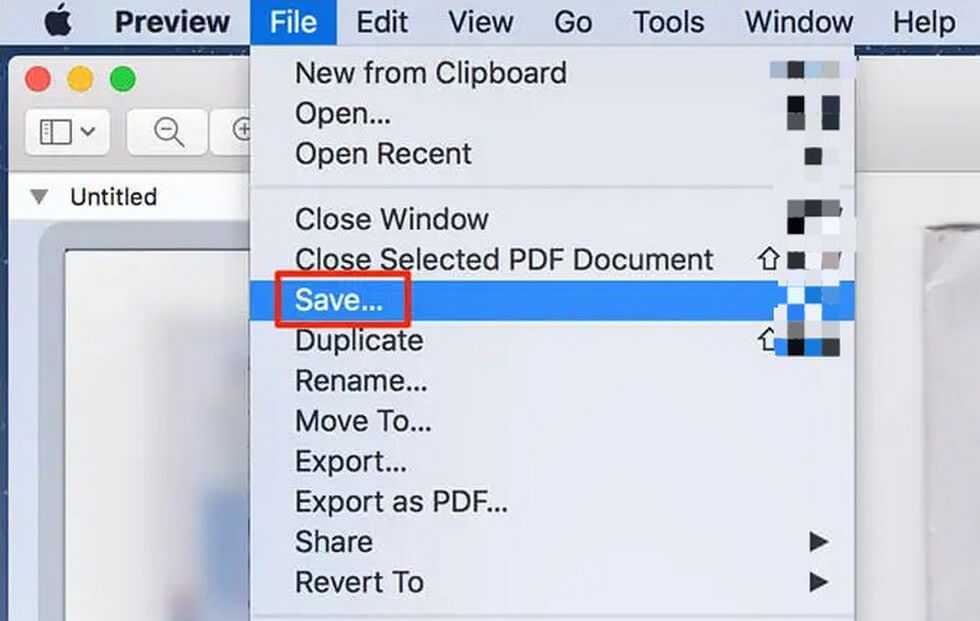
Save the Scanned File as a PDF
How to Scan Multiple Pages to PDF on Android
Mobile or Android users can download and install a scanning app like Google Drive to put multiple scans into one document. It is a free PDF scanner, and all you have to do is to register a Google account to use the tool.
Step 1. Download a Google Drive application on your phone. Open it > Click the “+” button at the bottom right corner > Select Scan to start scanning the page with your phone’s camera.
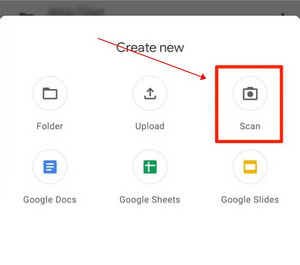
Scan Page by the Google Drive Application
Step 2. The process of scanning a page is almost the same as taking a picture.
Click the shutter button after aligning the page, “√” allows you to save this scan, and “×” allows you to scan again. When you need to scan more than one page, click the “+” in the bottom left corner for continuous scanning.
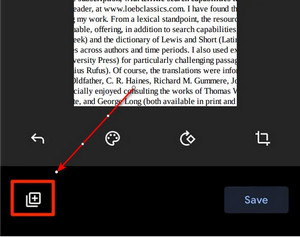
Add Scanned Files to Google Drive App
Step 3. After scanning and adding all pages, click “Save” at the bottom right corner to save the merged PDF files to Google Drive.
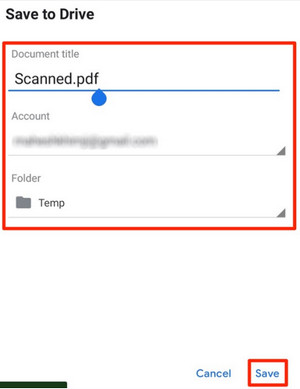
Save and Rename PDF Files to Google Drive
How to Scan Two or More Documents in One PDF on iPhone
The Notes app is an iOS application designed for creating journals, notes, and memos, into which you can insert photos, videos, and even scanned documents.
Apart from the Notes app, another native program, Files app on iOS also enables you to scan to PDF on iPhone for free without software download. The steps for both apps are similar. Here, we will outline the detailed steps to scan more than one page to PDF using the Notes app on an iPhone.
Step 1. Open the Notes app on your iOS device, and click the Edit icon in the right lower corner.
Step 2. Hit the Camera in the new notes, and choose Scan Documents. Aim at the file you want to scan, and the program will automatically scan and save the document.
Just repeat the action if you have lots of documents to scan. Click Save to save all documents after scanning.
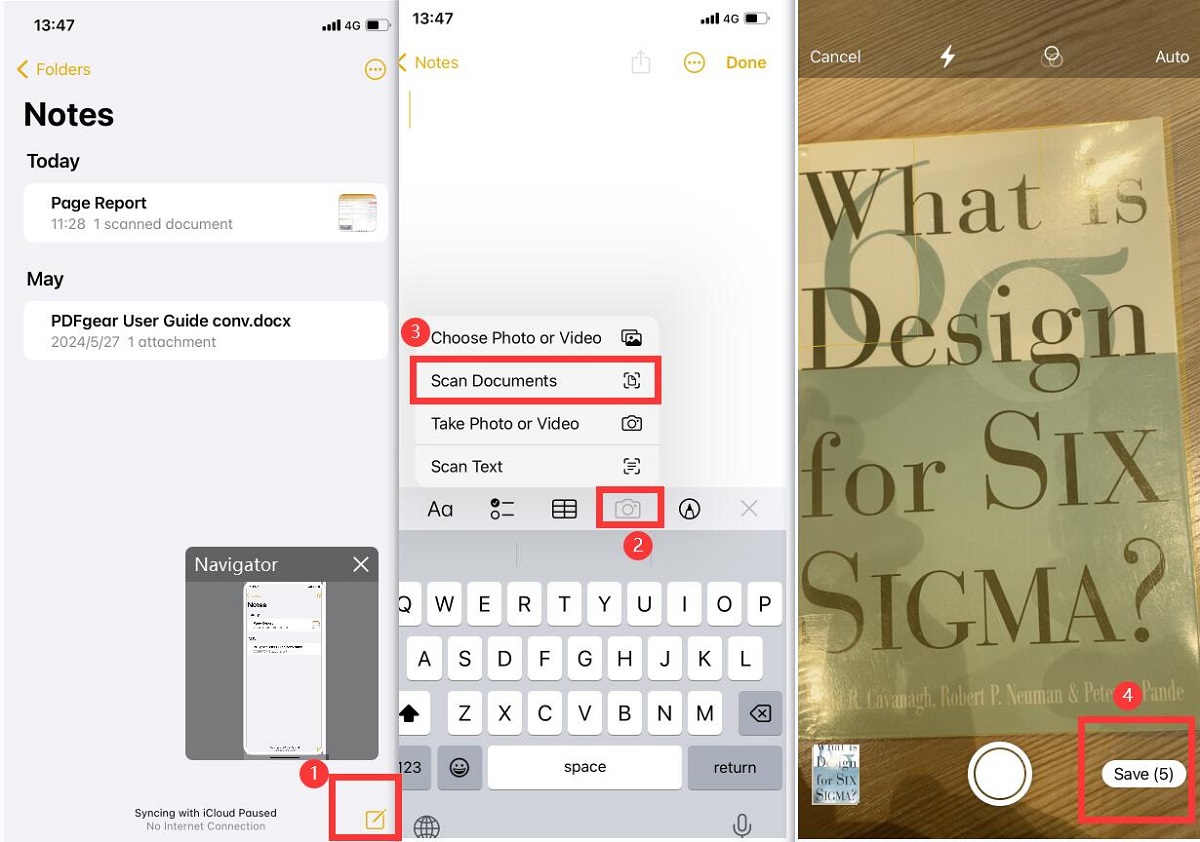
Scan Documents in Notes App
Step 3. In the notes with the scanned documents, click the Share icon, choose Save to Files, set a location, and click Save. Now you can check the merged PDF in the Files app.
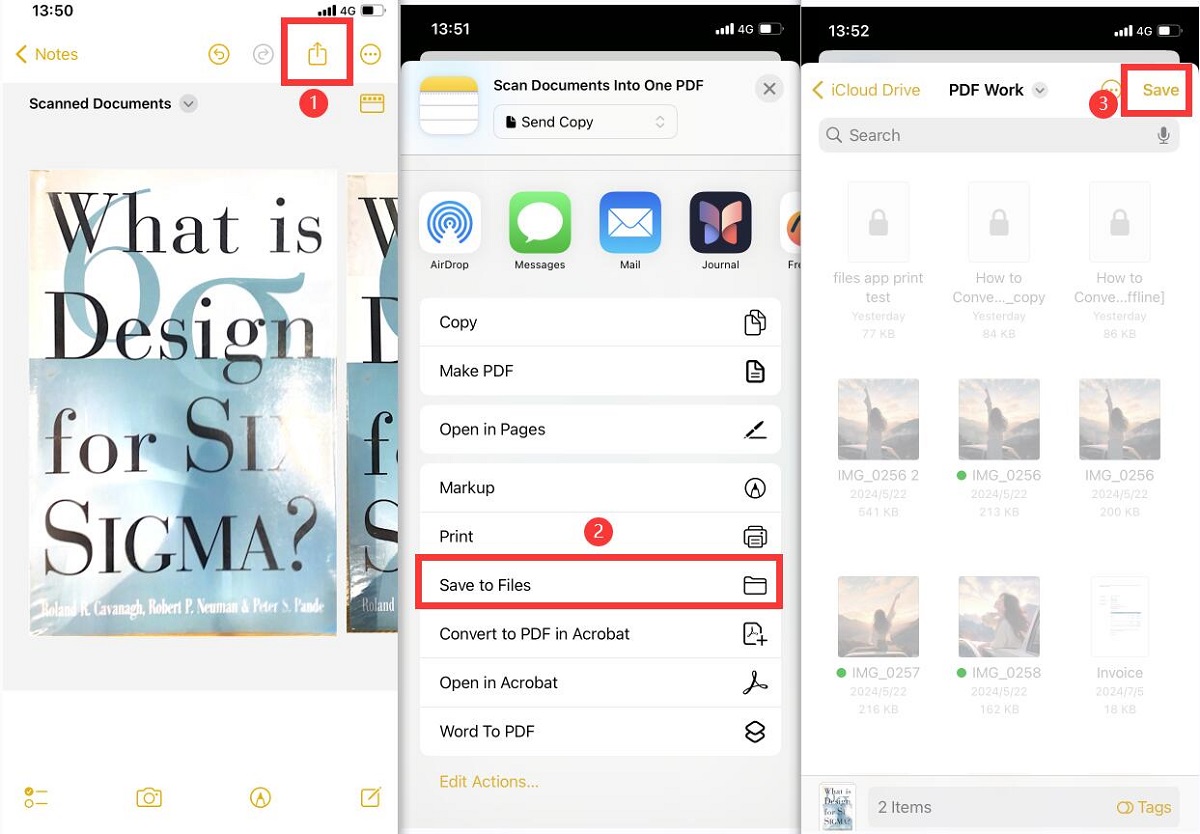
Save Many Scanned Documents into One PDF in Notes
FAQs
How Do I Combine Multiple Scanned Pages into One PDF Document Free?
If you wish to merge multiple scanned pages into a single PDF document for free, PDFgear Online Merger is a reliable option. To get started, visit the PDFgear official website > Find the “Merge PDF” tool > Upload the scanned pages (in bulk) > Click on the “Merge” button located at the upper right corner > Hit “Download” to save the merged PDF.
Can You Scan Multiple Pages into One PDF File?
Absolutely! You have different options for scanning. If you’re on a computer, first, ensure you have a printer and connect your device to it for scanning and uploading. If you’re using a cell phone, simply turn on the camera, and you can easily perform a quick scan. It’s a much easier and faster method for scanning documents.
Conclusion
Now you know how to scan multiple pages into one PDF and merge multiple scanned PDF pages efficiently. For merging multiple pages and handle large files without limitations, install PDFgear and enjoy the advanced PDF-related features completely free of charge and without any restrictions.
