How to Combine JPEGs into One PDF for Free

Summary :
Learn how to combine multiple JPEG images into a PDF online and offline using PDFgear and Adobe Acrobat.
Table of Contents
If you have multiple JPG images, converting them to a single PDF file makes it easier to manage and share them as one document.
This guide shows you the best ways to combine JPEGs into one PDF, and here’s a video to help you understand it better.
Combine Multiple JPEGs into One PDF Online Free
Turn JPEG images into a PDF fast with PDFgear’s free online tool. No signup or download is needed—just add your images and get a PDF in seconds.
You can combine many images into one PDF, and there are no watermarks or limits. It works on any device and is 100% free.
Step 1. Click the “Select Image File” button or drag and drop a JPEG image into the drop zone.
Step 2. Adjust settings like size, orientation, and margin as needed.
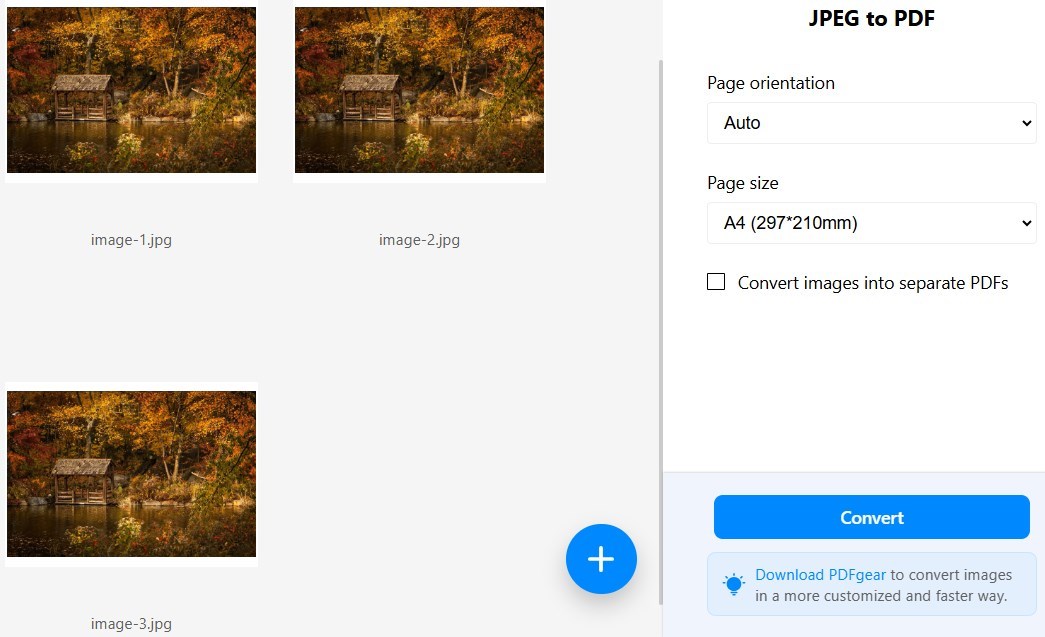
Customize the Image Settings
Step 3. Drag and drop images to rearrange the order before converting.
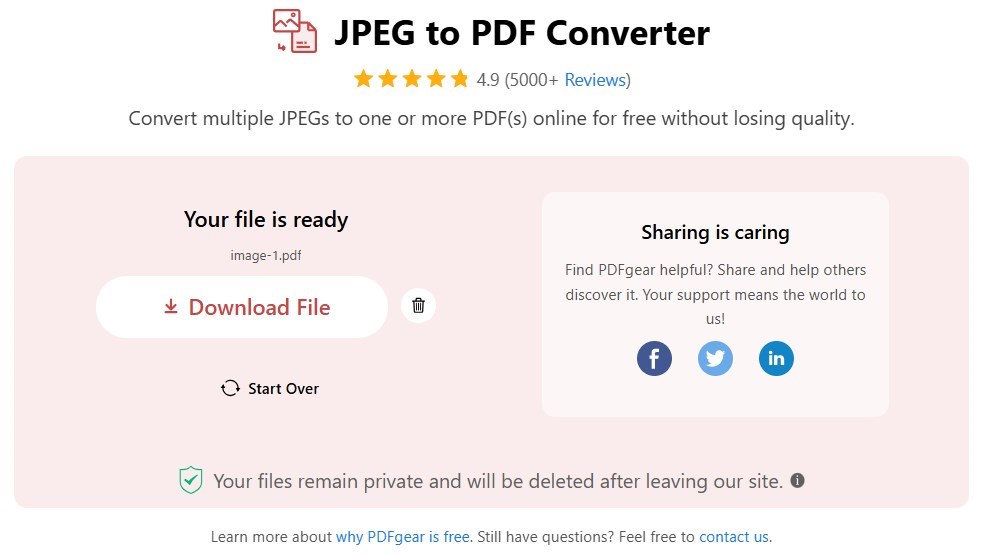
Convert JPEGs to a PDF Online
Step 4. Click the “Convert” button and wait for PDFgear to combine all images into a PDF in seconds.
Combine JPEGs into One PDF on Computer for Free
PDFgear lets you quickly combine multiple images into one PDF offline on Windows and Mac for free. You can feel free to adjust the margin, orientation, and size.
PDFgear supports a wide range of image formats, including JPG, JPEG, PNG, BMP, TIFF, and ICO. It keeps your images clear and sharp in the resulting PDF.
PDFgear allows you to batch convert or combine multiple images into one PDF for free.
Step 1. Download and install PDFgear on your Mac or Windows PC.
Step 2. Launch the software and open the “Image to PDF” tool.
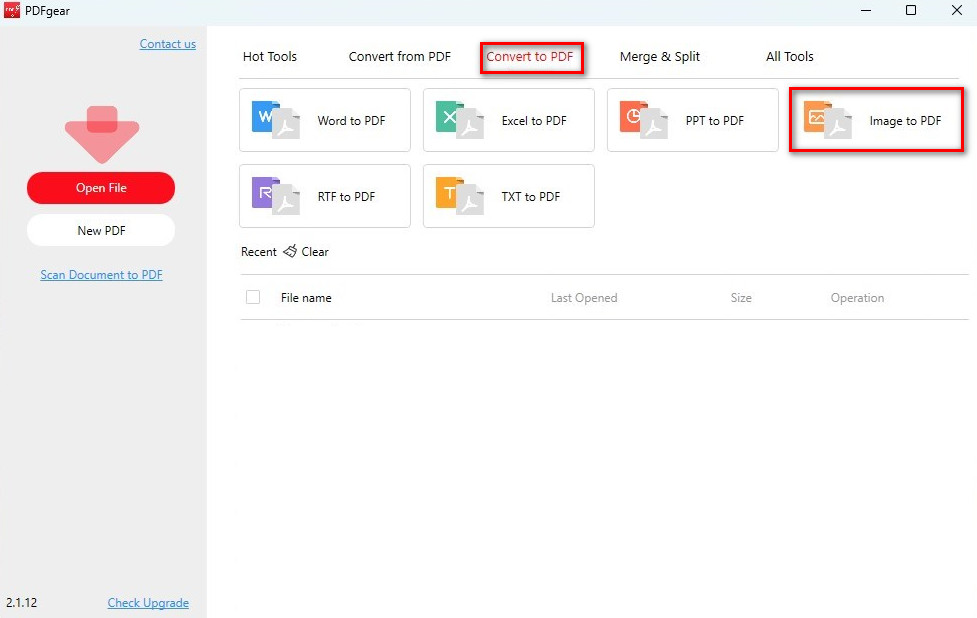
Open the Image to PDF Converter
Step 3. Click “Add Files” and select multiple JPEG images.
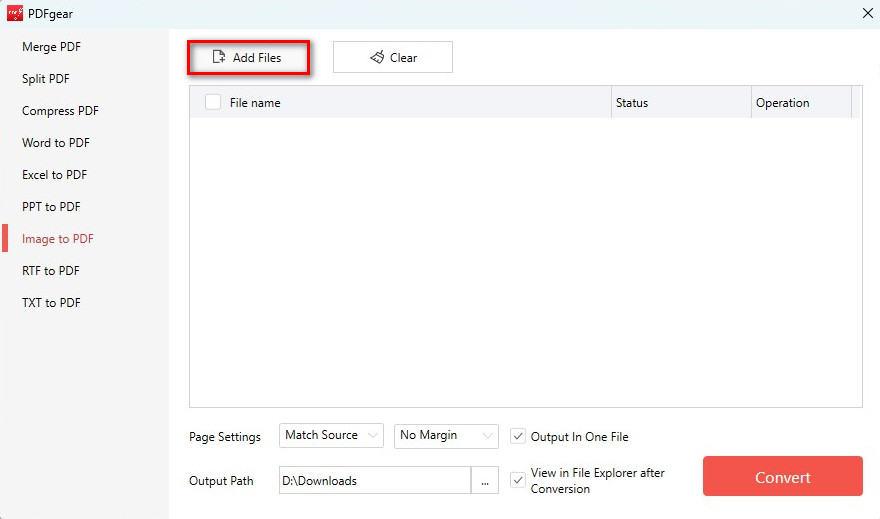
Add JPEG to Convert to PDF
Step 4. Adjust the size, orientation, and margin as needed. Choose where to save the output file.
To merge all JPEGs into one PDF, check the “Output in One File” option. If left unchecked, each image will be saved as a separate PDF.
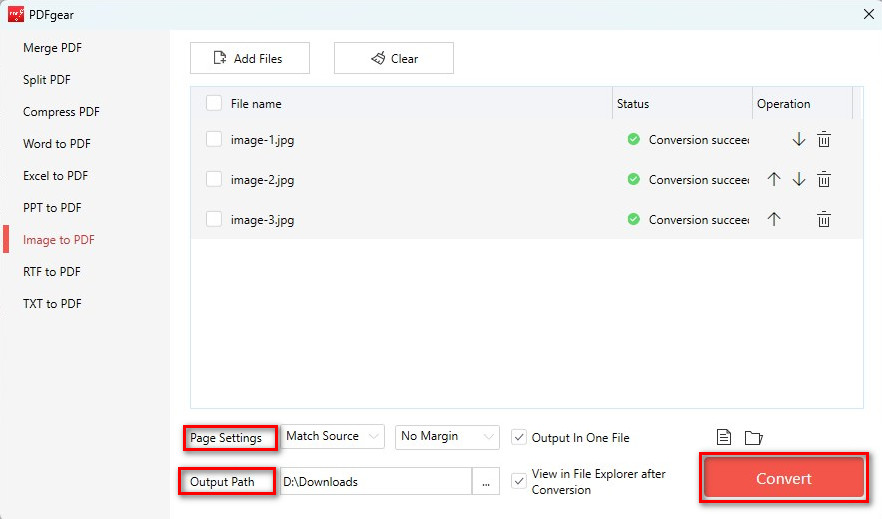
Combine JPEGs to one PDF Offline
Step 5. Click “Convert” and let PDFgear handle the conversion.
Combine Pictures into One PDF on Mobile for Free
PDFgear also provides a mobile app for converting two or more pictures to one PDF. The app is 100% free and works on both iPhone and Android.
It makes conversion quick and easy. After converting, you can share the PDF via email or messaging apps.
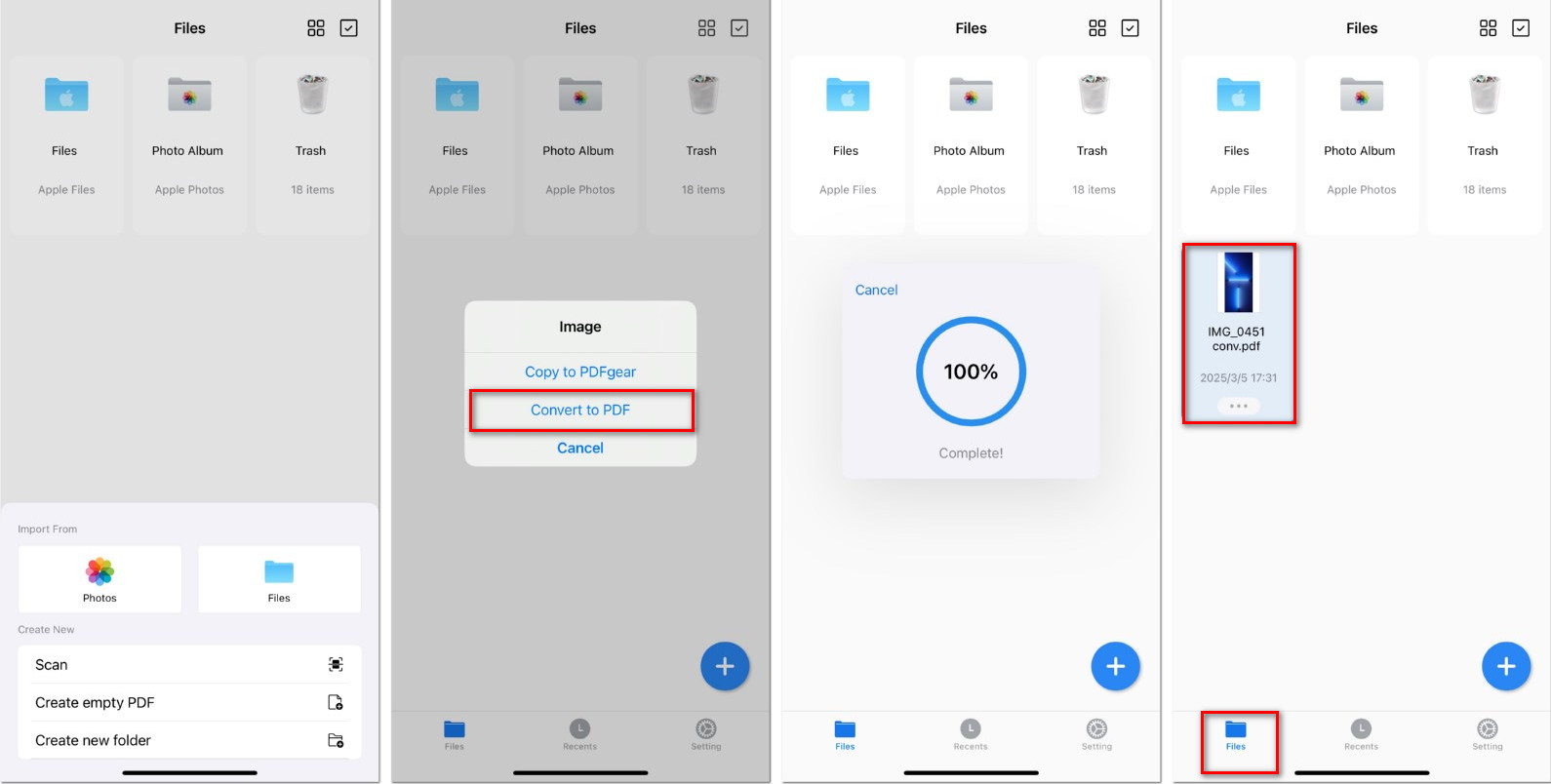
Combine JPEG Images into One PDF on Mobile
Step 1. Download and install PDFgear from the App Store or Google Play.
Step 2. Open the PDFgear app on your mobile device.
Step 3. Tap the “+” icon and select all JPEG images you want to add.
Step 4. After importing the images, a pop-up window will appear. Choose “Convert to PDF.”
Step 5. The selected images will be instantly converted into a PDF and opened for viewing.
Merge Images into one PDF with Adobe Acrobat
Adobe Acrobat allows multiple JPEGs to be combined at once. It maintains image resolution and quality. However, Adobe Acrobat is paid software, and it may be overkill for simple tasks like combining JPEGs.
Step 1. Open Adobe Acrobat on your device.
Step 2. Go to File > Create > Combine Files into a Single PDF.
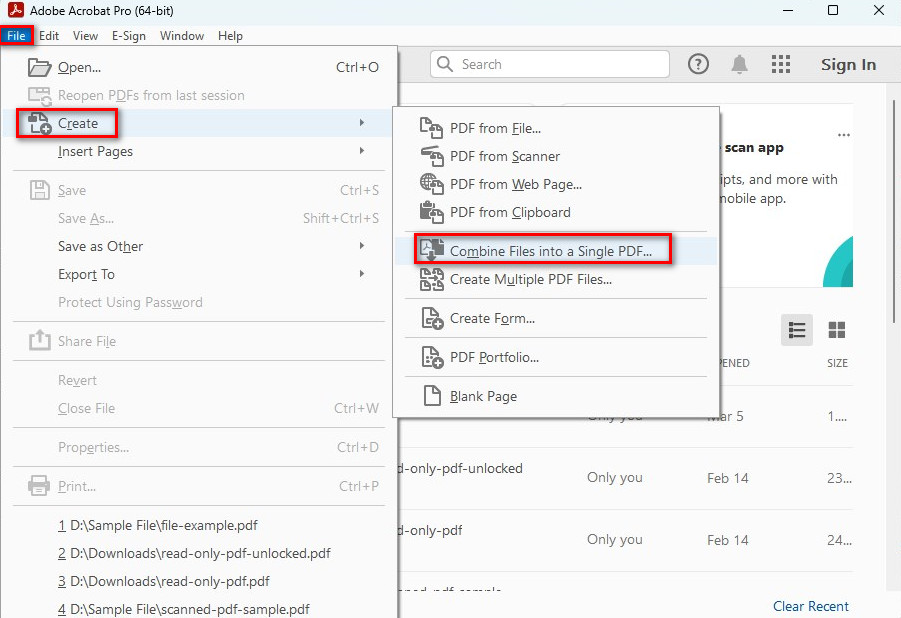
Combine Files into a Single PDF
Step 3. Click Add Files and select the JPEGs you want to combine.
Step 4. Arrange the files in the desired order using drag-and-drop or the up/down arrows.
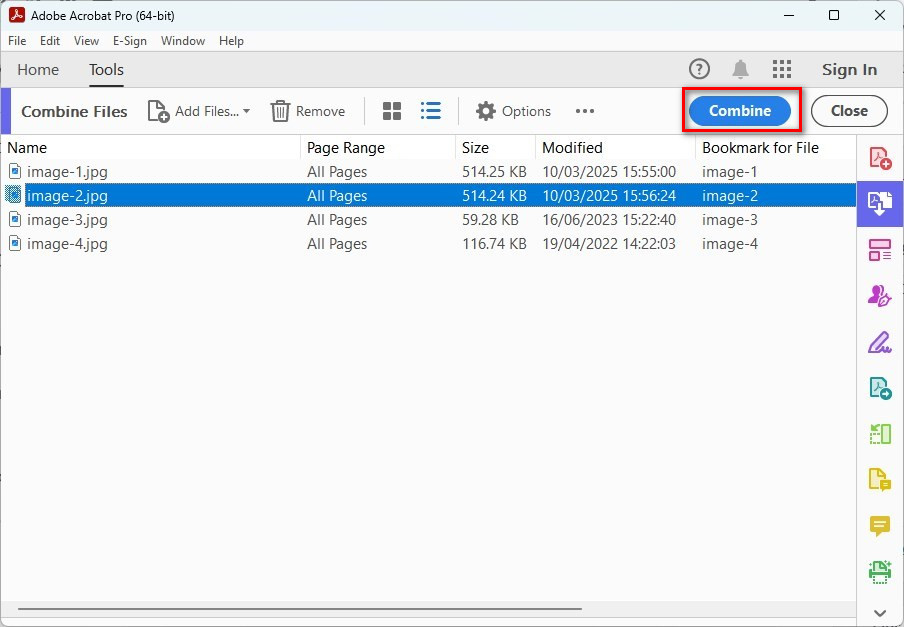
Combine JPEGs into a PDF with Adobe
Step 5. Click “Combine” to merge the images into a single PDF.
Step 6. Click “Save As” and choose a location to save your PDF file.
FAQs
Can I rearrange the order of JPEGs in the PDF?
Yes, you can. PDFgear allows you to arrange them in the desired order before converting them into a single PDF. Download PDFgear on your device and try it.
Will combining JPEGs into a PDF reduce their quality?
No, if you use the tools like PDFgear, the JPEGs retain their original quality. They will look just as expected.
How do I combine JPEGs into a PDF without software?
You can combine JPEGs into a PDF without software by using the PDFgear online tool. This online JPEG to PDF converter works on Windows, Mac, iPhone, and Android. No signup is required—just add your JPEG images to get started.
