How to Convert JPG to PDF on Mac for Free

Summary :
Explore how to use the delicate PDF converter PDFgear and built-in tool Preview to convert JPG to PDF on a Mac, online and offline.
Table of Contents
Need to print high-quality photos or images on Mac? The PDF format gives you better control over print size and resolution for optimal results.
In this guide, we’ll show you how to quickly and easily convert JPG to PDF on your Mac with or without software.
How to Convert JPG to PDF on Mac Online
PDFgear’s online JPG to PDF converter allows you to combine multiple images into a single PDF document on a Mac for free. It supports JPG/JPEG, PNG, HEIC, WEBP, BMP, SVG, JFIF, and other image formats.
No registration, no watermark, and no limitations. Try PDFgear to quickly convert JPG to PDF on any device and browser.
Step 1. Click the button labeled “Select Image File” or drag and drop JPG images into the drop zone.
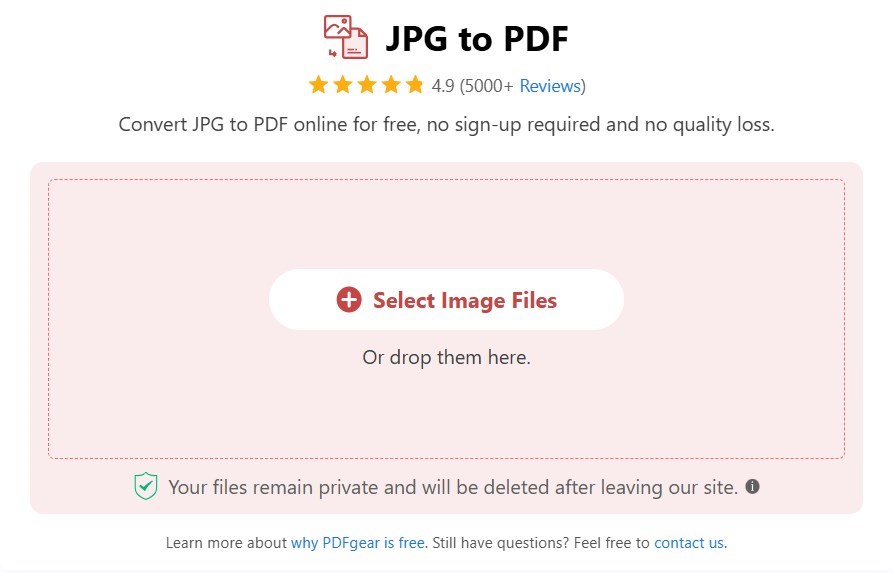
Upload JPGs to the Online Converter
Step 2. Easily adjust settings like size, orientation, and margin as needed.
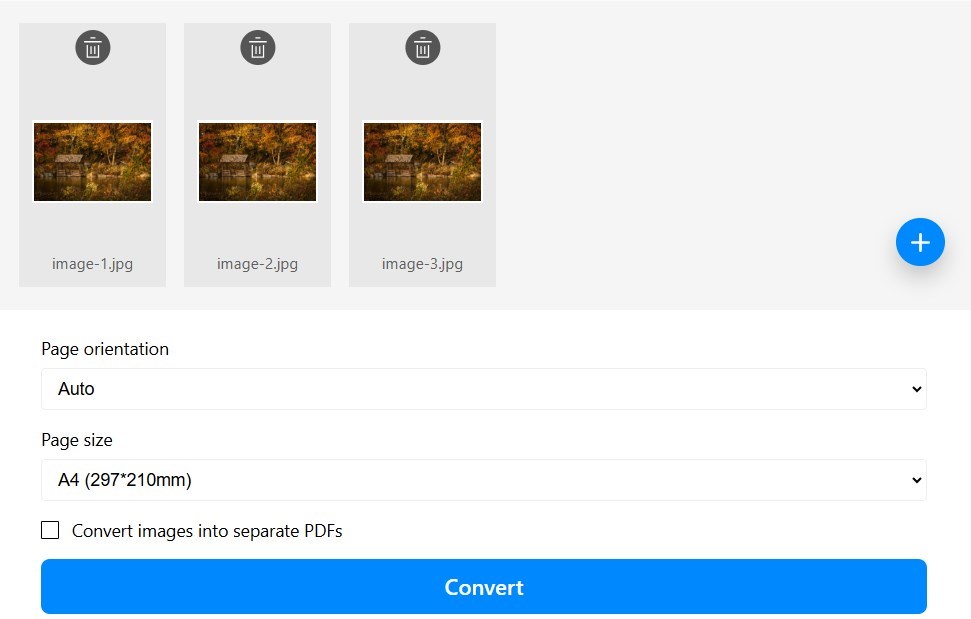
Adjust the Conversion Settings
If you don’t want to merge multiple JPGs into a single PDF, check the “Convert images into separate PDFs” option.
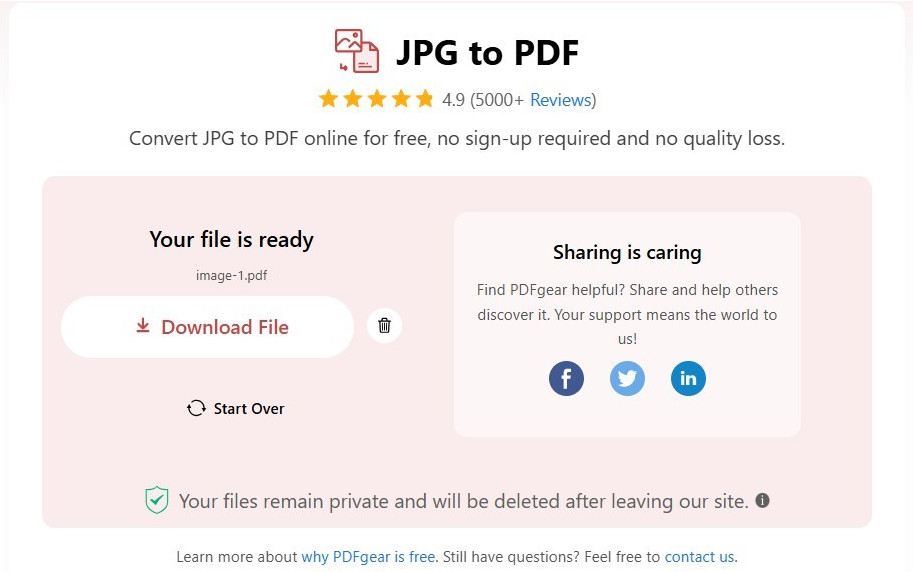
Download the Image PDF
Step 3. Tap the “Convert” button to start the conversion process.
Step 4. Voila! It’s done. Click the download button to save the PDF file on your Mac.
How to Convert JPG to PDF on Mac with PDFgear
PDFgear lets you convert JPG, PNG, BMP, and TIFF images to PDF offline on your Mac. It ensures the image quality is high in the resulting PDF document. It also allows batch convert JPG to PDF in seconds.
PDFgear for Mac is completely free and works on MacBook Air, MacBook Pro, and iMac with macOS 10.14 or later.

Step 1. Download and install PDFgear on your Mac.
Step 2. Open PDFgear and go to the “Image to PDF” tool.
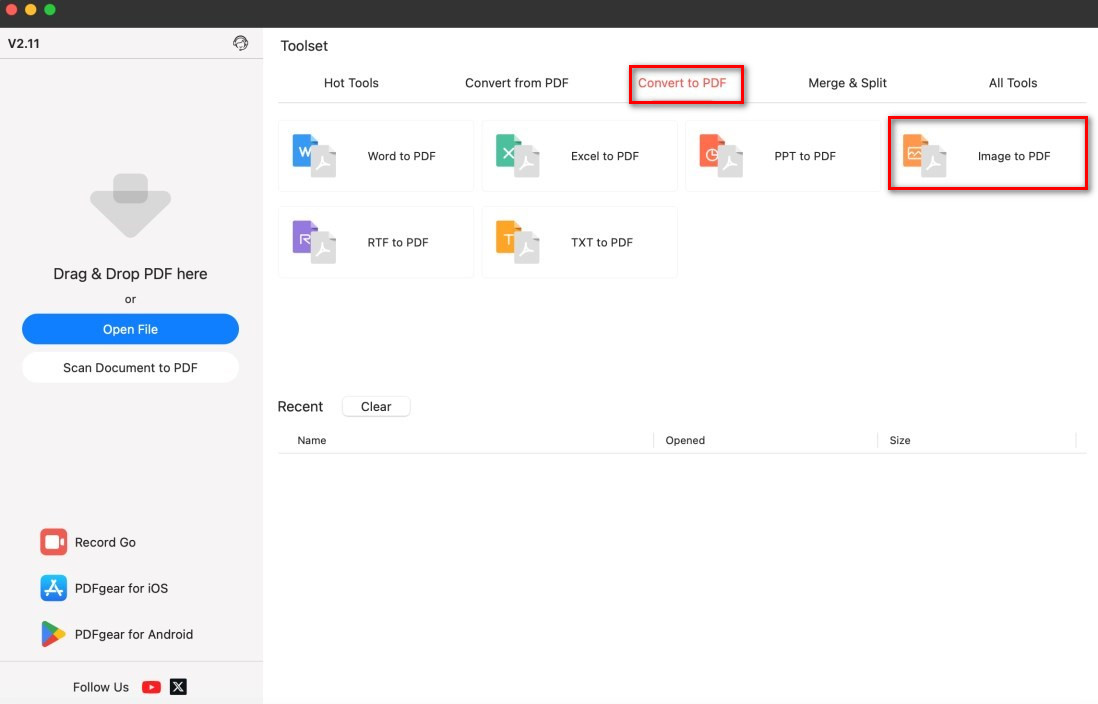
Open the Image to PDF Tool
Step 3. Click “Add Files” and select one or more JPG images.
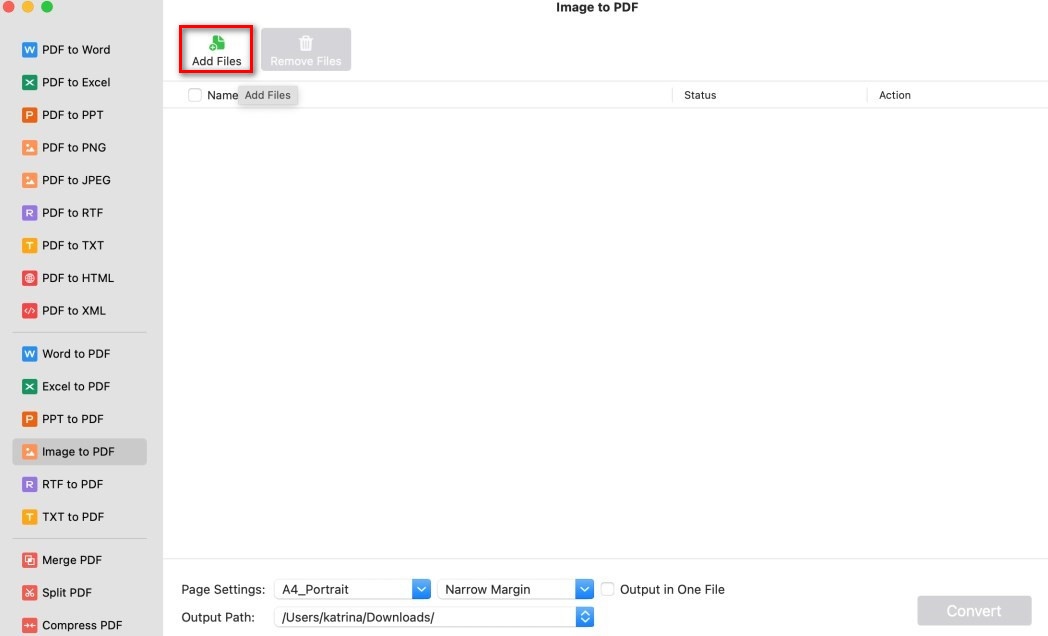
Add Images to Convert to PDF
Step 4. Adjust the size, orientation, and margins if needed. Choose where to save the PDF.
To combine all images into one PDF, check the “Output in One File” option. If not, each image will be a separate PDF.
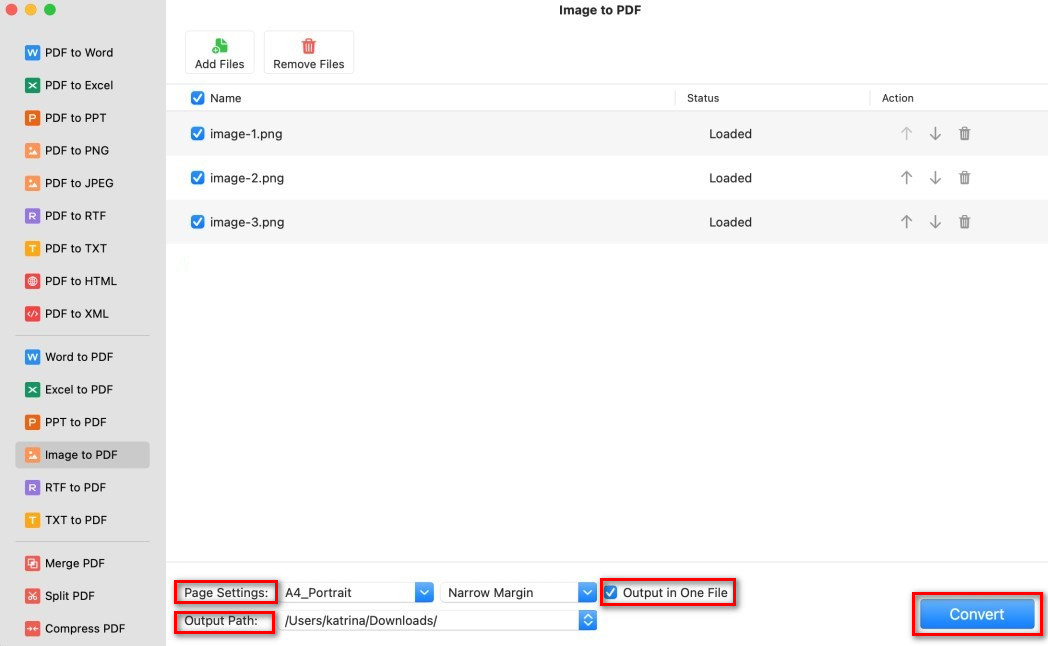
Batch Convert Image to PDF on Mac
Step 5. Click “Convert” and wait for PDFgear to finish.
How to Convert JPG to PDF on Mac with Preview
The Preview app on Mac is a built-in tool for viewing and editing images. It supports formats like PDF, JPEG, PNG, and TIFF.
You can use the Preview app to convert a JPG to a PDF on a Mac without third-party software.
Step 1. Open the JPG image in Preview (double-click the file).
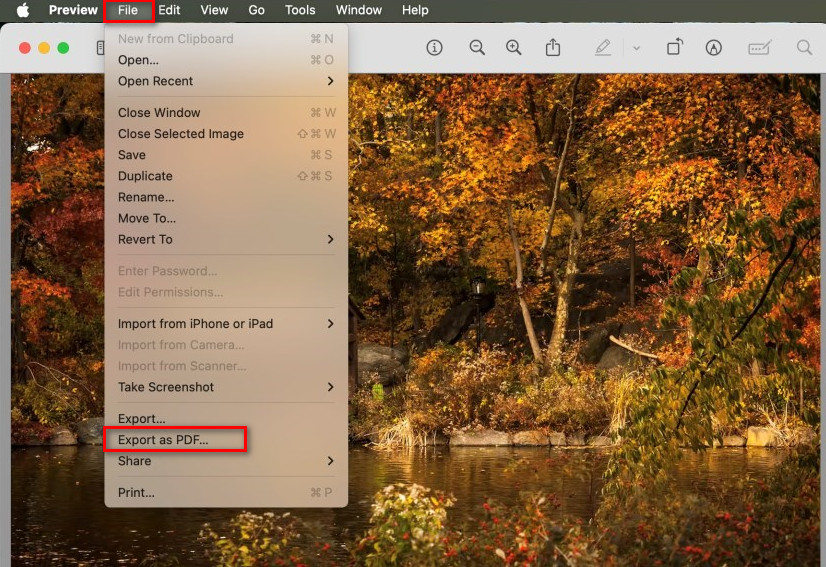
Open an Image with Preview
Step 2. Click File in the menu bar.
Step 3. Select Export as PDF.
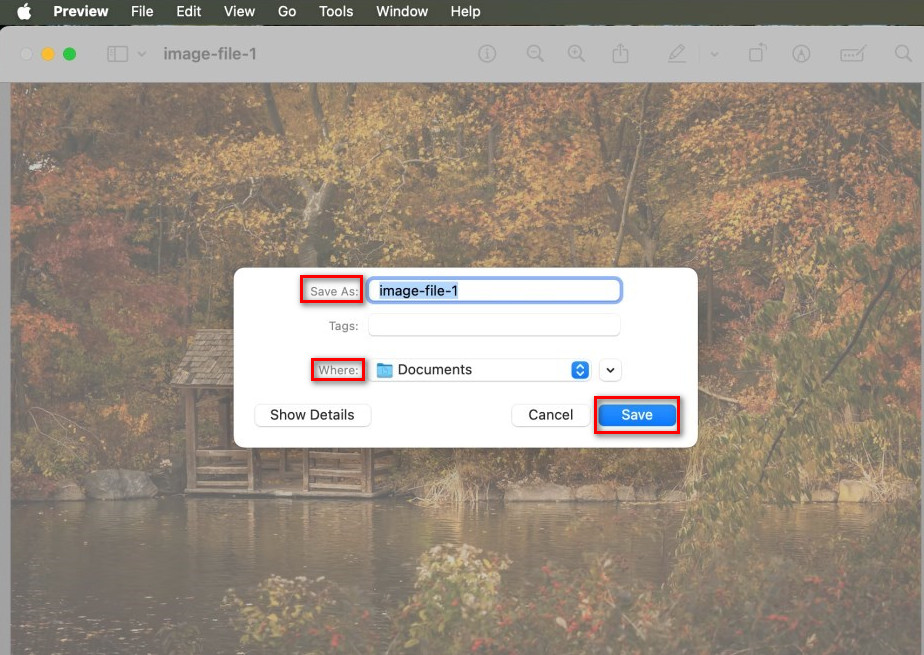
Export JPG as PDF on Mac
Step 4. Choose a destination folder, name the file, and click Save.
FAQs
What is the best JPG to PDF converter for Mac?
The best JPG to PDF converter for Mac is PDFgear. It’s completely free, works offline, supports batch conversion, and keeps high image quality. Plus, it lets you adjust orientation, margins, and more before converting.
How do I combine images into a PDF on Mac with Quick Action?
The Quick Action feature allows you to combine selected JPGs into a single PDF effortlessly. Here’s how:
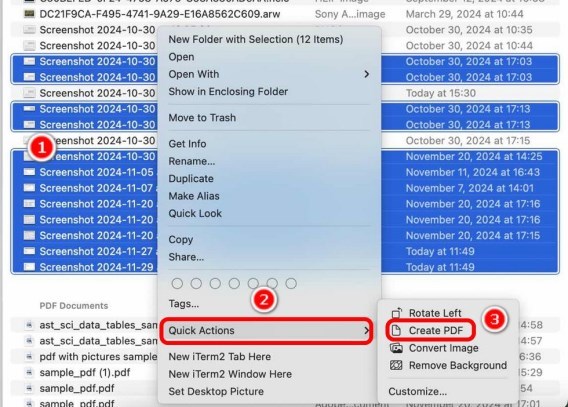
Create a PDF from Images
Select the JPG file you want to convert > Right-click on the selection > Select Quick Actions > Select Create PDF.
Will the image quality change when converting to PDF?
No, PDFgear keeps your images sharp and clear without any quality loss. Try the PDFgear online Image to PDF converter, or download PDFgear for Mac for offline conversion.
Does Mac have a built-in tool to convert JPG to PDF?
Yes. The Preview app allows you to save JPG as a PDF without third-party software. But it only converts one JPG to PDF at a time. To convert multiple images at once, download PDFgear.
