How to Edit a Secured PDF[With or Without Passwords]

Summary :
If you’re seeking ways to edit a secured PDF, you’ve come to the right place. In this article, we’ll explain how to edit a secured PDF, whether you know the password or not.
Table of Contents
How To Edit A Secured PDF
PDF files are widely used for secure printing, reading, and sharing. Secured PDFs may be protected with document open passwords and permissions passwords. Document open passwords require a user to enter a password for access, while permissions passwords restrict actions like printing, editing, and copying within the PDF.
You can open and edit protected PDFs in different ways. If a PDF has a document open password, you’ll need to enter it to open the file. If it has a permissions password, you can remove it to unlock the file and edit it using certain programs. Keep reading to learn easy ways to edit your protected PDFs.
How to Edit Secured PDF without Password Using iLovePDF
If you’ve forgotten or don’t know the password, there are numerous methods available to unlock secured documents and remove the password. iLovePDF is a reliable tool for unlocking PDFs for editing.
With iLovePDF unlock PDF tool, you can easily remove password security from PDFs, granting you the freedom to use your documents without restrictions.
Protected PDF documents can only be edited by the author. Before you start, please make sure you have the right to remove the protection on the document. If the method doesn’t work for your case, check our guide to unlocking PDFs without a password for more solutions.
Step 1. Unlock PDF Online
Drag and drop your document in the iLove PDF PDF Password Remover to make sure you have permission of the file. Then click “Unlock PDF”.
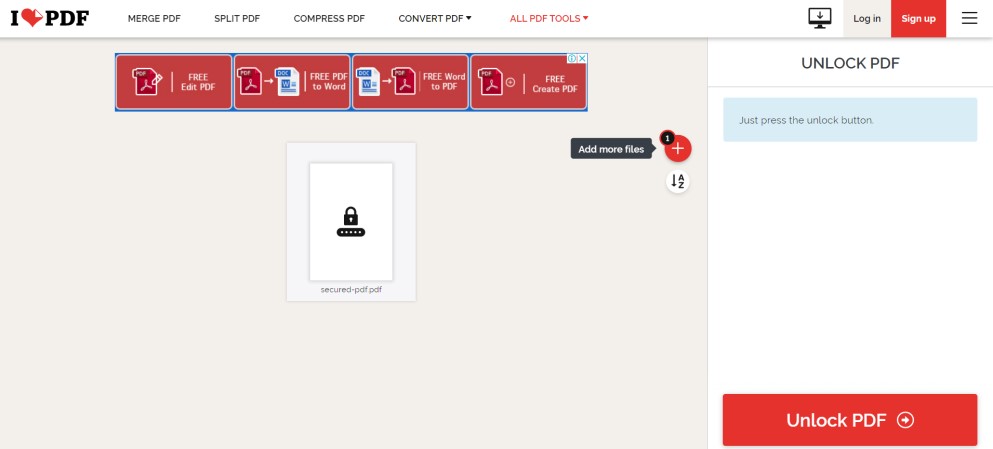
Unlock PDF Online with iLovePDF
The decryption process should start immediately. After the secured PDF document is unlocked, click “Download File” to save the document.
Step 2. Edit the Unlocked PDF Online
Now you can edit the protected PDF with PDFgear online editor, just drag and drop the PDF document into the tool.
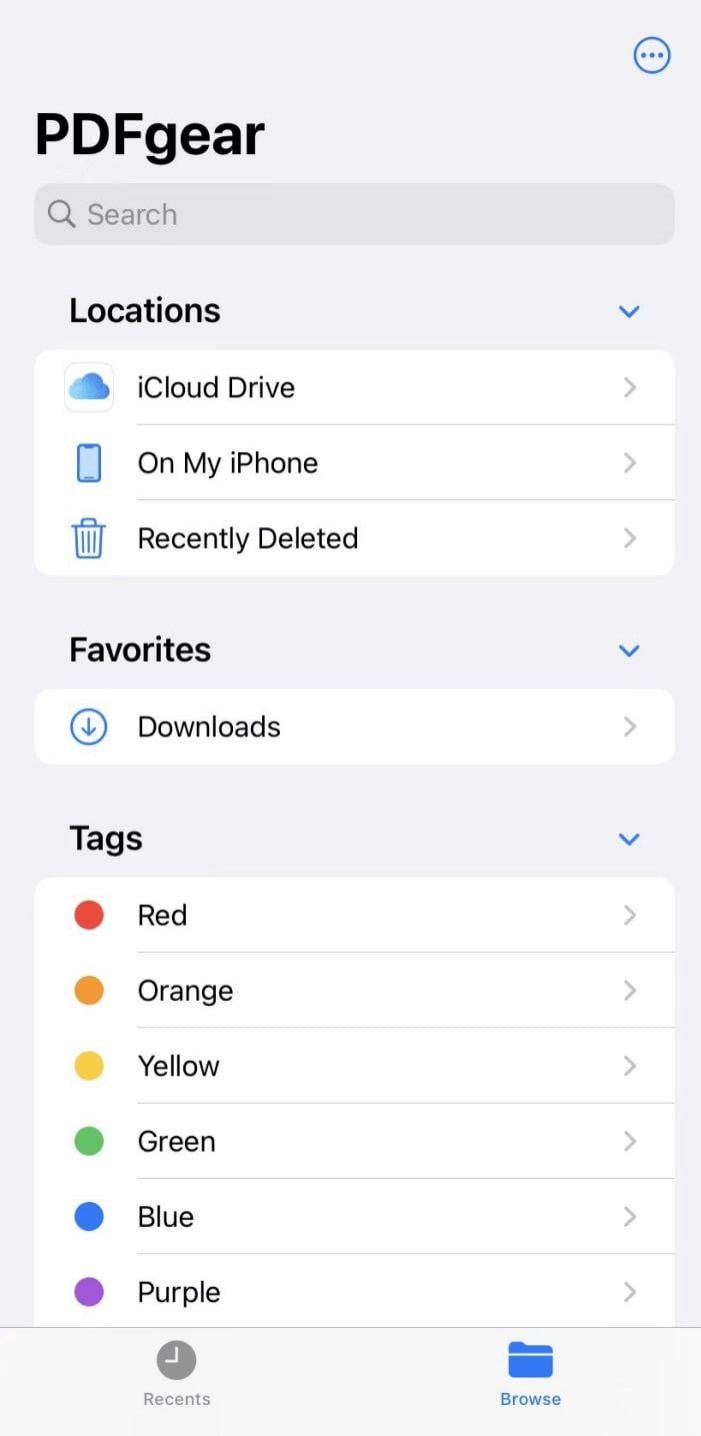
Edit PDF PDFgear
Start editing your PDF documents by selecting the text, shapes, comments, or annotations buttons. You can modify your PDFs however you like.
Step 3. Download the Edited PDF
When you have finished editing the PDF, tap on the Download File button in the upper right corner to export the file to your computer.
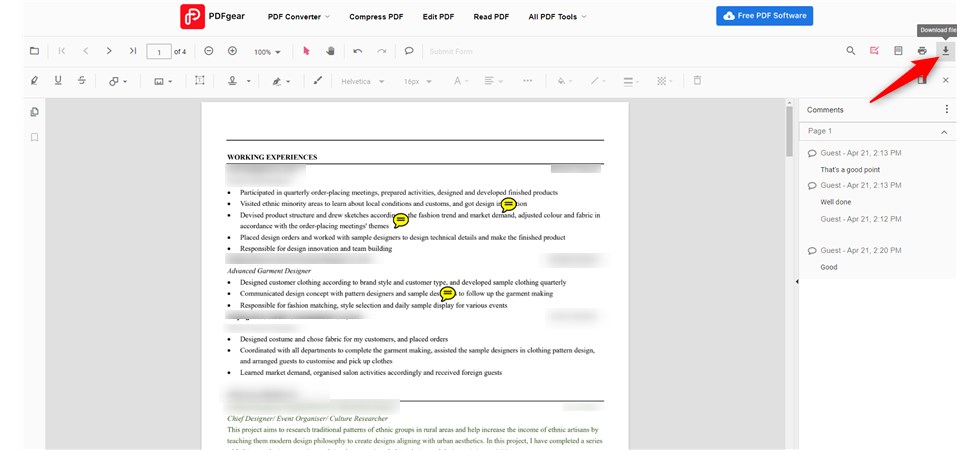
Download the Edited PDF File
How to Edit Protected PDF with Password for Free
The editing of PDFs on Windows and Mac is very easy if you have the password. Simply open the PDF and enter the password to start editing. For a simple and user-friendly tool, consider using PDFgear. It provides a range of editing options, such as highlighting PDF text, modifying, and adding comments, making it a convenient choice for PDF editing.
With the OCR feature of PDFgear, you can extract text from images within your PDF file, making it editable and searchable. Now, let’s explore how to edit PDFs using PDFgear.
Step 1. Launch PDFgear
You can download the PDFgear from the official website or the button below. Then, launch PDFgear on your computer.
Click the Upload Files button on the main interface to import secured PDF files into the PDFgear. Then a window will pop up asking for a password, you have to enter the correct password in it.
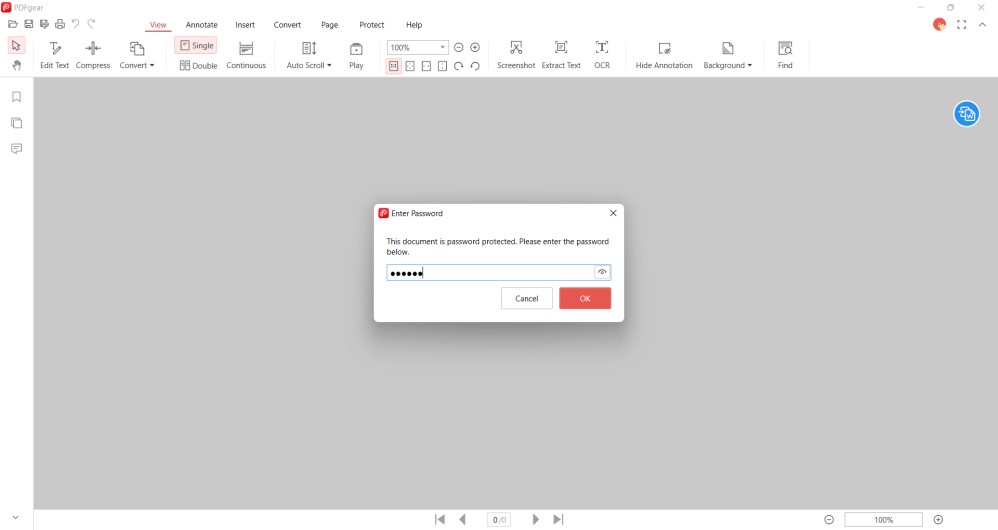
Unlock the PDF with Password
Step 2. Edit the Secured PDF
When your PDF file is opened in the editor, you can see various function options in the top menu bar.
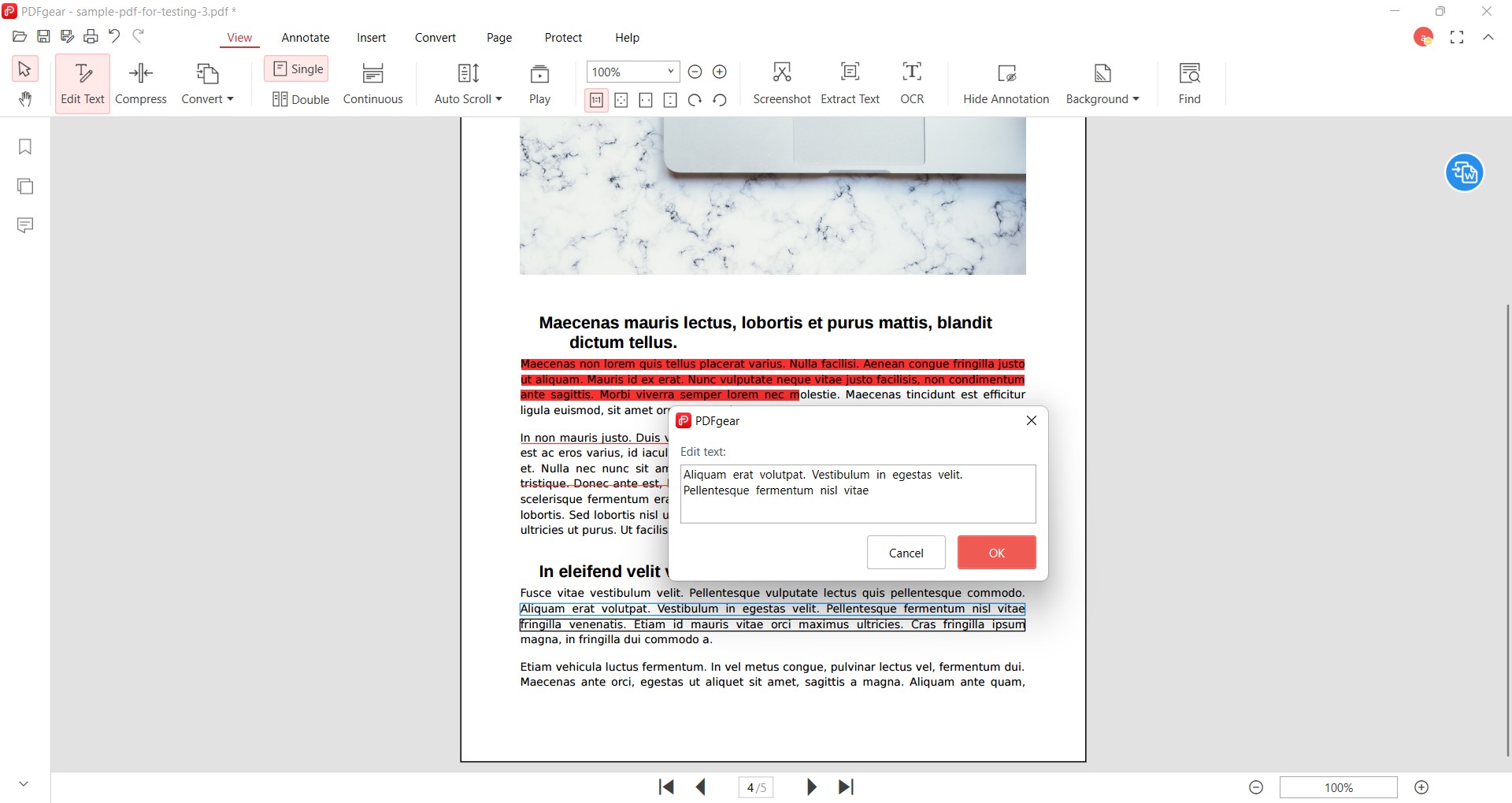
Edit PDF on Windows 10
Under the View tab, click the “Edit Text” button, which will allow you to edit and replace the text in the PDF. You can not only add text boxes, notes, and comments to the PDF document but also insert page numbers, signatures, watermarks, and more with the software.
Step 3. Download the New PDF
Next, click the “Protect” option in the top toolbar, and then select “Remove” from the right side of the interface. Then a window will pop up, click the “OK” option, which will remove the password from the PDF document.
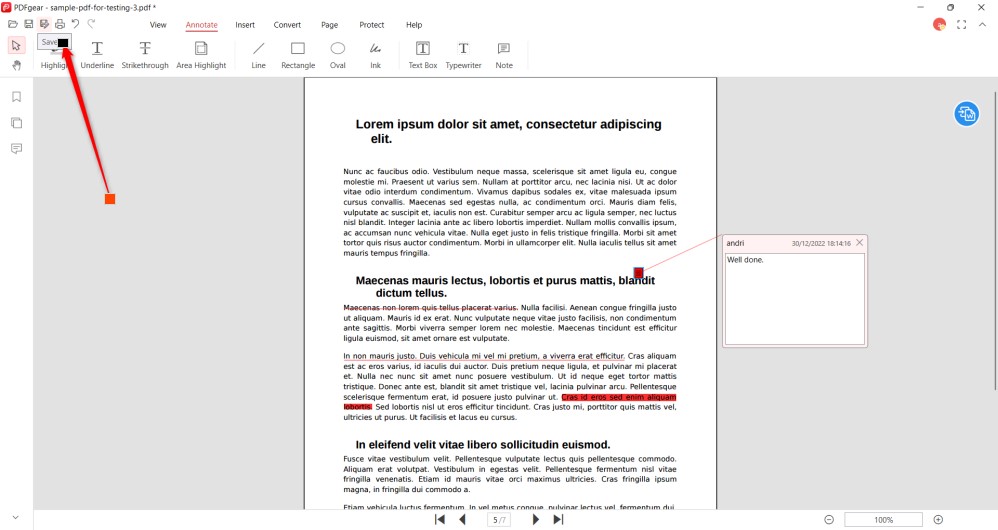
Save the Edited PDF
After finishing the changes, you can click the Save button to save the changes. Using PDFgear, you can also save your PDF files as Microsoft Office files, images, HTML files, and other formats.
How to Edit Secured PDF with Password Using PDFgear
PDFgear’s Online PDF Unlocker helps you remove PDF passwords and restrictions for free, no need to sign up. Unlike others, it’s unlimited and size-friendly. Unlock PDFs as often as you like.
Step 1. Upload PDF to the Online PDF Unlocker
Just drag and drop your PDF into PDFgear’s online PDF unlocking tool, and it’ll be uploaded. PDFgear will automatically decrypt and remove the password from your PDF.
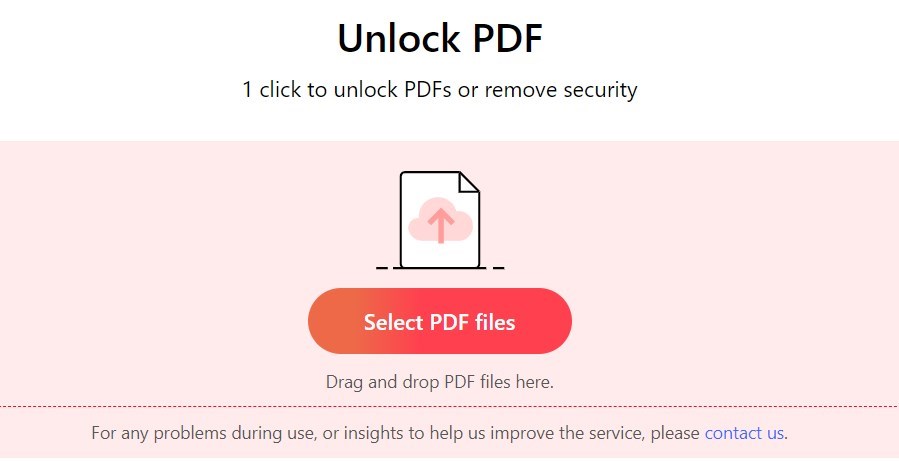
Upload the PDF to Unlock
Step 2. Save Your Unlocked PDF
The password is removed in a few seconds. Click the blue “Download” button to save your unlocked PDF.
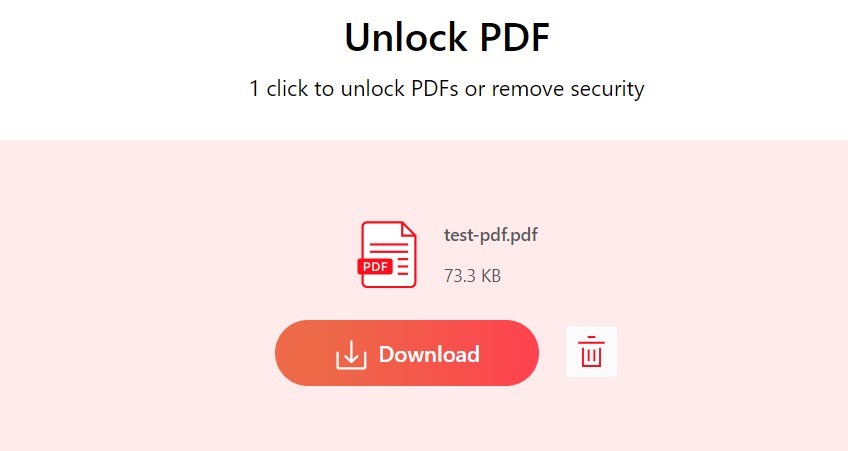
Download the Unlocked PDF
Step 3. Edit the Secured PDF File
Now, you can choose to edit the unlocked PDF file online or offline using PDFgear. PDFgear’s editing tools allow you to edit the existing text in the PDF, annotate the PDF, and add shapes or drawings to the PDF.
FAQs
How to Edit Secured PDF Without Password Using Chrome?
To edit secured PDFs effectively, open the PDF in Google Chrome > Select Print > Choose “Save as PDF” in the Destination drop-down > Save a password-free copy. Then, upload the PDF to PDFgear PDF Editor for editing.
How Do I Edit the Text in a PDF That Is Password Protected?
For a professional solution, the PDFgear application is recommended. Simply launch PDFgear on your device> open a PDF and enter the password > select the editing tools on the top menubar> make edits on your PDF and save it.
How Can I Edit a Secured PDF Without a Password for Free?
If you need to edit a PDF file for which you don’t have the password, you can attempt to use the PDFgear online platform to unlock the password and make edits. However, please be aware that if the password is very strong, it might not be possible to unlock the PDF.
How to Edit a Secured PDF With Editing/Printing/Copy Limitations?
Upload your PDF to PDFgear Online Unlocker > Select the file > Download it without permission. PDFgear offers editing, printing, extracting, protecting, converting, and OCR capabilities for your PDF files.
To Sum Up
Editing a secured PDF document is simple if you know the password. In case you don’t have a password, there are numerous third-party tools available to unlock protected documents.
By following the methods described in this article, you can edit secured PDFs successfully. PDFgear is the go-to tool for you to edit a PDF for free. Download and try it.
