How to Password Protect a PDF for Free

Summary :
Learn how to password protect a PDF using PDFgear, Acrobat, or Preview and understand the difference between user and owner passwords.
Table of Contents
PDFs are one of the most common formats for sharing contracts, reports, and personal files. However, once a document is sent, anyone who receives it can open, copy, or share its contents. Adding password protection helps prevent unauthorized access and keeps your information private.
PDFgear offers a simple, free, and offline way to secure your PDFs. With just a few clicks, you can lock a file safely on your device without uploading it online or paying for premium software.
Before getting started, it’s helpful to know that PDFs can be protected in two ways: with a User Password or an Owner Password. Understanding the difference will help you choose the right method for your needs.
Difference between User Password and Owner Password
PDF security involves two different types of passwords, each serving a unique purpose.
User Password (Open Password)
A User Password prevents anyone from opening or viewing a PDF without permission. It encrypts the entire file, so only those with the correct password can access it.
This option is best when you need to share private or confidential documents such as financial reports, contracts, or ID forms.
Owner Password (Permission Password)
An Owner Password controls what others can do after opening a PDF. It can limit actions such as printing, copying, or editing. However, it does not encrypt the file, and these restrictions can sometimes be bypassed using non-compliant PDF readers.
This method is more suitable when you want to share a document for viewing but prevent modification, such as distributing reports, e-books, or templates.
Quick Comparison Table
| Password Type | What It Protects | Best Use Case |
| User Password | Prevents unauthorized viewing | Securing private or sensitive documents |
| Owner Password | Restricts editing, printing, or copying | Sharing files that should remain unmodified |
How to Password Protect a PDF for Free
PDFgear offers one of the easiest and most reliable ways to protect a PDF. It works entirely offline, so your files never leave your device, and it’s completely free to use. The tool is compatible with Windows, Mac, iPhone, and Android, making it accessible no matter what device you use.
PDFgear adds user password encryption, which means only people with the correct password can open and view your document.
1. Open your PDF in PDFgear and navigate to the “Protect” section.
2. Choose “Password”, then enter and confirm your password in the pop-up window.
3. Save the file. Your PDF is now securely encrypted.
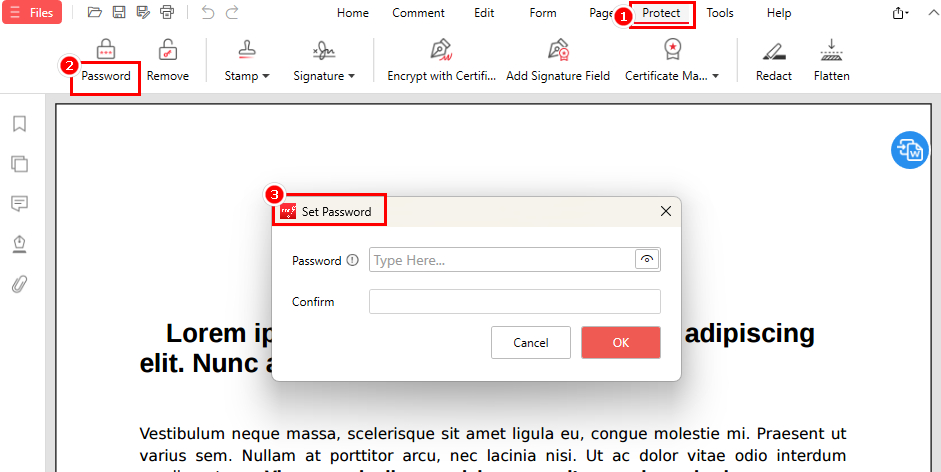
Password Protect a PDF with PDFgear
PDFgear also allows you to update or remove a password later, as long as you know the current one. This gives you the flexibility to manage your files securely at any time.
Tips for Creating a Strong Password:
- Use at least 8–12 characters with a mix of uppercase, lowercase, numbers, and symbols.
- Avoid personal details like names, birthdays, or simple patterns.
- Don’t reuse passwords you’ve used elsewhere.
- Share the password through a separate message or platform, not in the same email as the file.
- Use a password manager to keep it safe if you handle multiple files.
How to Password Protect a PDF with Adobe Acrobat Pro
If you already have a subscription to Adobe Acrobat Pro, you can use it to add powerful password protection to your PDFs. This tool allows you to set both user and owner passwords, giving you full control over who can open, print, copy, or edit your files. It’s an excellent option for professionals handling sensitive or official documents.
1. Open your PDF in Adobe Acrobat Pro.
2. Right-click the document and select “Document Properties”.
3. In the “Security Method” drop-down menu, choose “Password Security”.
4. In the pop-up window, select whether to require a password to open the file or to set a password that limits permissions, such as editing or printing.
5. Re-enter the password to confirm, then save the file to complete the process.
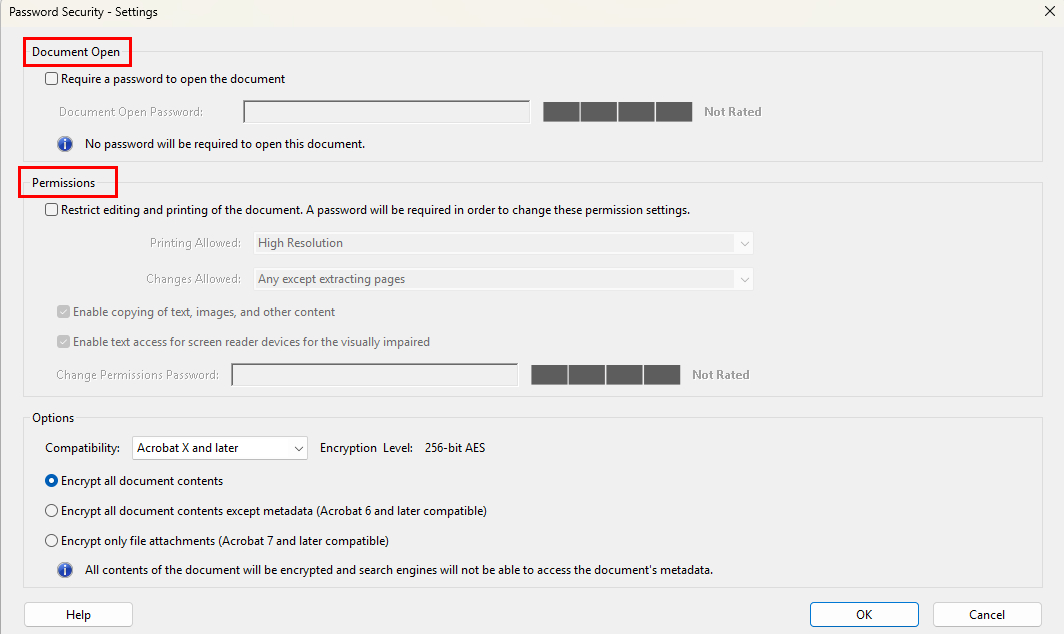
Password Protect a PDF with Adobe Acrobat Pro
Pros:
- Provides full control over access and editing permissions.
- Supports both user and owner password protection.
- Includes advanced encryption options for high security.
Cons:
- Available only in the paid version of Adobe Acrobat Pro.
How to Password Protect a PDF Online
Online PDF protection tools are a convenient option if you only need to add a password occasionally. They work directly in your browser, so there’s no need to install software. However, since files are uploaded to a third-party server during processing, this method is not recommended for sensitive or confidential documents.
1. Visit an online PDF editor such as Smallpdf and open the “Protect PDF” tool.
2. Upload your file, then enter and confirm your password.
3. Click “Protect” to apply the password.
4. Download the secured PDF to your device.
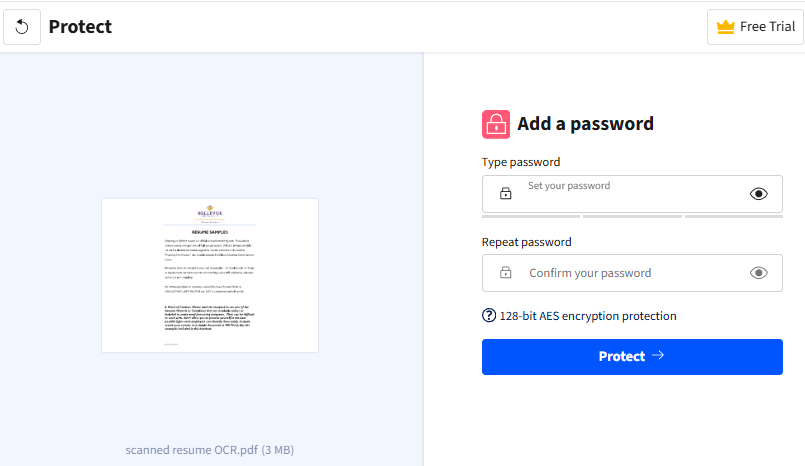
Password Protect a PDF Online
Pros:
- Fast and easy to use.
- No installation required.
- Works on any device with a web browser.
Cons:
- Uploading files to a server risks privacy.
- Most tools limit usage or file size unless you subscribe.
- Only the user password is supported.
How to Password Protect a PDF on Mac with Preview
If you’re using a Mac, the built-in Preview app offers a simple way to protect PDFs without installing extra software. It supports both user and owner passwords. You can set a password to open the file and choose whether to allow printing, copying, or editing.
1. Open your PDF in Preview.
2. Click File and choose “Export”.
3. In the pop-up window, click “Permissions”, then select the password option and the permissions you prefer.
4. Enter and confirm your password.
5. Click “Apply”, then “Save” the protected file.
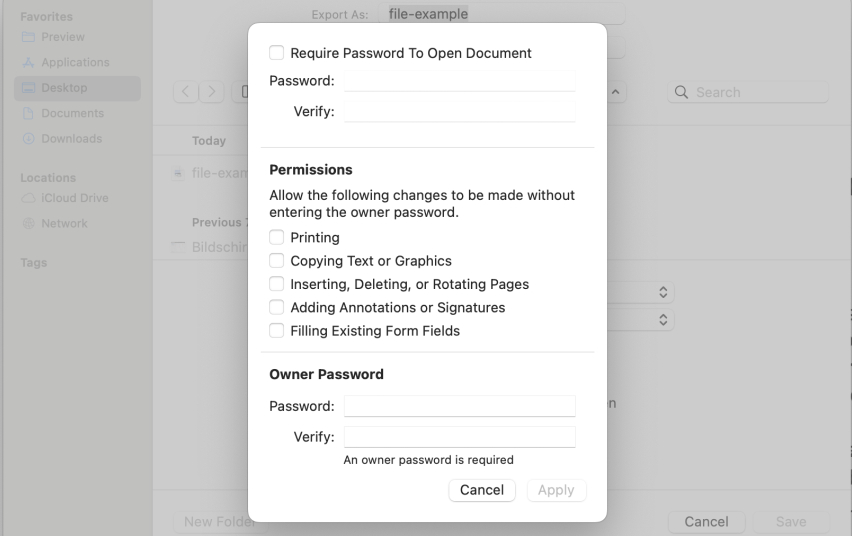
Password Protect a PDF with Preview
Pros:
- Free and built into macOS.
- Supports both user and owner password protection.
- Quick and easy to use for basic security needs.
Cons:
- Available only on macOS.
- Owner password protection is not very strong and can be bypassed.
FAQs
How to password protect a PDF in Chrome?
Chrome doesn’t include a built-in option to password protect PDFs. You can use a Chrome extension or an online tool to add a password to your file instead.
How to password protect a PDF without Acrobat?
Free tools like PDFgear and Preview (on Mac) can do this easily. Since Preview is available only on macOS, PDFgear is a better all-around option because it works on Windows and macOS.
Simply open your file in PDFgear, click “Protect”, choose “Password”, set and confirm your password, and save your encrypted PDF.
Why can’t I password protect a PDF?
This issue often occurs when the file is already protected or has editing restrictions. Save a new copy of the document first, then apply password protection using a PDF editor.
How can I lock a PDF file from editing?
Use a tool that supports owner or permission passwords, such as Adobe Acrobat Pro or Preview on macOS. These tools let you control actions like editing, copying, or printing. Another option is to flatten the PDF into an uneditable version.
Can I password protect a PDF with Microsoft Word?
Yes. Open your document in Word, go to “File” > “Export” > “Create PDF/XPS Document” > “Options”, then check “Encrypt the document with a password”. Enter and confirm your password, and save it as a protected PDF.
How to protect a PDF file with a password for free?
Use PDFgear. It’s a free, offline tool that encrypts your PDF and prevents unauthorized access without upload or usage limits. You can find the detailed steps in Method 1 of this guide.
Final Thoughts
Password protecting your PDF is a simple and effective way to keep private information secure. Understanding the difference between user and owner passwords helps you choose the best protection for your needs.
If you want an easy, free, and offline solution, PDFgear is the best option. It works across Windows and macOS, letting you encrypt your files quickly without uploads or limits.
Try PDFgear today to protect your PDFs and keep your documents safe wherever you work.
