How to Add Page Numbers to PDF for Free

Summary :
This article shows you how to use PDFgear’s free page number editor and Adobe Acrobat to add page numbers with customizable position & margins to a PDF.
Table of Contents
Numbering pages makes navigation easier and avoids confusion, it very useful in many cases such as a report, an e-book, or a presentation.
Learn some effective methods to add page numbers to PDF, or get started with PDFgear’s free PDF editor right away!
Add Page Numbers to All PDF Pages in Bulk
PDFgear is a free and powerful PDF page number editor that allows you to insert/edit customizable headers and footers in a PDF.
It allows you to batch add PDF page numbers in one click, and even change page number style, position, alignment, page range, margin, etc.
Moreover, PDFgear also support scanned documents.
PDFgear is a free, secure, and full-featured PDF editor to edit/add page numbers in PDF.
Step 1. Download and install PDFgear on your computer, click Open File to open the PDF you need.
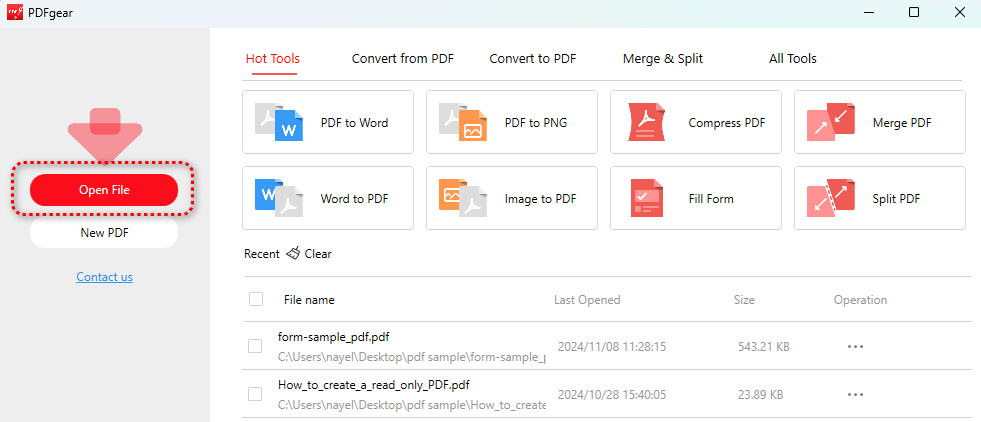
Open File
Step 2. Go to the Edit section, click Page Number, and click Add in the dropdown. For PDFs with existing page numbers, you should go with Update.
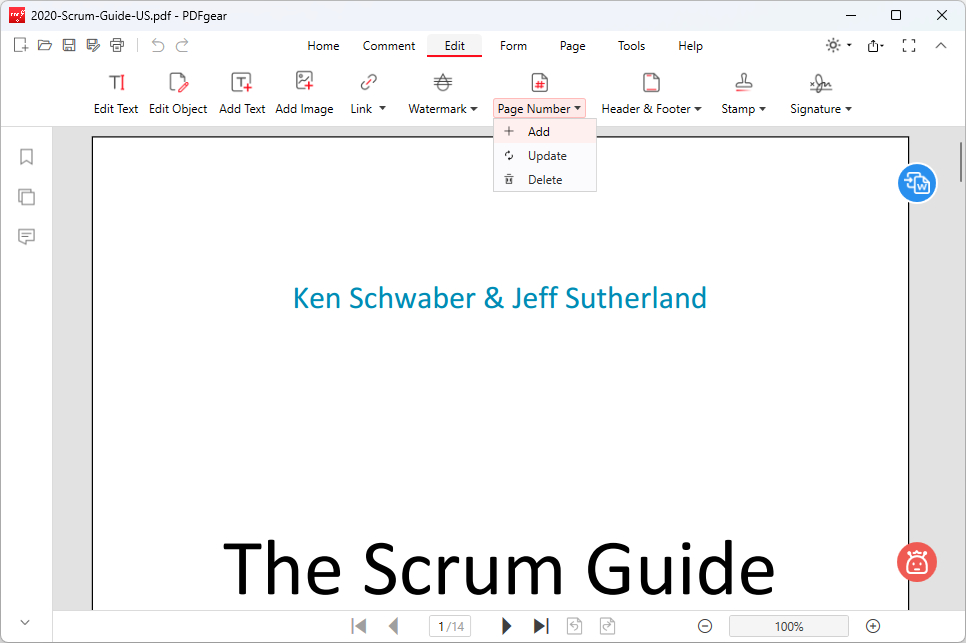
Click Add
Step 3. In the pop-up window, there are a variety of customization options for the added page numbers.
- Style: Define page number style (like “page 1 of n”), start number, number size, and color.
- Postiton: Header or footer.
- Alignment: Left, center, or right.
- Range: All pages or select pages.
- Subset: All pages, odd pages, or even pages.
- Margin: Page number margins.
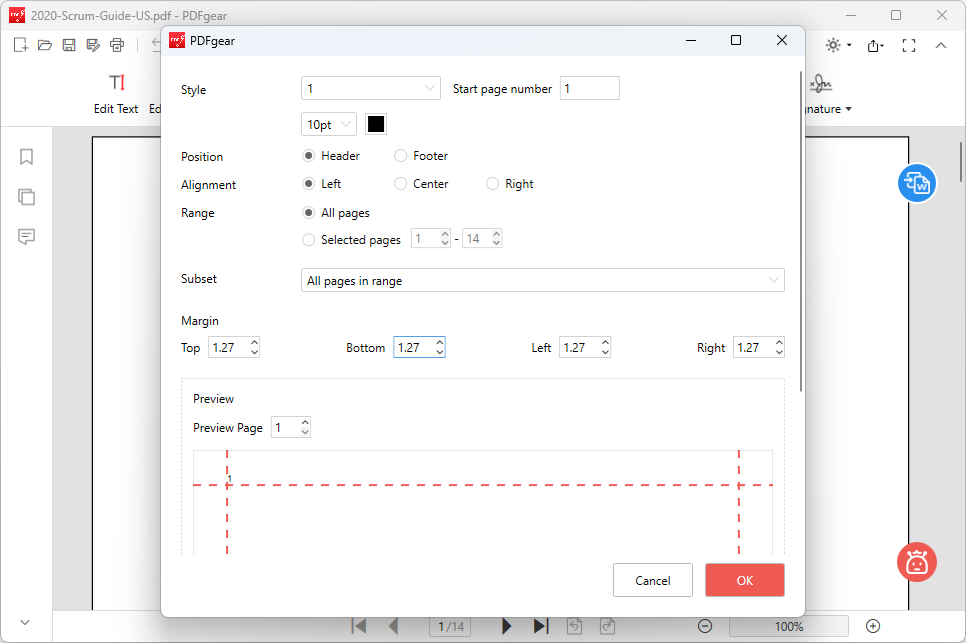
Customize Page Number
Step 4. The Margin options allow you to precisely adjust the page number margins to the top, bottom, left, or right.
After changing the values, you can use the Preview screen below to examine the postions. When ready, click OK.
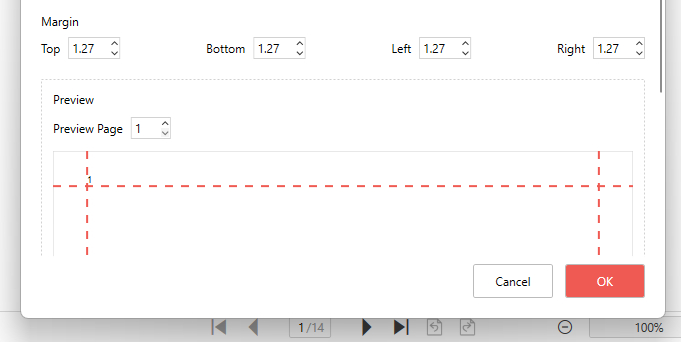
Preview Number Position
Step 5. When the page number is added, you can scroll through the pages to check the added page numbers.
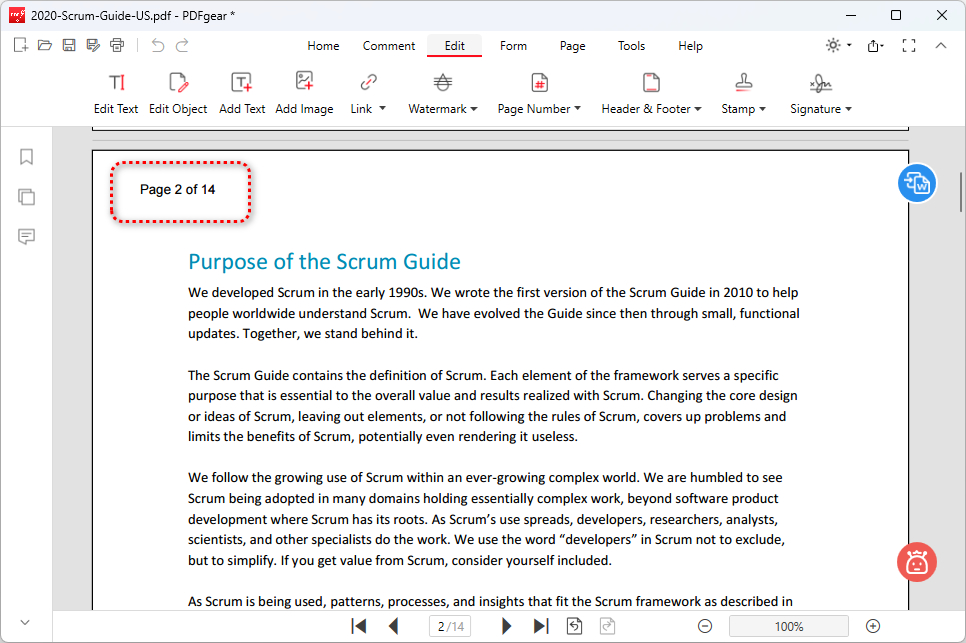
Check Page Number
Step 6. If the added page numbers are not satisfactory, go to Page Number > Update to change it.
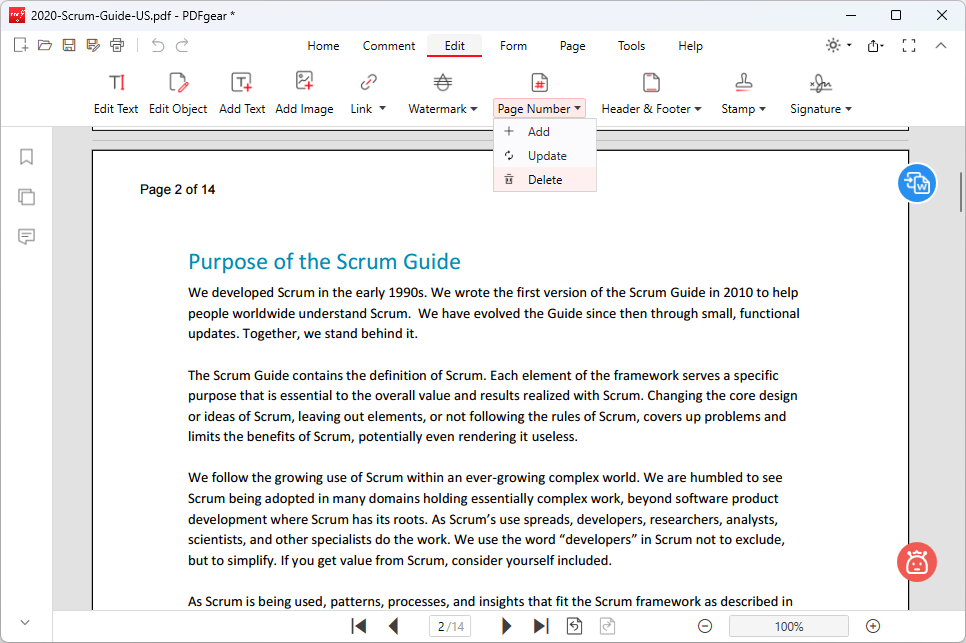
Delete Added Page Numbers
Step 7. Lastly, click the Save as button in the top-left corner to save the PDF with page numbers.
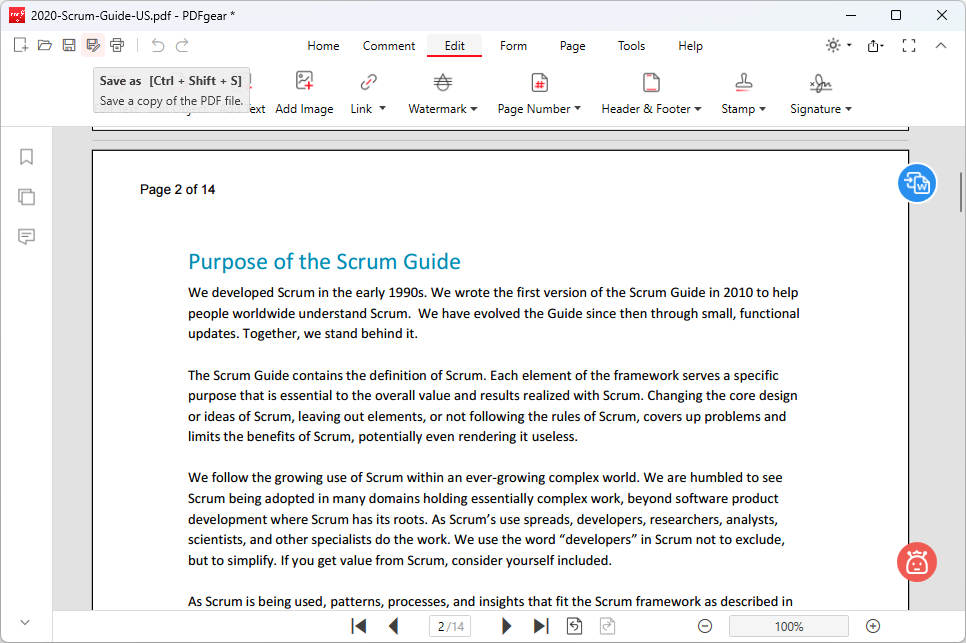
Save Page Number
Add Page Number to a PDF with Adobe Acrobat Pro
In Adobe Acrobat, you can easily insert page numbers into PDFs through the “Header & Footer” function. However, it’s only available for pro subscribers.
Acrobat allows customization of page numbering sequences and can exclude numbering from certain pages, like cover sheets.
Step 1. Open Adobe Acrobat on your device, go to File > Open to open the PDF you need.
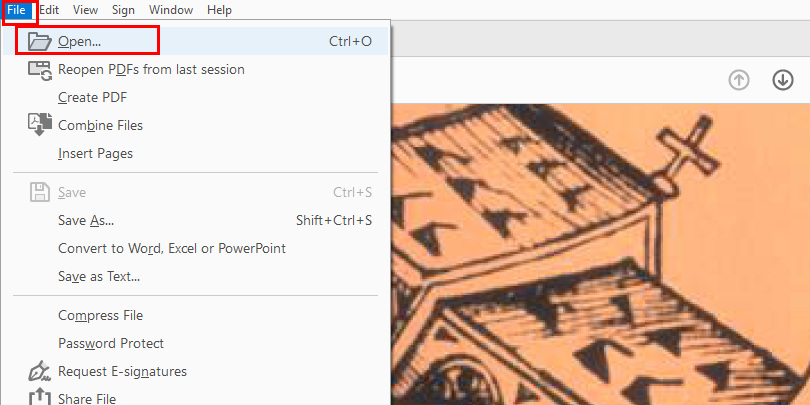
Import a PDF to Adobe Acrobat Pro
Step 2. Go to the Tools section, and click Edit PDF tool from there.
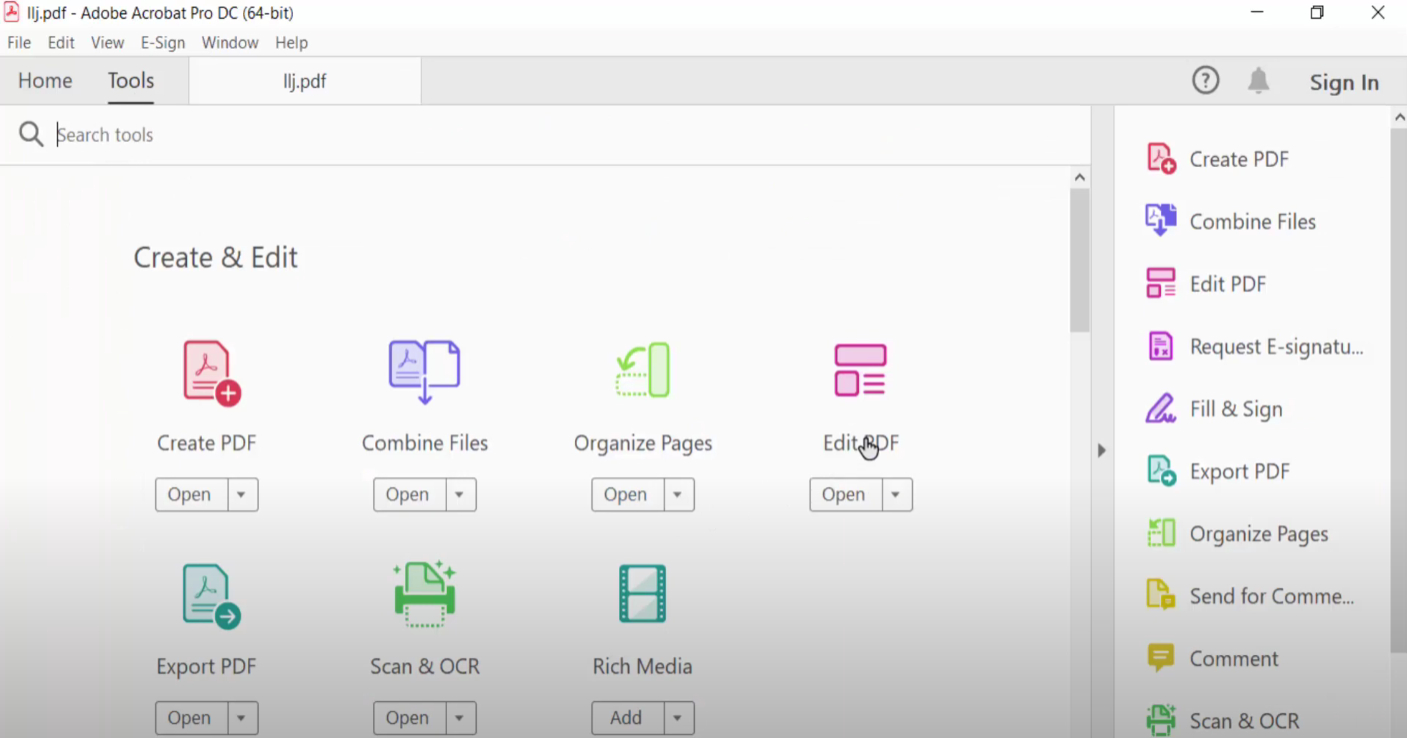
Go to Edit PDF
Step 3. Click Header & Footer button from the upper menubar, and click Add.
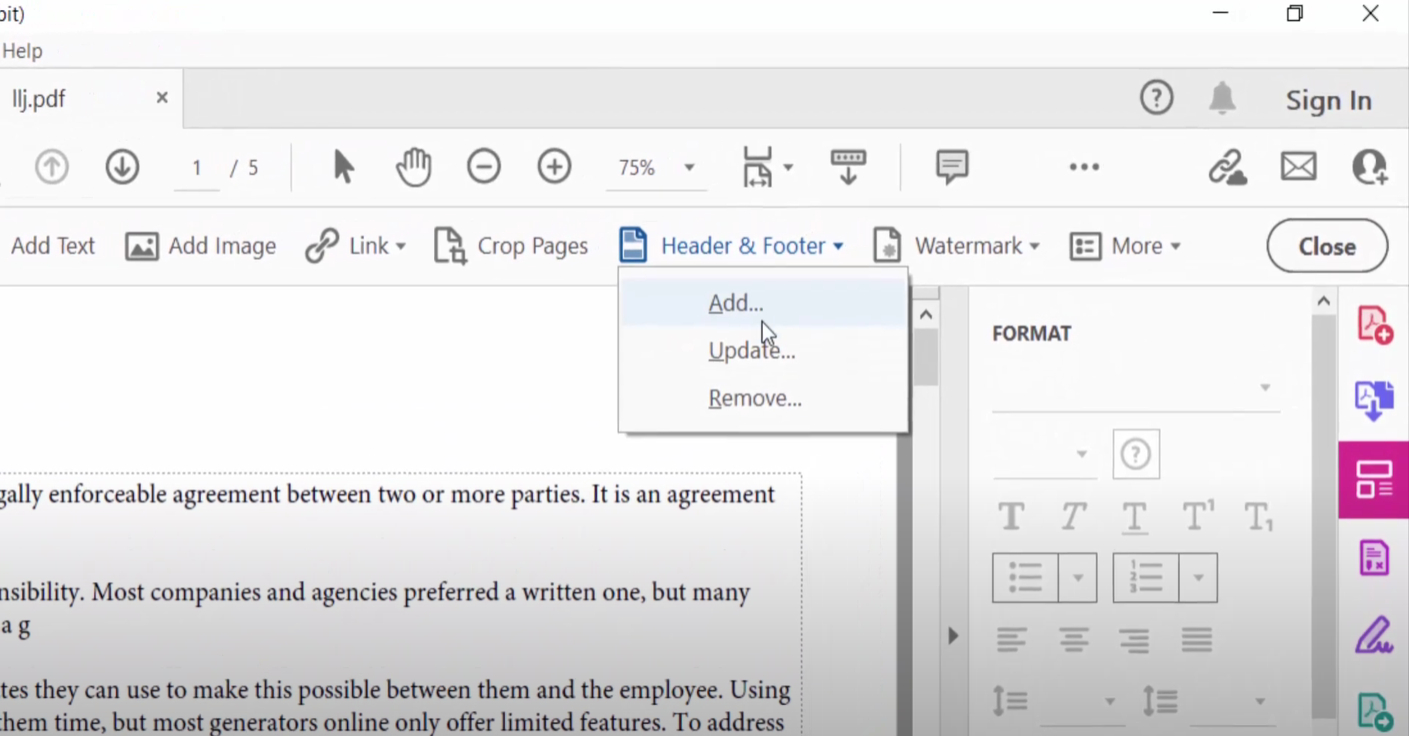
Header Footer
Step 4. In the Header and Footer options window, you can define the font type, font size, font color, and margins by inchines to top, bottom, left or right.
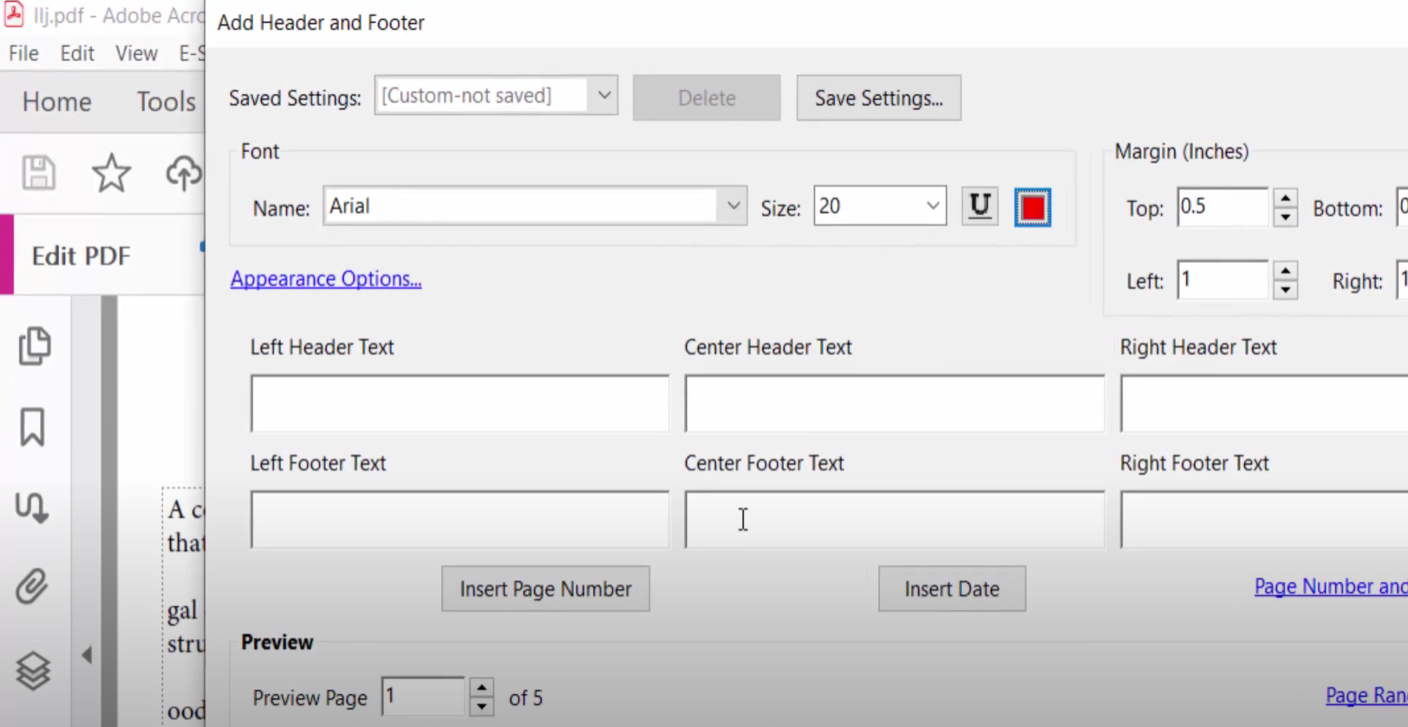
Page Number Options
Step 5. Click Insert Page Number to insert page numbers with your settings.
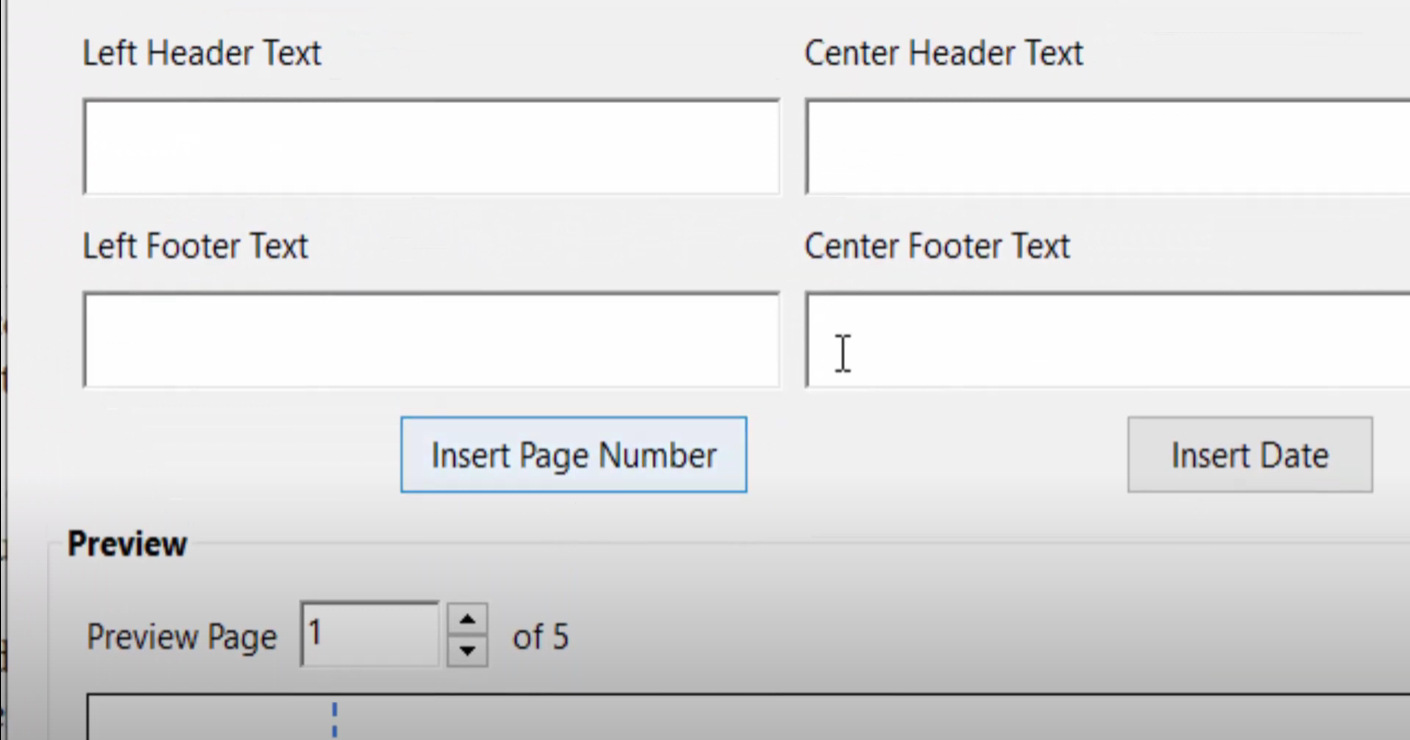
Insert Page Number
Step 6. Get back to the PDF in Acrobat and check the added page numbers.
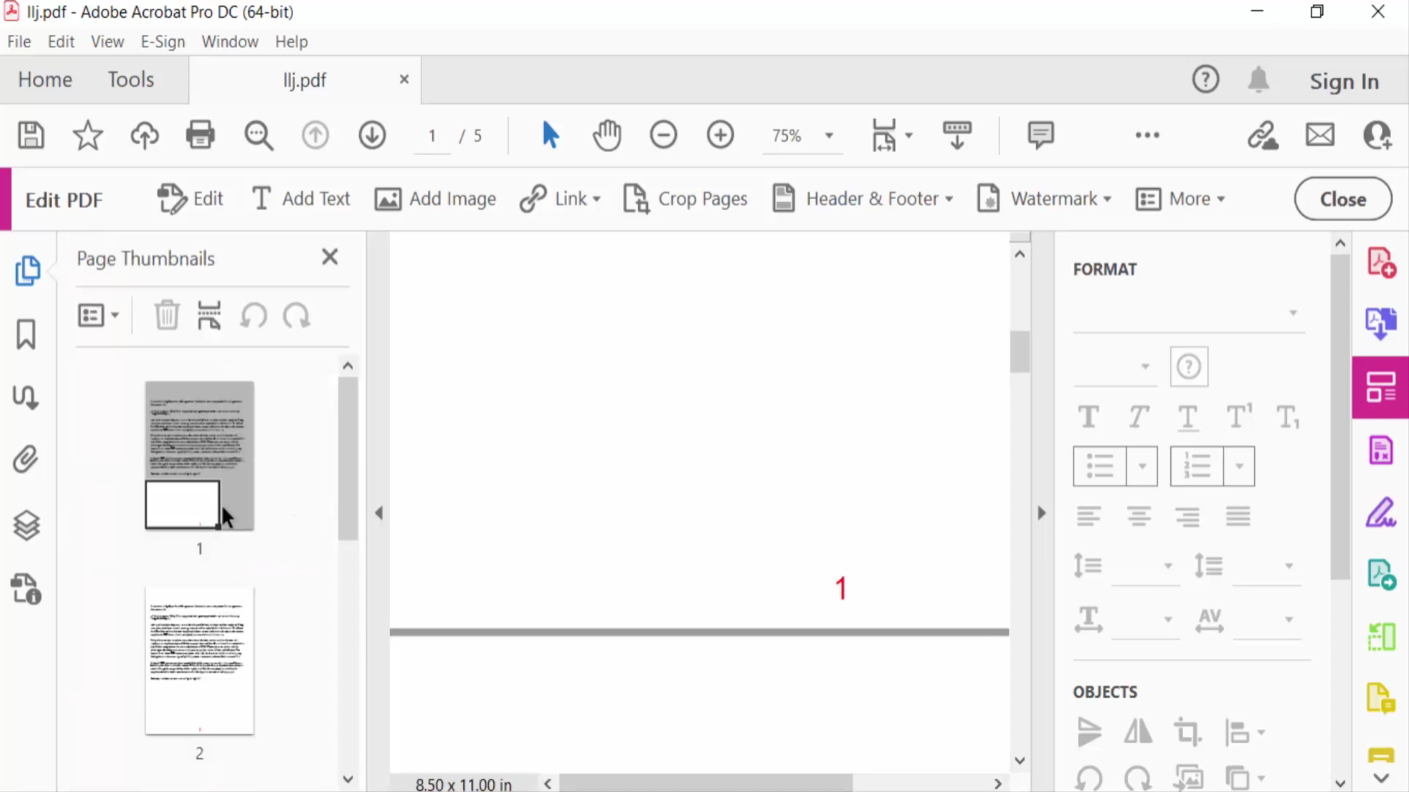
Check Page Number
Step 7. Lastly, go to File > Save As to save the PDF with page numbers.
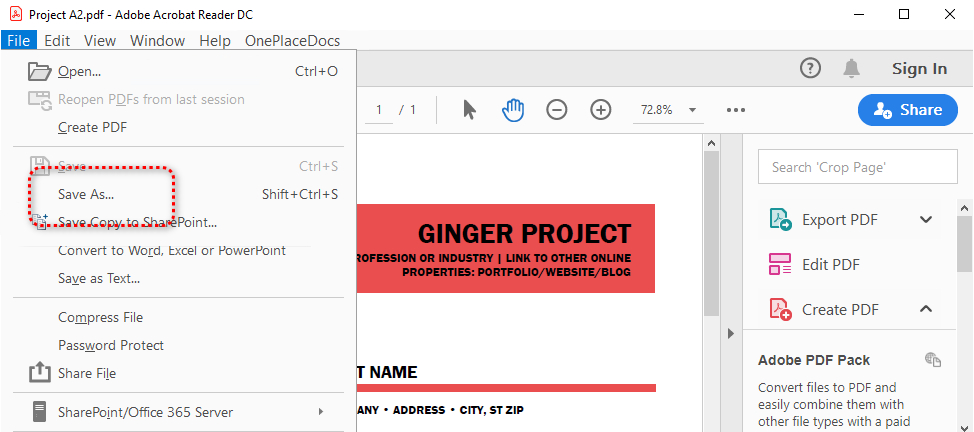
Save as
FAQs
Can You Edit Page Numbers in PDF?
Yes, PDFgear allows you to edit any existing text in a PDF, including page numbers, this feature is practical when you need to make small adjustments.
Open PDFgear, go to Edit section and click Edit Text, and then you can edit page numbers as you would in Microsoft Word.
Can page numbers be added to an existing PDF without altering the original content?
Yes, page numbers can be added without affecting the original content, but care must be taken to place them in margins or empty spaces.
How do I ensure that page numbers are consistently positioned on every page?
When adding page numbers in PDF using PDFgear, PDFgear will automatically align all page numbers consistently.
Can I start page numbering at a different number other than 1?
PDFgear allows you to specify the starting page number, which can be different from the default of 1.
Can I delete page numbers in PDF?
Yes, you can. In PDFgear, go to the Edit section, click Page Number, and select Delete to remove all existing page numbers in one click.
