How to Copy Text from PDF to Excel without Formatting Issues

Summary :
Learn how to extract text and data from PDF documents and paste them into Excel spreadsheets for flawless display, without the loss of text/document formatting.
Table of Contents
Copy Text from PDF to Excel
Have you ever tried to copy text from a PDF file and paste it into an Excel spreadsheet, only to find that the formatting is all over the place? If so, you’re not alone.
Fortunately, there are several ways to copy text from a PDF to Excel without formatting issues. With the introduced methods, you can effortlessly copy text from PDF without line breaks or gibberish text issues.
And remember, the accuracy of the PDF text and the perseverance of the original document formatting are the keys.
👉To save time, you can directly download PDFgear, the highly recommended free PDF converter used in this article to copy text from PDF to Excel without losing formatting.
Import Tables from PDF to Excel
If you work specifically with PDF tables, then this method is for you.
Microsoft Excel allows for data importing from files, databases, and other sources. With this feature, you can directly import text-based data from PDF to Excel.
But you should always note that for PDFs and Excel spreadsheets with complex tables, you’ll need to manually spend time clearing the excessive data.
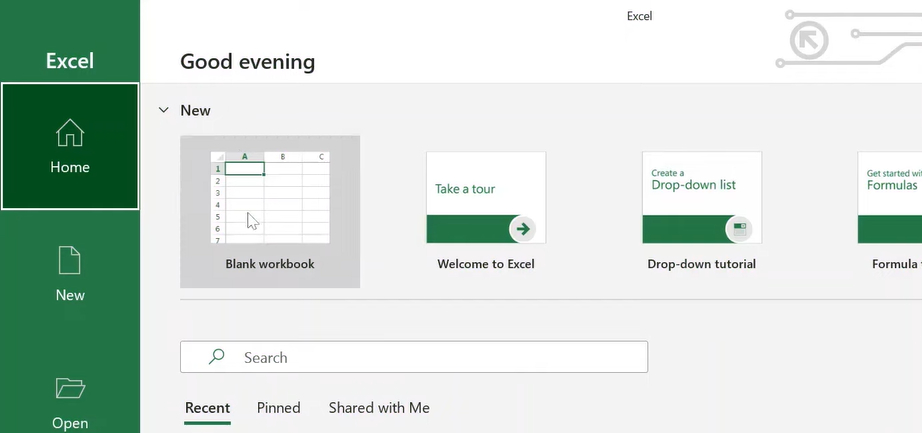
Step 1. Open File and create a blank workbook in Excel.
Create a Blank Workbook
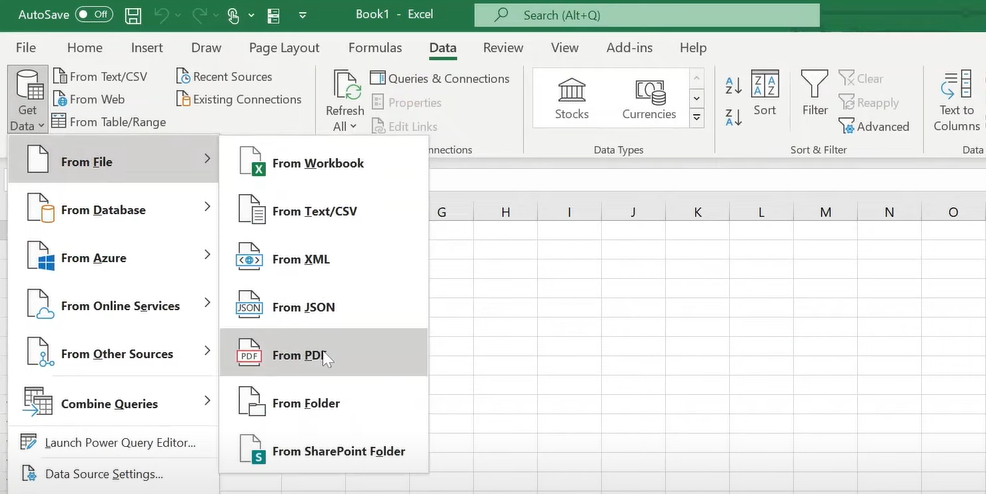
Step 2. Go to the upper ribbon, click on Data, and then select Get Data > From File > From PDF.
Import Data from PDF
Step 3. Select the desired PDF file in the File Explorer Window.
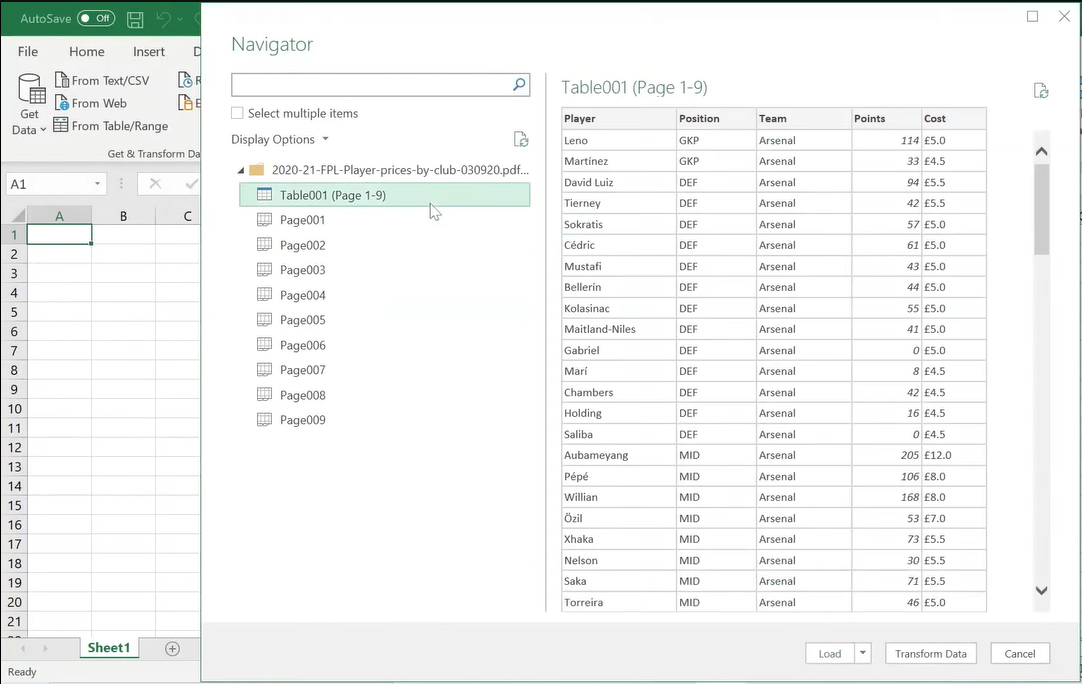
Step 4. Wait for the data to be imported from PDF, select the needed table, and then click Transform Data.
Click Transform Data
Step 5. That’s it! Now you can see the table successfully imported to Excel.
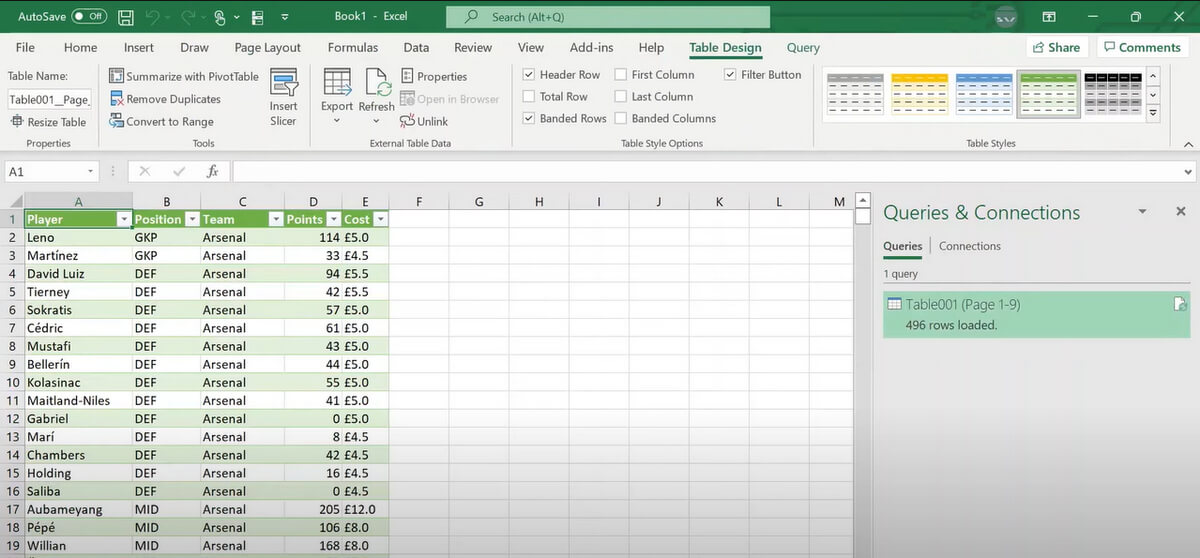
PDF Table Copied to Excel
Convert PDF to Excel without Losing Formatting
PDFgear is a free and powerful PDF converter tool as well as a PDF text copier to Excel that allows you to convert PDF documents to Excel spreadsheets in batches, with original document formatting preserved.
In our earlier guide, we’ve introduced how to use PDFgear to copy text from PDF to Word without losing formatting as well as copy scanned PDF text, and the tutorial today will go with a similar principle.
What’s more, PDFgear supports PDF conversions with complicated tables and data such as math equations.
PDFgear is a 100% free PDF converter that allows you to turn PDF into Excel without formatting issues.
Step 1. To get started, download PDFgear and install it on your Windows or Mac computer.
Step 2. Launch PDFgear, go to Convert from PDF, and select the PDF to Excel tool.
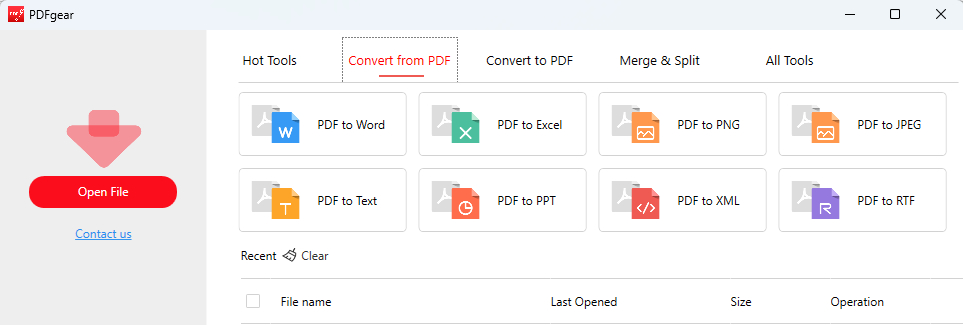
PDF to Excel Converter
Step 3. Click the Add File button to import the PDF files with the text you want.
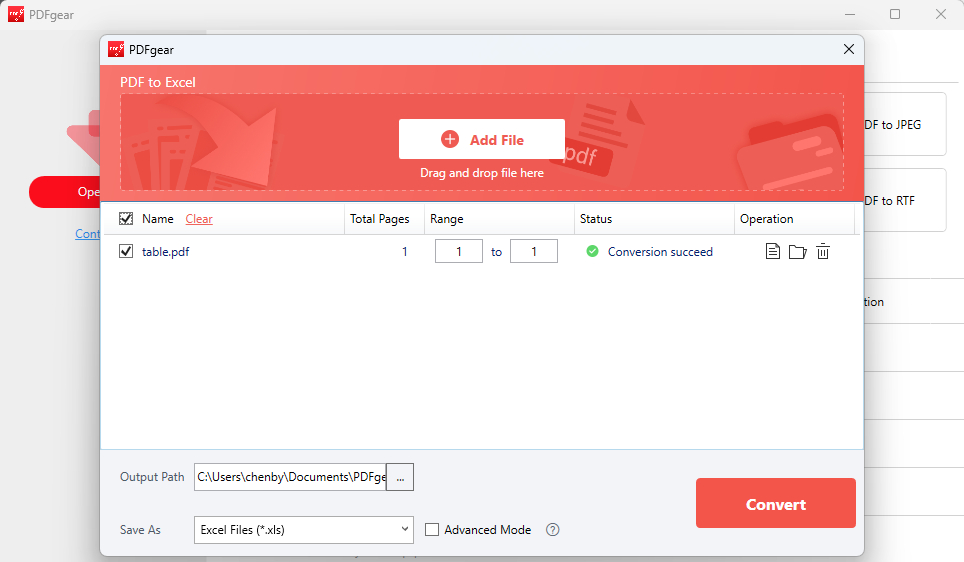
Add PDF to the Converter
Step 4. Click Convert to convert all files in the queue. You’ll be led to the output file folder when the conversion is done.
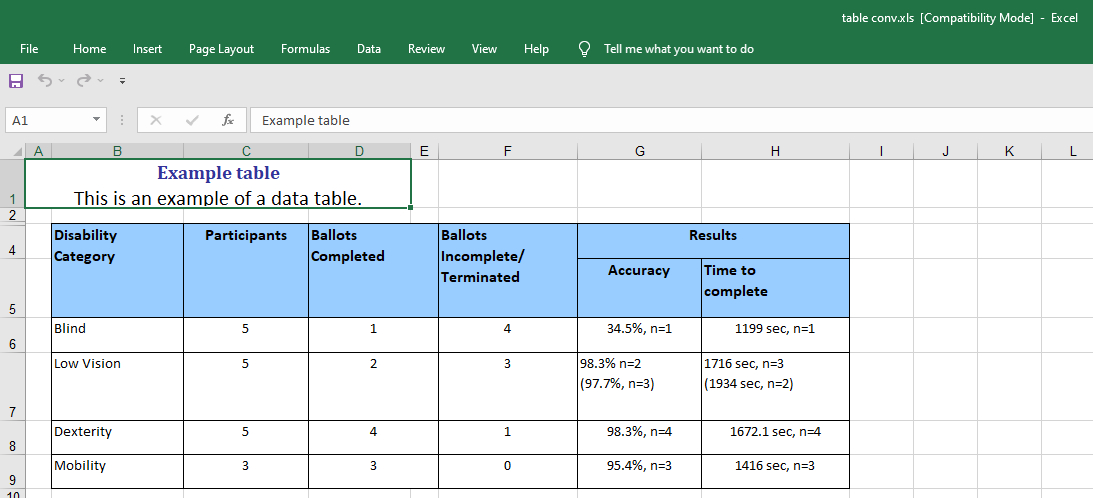
PDF Table Converted to Excel
Copy Text from PDF to Excel with Predefined Cells
If you’re PDF primarily contains tables of data or text, using the CSV file format helps seamlessly transfer PDF tables into Excel.
As we previously introduced in our guide on how to extract data from PDF to Excel, using the comma-separated values (CSV) file format is a brilliant idea to extract text from PDF to Excel with predefined cells.
By using this method, you can rule out all potential glitches, excessive data, and formatting issues, with slight effort.
This method works on both Windows and Mac, and we’ll use the steps on Windows for demonstration.
Step 1. Open the PDF document in a PDF viewer, and select and copy the PDF text. For scanned PDFs, use the free PDFgear OCR tool instead.
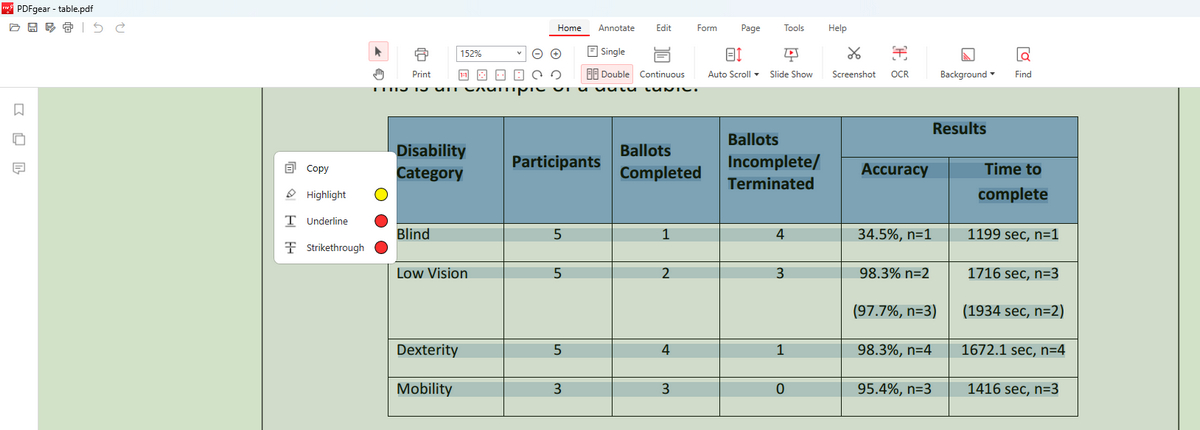
Copy PDF Text
Step 2. Open Notepad on your computer, and paste the copied text.
Step 3. Use commas to separate the values of different cells in the same column.
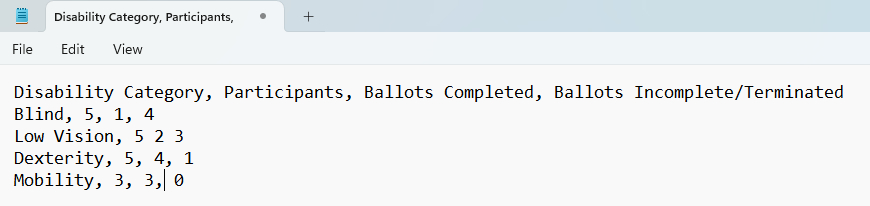
Manually Create CSV
Step 4. Save the notepad as TXT, and manually rename the file extension from .txt to .csv.

Rename TXT to CSV
Step 5. Right-click on the CSV file, and open it with Microsoft Excel.
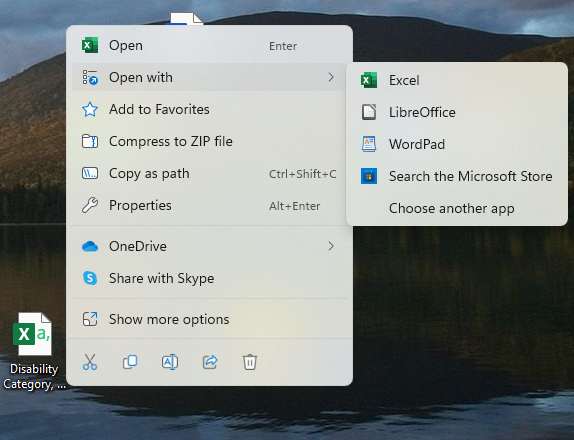
Open CSV in Excel
Step 6. As you can see, the PDF table has been successfully transferred into the Excel spreadsheet.
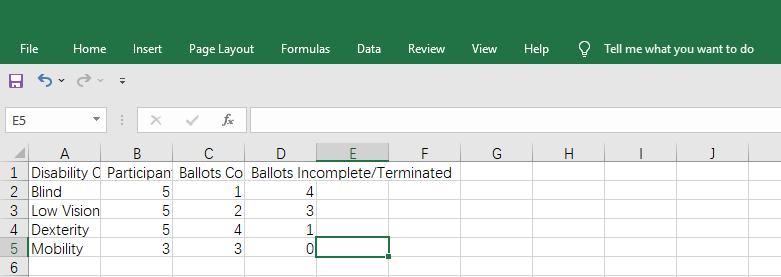
CSV with PDF Data in Excel
FAQs
How do I copy images or charts from a PDF into Excel?
Open the PDF and select the image or chart, use the keyboard shortcut Ctrl+C/Command + C to copy the image. Open Excel and use the keyboard shortcut Ctrl+V/Command + V to paste the image into the cell. Now you can manually adjust the image size, or edit the image or chart.
Moreover, right-click on the image or chart and choose “Format Picture” to access the formatting options.
Why are separate columns being merged into a single cell?
When copying from a PDF to Excel, separate columns may be merged into a single cell if the PDF content is not properly formatted. To overcome this issue, you can use Excel’s “Text to Columns” feature to split the content into separate columns manually.
Why is Excel copying strange characters from PDF?
Excel may be copying strange characters instead of text from your PDF if the PDF contains non-standard fonts or unsupported encoding. To solve this problem, you need the OCR PDF to Excel converter PDFgear to accurately convert the text into Excel.
Why is the copied text not aligned properly in Excel?
The copied text might not align properly in Excel after copying from a PDF due to formatting issues or non-standard font styles in the PDF. To solve this, you can either: Adjust the column widths, use the “Align Text” feature, use “Text to Columns” or Convert PDF to Excel with OCR.
Conclusion
With the tips and tricks outlined in this article, you should now be able to copy text from PDF files to Excel spreadsheets quickly and easily, without encountering any formatting issues. Whether you’re dealing with extensive tables of data or just need to copy and paste some text, these methods will save you time and improve your workflow.
Make sure to try these methods after reading this, and I’m sure there’s at least one method that works flawlessly for you.
