How to Split PDFs on Windows for Free

Summary :
This article provides a step-by-step guide on how to split PDFs on Windows 10 and 11 using free tools, covering both online and offline methods.
Table of Contents
Splitting a PDF can simplify organization, sharing, and editing by allowing you to extract specific pages or reduce file size. It also makes the document easier to manage for printing, collaboration, or merging with other files.
This guide will help you split PDFs on Windows 10 and 11, improving your workflow and document management.
Before we dive into the steps, let’s take a quick look at how you can easily split PDFs with these simple methods.
How to Split a PDF into Multiple Files for Free
How to Split a PDF on Windows Online for Free
PDFgear’s online splitter is a simple, free tool for quickly dividing PDFs on any version of Windows. No software installation is required, making it perfect for mobile and occasional users.
Unlike other online tools, PDFgear doesn’t require registration or add watermarks, making it ideal for splitting pages or breaking documents into smaller parts.
Step 1. Visit PDFgear online splitter > Click the “Select PDF File” button > Choose your PDF.
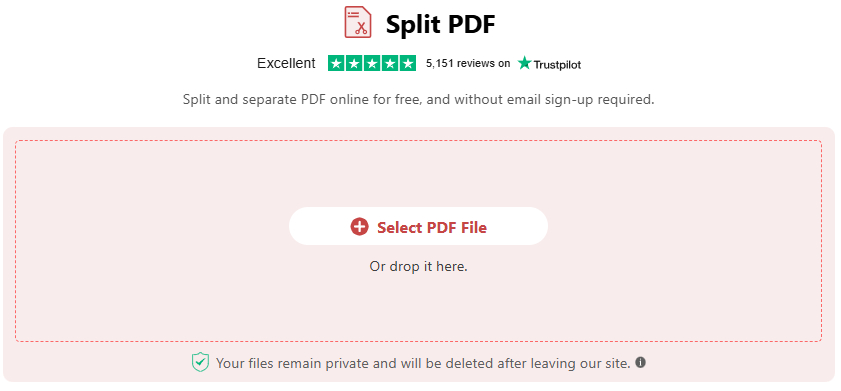
Upload a PDF to PDFgear Online Splitter
Step 2. Click the scissor icons to separate pages or set a fixed interval for splitting in the upper-right corner. Then, click the blue button to export the new files.
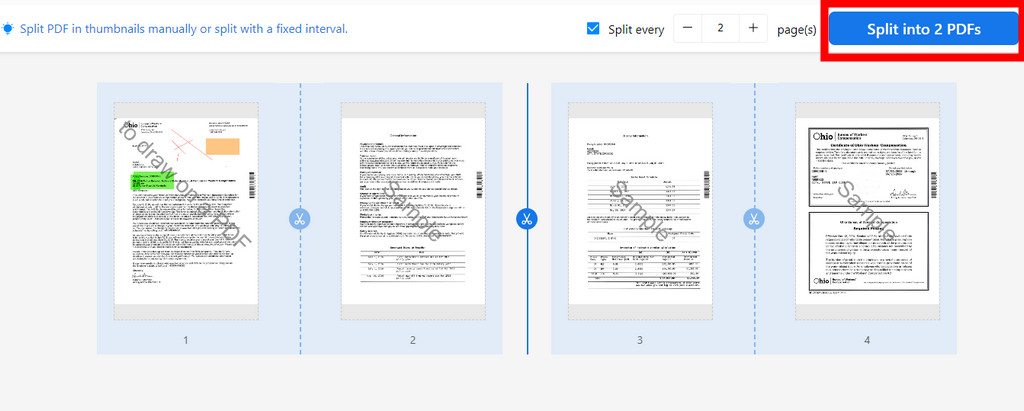
Split PDF into Multiple PDFs with PDFgear Online
Step 3. In the new window, click “Download File” to get a zip folder with the split files, then save it to your desired location.”
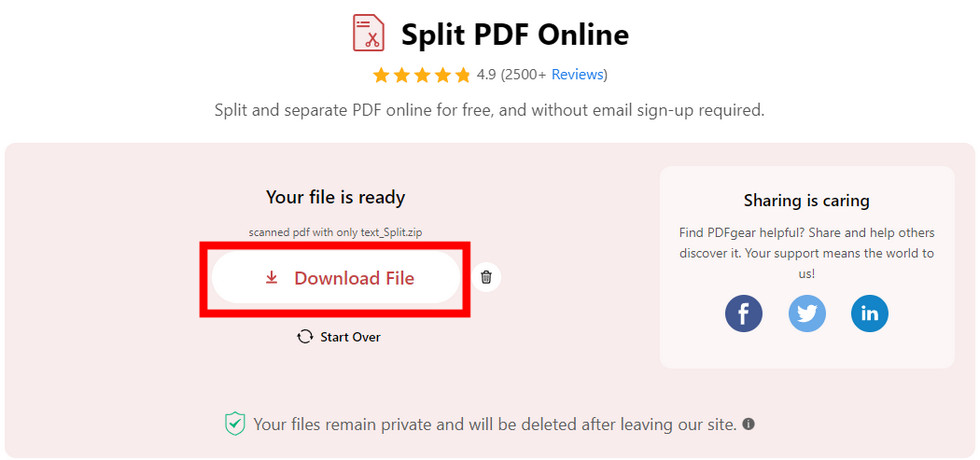
Download the New PDFs in PDFgear Online
How to Split PDF on Windows with a Free Splitter
PDFgear is a free, user-friendly PDF splitter with no ads, in-app purchases, or account registration required.
It offers one-click splitting for long documents and supports batch processing on Windows 10 and 11.
Step 1. Download PDFgear and launch it on your Windows device.
Step 2. Click “Hot Tools,” then select “Split PDF.”
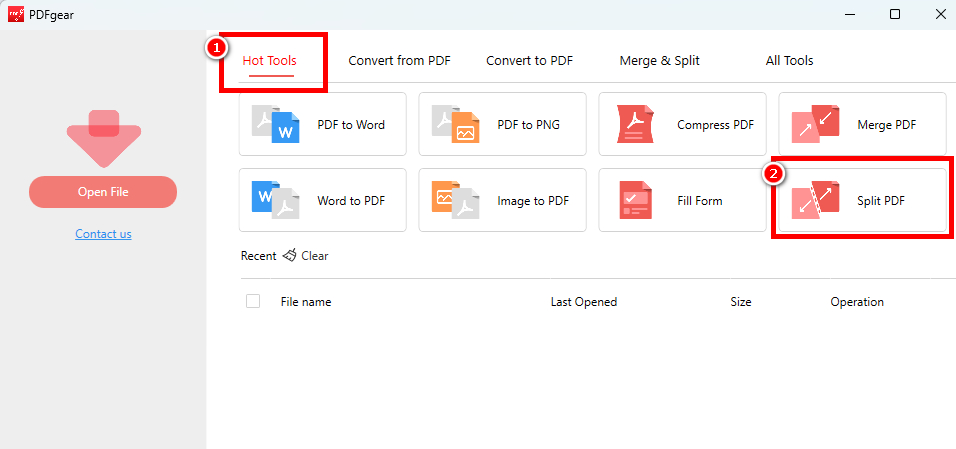
Choose Split PDF Tool in PDFgear
In the pop-up, click “Add Files” to upload one or more PDFs.
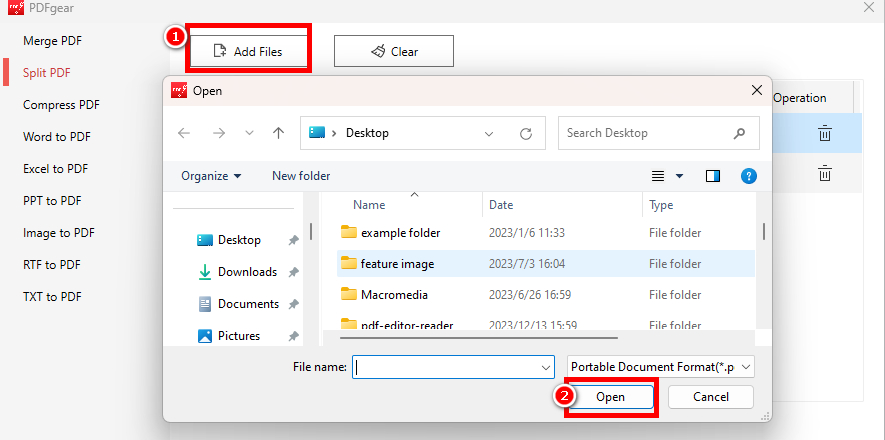
Select PDFs to Upload
Step 3. Choose “Custom Range” to split by specific pages or “Fixed Range” to split every X page. Set the output path and click “Split.”
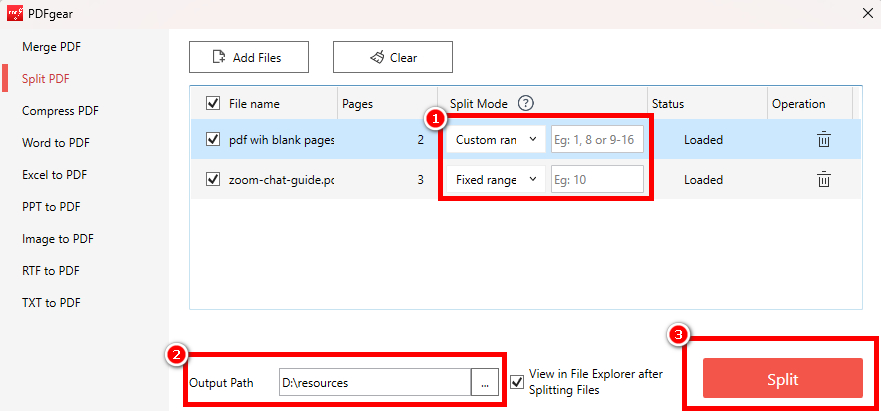
Split Files with PDFgear for Windows
How to Split PDF on Windows with Microsoft Edge
Microsoft Edge, the default browser on Windows, also allows you to split PDFs through its print feature, though it’s often overlooked.
Step 1. Open the PDF in Microsoft Edge.
Step 2. Click the “Print” icon or use the keyboard shortcut Ctrl+P (Cmd+P on Mac).
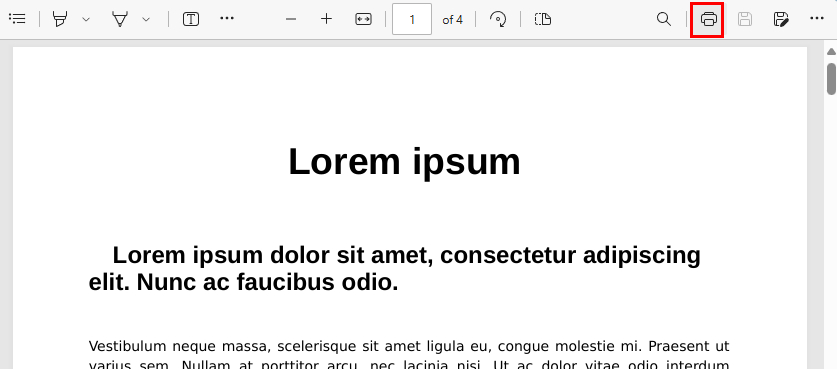
Find the Print Button in Microsoft Edge
Step 3. In the print dialog, select “Microsoft Print to PDF” as the printer.
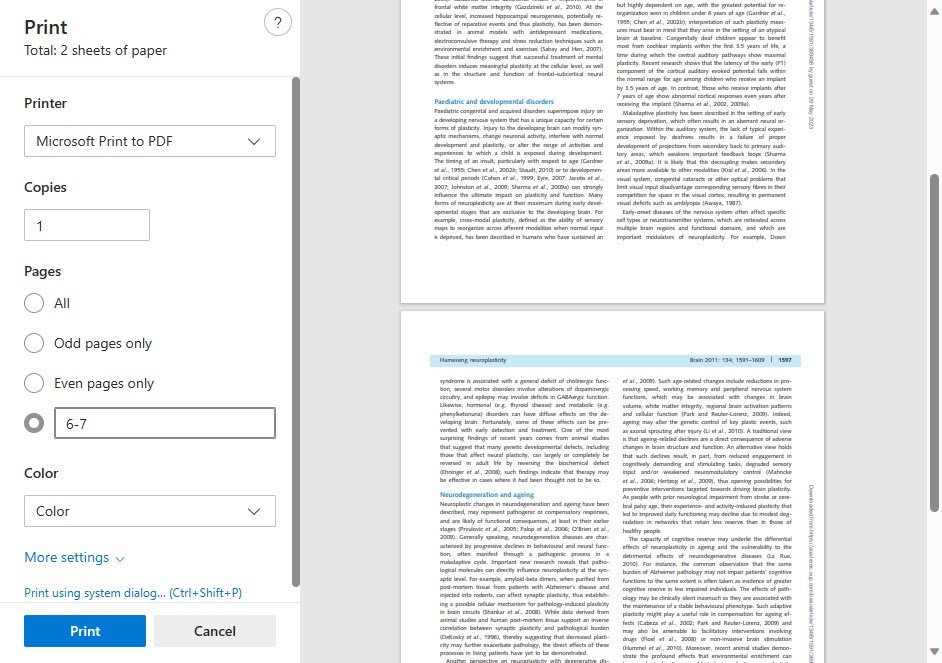
Separate PDF with Microsoft Edge
Step 4. Choose the “Pages” option and specify the page range you want to extract.
Step 5. Click “Print” and select a location to save the new PDF with the selected pages.
However, PDFgear provides a more straightforward solution to split PDFs into separate files without compromising the formatting.
FAQs
Can I Split a PDF Into Specific Page Ranges?
Yes, you can split a PDF into specific page ranges using PDFgear. Simply open PDFgear > Click “Split PDF” under “Hot Tools” > Upload your PDFs by clicking “Add Files” > Set your desired page range > Choose an output path > Click “Split.”
Do I Need to Pay for Software to Split a PDF on Windows?
While tools like Adobe Acrobat DC require a subscription, there are free alternatives like PDFgear for Windows. Refer to the PDF splitting guide for detailed instructions.
Can I Split a PDF Without Losing Its Formatting?
Yes, both the online and offline versions of PDFgear allow you to split PDFs while preserving their original formatting and layout.
Is It Safe to Use Online PDF Splitting Tools for Confidential Documents?
While online tools are convenient, it’s important to consider privacy and security for sensitive files. PDFgear’s online splitter ensures your data is safe by deleting uploaded documents from the server once you leave the site. For more details, check its Privacy Policy.
Conclusion
The three methods outlined in this post are all effective for splitting PDFs on Windows. For a secure, subscription-free solution, try PDFgear, which provides free features without requiring registration. Both online and offline toolkits are available for convenient file management.
