4 Simple Ways to Convert a ZIP File to PDF for Free

Summary :
Want to learn how to convert a ZIP file to PDF for free? This article provides 4 easy methods and tools to help you unzip a ZIP file to PDF on your devices.
Table of Contents

ZIP files help package and compress PDFs while the files are excessively large and you need to share them. We’ve earlier introduced how to ZIP a PDF file.
Today on this page, you’ll about some free and easy methods to unpack and unzip the ZIP files you receive, which contains .pdf and even other file formats.
How to Convert a ZIP File to PDF Online for Free
The first way to easily convert ZIP to PDF is with the help of a free online ZIP to PDF converter. Some online tools can help you directly convert ZIP files to PDF, such as Aspose Online ZIP to PDF Converter. It provides a simple and convenient way for those who want to convert files quickly.
This converter can complete the conversion on Windows and Mac, and it also works with mobile phones. However, it should be noted that this method works with ZIP files that only contain PDF files. If the ZIP file contains non-PDF documents, these files will not be converted.
Step 1. Visit Aspose Online ZIP to PDF Converter on your device.
Step 2. Drag and drop the ZIP files you need into the designated area. You can also select one or a few documents by other upload options. It supports you to upload a maximum of 10 files for this operation.
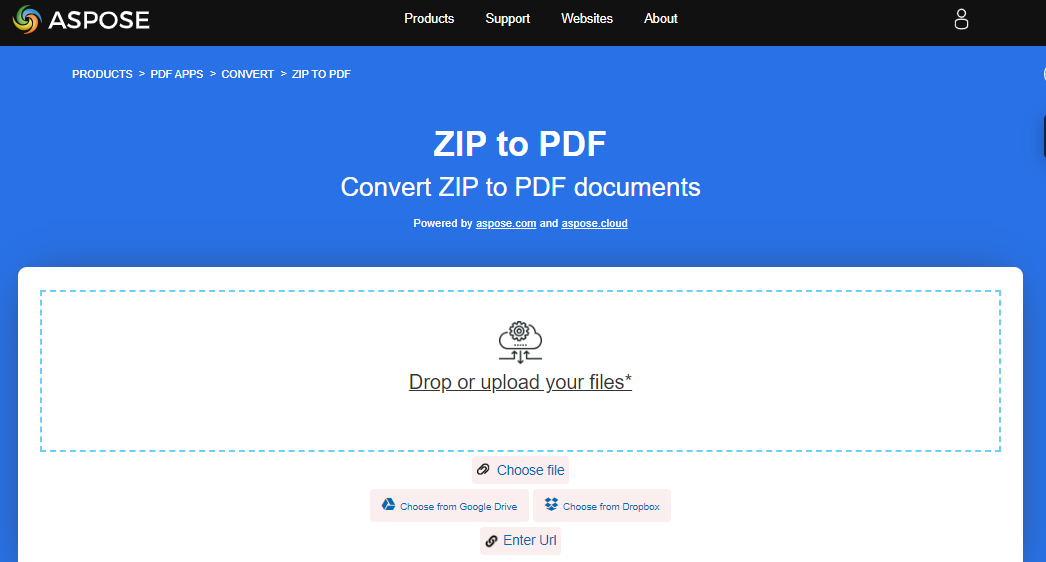
Upload ZIP File to Aspose
Step 3. After that, choose “Save as PDF”, and click on the “Convert” button to start the process. Your Zip will be saved in PDF format.
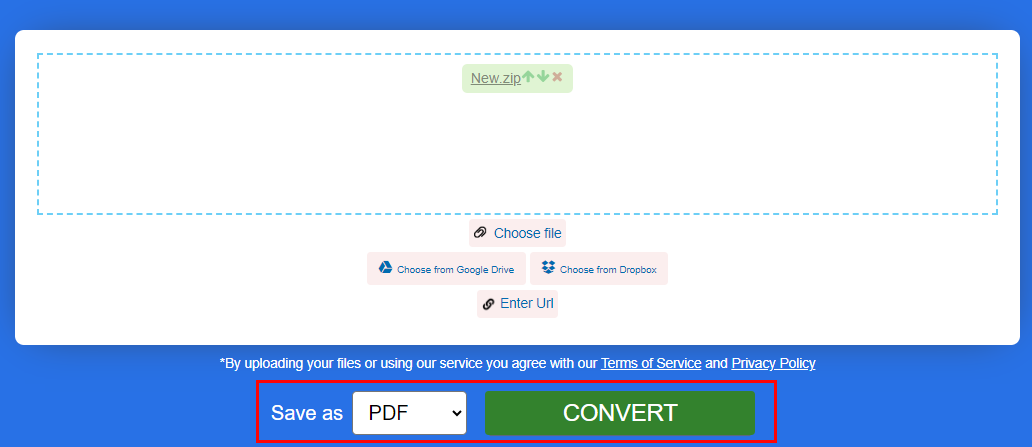
Click Convert on Aspose
Step 4. When the conversion is complete, download the link of the final PDF file. If the ZIP file contains multiple PDF files, Aspose will automatically unzip them into a few single PDF files.
Unzip Files with PDF and Other Files Online Free
If your ZIP file contains not only PDF files but also other types of files, such as Word, Excel, and so on, then you can use the online unzipped tool EzyZip. It allows you to convert ZIP files that contain PDFs and files in other file formats.
EzyZip provides faster operation speed compared to other online converters. At the same time, it ensures your privacy as it does not send file data outside of your browser.
Step 1. Go to the website of EzyZip Online File Unzipper.
Step 2. To select the ZIP file, you can drag and drop the file directly onto EzyZip, or tap “Select file to unzip” button.
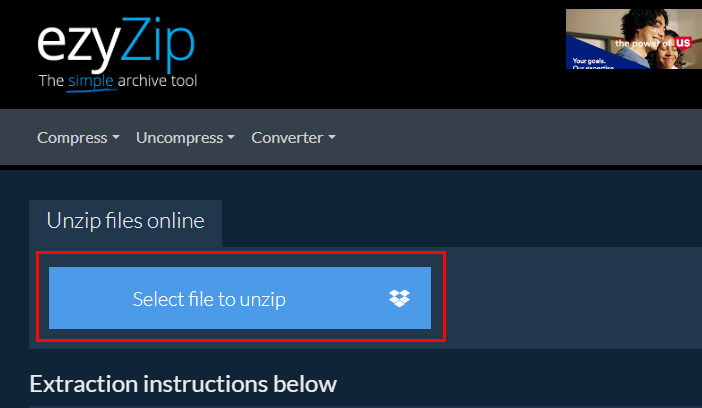
Select File to Unzip on EzyZip
Step 3. It will automatically complete the unzip process. After the conversion is completed, you can see all the files with file extension in the ZIP archive.
Step 4. Select the files you need and tap the “Save” button to download them.

Click Save Button on EzyZip
Manually Unzip a ZIP File to PDF on Windows
If you’re concerned about the security risks of online tools, you can also use your computer’s built-in tools to decompress the ZIP file containing the PDF. For a Windows 10 and Windows 11 user, you can manually unzip ZIP files via File Explorer. With this method, you don’t need to download any third-party software.
Check the below guide to unzip a ZIP file to PDF on Windows.
Step 1. Find and open the ZIP file you wish to unzip.
Step 2. Right-click the file, and choose the “Extract All” option from the list.
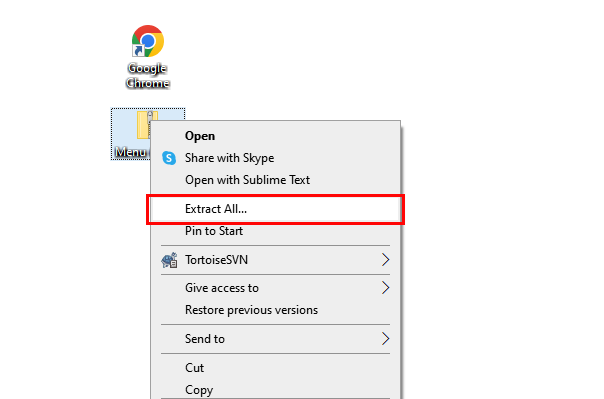
Choose Extract All Option on Windows
Step 3. When the pop-up window appears, decide a destination for the extracted files, then tap “Extract”.
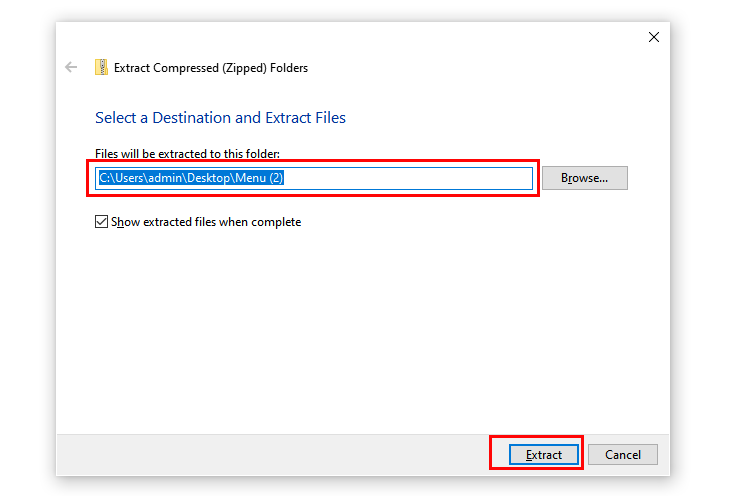
Tap Extract to Unzip File on Windows
It will finish the extraction quickly, you can find the extracted folder and open the PDF files inside.
Manually Unzip a ZIP File to PDF on a Mac
For a Mac user, you can also use the built-in function to manually decompress the ZIP file containing PDF. Like Windows, you can extract and view the PDF file with some simple operations without any additional software or website. Just go to Finder and select the ZIP file with the PDF document, and unzip your files with a simple click!
Here are the steps to change a ZIP file to PDF on Mac:
Step 1. Find the ZIP file you want to unzip in Finder.
Step 2. Double-click the ZIP file, and the system will automatically unzip the file in the same folder.
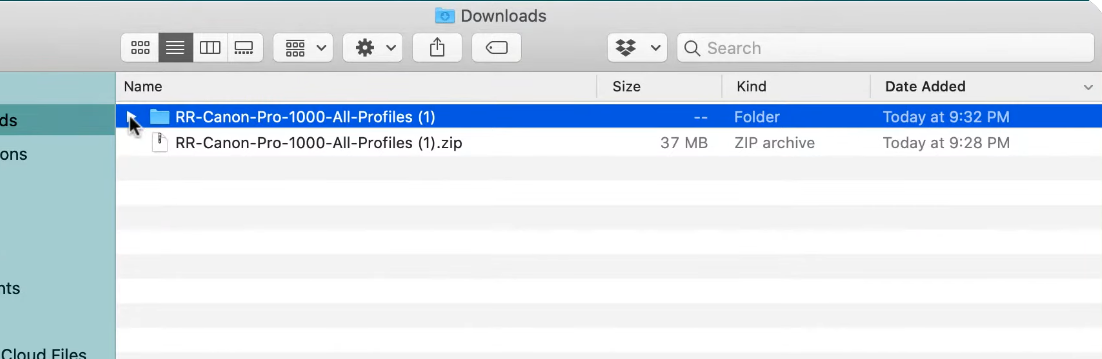
Double Click to Unzip File on Mac
After unzipping, you can go into the extracted folder to locate and open the PDF file that you need.
Convert Unzipped Files to PDF for Free
You should note that all the given methods only allow you to unzip files to their original file formats. There’s no direct way to unzip any files to PDF.
However, if you still need to export your compressed files in PDF file format, such as for ease of sharing or editing prevention, the best way is to use a free PDF converter.
I highly recommend using PDFgear, it allows you to convert between document formats like Excel, Word, PDF, PPT, etc., and even convert images to PDF.
Step 1. Download and install PDFgear from the official website. It’s free!
Step 2. Go to the Convert to PDF toolbox and look for the conversion you need. For example, if you’ve unzipped a Word document, you go with Word to PDF.
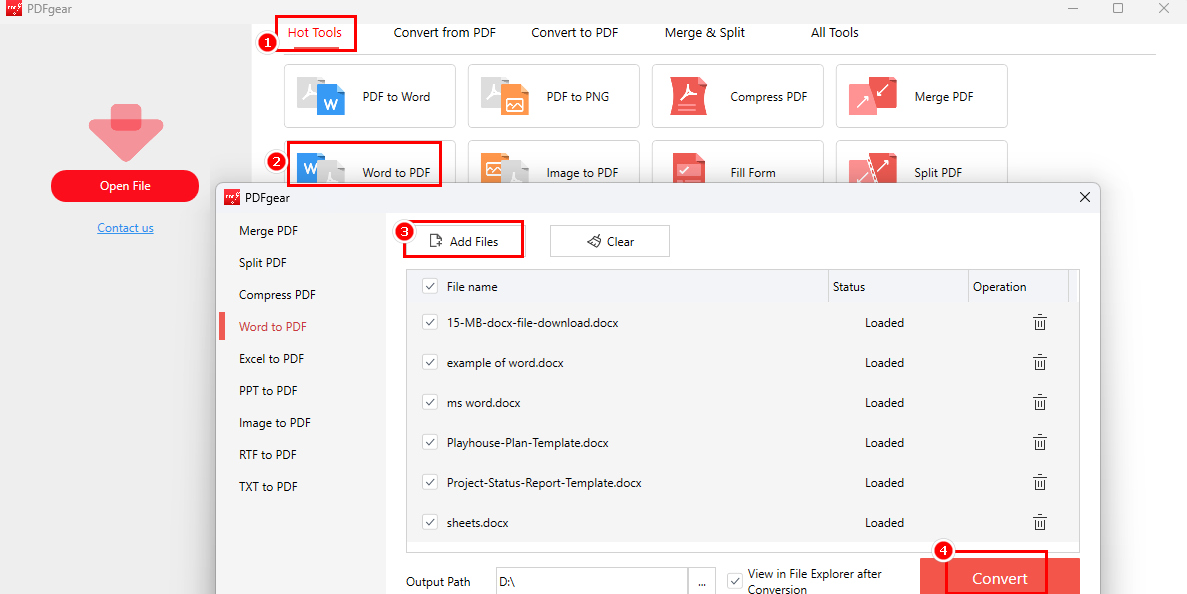
Convert Microsoft Word to PDF with PDFgear
Step 3. Click the upper Add Files button to import the file, and click Convert to start the conversion. Your files will be converted to .pdf in a matter of seconds.
Why Can’t I Unzip a File to PDF?
There are several reasons why you might be unable to unzip a file. Here’s a comprehensive list of possible causes:
File Corruption
- Corrupted ZIP File: The ZIP file may be damaged due to interruptions during download, transfer, or storage. This can lead to errors such as “Invalid Archive” or “CRC Error” when attempting to extract files.
- Incomplete Download: If the file was not fully downloaded, it may be incomplete, resulting in extraction failures. Redownloading the file can often resolve this issue.
Software Issues
- Incompatible Extraction Software: The built-in extraction tool in Windows may not support certain ZIP file formats or compression methods. Using third-party software like 7-Zip or WinRAR can
- help.
- Default Program Settings: If a third-party extraction tool has taken over the default settings for ZIP files, it might cause extraction problems. You can reset the default program to Windows
- Explorer or another reliable unzipping tool.
System Limitations
- Insufficient Disk Space: If your hard drive is nearly full, there may not be enough space to extract the files. Ensuring adequate free space is crucial.
- File Path Length Restrictions: Windows has a character limit for file paths (255 characters). If the ZIP file or its contents exceed this limit, extraction may fail. Renaming files or moving the ZIP file to a location with a shorter path can help.
Security Software Interference
Antivirus Blocking: Sometimes, antivirus or security software may block the extraction process, mistaking it for a threat. Temporarily disabling the antivirus or adding exceptions for the ZIP file can resolve this issue.
Permissions and Settings
- File Permissions: Lack of proper permissions to access the ZIP file or the destination folder can prevent extraction. Ensure you have the necessary permissions.
- Blocked Files: Windows may block files downloaded from the internet. Right-clicking the ZIP file, selecting Properties, and checking for an “Unblock” option can be necessary.
Password Protection
Password-Protected ZIP Files: If the ZIP file is encrypted or password-protected, you will need to enter the correct password to extract its contents. Ensure that you have the right password and that Caps Lock is not on, as passwords are case-sensitive.
