How to Convert PNG to PDF on Windows 10/11 for Free

Summary :
Use PDFgear to convert PNG to PDF online or offline on Windows 10/11, or try the built-in Microsoft Print to PDF feature.
Table of Contents
Want to convert PNG to PDF on your Windows 10 or 11? This makes it easier to share, print, and organize your images while keeping the original quality.
Below is how to convert one or more PNGs to PDF on a Windows PC or laptop. Read on to learn more.
Convert PNG to PDF on Windows Online for Free
There is no download, sign-up, watermark, limitations, or registration, and it is 100% safe. PDFgear makes it easy to turn PNG into PDF directly from any web browser on any Windows device.
This online PNG to PDF converter allows you to quickly combine multiple PNG images into one single PDF. It also works with JPG, HEIC, WEBP, SVG, BMP, JFIF, and PJP files.
Step 1. Go PDFgear Online PNG to PDF converter in any browser, like Microsoft Edge or Google Chrome.
Step 2. Click the “Select Image File” button or drag and drop PNG images into the toolbox.
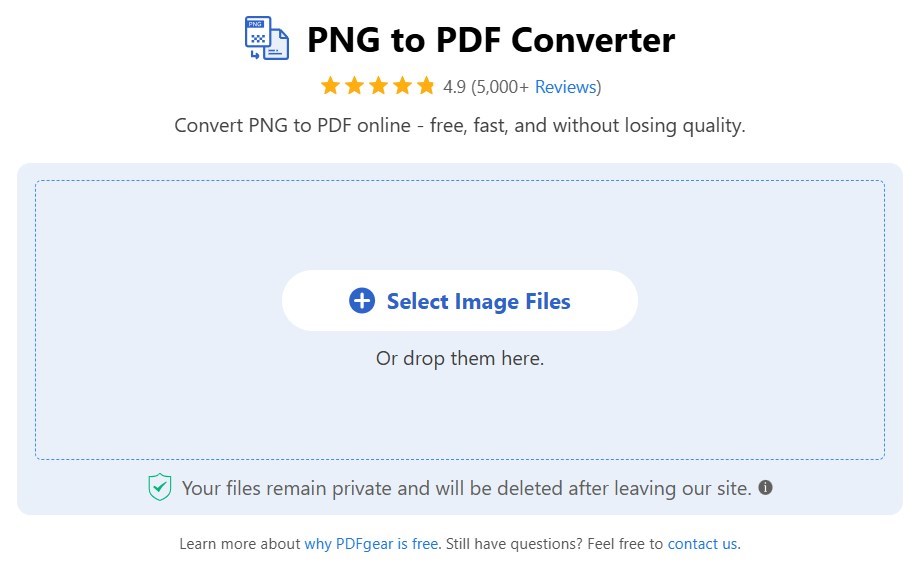
Add PNG Images to the Online Converter
Step 3. Adjust settings like size, orientation, and margin if needed.
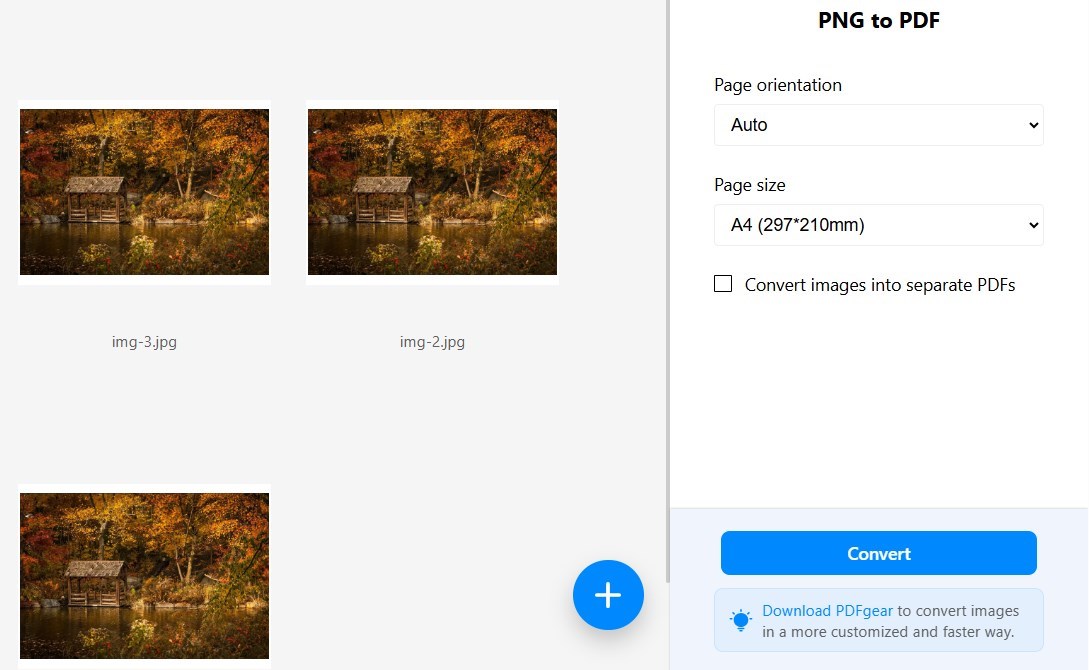
Customize the Conversion Settings
If you don’t want to merge all PNGs into one PDF, check the “Convert images into separate PDFs” option.
Step 4. Click the “Convert” button and wait for PDFgear to process your PNG file.
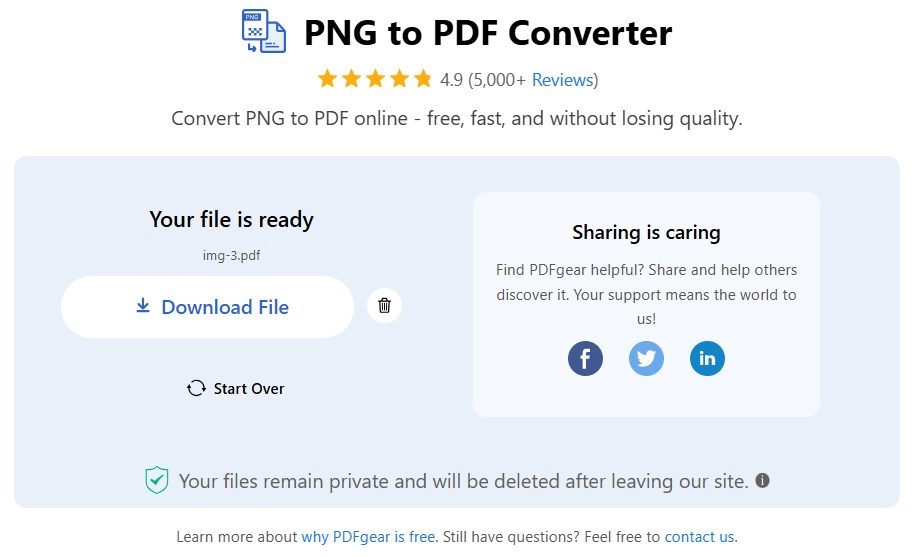
Download the PDF File
Step 5. Done! Click the download button to save the PDF file to your Windows device.
Convert PNG to PDF on Windows Offline with PDFgear
For better privacy, PDFgear offers free software for Windows users to convert PNG to PDF offline. It can handle large image files while keeping the quality intact in the PDF.
You can adjust the margin, orientation, and size before converting. It also lets you merge multiple PNGs into one PDF or save them separately. Besides PNG, it supports JPEG, BMP, TIFF, and ICO files.
PDFgear allows you to convert PNG to PDF for free on Windows 10 and 11.
Step 1. Download and install PDFgear on your Windows PC or laptop. It works with Windows 10 and 11.
Step 2. Launch PDFgear and open the “Image to PDF” tool.
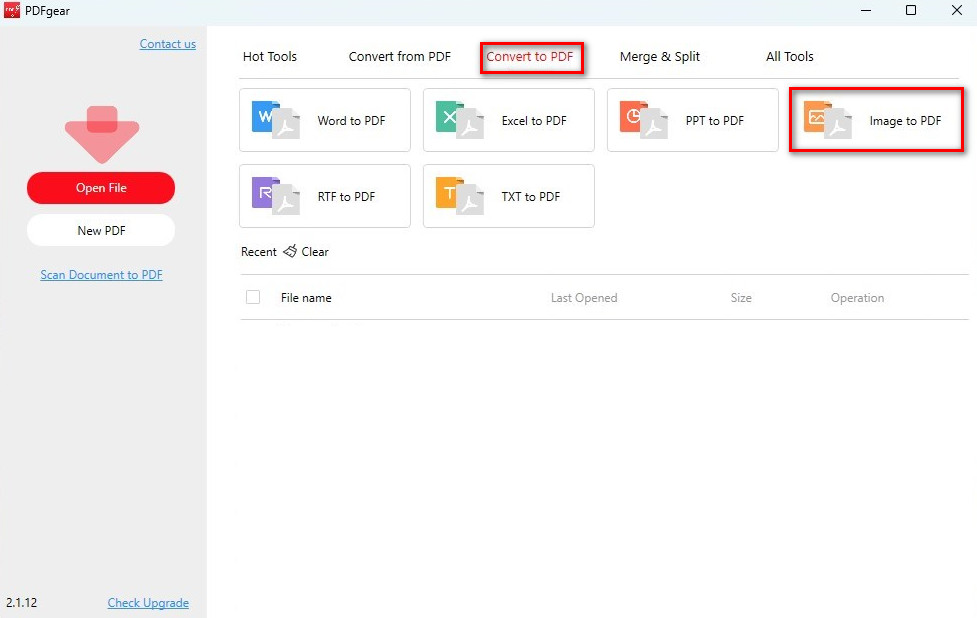
Open the Image to PDF Converter
Step 3. Click “Add Files” to select PNG images, or simply drag and drop them into the converter window.
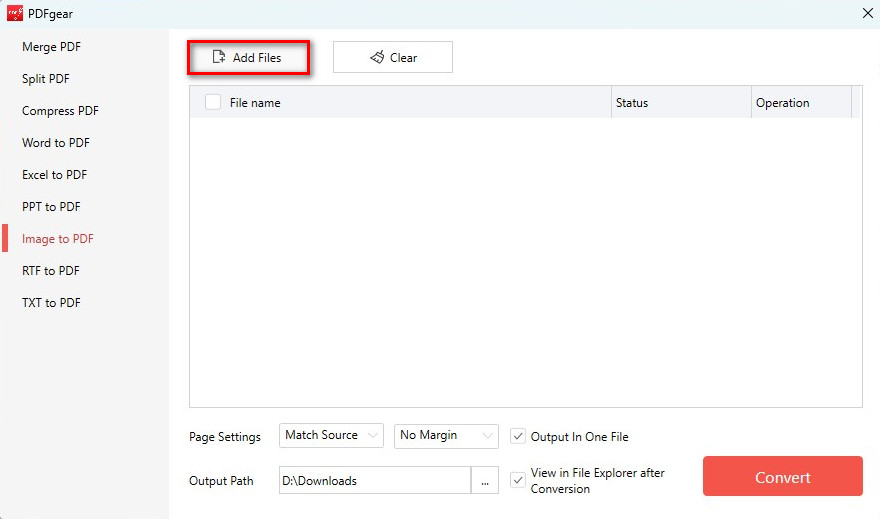
Add Images to the Converter
Step 4. Adjust the size, orientation, and margin, then choose where to save the output file.
To combine multiple images into one PDF, check the “Output in One File” option. Otherwise, each image will be saved as a separate PDF.
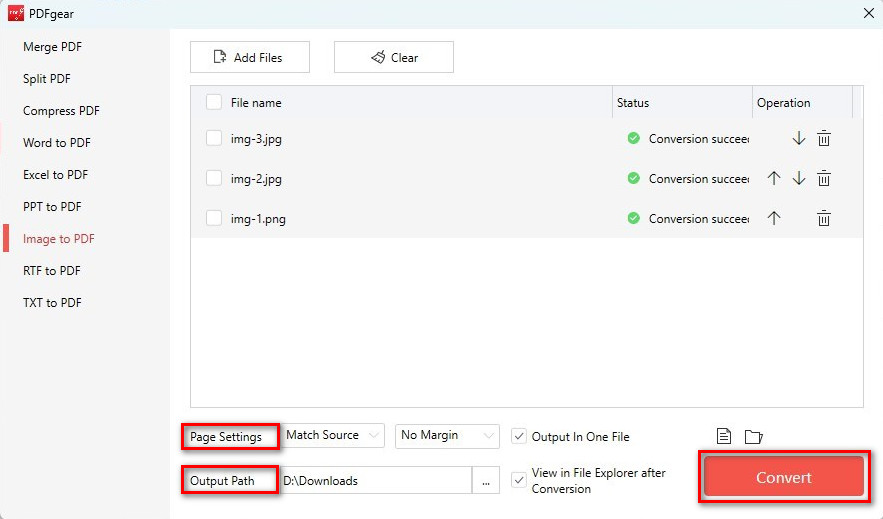
Batch Convert PNG to PDF on Windows
Step 5. Click the “Convert” button to start. PDFgear will convert the PNG to PDF.
Step 6. Once done, PDFgear will open File Explorer, allowing you to view the PDF.
Convert a PNG to PDF with Microsoft Print
Microsoft Print to PDF is a virtual printer that lets you print an image as a PDF. Here’s how to use it to convert a PNG to a PDF:
Step 1. Open your PNG file by double-clicking it. It should open in the Photos app on Windows 10.
Step 2. Click the Print icon or press Ctrl + P on your keyboard.
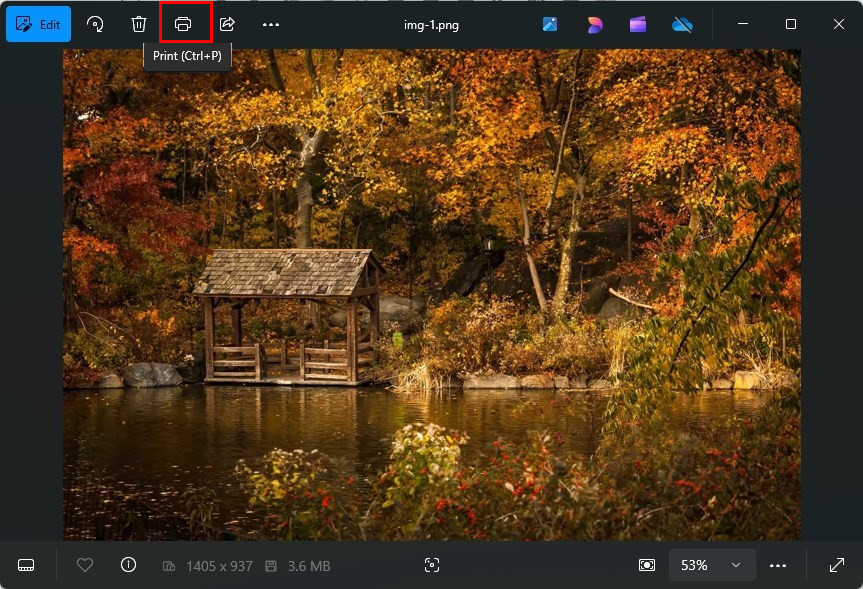
Click on the Printer Icon
Step 3. In the printer options, select Microsoft Print to PDF as the printer.
Step 4. Adjust layout, orientation, or margins if needed.
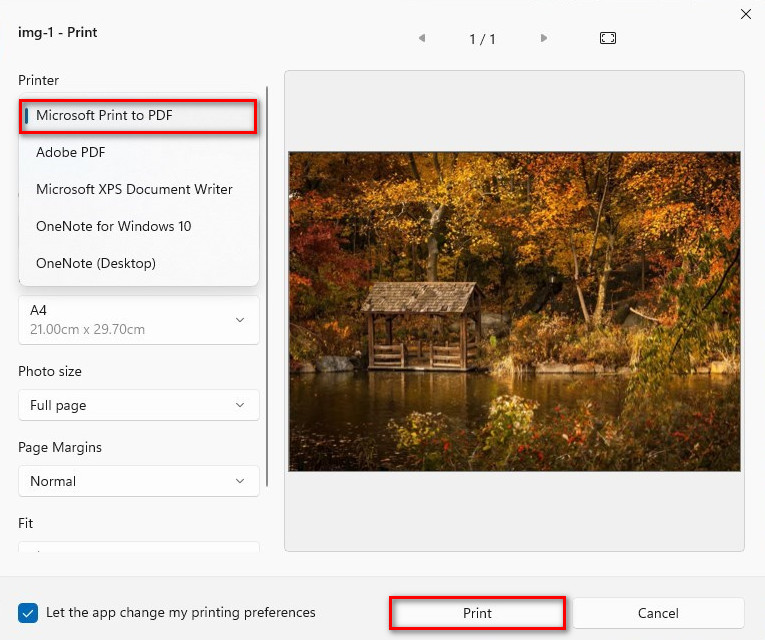
Print PNG to PDF on Windows
Step 5. Click Print or Save and choose where to save the PDF. Name the file, then click Save.
FAQs
What is the best PNG to PDF converter for Windows?
PDFgear is one of the best PNG to PDF converter software on Windows. It’s free, works offline, and maintains high image quality. It also allows batch conversion and editing after conversion. Get PDFgear for free on your Windows device now.
How do I convert PNG to PDF without losing quality?
PDFgear ensures high-quality conversion by preserving the original resolution of your PNG files. Download PDFgear and give it a try.
Can I convert PNG to PDF in bulk on Windows?
Yes, PDFgear supports batch conversion, efficiently converting multiple PNG images into separate PDFs or merging them into a single PDF file.
Can I convert PNG to PDF on Windows without using any software?
Yes! You can use Microsoft Print to PDF, a built-in feature in Windows 10, or use PDFgear online PNG to PDF converter.
