Accurate OCR recognition
Our advanced OCR technology precisely extracts data from image-based and scanned PDFs. It accurately recognizes complex tables and layouts, ensuring your editable Excel output mirrors the original source without manual fixes.
Supports Large and Multi-Page PDFs
Seamlessly process extensive documents and multi-page files, retaining data integrity and formatting, making it an ideal tool for handling complex datasets and professional reports.
Fast and Reliable Processing
PDFgear leverages optimized algorithms to deliver quick and accurate conversions, ensuring your files are processed efficiently, whether it’s a single-page document or a multi-page PDF.
Cross-Platform Compatibility
Effortlessly accessible on any device or browser, PDFgear provides ultimate flexibility for users to convert PDFs to Excel from anywhere, at any time.
Completely Free to Use
PDFgear provides unlimited access without hidden costs or subscriptions. While the file size is capped at 100 MB, there are no restrictions on usage frequency or the number of file pages, ensuring a user-friendly and cost-effective experience.
Secure with Clear Privacy Policies
PDFgear prioritizes your security by implementing robust encryption and automatic file deletion. Learn more about our privacy policies, ensuring a trustworthy and secure conversion experience.
PDFgear offers both online and offline PDF tools for all your PDF needs.
| Features | PDFgear Software | PDF to Excel Online |
|---|---|---|
| Accessibility | Installation required | Web browser-based |
| File Size Limit | No limit | 100 MB |
| Performance | Fastest | Faster ¹ |
| Internet Requirement | Works without Internet | Internet required |
| Functionality | Powerful all-in-one PDF solution with AI features for batch processing, document, and image conversions | Lightweight, ideal for single-file conversions under 100 MB |
| User Experience | Advanced, full-featured, suitable for power users | Simple, intuitive, and beginner-friendly |
| Data Processing | Files processed on local device | Files processed by cloud servers ² |
| Ideal For | Power users needing advanced features, batch processing, and offline functionality | Casual users with small files and quick online needs |
1. Faster: Requires uploading files to the server for processing; speed may vary depending on the size and complexity of the PDF file.
2. Files processed by cloud servers: Your files are uploaded to and processed on AWS US secure cloud servers. Files are deleted immediately after you download them, ensuring data privacy.
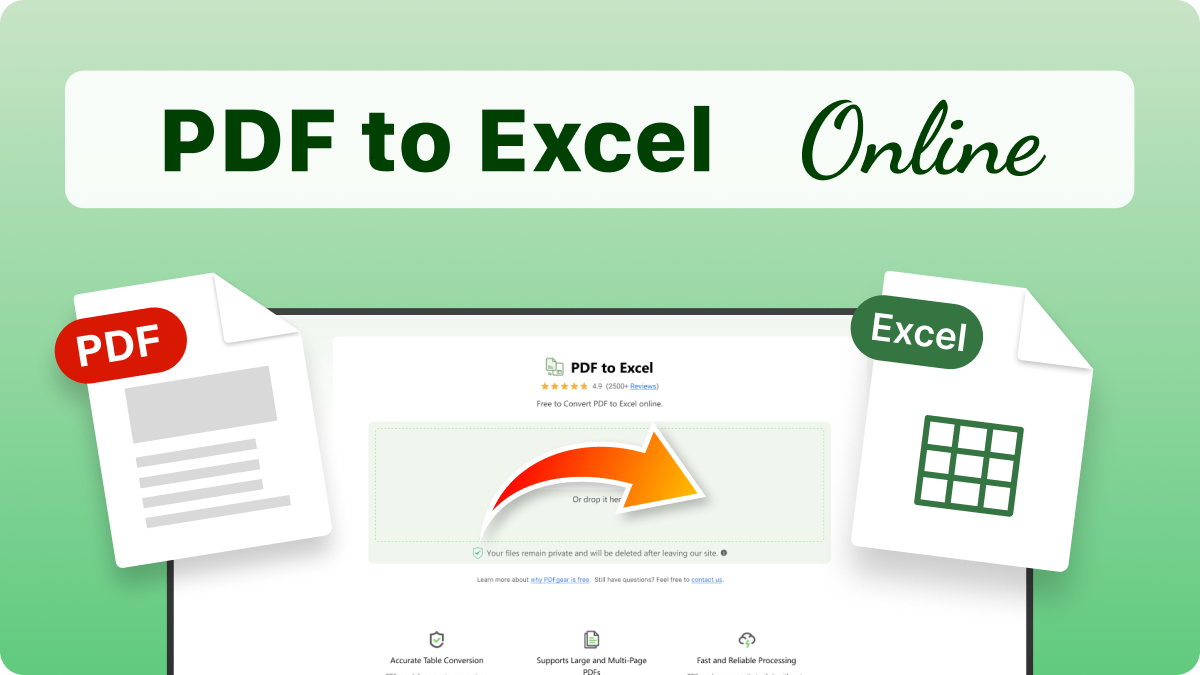
To select your PDF file, you can drag and drop it into this web-based PDF tool or click the "Select PDF File" button.
Select the conversion mode you need—with or without OCR, then click the "Convert" button to begin the conversion.
After processing, click the "Download File" button to save the Excel document directly to your device.
Simply upload your scanned PDF file to PDFgear converter. The tool will automatically detect the scanned image and engage our built-in OCR (Optical Character Recognition) technology. The OCR feature reads the non-selectable text, extracts the data, and outputs a fully editable Excel spreadsheet (XLSX) for you to download.
Our OCR engine is highly optimized for complex structures. When you upload a PDF containing tables or diagrams, the OCR not only recognizes the text within but also intelligently maps the table borders, rows, and columns. This ensures that the resulting Excel file maintains the original structure, making the data instantly usable without manual reformatting.
PDFgear preserves table structures, layouts, and alignment accurately, ensuring your Excel output is clean and matches the original PDF with minimal manual adjustment.
Yes, PDFgear combines all pages in a PDF into a single, structured Excel file, maintaining data order and consistency for easy analysis.
Yes, the online tool supports files up to 100 MB in size, with no restrictions on page numbers or conversion frequency.
No, the online tool processes one file at a time. To convert more, you’ll upload each file individually.
How to Convert PDF to Excel Using AI
This article compares five popular AI language models for converting PDF to Excel, and explains why a dedicated tool like PDFgear outperforms them.
Try PDFgear software and app for free.