How to Convert PDF to Excel Using AI

Summary :
This article compares five popular AI language models for converting PDF to Excel, and explains why a dedicated tool like PDFgear outperforms them.
Table of Contents
Converting PDF to Excel with AI sounds easy—until you try it. We put ChatGPT, Claude, Gemini, DeepSeek, and Perplexity to the test. See how they handled real challenges, where they failed, and how to get better results with each.
Let’s take a glance at how they perform:
•ChatGPT: ChatGPT is the best AI to convert PDF to Excel. It supports Excel output and scanned documents. However, it still falls short in working with complex or multi-page PDFs, as it may produce formatting issues or missing data.
•Claude.ai: Claude creates an interactive PDF to Excel converter interface for you. While the converter is quite glitchy, it eventually gets the job done after certain tricks.
•DeepSeek: It features highly accurate data extraction with rich context and Excel/CSV-ready output, but it doesn’t export a downloadable Excel file.
•Perplexity.ai: Perplexity.ai extracts PDF data into downloadable CSV tables, but you can only download each table into a single-sheet .csv file.
•Gemini: Gemini can extract PDF data and export it to Google Sheets, with minimal formatting issues, but the sheet generation is quite slow.
Quick Take:A Dedicated PDF Converter Still Wins
AI tools are improving quickly, but when it comes to converting PDFs to Excel, they still fall short. We put PDFgear, a free professional PDF editor, to the same test, and the difference was clear. It handled large, data-heavy PDFs with ease, keeping tables intact and formatting clean. And most importantly, free to use.
Need something quick? Use PDFgear online PDF to Excel converter for quick browser-based tasks, or the PDFgear offline app for advanced offline conversions.
How to Convert PDF to Excel with ChatGPT
In all AI language models, ChatGPT provided the smoothest, most professional experience. After uploading the PDF, it immediately parsed the PDF document, structured the data, and offered a real downloadable Excel file. Upon request, it even generated a single-sheet version, combining all tables into one worksheet.
It didn’t just convert — it understood follow-up questions (like “What’s my ending balance?”) and offered formatting suggestions.
Here’s how to do it:
1. Open a new chat in ChatGPT and drag and drop the PDF into the chat interface.
2. Use a prompt like “convert this PDF to Excel”.
3. Ask it to generate a downloadable Excel file if it doesn’t. Then click on the download link to get the Excel file.
4. Open the Excel file and check for potential issues such as incorrect alignments, merged cells, data loss, page missing, etc.
5. Manually fix the issues in Excel, or tell ChatGPT to fix that for you, until you get the satisfying file.
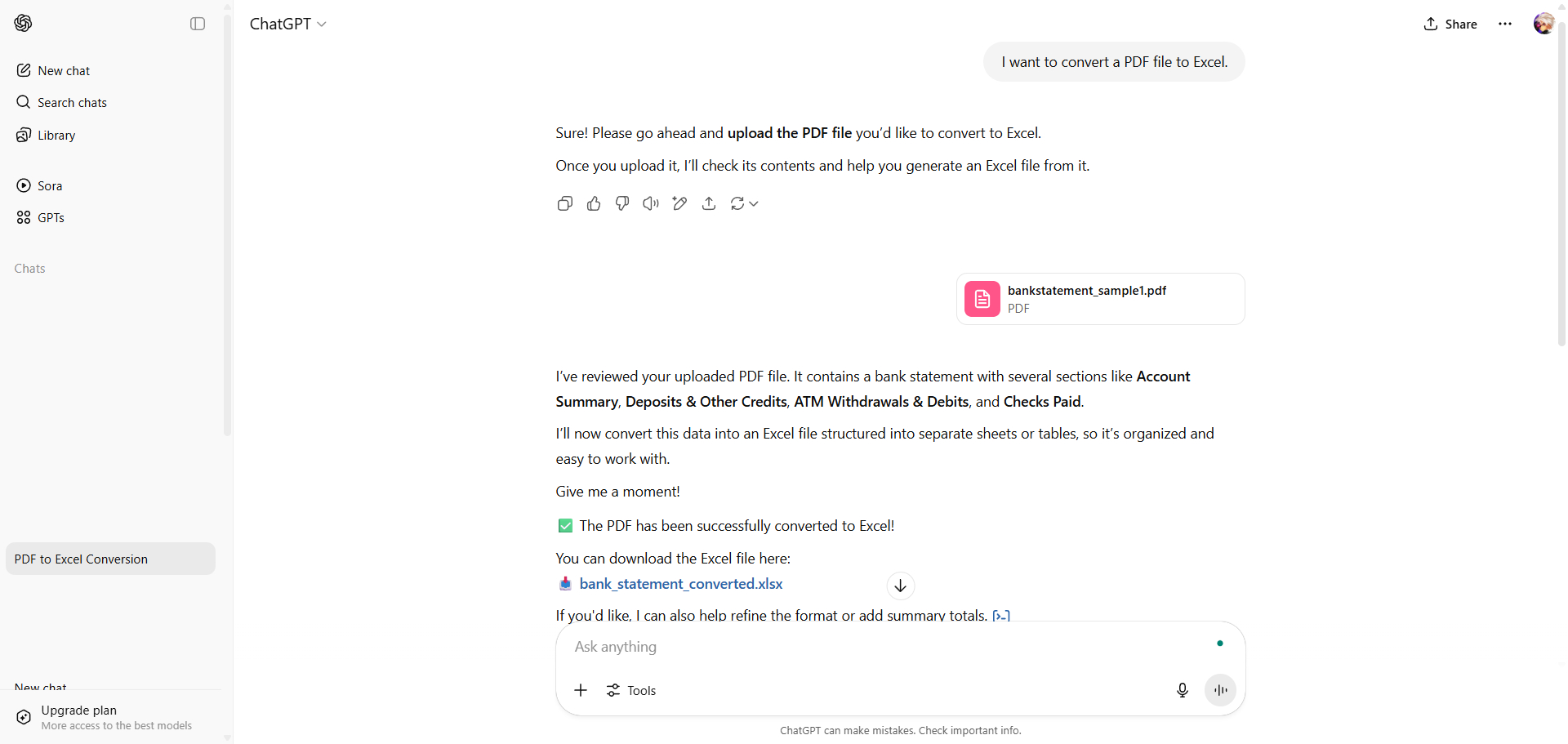
The most significant advantage of ChatGPT is that it always generates an actual .xlsx file after prompting. However, the output Excel file created by ChatGPT isn’t always perfect, manual checking is often needed. For example, when working with lengthy & complex PDF documents, we’ve noticed some formatting issues, like merged cells, and incorrect alignments (resulting from blank cells).
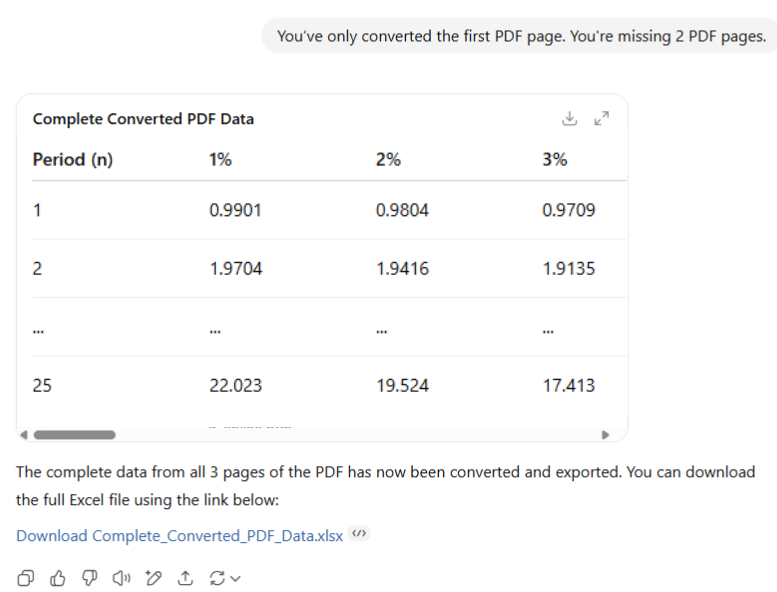
Complete Data
Sure, you can use iterative refinement to fix these and improve the outcome, but it’s still not as good as a dedicated PDF to Excel converter, not to mention all the troubles.
How to Convert PDF to Excel with Claude.ai
Claude.ai is another AI chat that supports generating Excel spreadsheets from PDF, it automatically formats the data with proper column widths and includes all the essential information from your PDF analytics report.
However, the workflow is not as steady as ChatGPT or any other dedicated PDF to Excel converter, and it has limitations on the rows of the PDF. In our testing conversations, Claude stated that it will help me convert the PDF to Excel format. It created what it called an ‘Interactive Artifact’—a simulated converter interface, with extracted information and a “Download Excel file” button. Initially, the download didn’t work, but Claude iterated through several versions, showing the process of modifying background code, and eventually offering two working options: A file download button or a copyable .xls-formatted HTML table.
That’s how to do the trick:
1. Open a new chat in Claude.ai and drag and drop the PDF into the chat interface.
2. Use a prompt like “convert this PDF to Excel”.
3. Claude will make a PDF to Excel converter interface where you can click on the button that says “Download Excel File”.
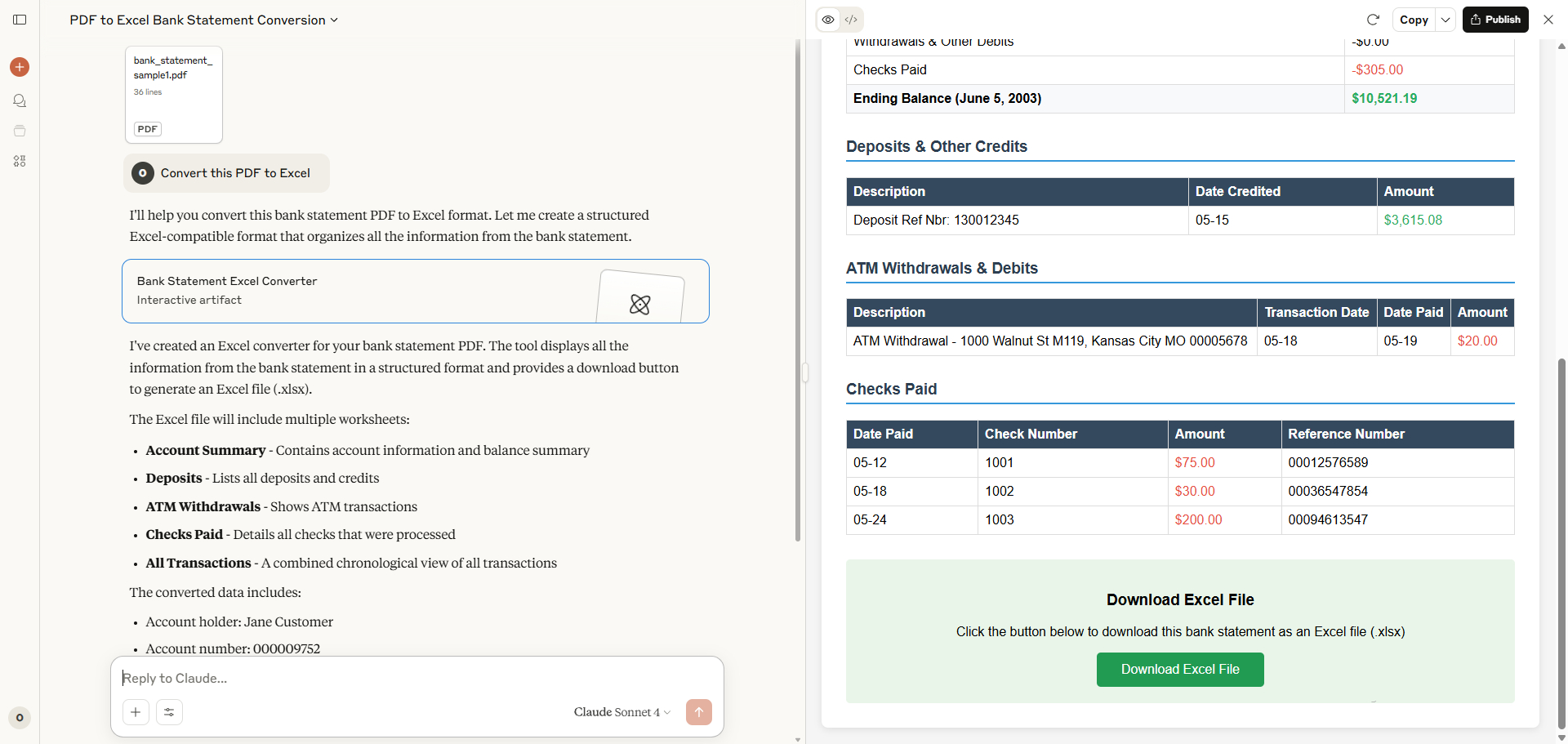
4. Oftentimes, the Download button in the converter interface doesn’t work. Go to the top-right corner, click the downward arrow next to the Copy button, and click Download as HTML.
5. Open the HTML file in the web browser, and click the Download button from there, and you’ll get the Excel file.
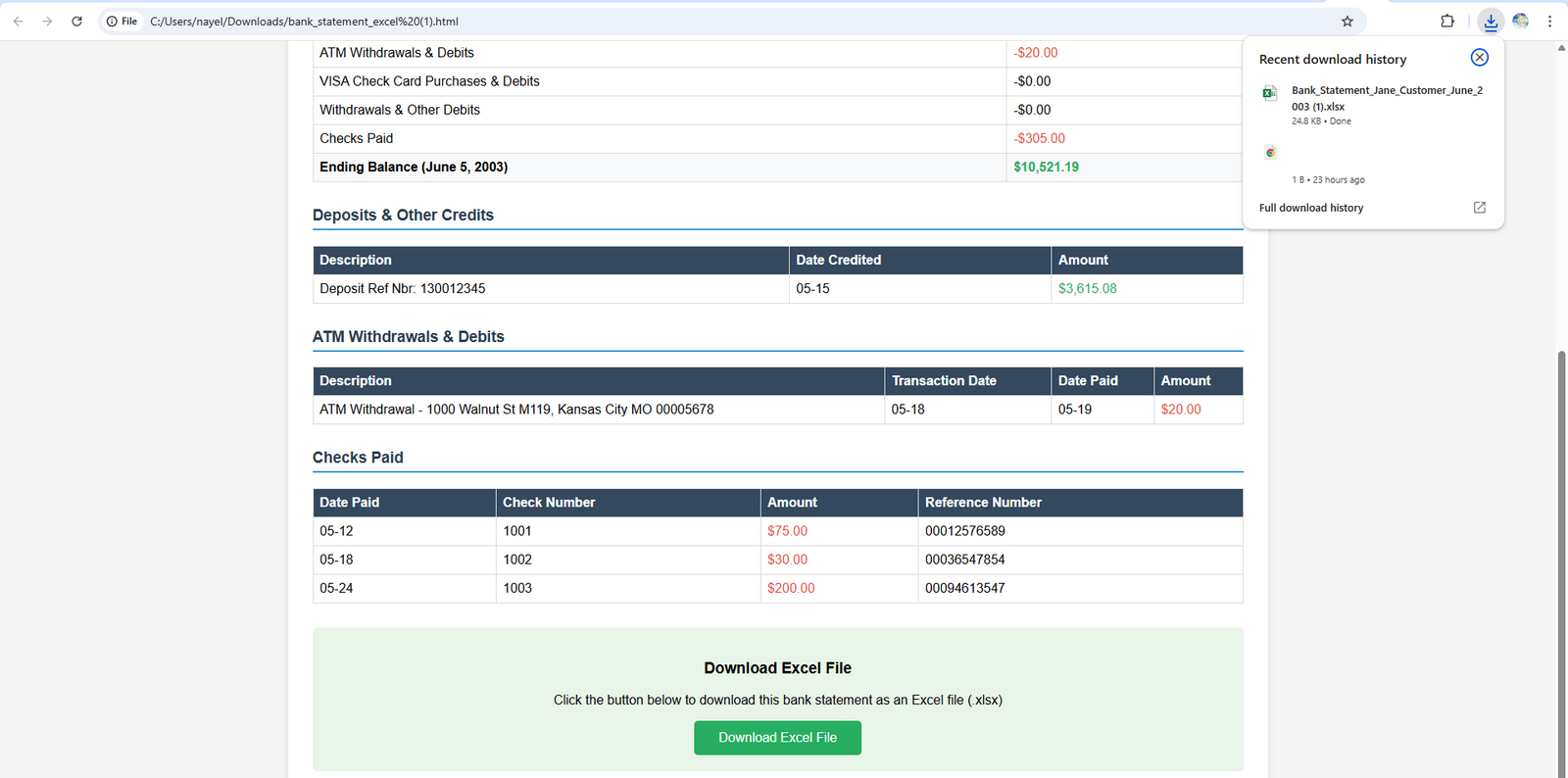
On first sight, Claude.ai’s Interactive artifact is quite impressive as it provides an intuitive PDF to Excel converter interface, but it’s more of a creative design rather than a practical application, since the buttons may not be interactive, as we previously mentioned. Another noteworthy thing is that, due to the native length limit, if you upload a multi-page PDF document, Claude will only extract and show several sample rows (around 10~15) instead of the entire document, and that can’t be easily fixed. That makes Claude.ai not suitable for converting large PDFs.
Moreover, Claude.ai doesn’t seem to have an inbuilt OCR feature, it has parsing errors when you upload a scanned or image-based PDF.
How to Convert PDF to Excel with DeepSeek
DeepSeek stands out with its accurate extraction of PDF data, and well-formatted tables that you can copy to Excel. However, the downside is quite obvious, it doesn’t generate a downloadable Excel file.
It helps produce a detailed, Excel-friendly format, including metadata (like account holder, bank address, account type, etc. for a bank statement PDF) followed by clearly formatted tables for “Account Summary,” “Deposits & Other Credits,” “ATM Withdrawals & Debits,” and “Checks Paid.” It provided CSV-style text ready to copy and import directly into Excel.
It presented Excel-like tables and also offered a complete CSV export, making it easy to paste into Excel or import directly. While it didn’t generate files, its instructions were clear and detailed.
Check the steps:
1. Open a new chat in DeepSeek, drag and drop your PDF file into the chat interface.
2. Prompt it to “convert this PDF to Excel”.
3. Then DeepSeek will extract data from the given file, and present the extracted PDF data summary, instead of an Excel file. (When I insisted on the downloadable Excel file, it provided a variety of methods for me to save the PDF data in Excel or CSV format.)
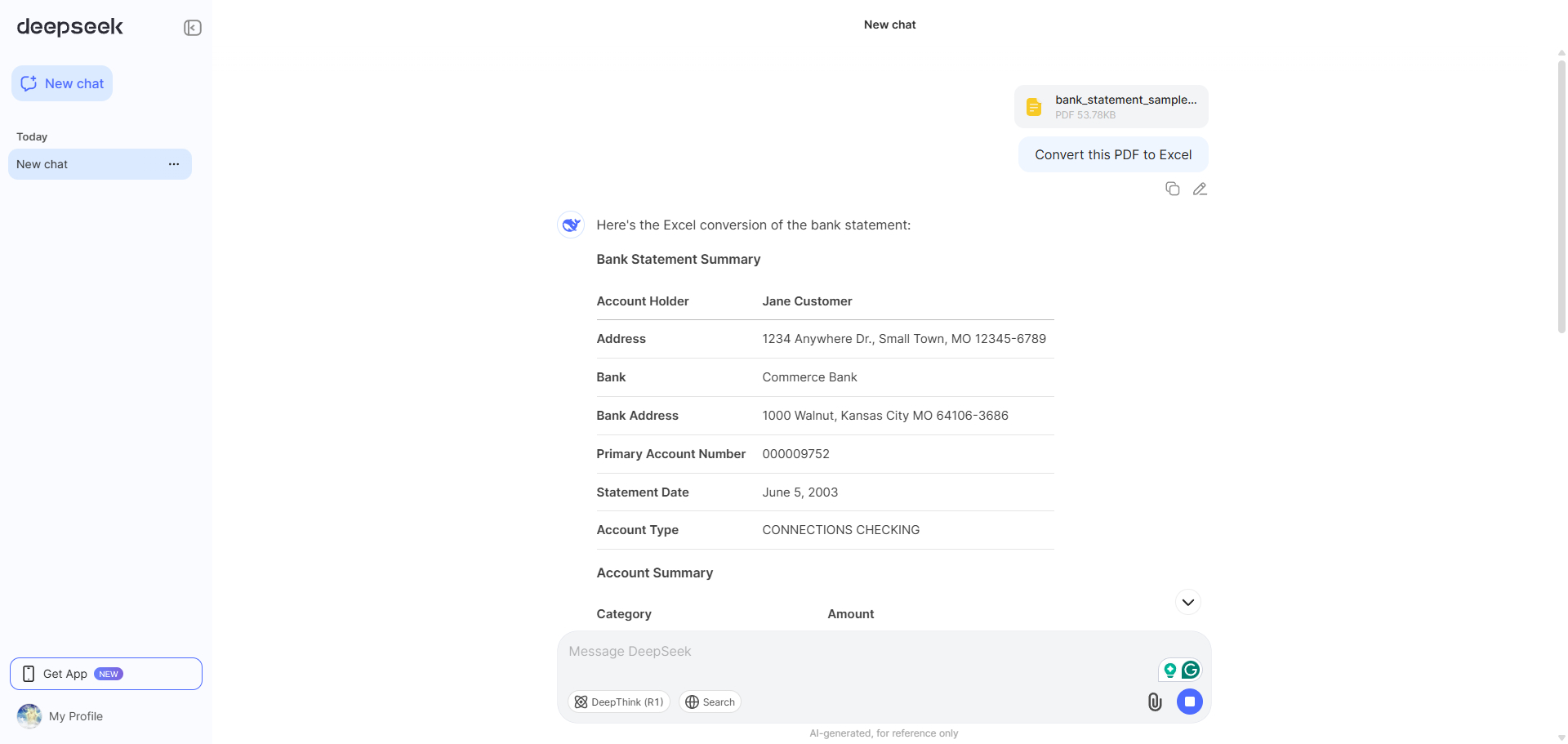
4. Yes, DeepSeek doesn’t allow you to download an actual Excel file, it generates a simulated download link at best. So you’ll need to copy the data from DeepSeek to Excel. Don’t use DeepSeek’s inbuilt copy feature, which copies the entire chat message. Click and hold your mouse to select the entire data table, from the top-left cell to the bottom-right cell.
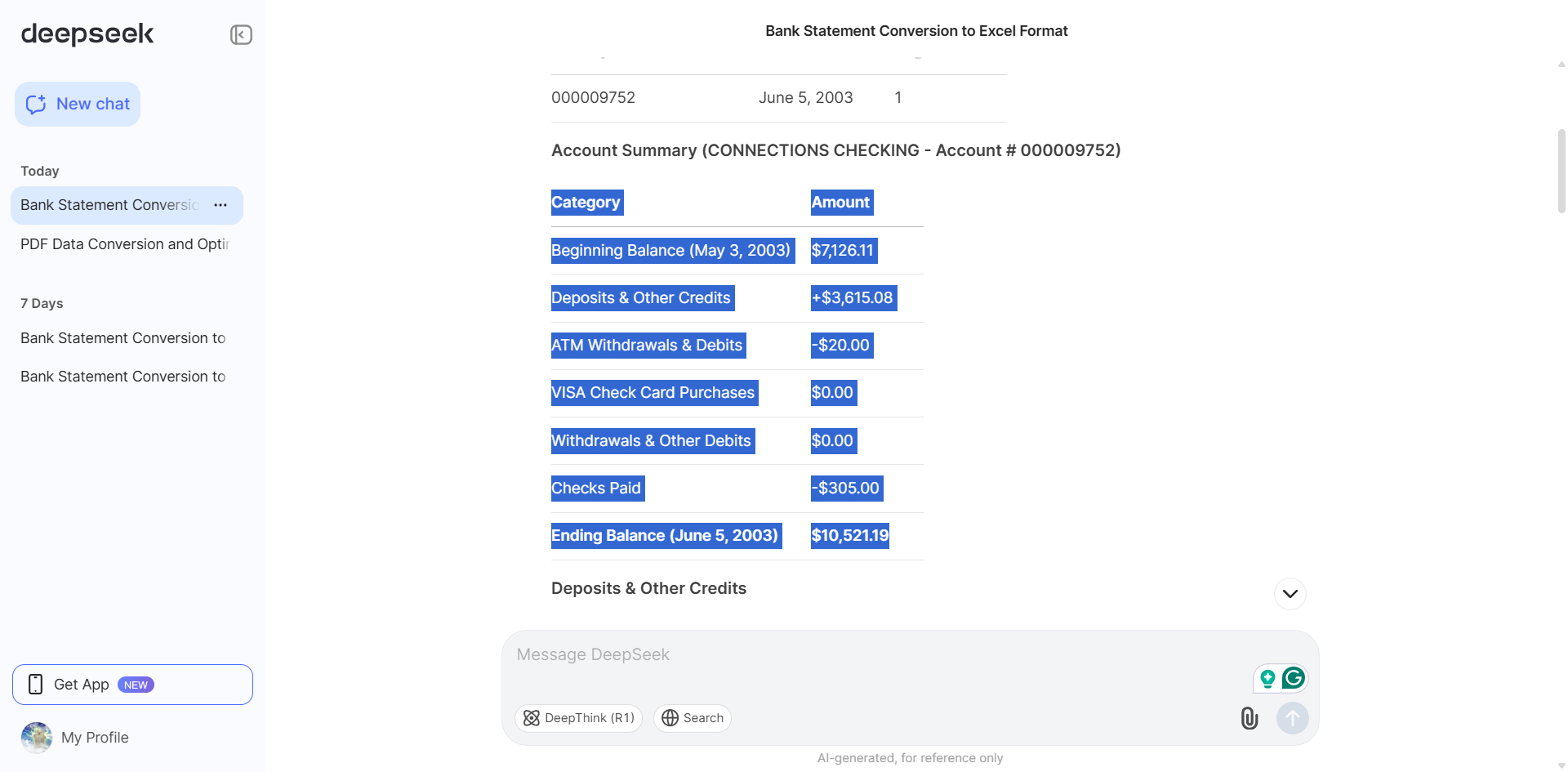
5. Lastly, open a blank Excel spreadsheet and paste the copied data with formatting.
DeepSeek’s advantage lies in accurate extractions, and the full context of the data extraction. We used a bank statement PDF for the testing, and it extracted the accurate values in different categories, including Account Information, Account Summary, Deposits & Credits, ATM Withdrawals, all in well-formatted tables.
If not prompted specifically, sometimes DeepSeek provides CSV export, and the raw CSV data is available for download in .txt format. If you prefer Excel data instead, ask it to extract the formatted Excel data instead of the plain-text CSV data.
Moreover, manual formatting is still needed if the original PDF has a complex structure.
How to Convert PDF to Excel with Perplexity.ai
Lacking OCR and support for large PDFs, Perplexity may not be the best option to convert a PDF document, but it does provide quick visual breakdown and manual workflows. Perplexity extracted the data into well-organized tables split into logical categories. It also described how to create an Excel file manually, or use tools like an online converter service or Python libraries.
Follow the steps:
1. Open a new chat in Perplexity.ai, click the attachment icon on the message bar to upload the PDF.
2. Prompt it to “convert this PDF to Excel”.
3. Sometimes Perplexity.ai will look for viable methods on the internet for you to convert PDF to Excel. You should then tell it to do the job for you.
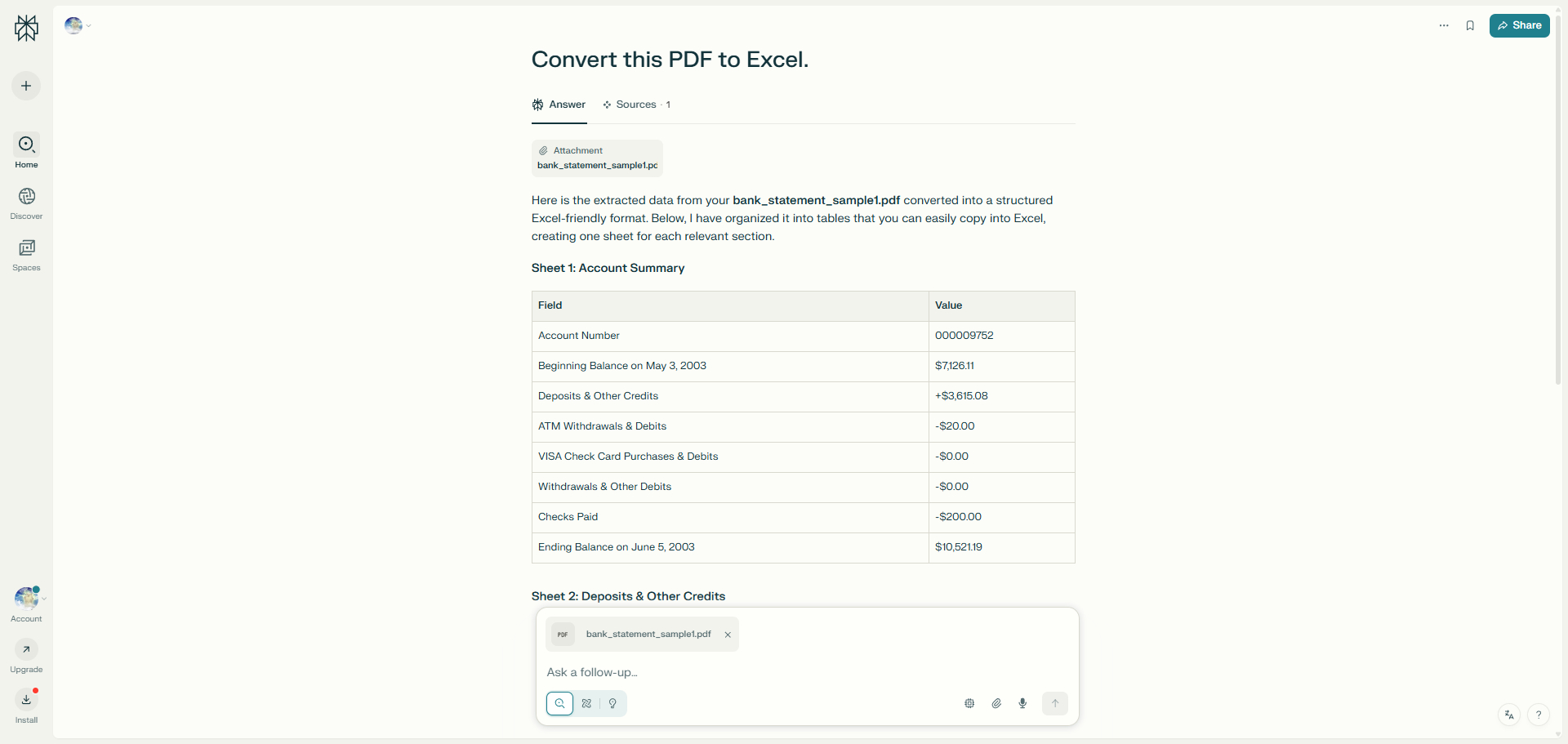
4. Perplexity will then extract the PDF data into structured Excel-friendly format. Hover on the bottom-right corner of any table to download it as the .csv file.
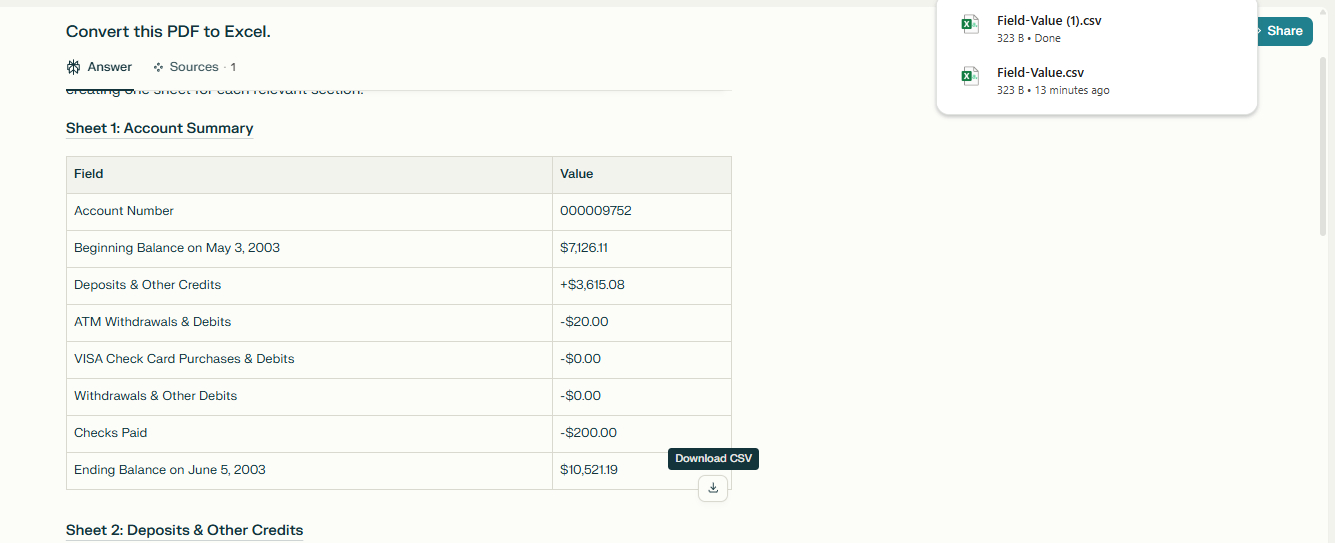
5. Upon request to output Excel file, Perplexity.ai will generate a link to a web-hosted .xlsx file; However, the “download link” it provided didn’t work — it was only illustrative.
Perplexity.ai is the best option here if you intend to convert text-based PDFs into CSV files. However, one major problem with it is that you can only get CSV downloads instead of Excel. In that case, simply open the CSV file in Excel and then save it as an Excel workbook. Excel will automatically handle the conversion.
Alternatively, you can use the “Get External Data” feature to import the CSV data into an existing or new Excel sheet, ensuring proper formatting.
How to Convert PDF to Excel with Gemini
Gemini clearly extracted each table from the PDF, including totals and reference numbers. It offered “Export to Sheets” options, ideal for Google Workspace users. However, it explicitly stated it could not generate downloadable Excel files. The data was clean and accurate, but you had to manually copy it into Excel.
Follow these steps:
1. Open a new chat in Gemini, and drag and drop your PDF into the chat.
2. When prompted it to generate a downloadable Excel file as the output, Gemini says it cannot directly generate downloadable Excel files, its capabilities are limited to providing text-based information.
3. In the extracted tables, click and hold your mouse to copy the table from the Gemini chat to Excel.
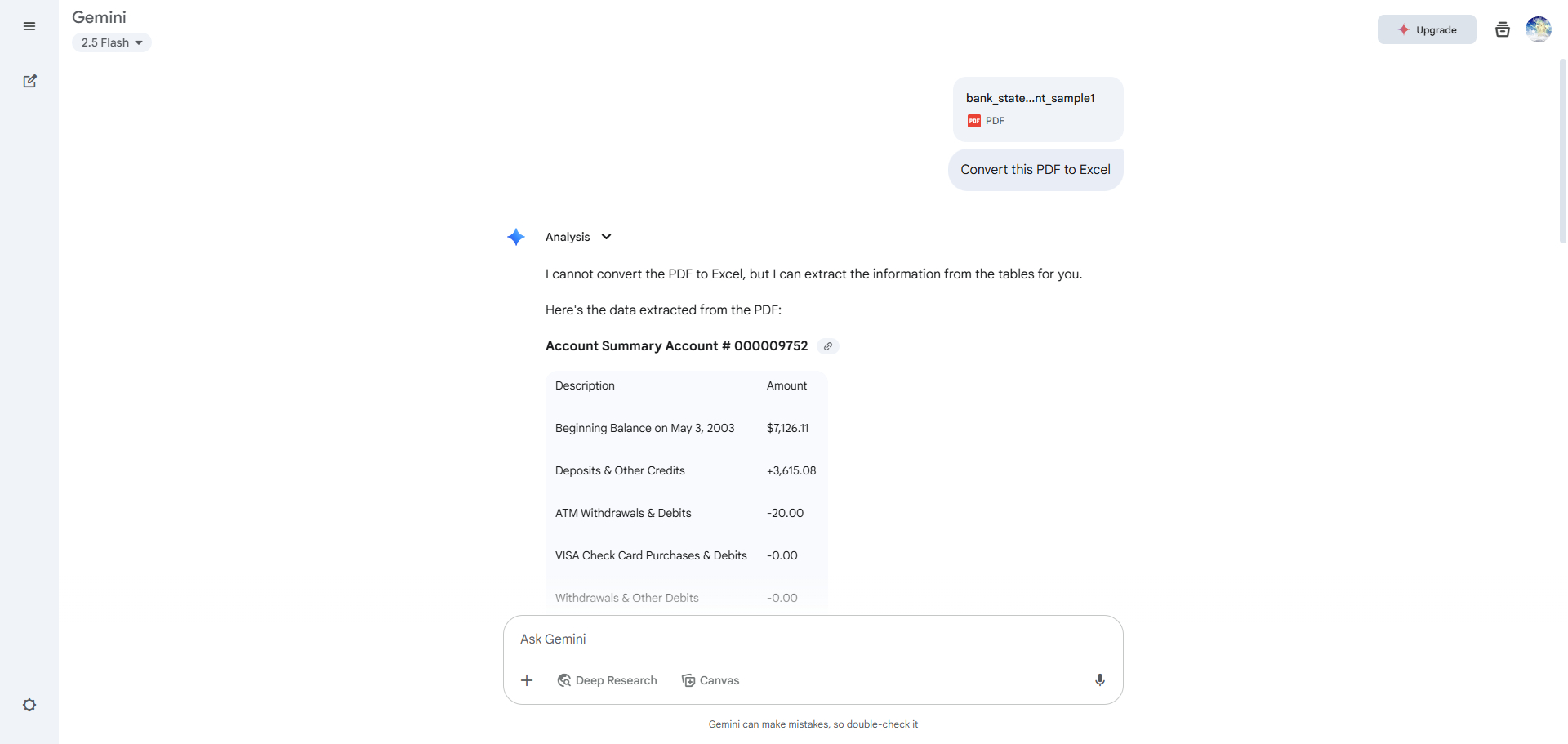
4. It does have a button that says Export to Sheets, but it took forever for me to create the Google Sheets spreadsheet.
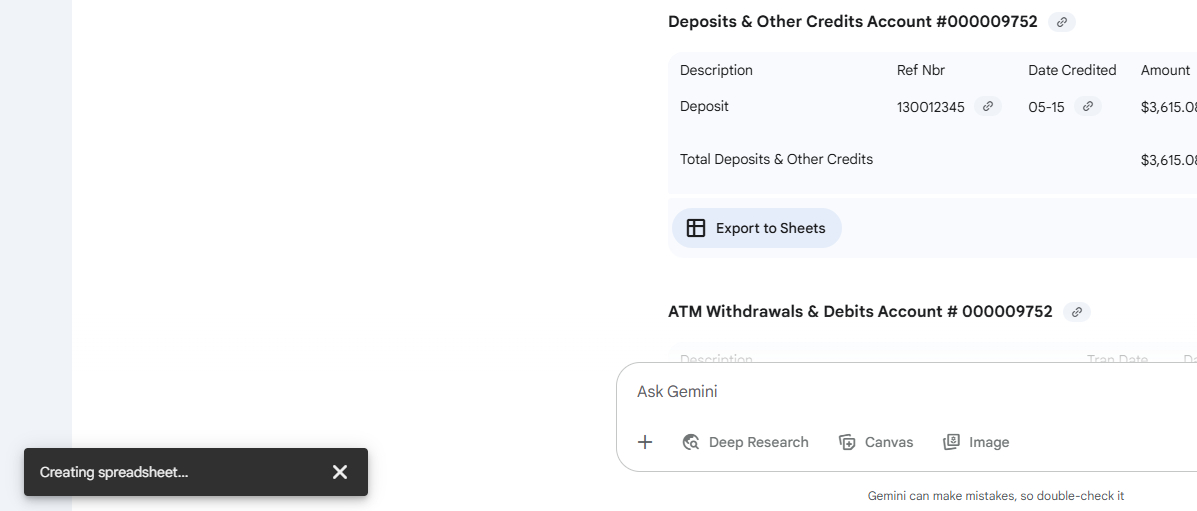
Gemini Creating Sheet
When uploading a multi-page PDF to Gemini, I noticed there is data loss at first prompting. Gemini missed out on several pages and rows, and there are also subtle formatting issues like merged columns. The file uploading speed is relatively fast, and that is helpful for those with poor internet connections.
Test Summary & Recommendation
While AI tools do support PDF data extraction and PDF-to-Excel conversion, none of them can consistently handle complex, data-heavy, or scanned PDF files without limitations. Issues like incomplete data extraction, broken formatting, missing pages, and lack of OCR capabilities are still common, especially when working with multi-page documents or PDFs with non-standard layouts.
AI chat tools are best suited for lightweight, single-page, text-based PDFs where the structure is simple and data is minimal. Even the most capable models, like ChatGPT, still require manual validation and cleanup after generating Excel files, particularly when formatting or alignment is critical.
For users who need fast, reliable, and fully formatted PDF to Excel conversion, a dedicated tool like PDFgear remains the best choice. PDFgear offers both online and offline solutions for our users:
•Use PDFgear online PDF to Excel converter for quick conversion tasks.
•To convert multiple files efficiently, try PDFgear software, which supports batch conversions.

PDFgear not only supports scanned and multi-page PDFs but also ensures accurate table extraction, preserves merged cells, and handles batch conversions efficiently, making it ideal for handling complex PDFs. With built-in OCR technology and high fidelity in output formatting, it clearly outperforms general-purpose AI models in this specific task.
