Table of Contents
Quick conversions shouldn’t cost you your privacy. At PDFgear, we understand your need for efficient, accurate, and most importantly, secure document conversion.
In this blog, we’ll show you exactly how to convert PDFs to Excel offline, step by step, using trusted tools that actually work.
Online or Offline? PDFgear Offers Both
We offer both online and offline solutions for PDF conversions, both options have their advantages. When choosing between them, it really comes down to your specific needs.
We suggest you use our offline PDFgear desktop app if:
- You want to avoid any risk of uploading files to a remote web server.
- You don’t have a reliable internet connection, or need to work while traveling or offline.
- You need to convert large files or run batch conversions without waiting for uploads.
However, if you’re working with scanned PDFs or your offline results aren’t as accurate as you’d like, we encourage you to try our PDFgear online PDF to Excel converter. It offers higher-accuracy OCR that can better extract data from image-based or complex layouts.
Whether you choose our offline app or online tool, PDFgear always puts your privacy first. Trusted by millions worldwide, we use encrypted servers for secure online processing — never storing or using your files beyond the conversion. All documents are permanently deleted after processing.
How to Convert PDF to Excel Offline on Windows & Mac
The most reliable way to convert PDF to Excel offline is with a desktop PDF editor. And the good news is that PDFgear app allows you to convert multiple PDF files to Excel offline at once. It works on all mainstream platforms, including Windows, Mac, iOS, and Android. And the best part? It’s free to use, with no file size limits or hidden costs.
Our advanced OCR technology ensures seamless data extraction from scanned PDFs, turning image-based content into fully editable, structured spreadsheet data. For added convenience, PDFgear intelligently merges long tables from multi-page PDFs into a single, organized Excel sheet—perfect for analysis and reporting.
It can be done in simple clicks:
1. Download & Install: Get PDFgear app and install it on your Windows or Mac computer.
2. Launch & Select Tool: Open PDFgear. Go to the “PDF to Excel” tool in the Convert from PDF toolbox.
3. Import Your PDFs: Click Add File to add one or more PDF files into the converter.
4. Set Output & Options: If you have a long table that goes across multiple pages, tick the Output to One Sheet option. Then click Convert to start the conversion.
5. Access Your Files: Once completed, PDFgear will automatically open the output folder, giving you instant access to your perfectly converted Excel (.xlsx) files.
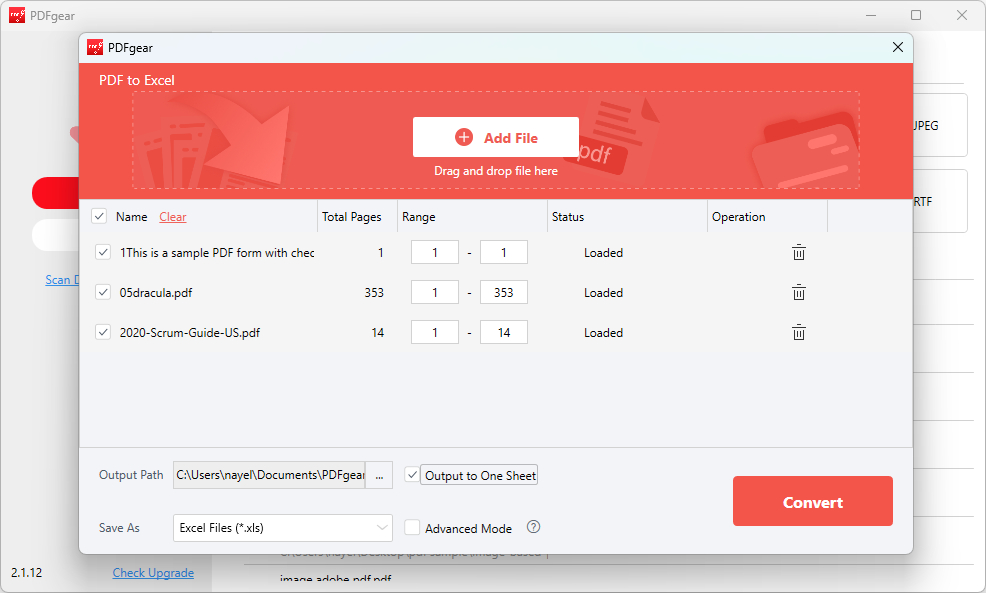
PDF to Excel
Try Our Online Converter for Better Results
As mentioned, for scanned PDFs or files with complex formatting, offline OCR may not always extract data perfectly. If you’re not satisfied with the results, we recommend trying our PDFgear online PDF to Excel converter. Our online OCR engine is more advanced and often produces higher accuracy, especially for image-based content — making it a powerful, trustworthy alternative when offline tools fall short.
While it temporarily processes files on our server, we treat your documents with the utmost care: all files are encrypted during transfer, never stored, and automatically deleted after conversion.
How to Convert PDF to Excel Offline Using Microsoft Excel
Microsoft Excel’s built-in data import feature provides a convenient, offline method to convert PDF files into Excel, especially for extracting structured data like tables. Available in newer versions of Excel (Office 365 and Excel 2016 or later), it allows users to import data from PDFs using the Power Query tool.
While it may struggle with complex layouts or scanned PDFs, it is an efficient option for most standard PDFs.
Pro Tip: If you need to work with scanned PDFs, use PDFgear instead.
To use Excel’s Get Data Feature:
1. Open Excel: Launch Microsoft Excel and open a new or existing workbook where you want to import the data.
2. Access Get Data: Go to the Data tab in the Excel ribbon.
3. Select From PDF: In the “Get & Transform Data” group, click on Get Data > From File > From PDF.
4. Browse and Import: A file explorer window will appear. Browse to the location of your PDF file, select it, and click Import.
5. Navigate and Select Tables: Excel’s Power Query Navigator pane will open. This pane intelligently detects tables and even individual pages within your PDF.
Review the tables and pages listed on the left, click on each detected table or page to see a preview of the data on the right, and select the table(s) you wish to import by checking the box next to them.
6. Load or Transform Data: Click Load to directly import the selected data into a new Excel worksheet.
(Recommended for complex PDFs) Click Transform Data to open the Power Query Editor. Here, you can clean, reshape, filter, and refine your data before loading it into Excel, ensuring better accuracy and formatting.
7. Apply Changes (if transformed): If you used “Transform Data,” make your adjustments in Power Query, then click Close & Load from the Home tab to bring the cleaned data into your Excel sheet.
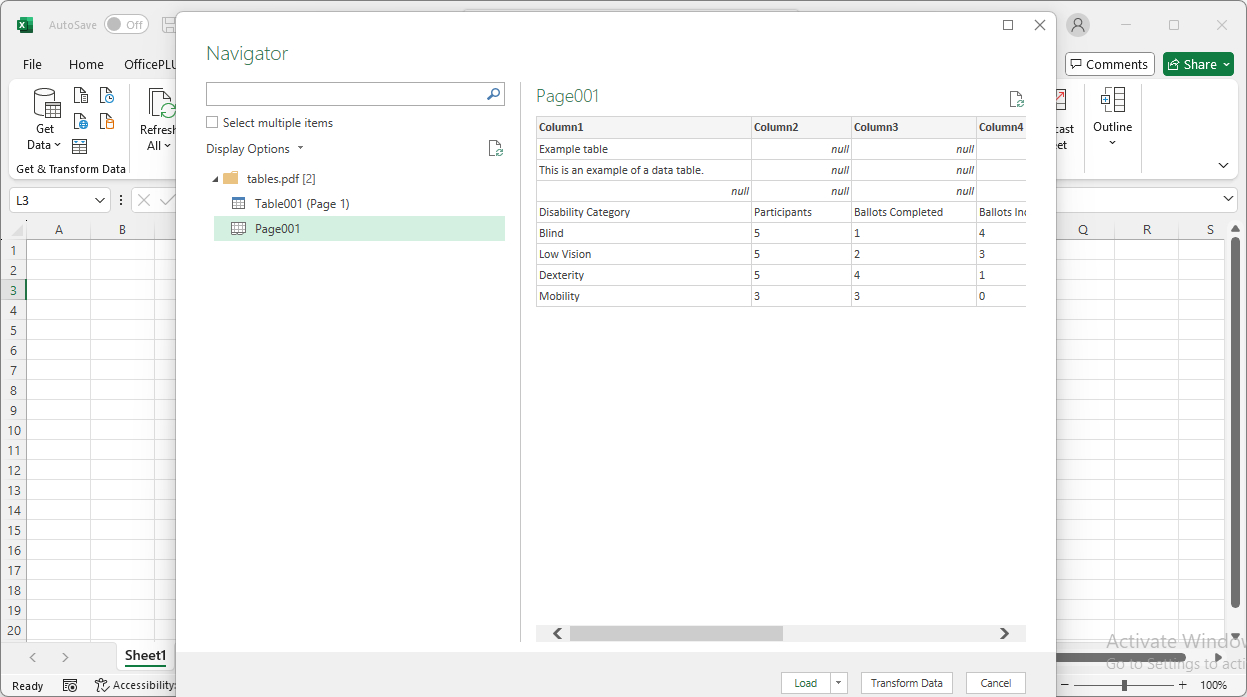
Excel Get Data
How to Copy-Paste from PDF to Excel Offline via Microsoft Word
For simple PDFs with minimal formatting and data, directly copying from PDF to Excel is indeed a way, but it often causes issues like inconsistent text alignment and spacing, and tables may lose their structure, requiring significant manual cleanup.
Using Microsoft Word involves an extra step where the PDF is converted into an editable Word document. Word’s conversion process typically preserves tables, columns, and other structured data better than direct copying. After cleaning up and formatting the data in Word, you can paste it into Excel with improved accuracy.
The steps are as follows:
1. Open PDF in Word: Open Microsoft Word (version 2013 or later). Go to File > Open, then browse and select your PDF file. Word will prompt you that it will convert the PDF to an editable Word document. Click “OK.”
2. Wait for Conversion: Word will process the PDF. This may take a moment for larger or more complex PDFs.
3. Copy from Word: Once the PDF content is open in Word, select the table(s) you need. Copy them (Ctrl + C / Cmd + C).
4. Paste into Excel: Go to your Excel sheet, select a cell where you want the table to start, and paste (Ctrl + V / Cmd + V).
5. Format as Needed: You may still need to adjust column widths, merge cells, or realign data in Excel.
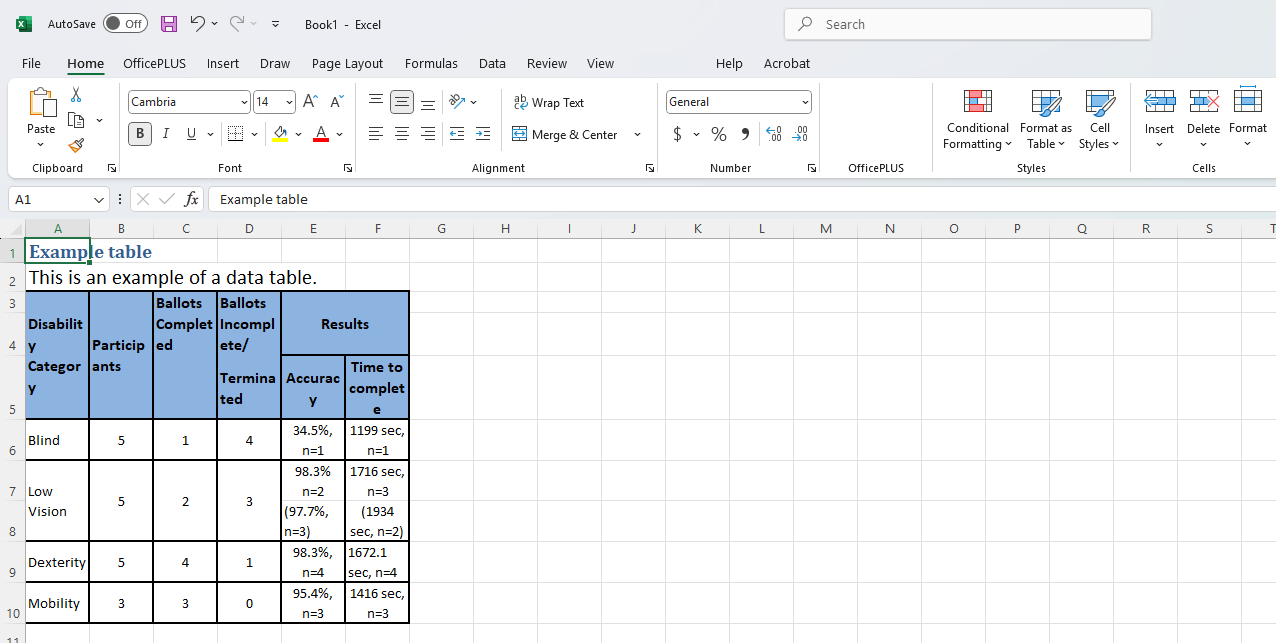
Table Copied form Word
FAQs
When should I use Word or Excel instead of a PDF converter?
Use Word or Excel methods if:
- The PDF is short and simple.
- You only need to grab a small portion of data.
- You’re comfortable doing some manual cleanup in Excel.
For larger, scanned, or complex PDFs, a tool like PDFgear with accurate data extraction and OCR support is a much better option.
Is PDFgear really free to use?
Yes, PDFgear offers free-to-use offline PDF to Excel conversion on both desktop and mobile platforms. There are no file size limits, hidden charges, ads, or watermarks.
Does PDFgear require an internet connection to work?
No. Once installed, PDFgear’s conversion features work entirely offline. All file processing happens locally on your device, which keeps your data secure and conversion fast—even without internet access.
Can I convert scanned PDFs to Excel using PDFgear?
Yes. PDFgear includes powerful OCR (Optical Character Recognition) technology that allows you to convert scanned or image-based PDFs into fully editable Excel spreadsheets.
Is batch conversion supported?
Absolutely. PDFgear’s desktop software allows you to convert multiple PDF files to Excel in one go, but this feature is not available in our mobile app for now.
Can I edit my PDF before converting it to Excel?
Yes. PDFgear includes PDF editing tools in both desktop and mobile versions, allowing you to make changes before conversion.
Is PDFgear safe to use for confidential documents?
Yes. Whether you use our offline app or online service, your files are never uploaded to any server. All processing happens locally on your device, ensuring complete privacy and security for sensitive information.
Make the Smart Choice: Choose PDFgear for Secure Conversion
Don’t compromise your data’s security for convenience. With PDFgear, you get powerful, free, and secure solutions that put you in control. Transform your PDFs into editable Excel files with confidence, knowing your sensitive information stays private.
Try PDFgear online converter or download PDFgear today and experience the difference!

