Table of Contents
Converting PDF files to editable Excel spreadsheets without losing their original formatting can be a challenging task, we at PDFgear aim to help you with our free software and valuable information.
This guide explores various methods, their strengths, weaknesses, and best practices to help you convert your PDFs to Excel with minimal formatting loss.
Here’s a summary:
For quick, free online PDF to Excel conversions: Opt for our PDFgear online PDF to Excel converter. It’s ideal for small, digital PDFs where convenience and basic OCR support are key.
For large PDFs or all-around PDF conversions: Choose our PDFgear software. It offers batch processing, support for outputting multiple PDF pages to one spreadsheet, and handles large files efficiently, all offline. It also allows you to convert PDF to Word, PPT, JPG, etc.
For extracting structured data from large text-based PDFs: Use Microsoft Excel’s built-in PDF import feature. This method is powerful for large data transformation and cleaning, but not for preserving visual formatting.
For direct copying/pasting a small set of data from PDF to Excel: Consider Microsoft Word as an intermediate step. Microsoft Word can analyze the PDF layout structure. When copied into Excel, these Word tables retain rows, columns, and basic formatting like bold text and alignment.
Why PDF to Excel is Tricky
The primary difficulty in converting PDF to Excel lies in the fundamental difference between the two formats:
PDF (Portable Document Format): Designed for consistent viewing and printing across devices. It describes the layout, text, and graphics precisely but often lacks the underlying structured data that Excel needs for easy manipulation. Tables in PDFs might just be lines and text positioned to look like a table.
Excel (XLSX): A spreadsheet format structured into rows, columns, and cells, ideal for data organization, calculation, and analysis.
Common Issues
This structural difference means that converting a PDF to Excel isn’t just a simple copy-paste; it requires intelligent recognition of table structures, data types, and formatting elements. Common issues include:
- Lost Formatting: Fonts, colors, borders, and cell shading may not transfer accurately.
- Structural Errors: Merged or split cells, misaligned rows/columns, and incorrect table detection.
- Content Errors: Garbled text, incorrect data types (e.g., numbers read as text), missing data, or extra spaces.
- Scanned PDFs: Image-based PDFs require Optical Character Recognition (OCR) to become editable, adding another layer of complexity and potential error.
Convert PDF to Excel Online for Free Using PDFgear
At PDFgear, we provide a powerful and free online PDF to Excel converter designed for ease and efficiency. With our intuitive drag-and-drop interface, you can quickly convert your PDF files in just a few clicks—perfect for one-time tasks or smaller documents.
One of the standout features of our tool is built-in OCR (Optical Character Recognition), which allows you to convert scanned or image-based PDFs into fully editable Excel spreadsheets. PDFgear ensures high-precision table extraction, maintaining complex table layouts, formatting, and data integrity throughout the conversion process.
It can be done in 3 simple steps:
1. Go to PDFgear online PDF to Excel converter, click Select PDF File to open the PDF you need to convert.
2. Then PDFgear will start converting your file. If it detects a scanned/image PDF, it will automatically apply OCR.
3. In a matter of seconds, click Download File button to get your Excel file.

What’s more, our onlien tool sports an industry-leading client-side processing feature that processes your files locally in your web browser instead of a remote web server, ensuring your privacy and speedy file processing.
However, if you’re working with excessively large PDF files, the file uploading time may be relatively long. In that case, the PDFgear software is a more reliable option.
Convert PDF to Excel Batches Offline Using PDFgear Free Software
For more demanding tasks, our free PDFgear desktop software provides a more robust and secure solution. This is a powerful all-in-one PDF tool with advanced features that excel in batch conversions and large/complex documents.
Furthermore, it helps combine all pages of a multi-page PDF into a single Excel sheet, maintaining data order and consistency.
That’s how to use it:
1. Download and install the PDFgear software on your computer, then open the application.
2. Go to the PDF to Excel tool from the Convert from PDF toolbox.
3. Click Add File and select single or multiple PDFs for conversion.
4. Select Output to One Sheet if you want the data on multiple PDF pages to be converted into one spreadsheet, and click Convert.
4. When the conversion is done, you’ll be led to the destination folder for you to check the output Excel file.
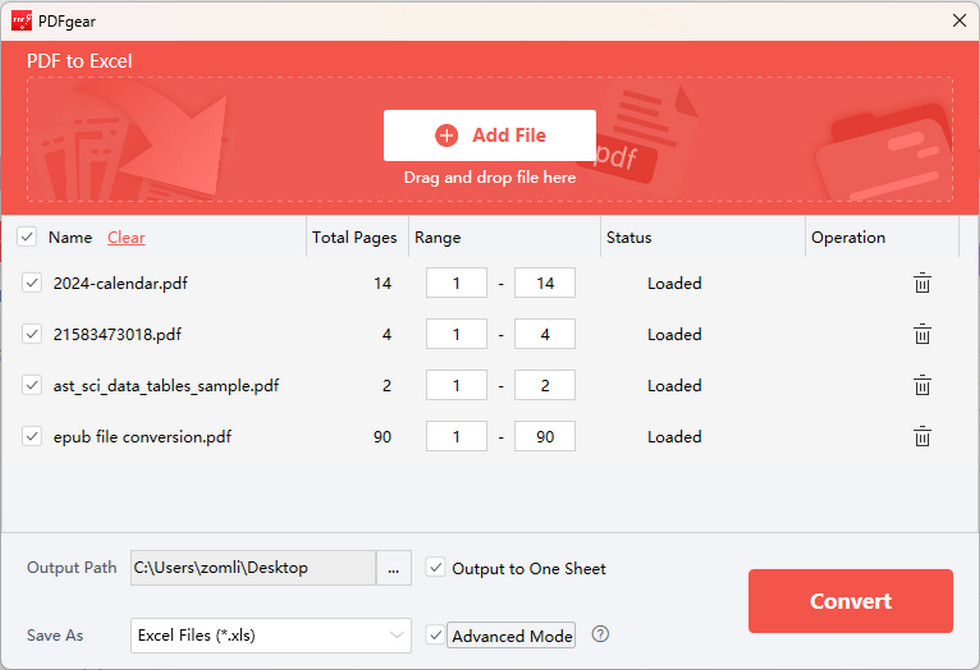
Another useful feature is that our software allows you to define the page range to be converted, making it possible to convert selected pages in multiple PDFs into one Excel spreadsheet.
The only drawback is the necessity of downloading and installing the software, which might be a minor inconvenience for users preferring purely web solutions.
Convert PDF to Excel Using Excel’s Built-in PDF Import
Modern versions of Microsoft Excel (2016 and later) have a built-in feature called Power Query that can import data from PDFs directly. This method is a data-centric approach, focusing on extracting the raw information rather than preserving visual formatting.
To do so:
1. In Microsoft Excel, go to the Data tab.
2. Select Get Data > From File > From PDF.
3. Choose your PDF and click Import.
4. Excel will display a Navigator window, where you can preview and select the tables you want to import. You can choose to Load the data directly or Transform Data in the Power Query Editor to clean it up first.
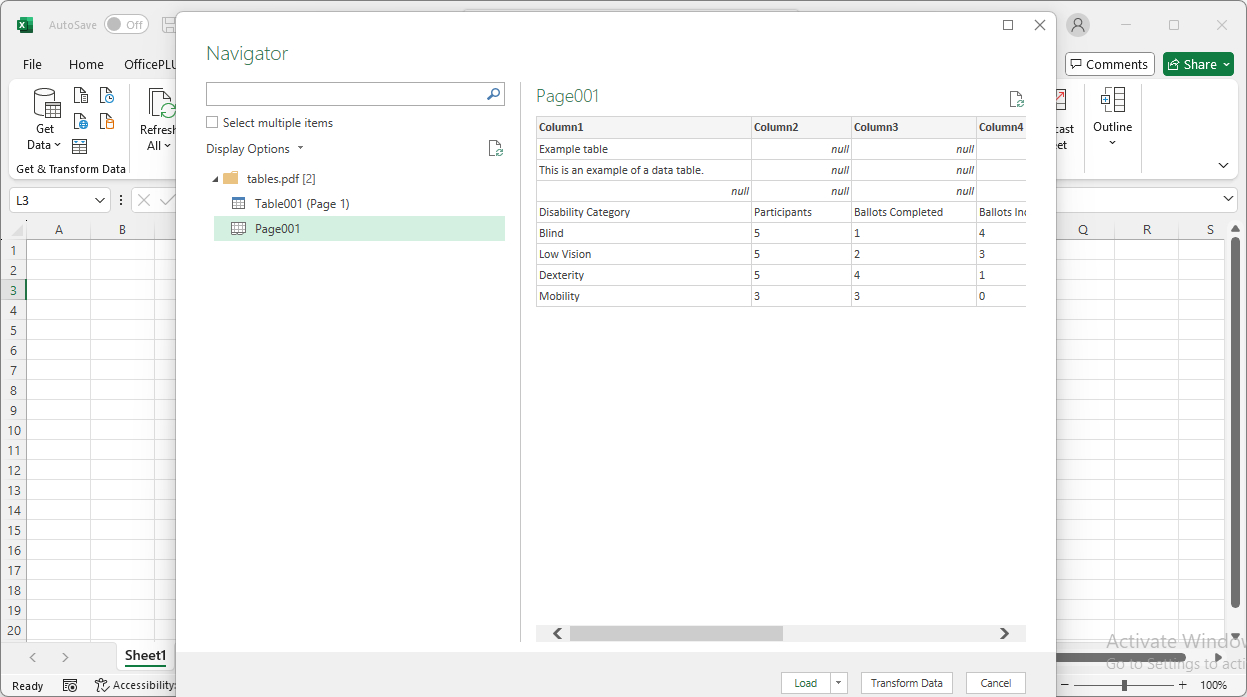
The primary advantage of using Excel’s built-in PDF import is its integration; no extra software installation is needed, and you can also leverage the powerful data transformation capabilities of Power Query. This makes it excellent for restructuring and cleaning data, such as filling down empty cells from merged rows or changing data types, addressing common issues encountered in PDF conversions.
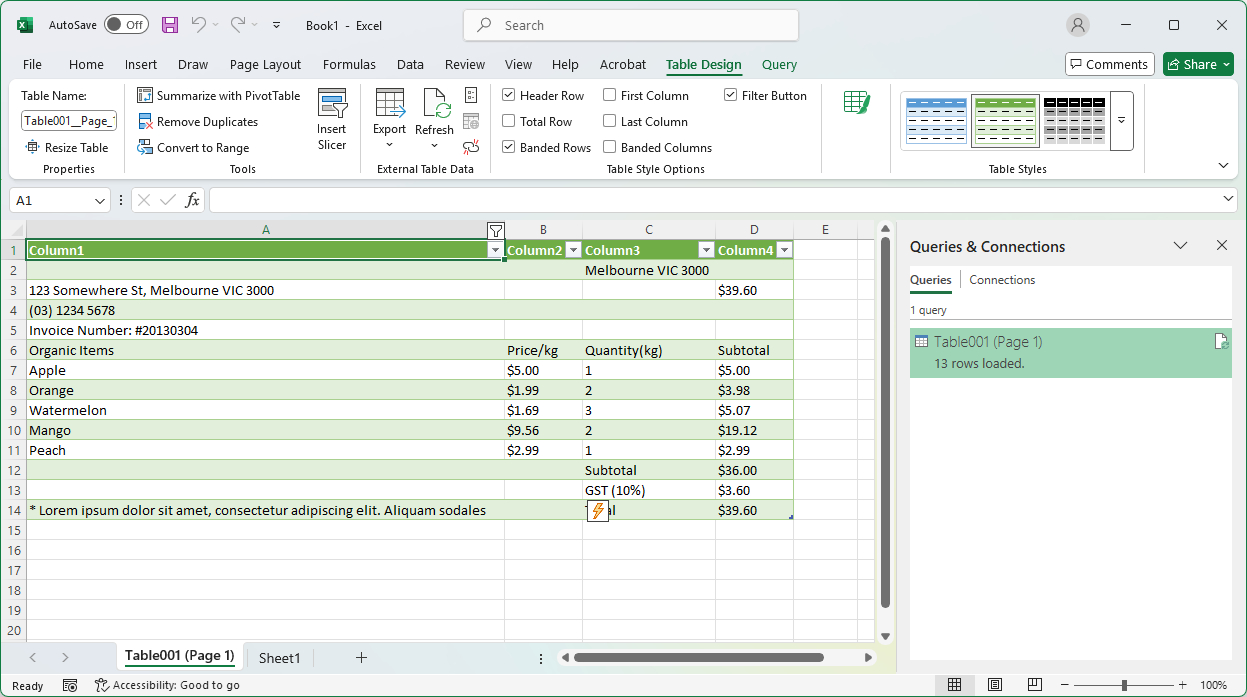
However, its main limitation is its focus on data rather than visual formatting, meaning it will not retain elements like cell colors, fonts, or exact layouts. Additionally, it cannot process scanned, image-based PDFs, as it lacks OCR functionality.
Copy PDF Data into Excel Using Microsoft Word
Microsoft Word can help convert PDF content into editable tables and text by analyzing its layout structure. When copied into Excel, these Word tables retain rows, columns, and basic formatting like bold text and alignment. This structured conversion preserves formatting better than plain text or image-based extraction methods.
How it Works
When you open a PDF in Word, Word reads the PDF file structure (text blocks, tables, images, headings), it translates visual layout into Word elements — paragraphs, tables, sections, etc. Tables in the PDF are usually turned into Word tables (not just text). You can then copy/paste those tables into Excel, keeping rows, columns, and some formatting.
Here’s how to do it:
1. Right-click the PDF file, choose Open with, and select Word. Word will convert the PDF into an editable document.
2. Once the document is opened in Word, select the data you need, and copy it using keyboard shortcut Ctrl + C (Windows) or Command + C (Mac).
3. Open a blank Excel spreadsheet, and paste it using keyboard shortcut Ctrl + V (Windows) or Command + V (Mac).
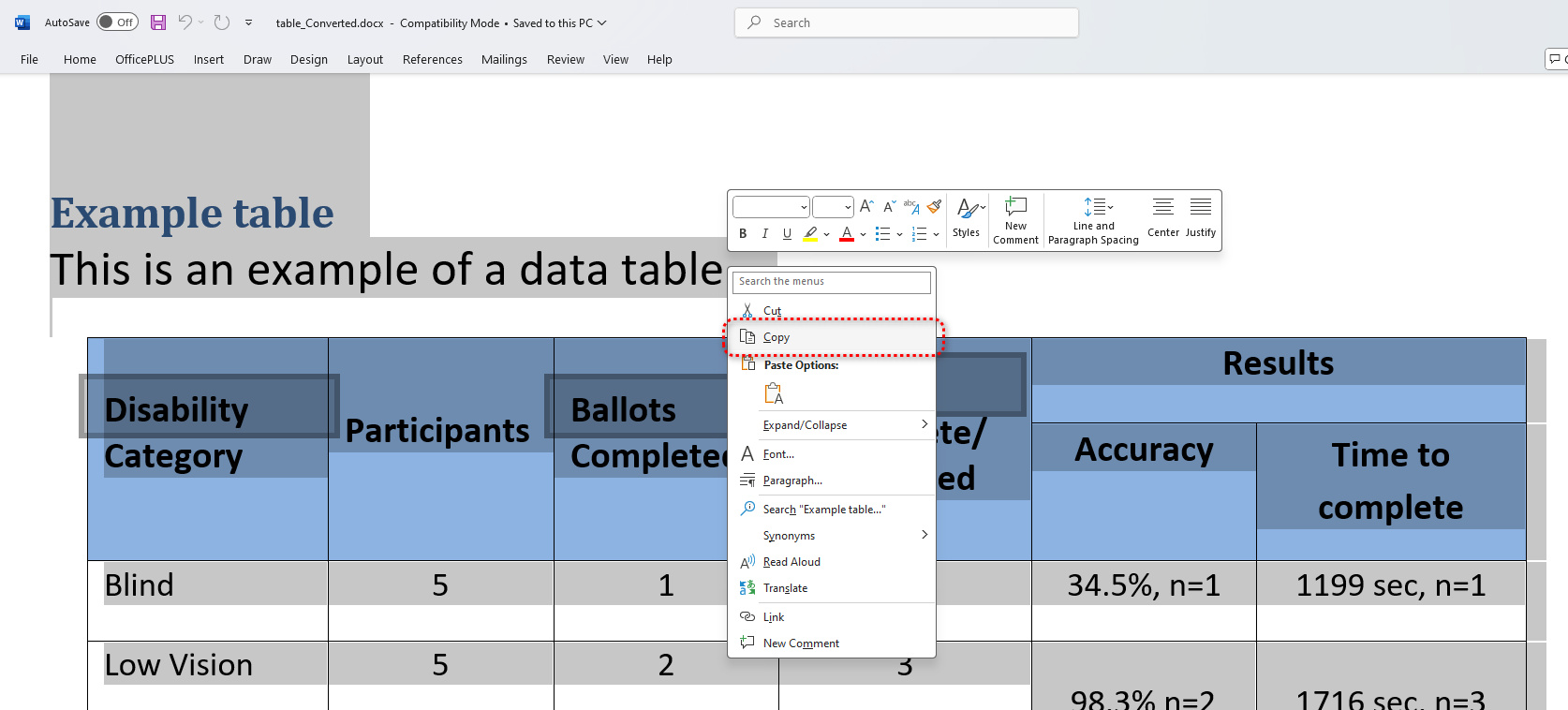
On the plus side, Word does a solid job of converting PDF tables and text into editable content while preserving much of the original formatting, such as table structure, bold text, and alignment. This makes it easier to copy the content into Excel with minimal cleanup. It’s also a widely available and familiar tool, requiring no additional software or online uploads.
However, this method has limitations—complex layouts or multi-column documents may not convert cleanly. Additionally, some manual adjustments are often needed after pasting into Excel, especially for large or detailed datasets.
Comparing the Conversion Results
In this section, we’ll compare the output Excel files from all introduced methods so you can understand which method is best for preserving document formatting during conversions.
PDFgear Online
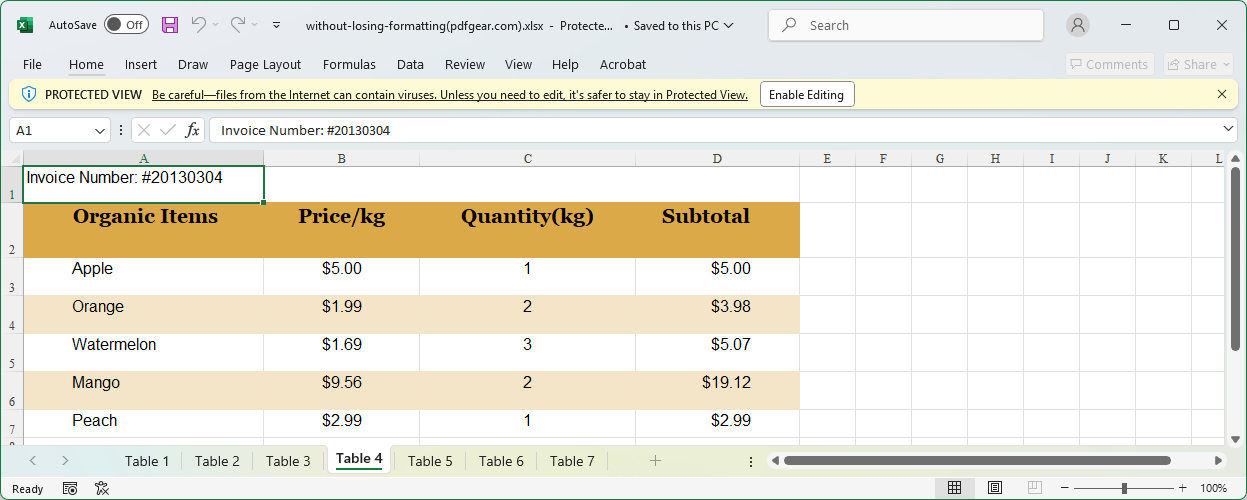
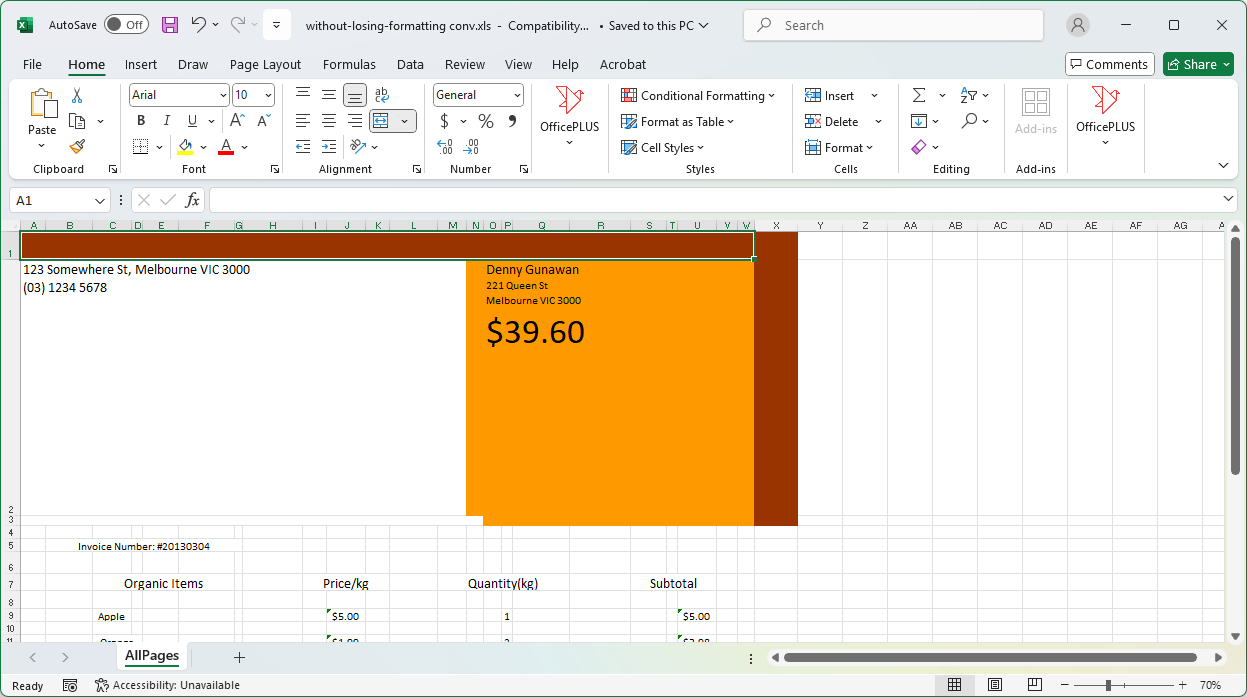
PDFgear online converter struck a good balance between the stability of the data extraction and the quality of the output file. It nicely preserves the formatting of PDF tables, but not the images. Moreover, it extracts different layers into different spreadsheets, and you can find your desired data in one of them.
PDFgear Software
PDFgear software is best for large PDF tables that go beyond one page. It allows you to export a large table from multiple PDF pages into one spreadsheet in Excel. It has minimal loss in the document formatting.
Microsoft Excel Data Import
Microsoft Excel is great for extensive PDF data, it precisely extracts all PDF tables from the original PDF, and you get to choose which tables to keep. But the data transmission results in a significant loss of visual appearance.
Microsoft Word Copy and Paste
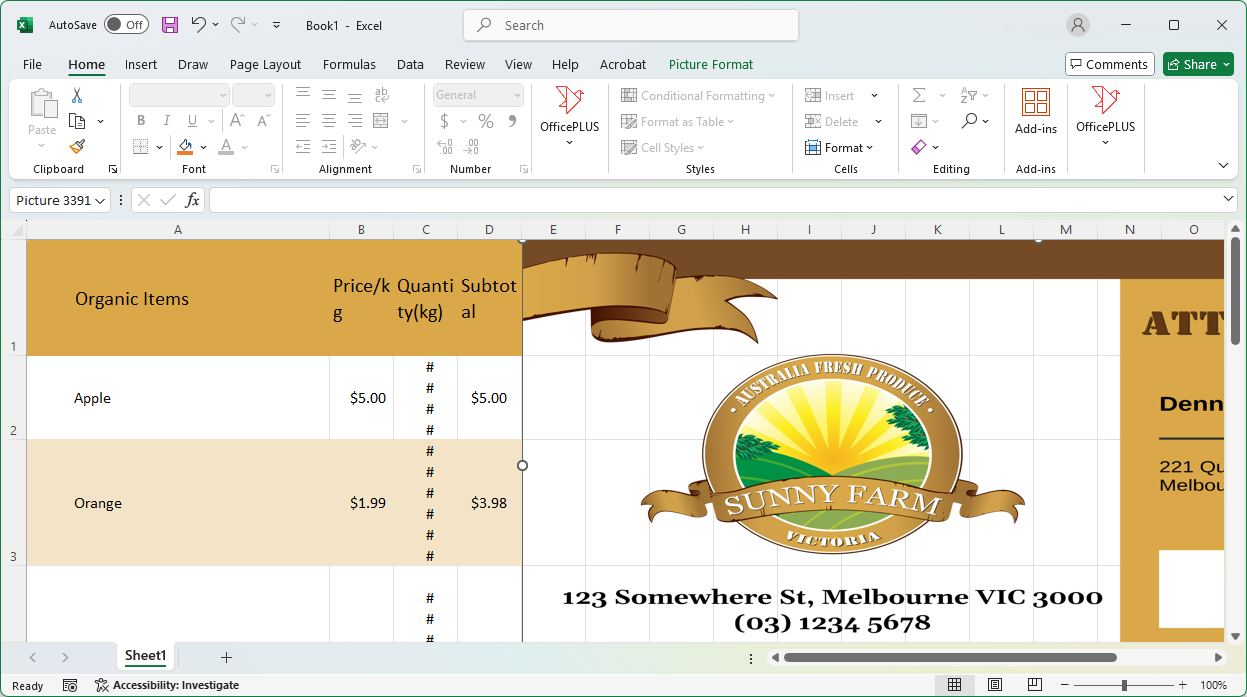
Microsoft Word is best at preserving the original visual appearance. Both images and tables have been copied to Excel with the original look. There are usually layout shifts, but they can be easily fixed manually.
Best Practices for Optimal Conversion
To maximize your chances of converting PDFs to Excel without losing formatting:
- Use High-Quality Source PDFs: The clearer and more structured the original PDF, the better the conversion outcome.
- Ensure Text-Based PDFs: If your PDF is scanned (image-based), use a converter with robust OCR capabilities like PDFgear. Ensure the scan is clear and well-aligned.
- Check Embedded Fonts: PDFs with embedded fonts generally convert better as text recognition is more accurate.
- Be Prepared for Post-Conversion Editing: Even the best tools aren’t perfect, especially with highly complex or inconsistently formatted PDFs. Expect to do some manual adjustments in Excel (e.g., merging/unmerging cells, reformatting numbers/dates, adjusting column widths, re-applying styles).

