How to Convert Word to PDF for Free

Summary :
Quickly and easily convert Word to PDF for free using PDFgear on Windows, Mac, iPhone/iPad, and Android.
Table of Contents
How to Convert Word to PDF Online for Free
Converting Word to PDF keeps your document’s formatting, fonts, and images just the way they are. PDFs are also easier to share and view on any device.
No need to download anything—the PDFgear online platform lets you convert Word to PDF directly in your web browser. Give it a try!
No registration is required, and you can upload and convert as many files as you want every day.
The whole process is secure, and PDFgear ensures your fonts and formatting stay exactly like the original Word document.
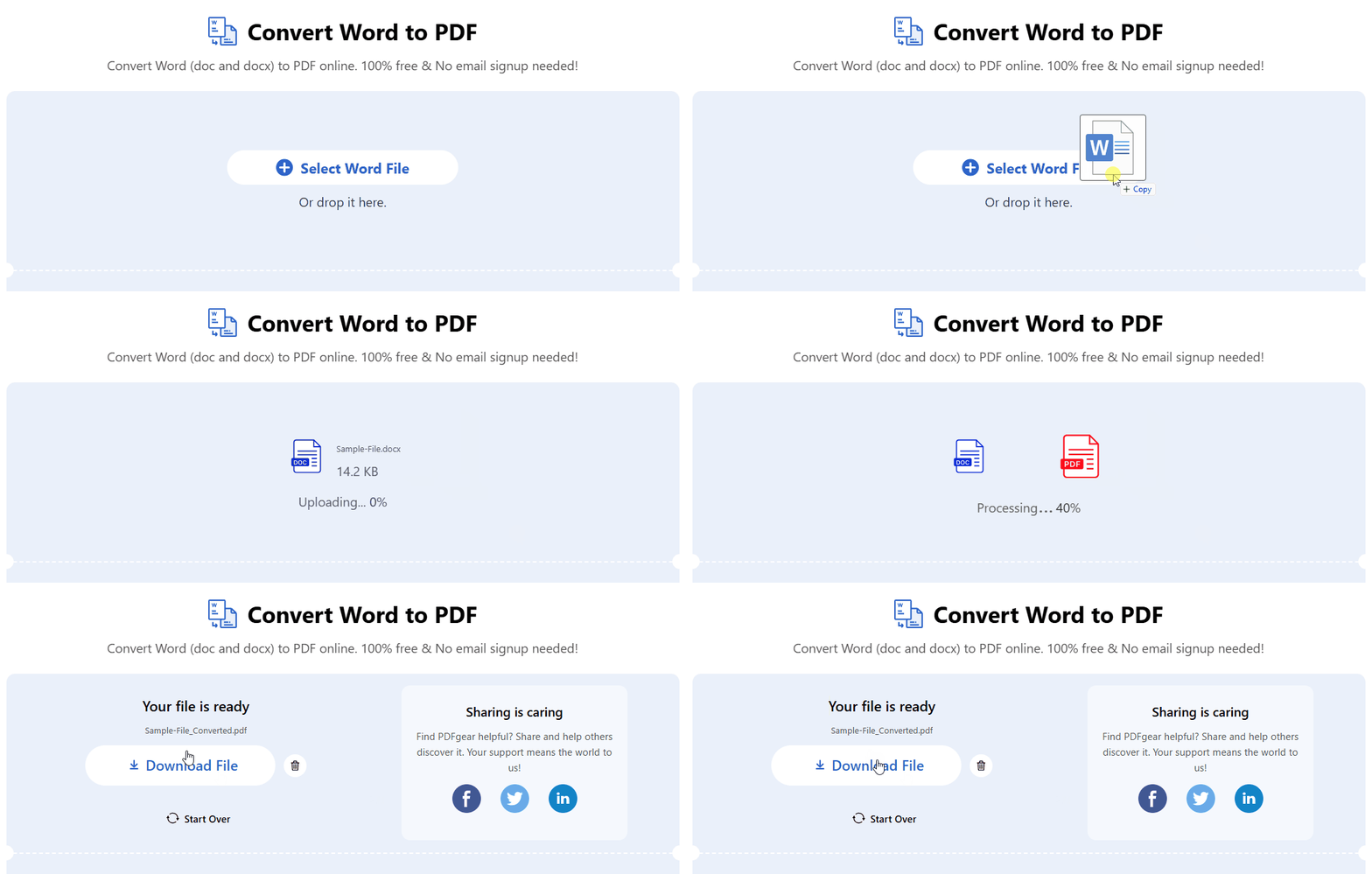
Step 1. Click the “Select Word File” button or drag and drop your file into the online Word to PDF converter.
Step 2. Sit back and relax while PDFgear automatically converts your Word file into a PDF.
Step 3. Done! Now download your PDF file. To start over, just click the “Start Over” button.
Watch the video to learn how to use PDFgear to convert a Word to a PDF.
How to Covert Word to PDF on Windows
For better privacy and faster performance, download PDFgear on your PC to easily convert Word to PDF.
PDFgear is a great free alternative to Adobe Acrobat, with batch conversion features at no cost.
It has an intuitive interface, and no ads will pop up while turning Word to PDF.
PDFgear allows you to convert multiple Word files to PDFs at once for FREE.
Step 1. Download and install PDFgear from the official website, then launch the PDFgear application on your Windows computer.
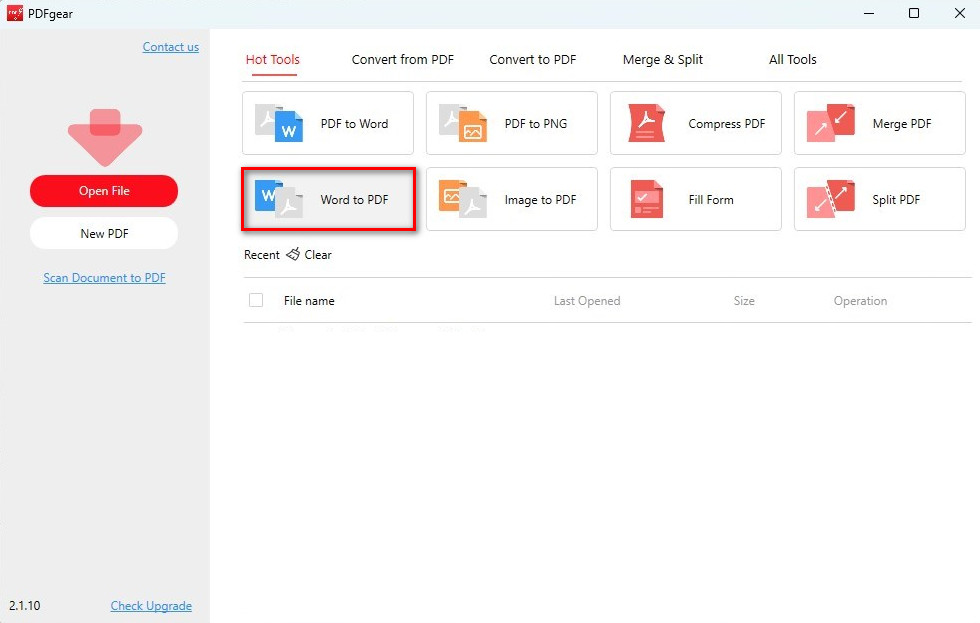
Select the Word to PDF
Step 2. On the main interface, find and click the “Word to PDF” option under “Hot Tools.”
Step 3. Click the “Add Files” button or drag your Word documents directly into the conversion window.
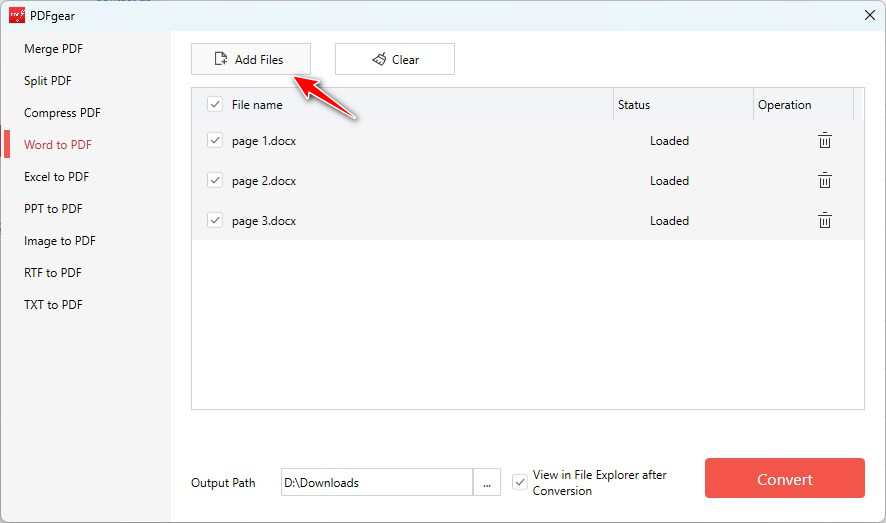
Add Word Files to Convert
Step 4. Set a location on your computer to save the PDF file and click “Convert” to start the conversion process.
It just takes a click to turn Word documents into easy-to-share PDFs.
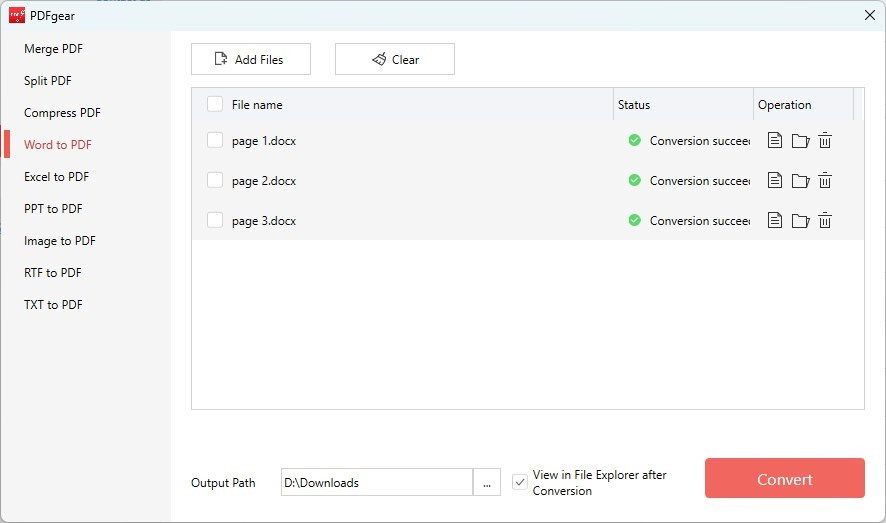
Batch Convert Word to PDF
Step 5. Once the conversion is complete, PDFgear will open File Explorer, allowing you to view the PDF file.
With a Microsoft Office subscription on a PC, you can directly save Word as a PDF.
How to Convert Word to PDF on Mac
PDFgear for Mac allows you to convert Word to PDF in bulk on your MacBook, MacBook Pro, or MacBook Air. It keeps the format, fonts, images, and layout just like the original Word document.
Plus, PDFgear is completely free to use. Download it from the Apple Store and enjoy fast, stable conversions.

Step 1. Launch the PDFgear application. On the main screen, find and select the “Word to PDF” option.
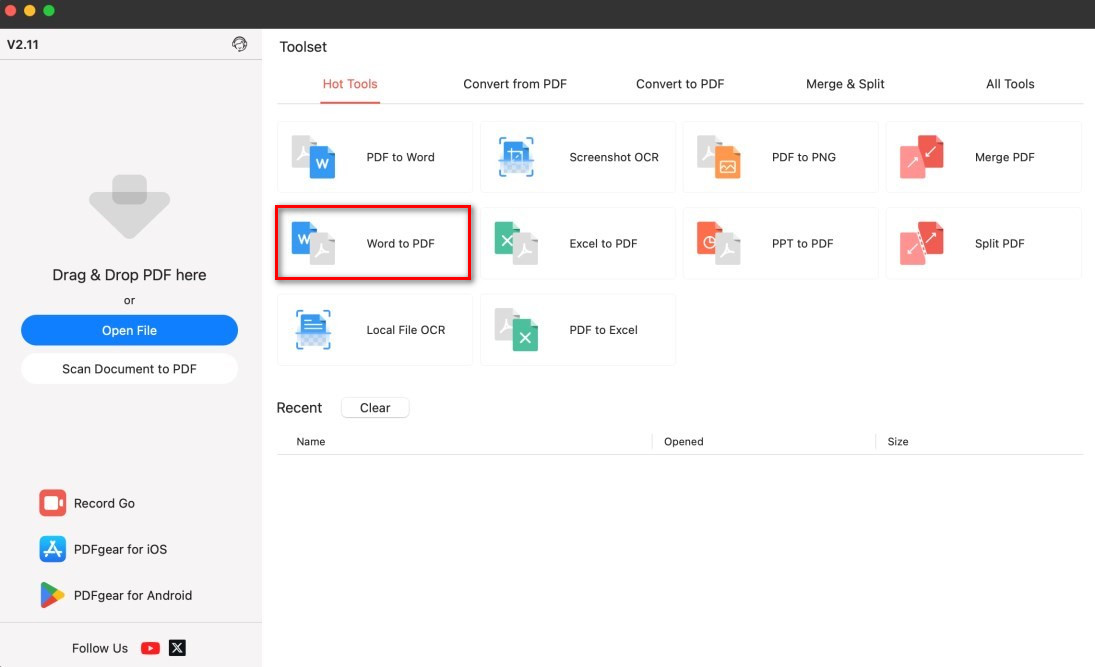
Open the Word to PDF Converter
Step 3. Drag and drop your Word document into the conversion window or click “Open File” to browse for the document on your computer.
Step 4. Set the output path and click the “Convert” button to start the process.
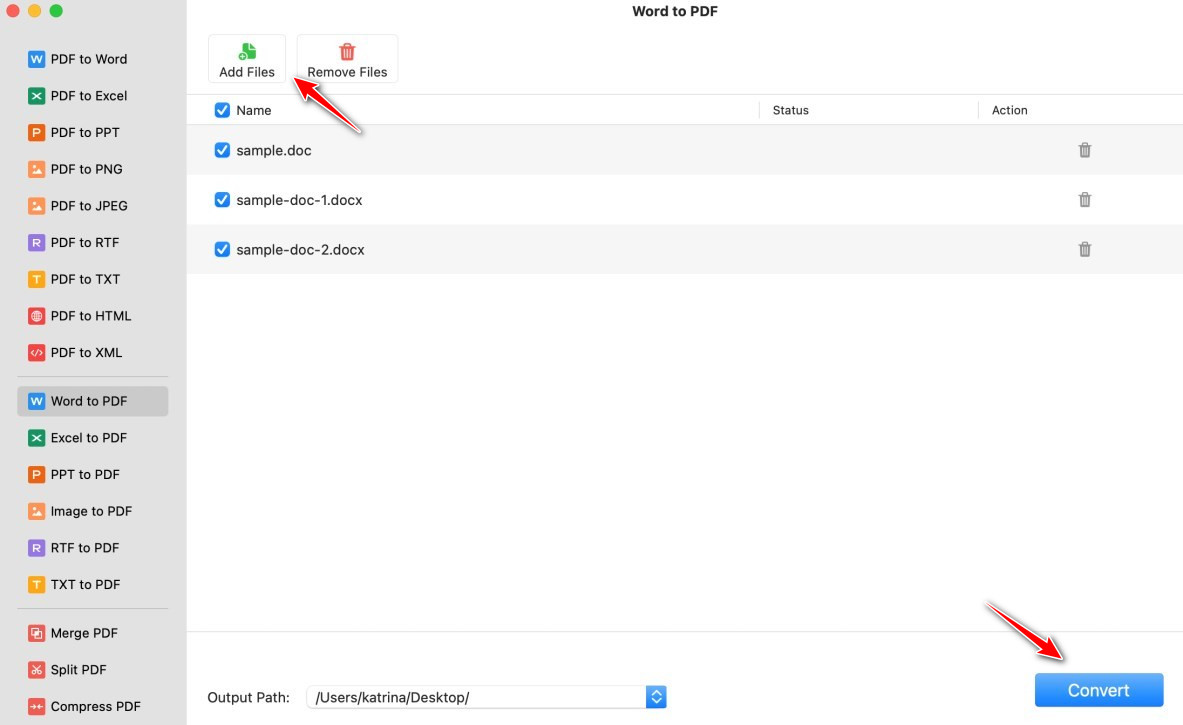
Batch Convert Word to PDF on Mac
Step 5. PDFgear will quickly turn Word files into PDFs, and the converted PDF will be saved to the desired location on your Mac.
You can also edit the converted PDF file on your Mac using PDFgear, such as text editing and adding annotations.
How to Convert Word to PDF on iPhone & iPad
PDFgear is a free app for iPhone and iPad that lets you easily convert Word documents into PDFs without losing any formatting.
It’s super easy to use and helps you convert your files quickly, so you can share or save them with no hassle.
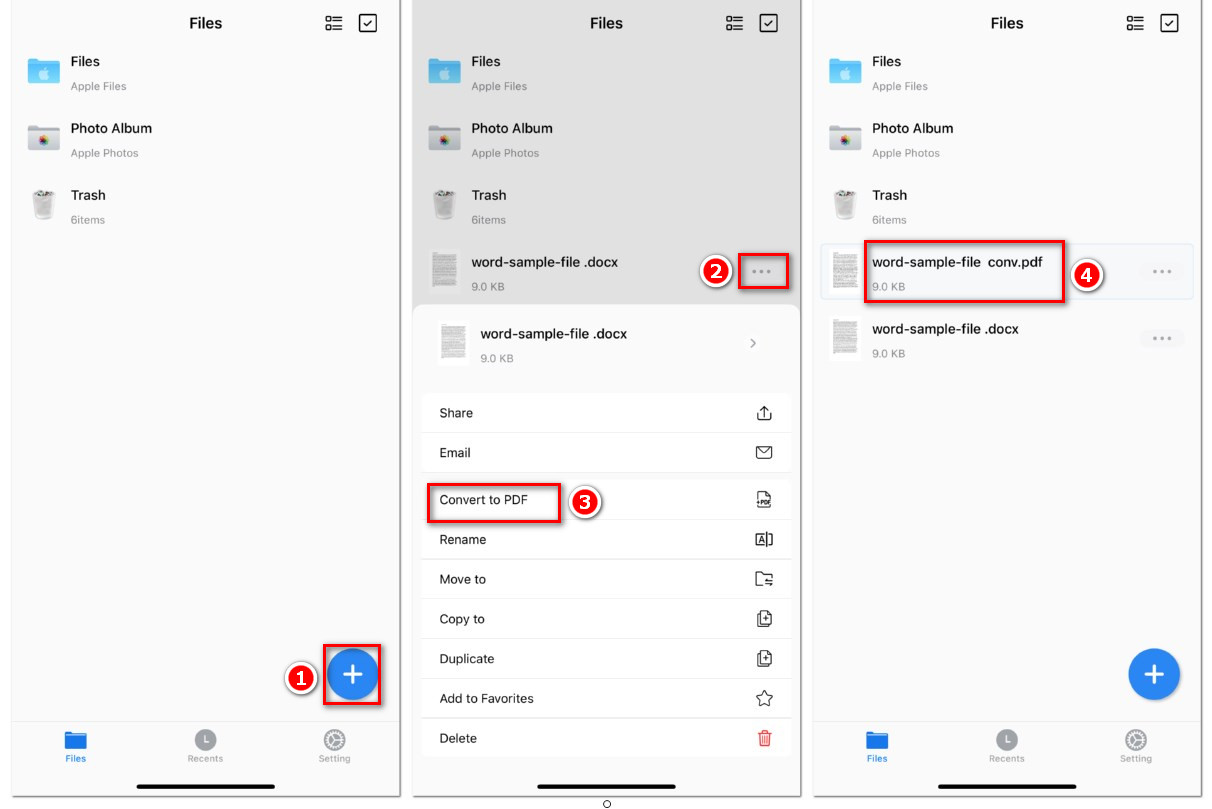
Convert Word to PDF on iPhone
Step 1. Download PDFgear from the App Store and install it on your iPhone or iPad.
Step 2. Open the PDFgear app on your iOS device.
Step 3. Tap the “+” icon to import the Word document you want to convert into PDFgear.
Step 4. After the file is imported, find it on the screen and tap the three-dot button next to the file name.
A menu will pop up at the bottom, where you can select “Convert to PDF”.
Step 5. PDFgear will automatically start turning the Word file to PDF and save the converted PDF on the interface.
PDFgear also offers a dedicated PDF converter to turn multiple Word files into PDFs. Download the app to quickly process many files on your iPhone or iPad.
How to Convert Word to PDF on Android
PDFgear for Android supports you convert Word to PDF directly on your phone or tablet. It keeps your document’s formatting, fonts, and images exactly the same.
The app is super easy to use, fast, and totally free—perfect for quick and reliable conversions on the go!
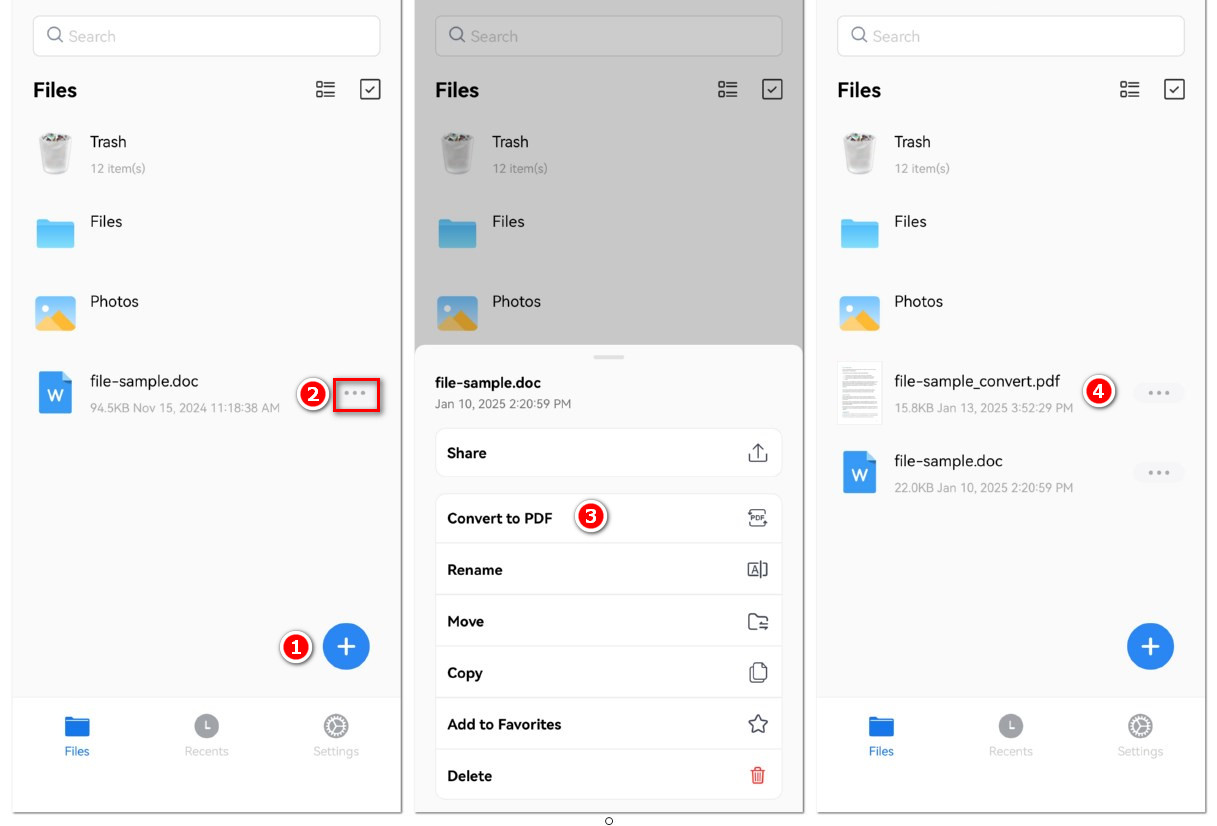
Convert Word to PDF on Android
Step 1. Download PDFgear from Google Play and install it on your Android device.
Step 2. Launch the PDFgear app on your Android phone or tablet.
Step 3. Tap the “+” icon to import the Word document you want to convert into PDFgear.
Step 4. Once the file is successfully imported, locate it on the interface and tap the three-dot button next to the file name.
A menu will appear at the bottom, and you can select “Convert to PDF”.
Step 5. PDFgear will automatically start the Word-to-PDF conversion process and save the converted PDF on the interface for easy access.
Open the converted PDF directly in PDFgear to check the result. To make any changes, you can easily edit the PDF on Android using the built-in editing tools.
FAQs
Are PDFs better than Word documents?
PDFs are better for sharing and printing because they keep the same formatting on any device. Word documents, on the other hand, may look different on different devices.
Is it safe to convert Word to PDF online?
Yes, it’s safe to use PDFgear to convert Word to PDF online. This online converter doesn’t have pop-up ads or hidden malware. Your Word files are handled by secure PDFgear servers, and they’re deleted when you close the webpage. You can learn more in our Privacy Policy.
Can I convert multiple Word documents to PDF at once?
Yes, you can convert multiple Word documents to PDF at once. PDFgear has a batch conversion feature that lets you transform several files at the same time on a Mac or PC, saving you time.
Can I edit a Word document after converting it to PDF?
Yes, PDFgear lets you edit PDFs directly in the app. You can easily replace, edit, or add text in a PDF file, just like you would in a Microsoft Word document.
How to convert Word to PDF without changing the font?
When you convert a Microsoft Word document to a PDF file using PDFgear software, it retains the font style of the text exactly as in the original Word document. Just get PDFgear for free, then follow Method 2 and Method 3 to transform Word to PDF while keeping the same font.
