How to Add Text to a PDF for Free

Summary :
This article will show you how to use PDFgear’s free tools and Adobe Acrobat Reader to add text to a PDF for free.
Table of Contents
Adding text to a PDF is often needed when you’re adding notes, correcting mistakes, or filling out a form. With the right tools, you can type directly onto the file, making edits quick and easy.
On this page, you’ll learn some free and easy methods to add text to or type on PDFs, with/without textboxes.
| Feature / Tool | PDFgear Online | PDFgear App | Adobe Acrobat |
| Platform | Web browser | Computer and mobile | Windows / macOS |
| Add Text | ✅ Yes | ✅ Yes (same font) | ✅ Yes |
| Edit Existing Text | ❌ No | ✅ Yes | ❌ No |
| Free to Use | ✅ Yes | ✅ Yes | ✅ Yes |
| Best For | Quick edits on any device | Advanced editing on computer/mobile | Basic free typing into PDF |
Add Text to a PDF Online for Free
PDFgear online PDF editor allows you to instantly add customizable text to a PDF online for free, without software installation.
You can choose from a dozen font types, font sizes, and text colors.
PDFgear is free to use, there’s no need to sign up for an account, and there’s no watermark.
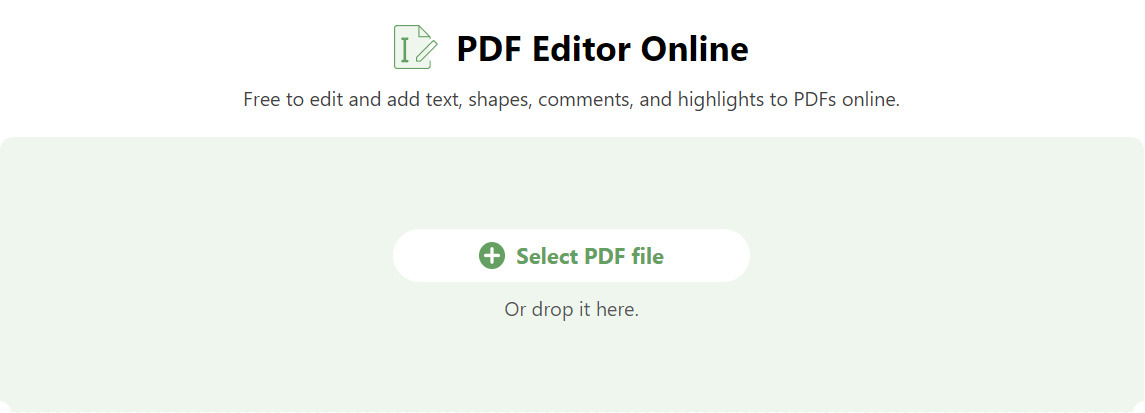
Step 1. Go to PDFgear online PDF editor, and click the Select PDF File button to open the PDF.
Select PDF file
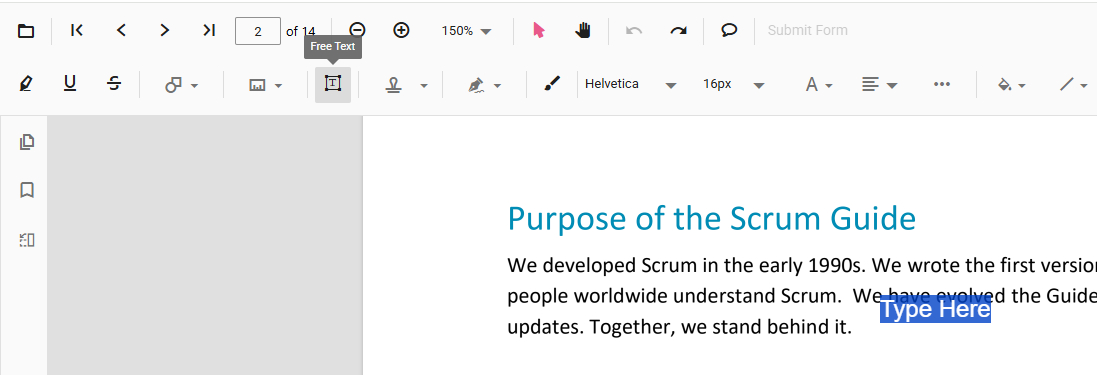
Step 2. When the PDF file is opened, tap the Free Text button from the upper ribbon, and tap on the PDF to add a textbox.
Add Free Text
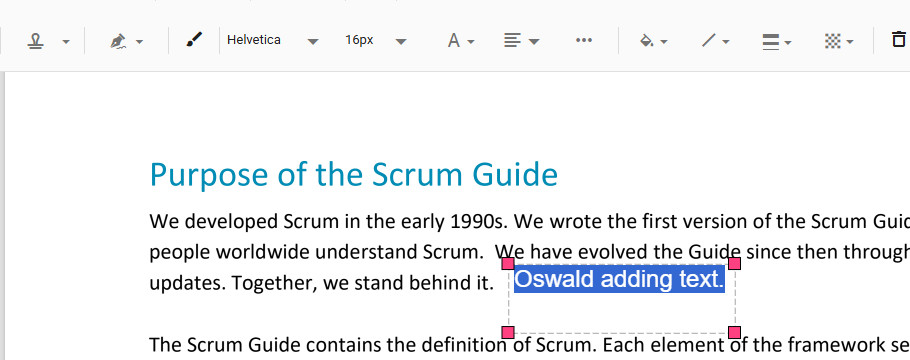
Step 3. Double-click on where that says “Type Here“, and use your keyboard to type on the PDF.
Type on PDF
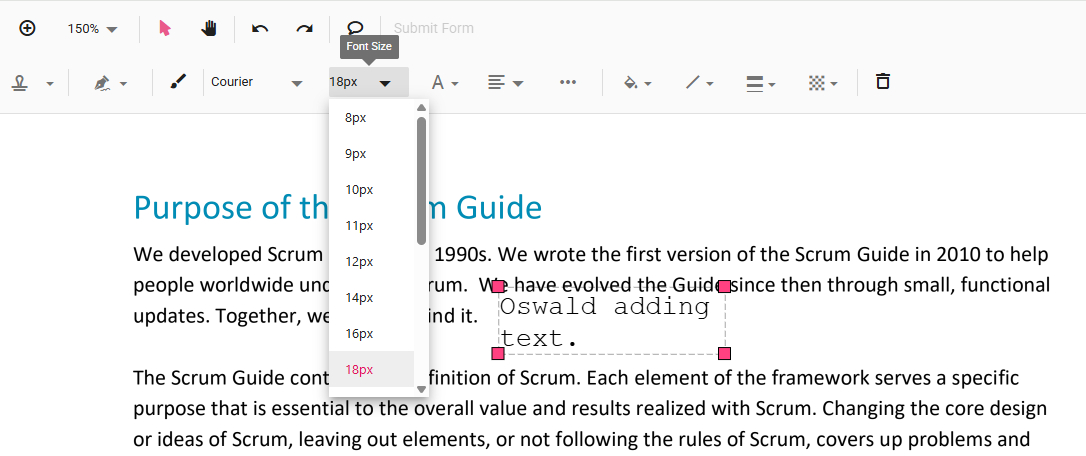
Step 4. Use the options on the upper menubar to change font style, font size, font color, and text alignment to your liking.
Change Font Size
Step 5. Drag and drop the added text for better typography.
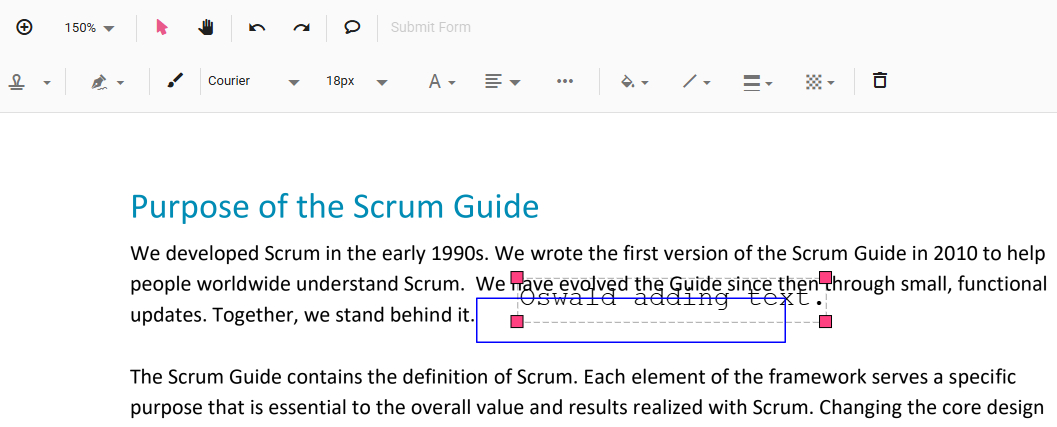
Resize and Reposition
Step 6. Alternatively, you can also write on PDF by clicking the Draw Ink option and drawing on the PDF.
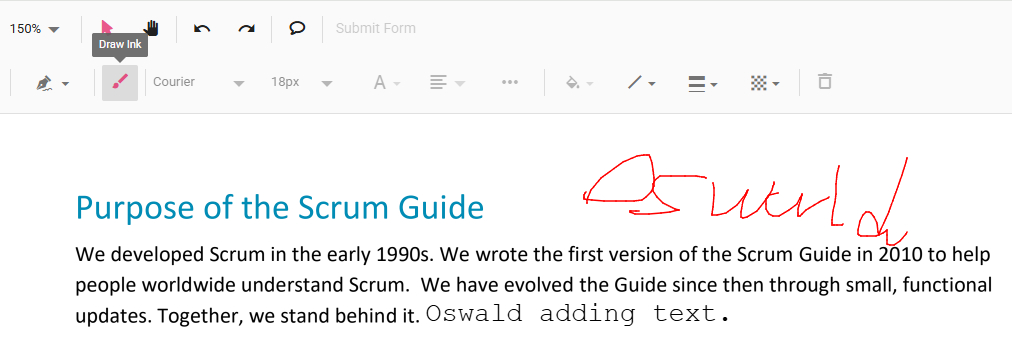
Draw on PDF
Step 7. Lastly, click the upper-right Download file button to download the PDF with text.
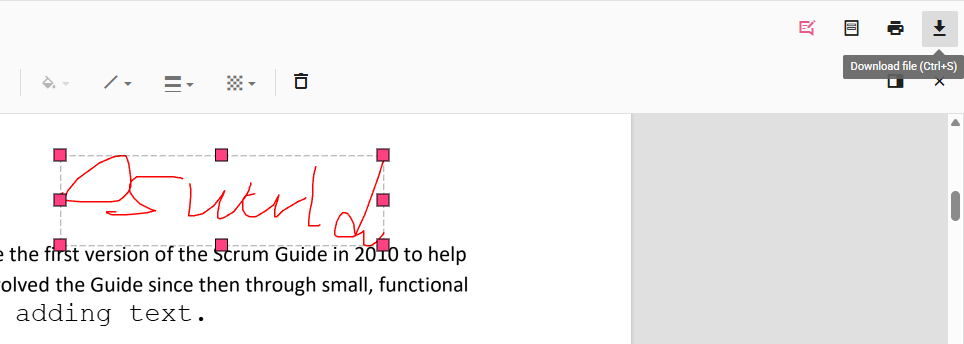
Download File
Add Text to a PDF with the Same Font for Free
To take your PDF text editing to the next level, PDFgear also offers powerful PDF editor software for Windows and Mac.
It offers a unique feature to edit existing text in PDF documents without formatting issues.
This allows you to add/replace/delete existing text in PDF without text boxes. Now get PDFgear to get started!
Edit existing text in PDF text while preserving the original formatting for free.
Step 1. Download PDFgear, install it on your computer, and open it. Click the Open File button to open the PDF you need to edit.
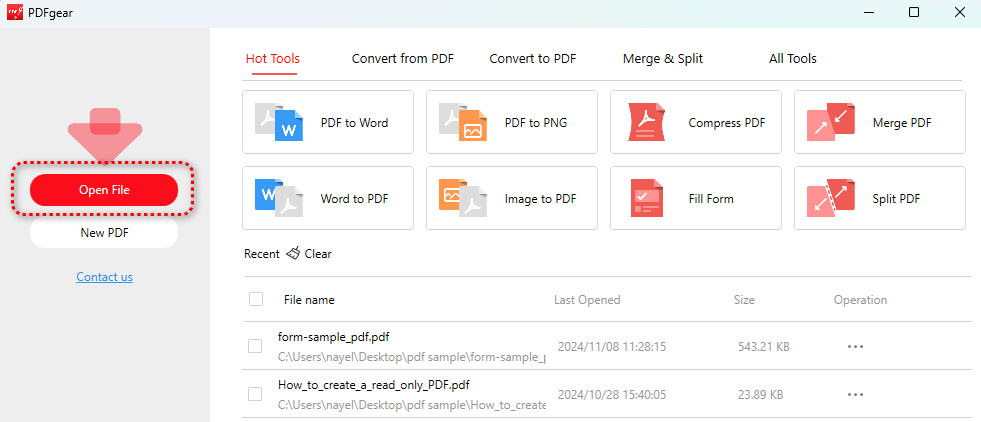
Open File
Step 2. Go to the Edit toolbox and click on the Edit Text tool, and you’ll be led to the text editing mode.

Edit Text
Step 3. In the text editing mode, select the part of text you need to modify, and start typing to add text.
The added text will match the original formatting of the selected paragraph.
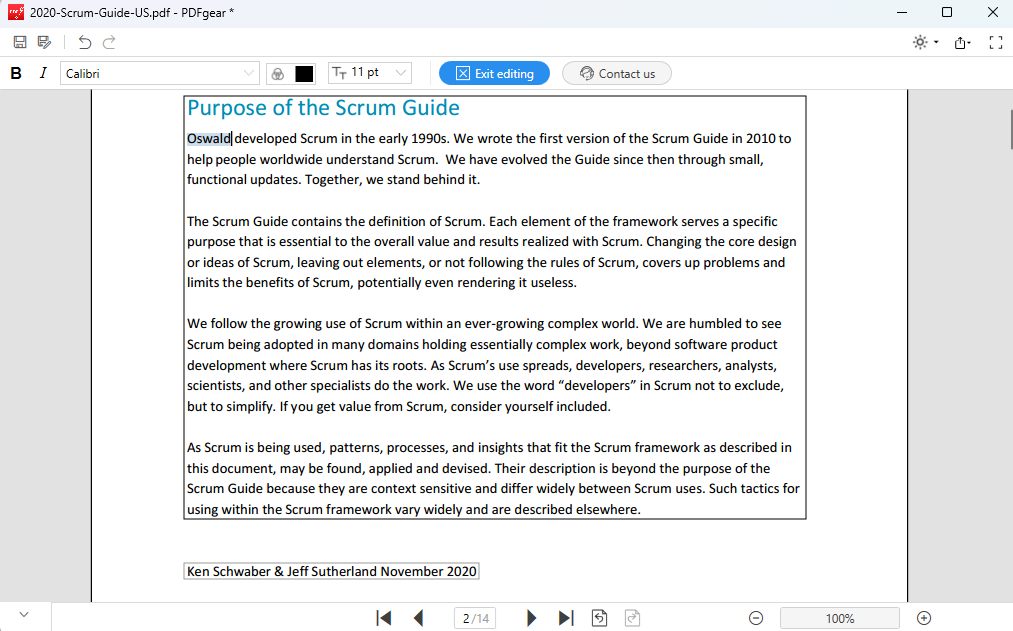
Add or Edit Text
Step 4 (Optional). You can also select the existing text and change its font type, font size, and text color. Once done, click Exit editing and confirm your changes.
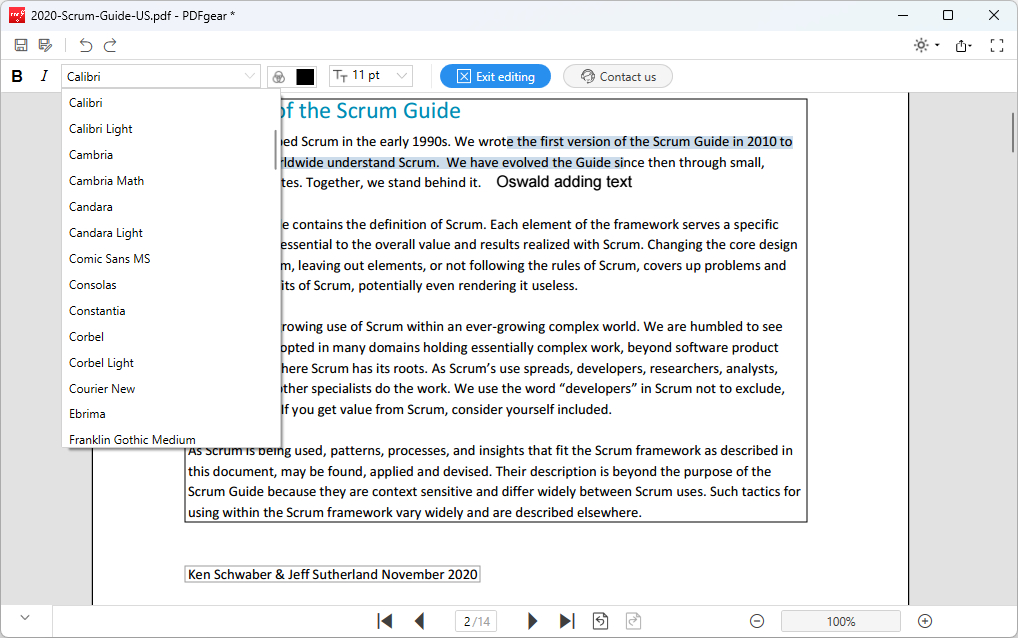
Change Font
Step 5. Moreover, you can also click on Add Text to add additional text boxes.
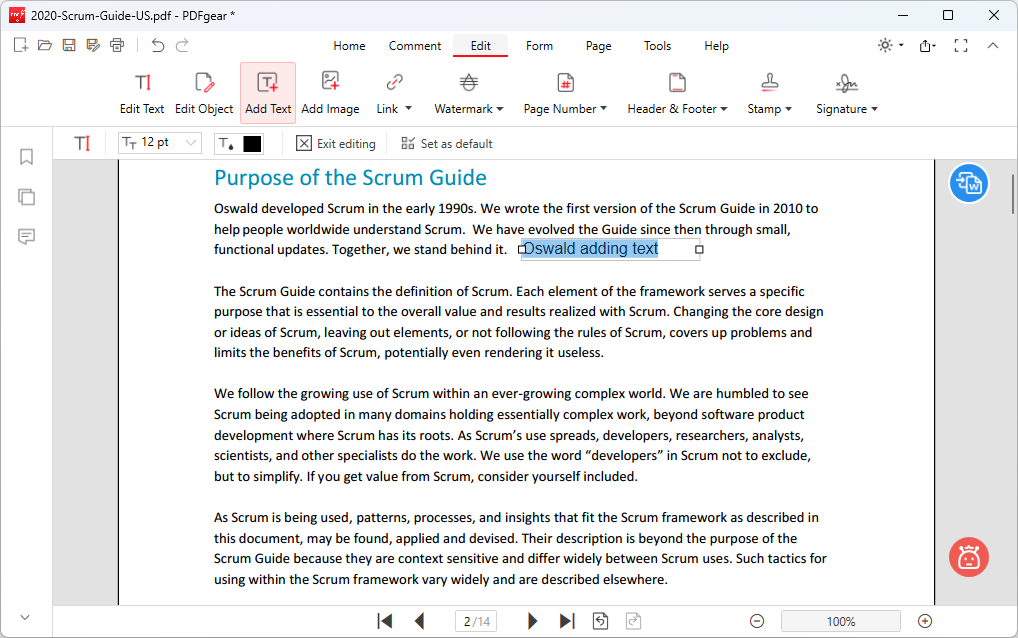
Add Text
Step 6. When you’re done adding PDF text, click the upper-left Save as button to save the PDF with new text.
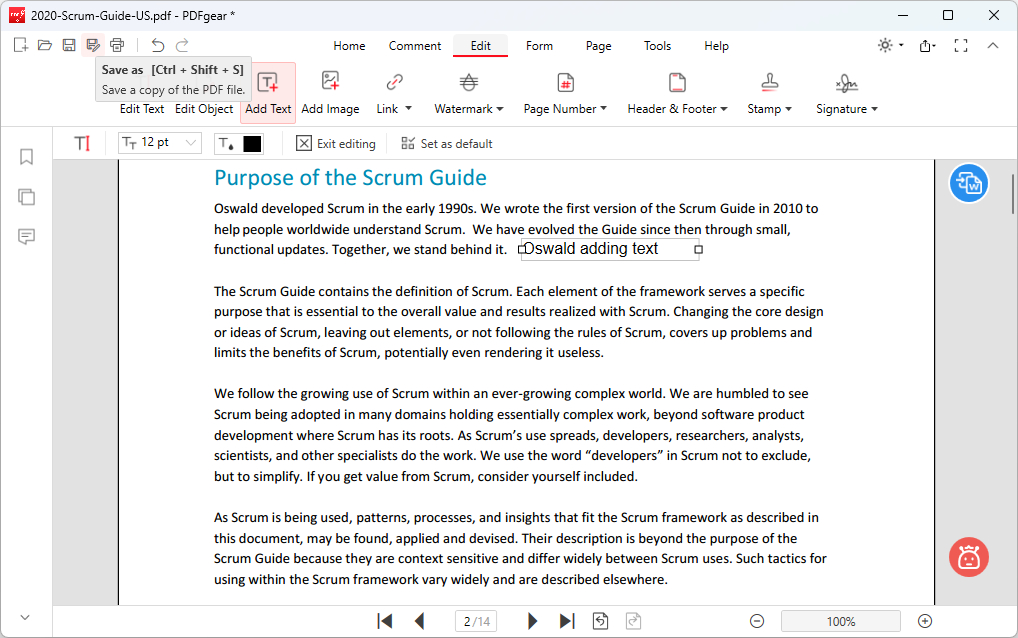
Save as
Add Text to a PDF on Mobile
For those working on a smartphone or tablet, the PDFgear mobile app is a go-to option.
With PDFgear, you can insert, modify, and format text directly within a PDF, making it ideal for filling out forms, adding notes, or making quick updates.
Now get the PDFgear app for free on the Apple App Store or Google Play!


Step 1. Open the PDFgear app, tap the lower-right Plus icon to add a PDF file, and tap on it to open it.
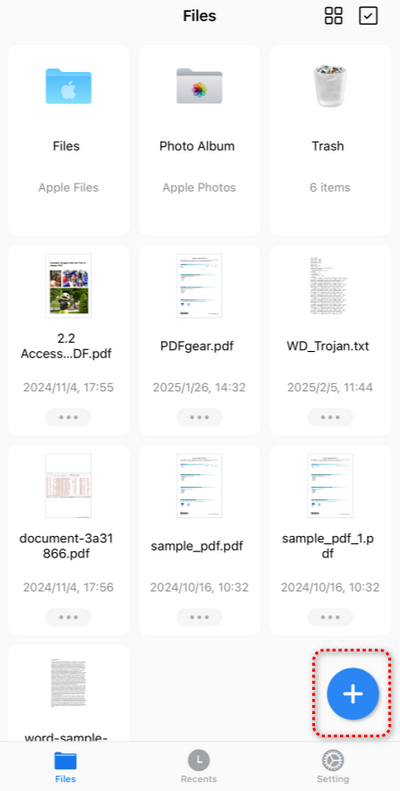
Tap Plus
Step 2. Tap the upper-right Edit button.
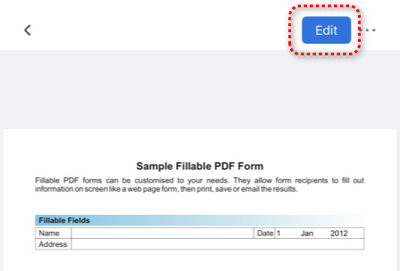
Tap Edit
Step 3. Tap the Annotate button at the top and switch to Edit Text mode.
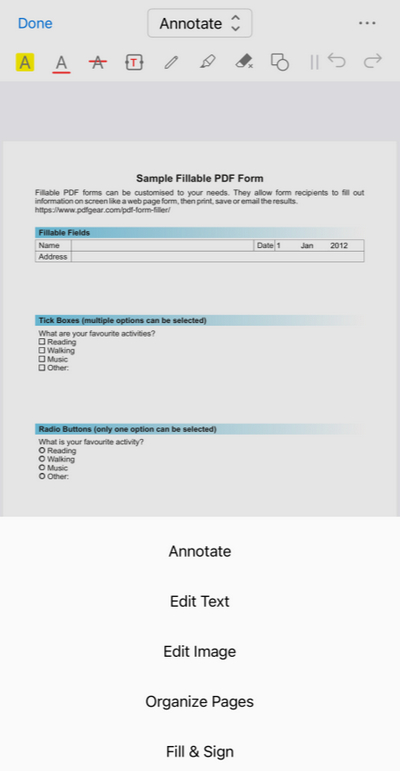
Go to Edit Text
Step 4. Tap on the paragraph where you want to add text and tap Edit in the pop-up menubar.
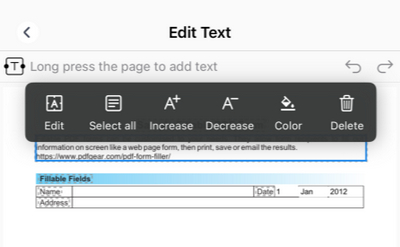
Tap Edit
Step 5. Move the text cursor with your finger and type on the virtual keyboard to add text.
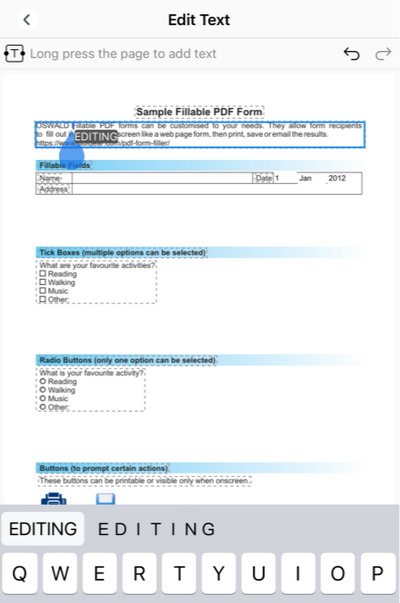
Type Text
Add Text to a PDF in Adobe Acrobat Reader
If you’re an Adobe Acrobat user, this part of the content will show you how to add text to a PDF with Adobe Acrobat.
Luckily, the free Adobe Acrobat Reader is already packed with some basic PDF editing features, which include adding text to PDF. This means you won’t need a pro subscription.
Step 1. Open Adobe Acrobat Reader on your computer, go to the Menu > Open to open the PDF.
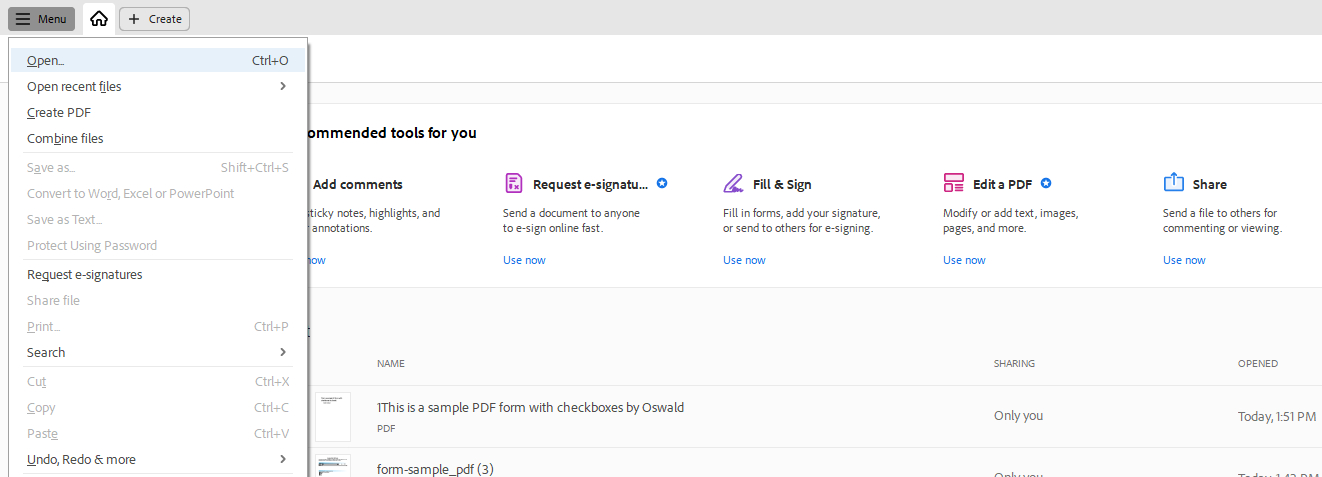
Open PDF
Step 2. Click on the Type Text tool from the toolbar to the left.
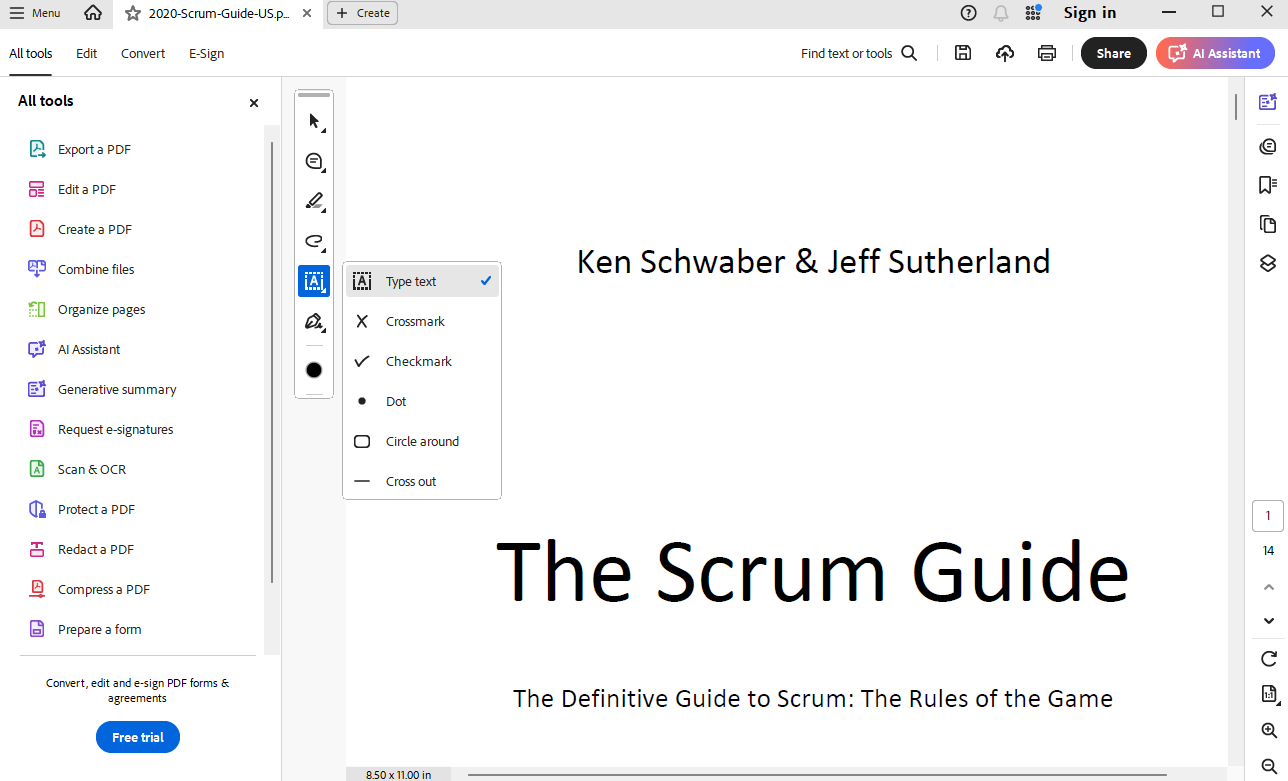
Type Text
Step 3. Click on where you want to add text to the PDF, then click on the inserted textbox to start typing.
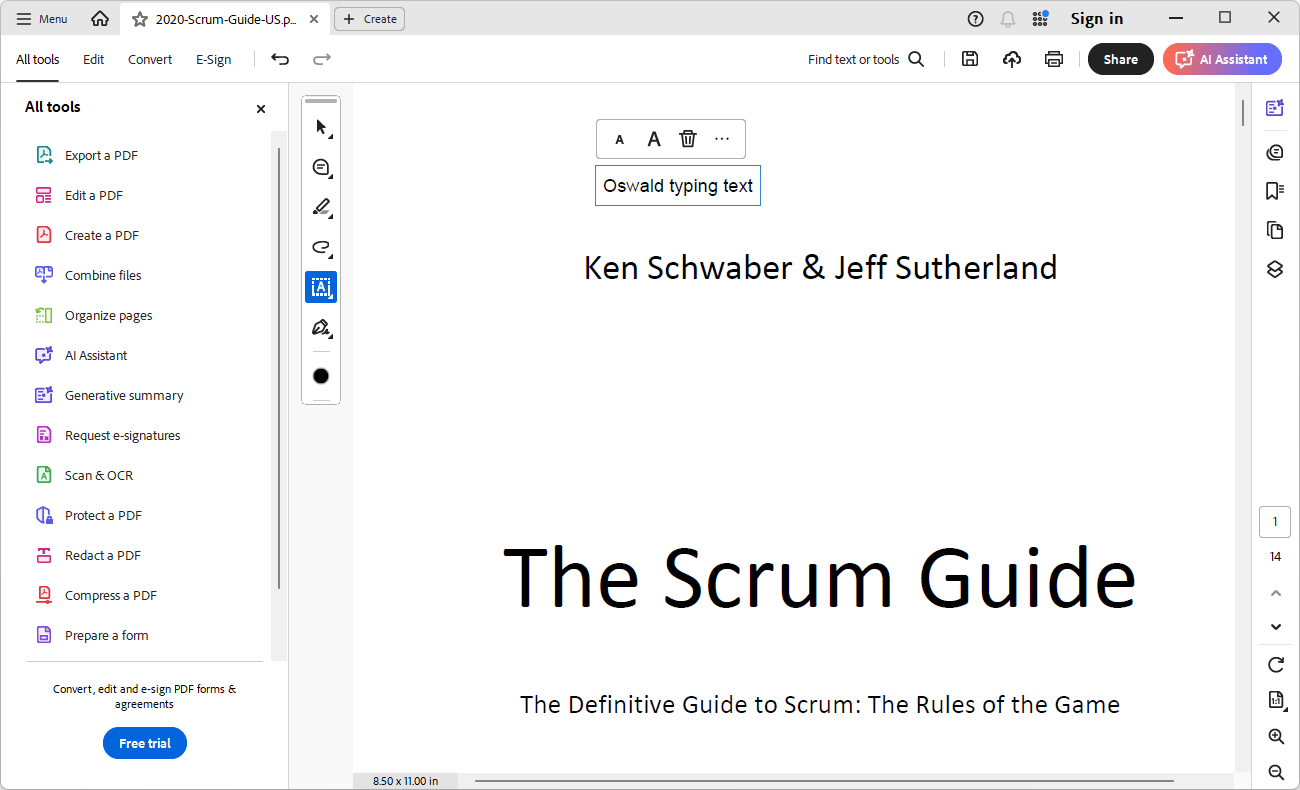
Add Text
Step 4. Lastly, go to Menu > Save as to save the PDF with added text.
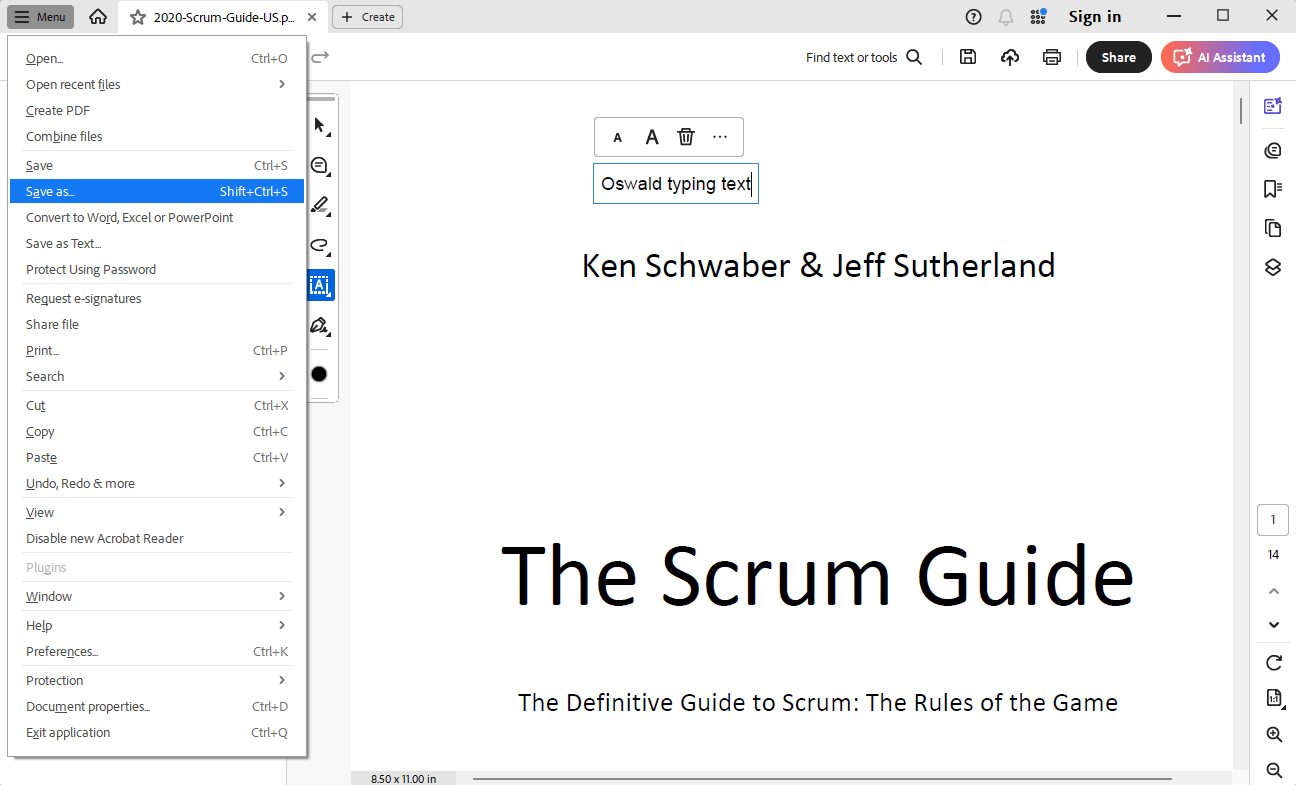
Save as
Comparing the Methods
| Feature / Tool | PDFgear Online | PDFgear Desktop App | PDFgear Mobile App | Adobe Acrobat Reader (Free) |
| Platform | Web browser | Windows / macOS | iOS / Android | Windows / macOS |
| Installation Required | ❌ No | ✅ Yes | ✅ Yes | ✅ Yes |
| Edit Existing Text | ❌ No (only adds new text) | ✅ Yes (preserves formatting) | ✅ Yes | ❌ No (adds text only) |
| Add New Text Boxes | ✅ Yes | ✅ Yes | ✅ Yes | ✅ Yes |
| Customize Font & Color | ✅ Yes | ✅ Yes | ✅ Limited | ✅ Limited |
| Handwriting / Drawing | ✅ Yes (Draw Ink tool) | ✅ Yes | ✅ Yes | ✅ Yes |
| Free to Use | ✅ Yes (no sign-up needed) | ✅ Yes | ✅ Yes | ✅ Yes |
| Watermark on Output | ❌ No | ❌ No | ❌ No | ❌ No |
| Best For | Quick edits on any device | Advanced editing on PC/Mac | Editing on the go | Basic free typing into PDF |
Common Issues & Troubleshooting
1. Text Not Editable
Issue: The PDF is locked or password-protected, preventing text addition.
Solution: Use PDFgear to add text in PDF while bypassing the editing restriction.
2. Formatting Errors After Editing
Issue: The layout or formatting of the PDF changes after adding text.
Solution: Use PDFgear to edit the PDF directly, preserving the original layout. Re-export the PDF after editing to ensure consistency.
3. Fonts Not Displaying Correctly
Issue: Added text appears in a different font or as gibberish.
Solution: Use standard fonts (e.g., Arial, Times New Roman) that are universally supported. Ensure the font is installed on your system before adding text in PDFgear.
4. File Size Increases Significantly
Issue: Adding text or images increases the PDF file size.
Solution: Use PDFgear’s compression feature to reduce the file size. Optimize images before adding them to the PDF.
5. Scanned PDFs Are Not Editable
Issue: Scanned PDFs are image-based and cannot be edited directly.
Solution: Use PDFgear’s OCR feature to convert scanned PDFs into editable Microsoft Word.
6. Text Color Doesn’t Match
Issue: Added text color doesn’t match the original document.
Solution: Use a color picker tool to identify and match the exact color.
FAQs
How to add a fillable text box in PDF?
To add a fillable text box in a PDF, go to PDFgear online fillable PDF maker, click Textbox in the upper menubar, click on the PDF to add it, and click the top-right Download file button to save the PDF with fillable text boxes.
How do I edit or replace existing text in a PDF?
Editing existing text usually requires an OCR PDF editor, like PDFgear. PDFgear allows you to edit or replace existing text in PDF without formatting issues.
Can I change the font and size of the added text?
Yes, PDFgear allows you to change the font, size, color, and alignment of the added text. PDFgear software even allows you to change the font and size of existing text.
Can I save a PDF after adding text without losing quality?
Yes, as long as you save the file in the original PDF format without compression, the quality will remain unchanged.
How can I ensure the text I add to a PDF looks the same on all devices?
To ensure consistency across different devices, use standard fonts that are likely to be installed on most systems, such as Arial or Times New Roman.
