How to Remove Pages from a PDF on Mac

Summary :
This post reveals how to remove pages from a PDF on macOS using PDFgear’s free PDF editor and Preview app.
Table of Contents
Learn from our step-by-step guide to delete pages from any PDF on Mac, and resolve any trouble while doing so.
Remove Pages from PDF on Mac Online for Free
If you find the steps to remove pages from PDF using Preview trouble some, PDFgear offers an easier-to-use approach.
PDFgear’s online page remover allows you to remove pages from a PDF online for free, without signing up.
You simply need to click on the unwanted page thumbnails, and voila! The job will be done.
Step 1. Go to PDFgear online page deleter, click Select PDF File and open the PDF you need.
Step 2. Select the unwanted pages, and click Remove Pages in the lower-right corner.
Step 3. Click Download File to save the new PDF.
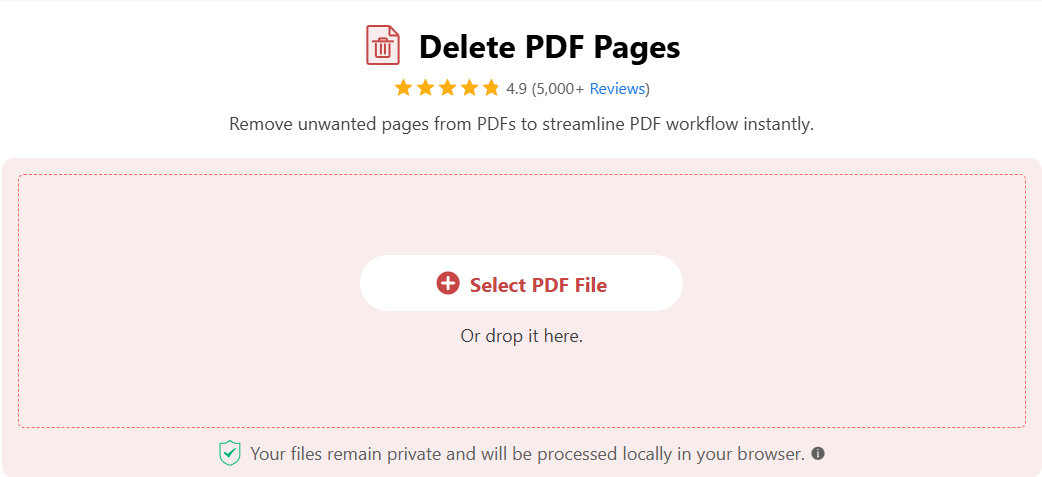
Select PDF File
Remove Pages from a PDF on Mac in Preview
The in-built image viewer app Preview on macOS is already suficient for deleting pages from PDF files, without additional software installation.
However, there might be some issues while doing so, such as you can’t delete pages in a PDF using Preview. We’ll also cover how to fix that.
Now let’s get started and see how it’s done.
Step 1. Locate the PDF file on your Mac, right-click on it, select Open With, and click Preview.
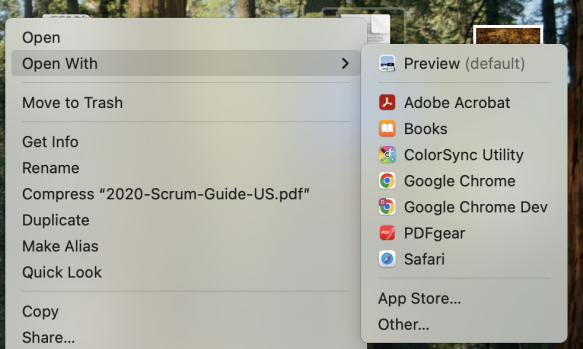
Open PDF in Preview
Step 2. If you haven’t already, go to View > Thumbnails to show the thumbnails of the PDF pages.
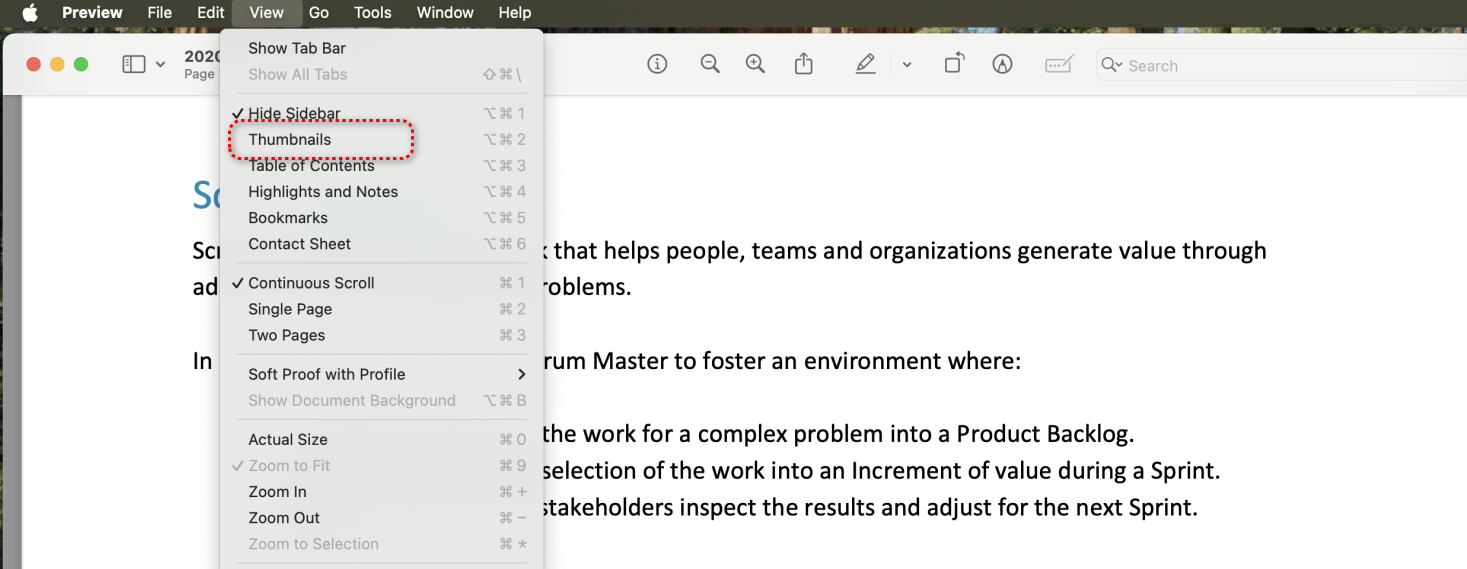
Enable Thumbnail View
Step 3. Click to select the thumbnail of the page you intend to delete. For multiple pages, hold the Command key (⌘) and click on thumbnails.
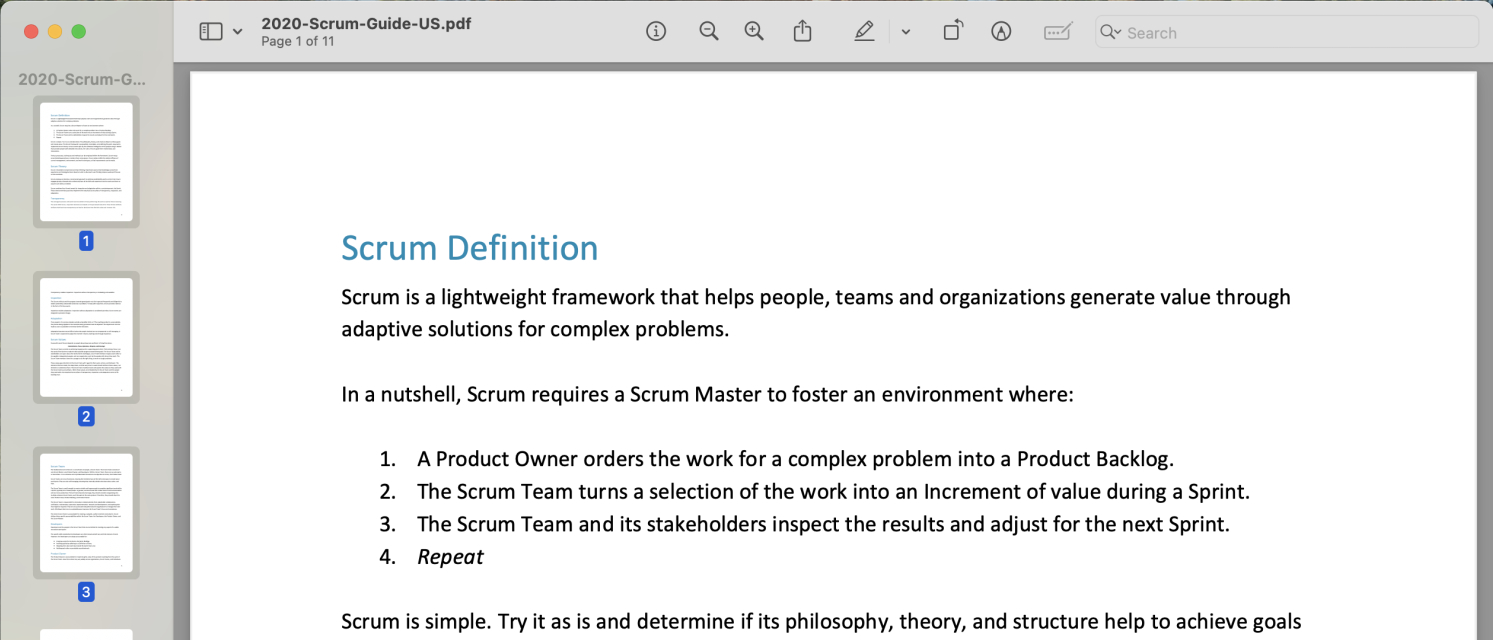
Select Pages
Step 4. Go to the Edit tab and click Delete to remove the selected pages.
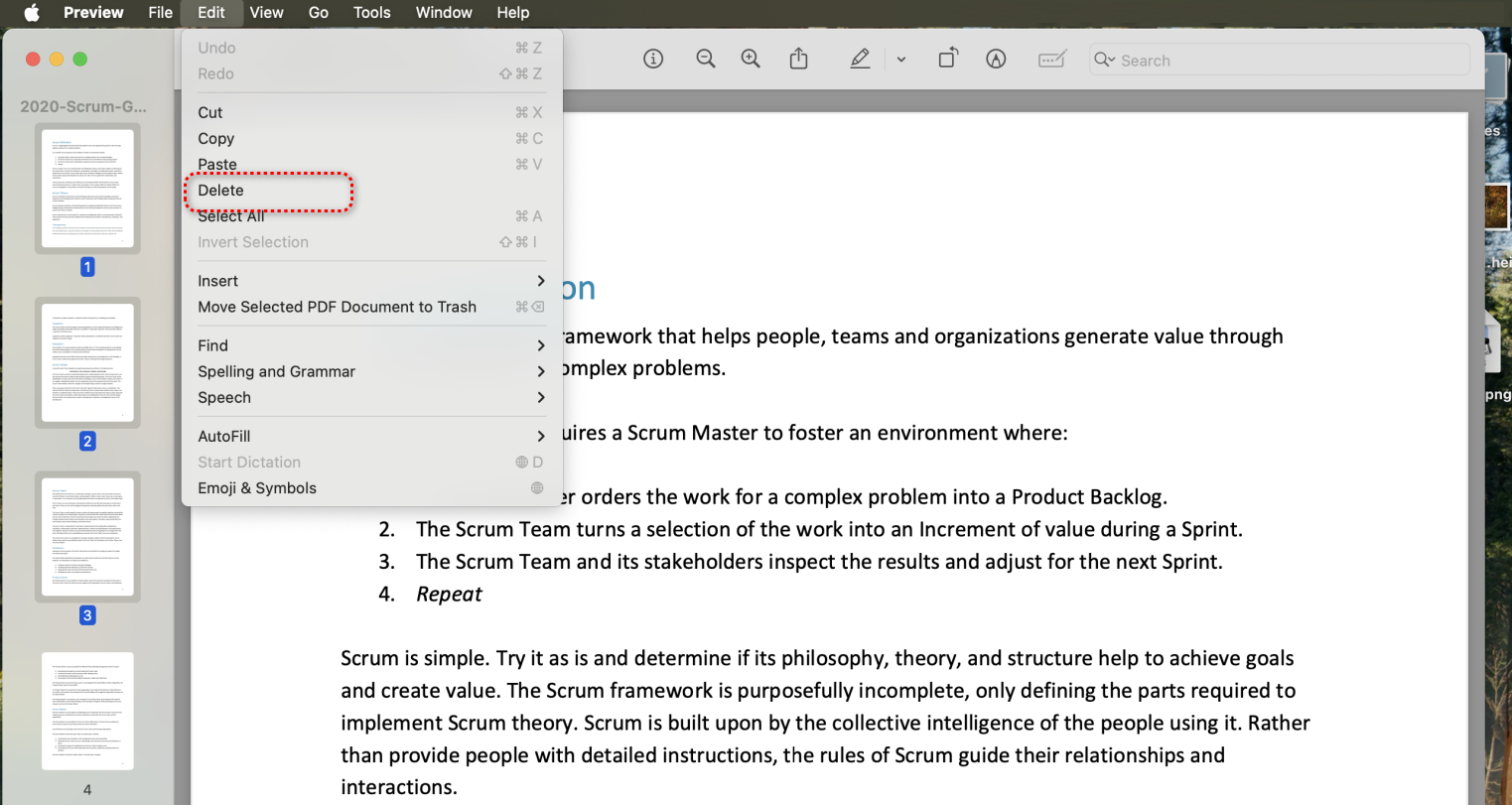
Click Delete
Step 5. Lastly, go to File > Save to save the PDF with pages deleted.
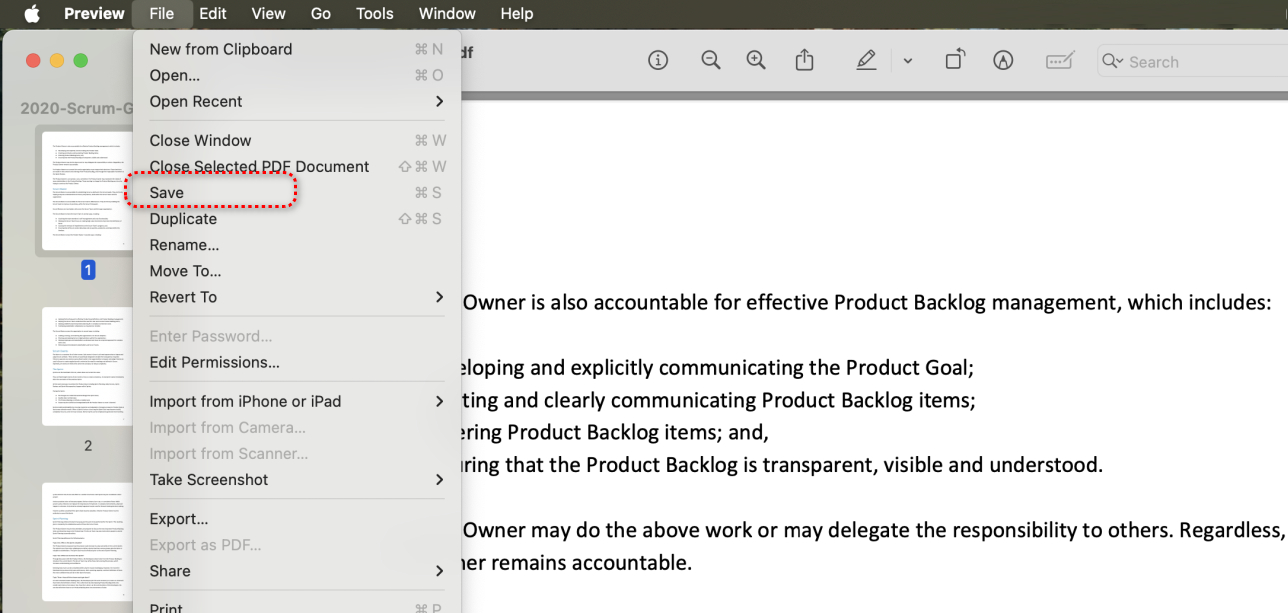
Save PDF Preview
Fix Delete Pages from PDF in Preview Not Working
In some cases, you can’t delete PDF pages whatsoever, or the Delete button in Edit is grayed out.
The reason is that the PDF file has been applied with an editing restriction. In that case, you can use Preview’s printer feature to print the PDF with only wanted pages.
Go to File > Print, in Pages, set the range for the pages you intend to keep (and delete the unassigned pages), click PDF below and select Save as PDF, then click Print.
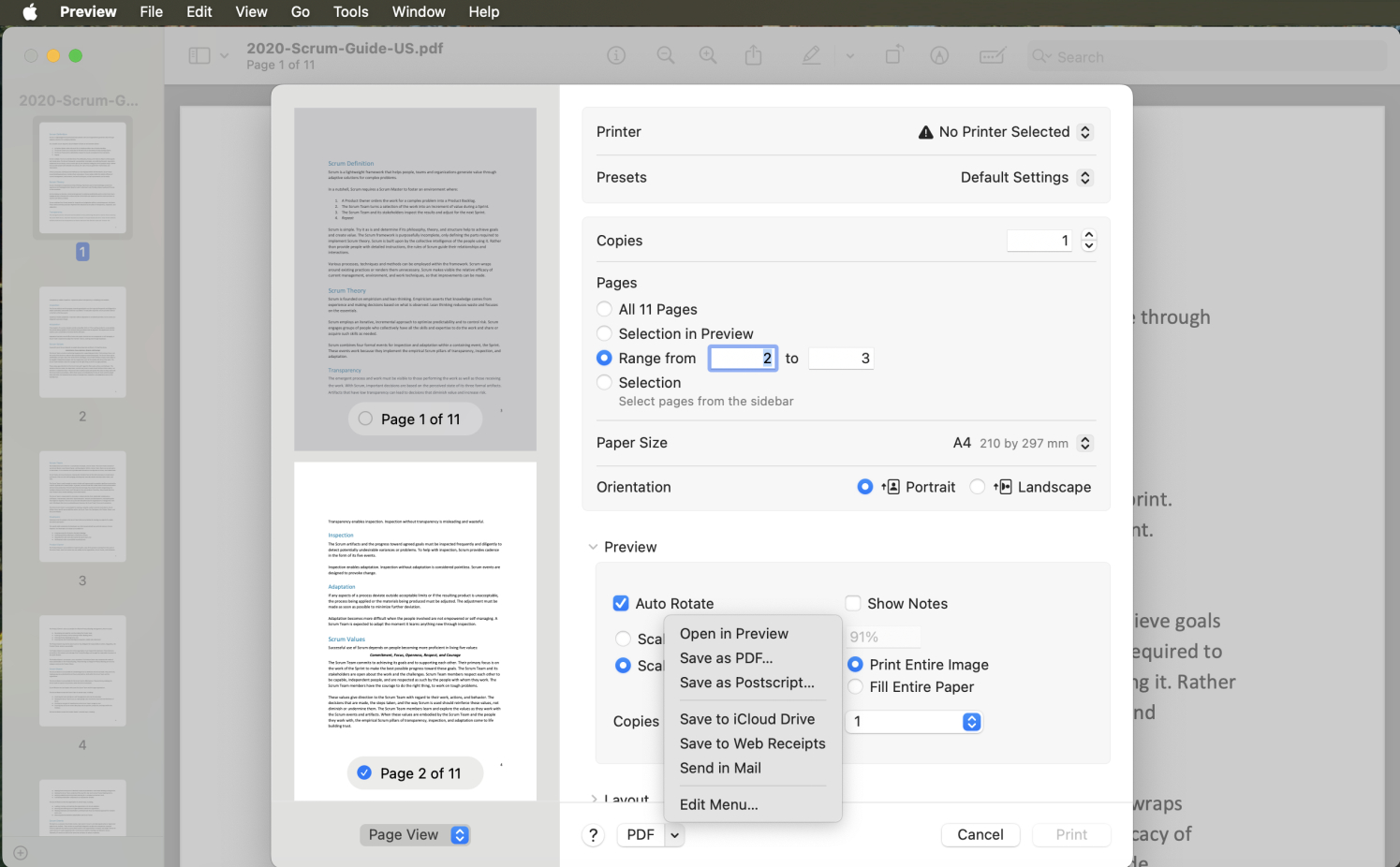
Print to Delete Pages
Delete Pages from a PDF by Range for Free
If you’re looking for a more effective way to remove pages from PDF files, such as a lengthy PDF manual with hundreds of pages, then PDFgear Mac app is your choice.
It allows you to delete multiple pages in PDF in one click, without having to select each page one by one.
Step 1. Download and install PDFgear on Mac.
Step 2. Open PDFgear, click Open File to open the PDF.
Step 3. Go to Pages, click Delete, assign a Page range, and click OK.
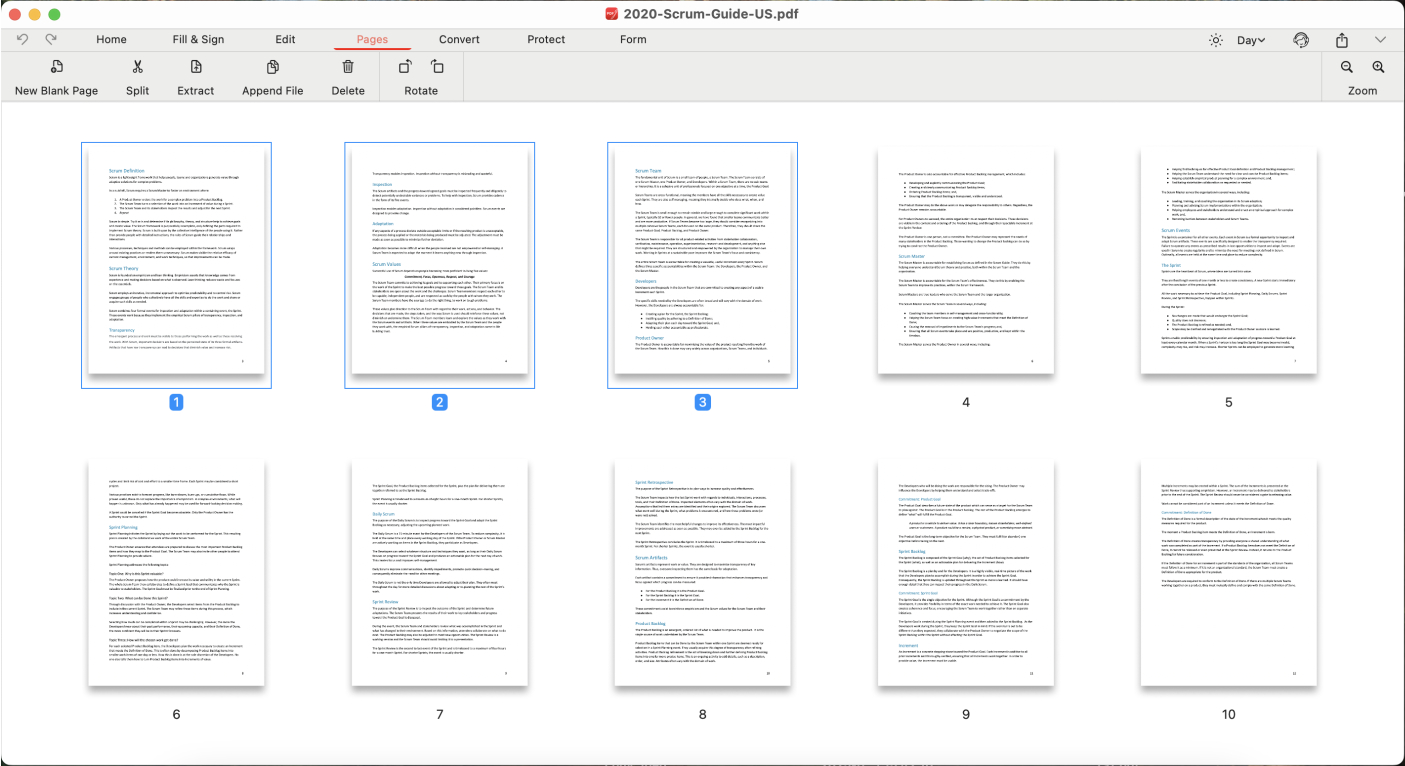
FAQs
Why I can’t delete pages from PDF in Preview?
The most possible reason is that the PDF might be protected or have permissions set that prevent editing, that’s the case especially if you downloaded the PDF from the internet. To effectively delete pages from PDF, you can use PDFgear, it supports deleting pages from restricted PDFs.
Can I delete multiple pages at once in Preview?
Yes. Hold down the Command key while clicking on each page thumbnail you want to remove, then press Delete to remove all selected pages.
Does deleting pages in Preview permanently alter the original PDF?
Yes, if you save the file after deleting pages, the changes are permanent. Use File > Duplicate to save a copy first if you want to keep the original.
Can I delete pages from a PDF using Safari or Finder?
No. Safari and Finder allow you to view PDFs but don’t offer editing tools. You’ll need Preview or another PDF editor to delete pages.
