3 Free Ways to Delete PDF Pages on iPhone and iPad

Summary :
Discover three easy and free methods to delete multiple PDF pages on your iPad or iPhone, with both online and offline tools available for your convenience.
Table of Contents
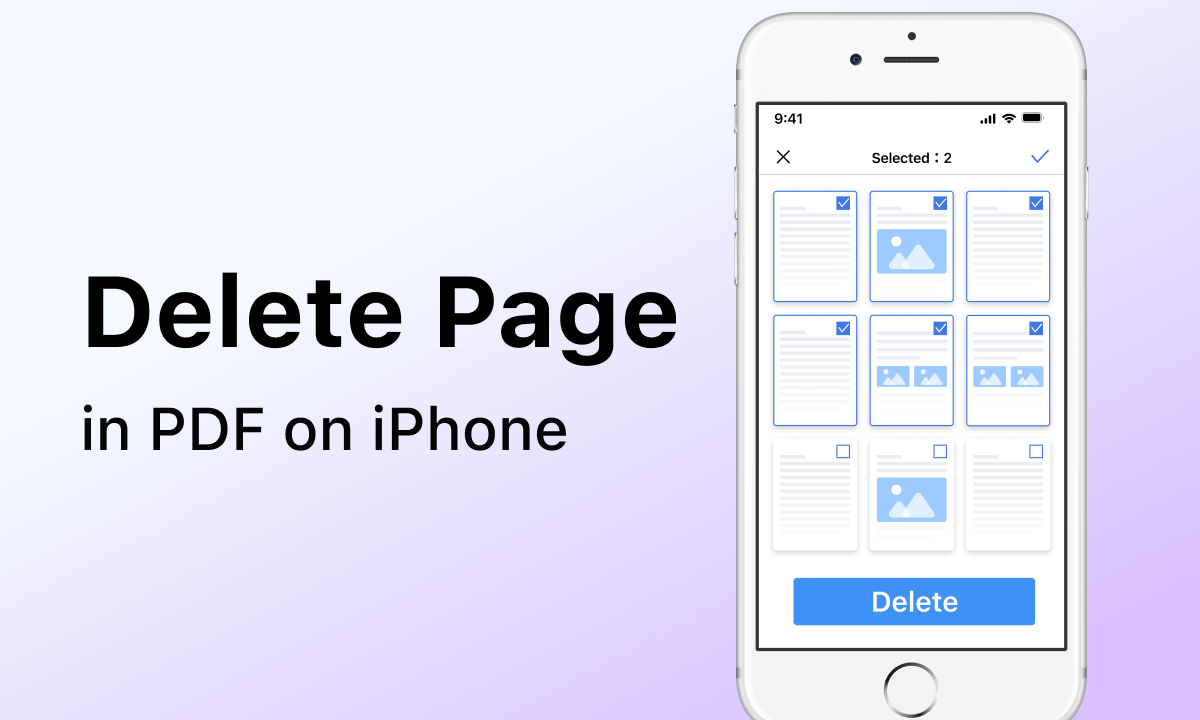
How to Delete Page in PDF on iPhone and iPad
Deleting blank or unnecessary PDF pages is a common part of file management. While it can be a bit tricky on an iPhone, we’ve found the easiest and most practical methods to do it.
Delete PDF Pages on iPhone/iPad Online for Free
To save your iPhone storage from app download, the PDFgear online PDF page remover is a reliable option for getting rid of unwanted file content. There are no annoying pop ads or email registrations. Follow the steps and let’s get started right now.
Step 1. Visit the PDFgear online page remover and add a PDF to it.
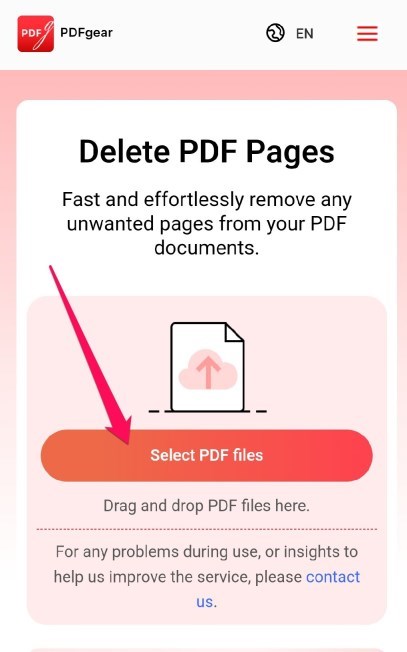
Upload a File to PDFgear PDF Page Remover
Step 2. Tap on the pages for deletion.
Step 3. Click on “Remove pages” to delete the pages from the file.
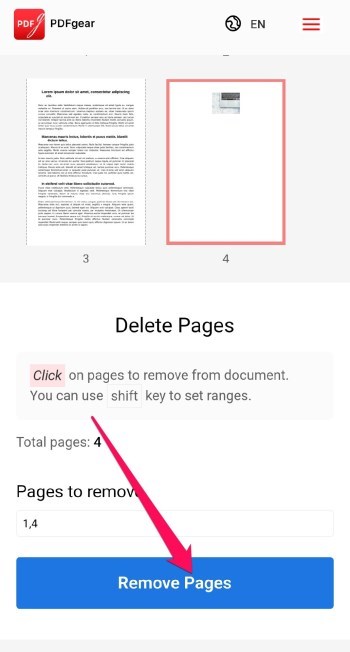
Select Pages to Delete Online Using PDFgear
Step 4. Download the PDF File.
Delete PDF Pages on iPhone/iPad Using a Simple and Free Tool
If you need more page-organizing options or want to delete pages offline, the full-featured PDFgear app has you covered.
PDFgear offers an advanced page deletion function for free, along with other page organizing tools like rotating and extracting pages from your PDF, making file management easier.
Step 1. Install PDFgear for iOS from the App Store.
Step 2. Add the PDF file from your local storage.
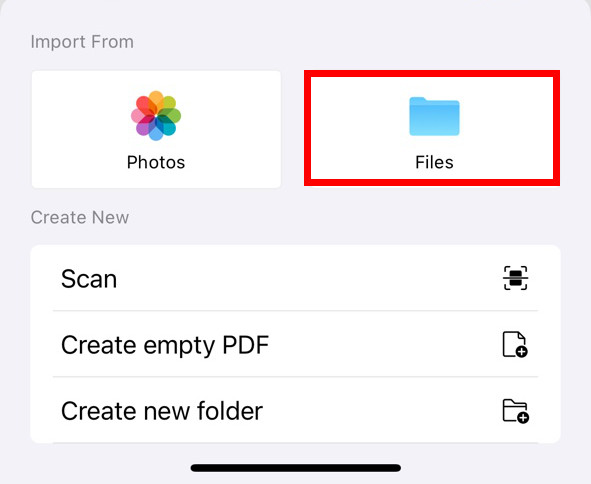
Import PDF Forms to PDFgear on iPhone
Step 3. Tap “Edit” > Choose “Organize Pages.”
Step 4. Tap on the pages for deletion > Tap the trash bin icon.
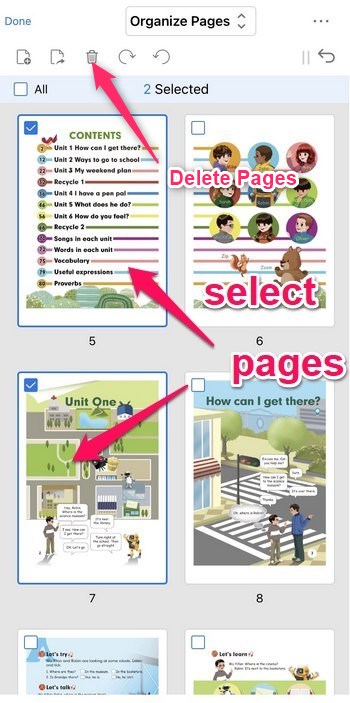
Select PDF pages to Delete in PDFgear
Step 5. Tap the three-dot icon > “Save a Copy” to save the new PDF.
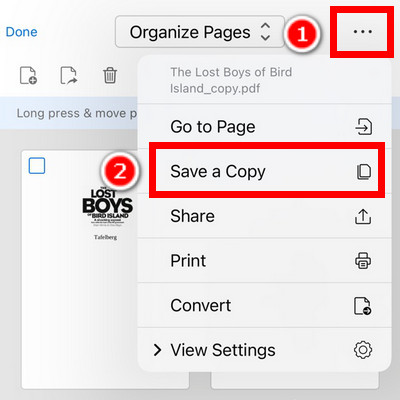
Save the New PDF
The superior performance of PDFgear makes it the best choice for the high-end PDF editor on iPhone. Its intuitive design and fast response time ensure a smooth and efficient user experience from start to finish.
Delete PDF Pages on iPhone and iPad via Files
The iPhone’s built-in Files app offers a feature to delete PDF pages, but it only allows you to remove one page at a time. For a few pages deletion, follow the steps:
Step 1. Open the PDF in the Files app.
Step 2. Tap the thumbnail button at the top of the document.
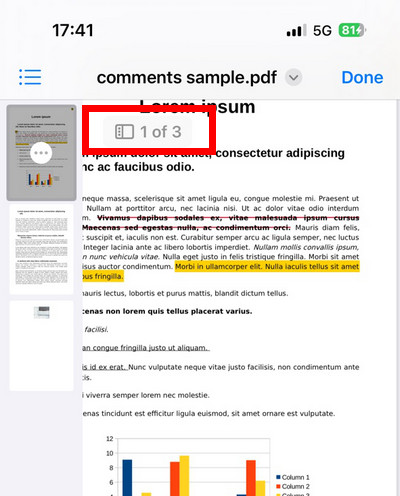
Show Thumbnail View in Files
Step 3. In the thumbnail view, long-tap the page for deletion > Tap “Delete Page.”
Step 4. Tap “Done” after page removal.
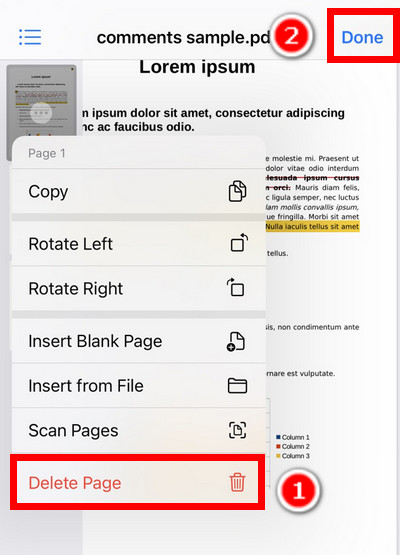
Delete a PDF Page in iPhone Files
Once you delete a page, you can’t undo it, so be sure to double-check before removing any pages.
Apart from the methods above, the print feature on iPhone is also helpful for PDF page deletion by exporting a new PDF with only the pages you need. But it’s worth noticing that this method will flatten the PDF and make the fillable files non-fillable.
The Concluding Thoughts
Whatever your reason for deleting the pages on a PDF file, there are a few good options that can prove to be handy.
We assume the steps outlined here should prove handy in letting you get the best benefits. However, we found PDFgear to be the outstanding pick, thanks to both online and offline options offered by the tool.
