How to Add Notes to a PDF for Free

Summary :
This article shows you how to use PDFgear’s free online service, desktop software, and mobile apps to make notes on PDFs effortlessly.
Table of Contents
Need to highlight key points, make quick summaries, or provide feedback?
PDFgear allows you to type on, mark up PDFs, and even draw freehand on PDFs using a pen tool.
Add Notes to a PDF Online for Free
When you need to take some quick notes on a small PDF file without software installation, look no further than PDFgear online PDF annotator.
With it, you can make different kinds of notes like text boxes, sticky notes, highlights, free drawings, etc. in a web browser, without costing a dime.
There’s no signup, and there’s no watermark.
Video Tutorial
Step 1. Go to PDFgear online PDF annotator, click the Select PDF File to open the PDF you want to work with.
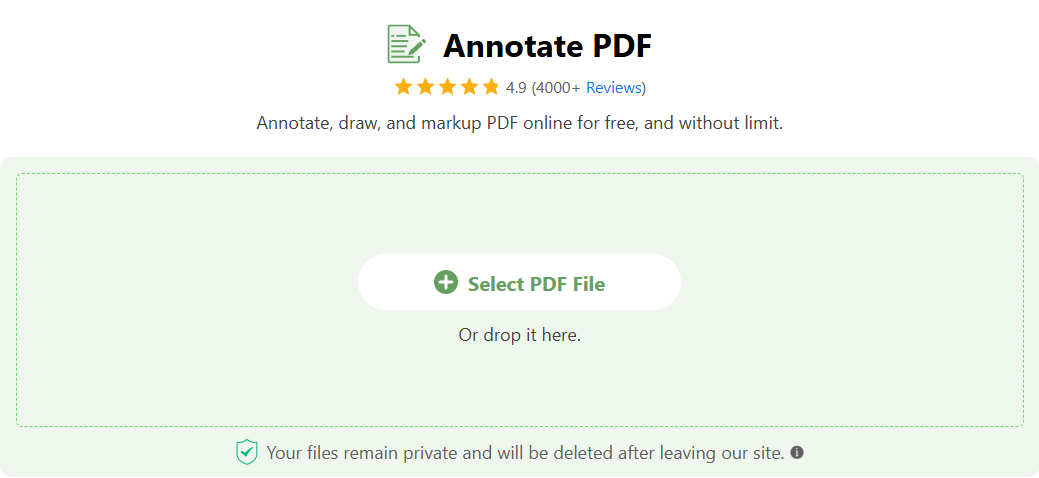
Select PDF File
Step 2. PDFgear offers a variety of useful ways to make notes to a PDF. A common way is using a comment box.
Click the upper Add Comments button, and click on the PDF to insert it. Double-click the inserted comment box. and then you can type your desired notes into the comment box.
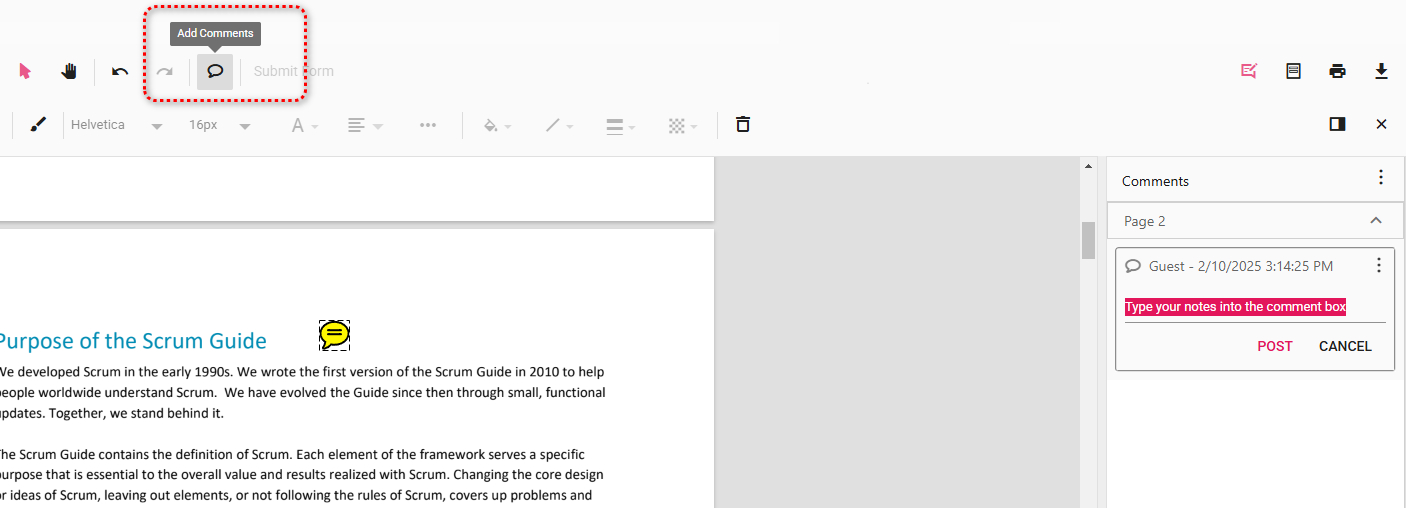
Add Comments
Step 3. Typing on a PDF is undoubtedly a plain-vanilla way to take some short notes, and it’s super easy with PDFgear’s free text tool.
Click the upper Free Text button and click on the PDFgear. Double-click the inserted textbox to type in your notes, and you can always change the text font and color.
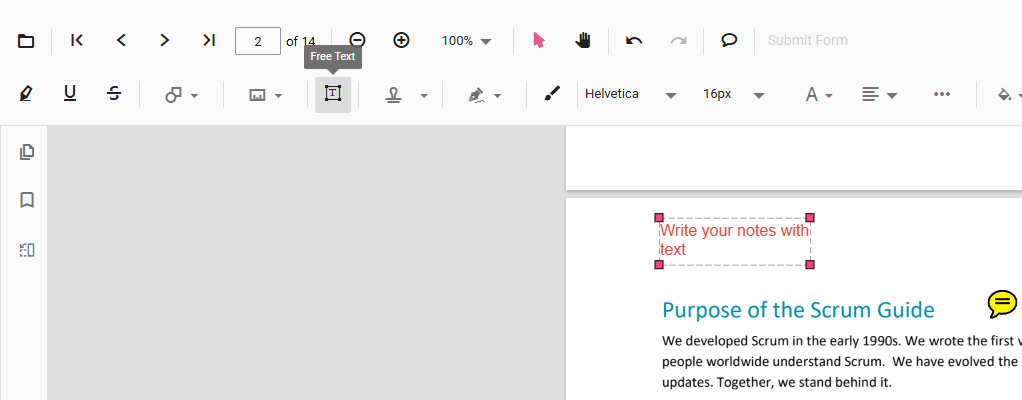
Insert Free Text
Step 4. To write on PDF in your own style, the free drawing tool will also come in handy.
Click the upper Draw Ink button to freely write on the PDF as if using a pen.
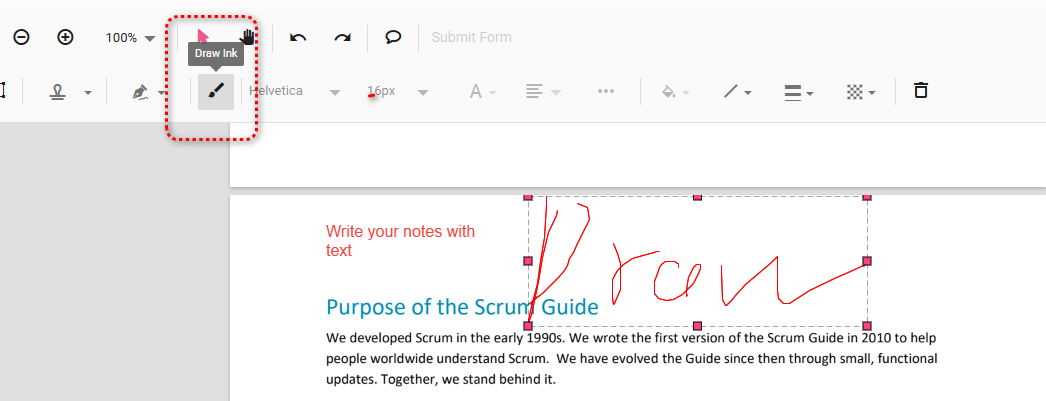
Draw Notes
Step 5. And when you need to highlight some part of the PDF content, PDFgear’s highlighter tool can certainly be of help.
Click on the Highlight text button from the upper menubar, and select the needed PDF text to highlight it. You can also choose to underline or strikethrough PDF text in a liking manner.
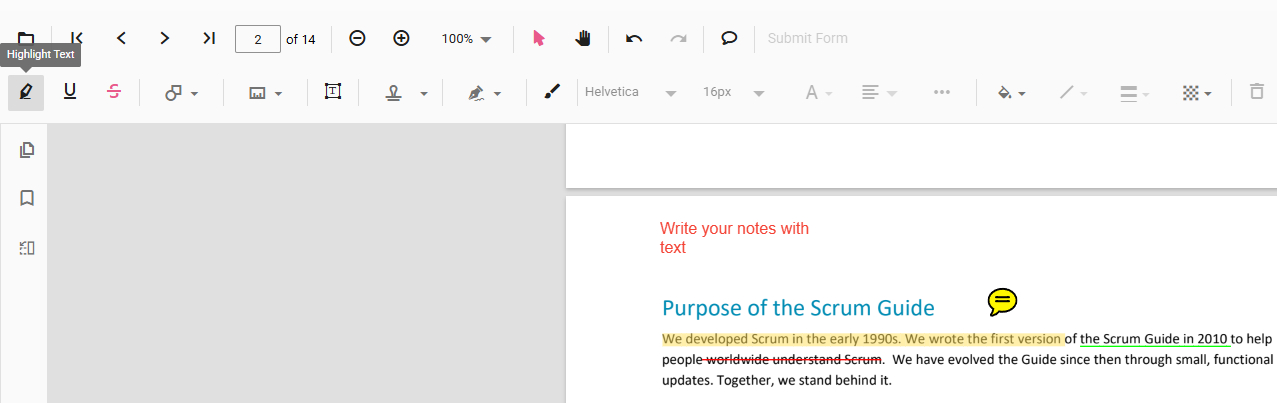
Highlight Text
Step 5. You can always check all your notes by clicking on the Comment Panel button to the right.
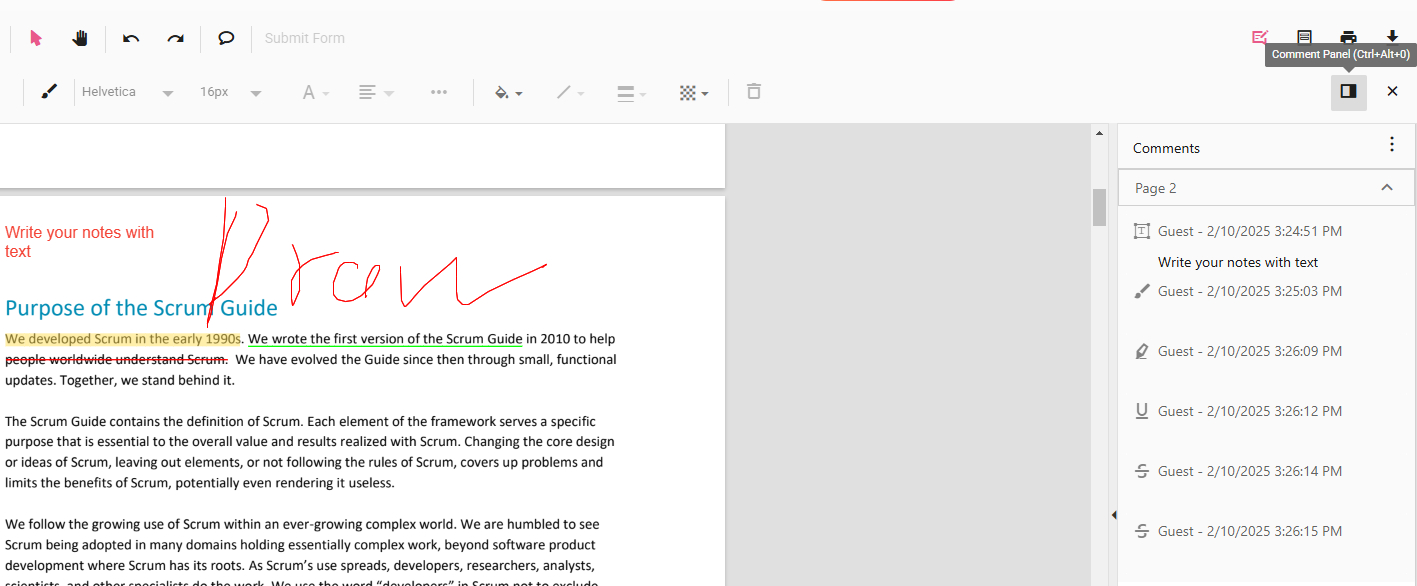
Comment Panel
Step 6. When you’ve done your work, click the upper-right Download file button to download the PDF with notes.
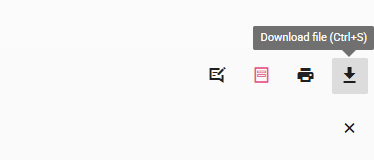
Click Download File
Add Notes to a PDF on Windows for Free
Due to server-side processing and network issues, PDFgear’s online service works best with smaller PDF files.
That’s why PDFgear also offers a free and powerful PDF editor for desktop users, which delivers a steadier, faster, and more secure working experience.
PDFgear is a free and versatile PDF editor that allows you to make notes on PDFs flexibly.
Step 1. Download and install PDFgear, and open it on your computer.
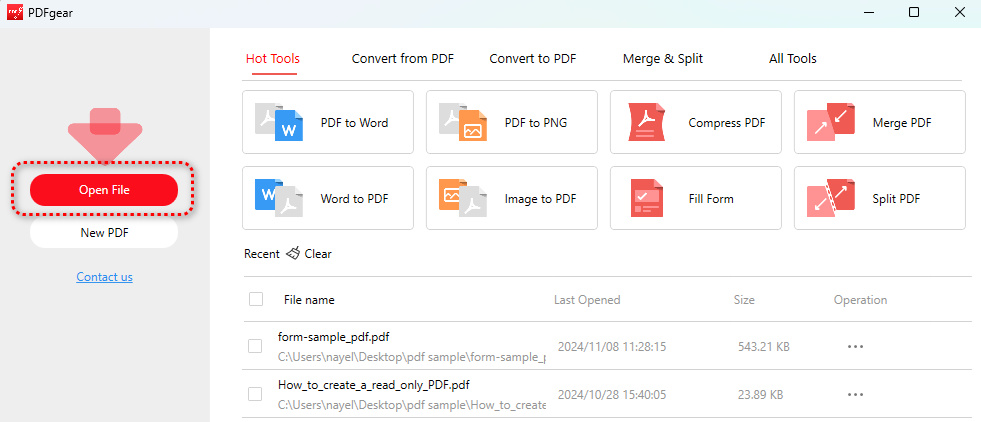
Open File
Step 2. Go to the Comment toolbox, click on Notes from the upper ribbon, and click on the PDF to insert the note box where type in your types.
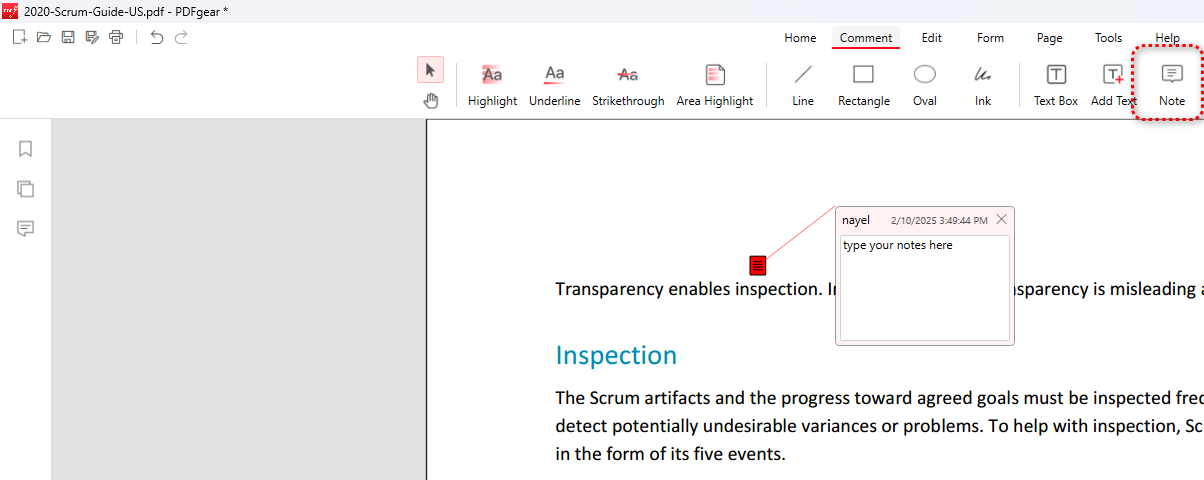
Add Notes
Step 3. The Text Box and Add Text buttons also allow you to type on the PDF, only in a less stylish way.
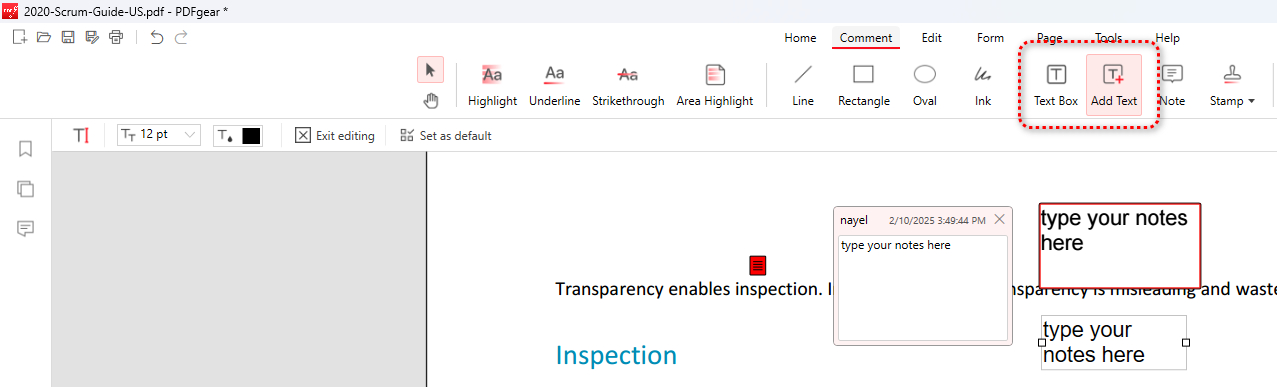
Type Notes
Step 3. You can also choose to draw freehand on your PDF, to do so, click the Ink tool and draw on the PDF.
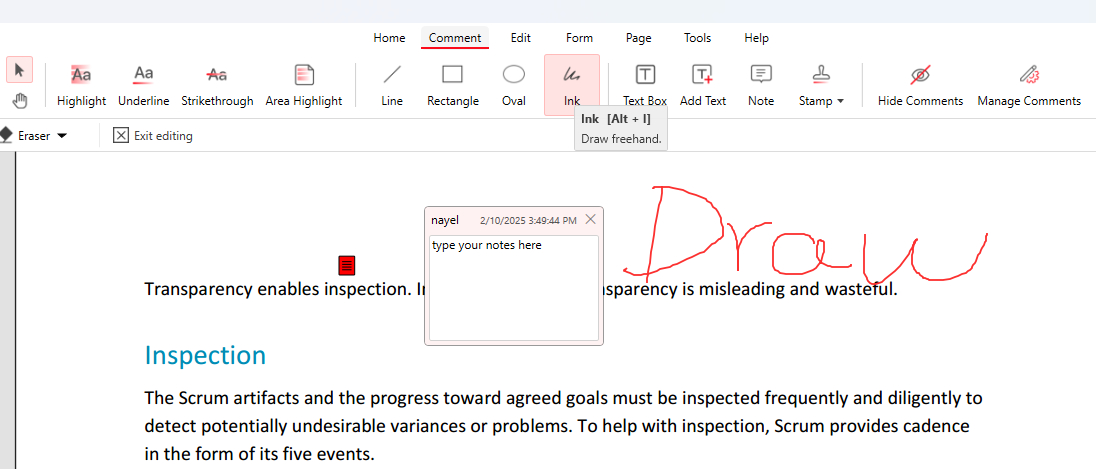
Draw Your Notes
Step 4. Additionally, you can click the Highlight, Underline, or Strikethrough button to mark up the text in PDF accordingly.
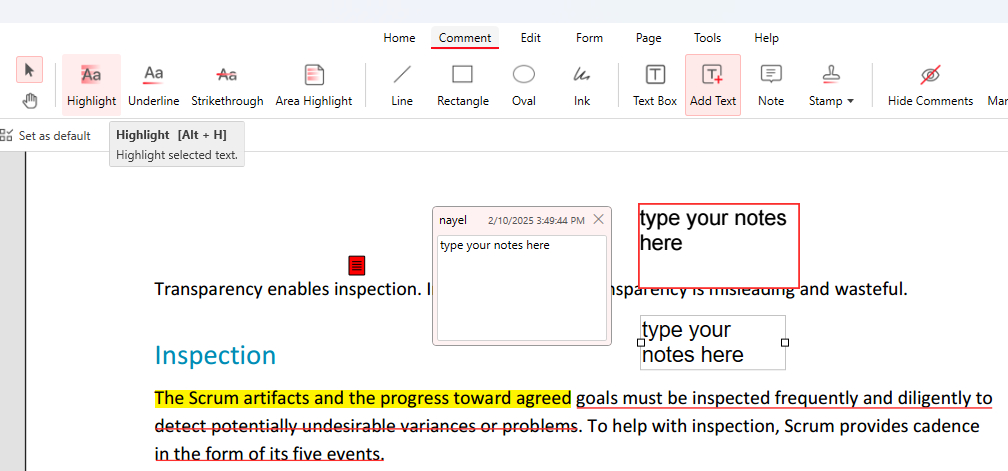
Highlight Text
Step 5. Click the Comments button on the leftmost panel to check and edit all your notes.
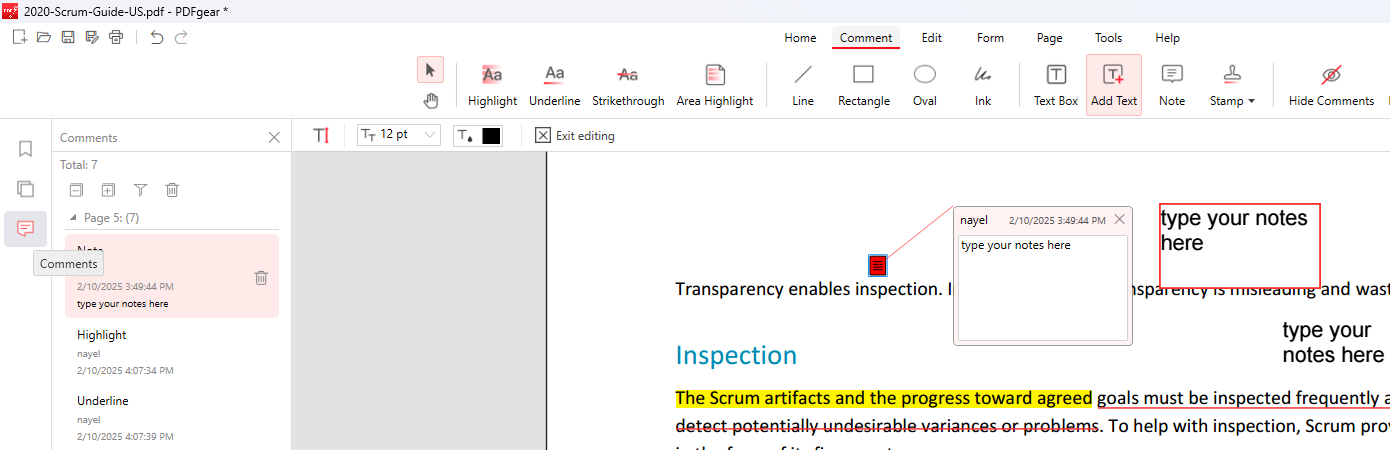
Check Notes
Step 6. Use the upper-left Save as button to save a copy of a PDF with notes.
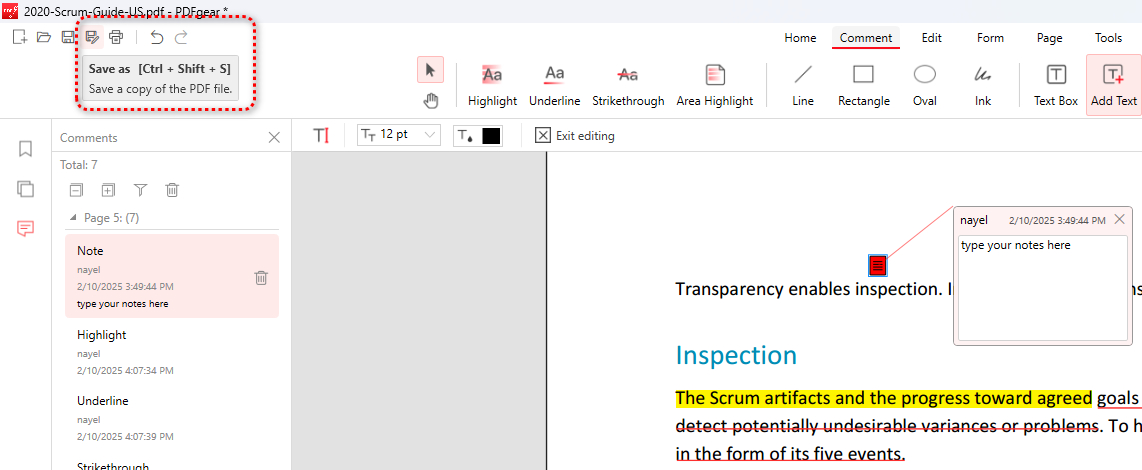
Click Save as
Add Notes to a PDF on Mac for Free
PDFgear also has a Mac version, offering an efficient and seamless way to add notes, comments, highlights, and annotations to your PDF documents.
For those who prefer a more hands-on approach, PDFgear also offers a drawing tool to handwrite or sketch directly onto the PDF.

Step 1. Download PDFgear, install and open it on your Mac. Click the Open File button to open the PDF file.
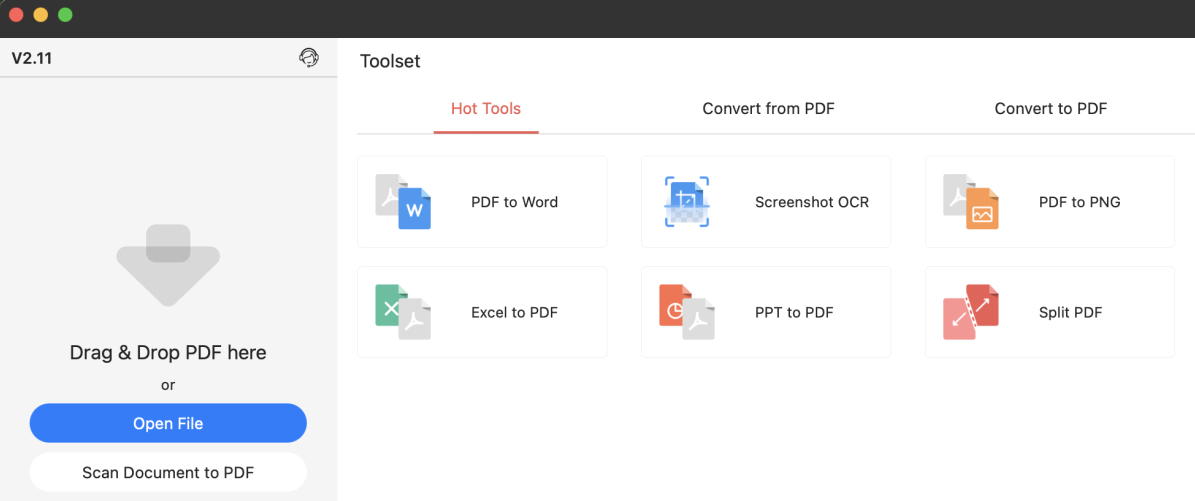
Open File
Step 2. To add sticky notes, click the upper Notes button and click on the PDF, then type in your note text.
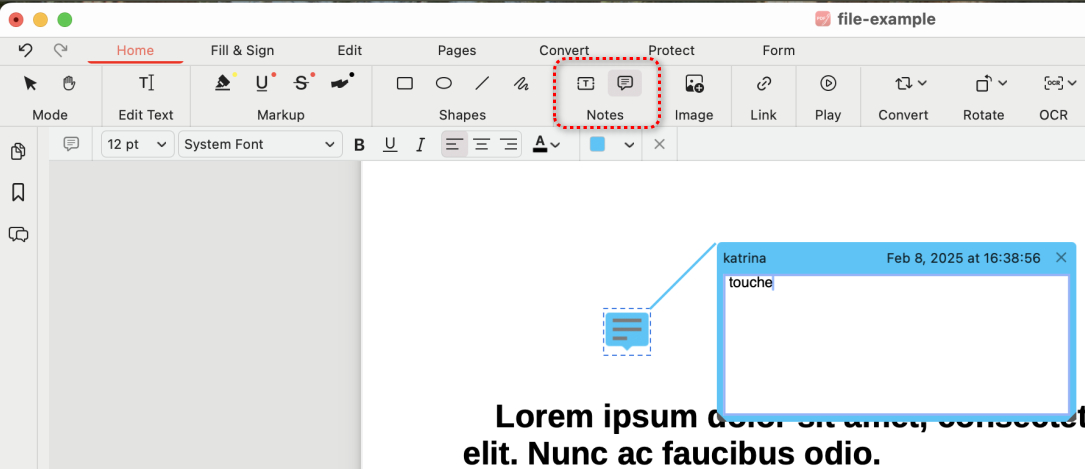
Add Notes
Step 3. As with PDFgear on Windows, you can also use the textbox tool to type on the PDF.
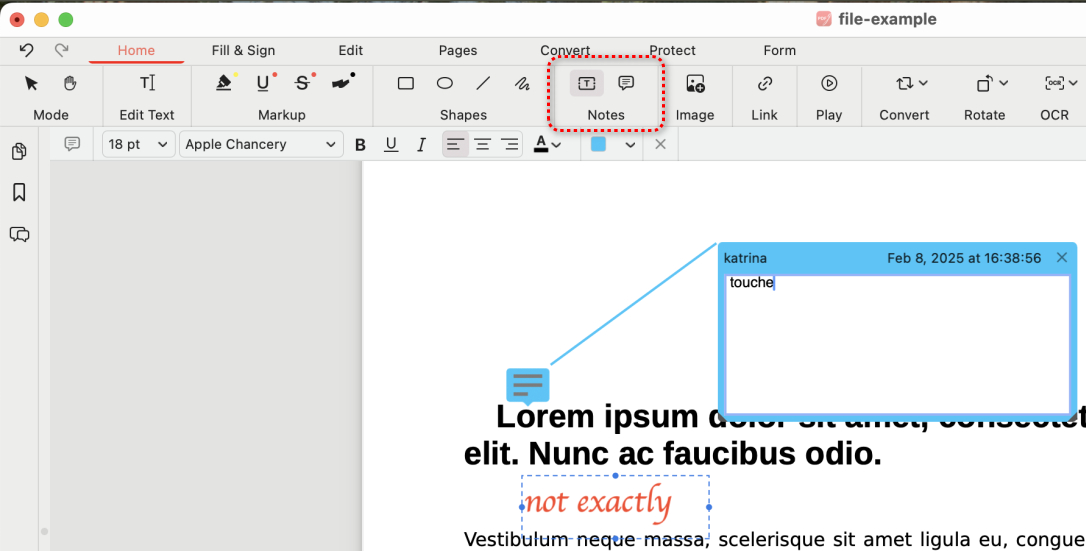
Add Text
Step 4. In the upper Shapes toolbox, you can insert shapes and freehand drawings as need.
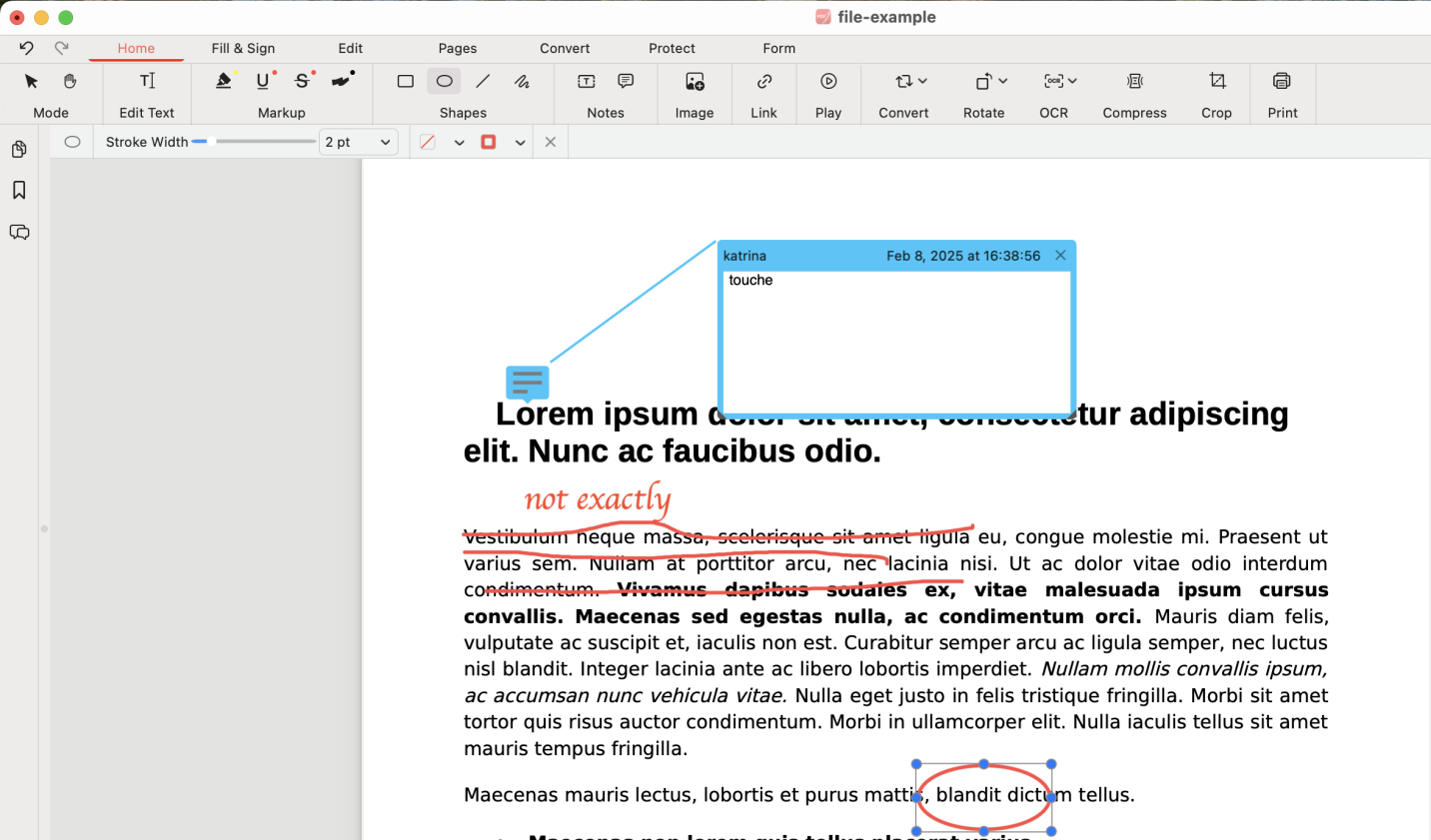
Freehand Drawings
Step 5. In the Markup toolbox, you’ll find tools to highlight, underline, and strikethrough PDF text.
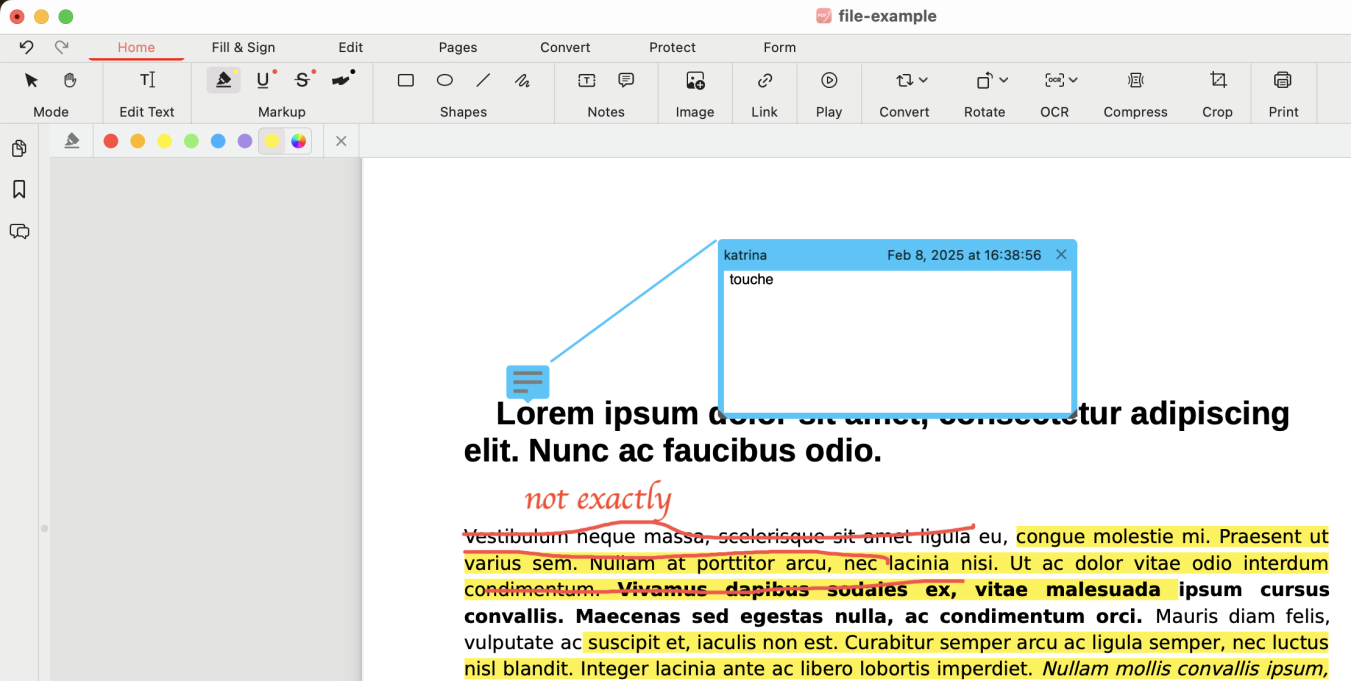
Highlight Text
Step 6. Click the Comments on the left panel to check all you notes.
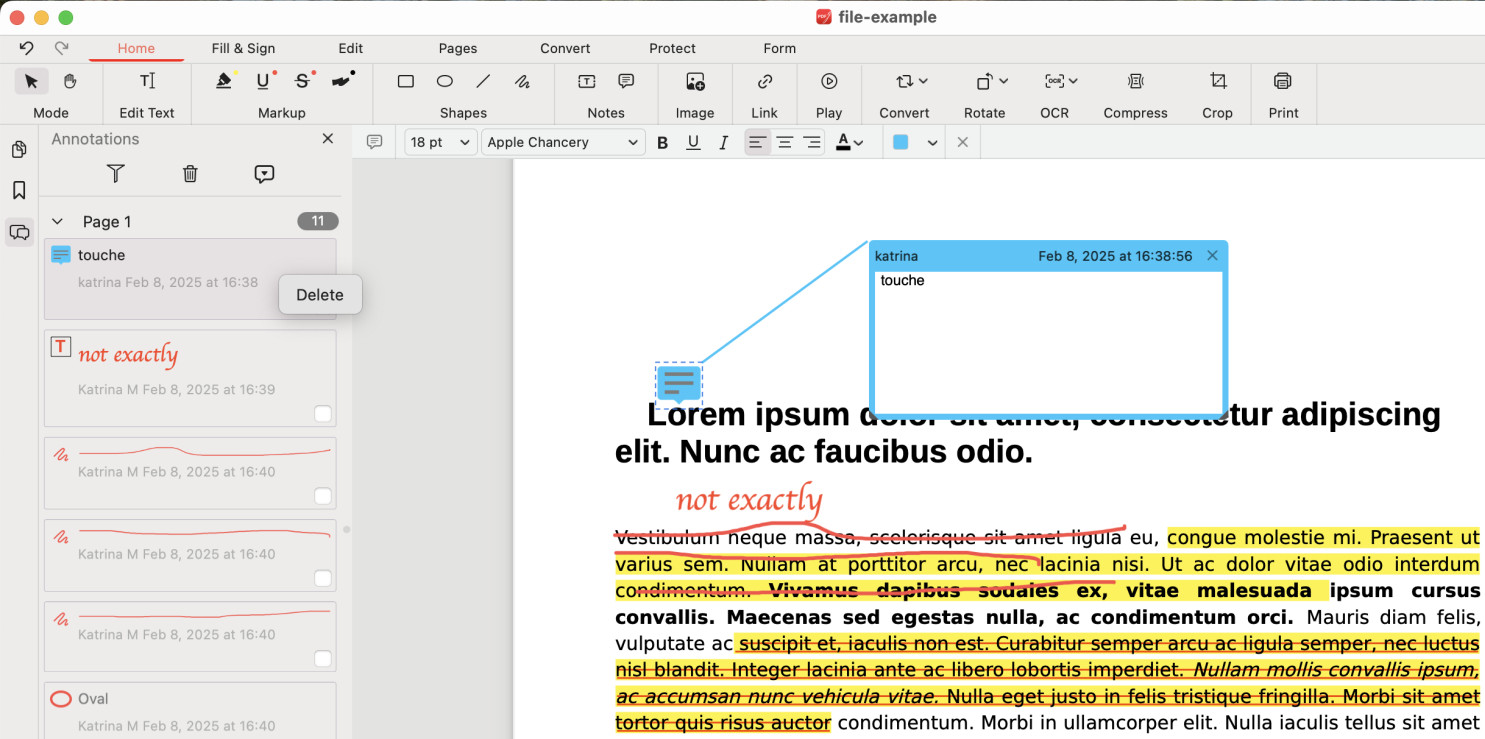
Manage Notes
Step 7. To save the PDF with notes, go to File > Save as.
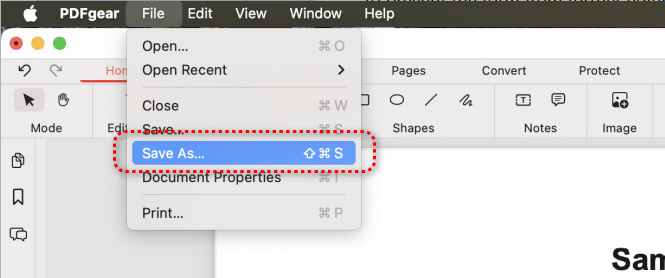
Save the PDF
Add Notes to a PDF on iPhone and Android Phone for Free
For mobile users, PDFgear brings a powerful PDF annotation tool to your fingertips, making it effortless to add notes, highlights, drawings and comments to your PDFs on both iOS and Android devices.
PDFgear is free to use, and there’s no premium version. Now get it in the app stores!


Step 1. Open PDFgear app and tap the lower-right Plus icon to add the PDF from your device to PDFgear. Then open the PDF in the Files list.
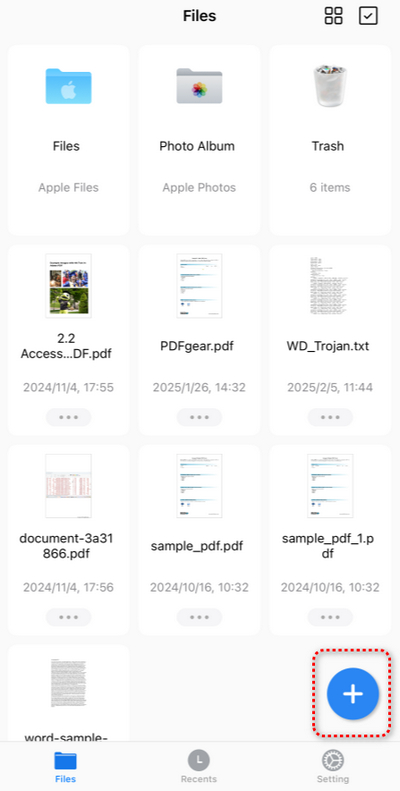
Tap Plus
Step 2. Tap the Edit button and you’ll be led to the PDF Annotation mode.
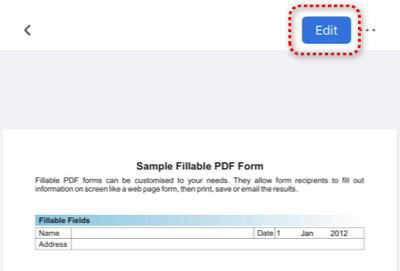
Tap Edit
Step 3. Tap the Notes button from the upper ribbon and tap on the PDF to add a sticky note. Then you can tap on the note to edit it.
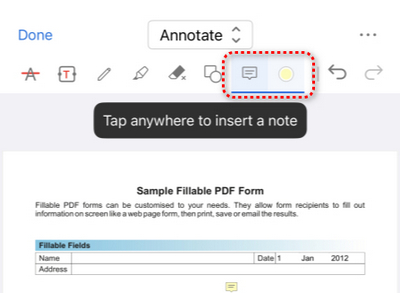
Tap Note
Step 4. To write on the PDF, tap the upper Textbox button and tap on the PDF page to insert it. Then type your notes into the textbox.
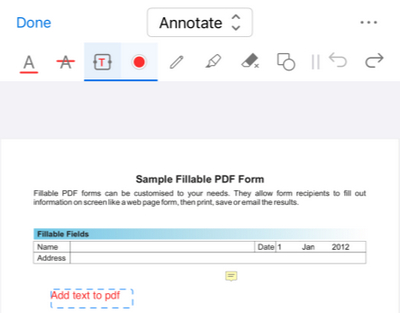
Type on PDF
Step 5. Tap the Pen tool and you can draw your notes on the PDF.
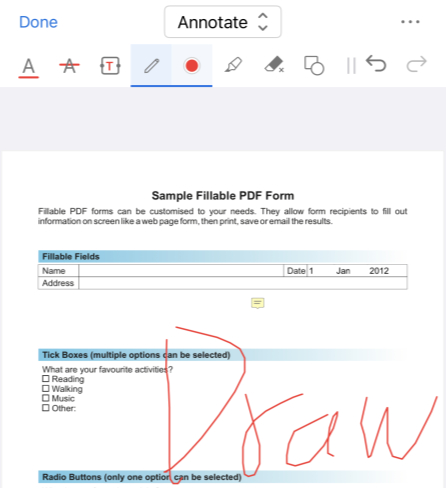
Draw on PDF
Step 6. To save the PDF with notes, tap the triple-dots button and select Save a Copy.
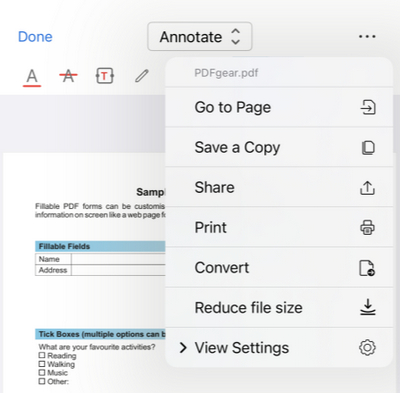
Save PDF with Notes
FAQs
Are notes added to a PDF visible to everyone?
Yes, notes added by PDFgear online annotator are visible to anyone who opens the PDF with a compatible reader. However, some PDF editors may allow you to make notes that can be toggled on or off or to add private notes that only certain users can see.
Can I customize the appearance of notes in a PDF?
Yes you can! PDFgear allows you to change the font size and text color of the added notes.
Is it possible to print the notes from a PDF?
Yes, PDFgear software allows you to save and print the PDF with comments. Make sure to tick on Print Comments feature in the printer settings window.
Can I edit existing content in a PDF?
Yes, apart from adding notes to the PDF, PDFgear software for Windows and Mac allows you to edit existing PDF text. Open PDF in PDFgear, go to Edit > Edit text, and you can select and change PDF text.
