How to Annotate a PDF in Chrome for Free

Summary :
This page shares 2 free and easy methods to annotate, comment on, or add sticky notes to PDFs within Chrome web browser.
Table of Contents
While viewing PDFs with Chrome browser, you may need to annotate the document, but it’s not natively supported.
However, you can use a free online tool or a free Chrome browser extension to annotate PDFs within Chrome browser easily.
Annotate PDFs Online for Free: Step by Step
PDFgear online PDF annotator is a free and browser-based tool that allows you to annotate PDF, add comments, highlight text, draw on PDF, etc., right within the Chrome browser.
It doesn’t require signing up, there’s no watermark, and no software/extension installation is needed!
Video Tutorial
Step 1. Open Chrome and go to the PDFgear online PDF annotator. Click Select PDF files and open the PDF you need.
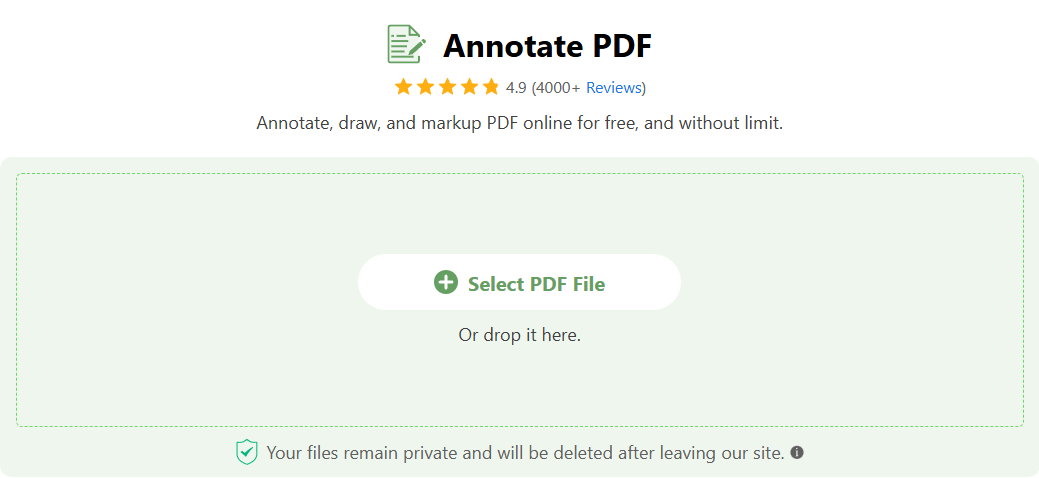
Select PDF File
Step 2. Once your PDF is loaded, you can instantly select PDF text, and right-click on it to highlight/underline/strikethrough it.
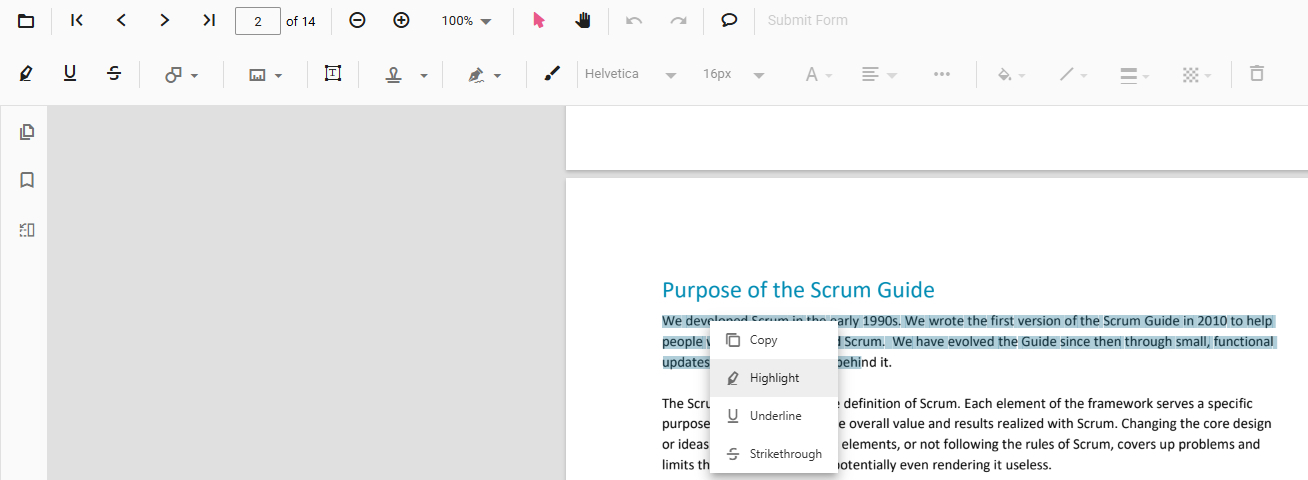
Highlight Text
Step 3. Click the Add Comments button from the upper menubar and click on the PDF page to insert a comment box (sticky note).
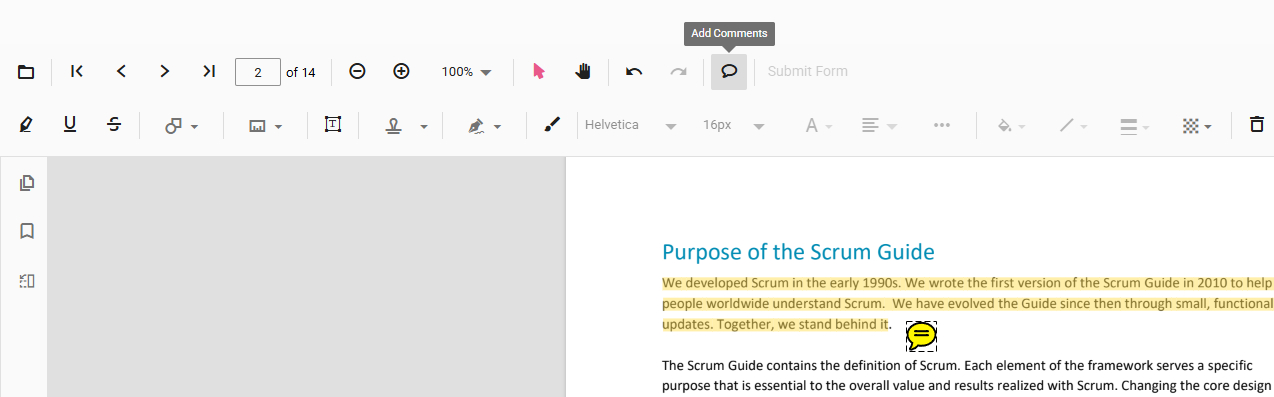
Add Comments
Step 4. Double-click on the inserted comment box, go to the comment area to the right to type in your comments, and click POST to apply the comment.
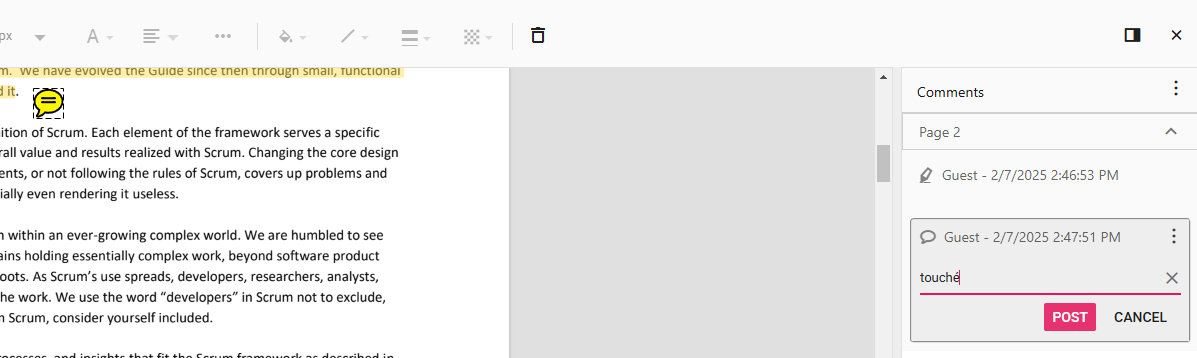
Post Comment
Step 5. On the upper ribbon, you’ll find many other useful PDF markup features for you to further annotate the PDF, such as free drawing, shapes, textbox, stamps, signatures, etc.
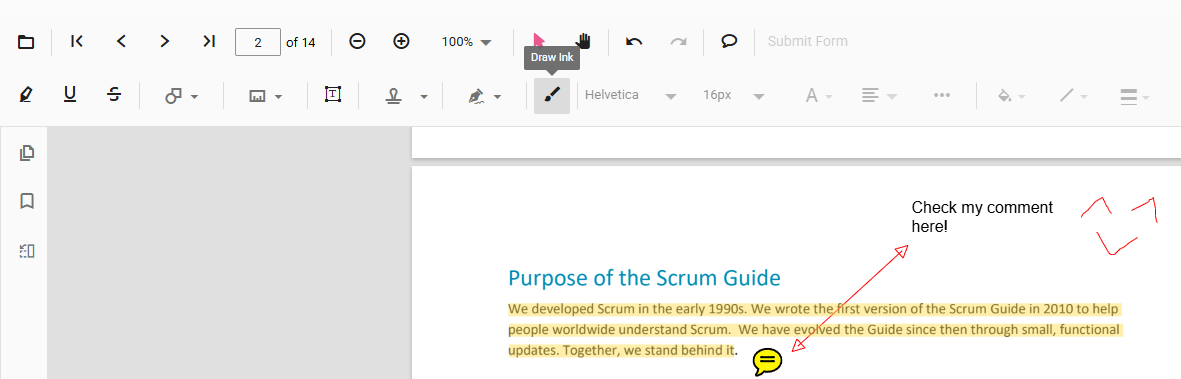
Markup Features
Step 6. You can always click on the upper-right Comment Panel to review, edit, or delete all existing annotations.
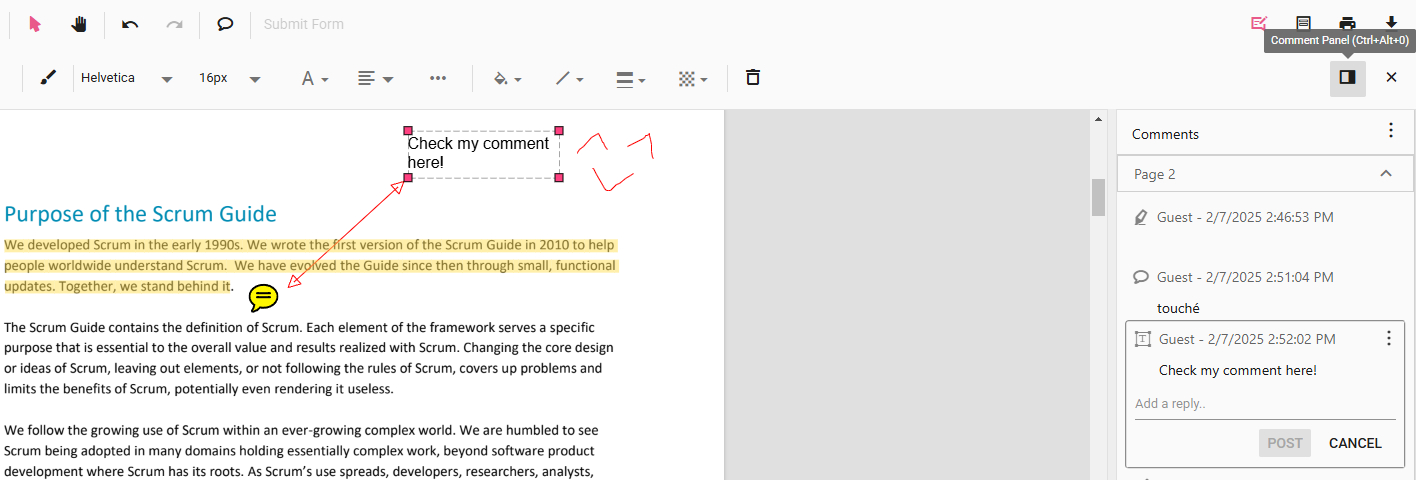
Comment Panel
Step 7. Click on the triple dots button ⫶ on any comment tab and click Status to set comment status like Accepted, Cancelled, Completed, and Rejected.
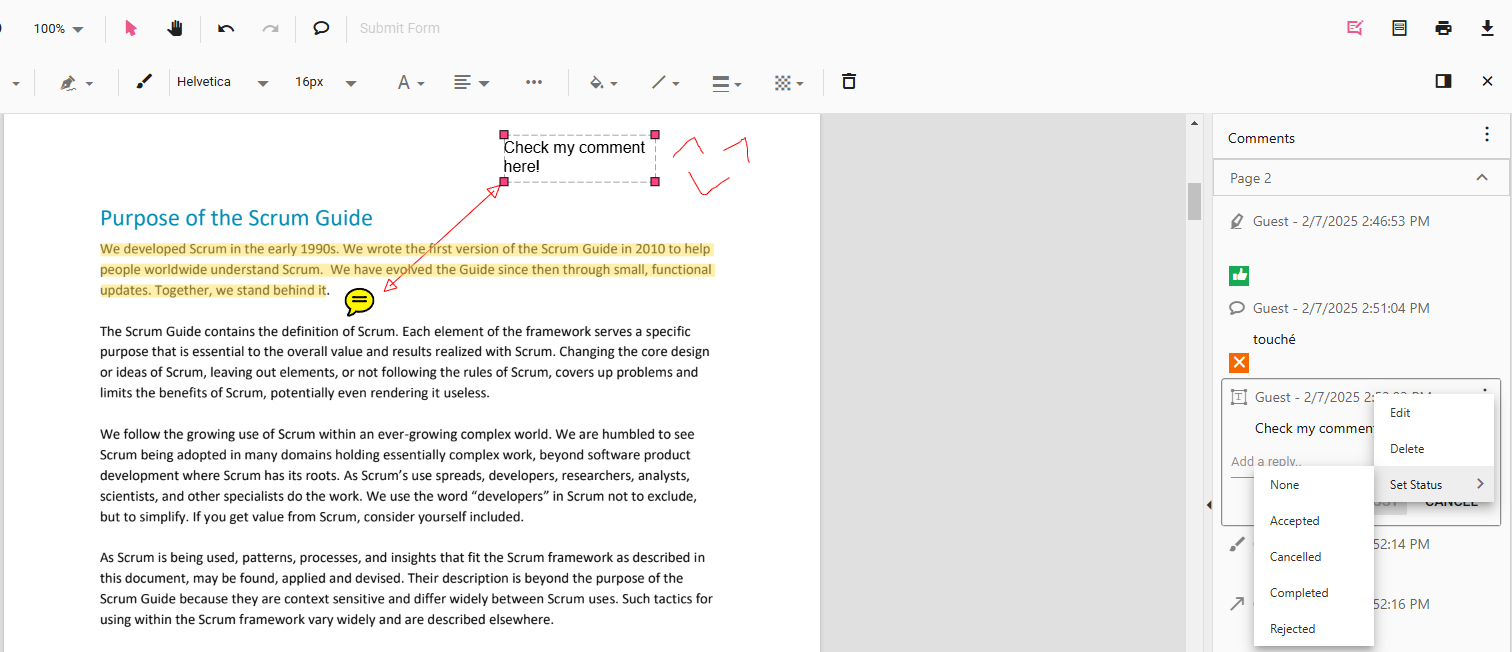
Set Status
Step 8. When you’re done annotating, click the upper-right Download file button to save the annotated PDF with the comment history.
If you intend to flatten all annotations, use the Print file button instead.
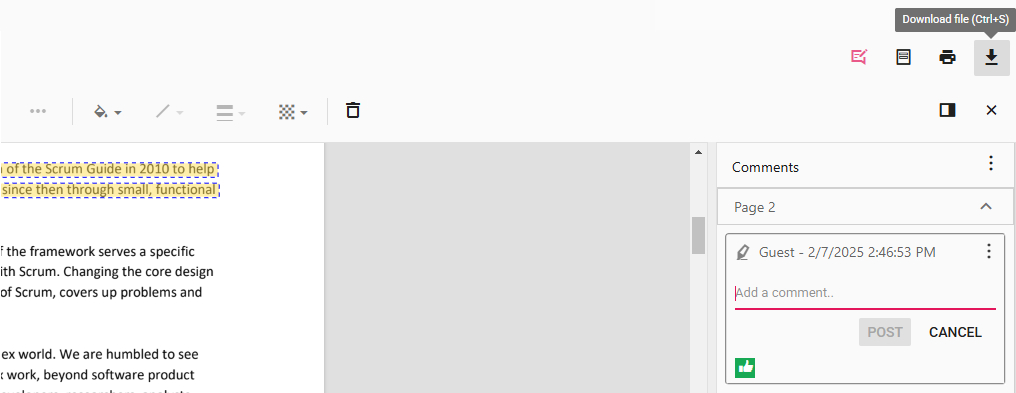
Download Annotated PDF
Annotate PDFs Using Adobe Acrobat Chrome Extension
The popular PDF editor Adobe Acrobat has also offered a Chrome extension that delivers similar functionalities.
Luckily, its PDF annotation features are freely available (as with Adobe Acrobat Reader), thus you won’t need an Acrobat Pro subscription.
Acrobat Chrome extension requires a specific Chrome permission to open local PDFs, the setup process can be a bit confusing for non-techie users – We’ll get to that in a bit.
Step 1. Get Adobe Acrobat extension in Chrome Web Store. Click Add to Chrome and then click Add Extension in the pop-up window.
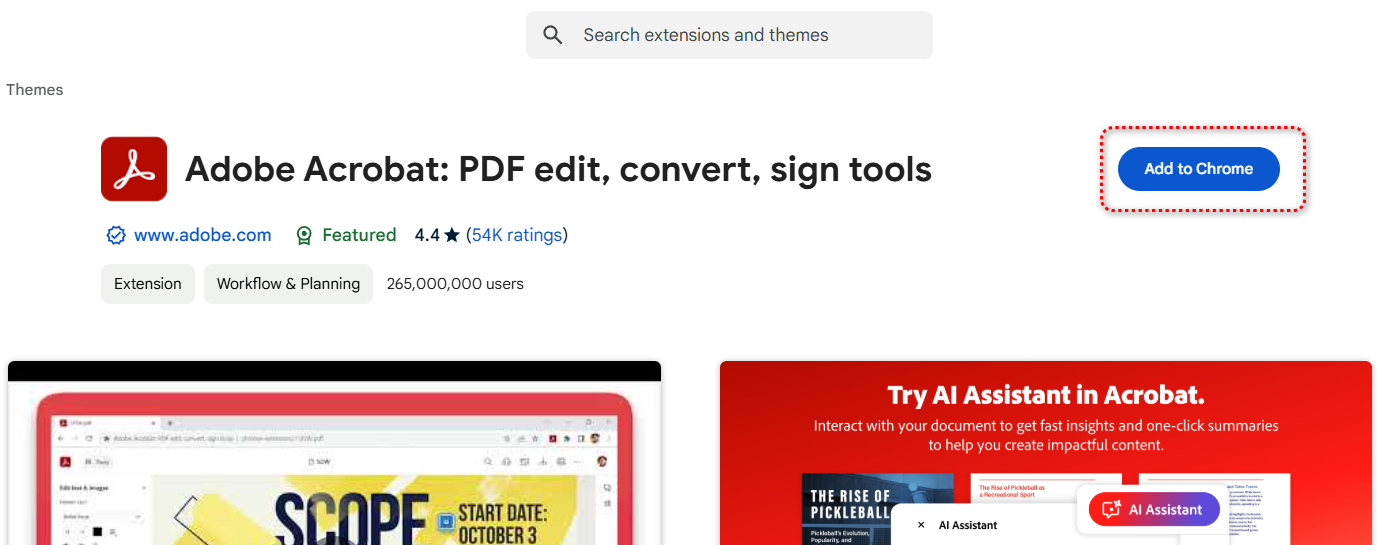
Add to Chrome
Step 2. Drag and drop a PDF file into Chrome web browser to open it as usual. A window will pop up asking permission for the Acrobat Chrome extension to open all your local files. Click Go to settings.
This will take you to Chrome browser settings, with that permission, anytime you click on a PDF link or open a PDF file in Chrome, it opens in the Acrobat extension instead.
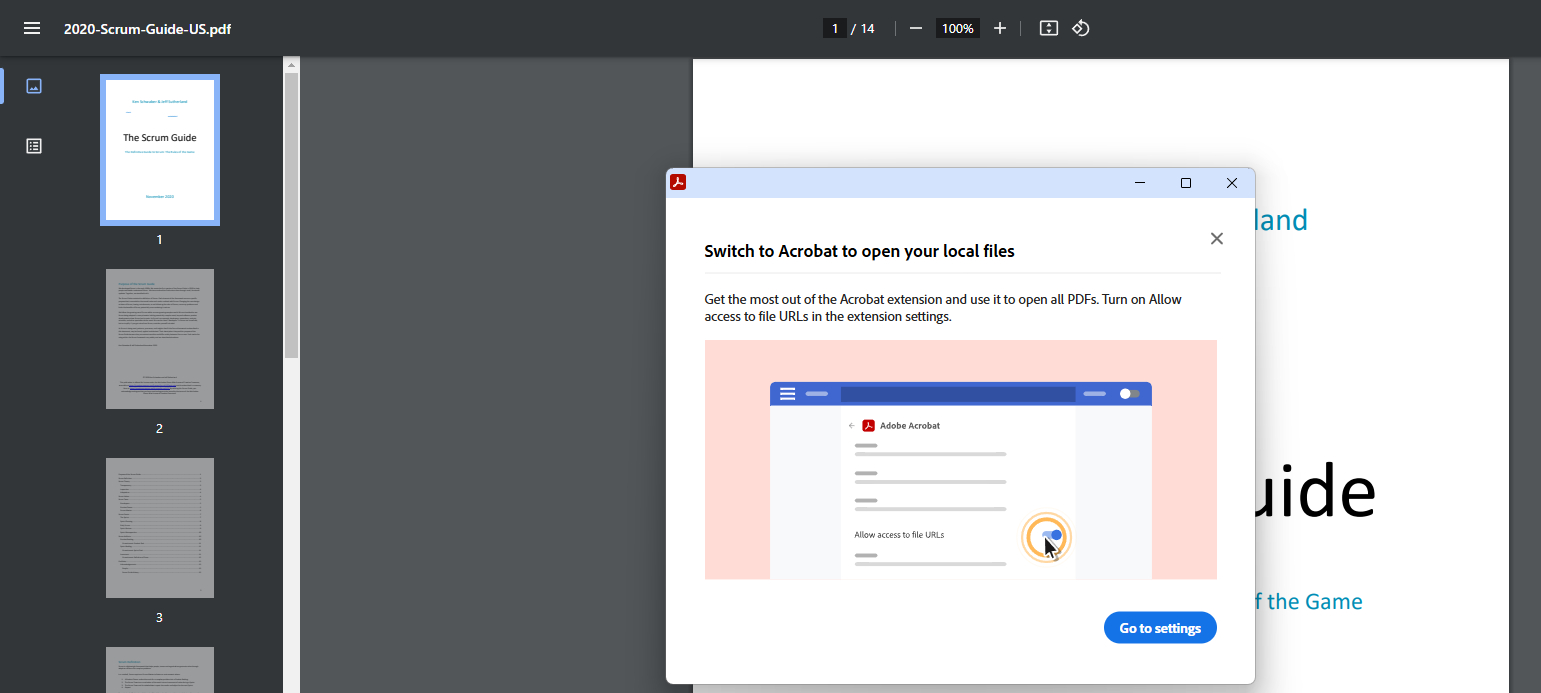
Give Permission
Step 3. Then the PDF will be loaded in Adobe Acrobat Chrome extension. Select the PDF text you need to annotate, and click Add comments in the pop-up menu.
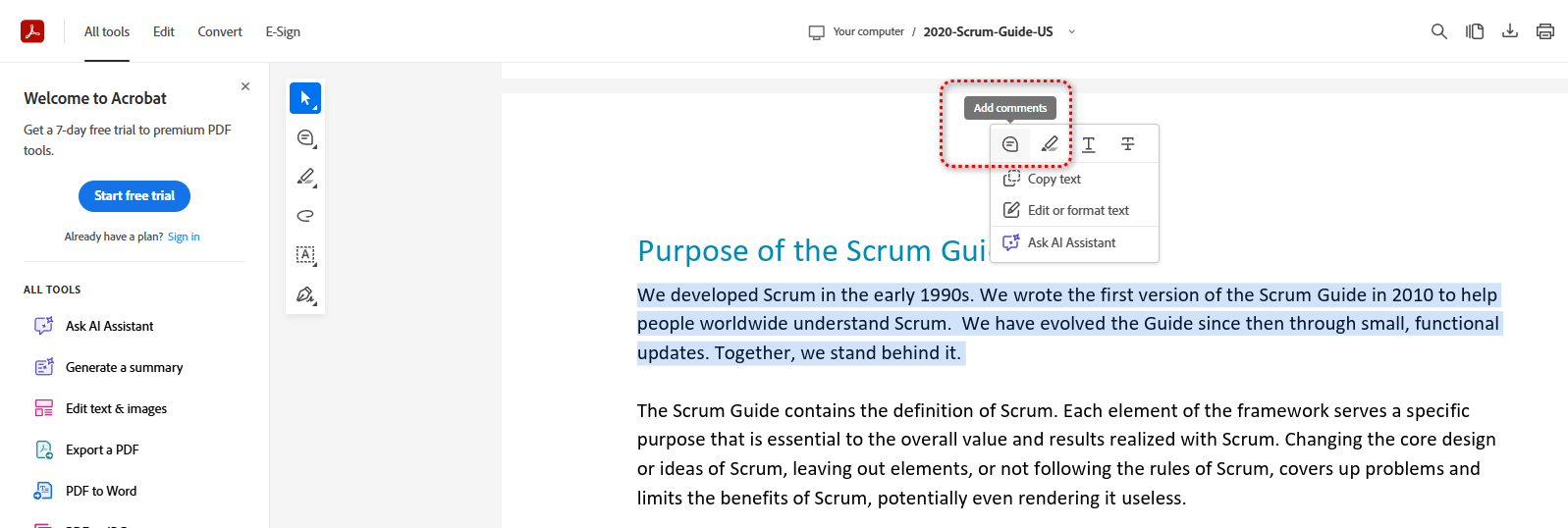
Comment PDF
Step 4. Go to the Comments panel on the right side and type in your comment, then click Post. This will leave a sticky note on the PDF.
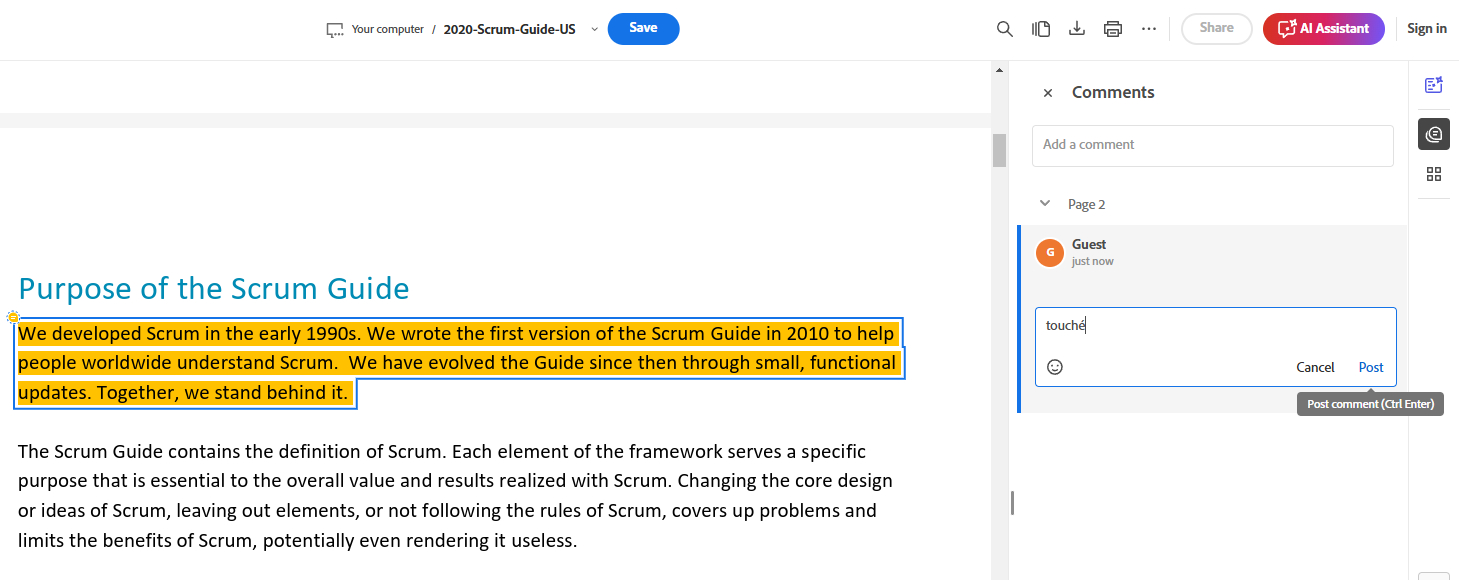
Post Comment
Step 5. Lastly, click the upper-right Download button to save the annotated PDF on your device.
FAQs
Can I annotate PDFs in Microsoft Edge?
Yes, unlike Google Chrome which lacks PDF markup features, Microsoft Edge offers many practical PDF annotation features like free drawing and PDF commenting.
Can you annotate PDFs directly in Google Chrome?
No, you can’t directly annotate PDFs in Chrome as it’s not natively supported.
But you can annotate PDFs in Google Chrome browse using PDFgear’s online PDF annotator. It’s a free tool that offers a user-friendly interface and a variety of annotation features.
Can I annotate a PDF without Adobe?
You can annotate PDFs without Adobe using PDFgear. Its web-based editor and standalone software offer various annotation features like highlighting, drawing, and adding text.
Does Google have a PDF editor?
Google does not have a specific PDF editor, but it allows you to edit PDFs through Google Docs. You can edit a PDF file with Google Docs as you would a Word file.
Google Docs converts PDF files into Word documents, allowing you to edit them. Once done, you can save the file back in PDF format.
