How to Change Font Size in PDF Fillable Form for Free

Summary :
Instantly change text font size for fillable form fields in PDF, or existing text in PDF for free.
Table of Contents
Change Font Size for Fillable Fields (Filled-in Text) Online
If you intend to change the font size of the text within fillable form fields, like filled-in text in fillable textboxes, then you should go with the PDFgear online PDF editor.
It allows you to instantly modify the font size, font type, text styles, alignment, border, thicknesses, etc. in fillable PDF form fields.
PDFgear is free to use, there’s no sign-up, and there’s no watermark, so don’t hesitate to get started.
Step 1. Go to PDFgear online PDF editor, and click the Select PDF file button to open the PDF you need.
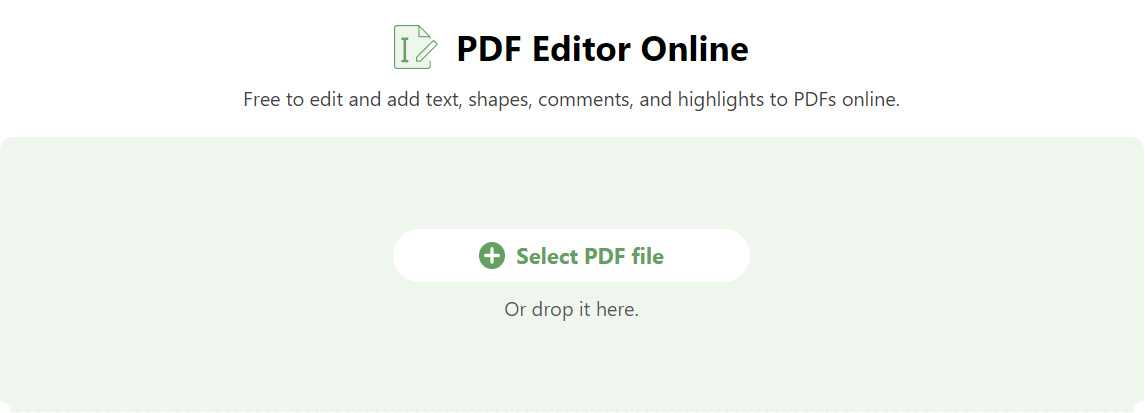
Select PDF file
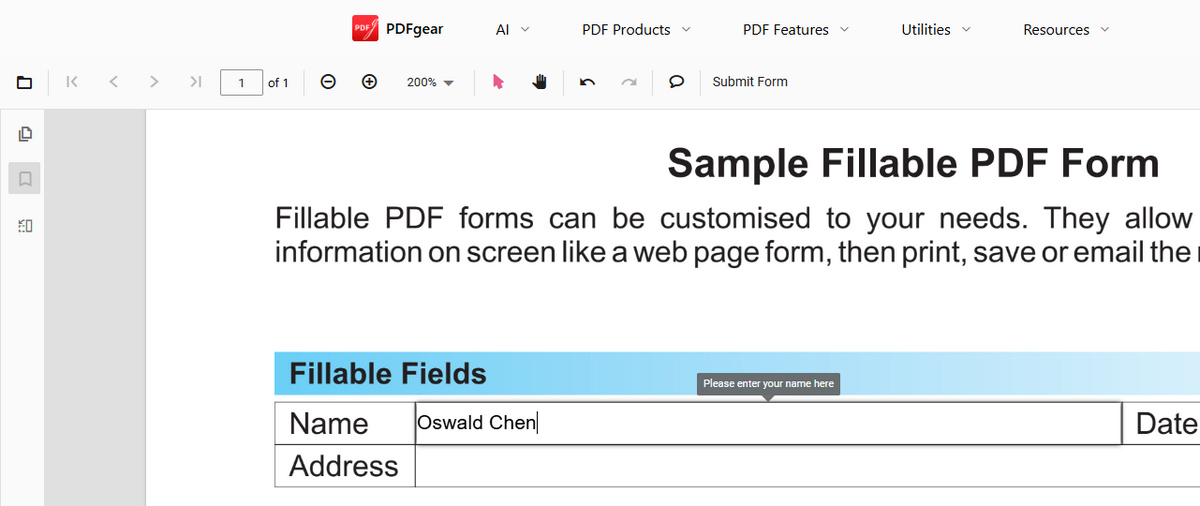
Step 2. If the form is not filled out already, click on the fillable form fields and type in text to fill in the areas.
Step 3. Click the upper-right Add and Edit Form Fields button.
The fillable areas will then be marked by their field names like Name, Address, Dropdown, etc.
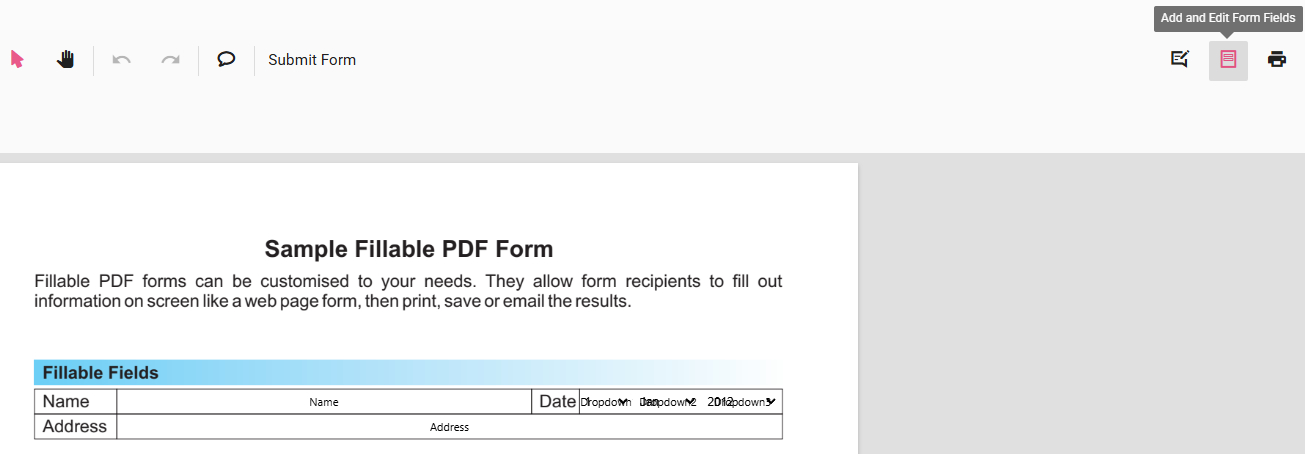
Marked Form Fields
Step 4. Double-click on a marked fillable area, and you’ll get into its Properties settings.
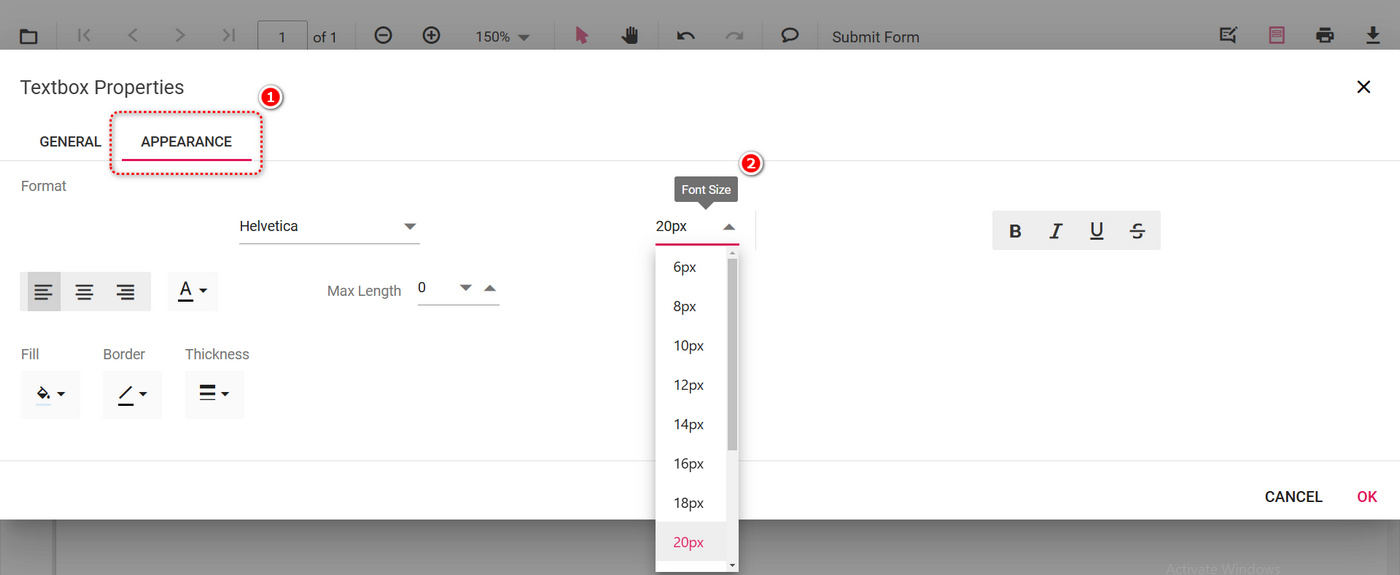
Step 5. In the pop-up Properties window, click on Appearance.
Then click on the Font Size dropdown below and choose the preferred size.
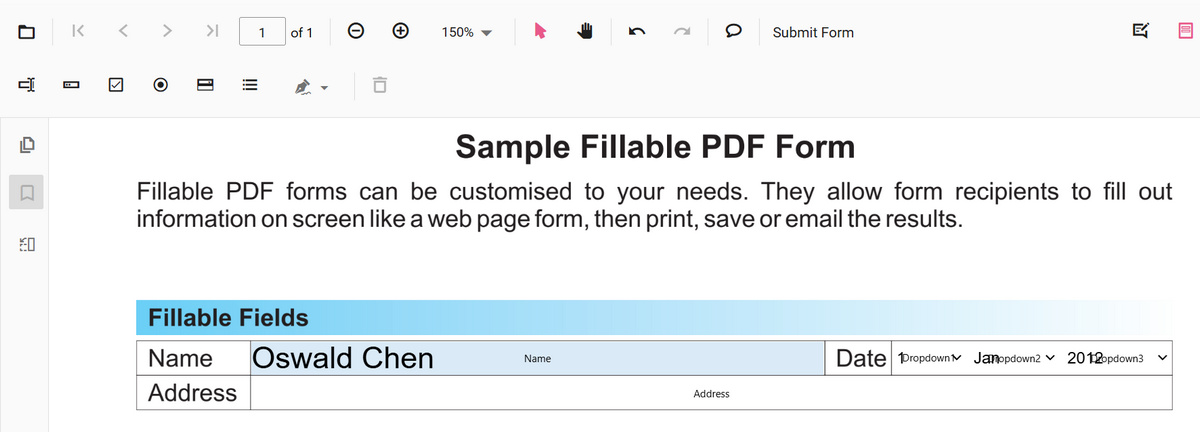
Step 6. Click OK, and as you can see, the text font size in the fillable field is changed accordingly.
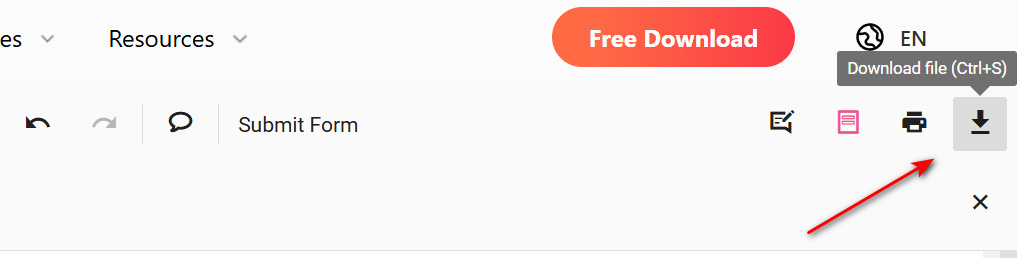
Step 7. Lastly, click the upper-right Download file or Print file button to save the modified PDF with/without the editable form fields preserved.
Change Font Size for PDF Existing Text for Free
If you intend to change the font size of the existing text, like the content or the field labels in a PDF form, look no further than PDFgear.
With its direct text editing feature, you can select and edit any existing text in PDF with a simple click.
PDFgear software is free to use, and it’s available on Windows and Mac.
PDFgear allows you to change font size, font type, and font color of any existing text in PDF.
Step 1. Download the PDFgear software and install it on your device. Fire it up after the installation.
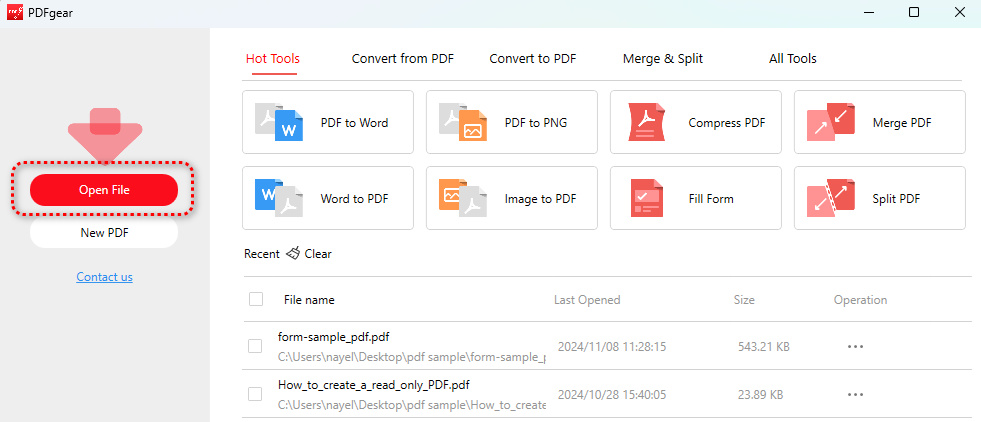
Step 2. Click Open File to open the PDF you need to work with.
Step 3. Click on Edit on the upper menu bar, and go to Edit Text mode.
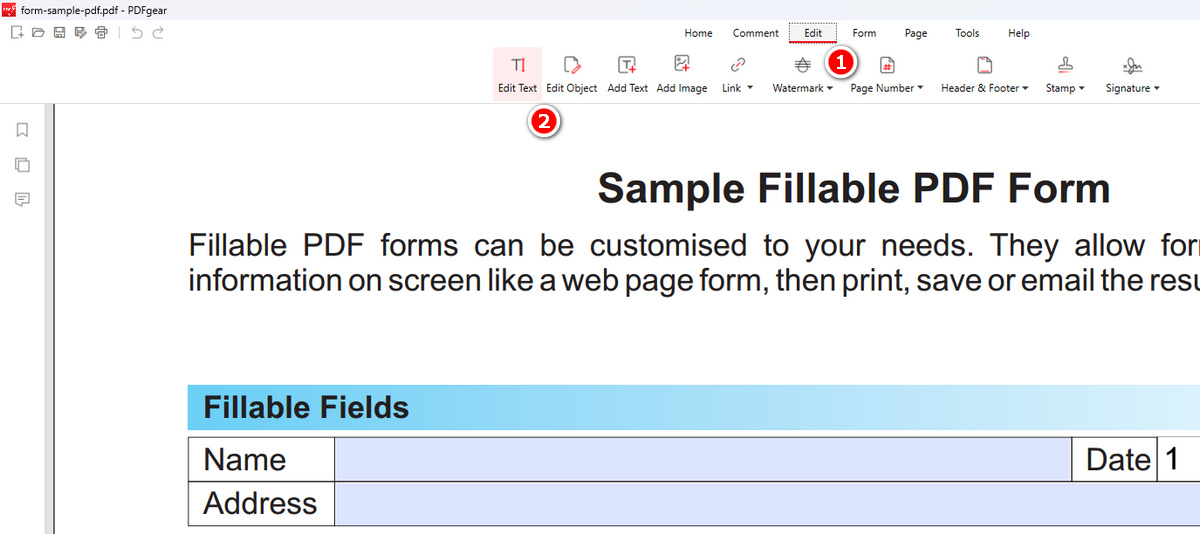
Step 4. PDFgear will then automatically mark the editable text fields with rectangular borders.
Click on the text box of the form labels you need to edit, and you’ll find options to change its font type and font size from the upper ribbon.
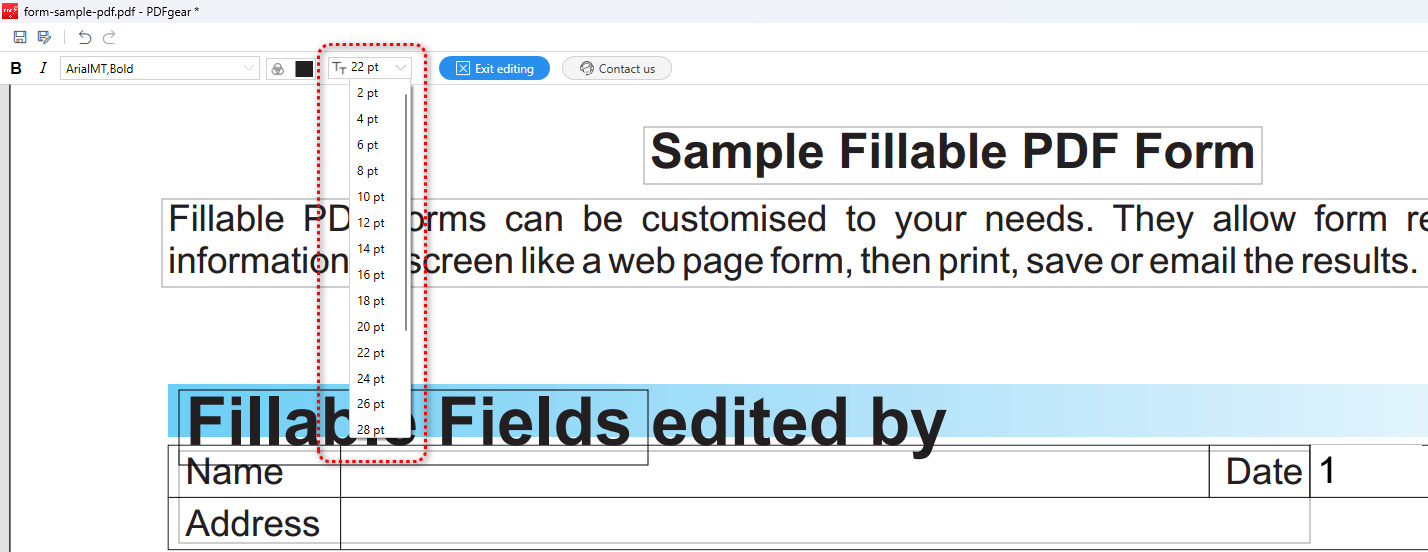
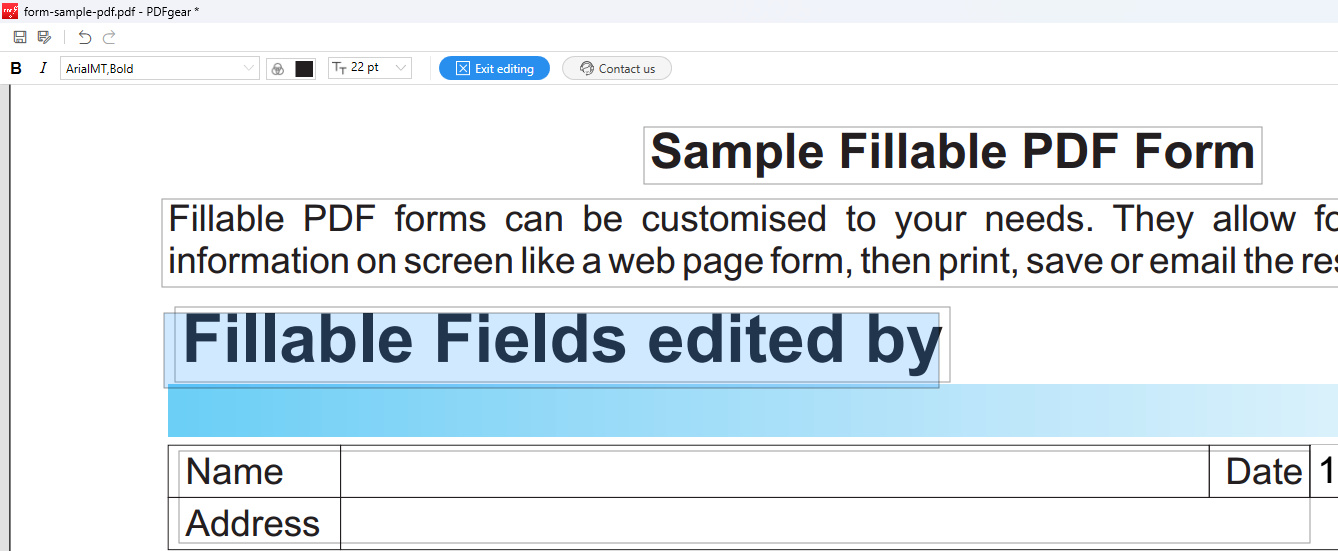
Step 5. If the changes in the font have caused an alignment issue for the text box, you can drag and drop to reposition it easily.
Step 6. When you’re done editing, click the upper Exit editing button to quit the Edit Text mode.
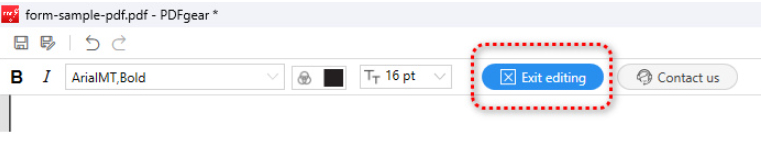
Exit Editing
Step 7. Lastly, click the upper-left Save as button to save the modified PDF on your device.

Save as
PDFgear allows you to change font size, font type, and font color of any existing text in PDF.
FAQs
Why can’t you select the form fields in PDF?
That’s because the PDF form fields are flattened. You can follow our guide on how to insert fillable text boxes to manually insert editable form fields once more.
How to change font size in PDF fillable form Adobe Reader?
You can’t. While allowing you to fill out PDF forms, the free version of Adobe Reader doesn’t let you edit text or change text font in PDF. As an alternative, PDFgear’s text editing feature allows you to change font type and font size in PDF files.
Why can’t I change the font in my fillable PDF form?
- The PDF form might be secured or locked to prevent changes.
- The form might have been created to only allow certain properties to be changed.
- You may not be using a PDF editor that has the capability to edit form field properties.
- The font you want to use is not installed or embedded in the PDF.
Are there any restrictions on what fonts I can use in a PDF form?
The fonts used in a PDF form must be either installed on the user’s system or embedded in the PDF. If a font is not available on a user’s system and it’s not embedded, the PDF viewer will substitute a different font.
How can I ensure the font changes I make will display correctly for everyone?
To ensure font changes display correctly, use common system fonts that most users will have, or embed the font into the PDF. When you embed a font, it becomes part of the PDF document, so the text will display with the correct font on any system.
How to change font size in fillable areas in Adobe Acrobat?
1. Go to the Tools menu and select Prepare Form. This will allow you to edit form fields.
2. Right-click on the fillable field where you want to change the font size.
3. Choose Properties from the context menu.
4. In the Properties dialog, navigate to the Appearance tab. Go to Font Size and select a preferred size.
5. If you want to apply the same font size to multiple fields, you can select them while holding down the Ctrl key (or Command key on Mac) and then change their properties simultaneously.
