How to Turn a PDF into Google Slides [Free and Easy]

Summary :
Looking to effortlessly convert your PDF files to Google Slides, for free and with top-notch quality? The methods below are tailored for you!
Table of Contents
Turn a PDF into Google Slides
To present scientific articles and business reports in a PDF, many will choose Google Slides, for its online editing and collaboration.
However, this program does not support opening PDF files, and neither do the Google Drive features now. You’ll need some extra help to get that done. Fortunately, this article has uncovered several free and convenient methods for turning PDFs into Google Slides. Let’s explore it together.
Turn a PDF into Google Slides by Making It a PPT/PPTX Online
Google Slides allows transforming and opening a presentation document as you upload the files. Therefore, the most practical way to turn a PDF into Google Slides is to make it a PPT/PPTX file first. It greatly retains the editability of the converted file.
PDFgear’s online file converter is accessible on PCs, laptops, and mobile phones, allowing you to convert files anywhere, anytime. It supports both PDF to PPT and PDF to PPTX conversions for free. Furthermore, it lets you present a PDF as a slideshow without transforming the file.
With only 2 steps, your PDFs are turned into PPT/PPTX without formatting loss.
Step 1. Upload a PDF to PDFgear for Conversion
Head to PDFgear’s PDF-to-PPT online converter > Click/tap the “Choose files” button to add the PDF, or drop the PDF files into the converting box. Conversion begins automatically when the files are uploaded.
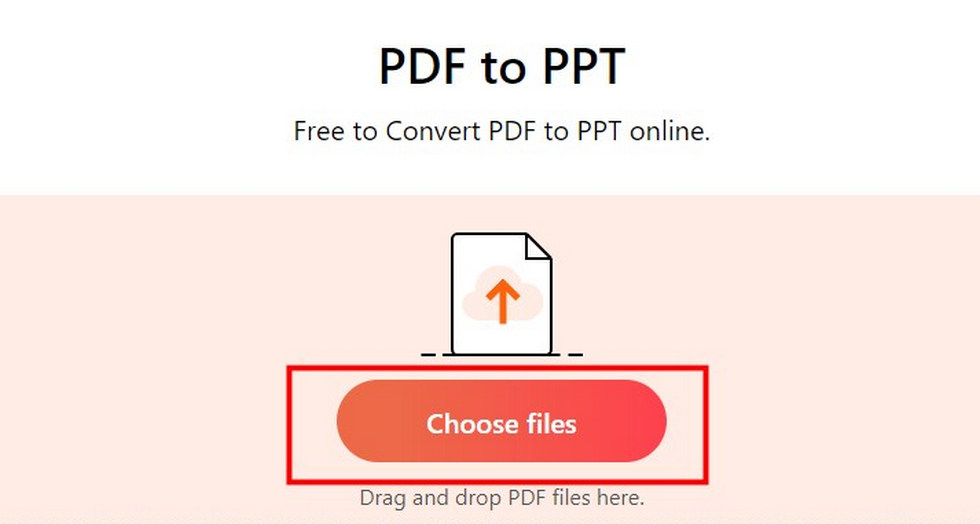
Upload a PDF to PDFgear Online Converter
Step 2. Download the Presentation File
When the conversion is done, you’ll be redirected to a new page. Click/tap the “Download” button to save the new PPT file.
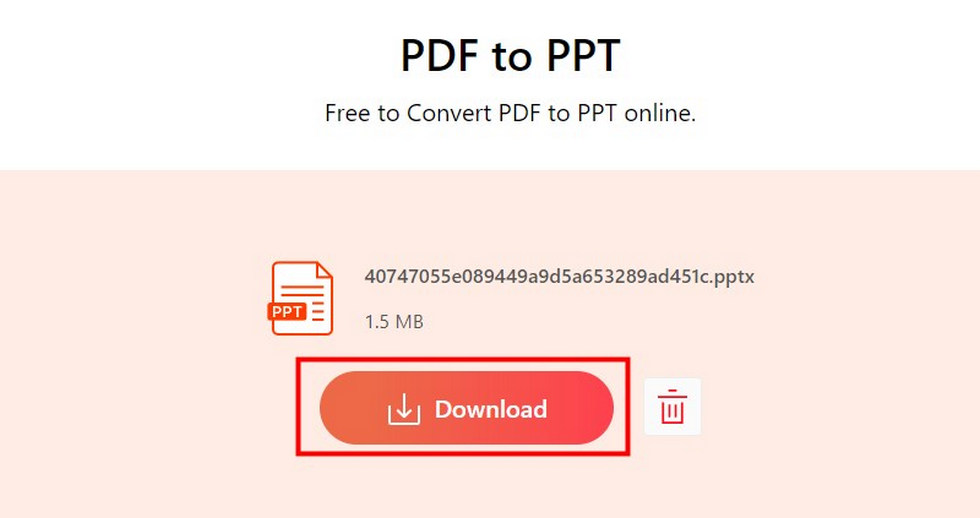
Download the PPT File from PDFgear Online
Step 3. Turn the PPT File into Google Slides
Open Google Slides and locate “File” > Choose “Open” > In the pop-up window, select “Upload” > “Browse” > Select the PPT file you’ve just saved to add. The file is automatically turned into Google Slides when opened.
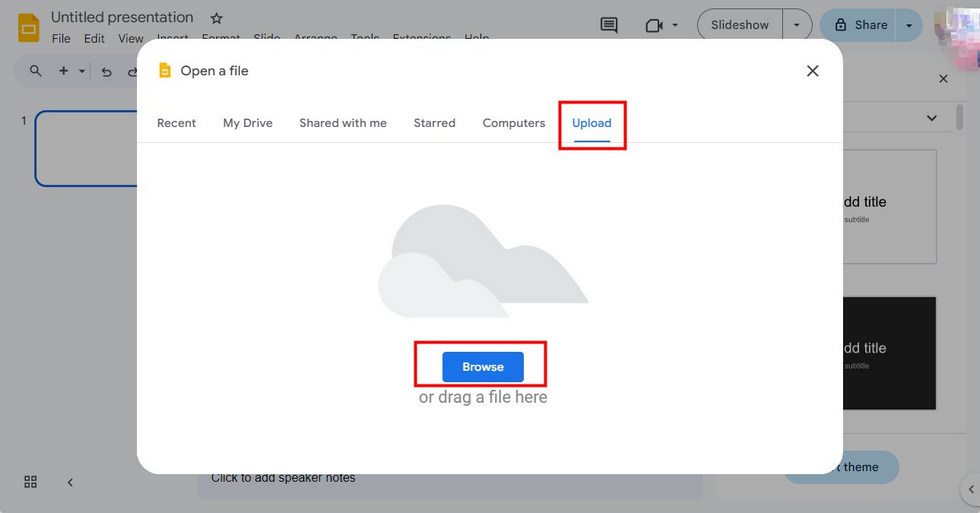
Upload a PPT to Google Slides
Typically, this online tool turns files in seconds, though its speed may vary depending on your internet connection and the file size. If you’re dealing with files larger than 50 MB or need to convert multiple files at once, PDFgear software is the way to go.
This user-friendly PDF toolkit works on both Windows and macOS, catering to the needs of most users. Plus, it’s completely free, with no limits on the number or size of files you can transform, allowing you to tackle your tasks with ease.
PDFgear is the top-notch option to turn PDFs into presentation files without formatting loss. It’s free, safe, full-featured, and easy to use.
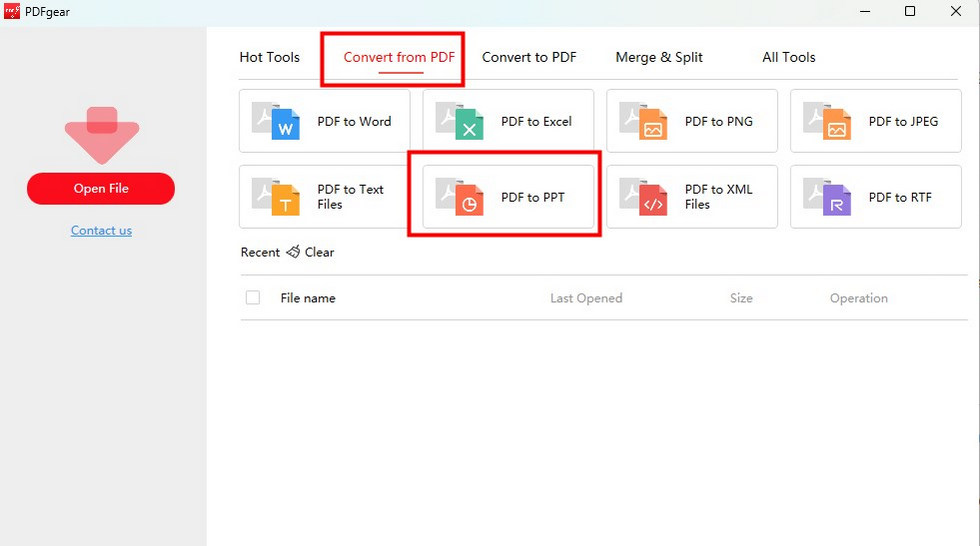
PDFgear PDF to PPT Converter
If you already own Microsft PowerPoint on your device, you can open or insert a PDF in PowerPoint and save the file in PPT format. It’s worth noting that fonts, images, or interactive elements may be lost during file uploading. Therefore, please backup your files before opening PDFs in PowerPoint.
How to Turn a PDF into Google Slides by Inserting PDF Images
For those who don’t require text editing or layout adjustments, turning PDF pages into images and inserting them into Google Slides effectively retains the document’s original details.
PDFgear enables high-quality file conversion. Based on your preference, you can turn a PDF into diverse image formats, such as JPG, PNG, and more. Without ads or sign-up demands, files will be saved as images efficiently:
Head to PDFgear PDF to image online converter, and click/tap “Upload your PDF files” to select the PDF you want to convert. Once the file is uploaded, conversion starts instantly and the images are stored in a zipped folder. Click or tap “Download File” to save them to your device.
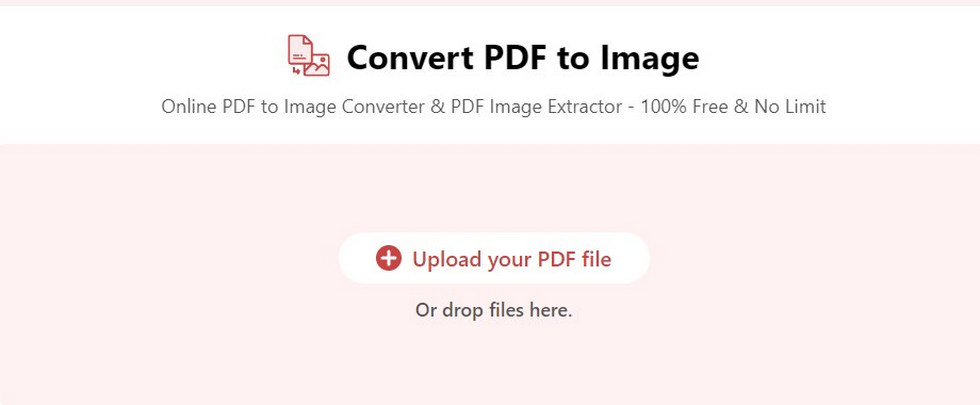
Turn a PDF into Images Online with PDFgear
If you’re struggling with multiple PDF files and going to make them in a single Google Slides document, PDFgear software helps merge the files on Windows, Mac, or phones.
FAQs
How do I copy a PDF image into Google Slides?
To copy a PDF image into Google Slides, you can open the PDF with PDFgear PDF editor. Exact the image from the PDF and save it. Then, open Google Slides, locate “Insert” > Choose “Image” > “Upload from computer” > Select the downloaded image to add.
Will turning a PDF to Google Slides change the file formatting?
To some extent, yes. Turning a PDF into Google Slides may alter the formatting. Text, image placement, layout, animations, and complex elements may change slightly.
Can you present a PDF as slides?
Yes, you can present a PDF as slides with PDFgear. This PDF editor enables direct presentation of PDFs while preserving the original layout. It aids navigation in slideshow mode, facilitating page/section switching.
Conclusion
Currently, there is no direct method to turn a PDF into slides via Google Slides or Google Drive. However, PDFgear’s PDF-to-PPT/PPTX and PDF-to-Image converters efficiently solve this problem. They maintain the original file format well, easing your work to open and edit the documents in Google Slides.
