How to Use AI to Translate a PDF to Any Language

Summary :
Learn to translate PDFs quickly using PDFgear, Google Translate, DeepL, and ChatGPT 4 – four powerful AI tools for accurate translations in any language.
Table of Contents
Translate PDF to Any Language with AI
It’s important to overcome language barriers, especially with PDF documents in different languages. Luckily, Artificial Intelligence (AI) has made translating PDFs easier and more efficient.
This article explains how to translate PDFs using AI, so language differences won’t block your access to important information. Whether for business, education, or personal use, you can easily handle multilingual documents with AI translation tools.
How to Translate a PDF with AI Using PDFgear
PDFgear integrates with ChatGPT 3.5, providing users with advanced PDF translation capabilities. It allows users to upload a PDF and translate its content into various languages, supporting both regular and scanned PDFs through OCR features.
Unlike other AI PDF translators, PDFgear provides you with a new experience in translating text in PDF. You can send the command to the PDF Copilot to ask it to translate your PDF file into a specific language including French, Spanish, German, etc. Besides, PDFgear can also work as a good AI PDF summarizer, AI PDF analyzer, and AI PDF rewriter.
Download PDFgear on your Windows or Mac, and begin to translate your PDF.
Step 1. Launch to PDFgear application, and click the “Open File” button to open the PDF you want to translate in PDFgear.
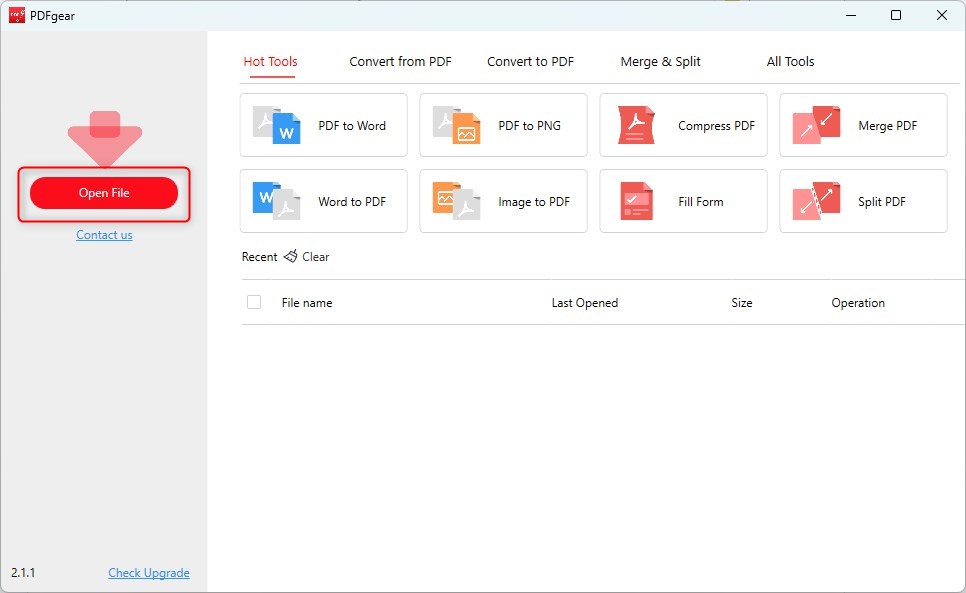
Open a PDF in PDFgear
Step 2. Click on the “Chat Now” button found in the lower right corner of the panel.
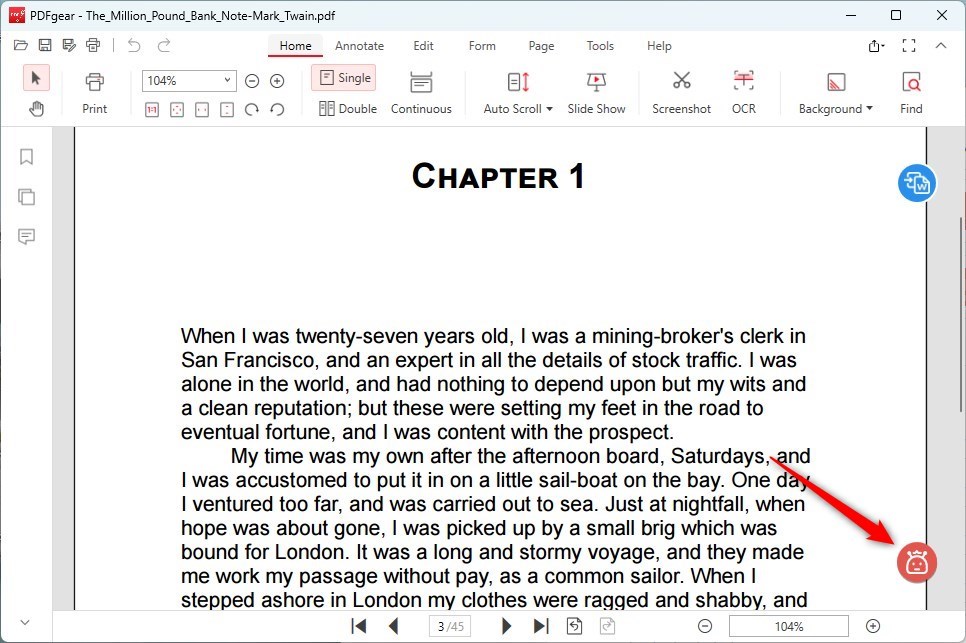
Open the PDF Copilot in PDFgear
Step 3. In the chat, input a command like “Translate this English text into French”, followed by pasting the English text you want to translate.
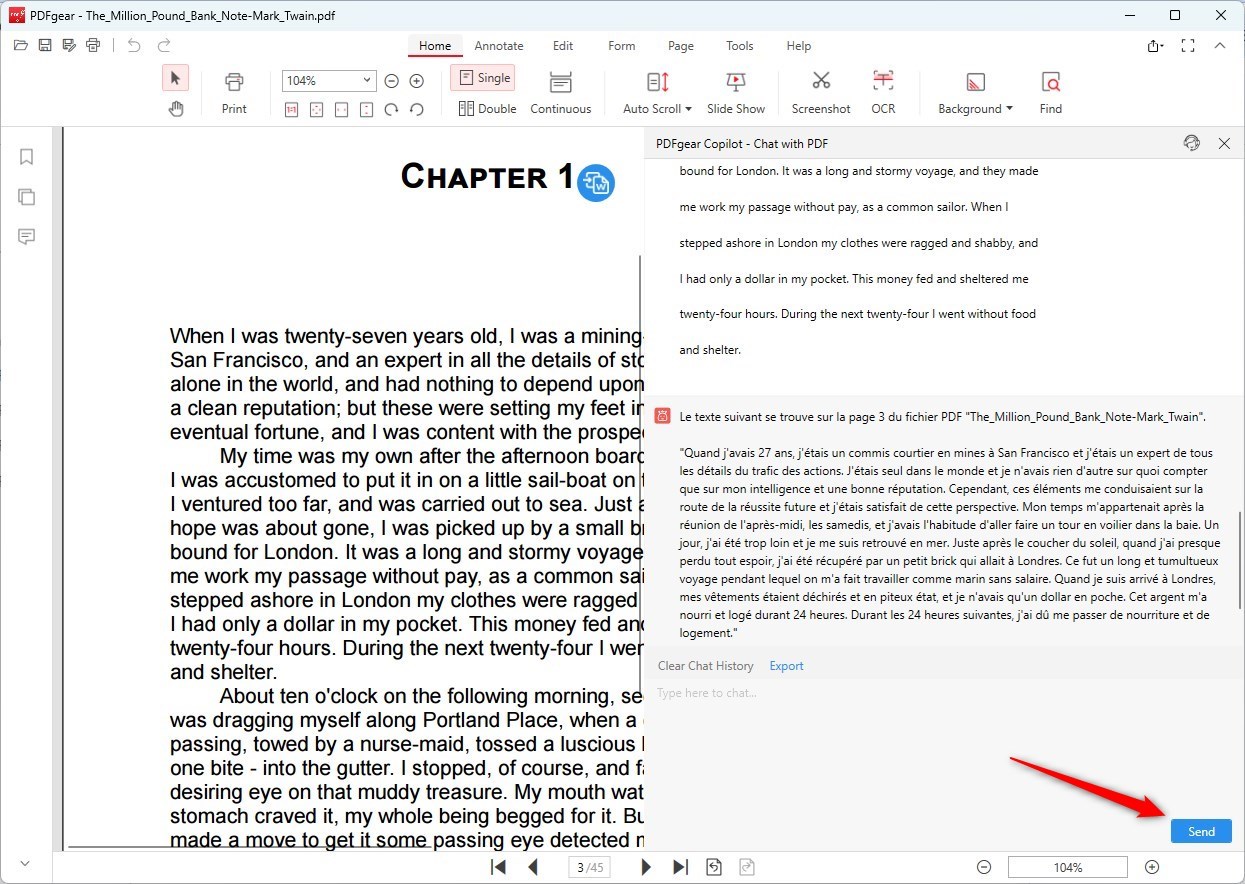
Translate PDF with AI Using PDFgear
Step 4. Press ‘Send’ to submit your request. PDFgear Copilot will start translating your given content.
Step 5. The translated text will be displayed in the output box.
How to Translate a PDF File Using Google Translate
Google Translate works best with text-based PDFs. If your PDF has many images or complex formatting, the translation might not be as accurate, and the layout could change.
For scanned PDFs, you need to use Optical Character Recognition (OCR) software first to convert the scanned text into editable text before using Google Translate
Step 1. Go to the Google Translate website. You can drag and drop the PDF file to the Google Translate page. Alternatively, click the “Browse your files” button to upload the PDF file that you want to translate.
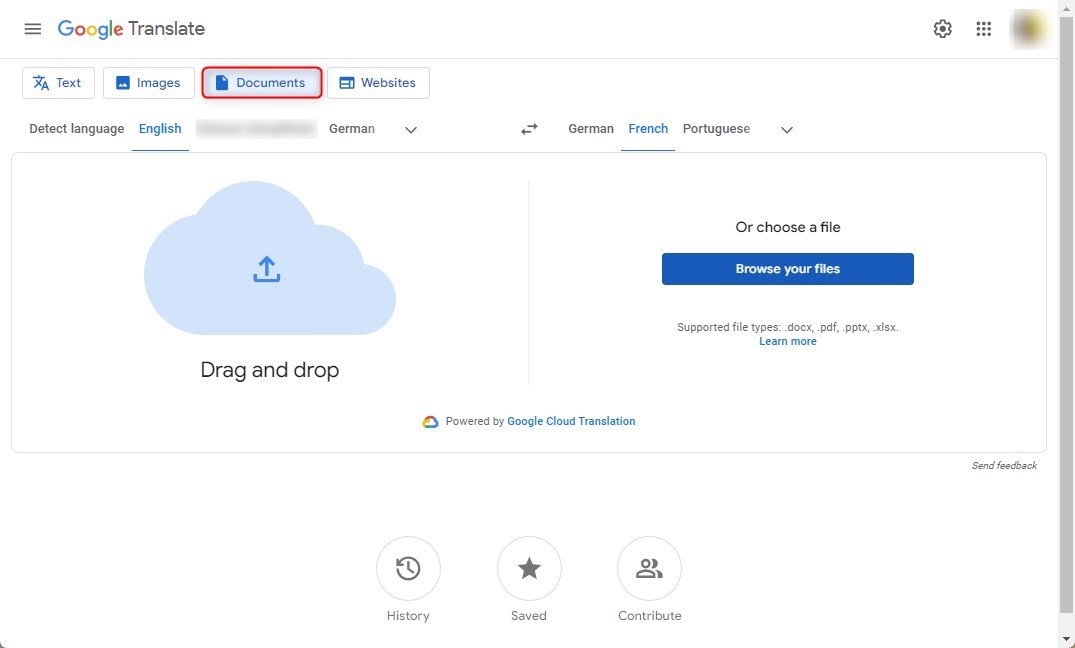
Upload a PDF File to Google Translate
Step 2. Before uploading, select the original language of the document or let Google Translate detect the language automatically. Then, choose the language you want the PDF to be translated into.
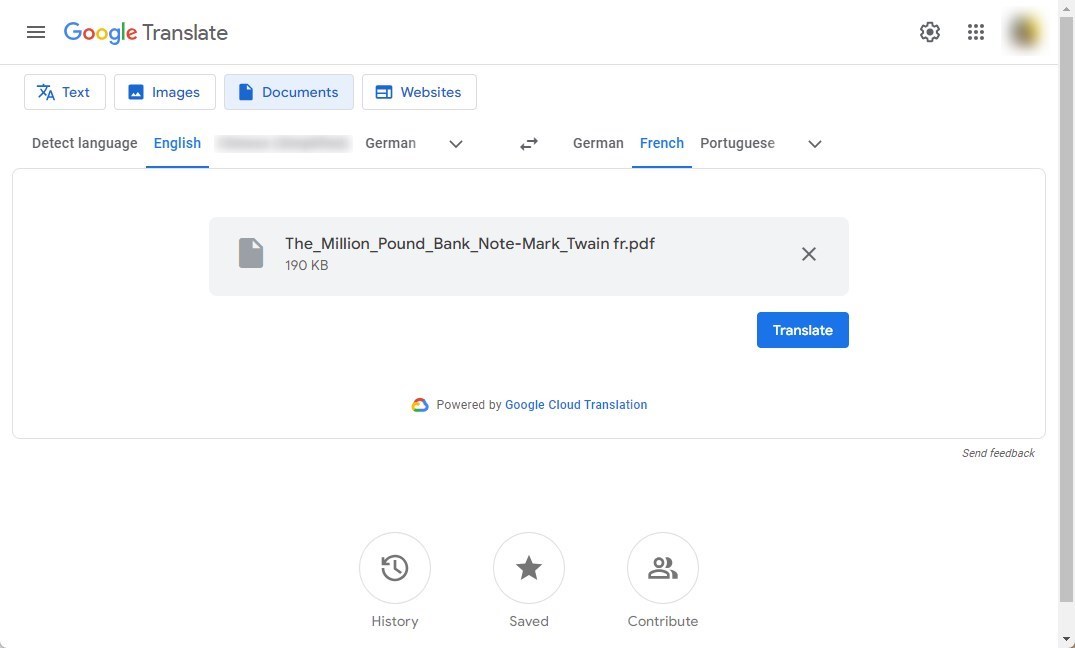
Translate a PDF with Google Translate
Step 3. After selecting the languages, upload your PDF file. Google Translate will then process the file and provide a translated version. This might take a few moments, depending on the size of the PDF.
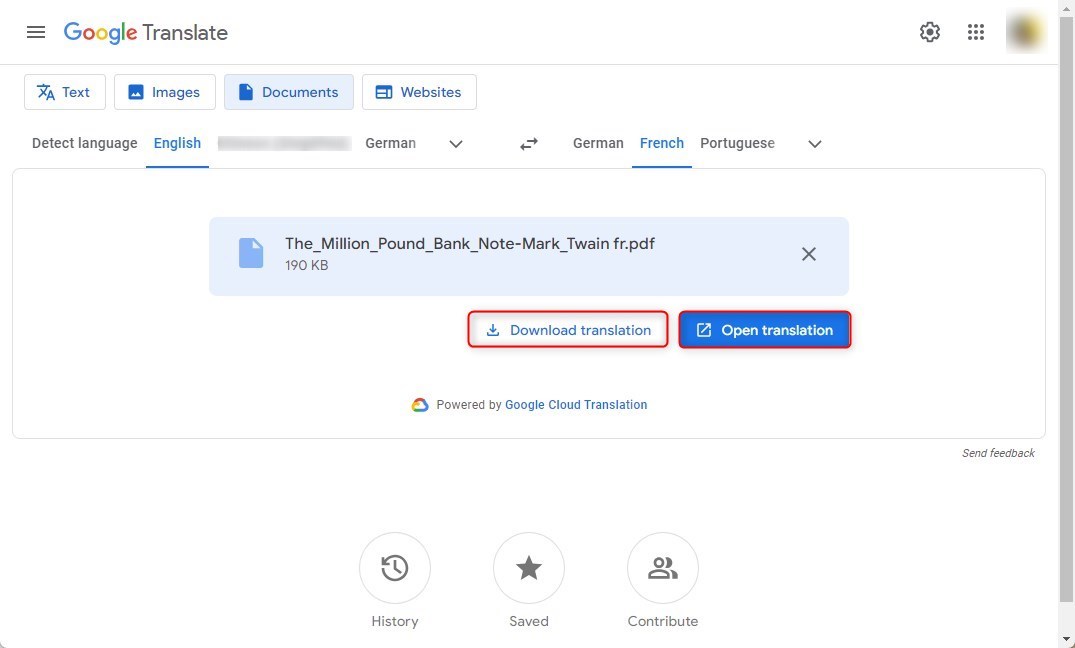
Download and View the Translation
Step 4. Once the translation is complete, you’ll be able to view the translated text. Keep in mind that the translation might not be perfect, especially for complex or technical texts.
Step 5. You can usually copy the translated text or, in some cases, download the translated document. However, note that the formatting of the original PDF might not be preserved perfectly in the translation.
How to Translate a PDF Using DeepL AI
DeepL AI PDF Translator is a highly rated tool known for its accuracy and understanding of language nuances. It excels at grasping context and subtleties, often providing higher quality translations than other services. DeepL supports multiple languages and is easy to use for both personal and professional purposes.
However, it supports fewer languages compared to competitors like Google Translate. Additionally, while its translations are often more accurate, they can take longer, and the free version has usage limits.
Step 1. Go to the DeepL Translator website. To translate a PDF file, you need to create a DeepL account.
Step 2. On the DeepL website, look for the “Translate files” option. This feature allows you to upload your PDF file for translation.
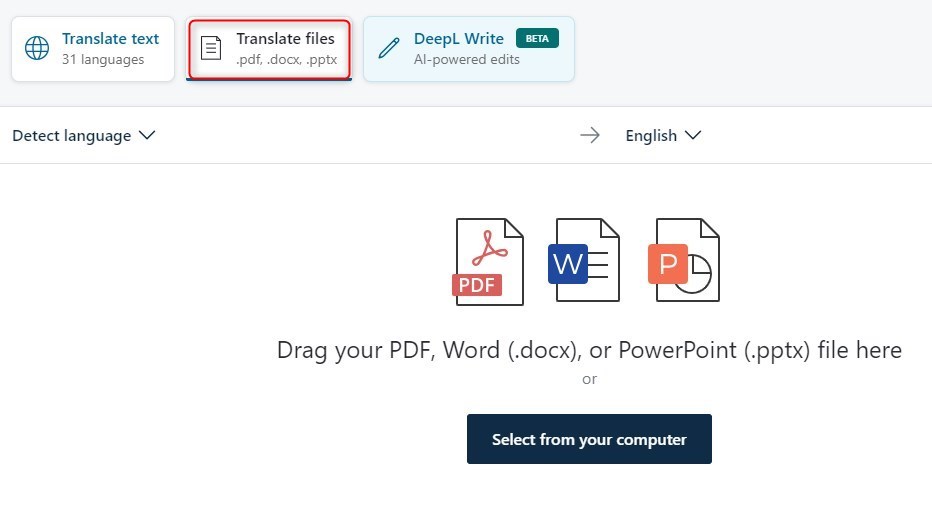
Upload a PDF to DeepL
Step 3. Click on the option to translate a document and then upload the PDF file you wish to translate.
Step 4. Before uploading the file, choose the original language of the document (or let DeepL automatically detect it) and the language you want to translate the document into.
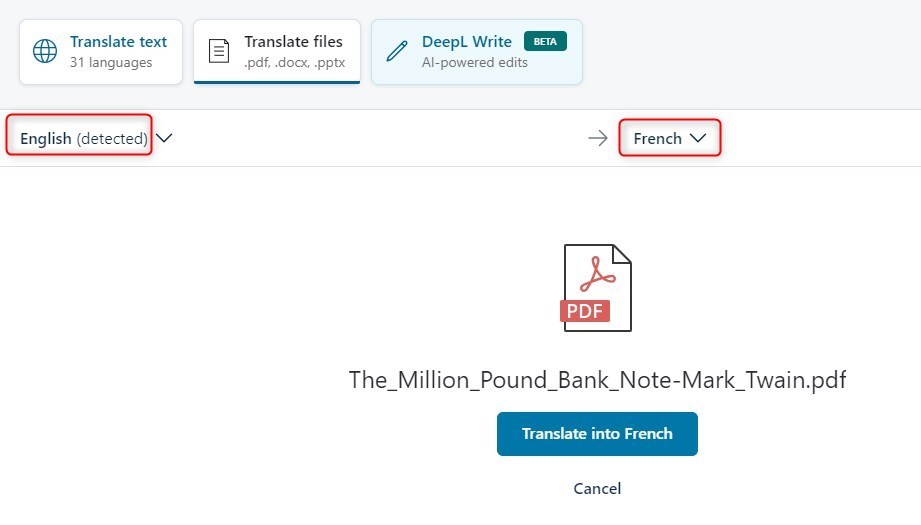
Translate a PDF File with DeepL AI
Step 5. After you’ve uploaded the file and selected the languages, DeepL will process the PDF and translate it. Depending on the length of the document, this process may take a few moments.
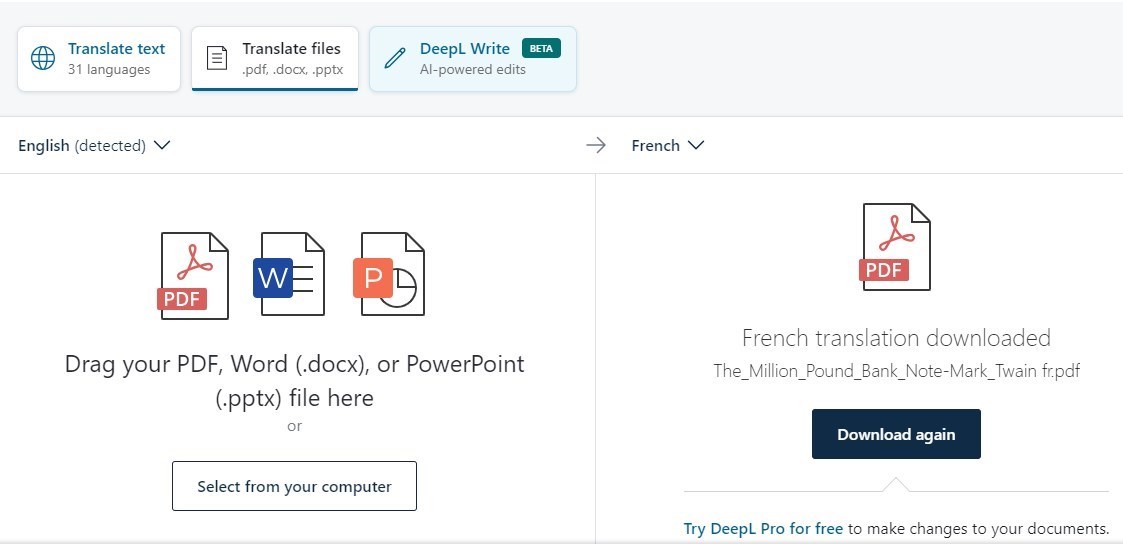
Download the Translated PDF on DeepL
Step 6. Once the translation is complete, DeepL will provide a downloadable link to the translated PDF. You can then review the translation.
How to Translate a PDF File Using ChatGPT 4
ChatGPT-4 can understand and translate multiple languages. After upgrading to ChatGPT Plus, you can request GPT-4 to translate specific parts or provide a summary in another language.
However, for very long documents, it might not translate the entire text at once. If your PDF is a scanned image, ChatGPT-4 can’t read or translate it without using OCR (Optical Character Recognition) technology first.
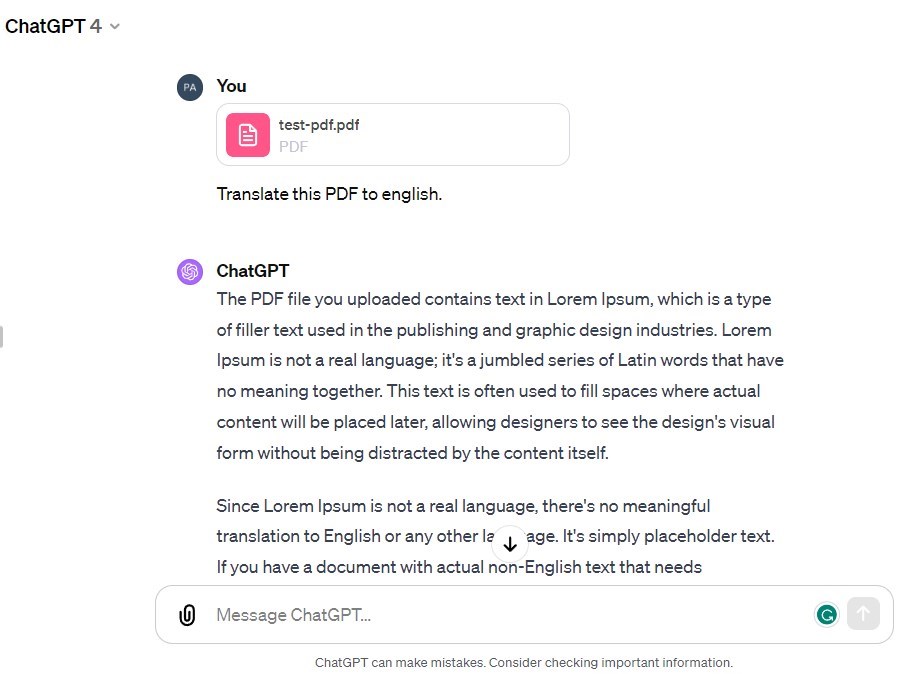
Upload a PDF File to ChatGPT 4 to Translate
Step 1. Use the file upload feature to upload the PDF document you want to be translated.
Step 2. Let the GPT-4 know the original language of the document and the language you want it to be translated into.
Step 3. The ChatGPT 4 will then access the document, translate the text, and provide you with the translation. For longer documents, It might provide a summarized translation of key sections, depending on your needs.
Step 4. If you have specific sections or pages you want to be prioritized in the translation, please mention that as well.
Conclusion
In conclusion, translating a PDF to any language is easier than ever with AI tools. This article covered four simple methods: using PDFgear, Google Translate, DeepL, and ChatGPT-4.
Among these, PDFgear stands out as a free AI PDF reader with a built-in translate function, making it a convenient and cost-effective choice.
