How to Sign PDF on Windows with 3 Free Ways

Summary :
Explore free and secure methods to sign PDFs on Windows using tools like Microsoft Edge and a versatile PDF editor to streamline your workflow.
Table of Contents
How to Sign PDFs on Windows
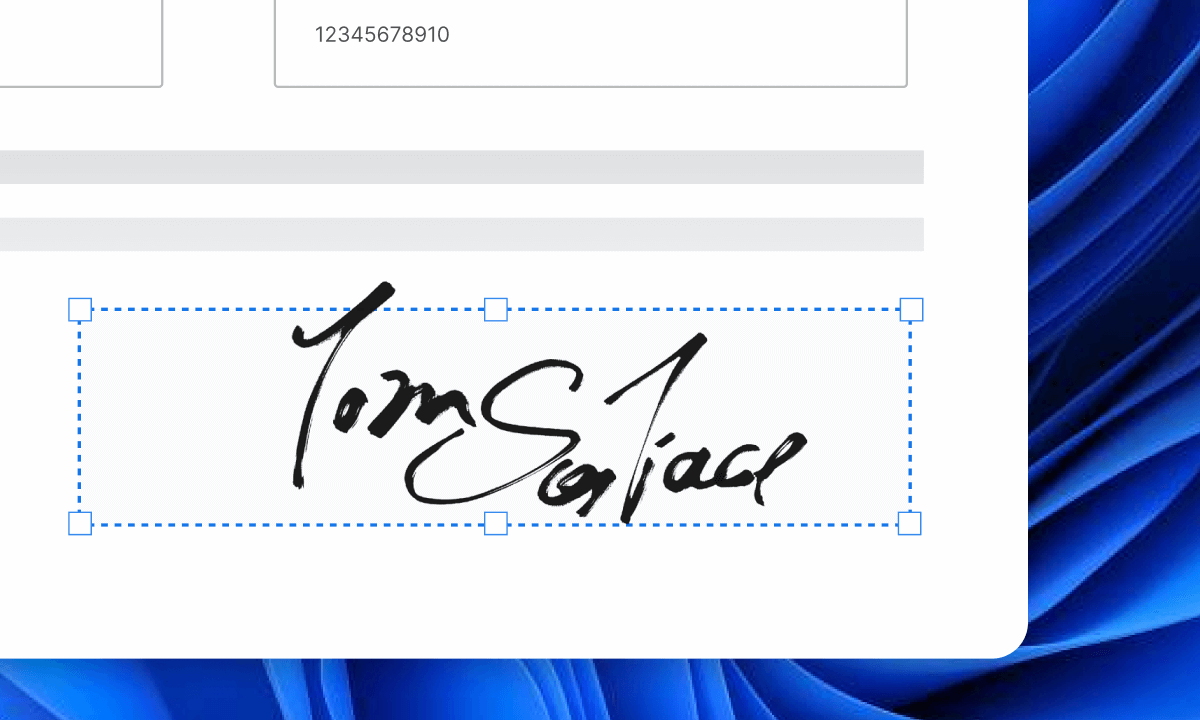
Electronic signatures are more efficient than wet signatures. You can sign PDFs by typing, drawing, or adding an image on your device.
This guide covers free ways to add electronic signatures to PDFs on any Windows device, including Windows 10, Windows 11, laptops, and desktop PCs.
For high-security files like legal documents or government forms, digital signatures are ideal. Signing PDFs digitally ensures authenticity and protection for sensitive documents.
Watch the video tutorial below to get started.
How to Sign a PDF on Windows for Free
How to Sign a PDF on Windows with Free PDF Editor
PDFgear is a powerful and secure PDF editor that lets you sign and fill out PDFs for free on your laptop or PC.
You can add signatures in three ways: type your name, draw with a mouse, or upload a signature image. It also supports adding multiple signatures to different pages at once.
Notably, PDFgear can flatten signatures, making them a permanent part of the PDF and tamper-proof.
Step 1. Download PDFgear which is fully compatible with Windows 10 and Windows 11.
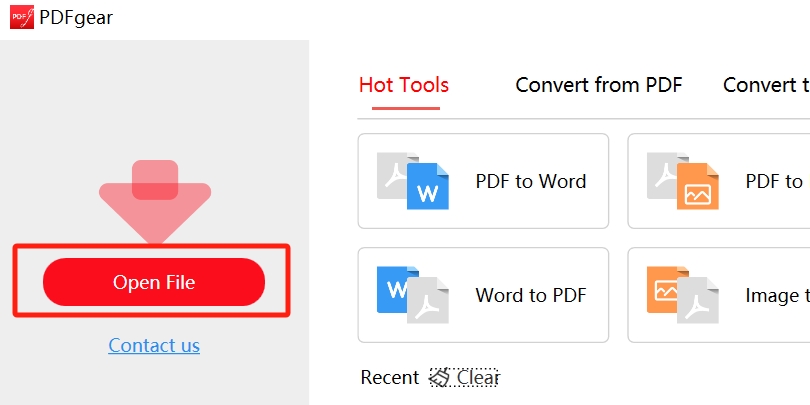
Step 2. Open PDFgear, click “Open File”, and select the PDF you want to sign.
Open PDF in PDFgear
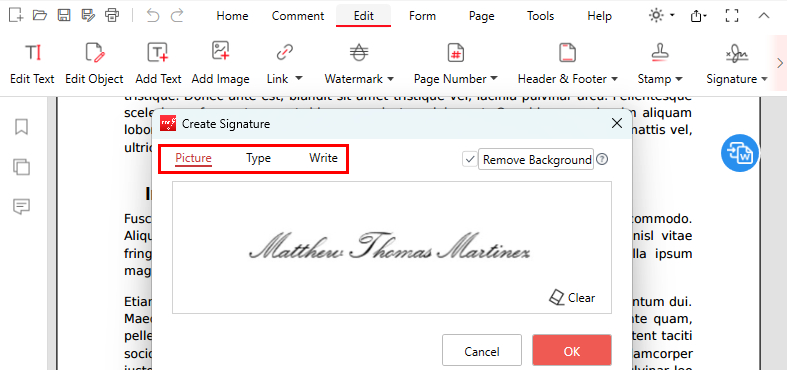
Step 3. Click “Edit” > “Signature” > “Create Signature”. PDFgear offers three ways to create your signature:
- Add a Picture: Add a signature image and remove the background for a cleaner look.
- Type Your Name: Type your name and choose a preferred font style.
- Write with Mouse: Use your mouse to draw your signature and adjust the line thickness.
Three Methods to Add a Signature with PDFgear
Step 4. Place the signature, resize it, and flatten it to prevent tampering. You can also apply it to multiple pages if needed.
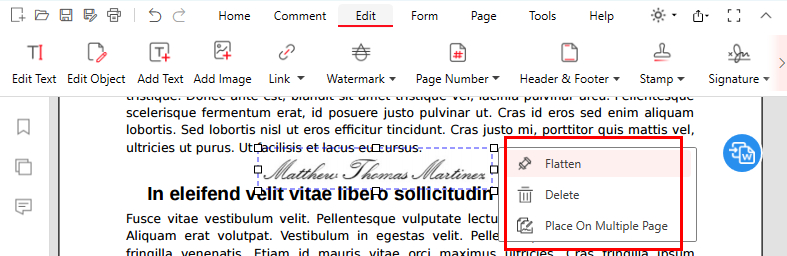
Place and Flatten Signatures in PDFgear
Step 5. Finally, click the Save icon in the upper-left corner.
Furthermore, PDFgear lets you add a signature stamp to your PDF and provides a wide range of editing features, including adding fillable text boxes, watermarks, highlights, comments, and more.
How to Sign a PDF on Windows Online
PDFgear offers an online tool for signing PDFs. To ensure security and make the signature tamper-proof, it is automatically flattened, removing the need for extra printing.
Step 1. Open the PDFgear Online PDF Editor and drag your PDF file into the editor.
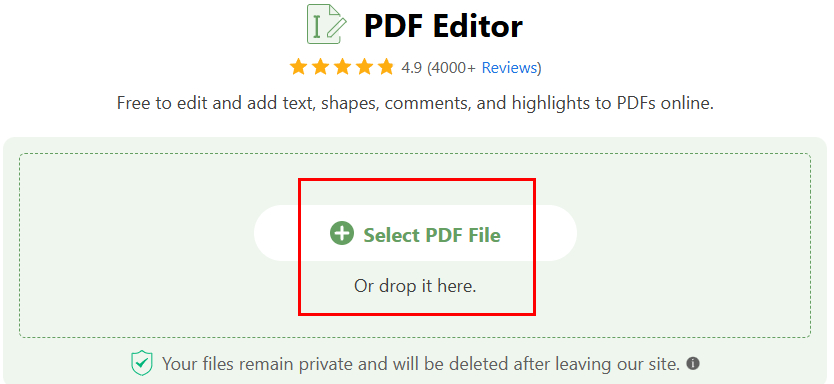
Open a PDF with PDFgear Online Signer
Step 2. Click “Add and Edit Annotations”, select “Add Signature”, and choose “ADD SIGNATURE” or “ADD INITIAL”. Create your signature by drawing, typing, or uploading an image.
Check “Save Signature” in the lower-left corner to save it for future use.
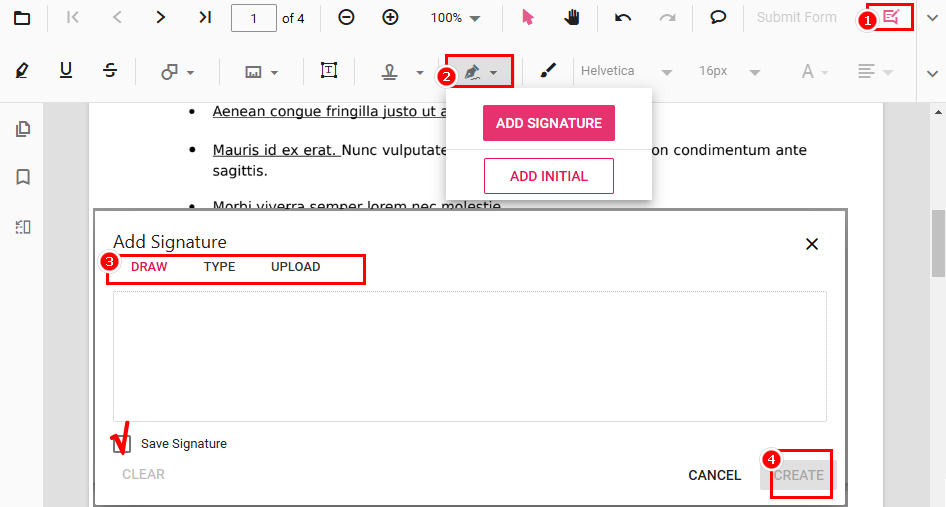
Create Signature in PDFgear Online Signer
Step 3. Place your signature, resize it, or copy and delete it as needed.
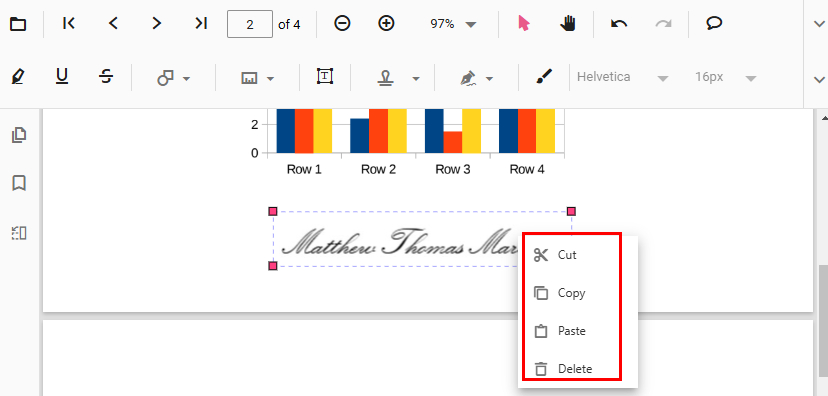
Place and Apply the Signature in PDF
Step 4. Click “Download file” in the top right to save the signed PDF. The signature is flattened, and a new copy is created without altering the original.
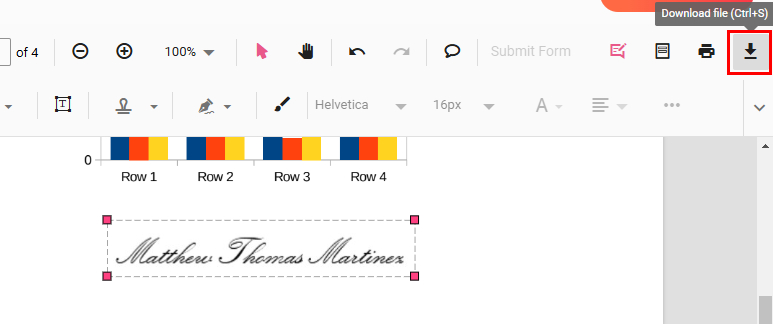
Download the Signed PDF from PDFgear Online Signer
How to Sign a PDF on Windows Using Microsoft Edge
With its native Windows integration, Microsoft Edge is a convenient and free PDF editing option. Microsoft Edge’s drawing tools allow users to easily annotate PDFs, fill out PDF forms, and add signatures.
Step 1. Right-click the PDF > Select Open with > Choose Microsoft Edge.
Alternatively, you can just drag and drop the PDF file on Microsoft Edge to open it.
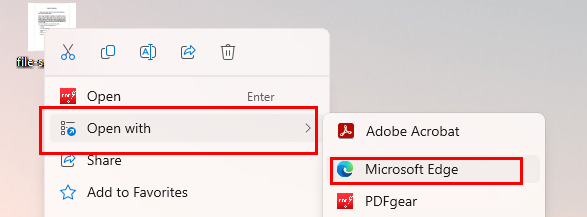
Open a PDF with Microsoft Edge
Step 2. Click “Draw” in the toolbar to use drawing tools, and adjust the signature color and thickness with the dropdown arrow.
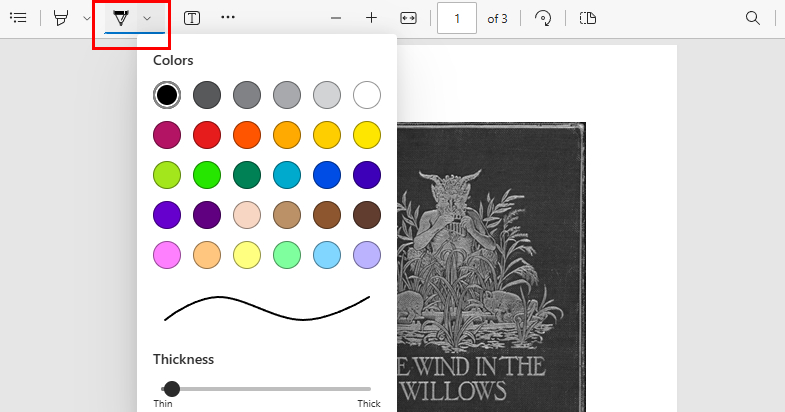
Find the Drawing Tools in Microsoft Edge
Step 3. Use your mouse to sign on the PDF.
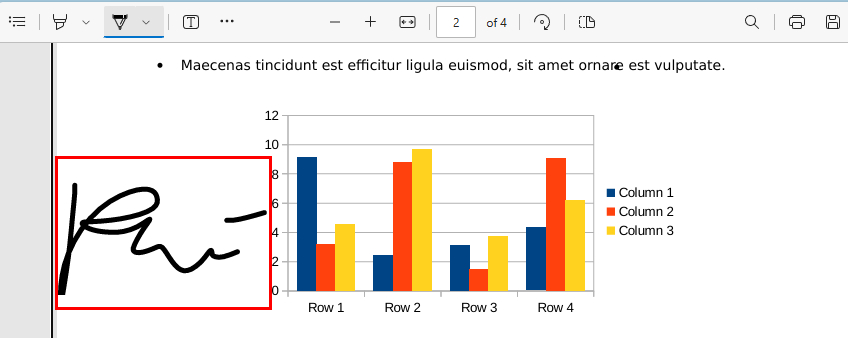
Sign PDF in Microsoft Edge
Step 4. Print and save the PDF to flatten the signature and prevent tampering.
If you only click the save icon in the upper-right corner, the signature might remain as an annotation and could potentially be removed.
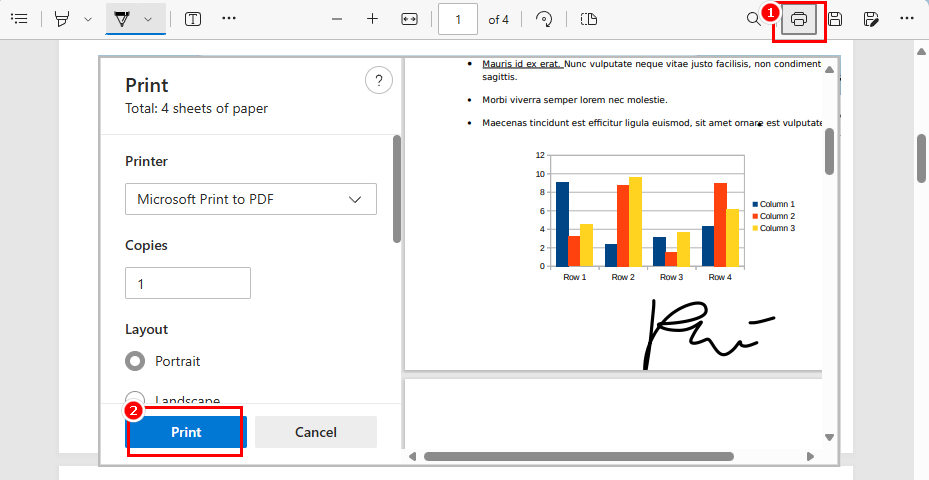
Print the Signed PDF with Microsoft Edge
FAQs
Can I Sign a PDF on Windows Online?
Absolutely yes. Visit PDFgear online PDF editor > Open PDF > Click “Add or Edit Annotation” > “Add Signature” > Save the signed PDF.
PDFgear also provides a variety of online tools, including PDF online editor, PDF online form filler, etc.
Can I Remove a Signature From a PDF?
PDFgear isn’t just for adding signatures—it can also help you remove signatures.
- For inserted signatures: Download PDFgear, open the signed PDF, find the signature, click on it, and select “Delete” to remove it.
- For flattened signatures: Use redaction tools. Open the PDF in PDFgear, go to the Protect toolbar, and click Redact to permanently remove the signature.
How to Add an Electronic Signature Windows 10?
An electronic signature is a digital representation of a signature, distinct from the traditional pen-and-paper counterpart. You can use PDFgear to add electronic signatures.
Open the PDF that requires a signature in PDFgear > Click “Edit” > “Signature” > “Add Signature” > Upload your electronic signature > Add to PDF > Save.
How to Digitally Sign a PDF on Windows?
Since PDFgear cannot add digital signatures to PDFs, you should use Adobe Acrobat instead.
1. Open a PDF with Adobe Acrobat (subscription required)
2. Create a Digital ID: Go to Edit > Preferences > Signatures > Identities & Trusted Certificates, then add or create a new ID with your details and password.
3. Customize Your Signature: Navigate to Preferences > Signatures > Creation & Appearance, then upload or design your signature.
4. Sign the PDF: Select Tools > Certificate > Digitally Sign, draw the signature area, choose your digital ID, enter your password, and save the signed file.
Conclusion
Signing PDFs on Windows has now become a simplified task using tools like Adobe Reader, Microsoft Edge, and PDFgear. Choose the option that best meets your needs to ensure efficiency and security when signing important documents.
No matter which method you choose, this guide provides a comprehensive overview to make your PDF signing experience on Windows easier and more effective.
