How to Scan a Signature for PDF for Free

Summary :
Learn from the steps to scan your handwritten signature and insert it to a PDF on both computer and mobile.
Table of Contents
Digitizing a handwritten signature allows you to maintain a personal touch while adding convenience to document signing.
This guide will show you how to scan your signature and insert it into a PDF file. Whether you’re using a computer or a mobile device, follow the steps below to scan your signature for any document.
How to Scan a Signature for PDF with a Phone Camera or Scanner
Scanning a signature is easy with a phone camera or scanner. With the right tool, adding it to a PDF is just as simple.
Step 1. Sign on Paper
Write your signature on a white sheet of paper using a dark pen for better contrast.
Step 2. Scan Your Signature
Now you can scan your handwritten signature, convert it into a digital format for easy use in documents, forms, and emails—eliminating the need to sign repeatedly.
There are two ways to digitalize your signature:
🔹Using a phone camera – Take a clear, well-lit photo with your phone’s camera, ensuring no shadows or distortions.
🔹Using a scanner – Scan your signature at a high resolution for the best quality.
Step 3. Transfer the Image to Your Device
Save your signature as a JPG, PNG, or another image format for easy PDF insertion. Transfer the scanned signature to your computer or phone.
Step 4. Insert the Scanned Signature into a PDF
To add your scanned signature to a PDF, a reliable editor is key. Check out the two solutions below to insert scanned signatures for free.
Solution 1. Scan a Signature into PDF On Computer
PDFgear is free for Windows, macOS, iOS, and Android. With just a few clicks, you can easily insert your scanned signature as an image into a PDF—no hassle, no cost.
● Download PDFgear on your device and open a PDF.

Open a PDF with PDFgear
● Go to “Edit” > Click “Signature” > Choose “Create Signature”.
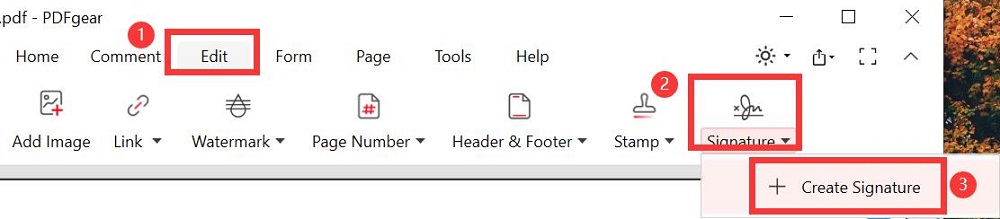
Steps to Add Signature to PDF in PDFgear
● Select “Picture” > Click “Add Picture” > Browse and open your scanned signature > (Optional) Check Remove Background if needed.
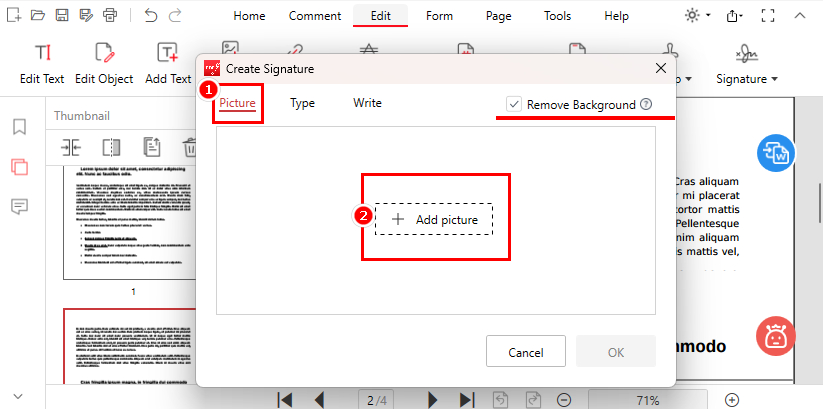
Add Your Scanned Signature and Remove the Background
● Place and resize your signature in PDF. You can choose to delete, flatten, or place on multiple pages.
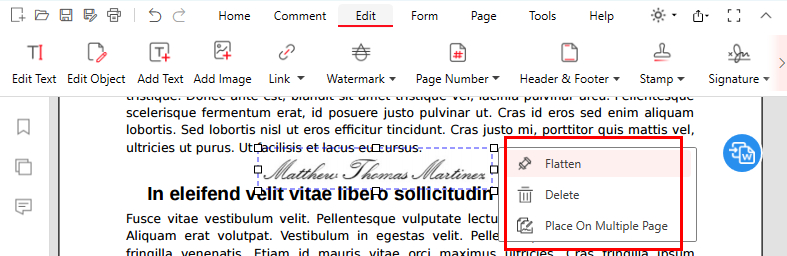
Place and Flatten the Scanned Signatures in PDFgear
Flattening means merging the signature into the PDF so it can’t be easily removed.
Solution 2. Scan a Signature into PDF Online
Prefer to skip downloads and installations? An online tool is the way to go.
PDFgear Online Signer makes it easy—no downloads, registration, or watermarks. Just upload, sign, and save your document. Follow these steps:
● Access to PDFgear Online Signer and open a PDF.

Drag and Open a PDF in PDFgear Online Signer
● Click “Add or Edit Annotations” > “Add Signature” > “Upload” > Select your scanned signature and hit “Create”.
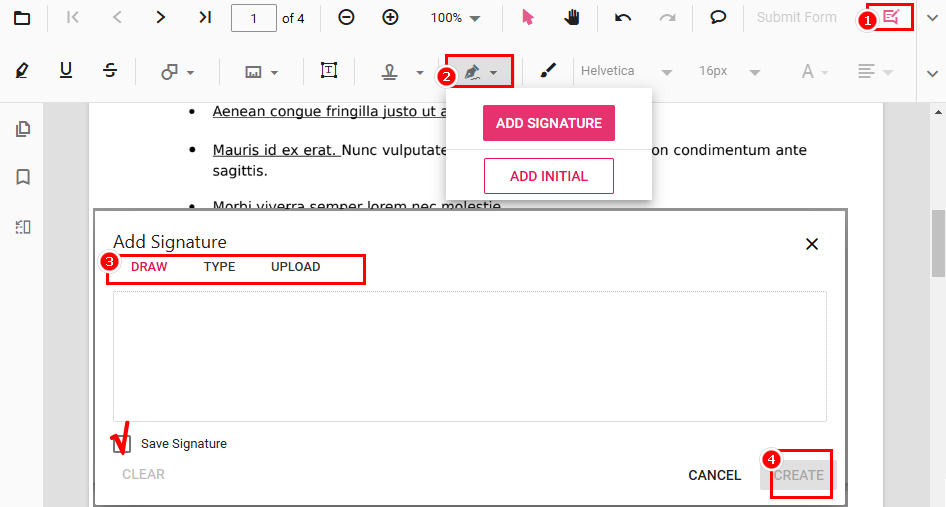
Create Signature in PDFgear Online Signer
● Place, resize, and download your signed PDF.
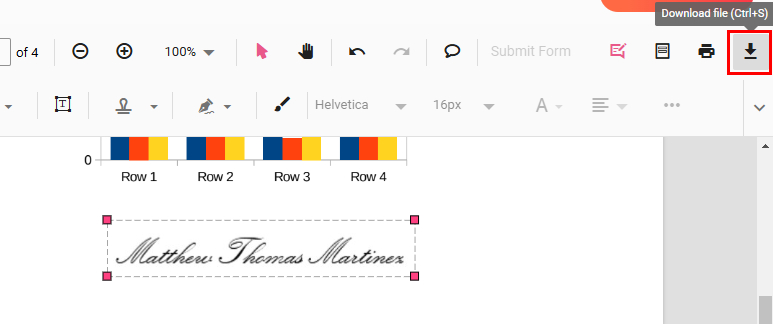
Download the Signed PDF from PDFgear Online Signer
✅ Your signature will be flattened, meaning it’s securely merged into the document and can’t be easily edited.
Solution 3. Scan a Signature into PDF on iOS
Good news for iPhone and iPad users—you can scan handwritten signatures for PDFs in just three simple steps, completely free!
PDFgear provides a safe and reliable way to scan and add signatures to PDFs. Here’s how:
● Download PDFgear from the App Store and open your PDF.
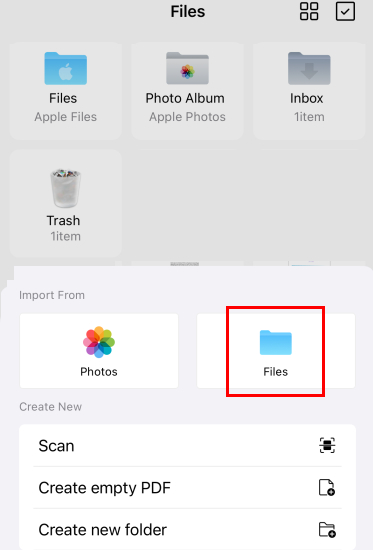
Open a PDF with PDFgear for iOS
● Go to “Edit” > Select “Fill & Sign” > Tap “Signature” > Choose “Create Signature” to scan your signature using your camera or an image from your device.
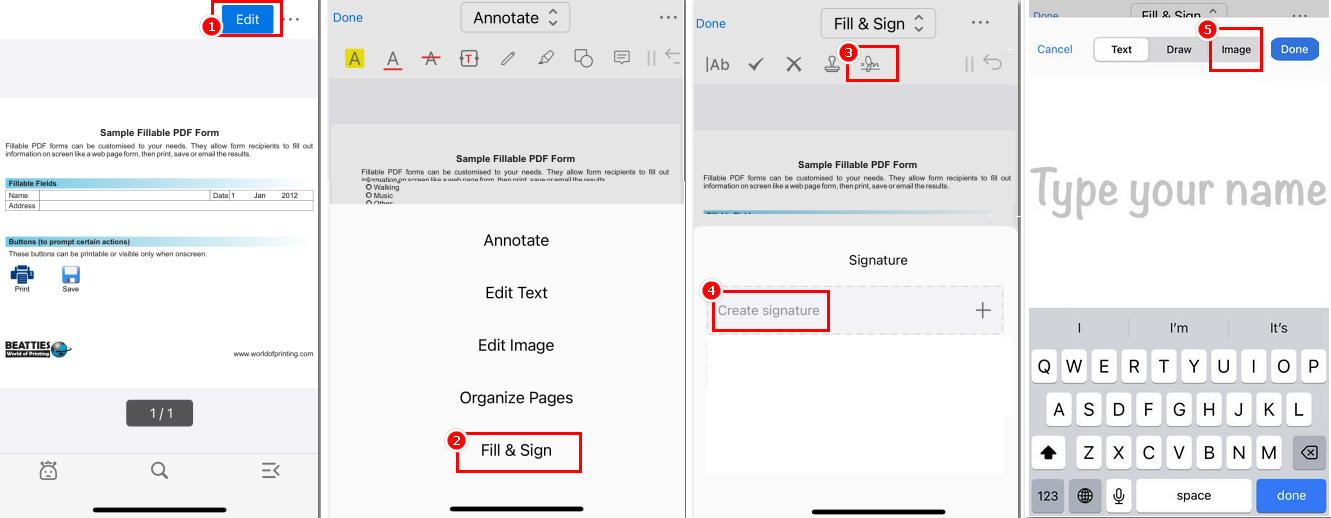
Scan Signature for PDF with PDFgear
● Place and resize the signature in the PDF, then tap it and select “Flatten Signature” to merge it into the PDF and prevent tampering.
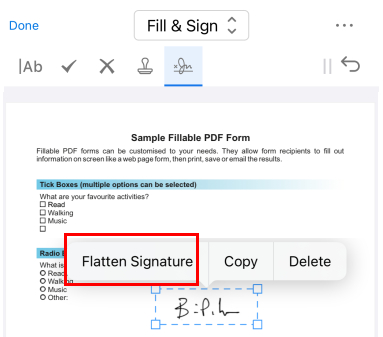
Add and Flatten the Signature on iPhone
Solution 4. Scan a Signature into PDF on Android
PDFgear is available across all platforms, making it convenient for everyone—including Android users!
You can easily add a scanned signature to a PDF or digitize your signature in PDFgear for Android.
● Download PDFgear from Google Play and open a PDF.
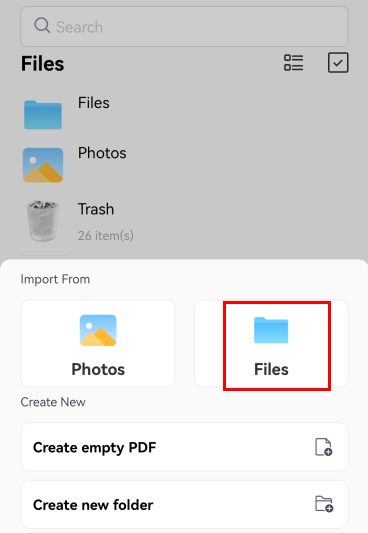
Open a PDF with PDFgear for Android
● Tap “Edit” > Select “Fill & Sign” from the top menu > Click “Signature” > Choose “Create Signature”.
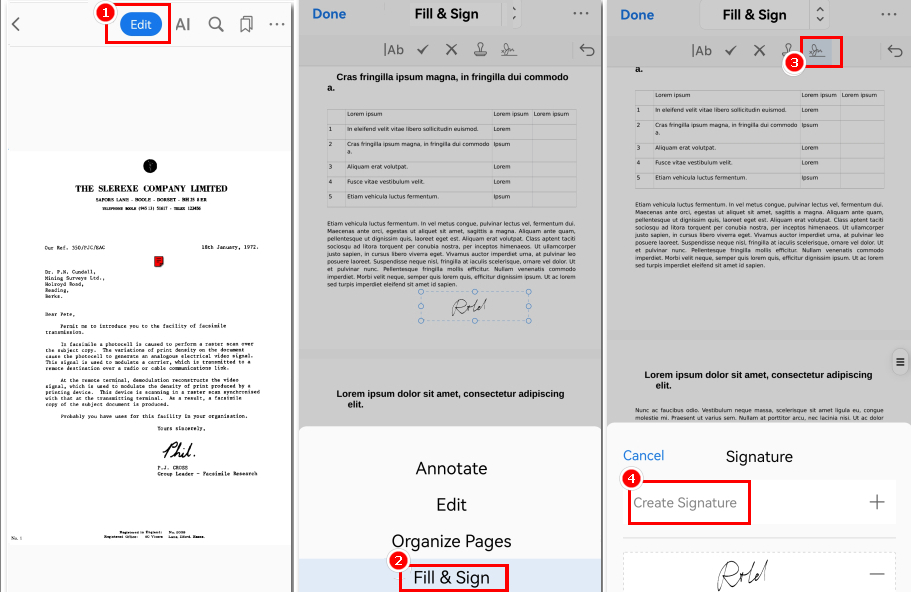
Locate Create Signature in PDFgear
● Select “Image” to upload a scanned signature from your phone or use the camera to scan your handwritten signature.
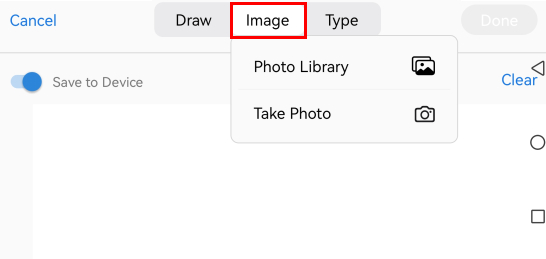
Scan a Handwritten Signature for PDF with PDFgear
● Place and resize the signature, then flatten it into the PDF and save your signed document.
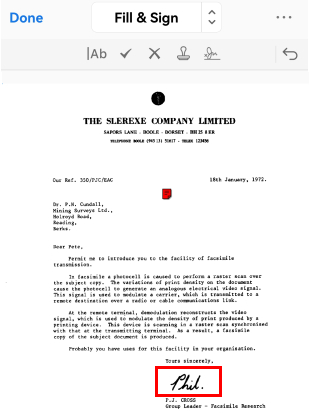
Insert the Scanned Signature into PDF
How to Scan a Signature for PDF without Switching Apps
PDFgear Scan makes it easy to scan a signature for a PDF—no app-switching needed.
However, it’s currently available only for iOS users.
Step 1. Download PDFgear Scan and prepare a handwritten signature on white paper.
Step 2. Tap “All Files”, select “Import PDFs” at the top, and choose a PDF to open.
Alternatively, tap the “+” icon and choose “Document” to open a PDF.
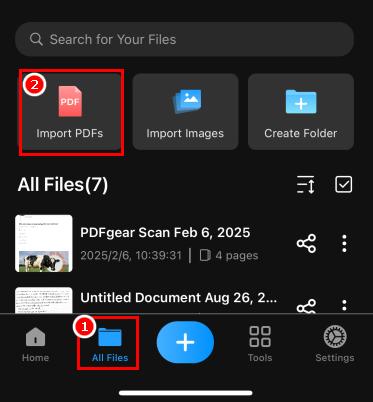
Select a PDF to Open with PDFgear Scan
Step 3. Adjust the filter, size, or rotation if needed, then tap “Done” to skip changes.
Go to the toolbar, tap “Sign”, and choose “Create Signature”.
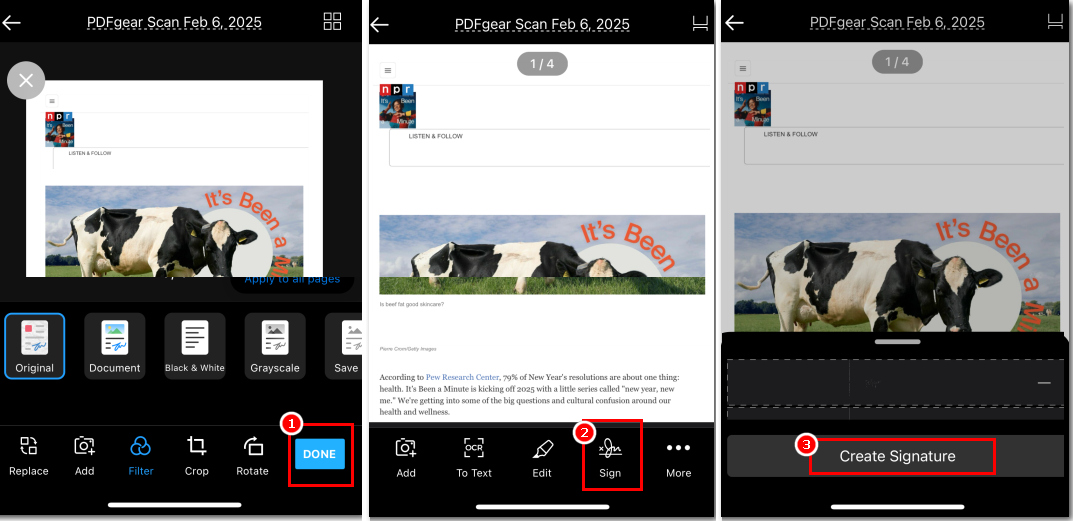
Locate the Signature Button in PDFgear Scan
Step 4. Select “Image” and tap “Camera” to scan the signature.
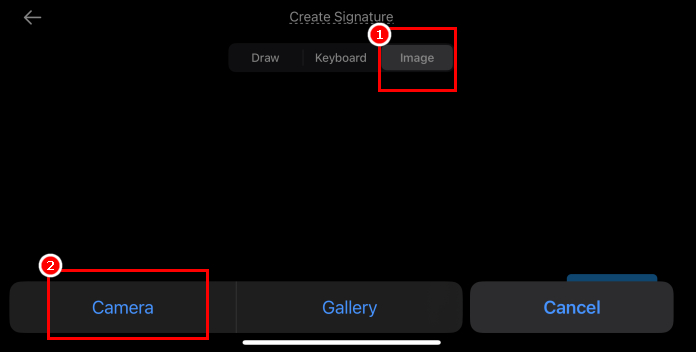
Choose the Camera Option to Start Scanning a Signature
Then tap “Use Photo” and “Save”.
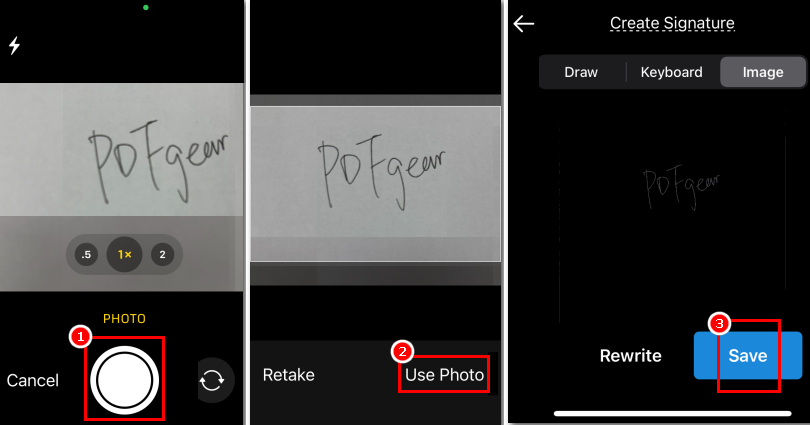
Scan Your Signature with PDFgear Scan
Step 5. Locate the scanned signature in the signature list, select it, and tap anywhere to insert it.
Options to delete, resize, or move the signature are available as needed.
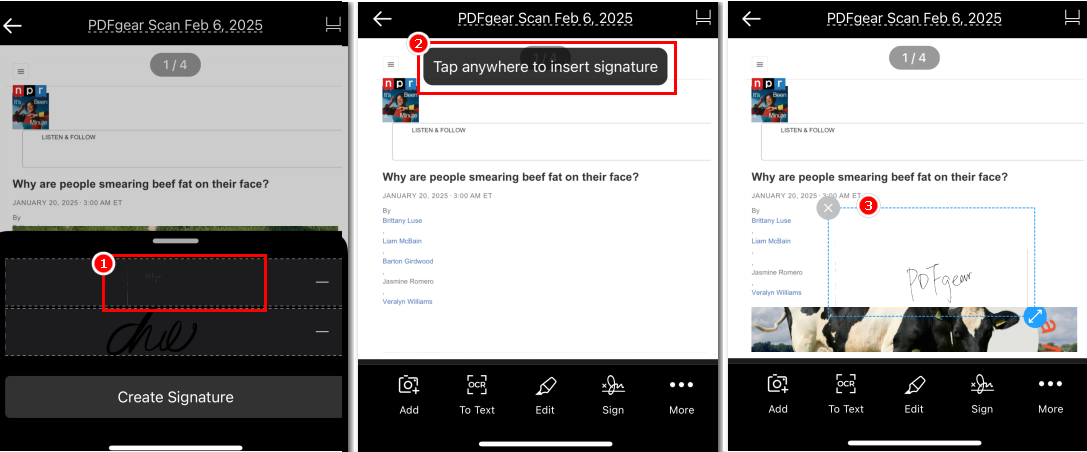
Insert the Scanned Signature to PDF
Step 6. Save the changes or share the document in various formats, such as PDF, Word, multiple images, or a single long image.
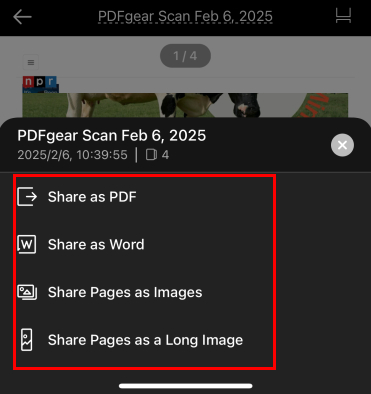
Save and Share the Signed PDF with PDFgear Scan
FAQs
How can I make the background of a scanned signature transparent?
You can use image editing software like Adobe Photoshop or GIMP to remove the background of a scanned signature. Alternatively, online tools like remove.bg or Clipping Magic can automatically make the background transparent.
Can I save my scanned signature for future use?
Yes, you can save your scanned signature as an image file (e.g., PNG, JPEG) and reuse it in other documents. Store the file in a secure location to prevent unauthorized access and misuse.
How can I create a digital signature instead of scanning my handwritten signature?
To create a digital signature, you’ll need a digital certificate issued by a Certificate Authority (CA). You can obtain a digital certificate by signing up with a CA and following their instructions.
Once you have a digital certificate, you can use it with PDF editing software or other tools that support digital signatures to sign your documents securely.
Conclusion
In summary, it is simple and convenient to scan a signature for PDFs using either a mobile phone camera or a scanner.
Fortunately, PDFgear is here to help you effortlessly scan and insert your handwritten signature into PDFs—for free and with just a few clicks. Give it a try for a seamless experience!
