How to Rotate and Crop PDF for Free

Summary :
Find the best way to rotate and crop PDFs with PDFgear Software, PDFgear Online, Preview, and Adobe Acrobat, and choose the workflow that fits your needs.
Table of Contents
Many PDFs, especially scanned ones, open with sideways pages, tilted angles, or thick white margins. Fixing them usually takes two steps: rotate to correct the orientation, then crop to remove the extra borders. Yet most basic tools can only handle one task at a time, forcing users to switch tools or re-upload files.
To help you avoid that hassle, this guide introduces four effective online and offline tools that offer practical and cost-efficient ways to rotate and crop PDF pages.
Rotate and Crop PDF for Free with All-in-One Workflow
PDFgear is a practical choice for rotating and cropping PDF pages because it is completely free and lets you finish both tasks in one session. There are no limits or hidden restrictions, and it works on Windows, macOS, iOS, and Android.
You can rotate multiple pages in PDF at once, crop visually with drag-to-select, and apply the same crop to all pages for consistent results. All edits are processed offline for privacy and fast performance, even with large scans.
For anyone working with receipts, homework pages, contracts, or multi-page scans, PDFgear offers a simple and reliable way to clean up PDFs at no cost.
1. Open PDFgear and import your PDF.
2. Click the “Page” button to manage your PDF pages.
3. Rotate pages using “Rotate Left” or “Rotate Right”.
For batch rotation, type the page range in the Page Range box on the right side and press “Enter”.
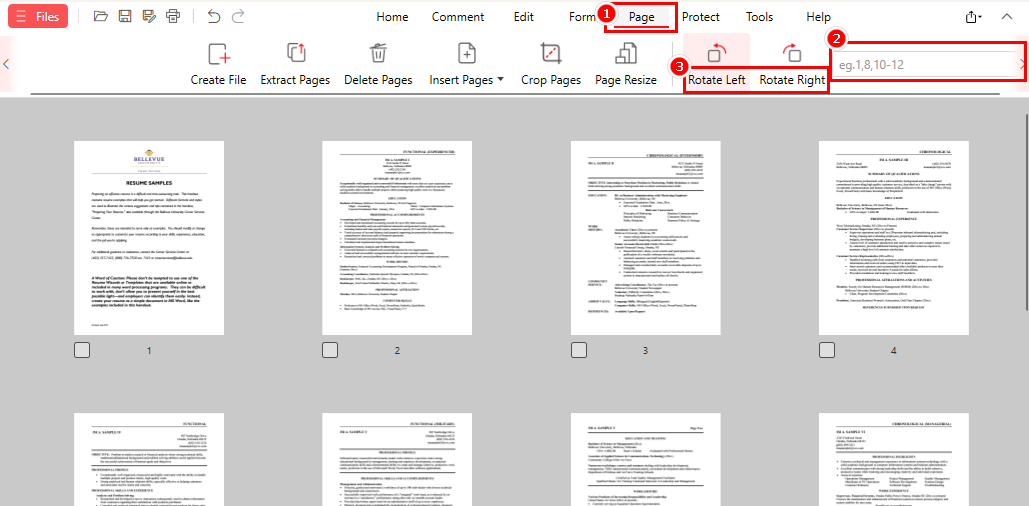
Rotate Pages in PDF for Free with PDFgear
4. Click the “Crop Pages” button and drag to select the area you want to keep.
A pop-up window will appear where you can choose to apply the crop to all pages or selected pages only.
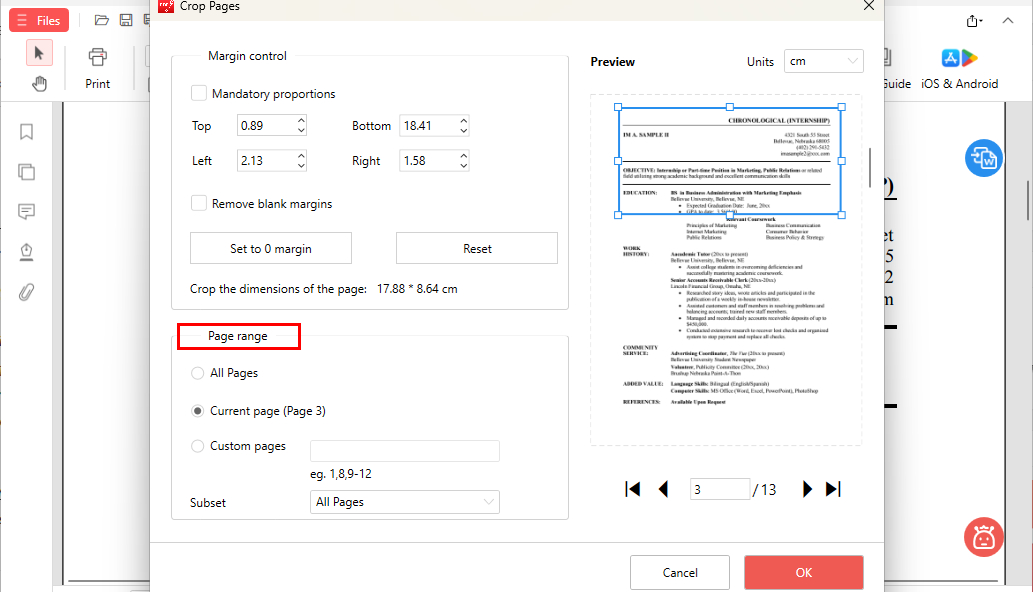
Crop PDF Pages for Free with PDFgear
5. Save the cleaned and updated PDF.
Tip: If you cannot locate a feature button, you can use PDFgear AI Copilot to jump to it quickly. Simply type commands like “rotate page,” “rotate all,” or “crop margins,” and the Copilot will guide you to the correct tool or complete the action for you. This makes the workflow faster and easier, especially for beginners.
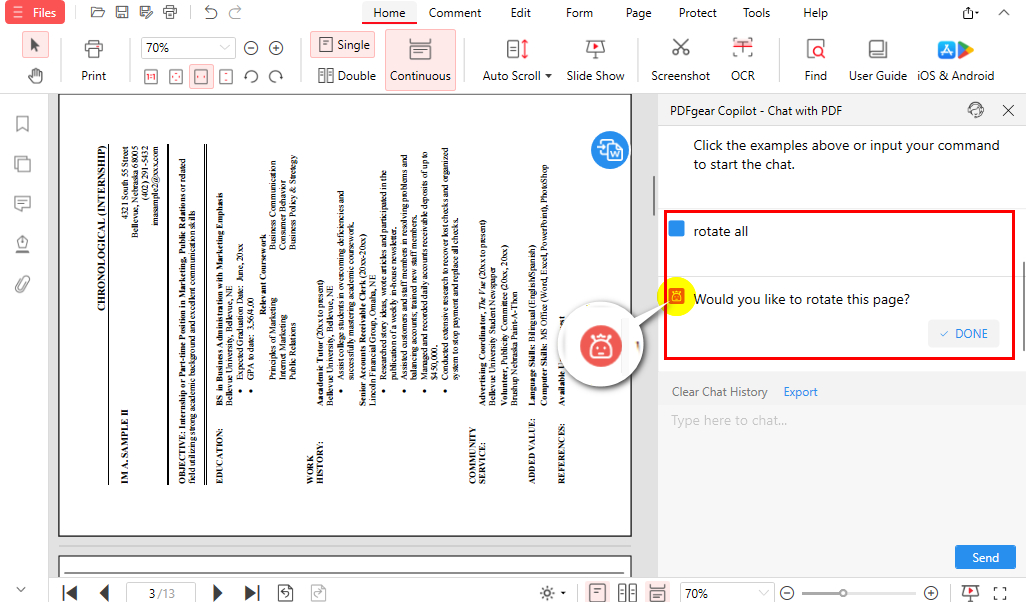
Use PDFgear AI Copilot to Crop and Rotate PDF Quickly
Rotate and Crop PDF Online Free
Browsers like Chrome and Edge only rotate the view, which means the change is temporary and not saved to the file. They also cannot crop PDF pages unless you use the print function, which turns the file into an unsearchable copy and provides no precise control. This makes the workflow inconvenient.
Because of these limits, many users turn to online tools for quick, permanent edits. Compared to alternatives such as Smallpdf or iLovePDF, PDFgear Online is more recommended because it has no task limits and does not require sign-up. Since it works entirely in your browser, your files never leave your device, ensuring better privacy. Rotating and cropping still require separate uploads, just like all online tools.
PDFgear offers two free online tools that let you rotate or crop PDFs directly in your browser. They are useful for small files or quick one-time edits.
Rotate PDF Pages Online
1. Open PDFgear Online PDF Rotator and upload your PDF.
2. Rotate pages left or right. You can rotate a single page or all pages at once.
3. Click “Rotate” to apply the changes.
4. Wait a few seconds and download your rotated PDF.

Rotate PDF Pages Online with PDFgear Online Rotator
Crop PDF Pages Online
1. Upload the rotated PDF to PDFgear Online PDF Cropper.
2. Drag and drop to select the area you want to keep.
3. Set the page range for cropping, such as all pages, the current page, or a specific range.
4. Click “Finish” or “√” to confirm and download your cropped PDF.

Crop PDF Pages Online with PDFgear Online Cropper
PDFgear Online vs. PDFgear Software
PDFgear Online is fast and convenient for small files, but it completes rotation and cropping as two separate tasks. This means you need to upload the PDF twice, and the tools work best with lightweight documents.
PDFgear Software offers a more complete solution by letting you rotate and crop PDFs in one smooth workflow with no size limits. Everything runs offline to keep your files private and ensure faster performance. If you want the most efficient experience, the desktop version is the better choice.
Rotate and Crop PDF on Mac Using Preview
Preview is a built-in tool on macOS that can rotate pages permanently and crop pages with a simple rectangular selection. It does not require installation and is convenient for quick, basic edits. However, it lacks advanced controls, so it is better suited for occasional use rather than larger or more complex PDF projects.
1. Open the PDF in Preview and enable “Thumbnails” from the “View” menu.
2. Select one or more pages by holding the “Command” key.
3. Click “Rotate Left” or “Rotate Right” until the pages face the correct direction.
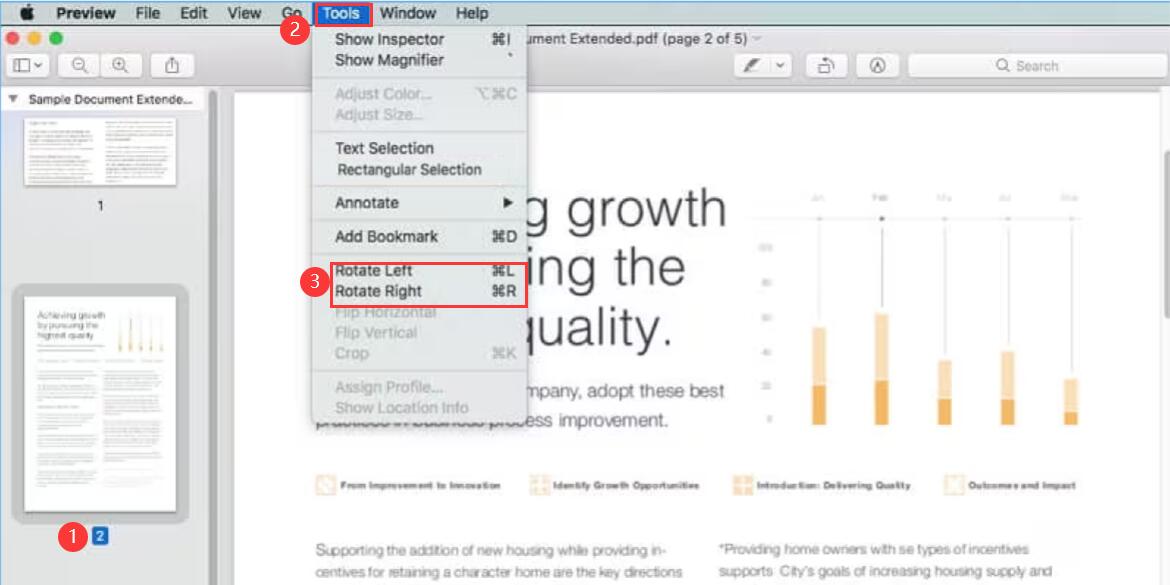
Rotate PDF on Mac with Preview
4. Use the “Rectangular Selection” tool to highlight the content you want to keep.
5. Go to “Tools” and choose “Crop”, then save or export the updated PDF.
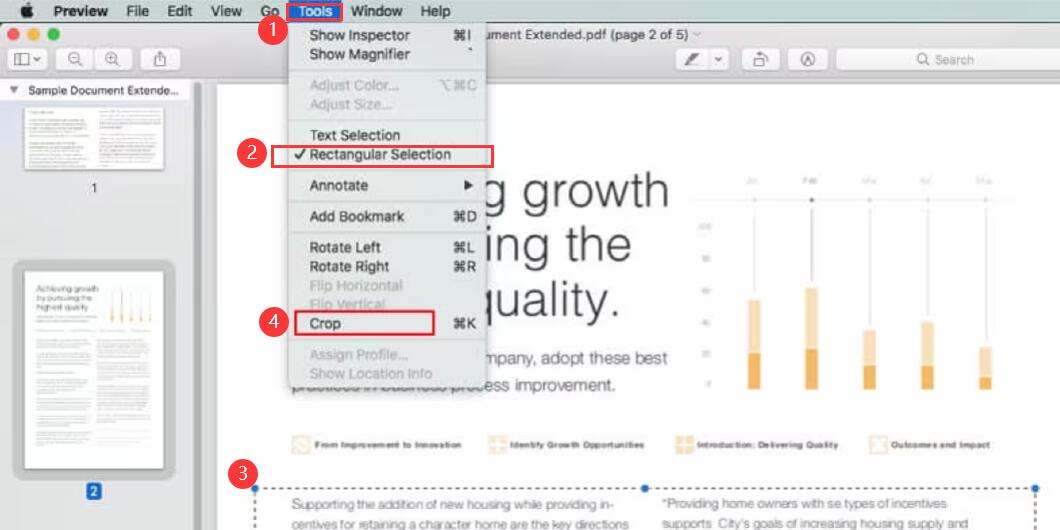
Crop PDF on Mac with Preview
Preview works only on macOS, limiting cross-device use. Its workflow is simple, but it becomes inefficient with larger files. Batch rotation and cropping still require repeated manual steps, and Preview lacks advanced controls such as precise margin adjustment and flexible page range settings.
PDFgear offers a smoother all-in-one workflow, better batch tools, offline privacy, and full cross-platform support. This makes Preview suitable for quick fixes, while PDFgear is a better choice for frequent or more complex PDF editing.
Rotate and Crop PDF with Adobe Acrobat Pro
Adobe Acrobat provides advanced tools for rotating and cropping PDF pages. It supports batch editing, precise margin adjustments, and professional layout controls. If you already subscribe to Adobe Acrobat Pro, it can be a good option for detailed PDF work.
1. Open your PDF and go to “Tools”, then select “Organize Pages”.
2. Choose the pages you want to adjust and click “Rotate Left” or “Rotate Right”.
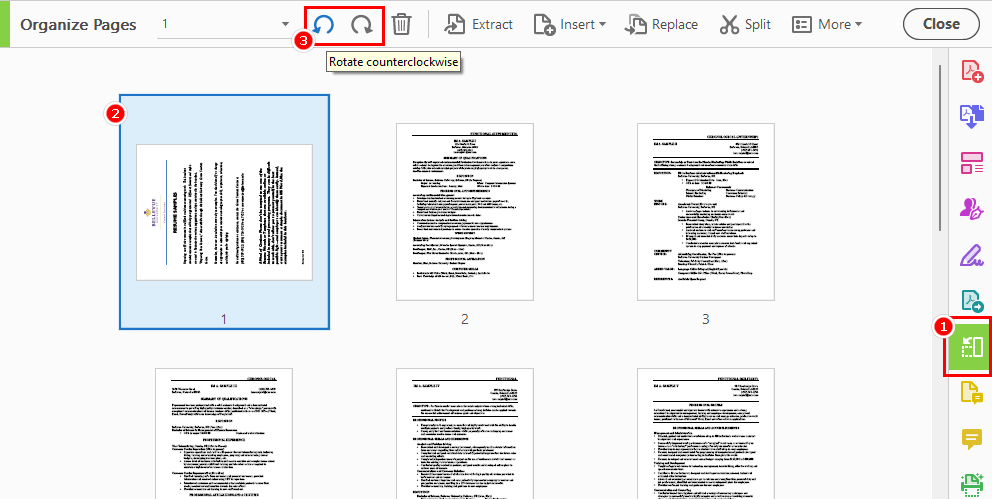
Rotate PDF Pages with Adobe Acrobat Pro
3. Return to “Tools” and select “Edit PDF”.
4. Click “Crop Pages” and draw a box around the content you want to keep.
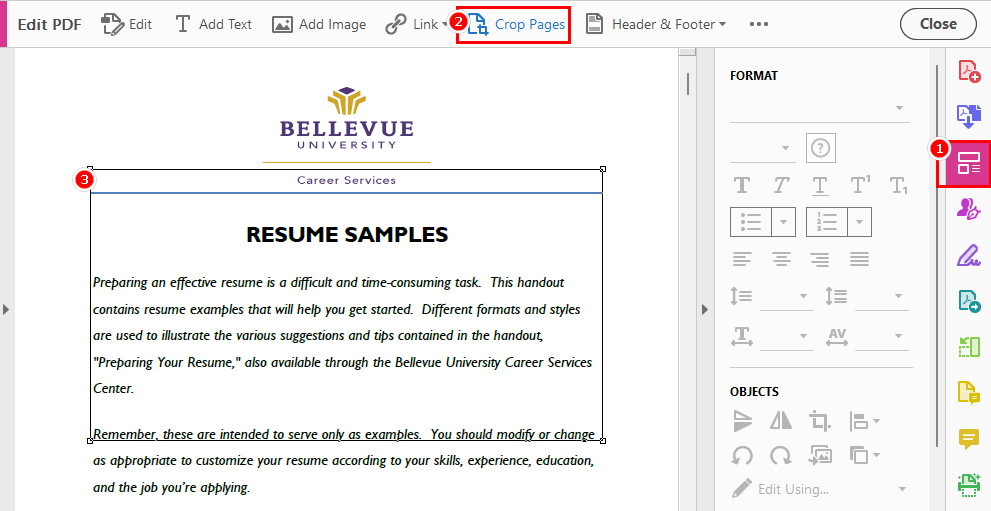
Crop Pages in PDF with Adobe Acrobat Pro
5. Confirm the crop settings and save the updated PDF.
Acrobat is powerful, but its main interface can feel complex for beginners, and the subscription cost may not be ideal for casual use. By comparison, PDFgear offers a free and simpler alternative for users who need an easier and more efficient rotate and crop workflow without a paid plan.
Which Method Should You Choose?
Each tool offers different advantages depending on your device, workflow, and editing needs. The table below provides a quick overview to help you choose the best tool to crop and rotate PDF pages.
| Method | PDFgear Software | PDFgear Online | Preview | Acrobat Pro |
| Rotate | ||||
| Crop | ||||
| All-in-one workflow | ||||
| Limits | None | 50MB file limit | macOS only | Paid plan |
| Best For | Everyday rotate and crop workflows | Quick and simple edits | Occasional fixes on macOS | Professional and advanced PDF editing |
PDFgear Software stands out as the only free option that completes both steps in one workflow with no limits, making it the most convenient choice for regular use.
FAQs
How do I rotate and crop a PDF at the same time?
Most online tools require two separate uploads to rotate and crop a PDF. To complete both steps in one session, use PDFgear Software. It lets you rotate pages and crop them without switching tools or re-uploading the file. See Method 1 for detailed steps.
How do I rotate and crop a PDF without Adobe Acrobat?
PDFgear is a free and practical alternative to Adobe Acrobat Pro. Download PDFgear and import your PDF. Click “Page” to manage pages, use “Rotate Left” or “Rotate Right” to adjust page orientation, select “Crop Pages”, and drag to choose the area to keep, then save the updated file.
Can I rotate and crop a scanned PDF?
Yes. Tools such as PDFgear or Adobe Acrobat work well with scanned pages. They help remove scanner borders, shadows, and blank space. Refer to Method 1 for more guidance.
Can I rotate an individual page in a PDF?
Yes. PDFgear allows you to rotate a single page easily. Open your PDF, select the page you want to adjust, and click “Rotate Left” or “Rotate Right” in the “Page” toolbar.
How do I crop all pages in a PDF at once?
PDFgear lets you apply the same crop setting to all pages. After drawing your crop box, select “All Pages” in the pop-up window and click “OK” to apply it to the entire document.
How do I rotate a PDF using shortcuts?
Some desktop tools, like Adobe Acrobat, support keyboard shortcuts for rotation.
- Windows: “Ctrl” + “Shift” + “minus” to rotate counterclockwise, or “Ctrl” + “Shift” + “plus” to rotate clockwise.
- macOS: “Command” + “Shift” + “minus” to rotate counterclockwise, or “Command” + “Shift” + “plus” to rotate clockwise.
