How to Remove Signature from PDF

Summary :
Learn how to remove a signature from a PDF with our simple step-by-step guide. Easily delete digital, handwritten, or flattened signatures in just a few steps.
Table of Contents
Need to remove a signature from a PDF? Whether it’s an error, a replacement, or a necessary change, we’ve got you covered!
This page shows you how to easily remove signatures using Adobe Acrobat, plus two free workarounds with a PDF signature remover. No stress, just solutions!
Remove Digital Signature from PDF with Adobe Acrobat
Adobe Acrobat is a reliable tool for removing digital signatures from a PDF, offering two key features for this. However, it requires a $29.99/month subscription.
Fortunately, if it’s not a digital signature but an e-signature or overlay signature image, you can use a free signature remover to bypass the subscription and remove the signature.
Method 1. Use the “Clear Signature” Feature
For this method, you must be the signer of the PDF.
If you are not the signer, removing a digital signature may violate security policies, legal regulations, or compliance standards, and could invalidate the document.
Step 1. Open Adobe Acrobat, click “File”, and select “Open” to load the PDF.
Step 2. Find the signature, then locate the page where it appears.
Step 3. Hold the Control key (Cmd on Mac), click the signature, and select “Clear Signature” from the menu.
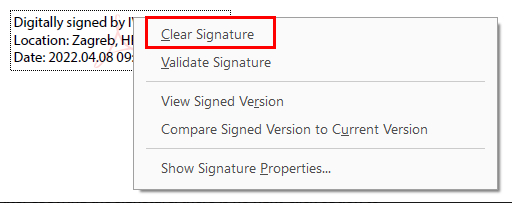
Remove Digital Signature in Adobe
Method 2. Use the “Redact” Feature
Redacting a signature permanently removes it, preventing recovery or misuse. Even if a page contains multiple digital signatures, you can redact the entire page with just one click.
Step 1. Open the signed PDF in Adobe Acrobat.
Step 2. Go to “Tools” and click “Redact”.
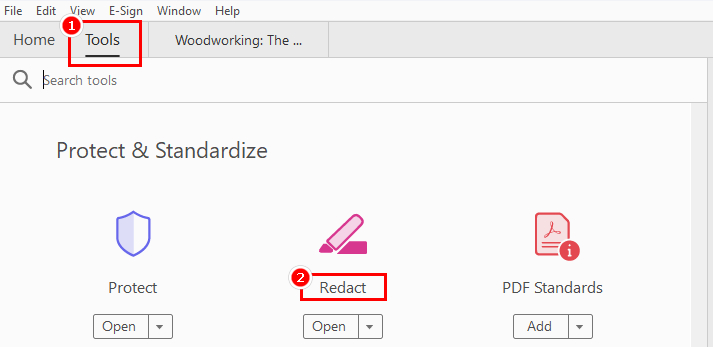
Navigate to the Redact Button
Step 3. Select the signature, drag it to cover it, then click “Apply” in the top-right corner.
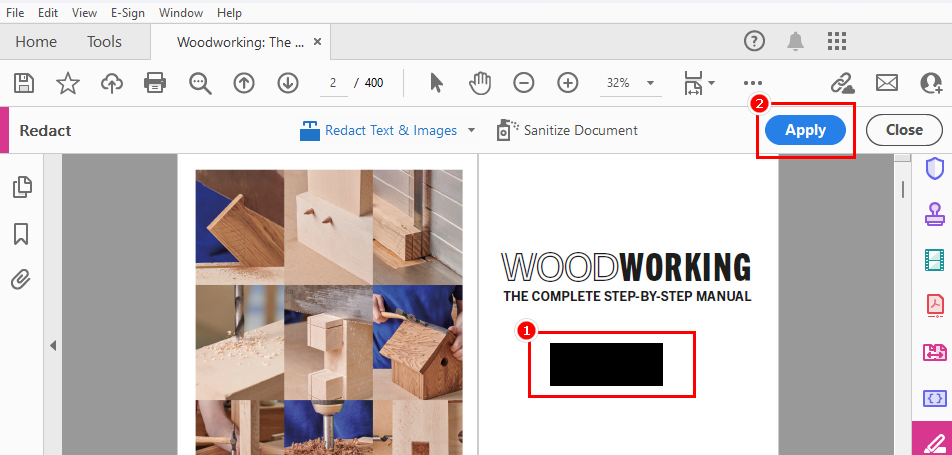
Apply the Redaction in Adobe Acrobat
Step 4. Save a copy of the modified PDF, as redaction is permanent and cannot be undone.
Not a subscriber to Adobe Acrobat and don’t want to pay for it? No problem! Check out the free solutions PDFgear offers—no registration required.
Worried about watermarks, ads, or viruses? None of those appear in PDFgear, the free PDF signature remover.
Remove Signature from PDF with a Free Signature Remover
PDFgear never disappoints when it comes to PDF-related processing. Whether you need to remove a flattened signature permanently merged into the file or an overlay signature image, PDFgear offers various methods to remove them and ensure they can’t be restored.
Method 1. How to Delete Signature from PDF by Printing
Step 1. Download and PDFgear on Windows, Mac, iPhone, or Android and open a PDF.
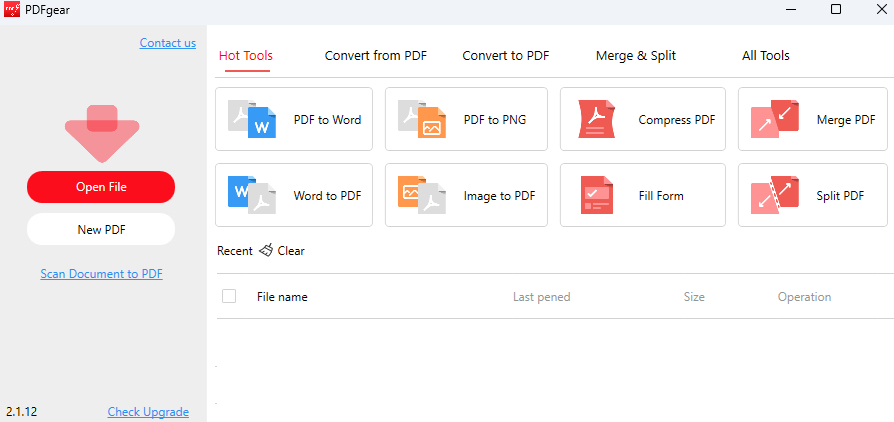
Open a PDF with PDFgear
Step 2. Go to “Comment”, select “Rectangle”, then click and drag to cover the signature. Adjust the size, position, and color as needed.
You can adjust the size, position, and color of the rectangle to ensure it completely covers the signature.
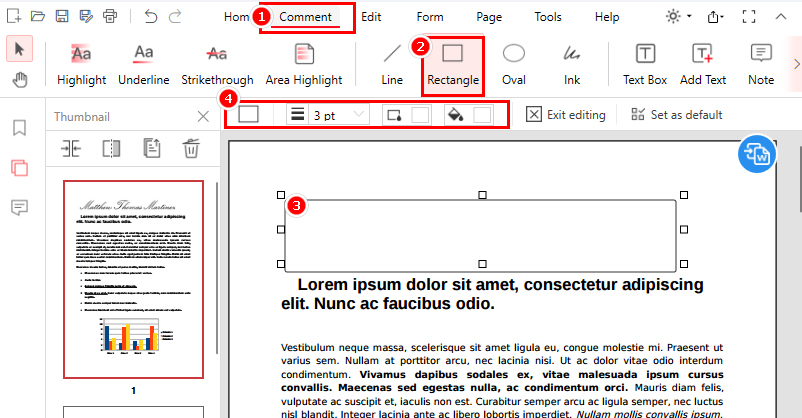
Use a Rectangle to Cover the Signature in PDFgear
Step 3. Print to PDF and save a copy.
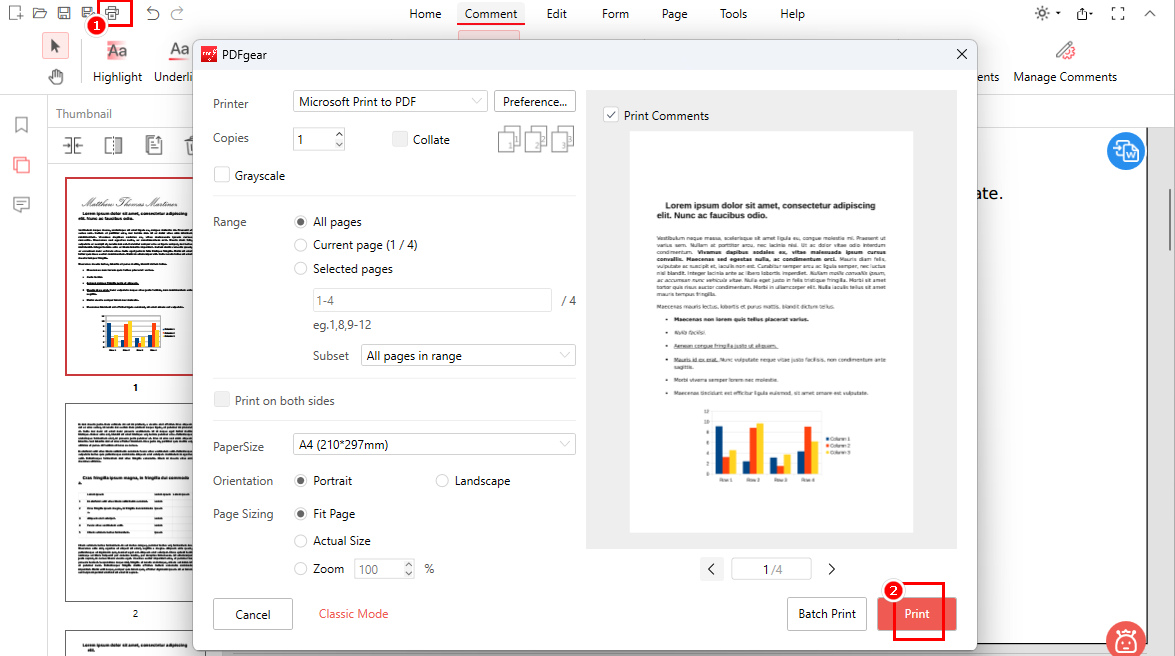
Print the Modified PDF with PDFgear
Since the rectangle only hides the signature, printing the file as a new PDF ensures the change is permanent and uneditable.
Method 2. How to Delete Overlay Signature Image from PDF
When dealing with a signature image overlay, PDFgear provides an efficient solution to remove it with just a few clicks.
And PDFgear works on Windows, macOS, iOS, and Android, ensuring compatibility.
Step 1. Download PDFgear and open the PDF containing the signature image to be deleted.
Open a PDF with PDFgear
Step 2. Locate the signature image and click on it. A toolbar will appear—select “Delete” to remove it.
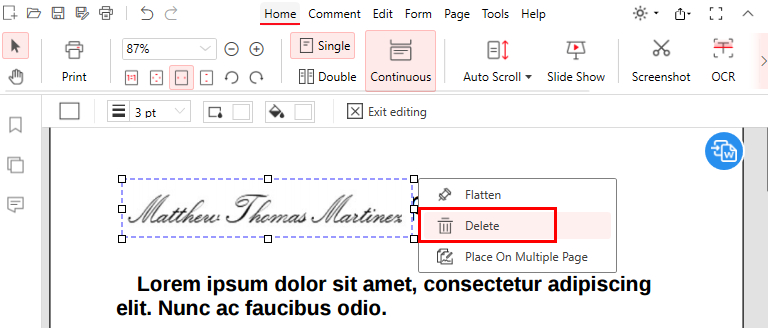
Delete a Signature from PDF with PDFgear
Step 3. Save your changes by clicking “Save” to update the PDF.
Remove Signature from PDF Online Free
PDFgear’s online PDF signature remover is a no-download, no-installation tool for removing digital signatures from PDFs while ensuring data security.
Step 1. Visit the PDFgear online PDF editor on your web browser and open a PDF.
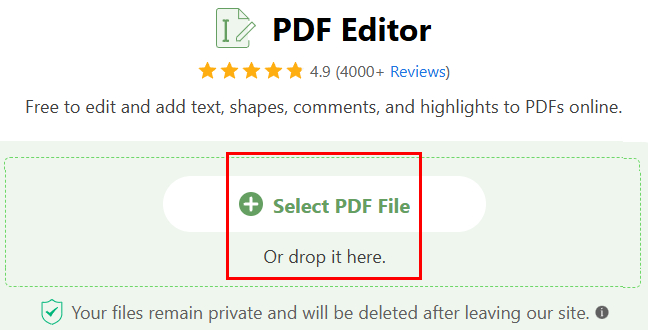
Open a PDF with PDFgear Online
Step 2. Click “Add or Edit annotations” on the top right, use the “Add Shape” Tool, then select the “Rectangle” option.
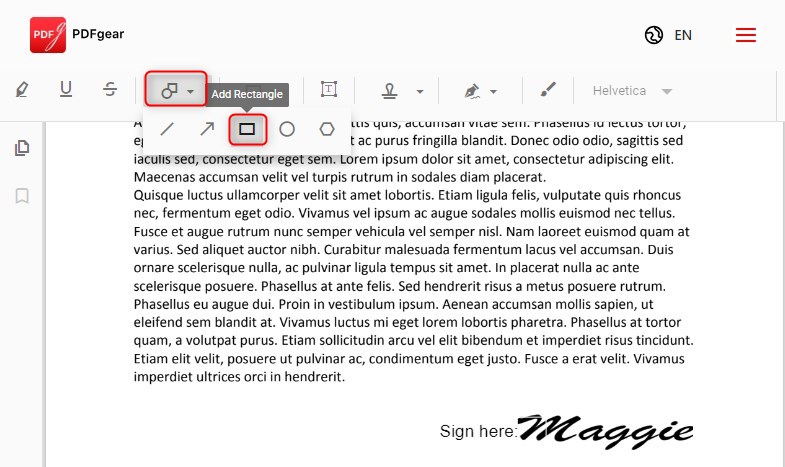
Add a Rectangle over the Signature in PDFgear Online Editor
Step 3. Cover the Signature by drawing a rectangle over it. Adjust the color, size, and opacity as needed.
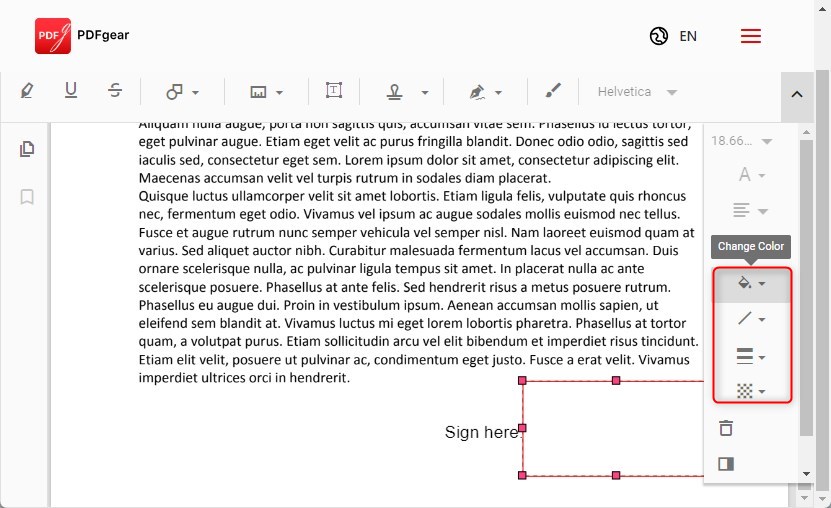
Remove the Signature with PDFgear Online Editor
Step 4. Finalize the Changes by clicking “Print file” to save the modified PDF.
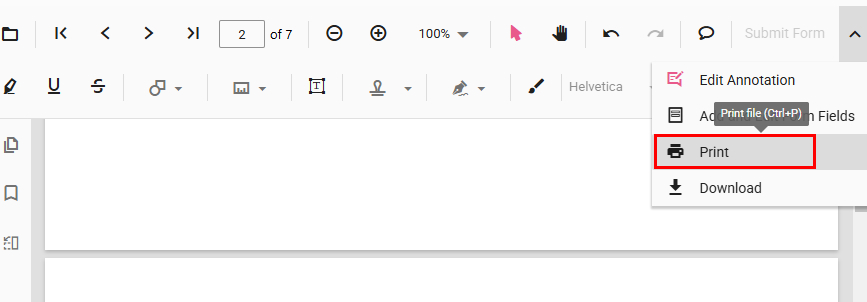
Print the PDF without a Signature from the PDFgear Online Editor
Note: The rectangle only hides the signature. If someone removes the overlay, the signature will reappear. Printing the file as a new PDF makes the change permanent and uneditable.
FAQs
Is it legal to remove a signature from a PDF?
Removing a digital signature without the signer’s consent is unethical and may violate legal or security policies. For security reasons, you can only remove your own signature.
Why can’t I remove the signature from a PDF?
The signature may be embedded in the document, making direct removal impossible. As a workaround, PDFgear allows you to cover it with a rectangle and print the modified PDF. Check the detailed steps in the Second Method Above.
What software can remove a digital signature?
Adobe Acrobat allows you to clear a digital signature, but doing so may have legal consequences. Always ensure you have proper authorization before removing a signature.
How can I edit a signed PDF?
PDFgear lets you edit a signed PDF for free with various tools. Simply download PDFgear, open your PDF, and use the “Edit” toolbar to add text, shapes, comments, images, and stamps. It also allows you to edit existing text directly without converting the file. Try it for free!
The Conclusion
This article explores various methods to remove signatures from PDFs. Adobe Acrobat provides professional tools for signature removal, while PDFgear offers a completely free solution to erase signatures permanently and save costs. Give PDFgear a try!
