How to Remove Images from PDF

Summary :
Learn how to use PDFgear’s free online tools, offline software, mobile app, and Adobe Acrobat to remove images from PDFs easily.
Table of Contents
Sometimes, a PDF has an image that just doesn’t fit the picture anymore. Maybe it’s outdated, irrelevant, or just doesn’t belong in the document.
In the following, you’ll learn how to white out or directly remove image objects in PDFs.
Remove Image from PDF Online for Free
The most convenient method to remove images from PDF files is using the PDFgear online PDF editor.
It offers a practical PDF whiteout feature for you to cover images with white rectangles, and it works best with image-based PDFs.
PDFgear is easy to use, it’s free, there’s no signup, and there’s no watermark.
Step 1. Go to PDFgear online PDF editor, and click Select PDF File to open the PDF.
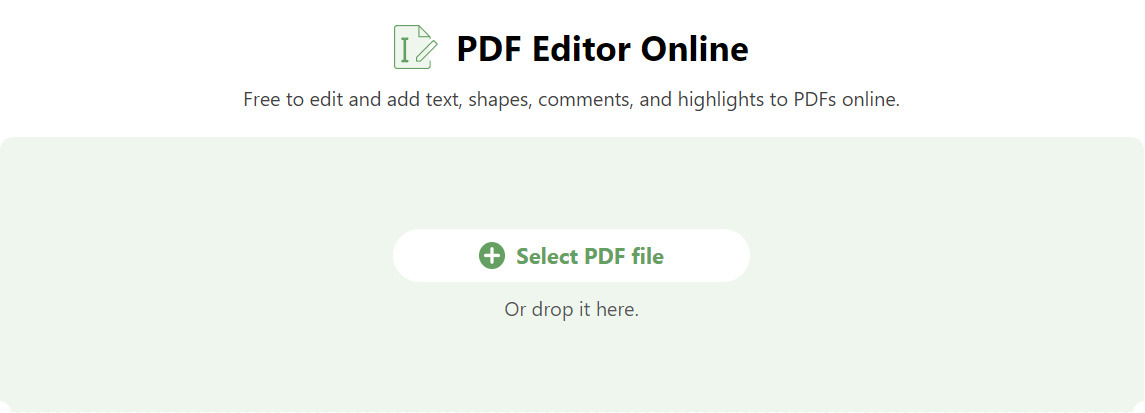
Select PDF file
Step 2. Once the PDF is opened, click the upper-left Shapes button and click Rectangle.
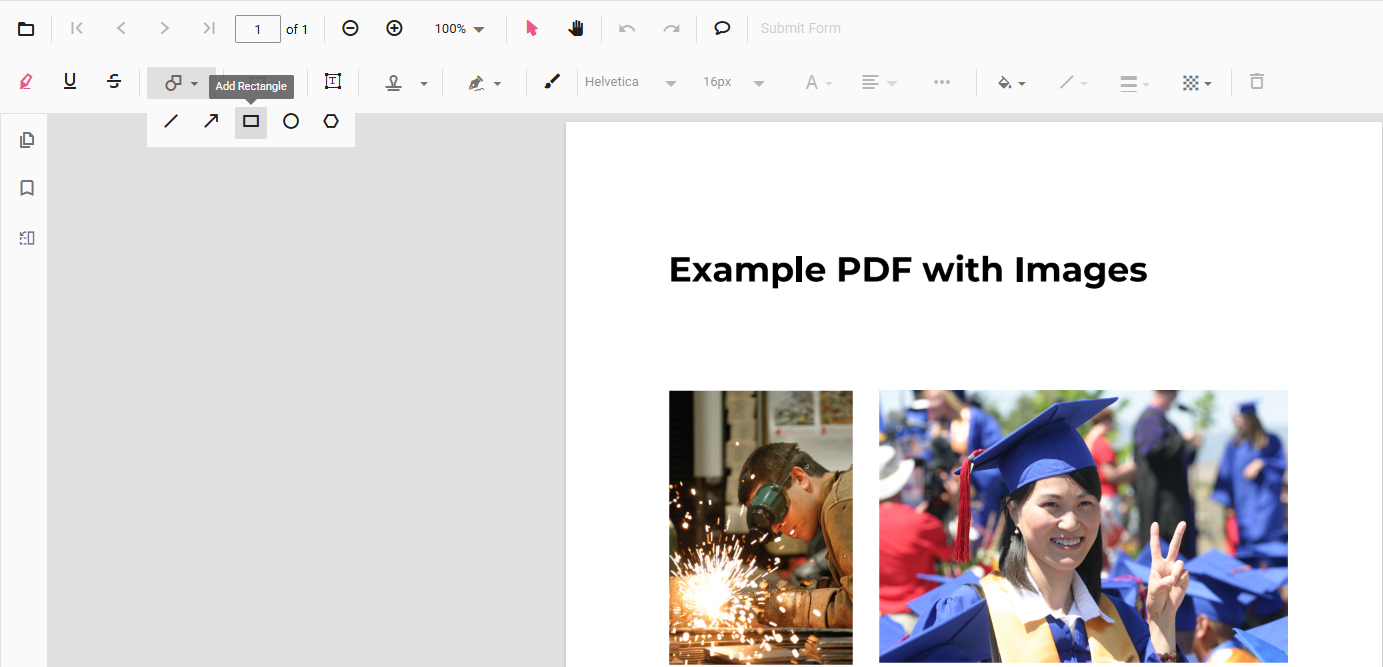
Add Rectangle
Step 2. Click to draw the rectangle on the PDF that covers the image.
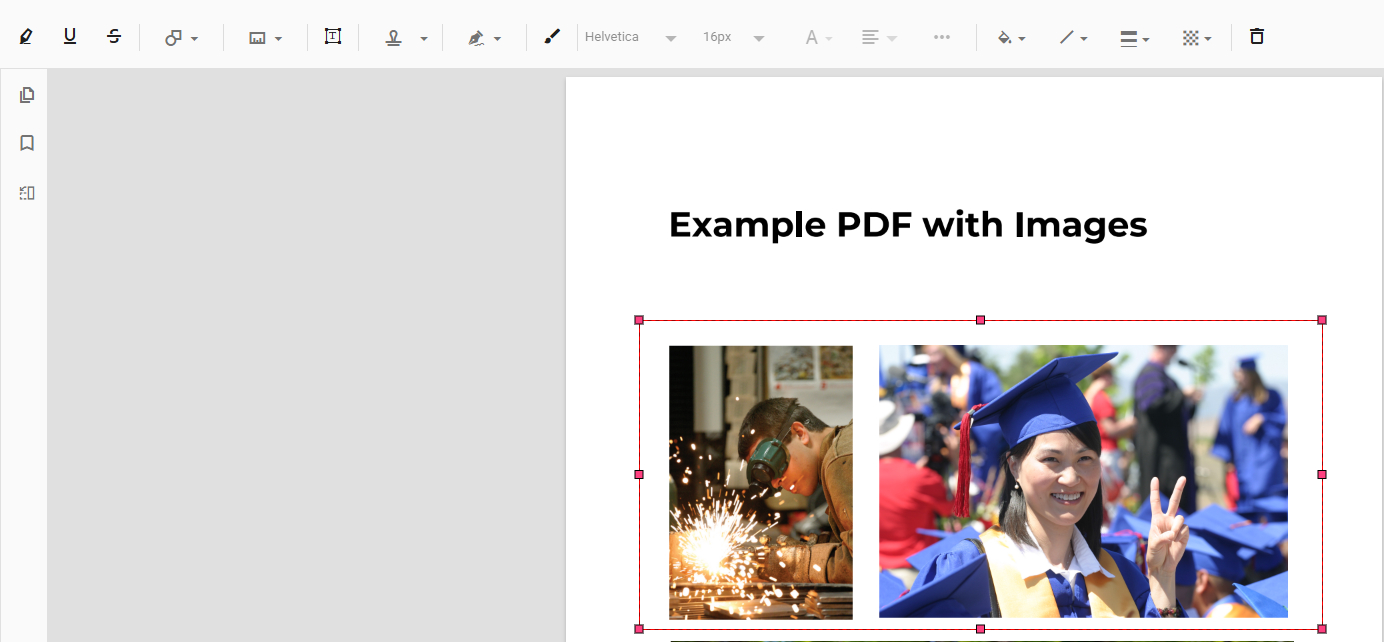
Draw Rectangle
Step 3. On the upper menubar, use the Change Color and Change Stroke Color feature to change them both to the background color of your PDF, normally the white color.
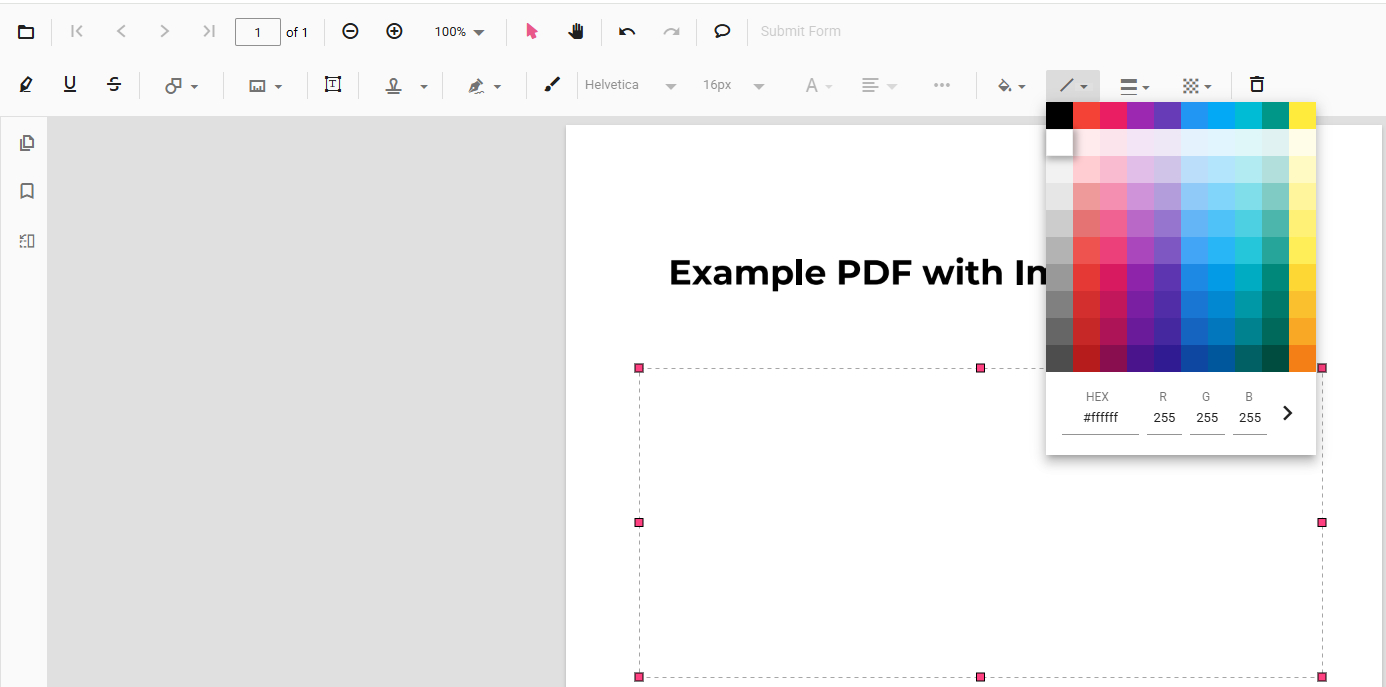
Change Color to White
Step 4. Then your PDF image will be removed. Lastly, go to the upper-right corner to download or print the PDF.
It’s recommended to use the Print file feature. In that case, the white-out history will not be kept and can not be undone.
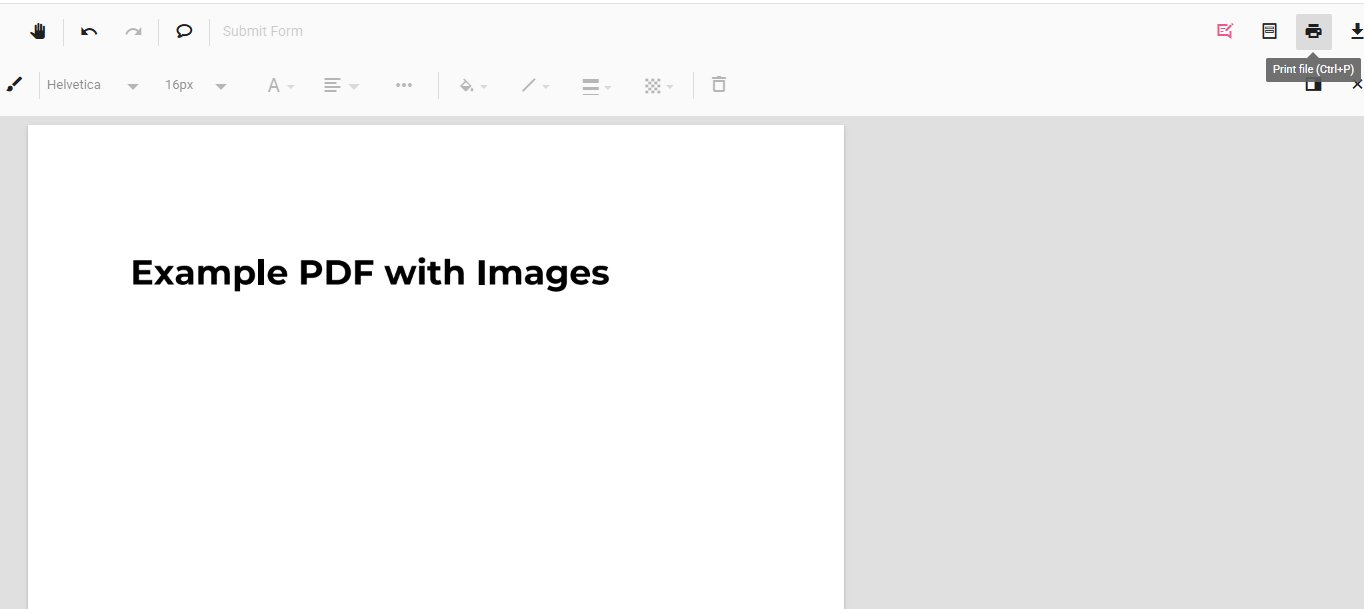
Print File
Select and Remove Images from PDF for Free
The major downside of using the PDFgear online editor is that it doesn’t help remove images with text overlays.
In that case, PDFgear software is the choice. It offers a powerful PDF image editing feature for you to select and delete an unwanted image while preserving text/background under it.
PDFgear is also free to use, and it works on Windows and Mac. Get it for free now!
Edit or delete images/objects in PDF files on Windows and Mac for free.
Step 1. Download and install PDFgear on your computer, open it, and click Open File to open the PDF.
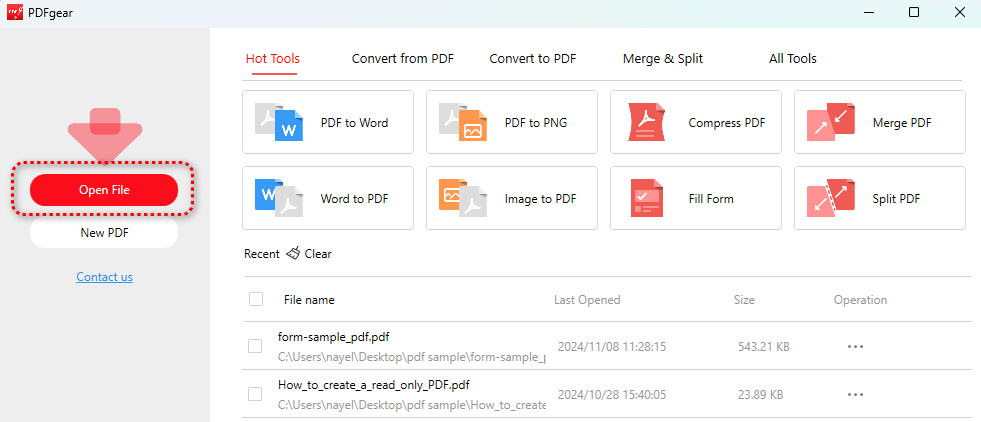
Open File
Step 2. Go to the Edit section, and click the Edit Object tool from there.
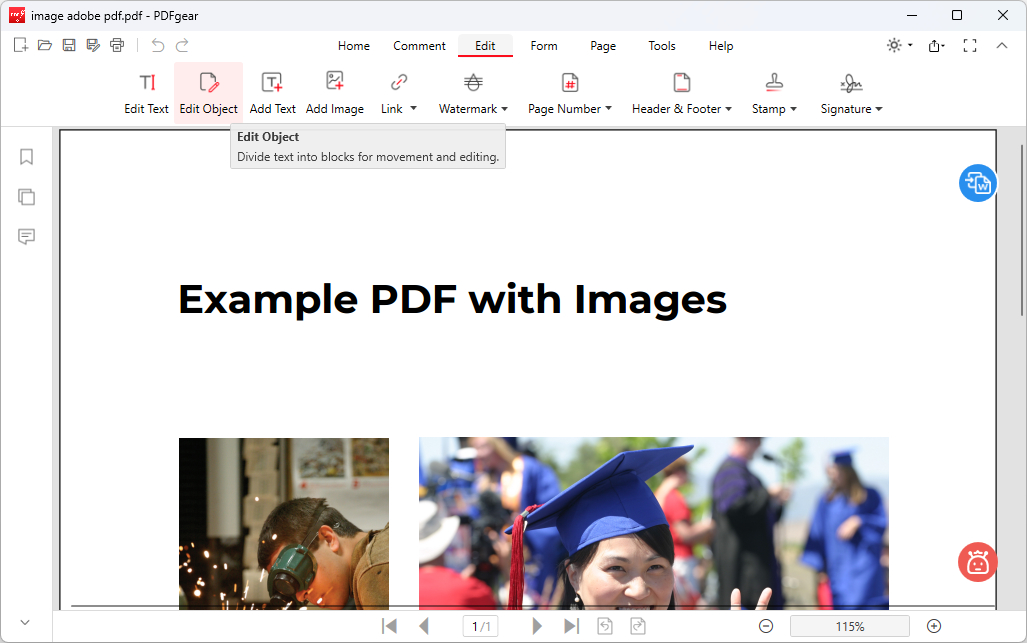
Edit Object
Step 3. Click on the picture you don’t want, and click the Pencil icon next to it to edit it.
Click Delete (the trash can button) in the subsequent options to remove the picture, and click Yes in the pop-up window to confirm the removal.
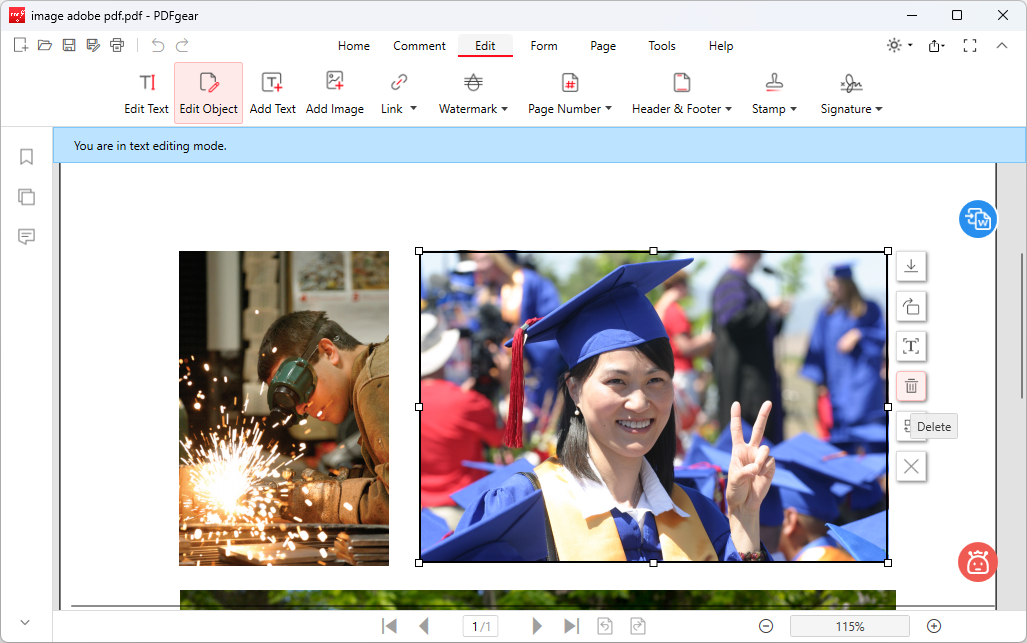
Delete Image
Step 4. Your PDF picture will be removed nicely, without a glitch! Lastly, go to the upper-left corner and click Save as to save the PDF.
The image will be permanently removed after the saving.
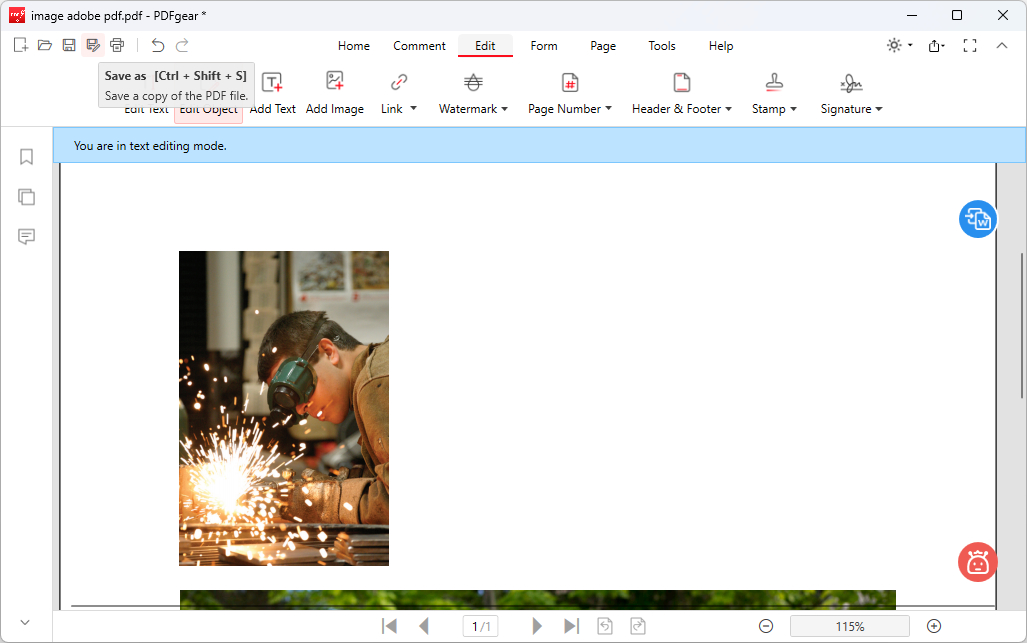
Save PDF
Select and Remove Images from PDF on Mobile for Free
If you intend to remove pictures in PDF on your iPhone or Android phone, PDFgear can also be of help.
PDFgear’s free mobile app for iOS and Android offers a powerful image editing feature for you to edit or delete pictures in PDF files.
Now get the PDFgear app for free from Apple App Store or Google Play!


Step 1. Open the PDFgear app, tap the lower-right Plus button to add a PDF to PDFgear, then tap on it in the Files list to open it.
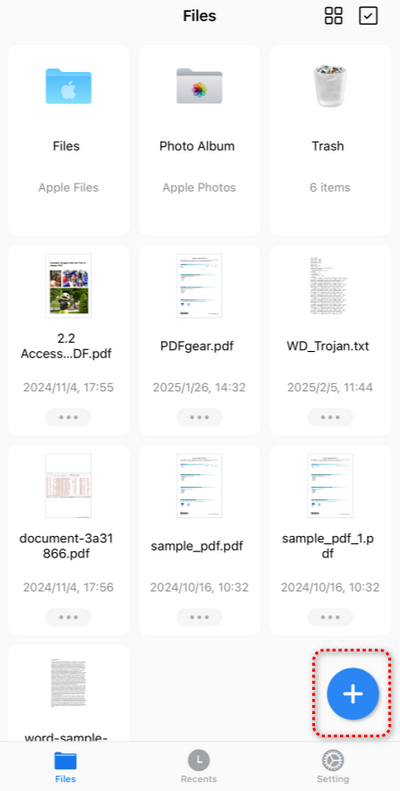
Tap Plus
Step 2. Tap the upper-right Edit button, and use the upper switcher button to go to the Edit Image mode.
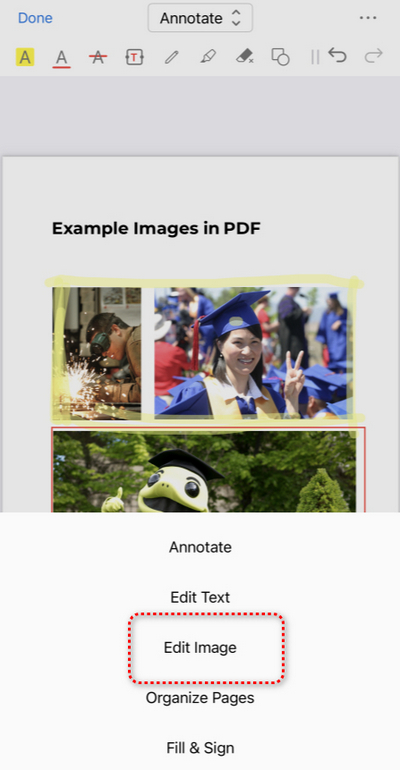
Edit Image
Step 3. In the Edit Image mode, tap on the image you don’t need, and tap Delete in the pop-up window.
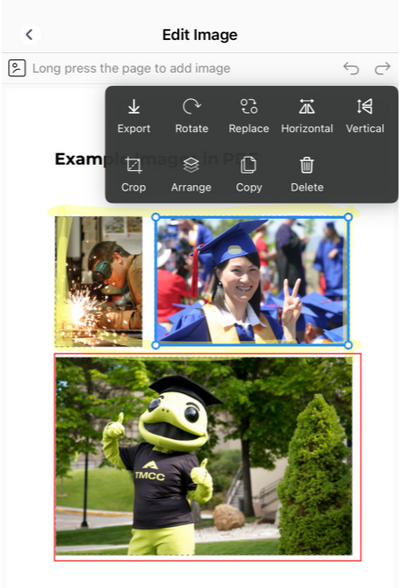
Tap Delete
Step 4. Then the image will be removed, flawlessly. Tap the upper-left < button to exit the image editing mode.
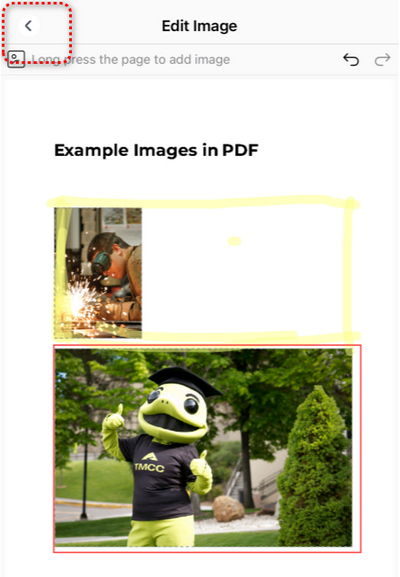
Exit Editing
Step 5. Tap the upper-right triple dots button to Save a Copy or Share the PDF without the image. The image will be permanently removed after the saving.
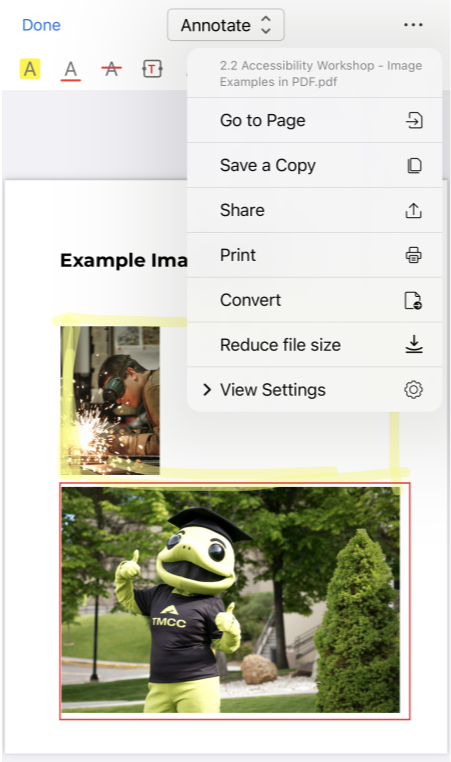
Save and Share
Remove Image from PDF with Adobe Acrobat Pro
Adobe Acrobat allows you to right-click on an image in an editable PDF, and remove it in a simple click.
However, this feature is only available for Pro subscribers and is not supported in the free Adobe Acrobat Reader.
Step 1. Open the PDF using Adobe Acrobat Pro.
Step 2. Click the Tools tab and select the Edit PDF option.
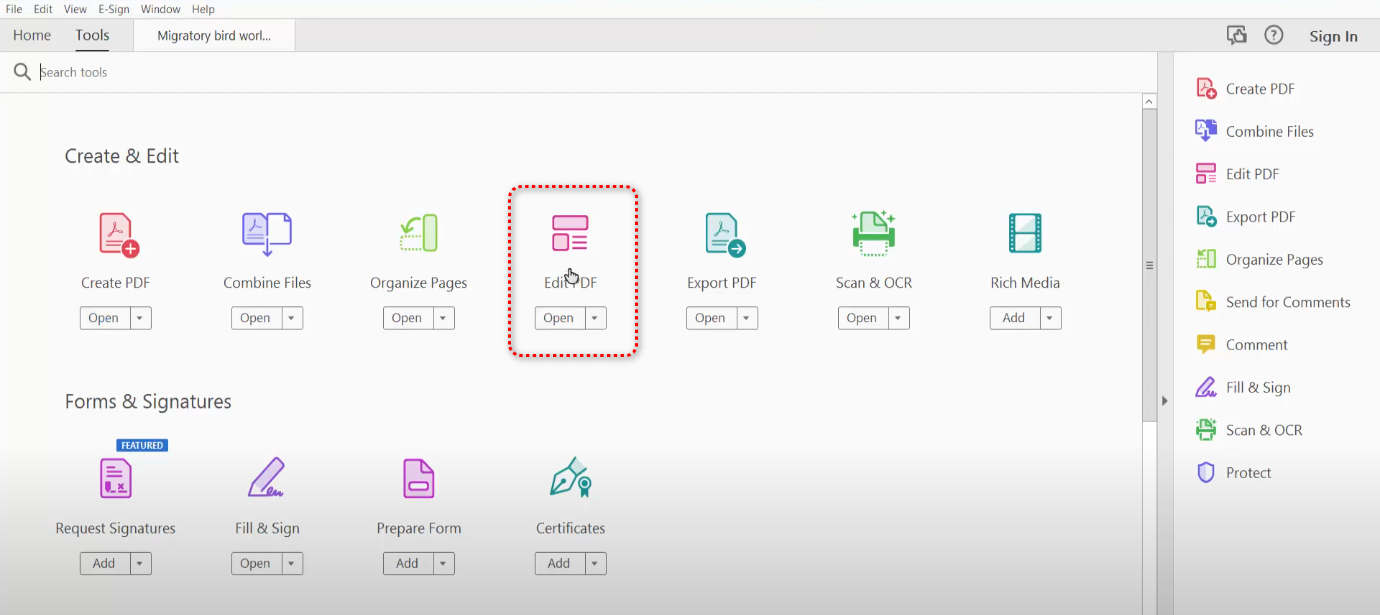
Edit PDF
Step 3. Locate and right-click on the image you want to delete and click Delete in the context menu.
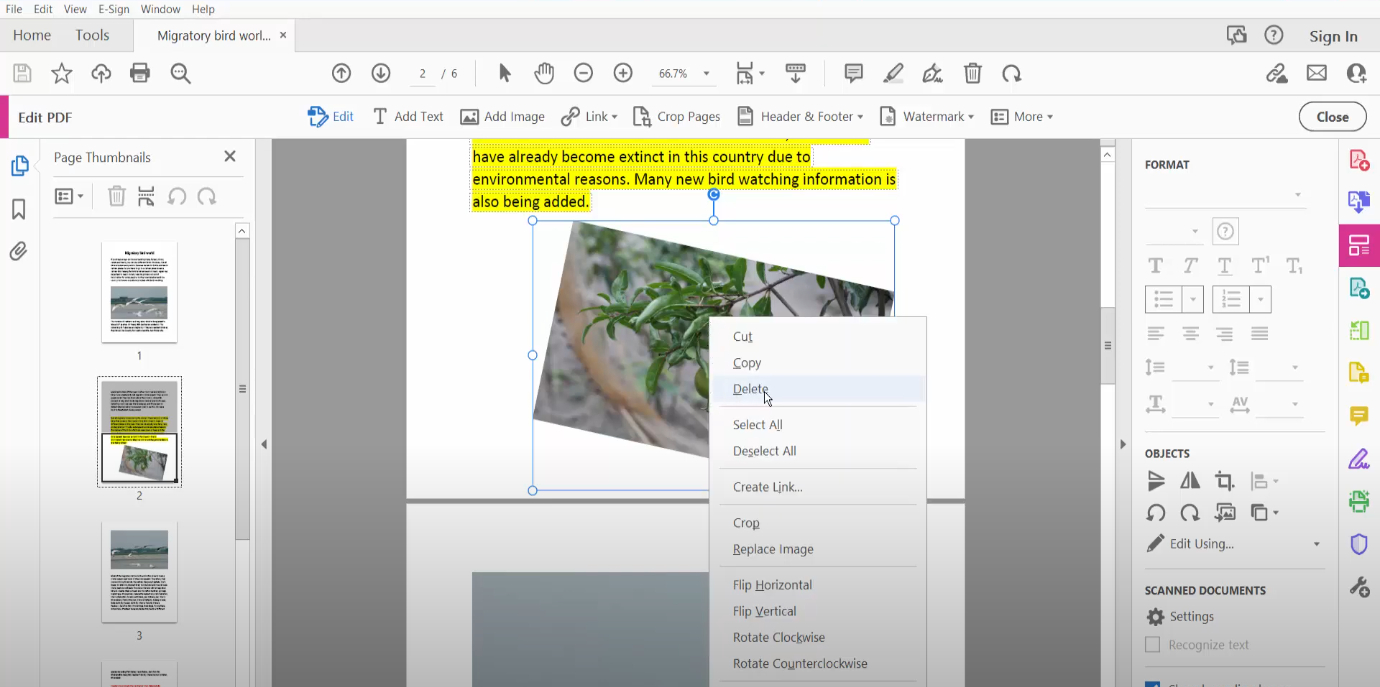
Delete Picture
Step 4. Click File in the upper-left corner and Save as in the dropdown to save the PDF with the picture deleted.
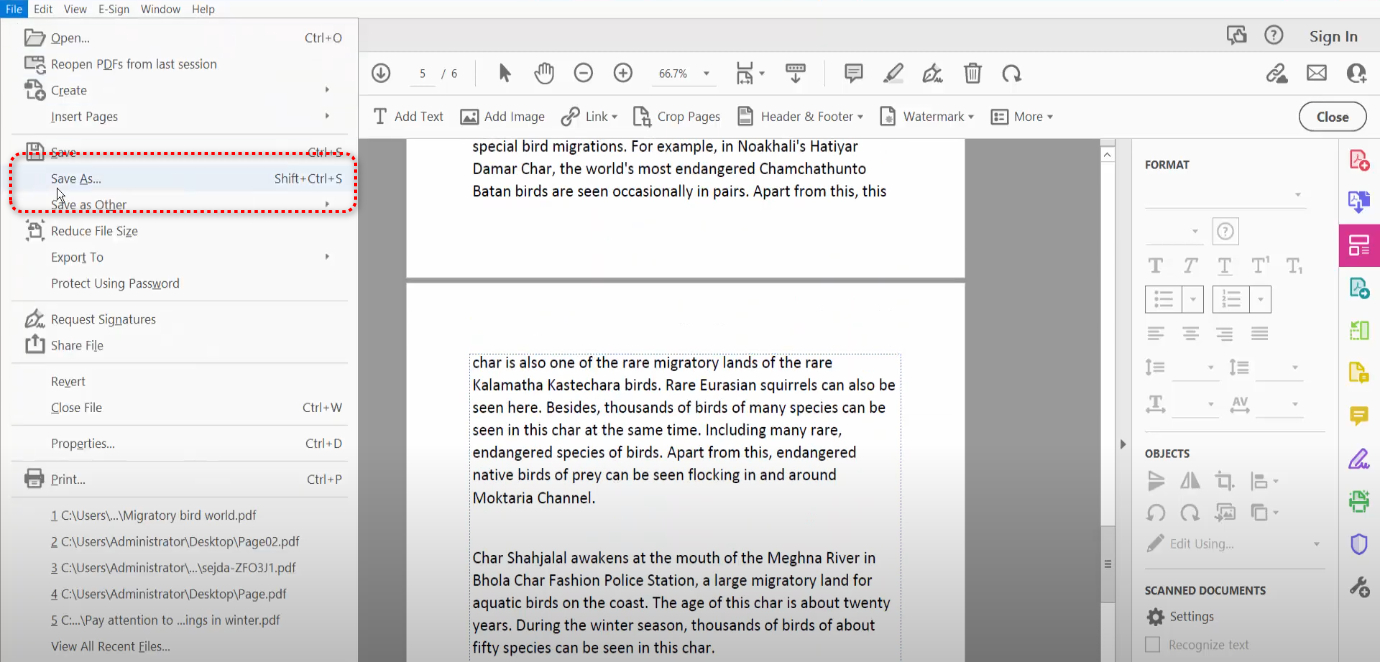
Save PDF
FAQs
Can I remove images from scanned/image-based PDFs?
Yes, you can use the shapes tool in PDFgear online editor to white out images in image-based PDFs.
Is there a way to replace the image with another image in PDFgear instead of removing it?
Yes, PDFgear allows you to replace images as well. Simply select the picture and choose “Replace” instead of “Delete”.
Can I remove All the images in PDFs at once?
No, PDFgear doesn’t yet support removing all pictures in PDFs in batches. You’ll need to manually delete every image one by one.
Is it possible to remove images without affecting the text?
Yes, it’s possible. PDFgear allows you to remove images while preserving the surrounding text and layout. However, the layout might shift slightly depending on how the PDF is structured.
