How to Remove Background Image from Any PDF File

Summary :
This article will share some useful tricks to remove the background image from any PDF files for better printing. All methods are free of charge.
Table of Contents
Whether you can effectively remove image backgrounds from a PDF relies largely on how the background is embbeded to the file.
Many PDF editors like PDFgear allow you to edit and remove image backgounds that are added as layers, but if the background image is unselectable, things get trickier, but still viable.
This is how my PDF looks like (opened in Chrome), and I’ll demonstrate the diffrent methods to delete its background image to save printer ink.
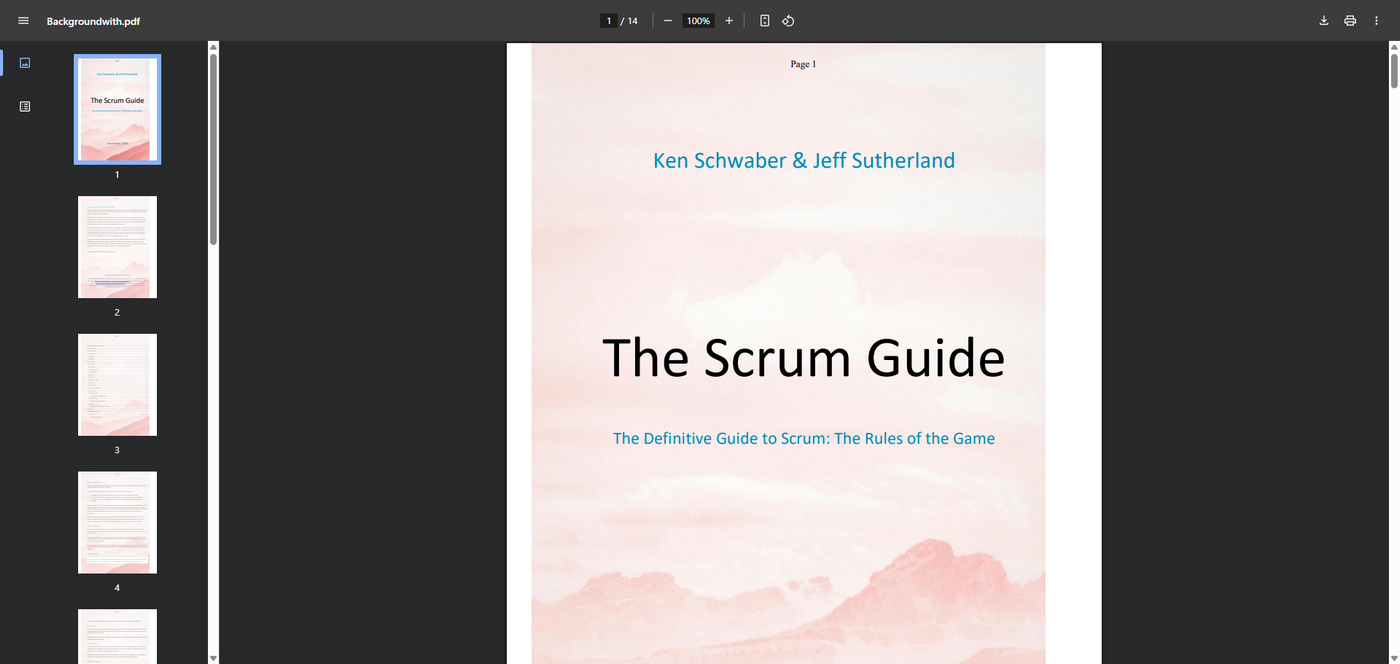
My PDF with Image Background
Remove PDF Background Image by Converting to Word Using OCR
After our thorough testing, this is arguably the most reliable method to remove background image in any PDF, it works on most tested PDF files, so it definitely worth a try.
The basic logic is to use PDFgear’s OCR feature to convert the PDF into an editable Word document, and the image background will become a selectable object in Word and can be removed.
Step 1. Download and install PDFgear to get started, it’s free to Use.
Step 2. Open PDFgear, go to the PDF to Word tool in the Hot tools section.
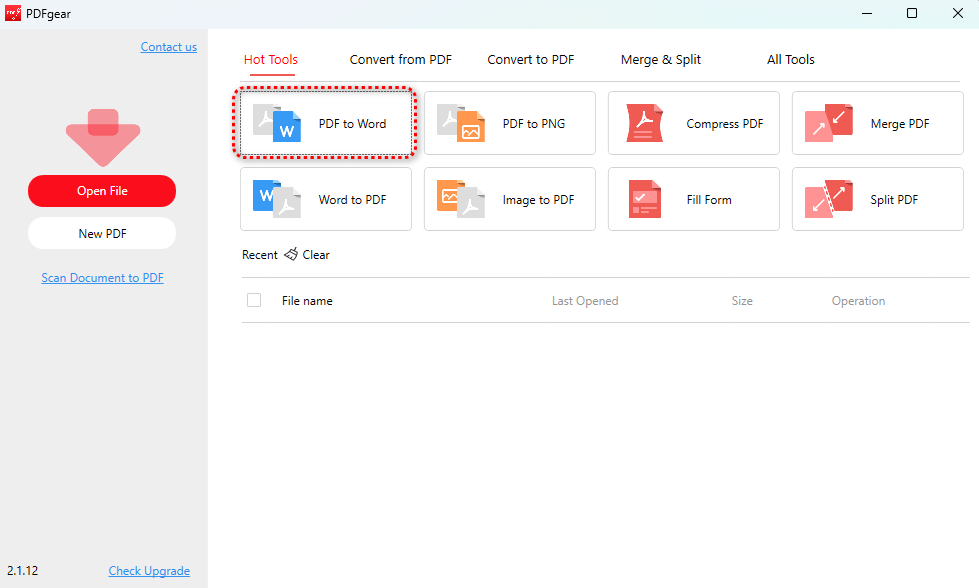
Click PDF to Word
Step 3. Click Add File to add your PDF, and make sure to tick on OCR beneath and select your language. Then click Convert.
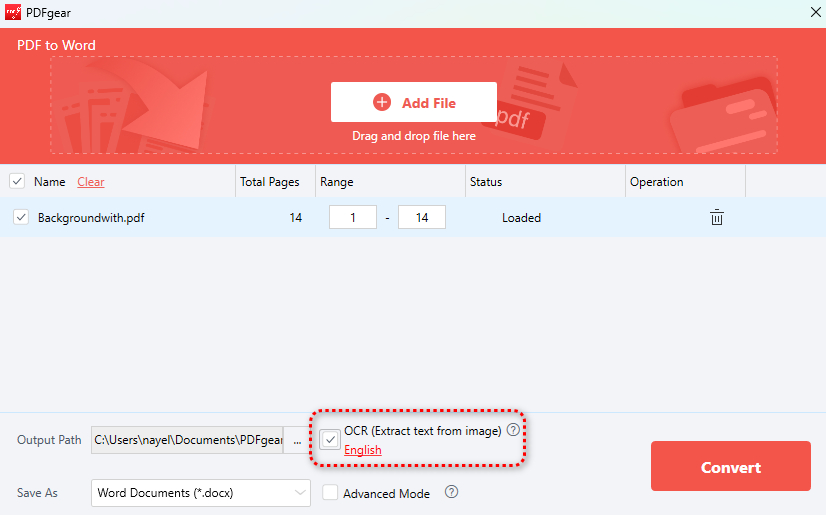
PDF to Word OCR
Step 4. Open the converted Word document, try and click and hold the background image, and see if you can move it.

Move Image Background
Step 5. If you can, congratulations! Now you can simply click Delete on the keyboard to delete the PDF background.
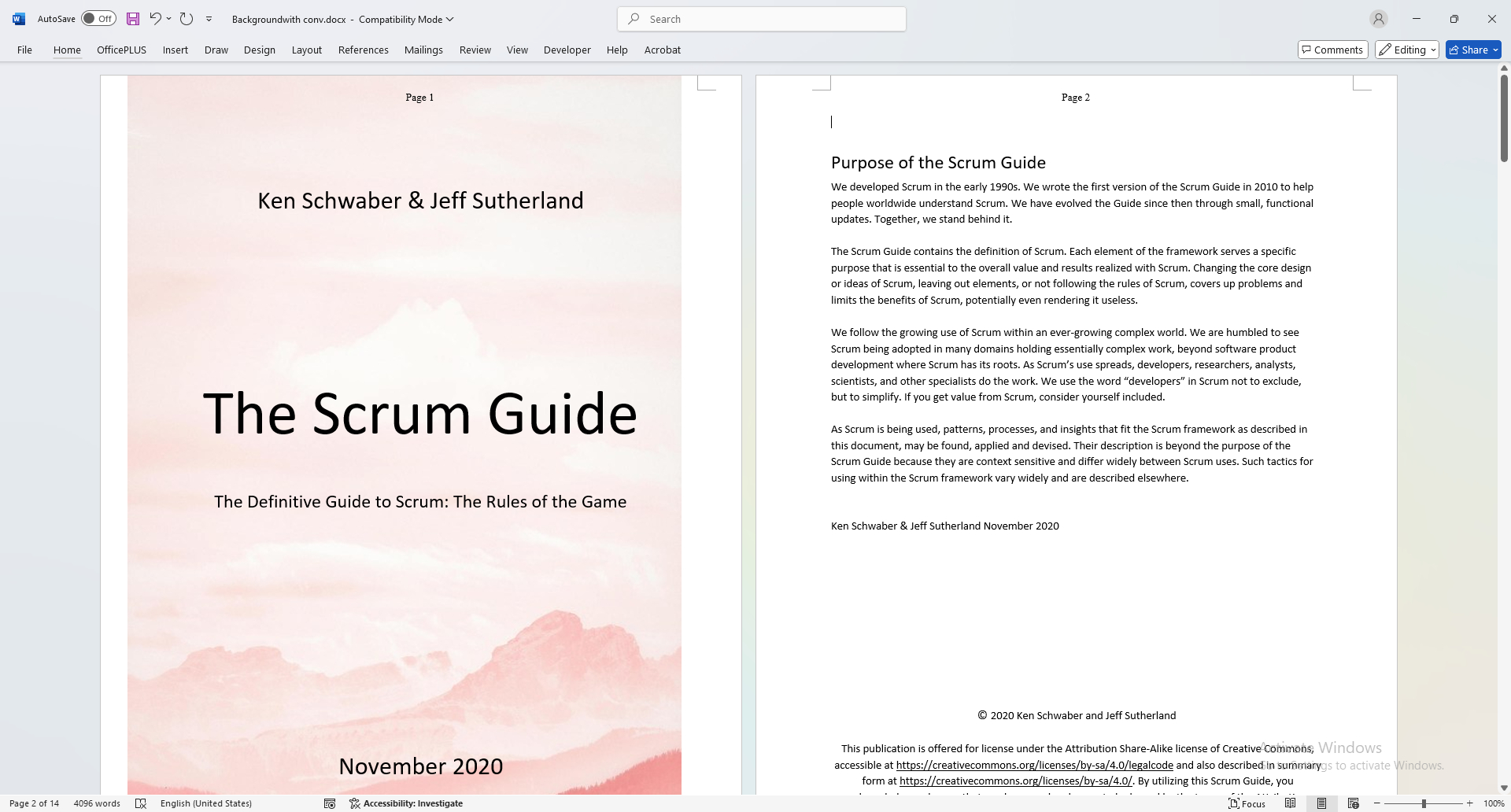
Delete Background
Step 6. Repeat the steps untill you have deleted background images for all PDF pages.
Step 7. Lastly, go to File > Save as > Browse to save the Word back to PDF.

Save as PDF
Remove Background Image in PDF Using Google Docs
When opening a PDF, Google Docs converts the PDF content into an editable Google Docs format.
This conversion process is not perfect and always result in the loss of embedded images (unlike in Microsoft Word), such as background images.
This gives us the chance to remove PDF background with it.
Step 1. Since Google Docs some can’t direcly open .pdf files, you’ll need to upload the file to your Google Drive, and open it with Google Docs from there.
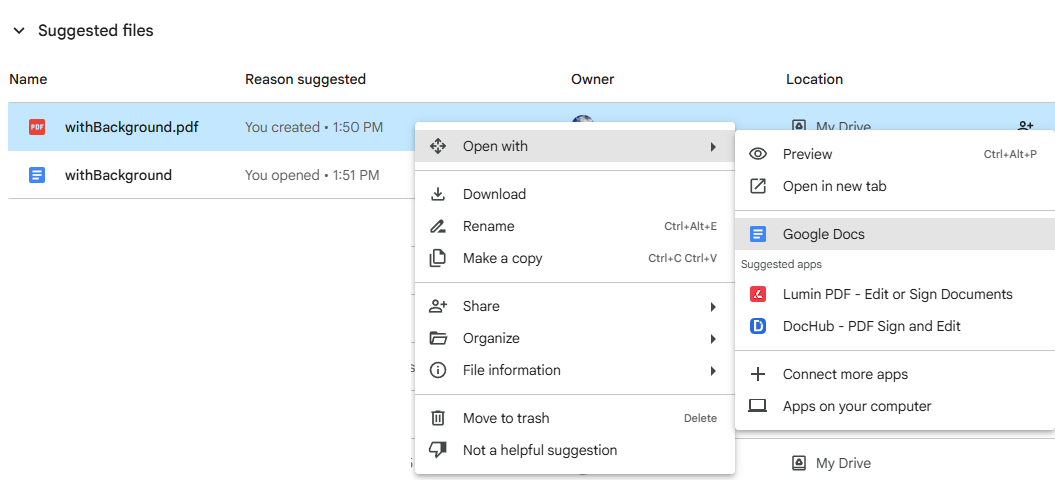
Open with Google Docs
Step 2. When the PDF is opened in Google Docs, see if its background is removed.
If it is, look for and manially fix the formatting issues that may occour with it.
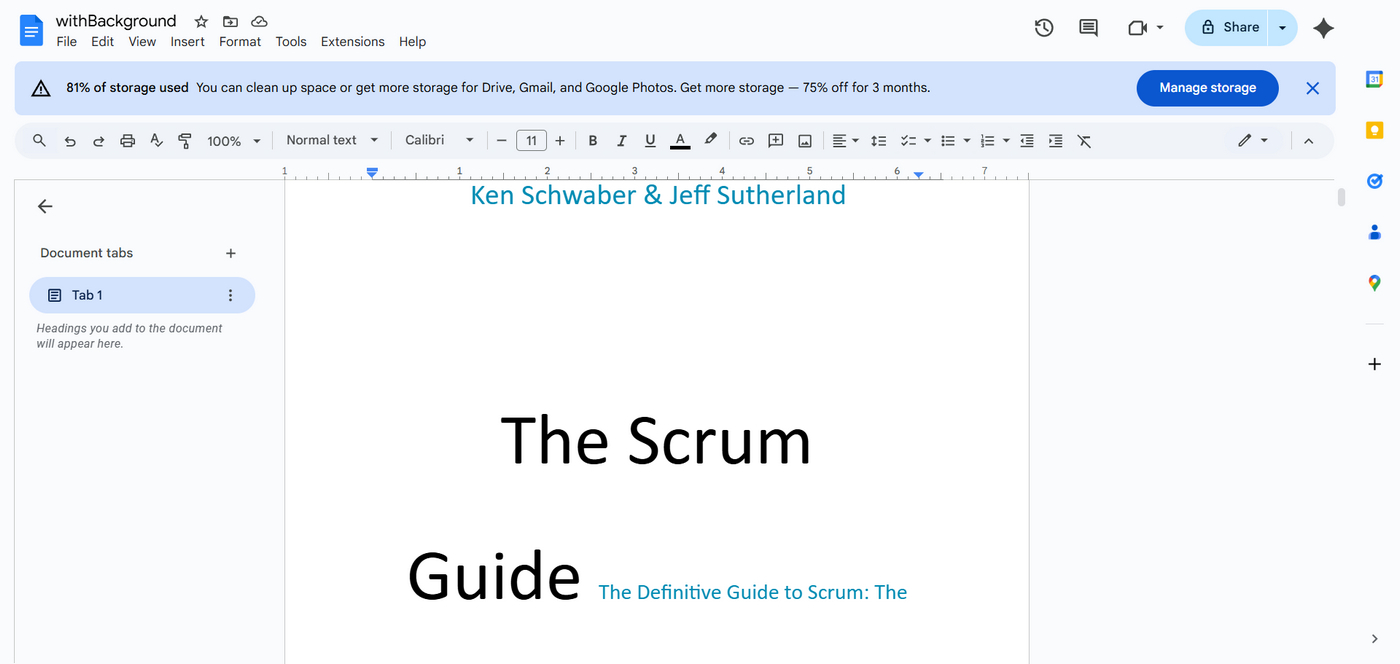
Background Removed
Step 3. When everthing is done, go to File > Download > PDF Document to save the Google document back to a PDF document without background.
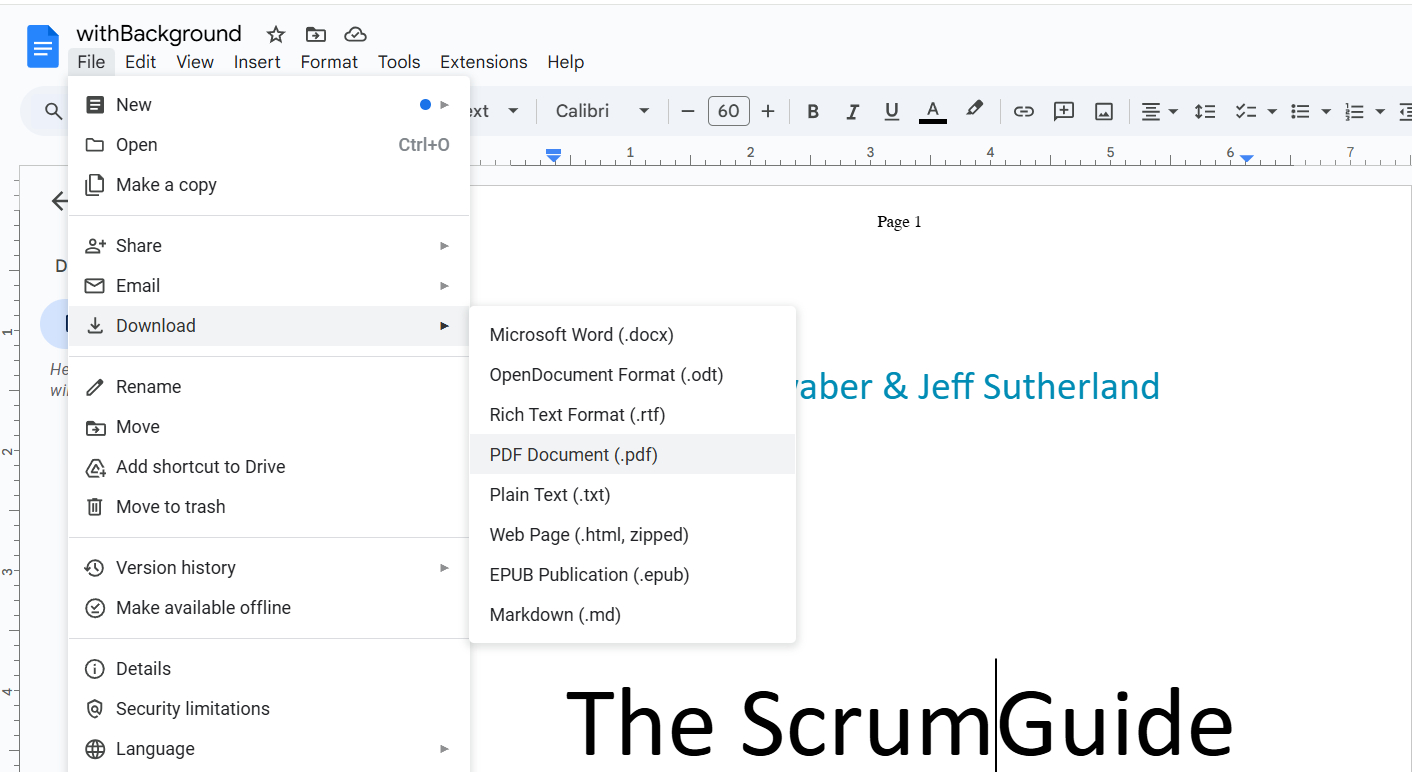
Save PDF
Remove Background from PDF in Adobe Acrobat
Adobe Acrobat Pro allows users to handle various background issues with PDFs, such as removing background color from a PDF and getting rid of background text.
When dealing with a PDF brochure that contains images and text, but the background is light gray or another color that makes the text difficult to read, you can use Adobe Acrobat to remove the background for printing, thereby enhancing readability.
Additionally, Acrobat automatically applies OCR to your scanned document and converts it to a fully editable PDF, making it an effective method to eliminate the background from a scanned document.
Step 1. Open a PDF in Adobe Acrobat
Run Adobe Acrobat on your device, and open a PDF document with the background you want to remove.
Step 2. Remove Background from the PDF
Navigate to the Edit PDF tool, click More in the toolbar, and choose Background in the dropdown menu, where you can choose add, update, or remove. Now select Remove to erase the background in the PDF file.
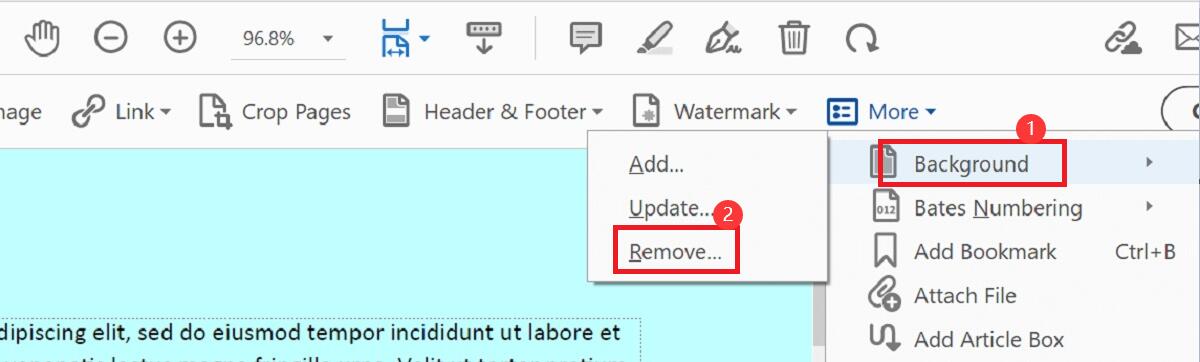
Steps to Remove Background from PDF with Adobe Acrobat
Step 3. Save the PDF without Background
When you finish the steps above, a new window will pop up to confirm if you want to permanently remove the background, click Yes, and then the background will be successfully removed.
Navigate to Save As to save the updated PDF file.
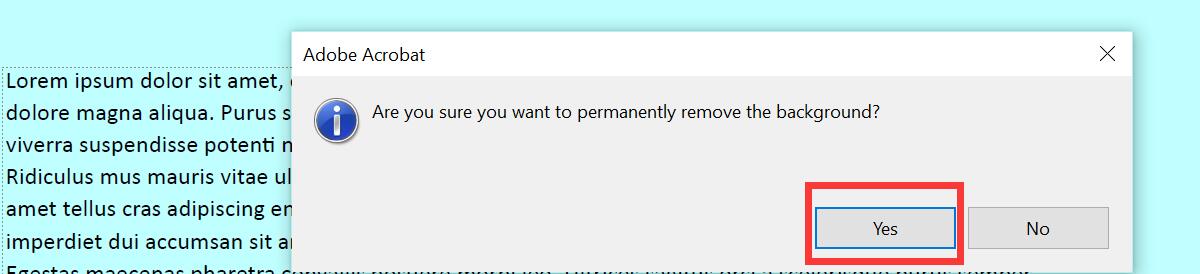
Confirm to Remove Background from the PDF File
FAQs
How to make the PDF background transparent?
In fact, transparent backgrounds are not supported by the PDF standard. However, image editing tools like Photoshop allow you to apply a transparent background to an image and then export it as a PDF.
Can I remove a background from PDF on Mac in Preview?
Nope, it doesn’t work on background removal on PDF files in Preview. Instead, you can only use the Instant Alpha tool to remove the background from an image.
How do I remove the background from a scanned PDF?
Adobe Acrobat supports opening scanned PDFs and automatically applies its OCR feature to your PDF and converts it to a fully editable copy.
For complex backgrounds, you may use other professional image editors like Adobe Photoshop to get rid of the background.
How do I remove the white background from a PDF for free?
Open PDF files with Google Docs, and it will eliminate all the background from the PDF automatically. No extra cost, all you have to do is to register a Google account.
Will removing the background affect the quality of my PDF?
Generally speaking, removing the background from a PDF will not affect the overall quality of the document, as long as the text and essential elements remain clear and legible.
How do I make the background of a PDF white?
You can use Adobe Acrobat to change the background of a PDF. Go to the Acrobat Edit PDF tool, select More, click Background, hit Update, and you can choose the color White for the background.
