How to Present a PDF like a PowerPoint Slideshow

Summary :
This post offers detailed instructions on effectively including PDF documents in presentations, whether by presenting PDF files directly or converting them into Microsoft PowerPoint slideshows.
Table of Contents
PDF Slideshow
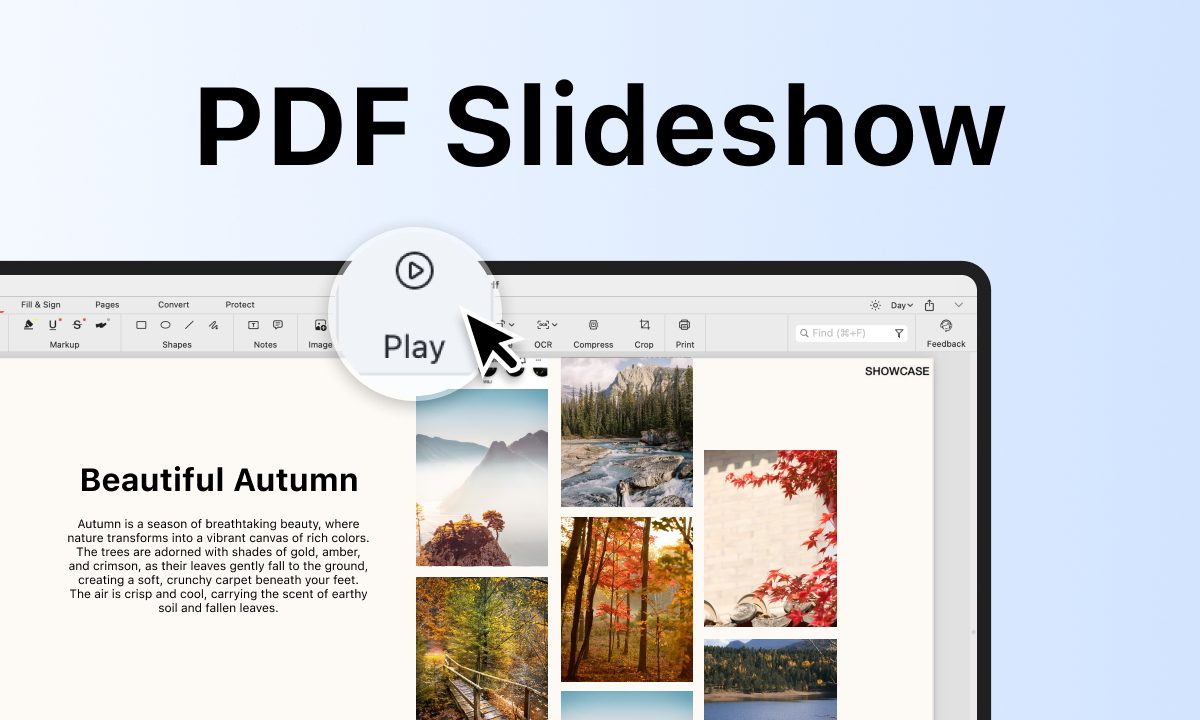
Many documents, reports, and educational materials are already in PDF format. Being able to present them directly as a slideshow without having to convert them into another format saves time and effort, making the preparation process more straightforward.
In this article, you’ll learn how to view multi-page PDF documents in slideshow format within a PDF editor. We also discuss converting PDFs into slideshows as an alternative.
The Best PDF Slideshow Maker – PDFgear
PDFgear is a free PDF editor that enables users to create a slideshow quickly using a drag-and-drop interface. This software allows you to access and edit your presentations from any device, whether it is Windows, Mac, or iOS, ensuring that your presentations are always within reach.
Among its many features, PDFgear includes tools for converting PDF files into engaging slideshows, making it ideal for presenting PDFs as slideshows.
With PDFgear, you can create a PDF document with ease, and present the PDF like a PowerPoint slideshow.
Presenting a PDF as a Slideshow on Windows/Mac
PDFgear, a free PDF editor, offers an ideal solution to easily edit and present PDFs as slideshows. You can automatically play PDF files in full-screen mode and trim the empty margins of portrait PDF pages to fit landscape format, enhancing their display on the big screen.
Additionally, you can insert PDF files into PowerPoint presentations or convert PDFs to PowerPoint format, allowing you to play them in the familiar PowerPoint style.
Step 1. Launch PDFgear and Import PDF
After downloading PDFgear, open it and use the “Open File” button to import the PDF you wish to present as a slideshow.
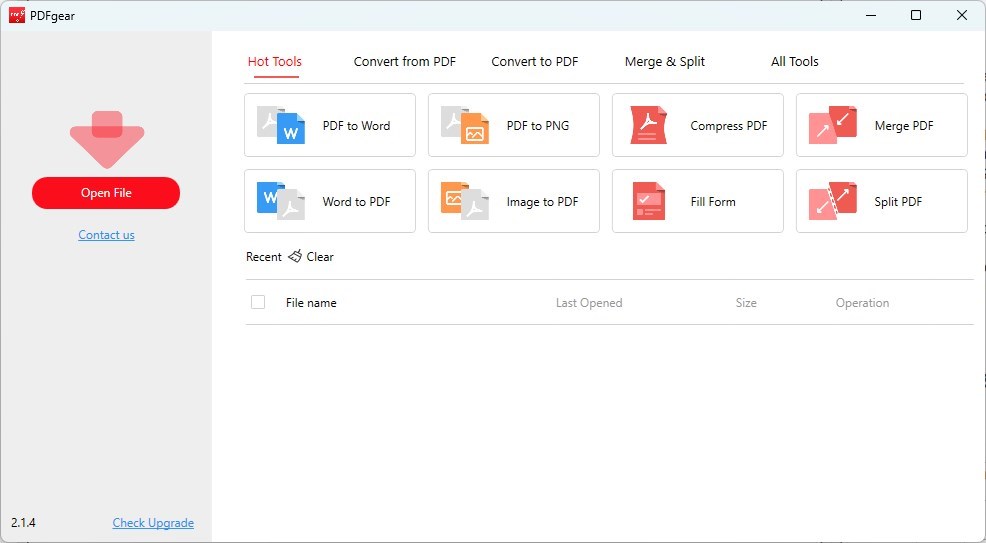
Open a PDF Document with PDFgear
Step 2. Activate Slideshow Mode
In the “Home” tab, hover over “Slide Show” and click it to initiates the slideshow from the first slide.
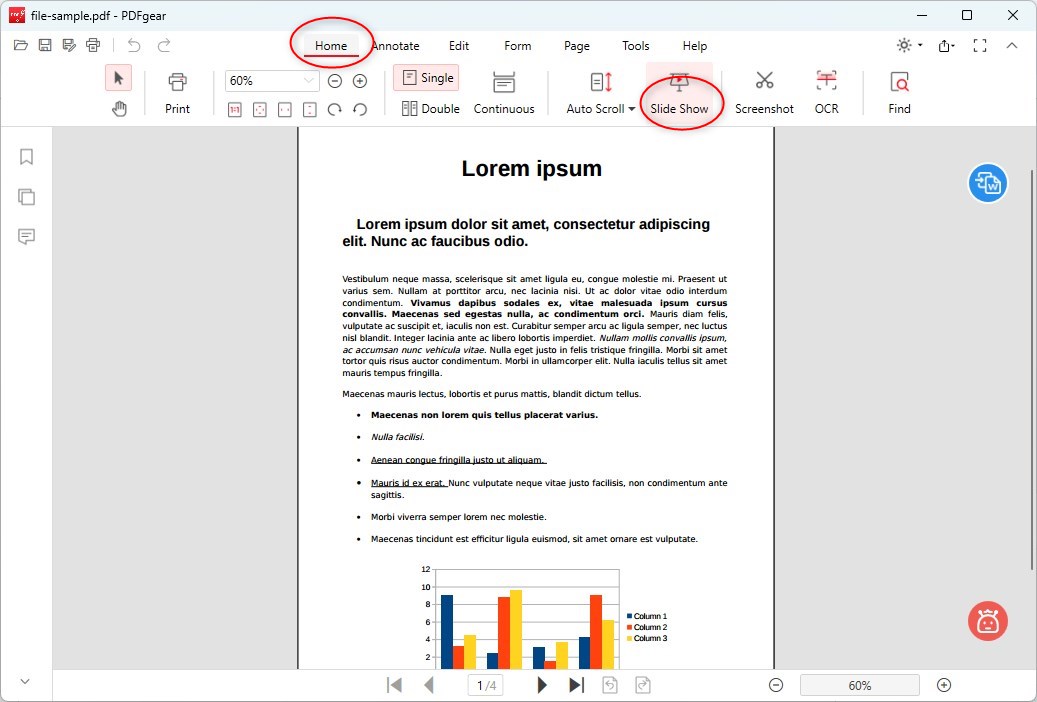
Slide Show PDF in PDFgear
Step 3. View a Multi-page PDF as a Slideshow
At the bottom of the slides, there are navigation buttons to allow you to move forward or backward. Alternatively, you can also use the scroll wheel on your mouse for navigation.
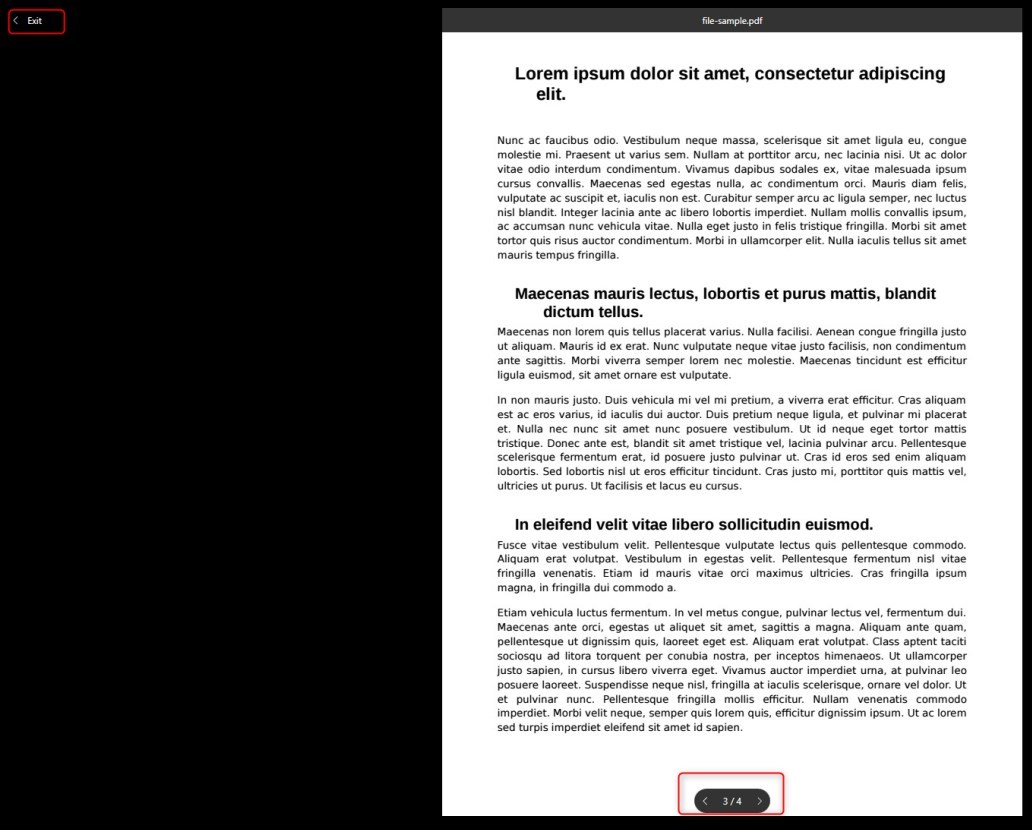
Present PDF in Slide Show
Click the ‘Exit‘ button to exit the slideshow presentation mode at any time.
PDFgear offers additional features such as reading PDFs in dark mode and light mode, providing flexibility for different reading environments. Additionally, it provides tools for adding links, notes, or watermarks to enhance your presentation.
If the pages of your PDF document are in portrait format, you can use the crop tool from PDFgear to remove excess margins and convert the PDF to landscape format with an aspect ratio of 4:3 or 16:9. This way, the PDF can be displayed optimally in full-screen mode on large screens.
Convert PDF to PowerPoint Presentation – Workaround
PDFgear online services provide an easy tool to turn PDFs into PowerPoint slideshows. This keeps the layout and formatting intact, so you don’t have to make many changes afterward.
Once converted, you can edit and present the slideshow just like any other PowerPoint file. You’ll have all the usual PowerPoint tools at your disposal, which makes it easier for people used to Microsoft Office.
Here are the steps to turn a PDF into a Slideshow with PDFgear:
Step 1. Visit PDFgear online services and use the Convert PDF to PowerPoint tool.
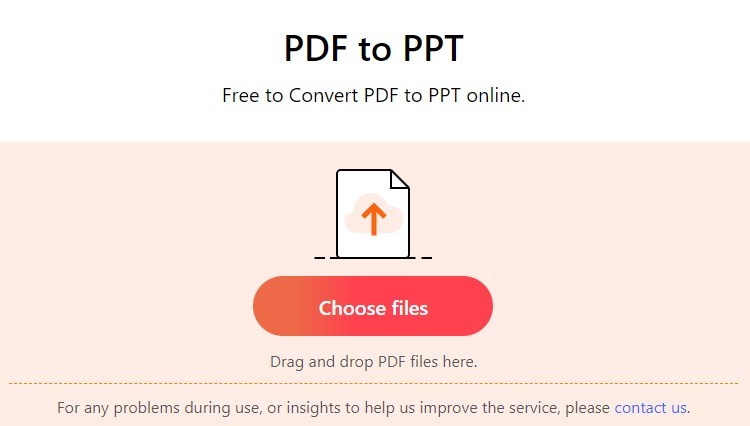
Upload a PDF to Online PDF to PPT Converter
Step 2. Upload your PDF file to the tool and wait for the conversion to complete.
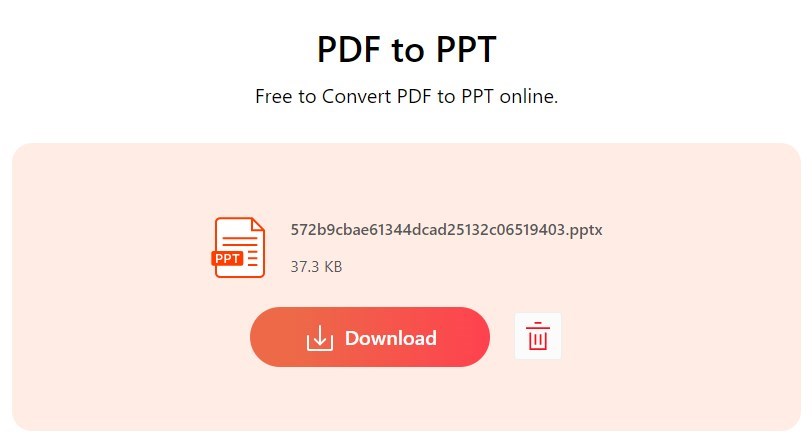
Download the Converted PDF
Step 3. Download the converted PowerPoint file and open it in Microsoft PowerPoint to use all standard presentation features, including animations and slide transitions.
Present Two PDF Pages in Full-Screen View with Adobe Acrobat Reader
Adobe Acrobat Reader is a free software application developed by Adobe Systems that allows users to view, print, and edit PDF files. One of the program’s best features is the ability to show two PDF pages side by side in full-screen mode. This feature is uncommon in other PDF readers and is great for viewing magazines and similar documents on a full screen.
Both the free Adobe Acrobat Reader and the paid Adobe Acrobat Pro support this feature, with an easy-to-use interface.
Tip: Keyboard Shortcut for PDF Presentation
With the keyboard shortcut Ctrl + L, you can activate full-screen mode in Adobe Acrobat. This allows you to quickly and efficiently navigate through your PDF documents without a mouse.
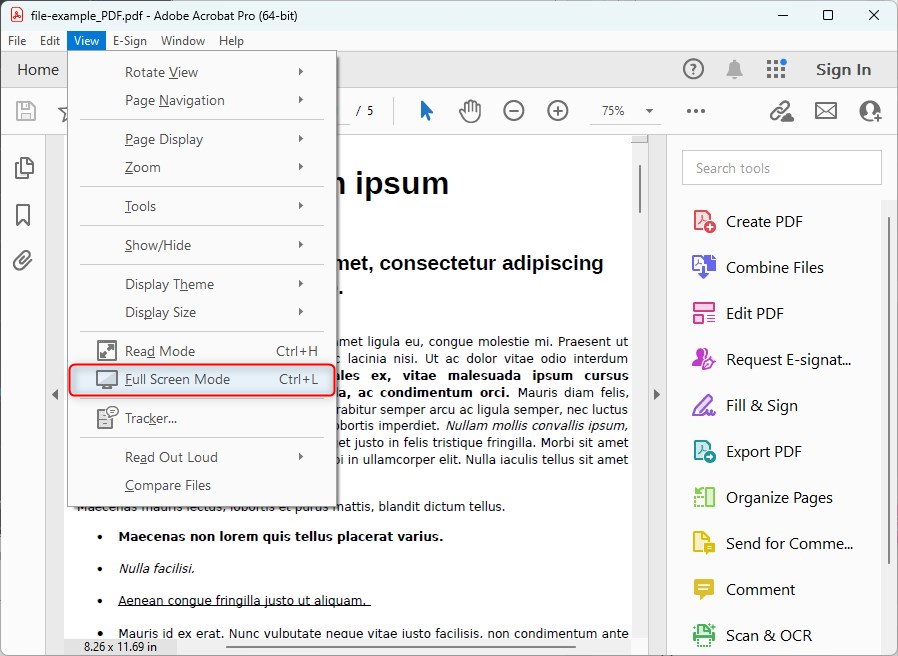
Full Screen Mode Shortcut in Adobe Acrobat
Step 1. Launch Adobe Acrobat
To quickly open a PDF file, right-click on the file and select the “Open with” option and then “Adobe Acrobat Reader/Pro”.
Step 2. Adjust Page Display
Through the “View” tab and the “Page Display” menu item, you have various page settings available, such as displaying two pages at the same time or showing gaps between the pages.

Adjust Two-Page View
Step 3. Set Up Full-Screen Mode
Click on the “Edit” tab and select “Preferences”. Here you can make basic settings for the full-screen mode.
Make sure you do not enable the option “Fill Screen with one page at a time” in the Full Screen setup window, so your PDF presentation will be played automatically.
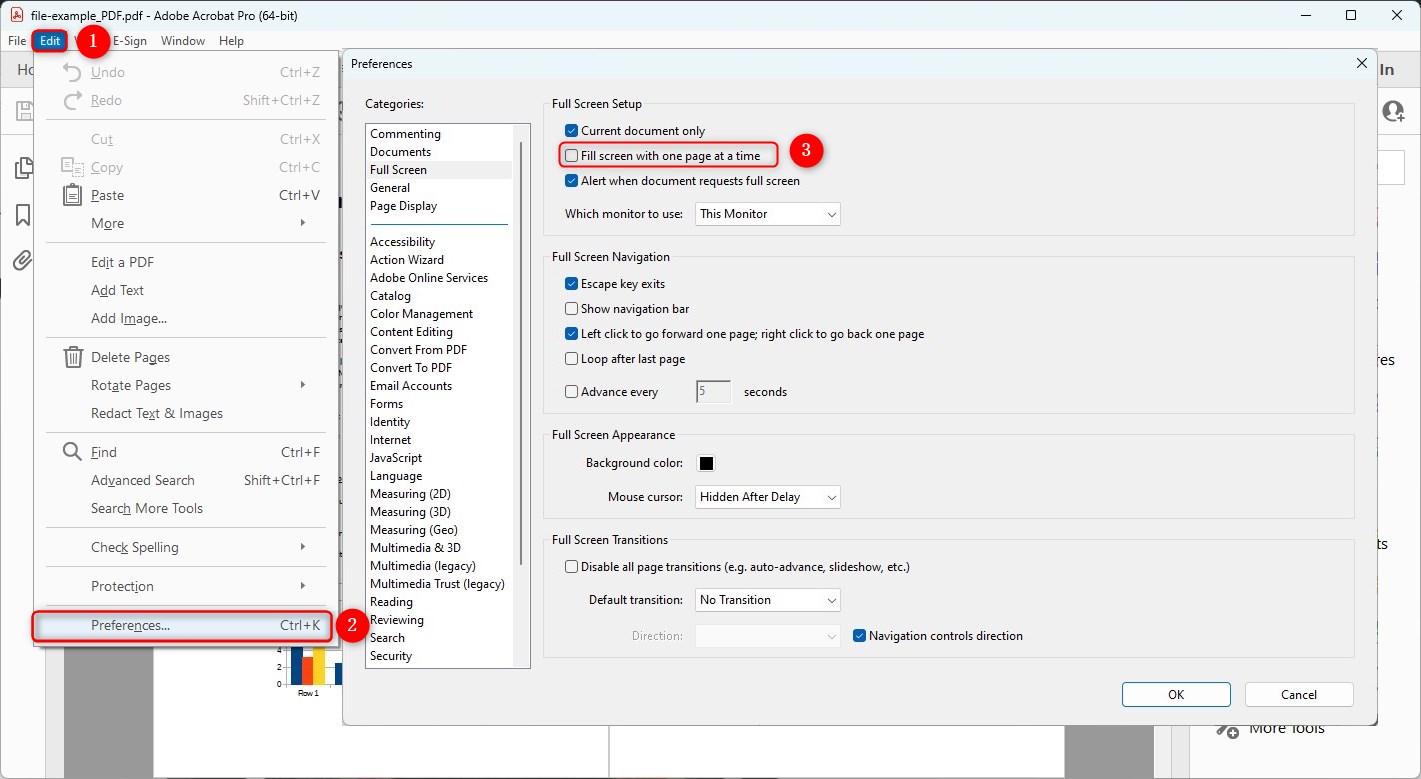
Disable Fill screen with one page at a time
In addition to the above settings, you can set the duration for automatic page turning and transitions. These features not only increase the convenience of presenting your PDF file but also make your presentation more lively and interesting.
FAQs
How to present a PDF with Adobe Acrobat?
Step 1. Start by opening your PDF file with Adobe Acrobat Reader or Adobe Acrobat Pro.
Step 2. Click on the ‘View’ menu at the top, then select ‘Full Screen Mode’. Alternatively, you can quickly enter this mode by pressing Ctrl+L on Windows or Cmd+L on macOS.
Step 3. Use the right and left arrow keys on your keyboard to move forward and backward through the pages of your PDF.
Step 4. When you’re finished, press the Esc key to exit full-screen mode.
Can I edit a PDF slideshow after creating it?
Yes, you can edit a PDF slideshow using PDF editing software. Tools like PDFgear offer extensive editing capabilities, allowing you to add, remove, or reorder pages, as well as modify text and images within the PDF. Using PDFgear PDF Slideshow maker, it’s easy to update and customize your slideshow as needed.
How to display a PDF as a slideshow in Preview on Mac?
To present a PDF as a slideshow using Preview on a Mac, you can follow these steps:
Step 1. Open your PDF in the Preview app.
Step 2. Go to the “View” menu and select “Slideshow”.
Step 3. Navigate through the PDF using the on-screen controls during the slideshow.
How can I insert a PDF into a PowerPoint presentation?
With PDFgear, you can insert a PDF into a PowerPoint presentation. You can insert the PDF as an image into the PowerPoint presentation, displaying the PDF as a thumbnail. Alternatively, you can also insert the PDF as a file by simply linking to the PDF in your PowerPoint presentation.
If you don’t want to download additional software, you can use the Online Converter PDFgear PDF to PPT to convert the PDF to a PowerPoint file before inserting it into your presentation.
Conclusion
In summary, if you want to present a PDF file as a slideshow, PDFgear is an excellent tool for converting, organizing, and annotating your PDFs. Adobe Acrobat also offers robust features for quickly and easily presenting PDF files, ensuring your presentations are engaging and entertaining for your audience.
This article has provided insights on using full-screen mode and converting PDF files to various formats to enhance your PDF presentations.
