7 Recommended PDF Readers with Translation Option

Summary :
We will dive into the 7 best PDF readers with translators with their pros and cons in this post. Let’s get started.
Table of Contents
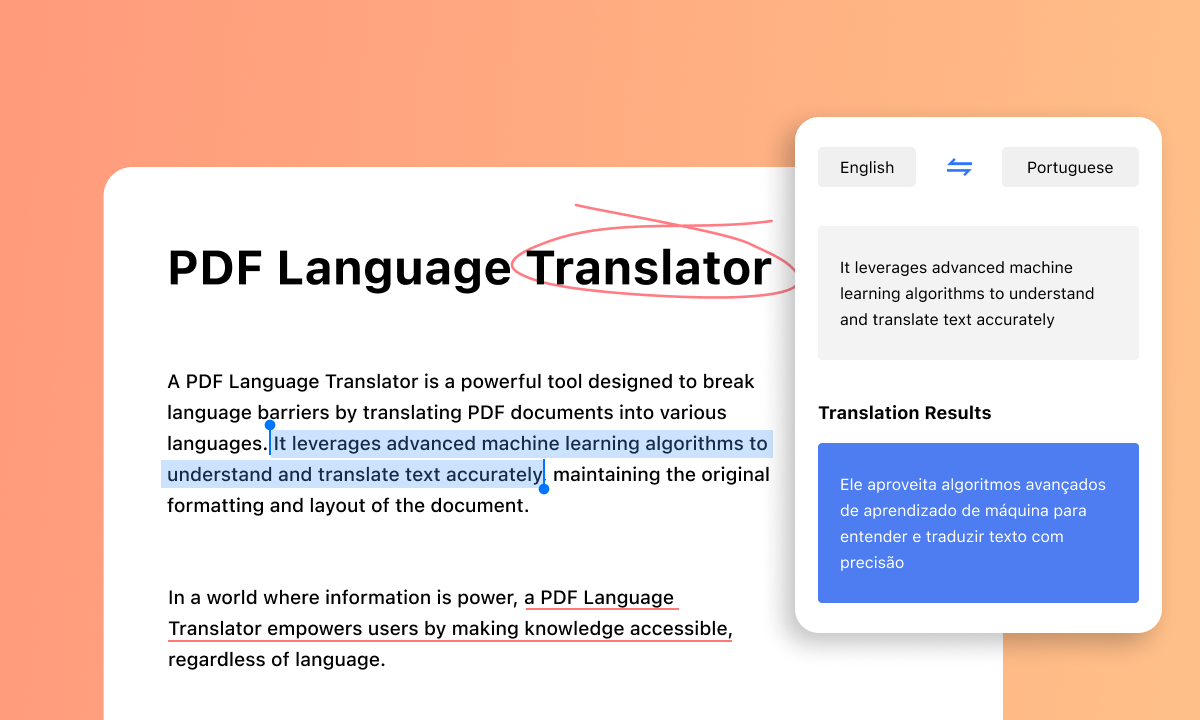
PDF Reader with Translator
Software that integrates PDF viewer and translation tools is a blessing for those who frequently work with documents in multiple languages. It enables anyone to read and translate PDF content into their preferred language, without turning to another application.
In the following parts, we will have a deep analysis of the 7 best PDF readers and translators in the market. Let’s dive in.
Comparison Table of 4 Best PDF Reader with Translator
| PDF Reader Translator | Verdict | Compatibility | Pricing |
| PDFgear | Excellent PDF editor and translator powered by AI | Windows/Mac/iOS | Free |
| Google Docs | View and translate your PDF as a Word document | Windows/Mac/iOS/Android | Free |
| Microsoft Edge | AI-assistant facilitates understanding of your PDF | Windows/Mac/iOS/Android | Free |
| Canva | PDF designer offering flexible translation options | Windows/Mac/iOS/Android | Free & Paid options |
PDFgear
PDFgear, the ultimate PDF viewer, offers a more immersive PDF viewing experience. It supports PDFs of any size and language. The versatile light and dark modes ensure optimal readability in any lighting conditions or environment. Extra editing features like chatting with PDFs, editing texts, and adding comments allow making any edits as you wish.
The language barrier is a thing of the past thanks to PDFgear Copilot. Launch it, and copy the sentences or paragraphs you don’t understand, then send a prompt like translate the following sentences into Japanese, you will get the translation on the right side of the original content.
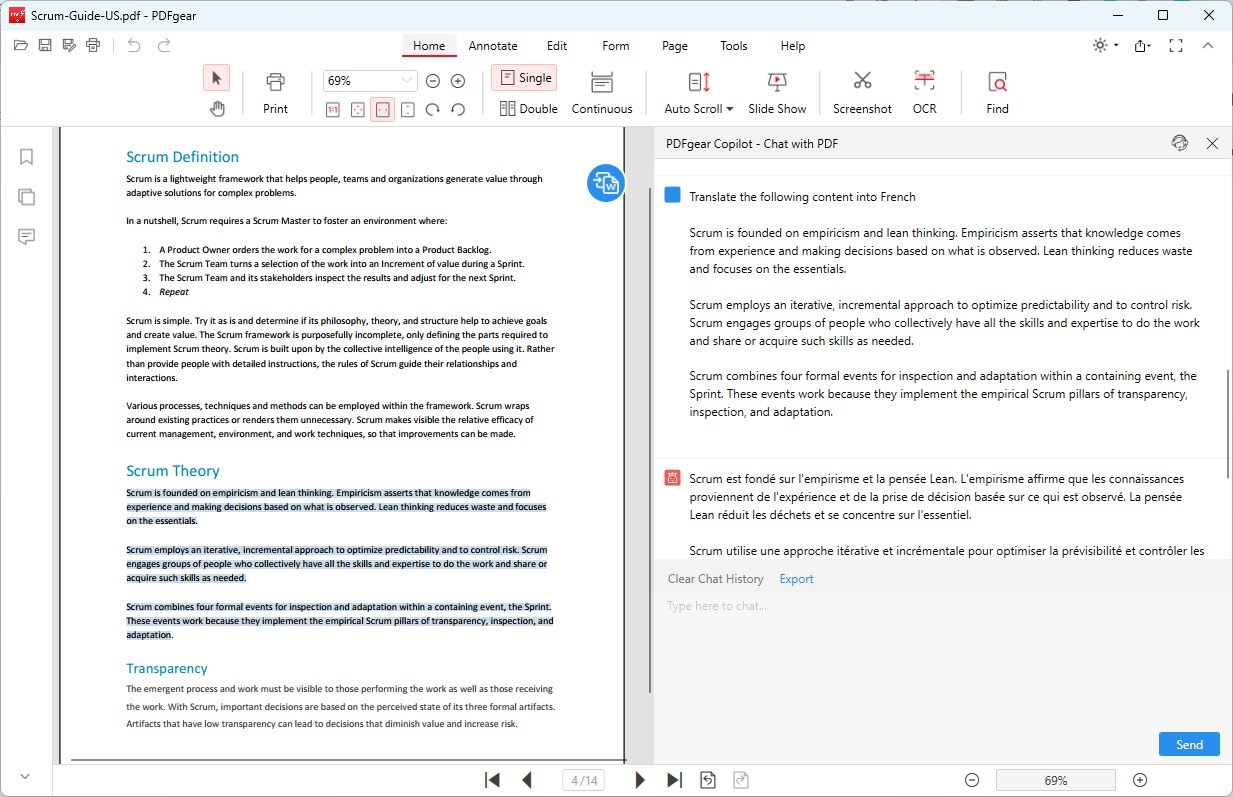
PDFgear PDF Reader Translator
Key Features
- View and edit PDFs without costing a penny.
- Get high-quality translation instantly.
- Works on both mobile devices and computers.
Get PDFgear PDF reader with translation tool
Google Docs
Google Docs is a streamlined approach to viewing PDFs, optimizing the experience for seamless accessibility and collaboration. You can open any PDFs directly within the Google Docs interface. Besides, people can access, view, and collaboratively work on the same PDF, without the hassle of downloading and re-uploading files.
Google Doc’s translation tool is quite obvious. Go to Tools > Translate document, select the source language, and you can get the translation of your whole PDF immediately. The translation tool of Google Docs is powered by Google Translate, so you shouldn’t worry about the translation quality.
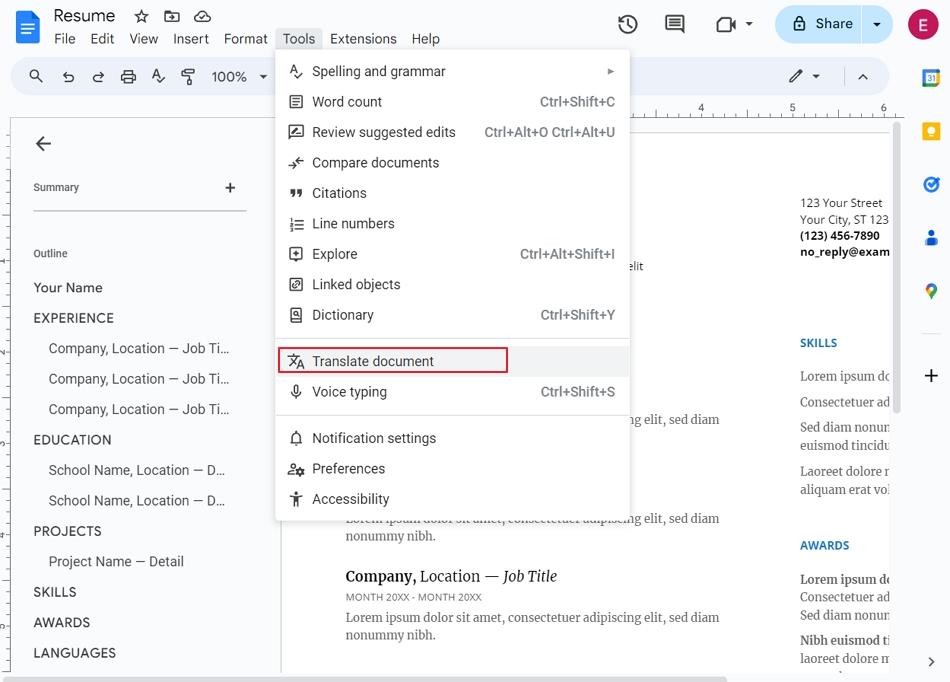
Google Docs PDF Reader Translator
Key Features
- Open, view, and edit any PDFs.
- Translate PDFs between 100+ languages.
- Collaborating with others on the same PDF.
Microsoft Edge
Just like any other browser, Microsoft is also able to help view PDFs in any language. Launch Microsoft, drag your PDF to it and you may start reading. By the way, you can let Microsoft Edge read the content of the PDF with a natural sound you love.
Microsoft Copilot, leveraging advanced language processing algorithms and machine learning capabilities, can deliver accurate and contextually relevant translations. It is even able to translate a whole page of your PDF. Currently, only 70+ languages are supported. However, the Copilot developers are doing their best to support more languages.
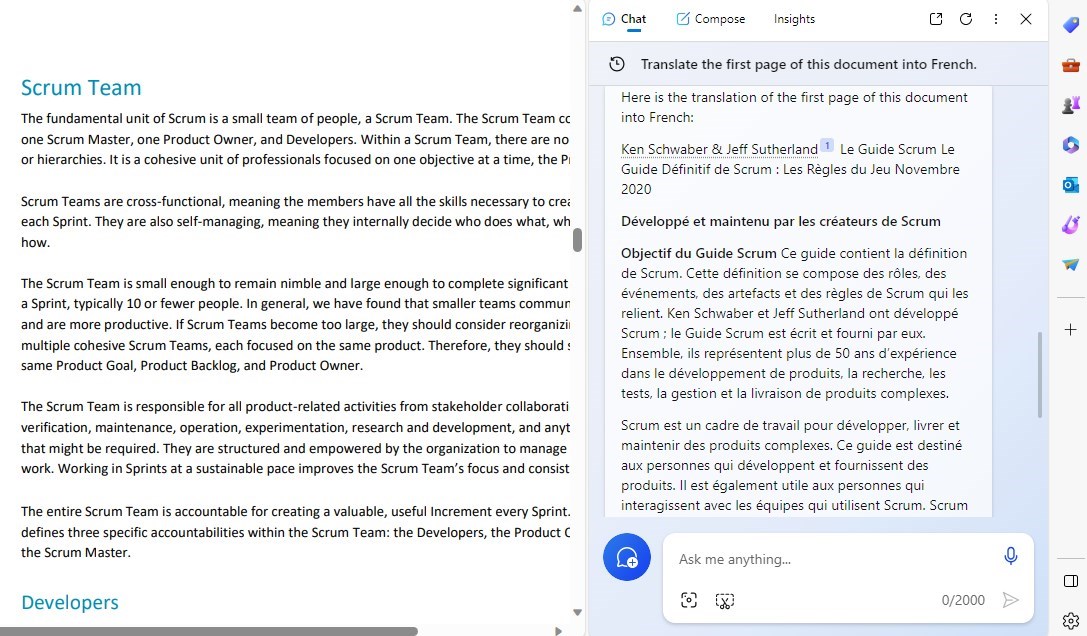
Microsoft Edge PDF Reader Translator
Key Features
- View PDFs without changing original layouts.
- Translate copy-and-paste PDF content between 70+ languages.
- Answer questions and get real-time information.
Try Copilot on Microsoft Edge to read and translate PDF
Canva
Canva is more known as a graphic designer. Now, it also has a free PDF translation tool to help you create better PDFs for people around the globe. It provides many options while translating your PDFs, from language selection and page ranges to translating, to mirror pages to match text direction.
We don’t recommend using Canva as a PDF viewer, except if you are opening a PDF created by Canva because some PDF layouts will be distorted or changed.
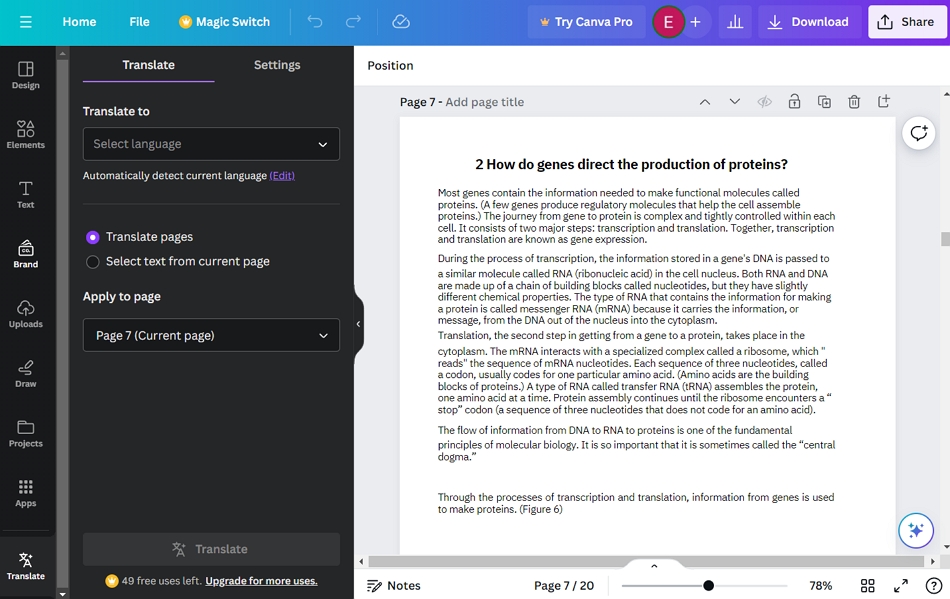
Canva PDF Reader Translator
Key Features
- Design PDFs with professional tools.
- Flexible PDF translation tools for better outputs.
- Add comments and share with others.
Go to Canva PDF Translator
Foxit Reader
Foxit Reader is an excellent AI PDF editor as well as an AI PDF translator. When used to open a PDF, you will be stunned by its lightning-fast speed. Whether you are processing a small PDF, or a giant PDF with enormous pages, Foxit Reader ensures smooth and responsive interactions. A set of tools and functionalities, from basic viewing options like zooming, and scrolling, to advanced features like highlighting annotation will cater to the diverse needs of users.
With the Foxit Cloud tab, Foxit Reader can translate your PDF text into any language so that anyone can read the same PDF in their preferred language. Utilizing cutting-edge technology, accurate and contextually relevant translations are guaranteed. Moreover, Foxit Reader allows you to choose the range to translate. You can just translate several paragraphs, or the whole page.
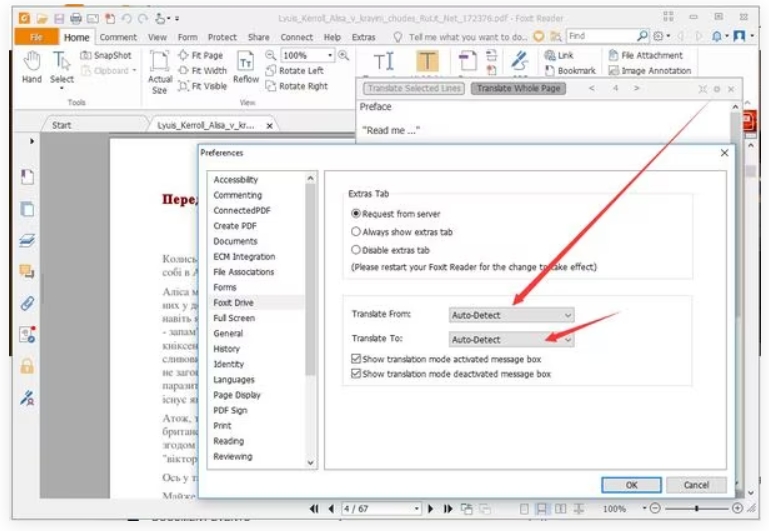
Foxit Reader Translator
Key Features
- Open, view, and edit PDFs easily.
- AI assistant to boost your understanding of the PDF.
- Translate your PDF document between 30+ languages.
Go to Foxit Reader
Google Translate
The Google Translate can be called the strongest AI translator. With its powerful algorithms and extensive language database, it can accurately translate PDFs into various topics from business reports, and academic papers, to personal PDFs. It now supports over 190 languages.
You can’t use Google Translate to open and view a PDF. However, you can view the translated PDFs after the translation process. Most of the layouts and styles will remain the same.
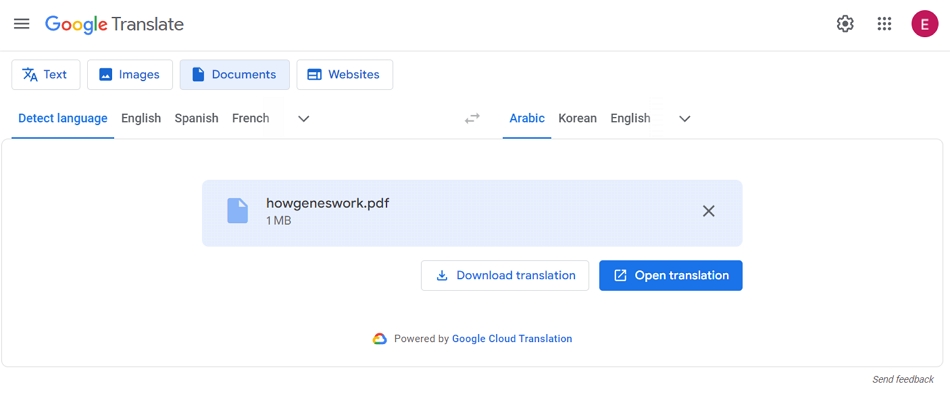
Google Translate PDF Reader Translator
Key Features
- Easy and simple interface to get started.
- Supports over 190 languages.
- View the translated PDF before downloading.
Go to Google Translate
Yandex
Yandex Translate is quite similar to Google Translate. It provides PDF translation services across 190+ languages. Even though there is no specific study on its accuracy, Yandex works extremely well with PDFs in Russian, English, and Eastern European languages.
Yandex is not known as a PDF viewer. Yet, you can preview the translation output before downloading. According to our test, Yandex is great at preserving the styles and layouts.
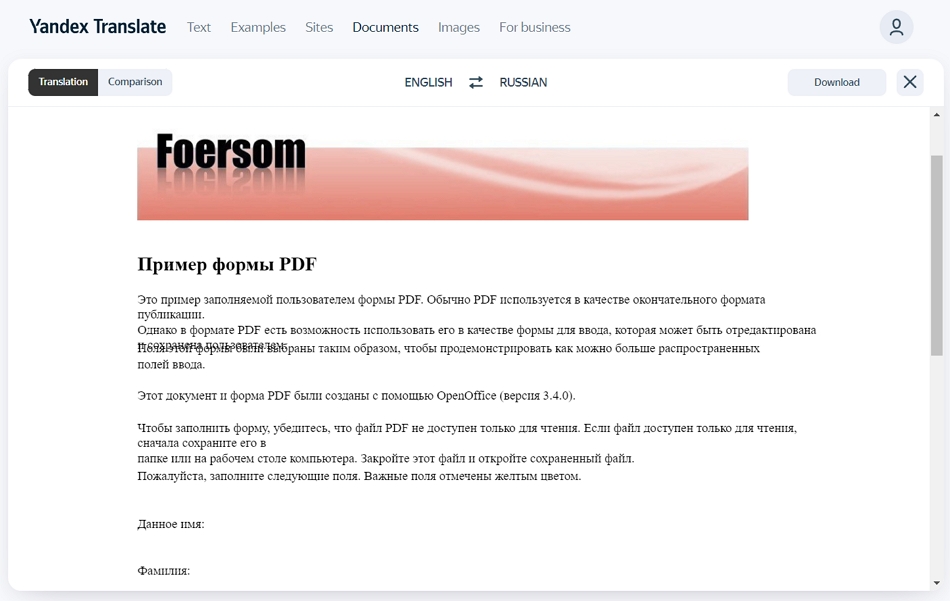
Yandex PDF Reader Translator
Key Features
- Translate PDF documents in over 190 languages.
- Fast translation process.
- Preview translation output before exporting.
Go to Yandex Translate
Conclusion
That’s the end of the best 7 PDF readers with translators in the market. Some of them emphasize more on the PDF viewing experience, while some provide better PDF translation services.
In general, PDFgear is our top recommendation because it provides unparalleled PDF viewing, editing, and translation services with AI. Besides, it is free to download and use. Download it to all your devices and boost efficiency anytime and anywhere.
