How to Underline in PDF for Free

Summary :
In this article, you’ll learn how to underline in PDF for free using PDFgear’s online service, offline software, and Adobe Acrobat Reader.
Table of Contents
Underlining in PDFs is a practical way to emphasize important information without altering the original content. Readers use it to highlight key points, clarify structure, or support active reading and studying.
Learn how to underline in PDF with different tools, or get started with PDFgears’s free online editor right away!
Underline Text in PDF Online for Free
PDFgear online PDF editor offers a free and convenient way to underline, highlight, strikethrough text in PDF files.
There’s no need for software installation, all you need to do is to open the file in your browsers, and get the job done in simple clicks.
PDFgear is free to use, there’s no watermark, and there’s no sign up.
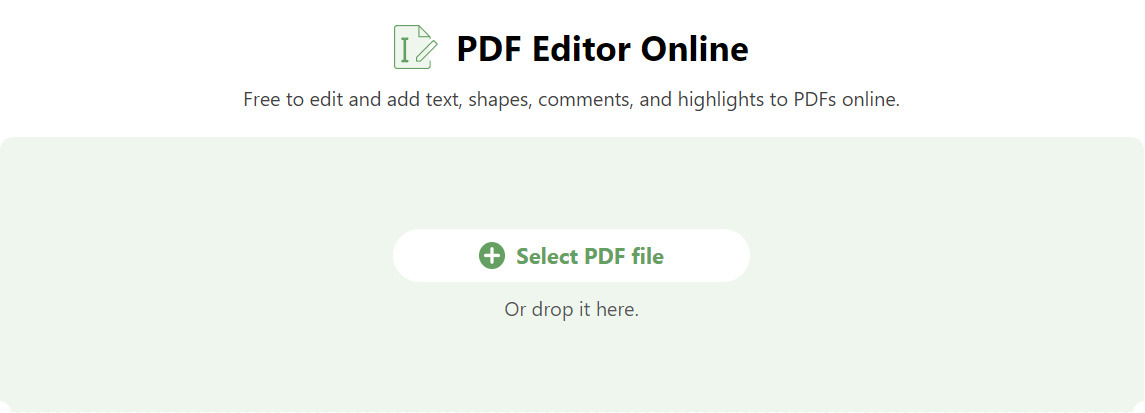
Step 1. Go to PDFgear online PDF editor, click Select PDF File button to open the PDF you need to underline.
Select PDF file
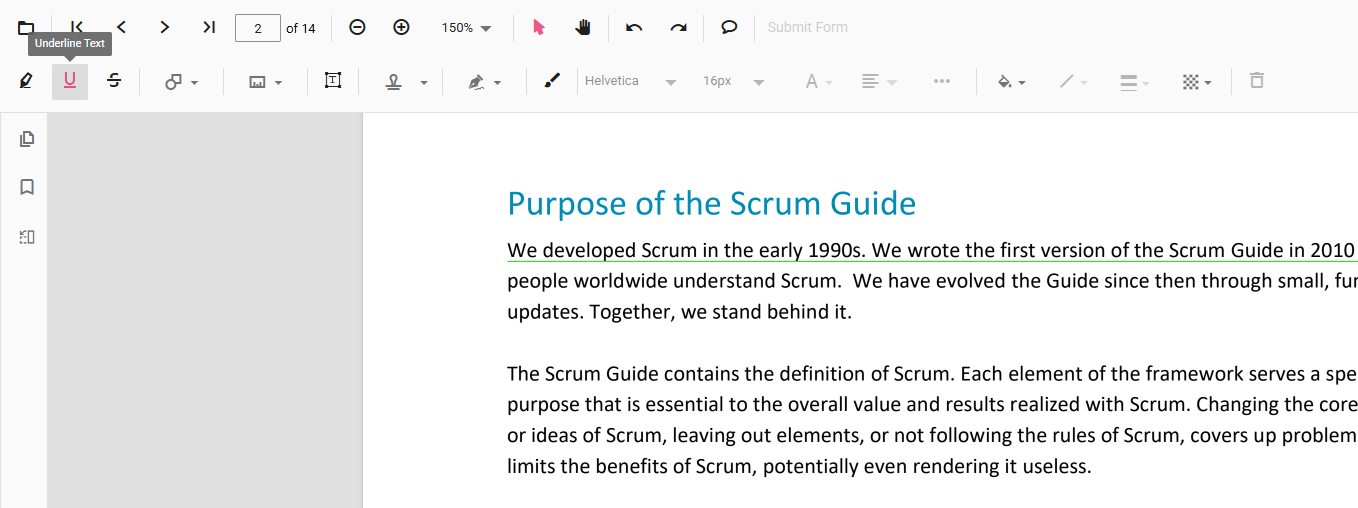
Step 2. Click the top-left Underline Text button and select the PDF text to add an underline for it.
Underline Text
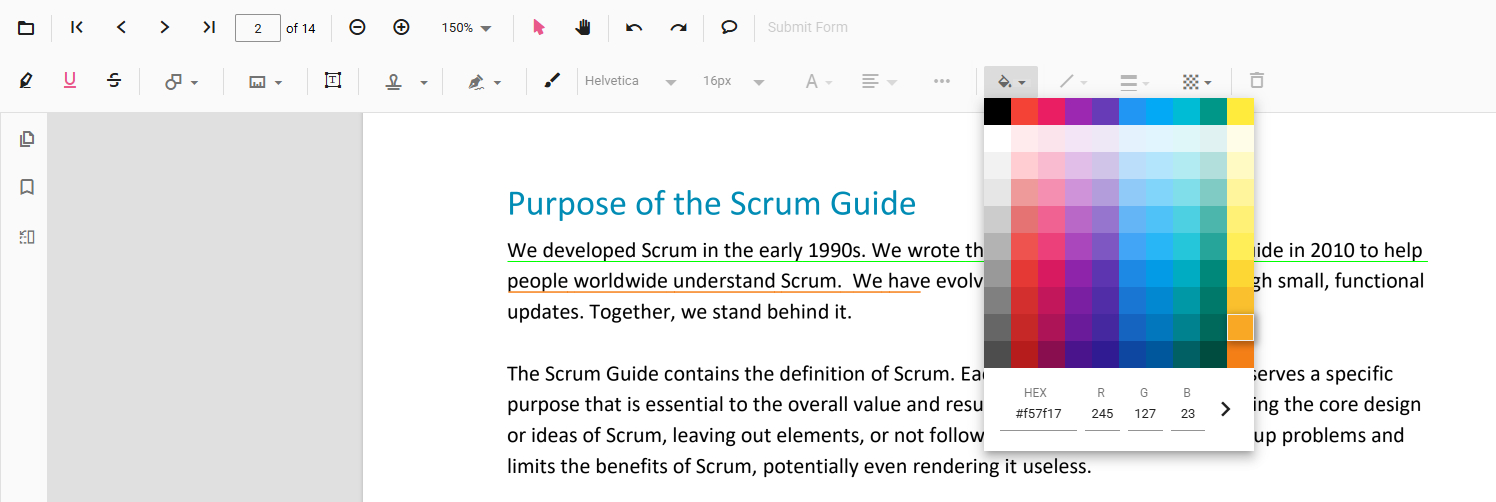
Step 3. Use the Change Color button on the upper menubar to change the underline color.
Change Underline Color
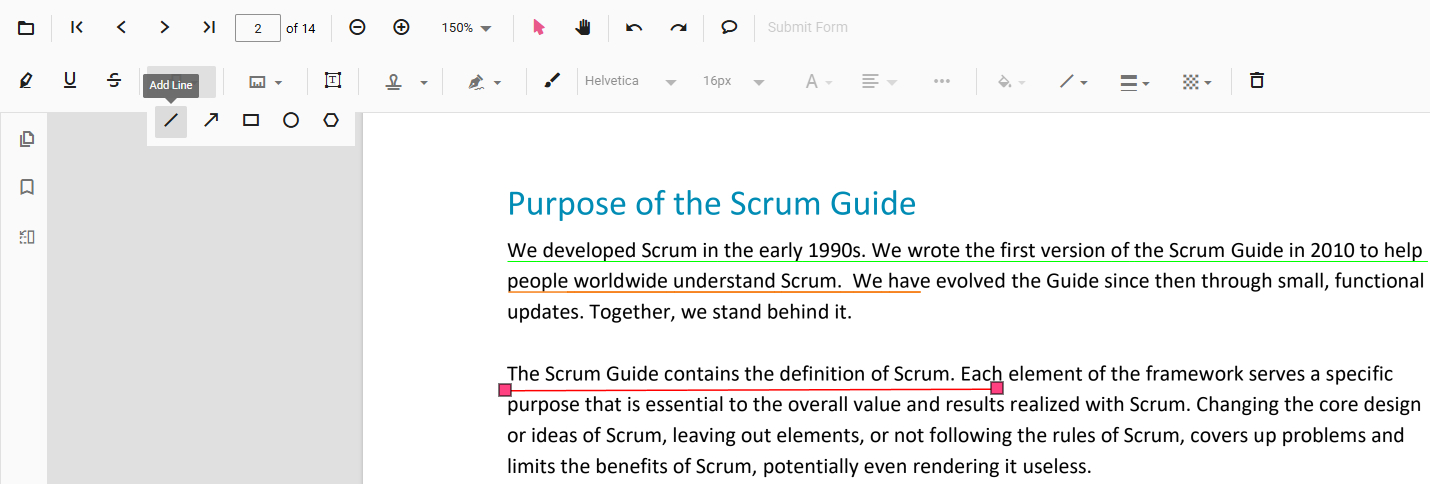
Step 4. In some cases, you can’t or can’t accurately select text in the PDF, then you can use the Shapes > Line shape to underline text.
Underline with Line Shape
Step 5.
Step 6.
Underline Text in PDF Offline for Free
PDFgear is the best free alternative to Adobe Acrobat Pro that allows you to underline and edit PDFs for totally free.
Free to underline, strikethrough, and highlight text in PDF documents for free on computer and mobile.
Support is available across a variety of platforms, including Windows, macOS, and iOS. PDF editing, creation, and conversion can be easily achieved. It can maximize the efficiency and convenience of using PDF.
Step 1. Open PDF
Download PDFgear and install it on your device, then click “Open File” and select the PDF you need to edit.
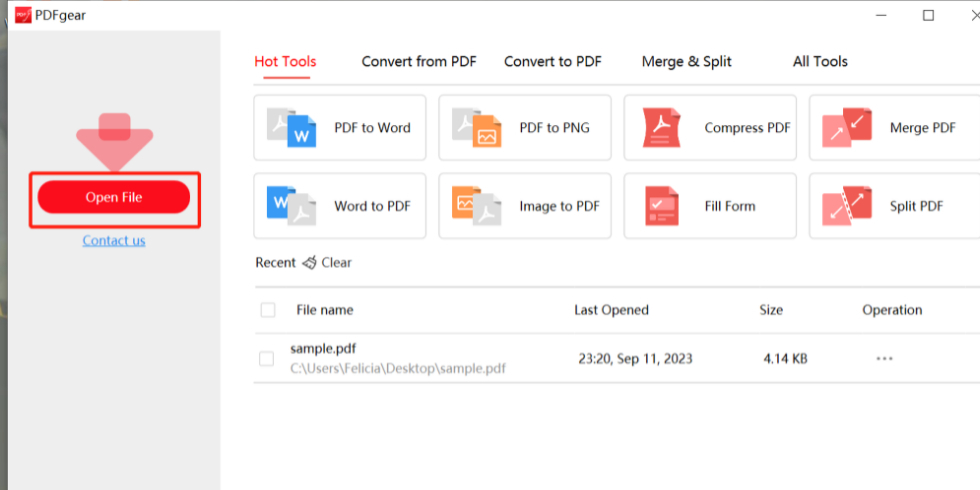
Open PDF in PDFgear
Step 2. Enter Comment Mode
Click “Annotate” > “Underline” in the upper toolbar and select the color of the underline.
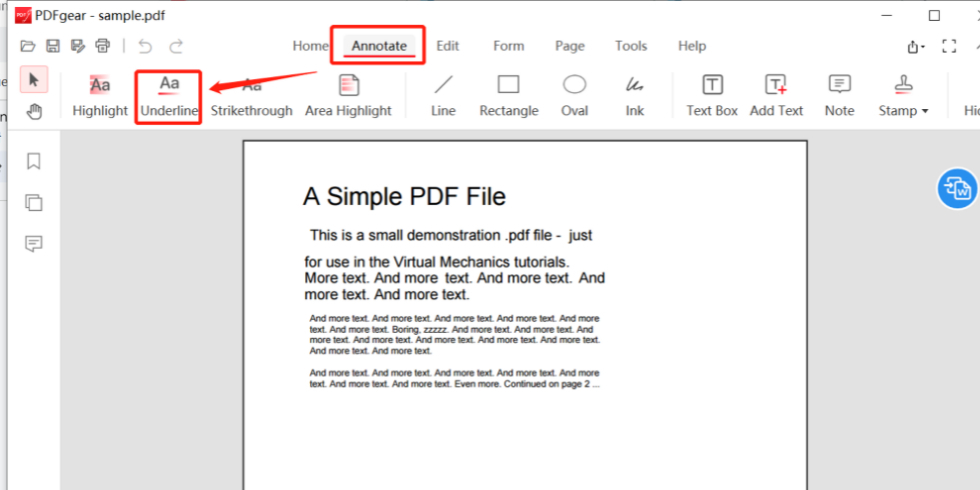
Check Underline Banner
Step 3. Select Text that Needs to Be Underlined
Move the cursor to select the text that needs to be underlined to add underline to the PDF.
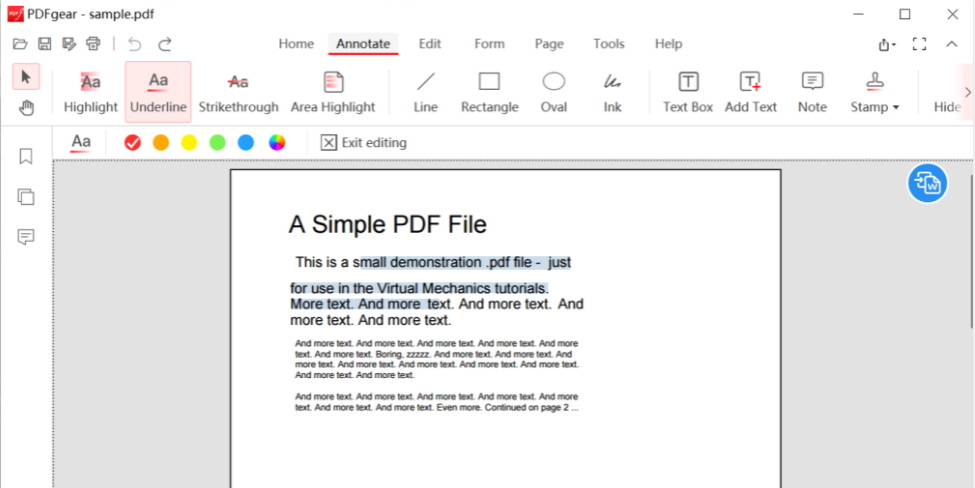
Select Text
Step 4. Save Edits
Click the “Save” icon in the upper left > Hit “Exit Editing”.
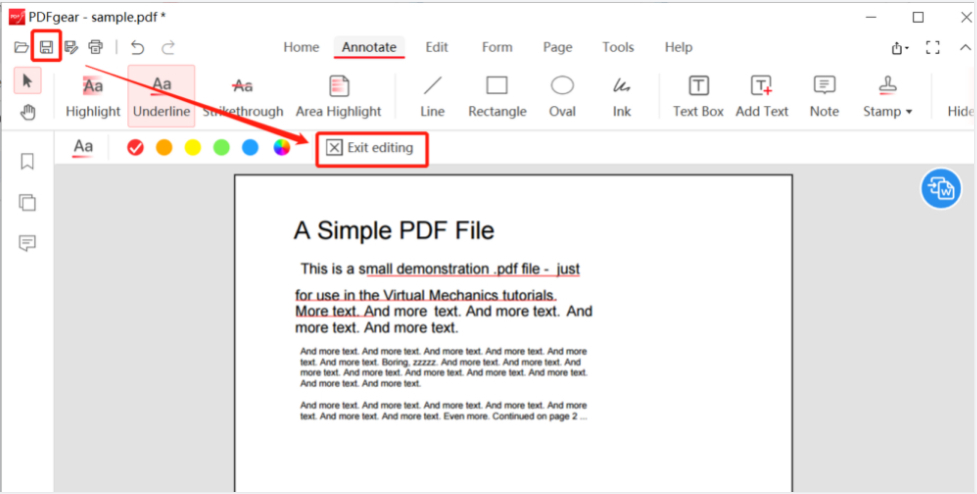
Save Changes
PDFgear also provides very comprehensive PDF editing functions. Just click “Edit” on the upper toolbar to make the PDF editable, and easily add text, edit text, and add signatures in the PDF.
Underline Text in PDF in Adobe Acrobat Reader
Adobe Acrobat is one of the leading tools for working with PDFs, supporting reading, creating, and editing PDFs. Its versatility and advanced features make it a popular choice among professionals and students. Its comprehensive editing features allow you to underline in PDF very easily.
In addition to this, the program also allows you to edit text, add images, and more.
Step 1. Open your PDF file in Adobe Acrobat.
Step 2. Click “Tool”> In the toolbar in the upper left corner and select “Edit PDF”.
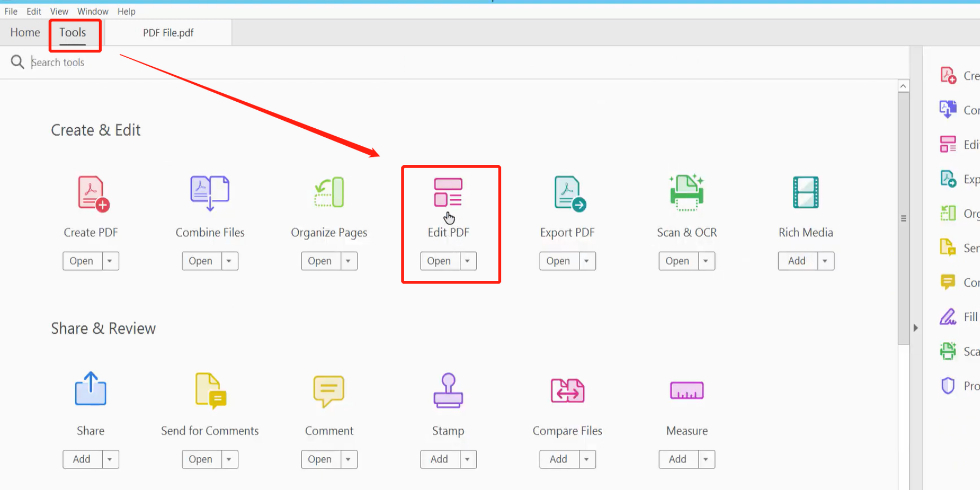
Enter Edit Mode
Step 3. Place the cursor in front of the text you want to underline, and drag the cursor to select the text you want to underline. Click the “underline” icon on the right toolbar.
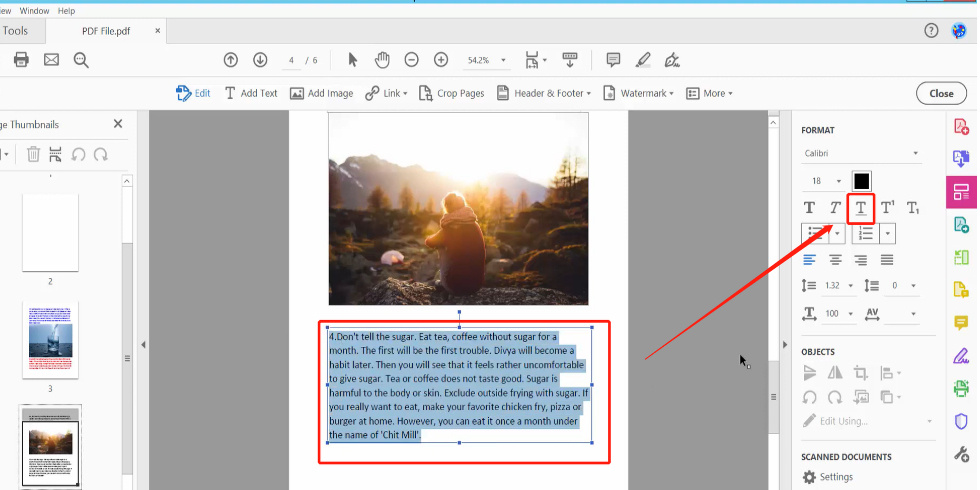
Underline in PDF
This is the easiest way to add underlining in PDF, but this way is not suitable for all types of PDF files.
FAQs
Why Can’t I Underline in PDF?
There may be several reasons for not being able to add underlines in a PDF:
1. Make sure you are using the appropriate editing tool, such as Adobe Acrobat or PDFgear.
2. PDF documents may be password protected and restrict editing.
3. PDF documents may be scanned documents or image-based documents
How Do You Underline a PDF for Free?
Underlining in PDFs with PDFgear is completely free. Just download PDFgear > Open the PDF > Click “Annotate” > “Underline” icon > Select the target text to successfully add underlines and highlight important information.
How To Underline in PDF Online?
The best option for underlining PDF online is PDFgear Online Editor. Simply upload your PDF file and select the underline tool to add underlines to your PDF. You can do it directly in your browser, no need to install additional software.
Is It Possible To Change the Underlined Color in the PDF?
Yes, most PDF editing tools such as Adobe Acrobat and PDFgear allow you to customize underline color. Typically, you can choose from a variety of colors to highlight text based on your preference.
