How to Save a Webpage as PDF on Computer or Mobile

Summary :
Learn how to save webpage as PDF without cutting off on computer and mobile phones, in popular web browsers like Chrome, Edge, Safari, etc.
Table of Contents
Save a Webpage as PDF in Chrome (PC)
The Google Chrome web browser offers a practical virtual printer that allows you to print the current viewing webpages into PDFs, without losing content.
Step 1. Open Google Chrome on your computer.
Step 2. Go to the webpage you want using Google Chrome.
Step 3. Click the triple dots icon ⋮ in the upper-right corner, and click Print from the dropdown.
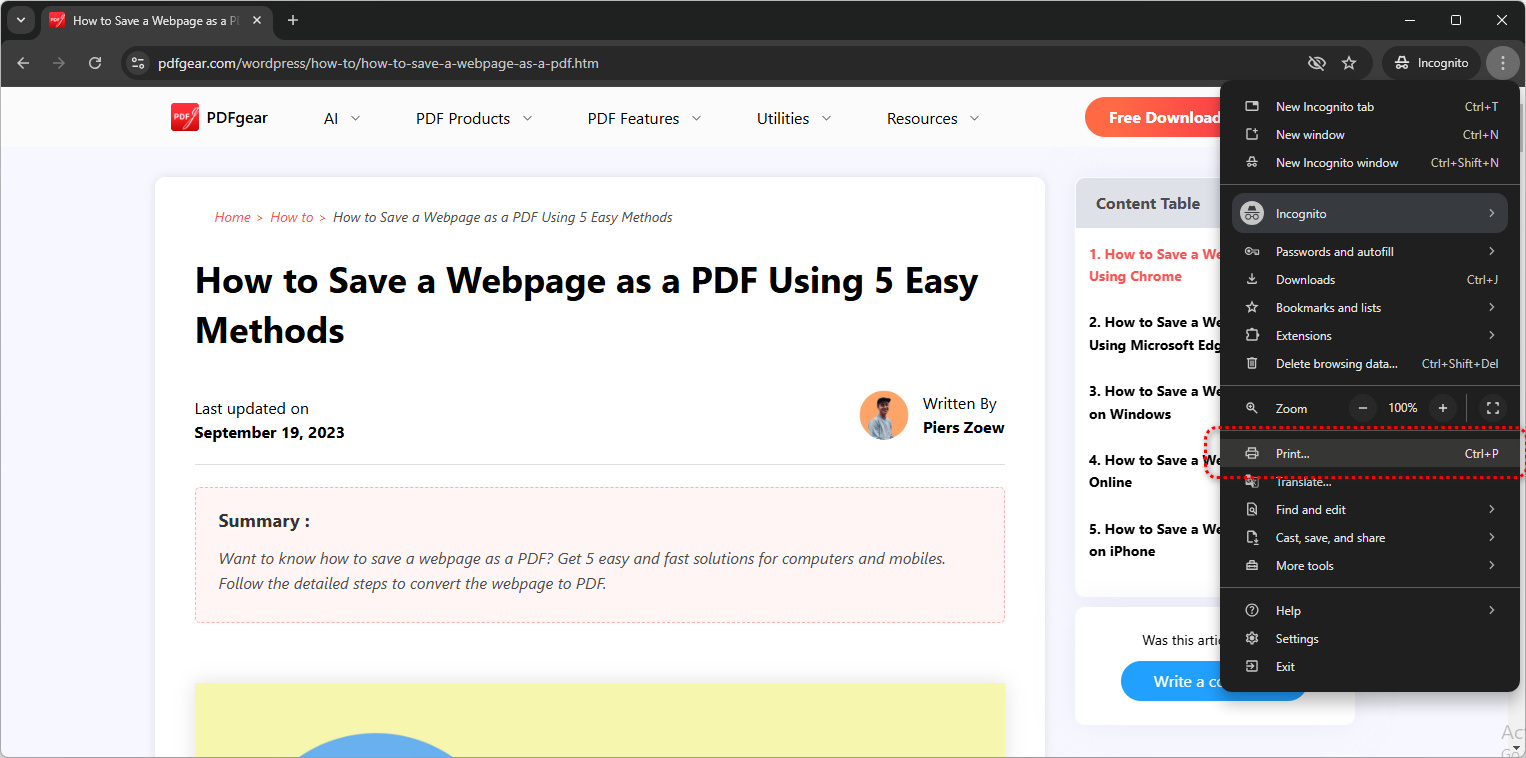
Click Print
Step 4. Choose the destination as Save as PDF, customize other settings if needed, and click Save.
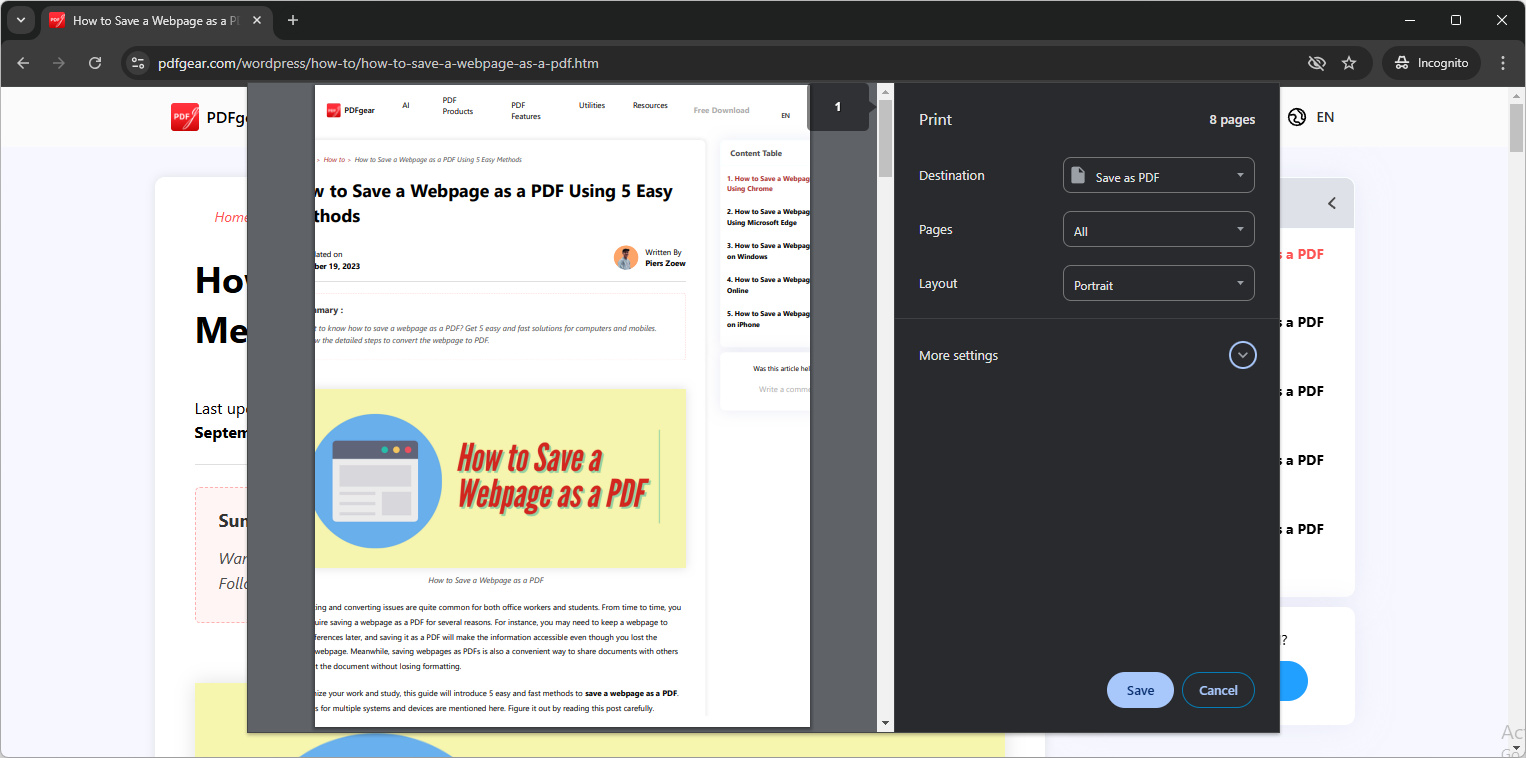
Save as PDF
Step 5. In the pop-up file explorer, choose a preferred file path, click Save.

Save in File Explorer
Save a Webpage as PDF in Microsoft Edge (PC)
Microsoft Edge is the default web browser on Windows PC and laptops, this is how to save webpages as PDF in it.
Step 1. In Microsoft Edge, go to the desired webpage.
Step 2. Click the top-right triple dots button ⋯, and select Print in the dropdown.
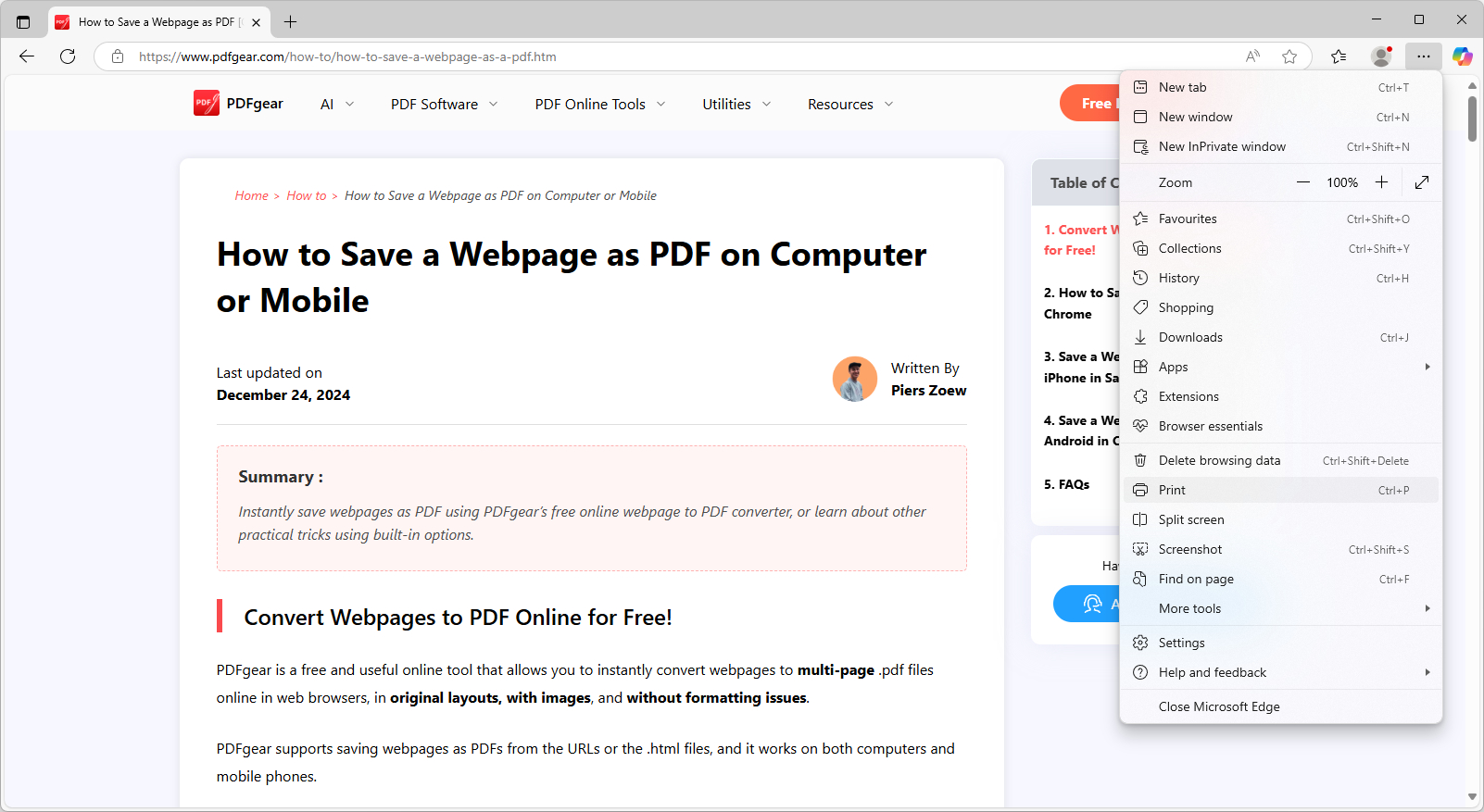
Click Print
Step 3. In printer settings, set the Printer as Microsoft Print to PDF, Save as PDF, or any other installed virtual PDF printer drivers.
Step 4. Click Print below.
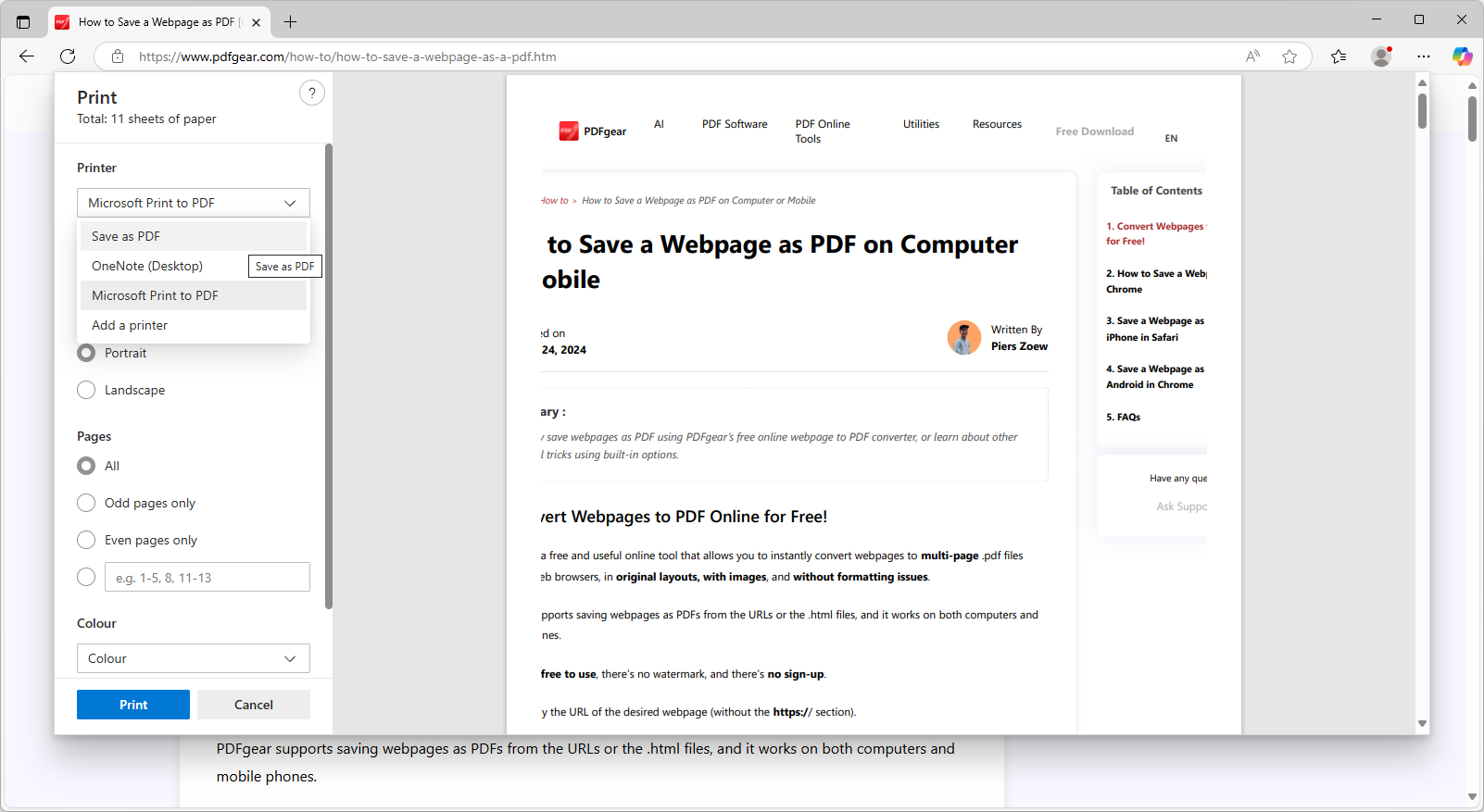
Print Webpage to PDF
How to Save a Webpage as PDF on Mac in Safari
Safari is the default web browser on macOS, this is how to save webpages as PDF in it.
Step 1. Launch Safari on your Mac and go to the webpage you want to save as a PDF.
Step 2. Click on “File” in the Safari menu bar.
Step 3. Scroll down and select “Export as PDF”.
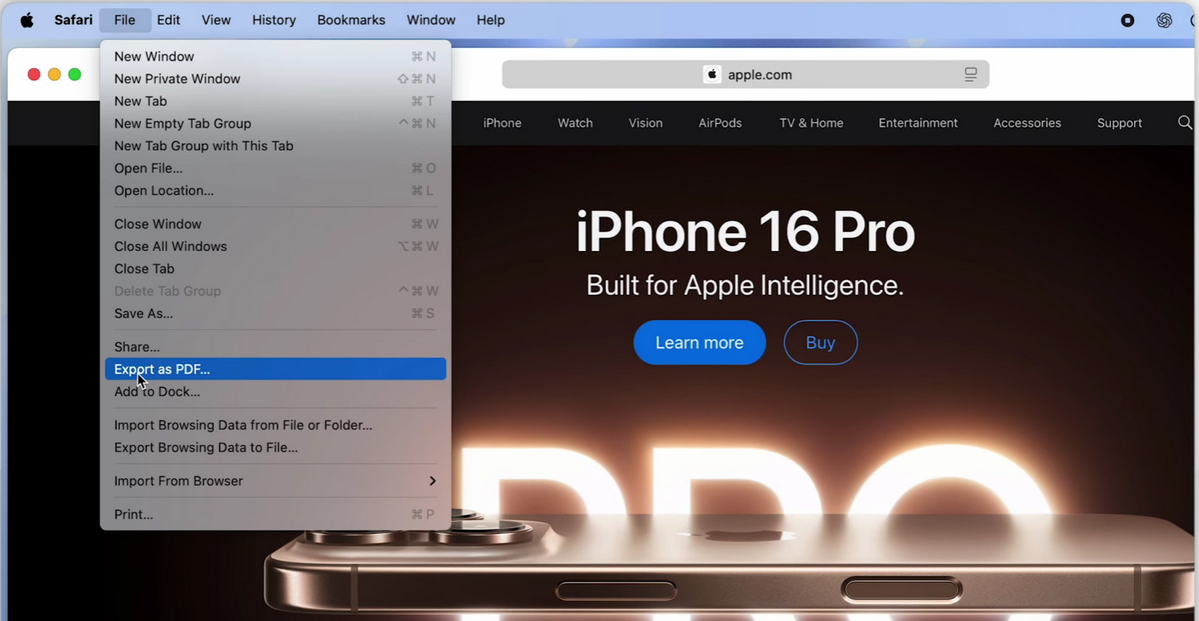
Export Webpage as PDF
Step 4. Select a destination folder on your Mac device.
Step 5. Click “Save” to save the webpage as PDF.
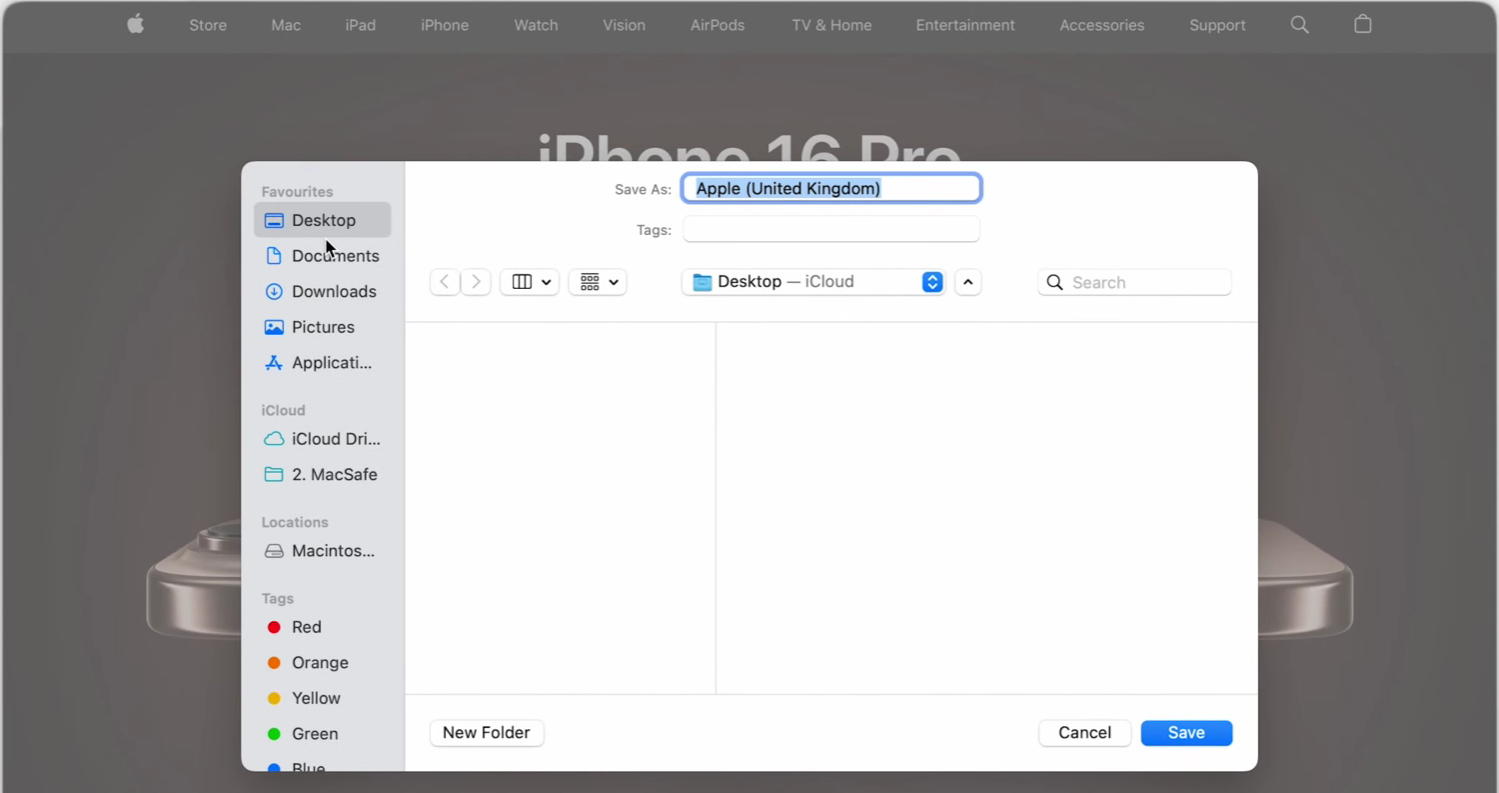
Choose Saving Folder
Save a Webpage as a PDF on iPhone (Safari App)
The Safari browser also allows you to print webpages as PDFs, without the need for any virtual printer drivers.
Step 1. Open Safari on your iPhone or iPad.
Step 2. Go to the webpage that you want to save as a PDF, and tap on the lower Share icon.
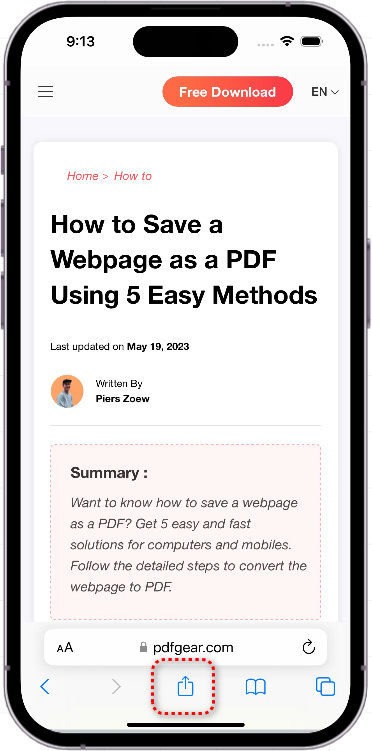
Tap Share
Step 3. Scroll to the bottom and tap on Print.
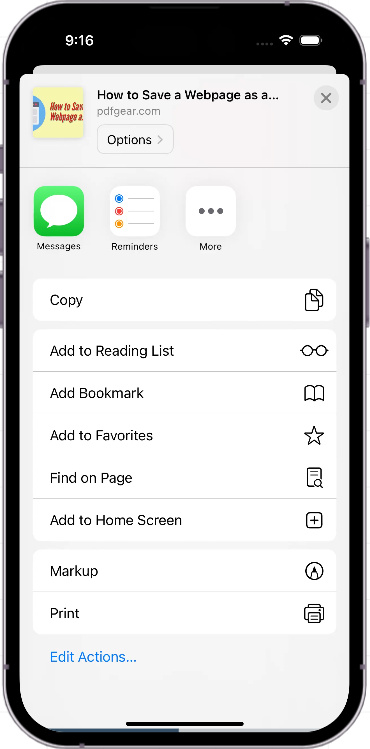
Tap Print
Step 4. In the Print Options menu, tap on the upper Share icon, and select Save to Files.
Then go to the Files app on your iPhone, and the webpage PDF shall be there.
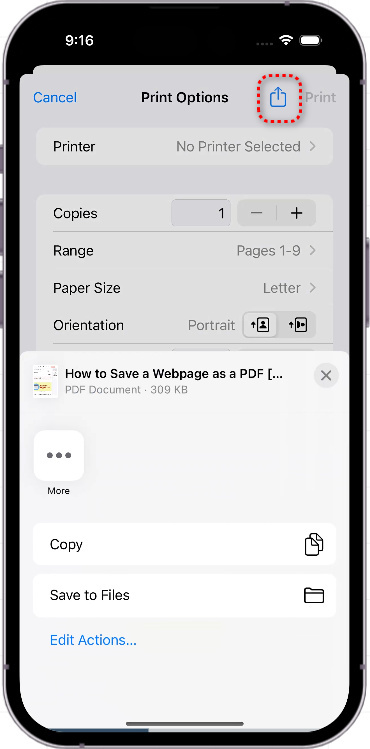
Save to Files
Save a Webpage as a PDF on Android (Chrome App)
If you’re on Android mobile phones or tablets, your Google Chrome Android app doesn’t necessarily have an inbuilt option for printing webpages to PDF.
Yet it does allow you to save webpages as screenshots.
1. Tap on the upper-right triple dots, sometimes it may appear as a triangle icon
2. Tap on Share in the dropdown
3. Tap Long Screenshot from the share menu,
4. You can then use our free image to PDF converter to convert the screenshot to PDF if needed.
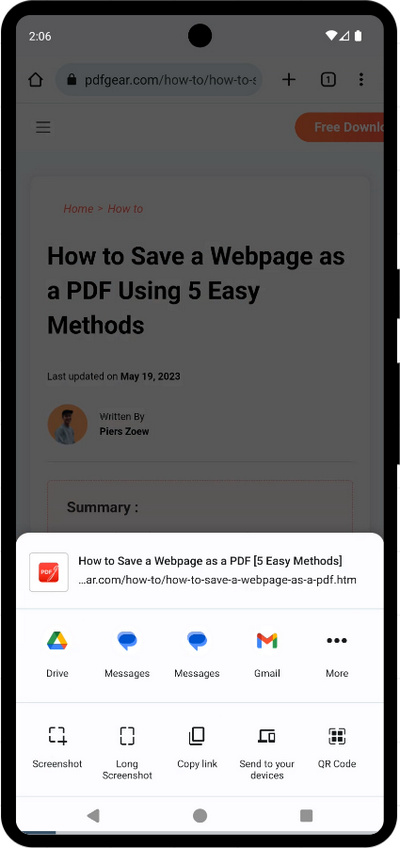
Save as Long Screenshot
Alternatively, you can also use PDFgear webpage to PDF converter to directly convert webpages as PDFs on Android.
FAQs
How do I save a webpage as a PDF in Google Chrome?
- Open the webpage you want to save.
- Click on the three-dot menu in the top-right corner of Chrome.
- Select “Print…” or press Ctrl + P on Windows or Cmd + P on Mac.
- In the Print dialog, change the destination to “Save as PDF.”
- Choose your desired settings and click “Save.”
Can I save a webpage as a PDF on my smartphone or tablet?
Yes, both iOS and Android devices allow you to save webpages as PDFs.
On iOS, you can use the Share button in Safari and then select “Create PDF.”
On Android, you can use the “Print” option in the browser menu and then select “Save as PDF” as the printer.
Is it possible to save an entire website as a PDF, not just a single page?
Most browsers only allow you to save the currently viewed page as a PDF.
To save an entire website, you would need specialized software or services that can crawl the website and compile it into a single PDF.
Why are some parts of the webpage missing or look different when I save it as a PDF?
Some web content, like dynamic JavaScript elements or videos, may not be captured when converting to PDF.
The PDF rendering engine might not process certain CSS styles as they are shown in the browser, leading to differences in appearance.
PDFgear allows you to save webpages as PDFs without losing formatting.
Can I edit a webpage before saving it as a PDF?
Yes, you can edit a webpage by right-clicking and selecting “Inspect” or “Inspect Element” to bring up the developer tools and then modify the HTML or CSS.
You can also use browser extensions or third-party tools that allow you to remove or alter parts of the webpage before saving.
How can I save a secured webpage as a PDF?
If you have permission to access a secured webpage, you can generally save it as a PDF using the same methods mentioned above.
If the webpage has content restrictions, you may not be able to save it as a PDF legally. Always respect copyright and other legal restrictions.
What are some browser extensions or third-party tools I can use to save webpages as PDFs?
Extensions like “Save as PDF” or “Print Friendly” can be added to browsers like Chrome or Firefox to save webpages as PDFs with more options.
