How to Rotate Images in a PDF for Free on Any Device

Summary :
Need to rotate an image in a PDF to ensure proper margins or correct its orientation? Learn two quick methods below to rotate images to a specific degree on Windows, Mac, or other devices.
Table of Contents
How to Rotate Images in a PDF
Research or marketing PDF files often contain images as visual explanations. However, these graphics or photos are not always in the right orientation or need to be adjusted to fit the aesthetic layout.
Despite the availability of numerous PDF tools, most support only PDF page rotation but specific elements. In this post, we have gathered three practical methods to rotate pictures within a PDF by 90, 180 or any other degree.
How to Rotate Images in a PDF with a Free and Simple Tool
Designed as free and cross-platform software, PDFgear’s image rotation feature performs well on both Windows and macOS, covering most PCs.
It quickly detects image elements within a PDF document and enables picture extraction, replacement, deletion, and more. Moreover, tasks like PDF editing and converting can be handled in PDFgear at no charge.
1. Download and install PDFgear on your device. It’s lightweight and no-frills. Then open it.
2. Click “Open File” and select the PDF with pictures to open.
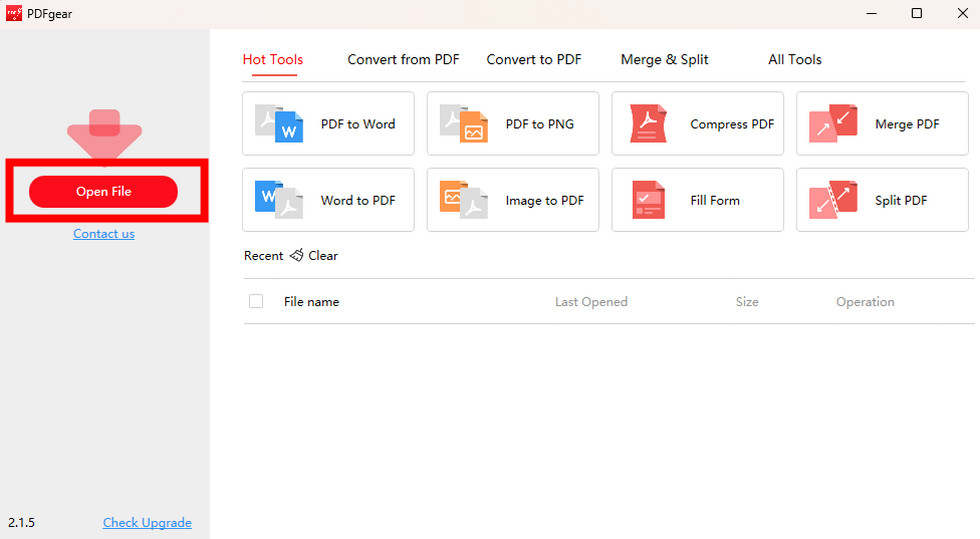
Upload a PDF to PDFgear for Image Rotation
3. Navigate and click the image that needs to be rotated.
3. A line of features appears on the right side of the picture. Click the second icon (a rotate arrow and a rectangle.) to turn the image clockwise by 90 degrees. Keep clicking to make the picture in the desired orientation.
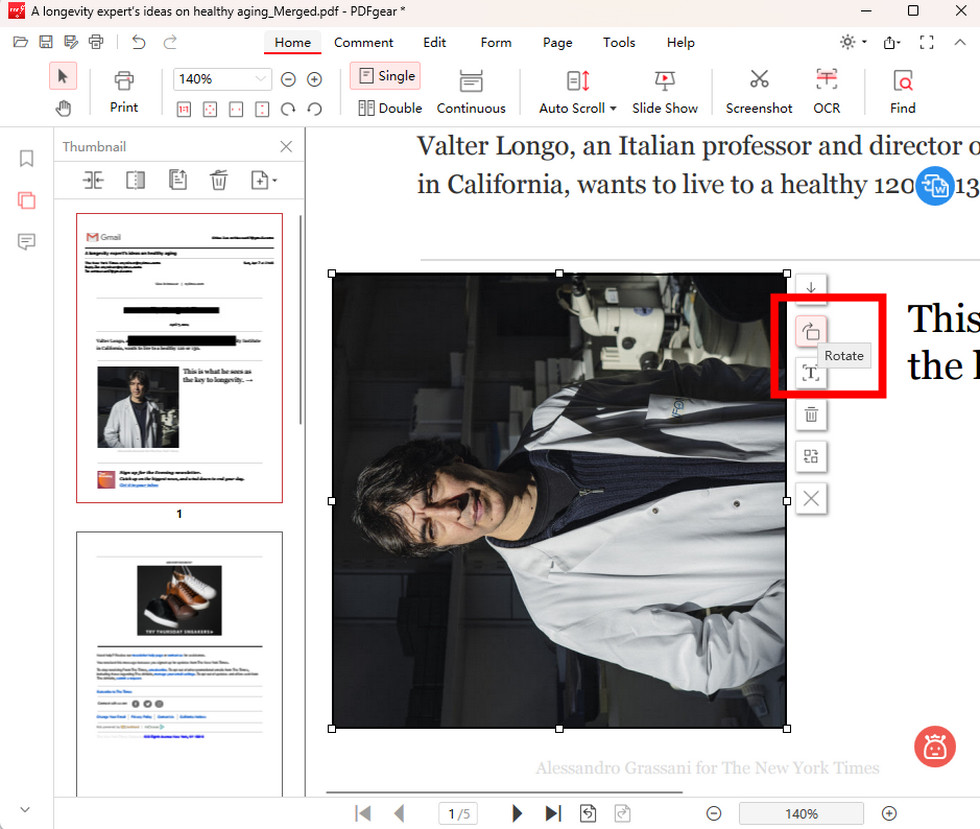
Rotate the Image in PDFgear
4. After changes, press the Save or Save As button in the upper right of the window to store the new PDF.
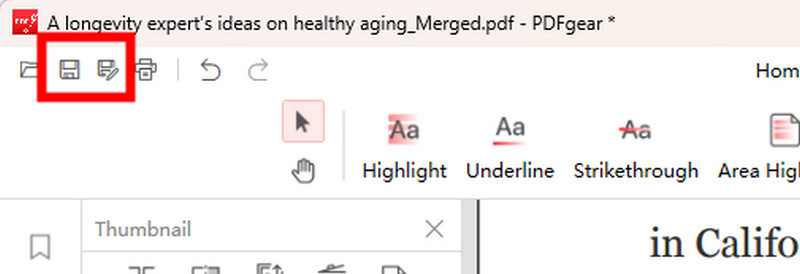
Save the Changes of Image Rotation
If you don’t see an option to rotate the image when you click on it, chances are the entire document is a scanned PDF, and the images are embedded in it.
In such cases, Adobe Acrobat DC comes in handy.
How to Rotate Images in a PDF to Certain Degrees with Adobe Acrobat Pro
Adobe Acrobat Pro is the premium version of Adobe Acrobat designed for professional document editing. With this tool, you can rotate PDF images by any degree.
Additionally, it offers various object-changing functions, including image resizing, flipping a PDF image, and bringing objects front/back, even in a scanned PDF.
While offering many benefits, Adobe Acrobat is far from a budget-friendly application. If you have subscribed to this expensive tool, follow these steps:
1. Launch Adobe Acrobat and open a PDF with it.
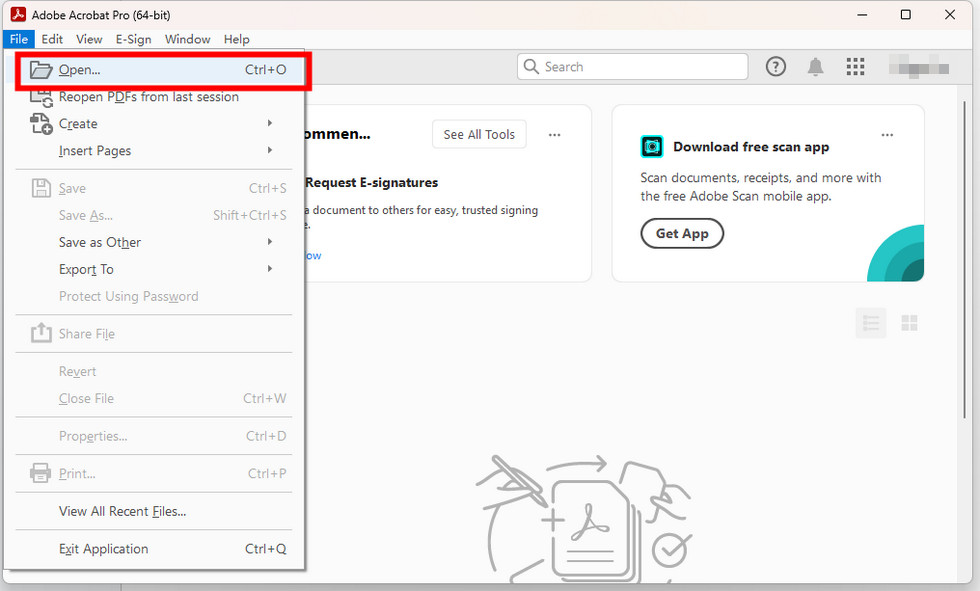
Open a PDF in Adobe Acrobat Pro
2. In the topmost menu bar click the “Edit text & images” button. Click the image and a blue highlight frame appears.
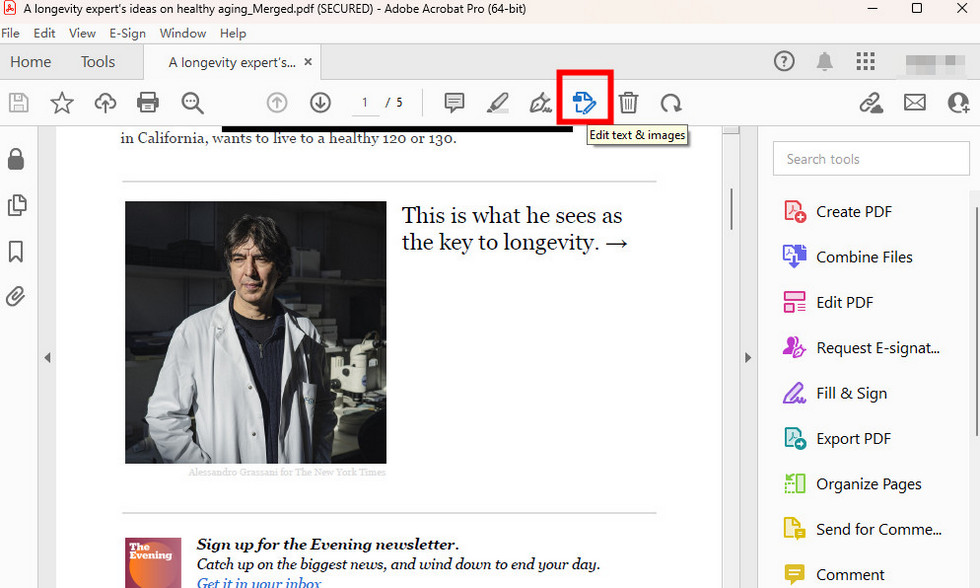
Choose Edit text & images in Acrobat Pro
3. Hover the cursor over the blue rotation pointer until the cursor becomes a rotation pointer. Then, rotate the image as you prefer.
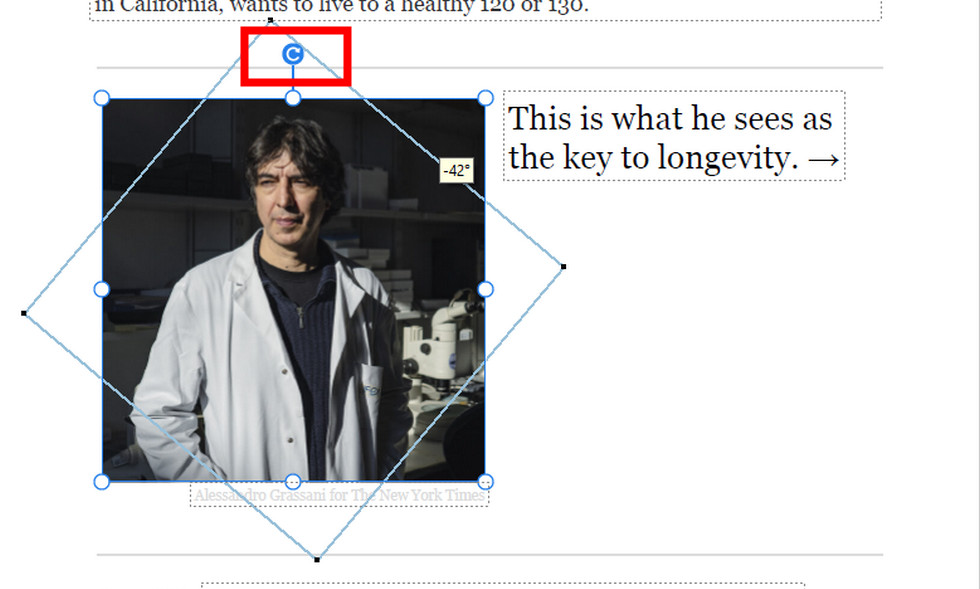
Rotate PDF Images in Adobe Acrobat Pro
4. After rotation, click “File” and select “Save As” to keep the new PDF.
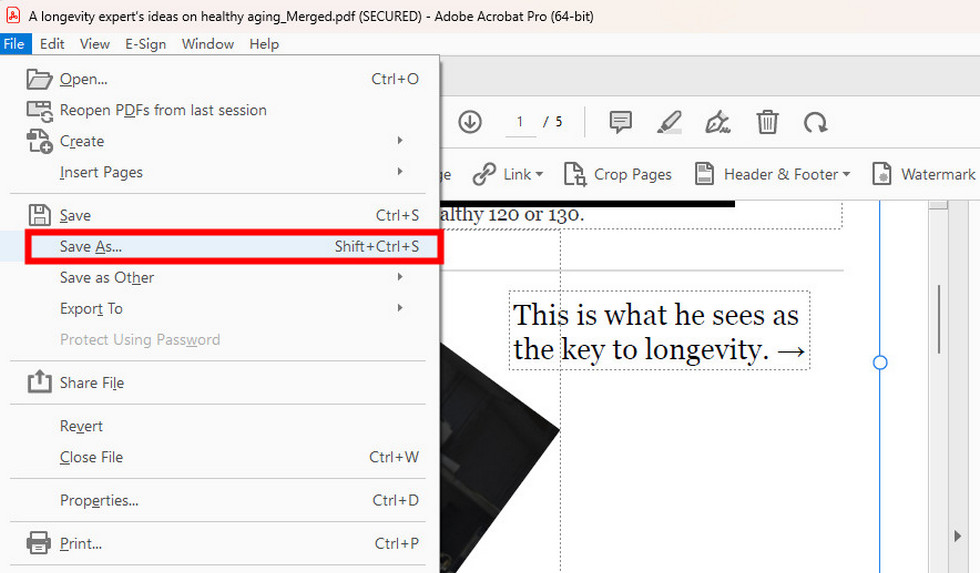
Save the PDF after Image Rotation
FAQs
What should I do if my PDF images are not rotating correctly?
If the PDF images are not rotating correctly, try using a PDF editor like PDFgear or Adobe Acrobat to adjust them manually. Save the changes before closing the file to maintain the correct orientation.
How do I permanently rotate pages in a PDF?
To permanently rotate pages in a PDF, you can use PDFgear PDF editor online > Upload a PDF document to it > Locate the pages you want to rotate > Click the buttons on the right panel to rotate > Click “Rotate PDF” > Press the “Download” button to save the new file.
Can I rotate images in a PDF on a Mac using Preview?
No. Preview does not support rotating images but a whole page in a PDF. To rotate only the images within, you can use PDFgear. It’s free, compatible with Mac, and allows changing the orientation of specific images in a PDF document.
What free tools can I use to rotate images in a PDF?
As mentioned in this post, PDFgear is a free tool to rotate images in a PDF. Simply install and open it on your device > Click the “Upload File” button to open the PDF file you want to edit > Use the rotate button located to the right of the image, click it until the image is oriented as desired > Press the “Save As” button in the upper right corner of the window to save your changes.
Why won’t my PDF images rotate when I try to change their orientation?
Several factors can account for PDF images can’t be rotated:
- The images are embedded in this PDF and are uneditable.
- The PDF is protected from any changes.
- The PDF viewer or editor is incapable of rotating the PDF images’ orientation.
